

Tool access and single sign-on
comrce Hub puts Amainvoice, Billbee, Replyco and VentoryOne in one sidebar. The company owner decides, per person, who may see and open each tool. People without access can ask for it from the tool’s tab. A tool can also sign people in with their comrce Hub account, once they approve what it receives.
What it does
Section titled “What it does”Tools hold business data such as invoices, customer conversations and stock. A new team member should reach the tools they need on day one. A tax adviser may need to know a tool exists without opening it.
comrce Hub controls this with two permissions per tool, one to see it and one to open it. Both are set for each person in each company. Every tool opens inside comrce Hub, in its own tab.
- Everyone sees the tools they may see. An icon is in color when they may open the tool, and grey when not. Tool access in the sidebar and tabs.
- People without the opening permission ask for it from the tool’s tab, and the owner gets an email. The request dialog.
- A tool can sign people in with their comrce Hub account after they approve the data it receives. Tool access and single sign-on.
- A notification from a tool can open that tool directly. Tool access and notifications.
The company’s log under AccountLogs records every access request, sign-in decision and tool link. The owner can see who asked for what, and when.
Before you start
Section titled “Before you start”| Requirement | Details |
|---|---|
| A company in comrce Hub | Tool icons appear only while you work in a company. |
| Role | Any company role can open the tools it has permission for. To change other people’s tool permissions, you need the Owner role or the Editing user permissions permission. |
| A tool set up by comrce | comrce sets up where each tool lives. A tool that is not set up has an icon that does not react. |
| An account at the tool | The tool’s vendor decides whether you need an account there. Once the tool links your account, comrce Hub passes the link on each time it opens the tool. |
| Cost | Opening tools in comrce Hub is free. The tools are billed by their vendors. |
Who can change tool access:
- As the Owner, you can switch every tool permission on or off for every other person in the company.
- With Editing user permissions, you can switch on or off only the tool permissions you hold yourself. You cannot change the owner’s permissions or your own.
Understanding viewing and opening
Section titled “Understanding viewing and opening”Each tool has a viewing permission and an opening permission. Together they put the tool in one of three states for a person:
| Viewing | Opening | What the person sees | Typical example |
|---|---|---|---|
| no | – | No icon for the tool | A Member whose owner switched the tool off for them |
| yes | no | A grey icon, and the tool’s tab shows the access card | A Partner, such as the company’s tax adviser |
| yes | yes | A color icon, and the tool opens | The owner, and every Member by default |
How comrce Hub decides
Section titled “How comrce Hub decides”- Owners can do everything. A person with the Owner role has every permission, whatever the switches show.
- The viewing permission decides the icon. Without it, there is no icon and no way into the tool from the sidebar.
- The opening permission decides the tab’s content. With it, the tab shows the tool. Without it, the tab shows the access card.
- One tab per tool. If the tool’s tab is already open, selecting the icon switches to it.
What does not open a tool
Section titled “What does not open a tool”- An icon for a tool comrce has not set up. The icon does not react.
- A saved link to a tool tab, opened without the sidebar. The tab shows “Invalid or missing URL (must start with http:// or https://)” instead of the tool.
- People without a company. Their comrce Hub has no tools.
Setting it up in three steps
Section titled “Setting it up in three steps”-
Open the person’s permissions. Go to AccountUsers, select the person and find Permissions. The Integrations section lists the permissions for each tool.
-
Choose what they may see and open. Switch on Viewing Billbee to show the Billbee icon. Switch on Opening Billbee to let them open Billbee. Do the same for each tool, then select Save.
-
Ask the person to reload comrce Hub. Their sidebar shows the new icons the next time comrce Hub loads their account.
Switched something on by mistake? Switch it off again and save. The change applies the next time comrce Hub loads that person’s account. For a team-wide plan of who gets which tool, see Add your team and set who can do what.
Every setting, explained
Section titled “Every setting, explained”
Every setting, explained
Section titled “Every setting, explained”Each tool has five permissions in Integrations, and comrce Hub’s own pages use three of them. One more permission, for Marketplace partner apps, sits under Company profile.
Opening a tool, the access switch
Section titled “Opening a tool, the access switch”AccountUsers › the person › Permissions › Integrations: Opening Amainvoice, Opening Billbee, Opening Replyco or Opening VentoryOne. Saved with Save.
On, together with viewing: the icon is in color and the tool opens. Off: the icon is grey, and the tool’s tab shows the access card with Request access. Default: on for the Member role, off for the Partner role. Opening without viewing has no effect, because there is no icon to select.
Opening a tool means acting on orders, invoices or stock. The owner decides who may do that, per tool.
Viewing a tool, the icon switch
Section titled “Viewing a tool, the icon switch”The same section: Viewing Amainvoice, Viewing Billbee, Viewing Replyco or Viewing VentoryOne.
On: the tool’s icon appears at the top of the person’s sidebar. Off: no icon, and the person cannot reach the tool from comrce Hub. Default: on for the Member and Partner roles.
Some people only need to know which tools the company uses. Others should not see a tool at all.
Reading a tool’s dashboard
Section titled “Reading a tool’s dashboard”The same section: Reading Billbee dashboard and its counterparts for the other tools.
Any one of the four lets the person open Dashboard in the sidebar. Without any of them, the Dashboard tab shows the access card. Default: on for the Member and Partner roles. See Dashboard.
The dashboard is for people who follow the tools’ figures, not only for those who work in them.
Alerts and enabling a tool
Section titled “Alerts and enabling a tool”The same section: Reading Billbee alerts and Enabling or disabling Billbee, and their counterparts.
comrce Hub’s own pages do not use these two. A tool can ask for Tool permissions when it signs you in. It then receives your full permission list and can apply it itself. Default: alerts on for the Member role. Enabling is off for every role except the owner.
The owner sets tool-side rights in the same place as everything else.
Installing Marketplace partner apps
Section titled “Installing Marketplace partner apps”Company profile: Managing API connections. Used on a partner’s page in the Marketplace.
Shows Install and Uninstall on partner pages. A partner app can sign people of the company in only while it is installed. Default: owner only.
An installed app receives company data on sign-in, so installing it is a deliberate company decision.
How the settings combine
Section titled “How the settings combine”| Viewing | Opening | Result when the icon is selected |
|---|---|---|
| off | any | No icon |
| on | on | The tool’s tab opens with the tool |
| on | off | The tool’s tab opens with the access card |
Tool access in the sidebar and tabs
Section titled “Tool access in the sidebar and tabs”| Indicator | Meaning |
|---|---|
| Icon in color | You may see and open the tool |
| Icon in grey | You may see the tool but not open it |
| Icon with a highlighted background | The tool’s tab is the active tab |
| No icon | You may not see the tool, or you are not working in a company |
The tool icons in the sidebar
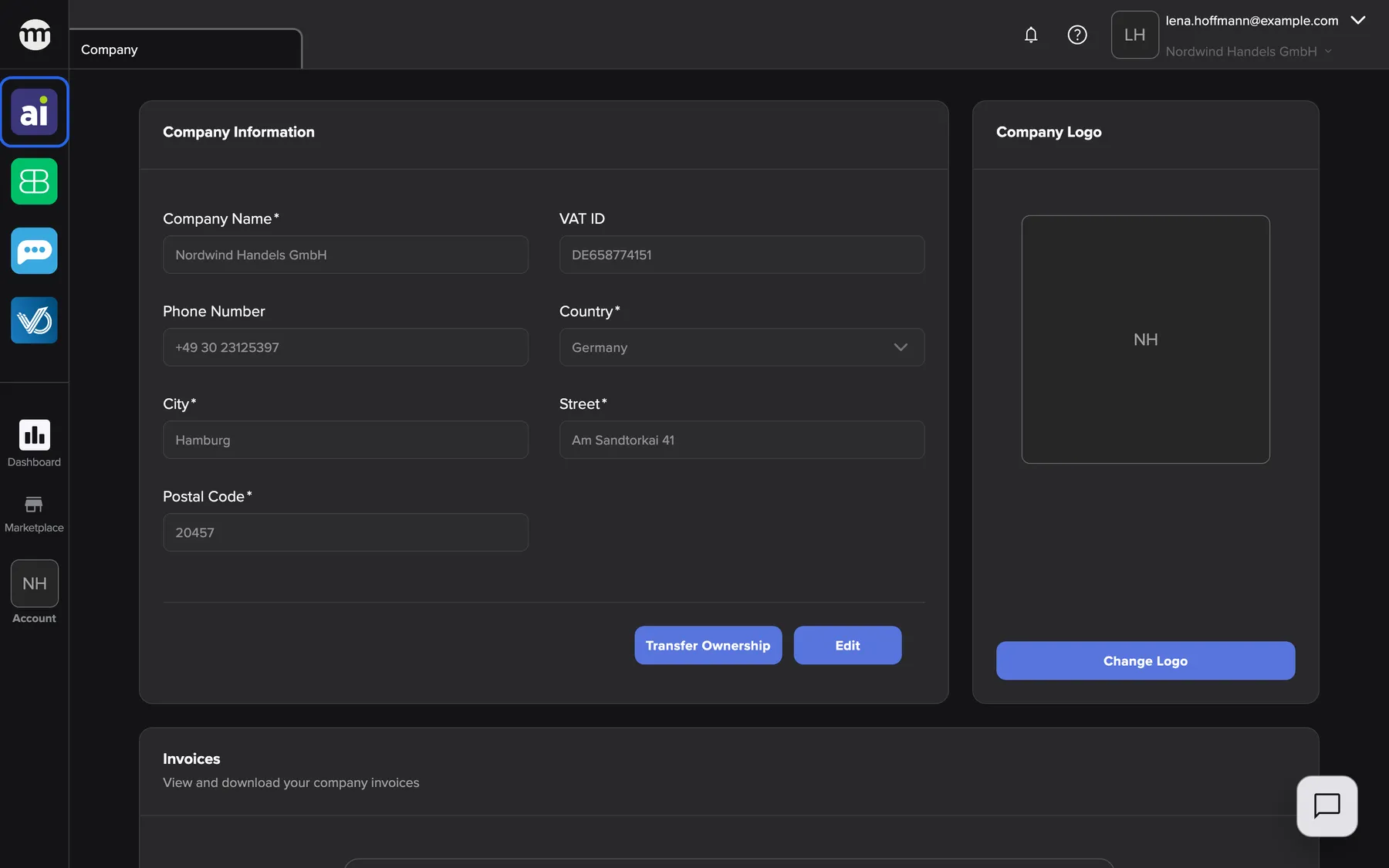
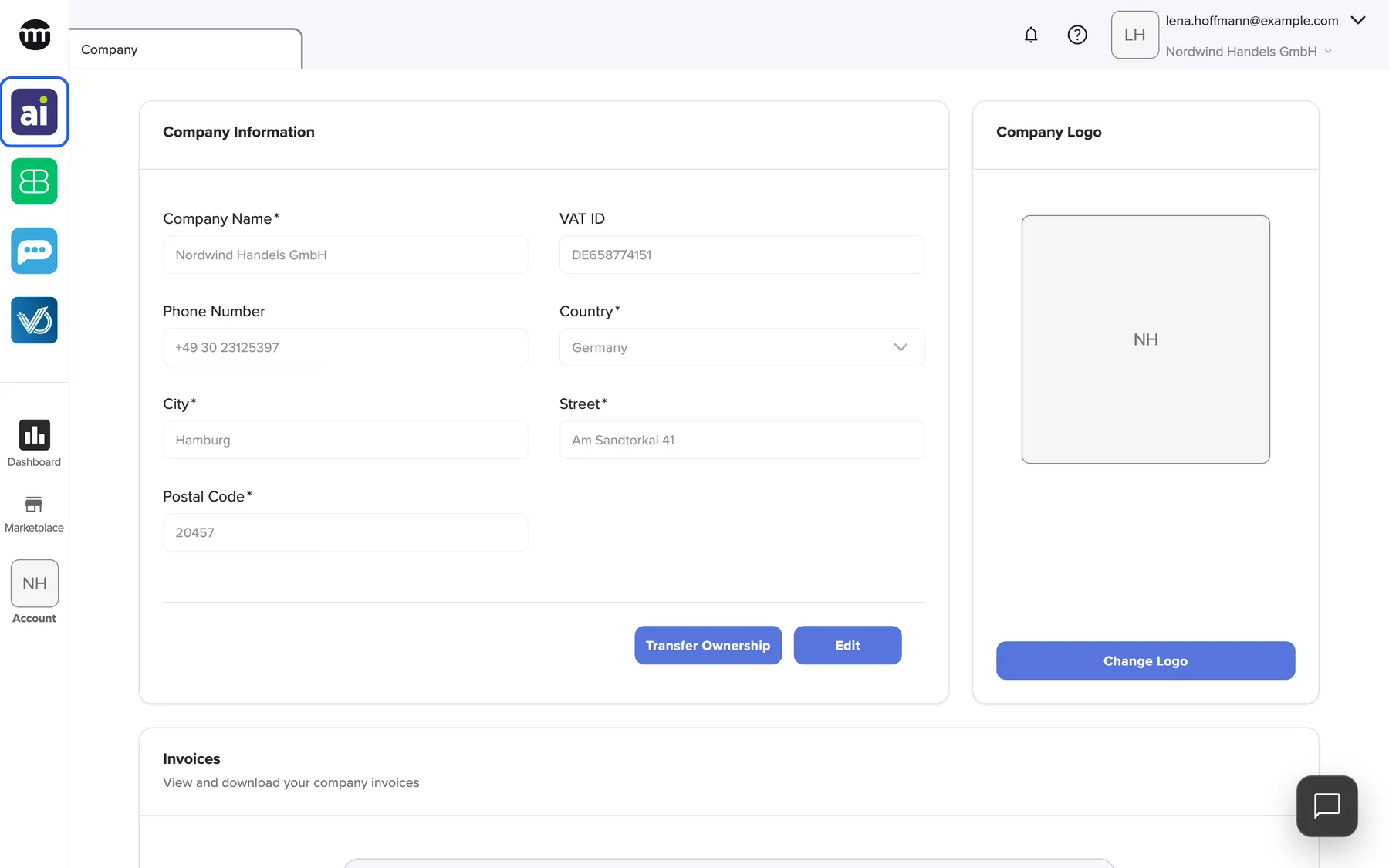
Section titled “The tool icons in the sidebar”The tool icons sit at the top of the left sidebar in a fixed order: Amainvoice, Billbee, Replyco, VentoryOne. Point at an icon to see the tool’s name.
Why: one place for every tool, the same for everyone in the company.
What this screenshot shows
- Screen
- Amainvoice
- Highlighted
- “Amainvoice”: opens Amainvoice
- Also visible
- Four tool icons in colour (Read and Open permission); Company tab open
- Purpose
- where every tool starts
The tool’s tab
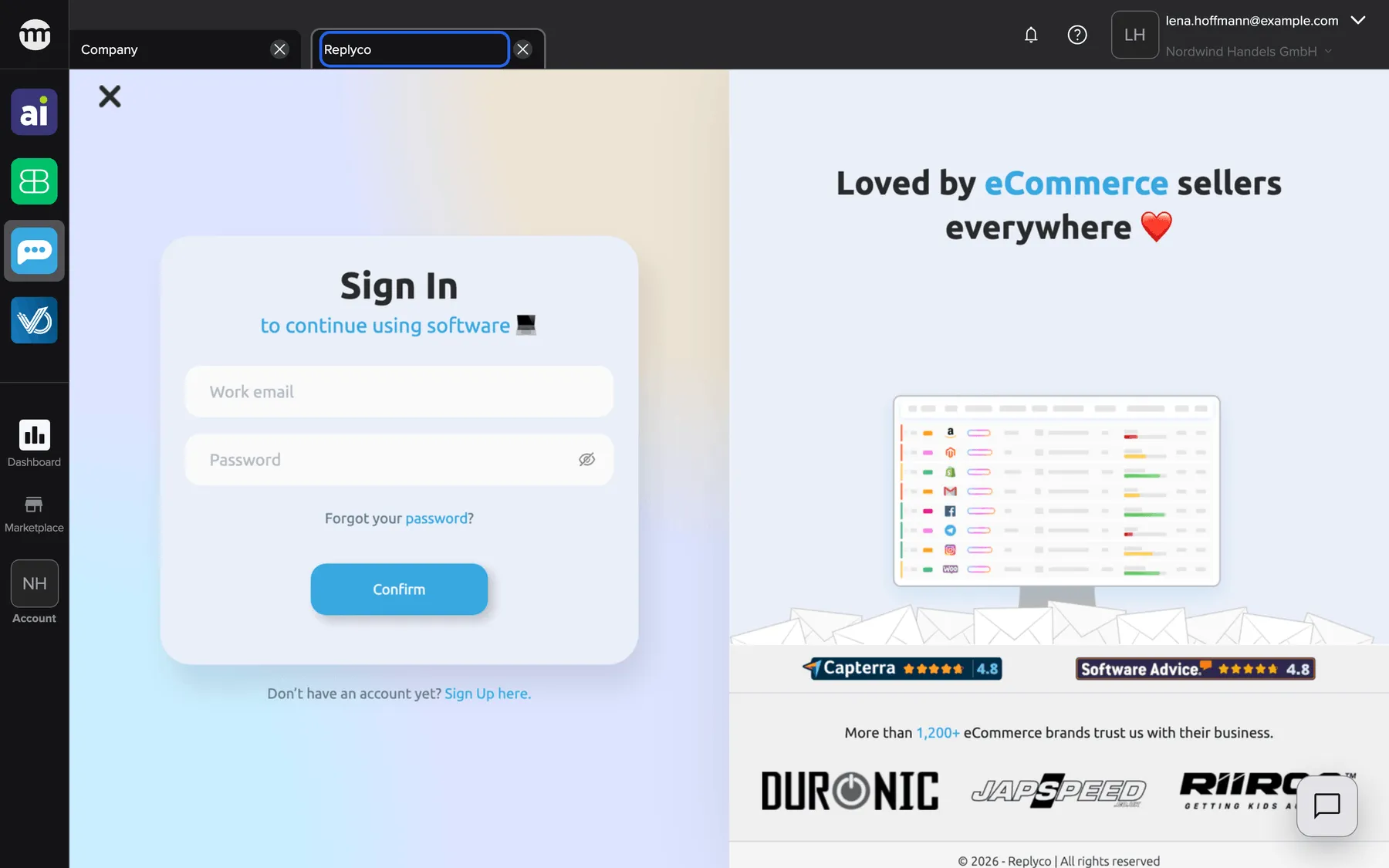
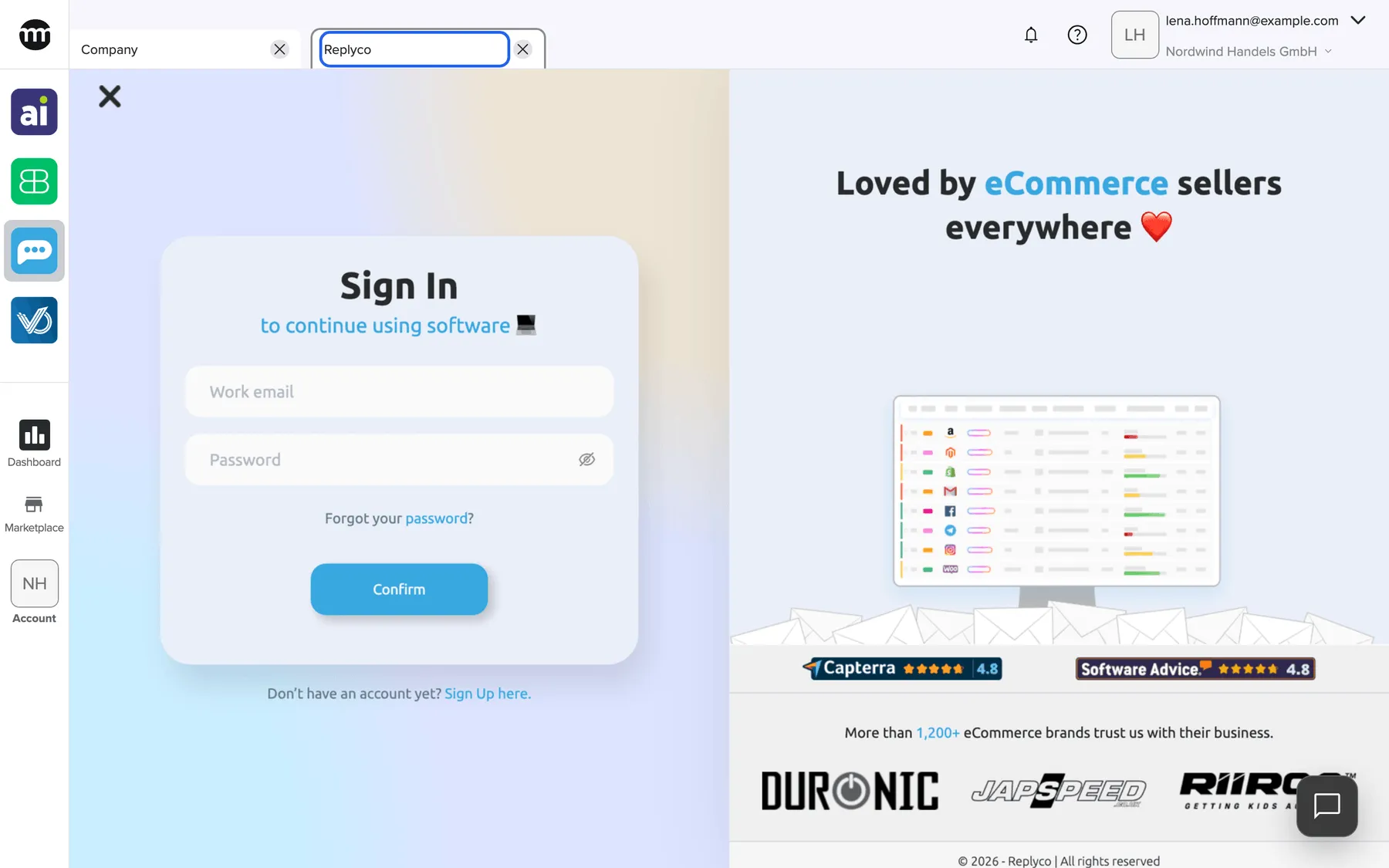
Section titled “The tool’s tab”Each tool gets a tab named after it. The tool fills the content area. The comrce Hub sidebar, tab strip and top bar stay around it. The tab comes back when you reload comrce Hub. In the screenshot, the Replyco tab shows Replyco’s own sign-in page in English.
Why: you keep the tool next to your other comrce Hub work.
What this screenshot shows
- Screen
- Replyco
- Highlighted
- “Replyco”: shows the tool
- Also visible
- Company tab and Replyco tab; Content area: Replyco's own sign-in page
- Purpose
- in-app tab behaviour
Grey icons
Section titled “Grey icons”A person sees grey icons when they have viewing without opening. The screenshot shows a Member of Rosenthal Textil GmbH without the opening permission.
Why: the person knows the tool exists and how to ask for it.
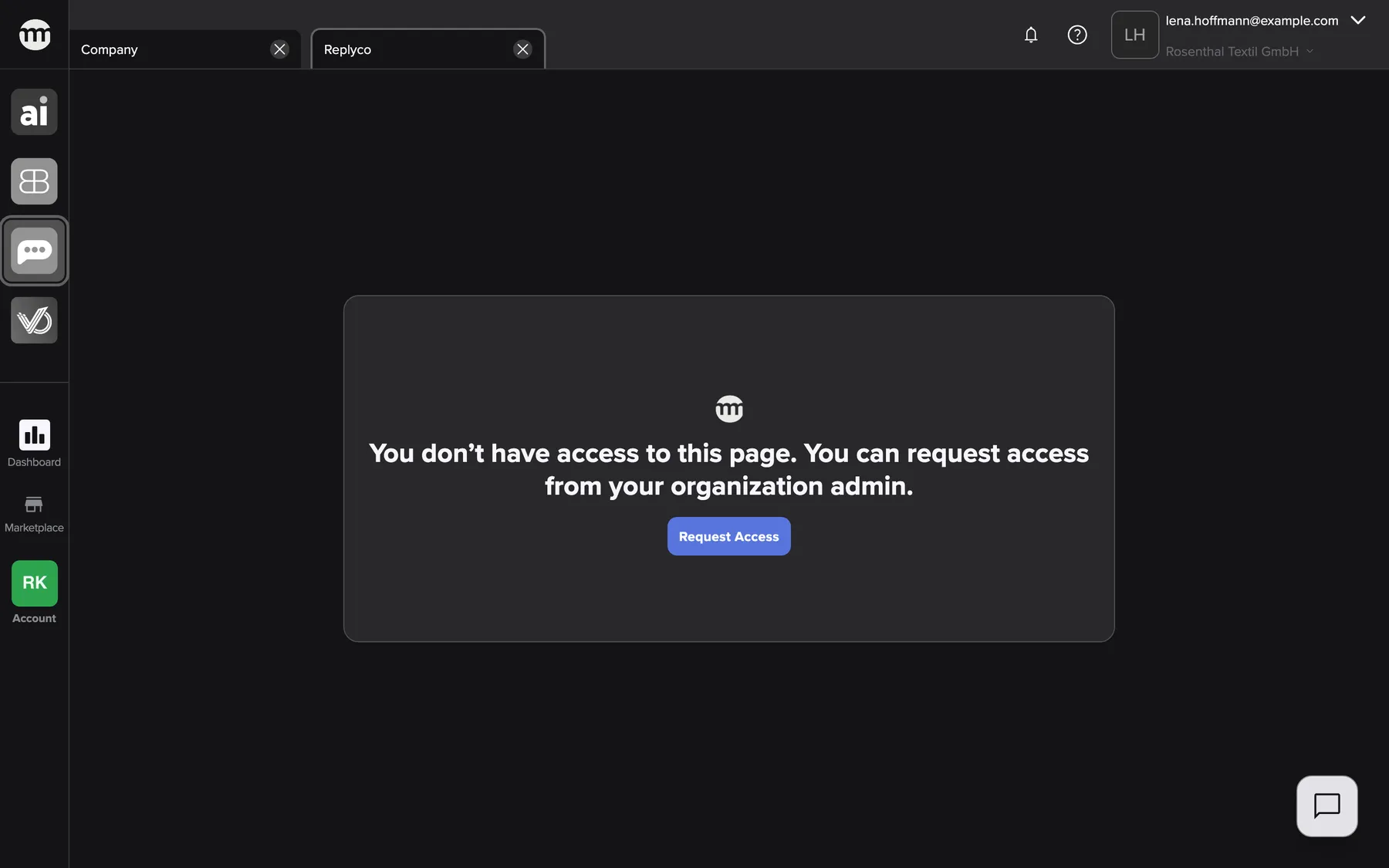
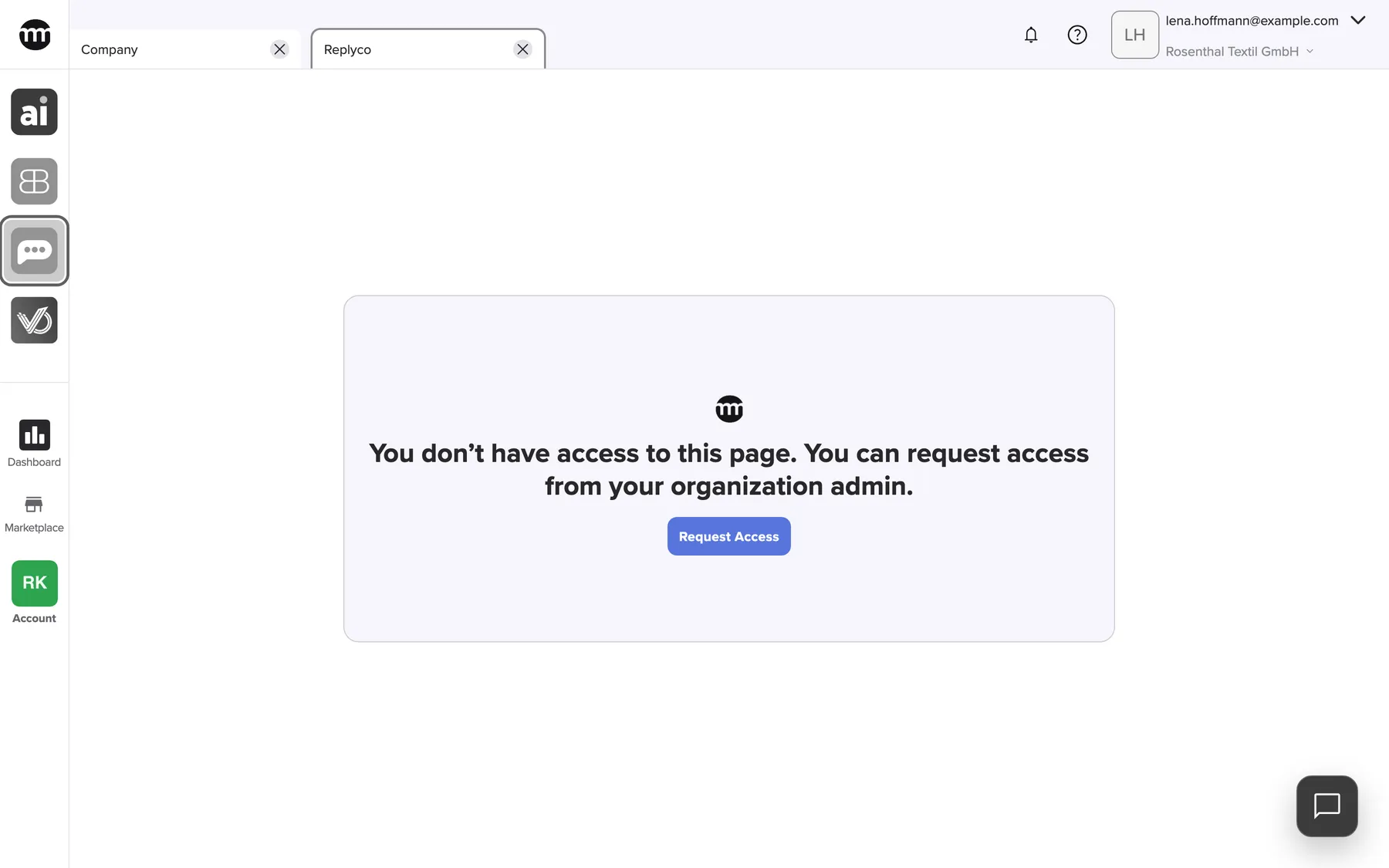
What this screenshot shows
- Screen
- Replyco
- Highlighted
- “Replyco”: opens the tool tab with the request-access card
- Also visible
- Company: Rosenthal Textil GmbH, role Member; All four tool icons greyed
- Purpose
- Read without Open permission
The access card
Section titled “The access card”Selecting a grey icon opens the tool’s tab with the text You don’t have access to this page. You can request access from your organization admin.
Why: the request button sits exactly where the person noticed the missing access.
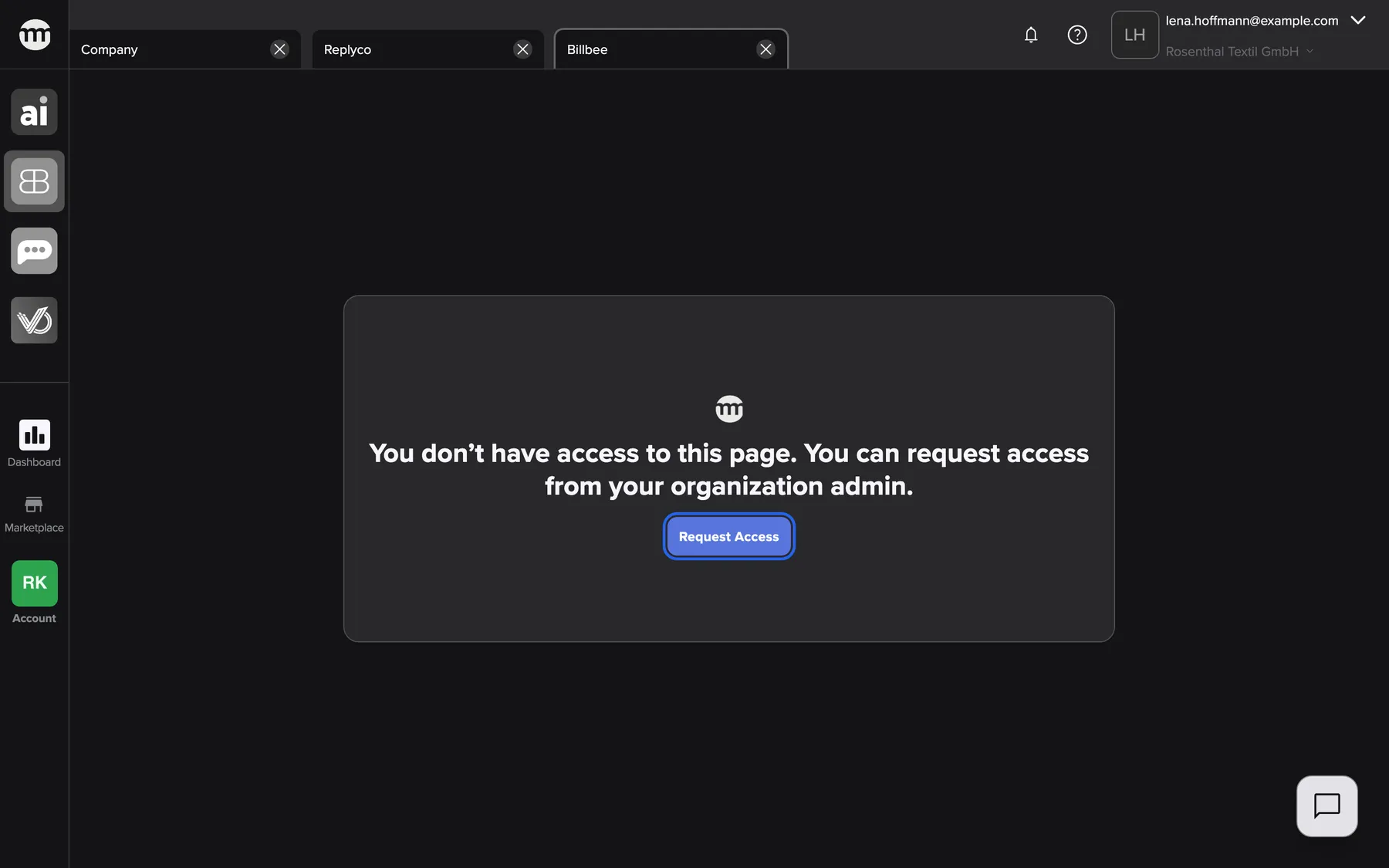
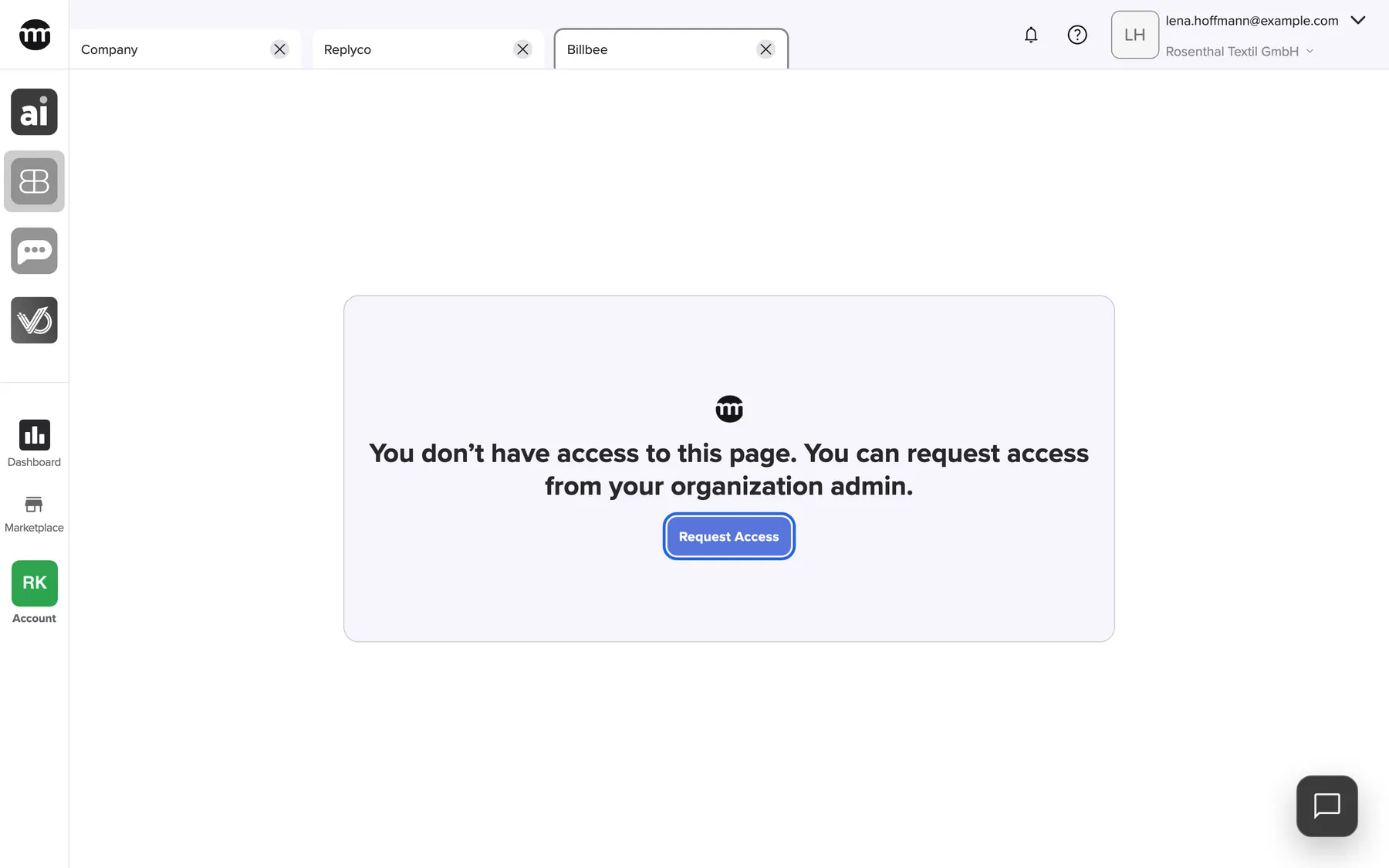
What this screenshot shows
- Screen
- Billbee
- Highlighted
- “Request access”: opens the Request permission dialog
- Also visible
- No-access card
- Purpose
- what a person without Open sees in the tab
The request dialog
Section titled “The request dialog”Request access opens Request permission. The dialog names the company owner and takes an optional reason of up to 128 characters. The request then goes to the owner by email. The email links to the person’s user details, where the owner switches on the opening permission.
Why: the owner gets the request with the context needed to decide.
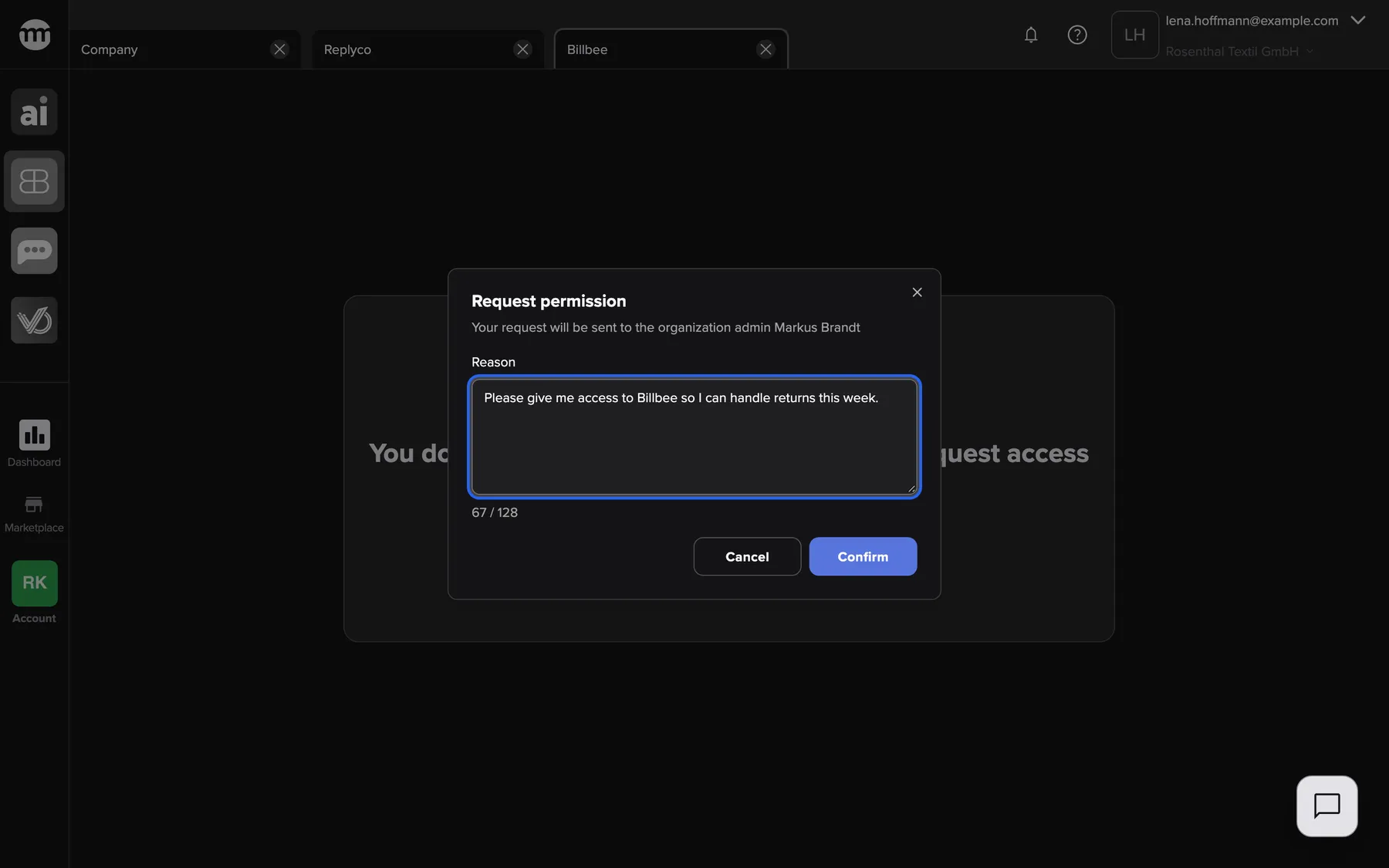
What this screenshot shows
- Screen
- Request permission
- Highlighted
- “Reason”: the reason sent with the request
- Also visible
- Owner name in the description; Character counter; Cancel and Confirm buttons
- Purpose
- requesting the Open permission
Tool access and single sign-on
Section titled “Tool access and single sign-on”The Single Sign-On Request page opens by itself when a tool signs you in with comrce Hub. The same applies to Marketplace partner apps.
comrce Hub names the tool and your email address. It lists every data category the tool asks for, such as Profile, Organization or Tool permissions. Approve signs you in with that data. Deny sends a refusal. A request works once and expires after 10 minutes. Connect a tool to your account describes the whole page.
The tool gets your identity and company context without a separate password, and you see what leaves comrce Hub.
- Replyco asks for Tool permissions → it receives your role and permissions in the company, including Reading Replyco alerts.
- A partner app asks for Billing address → it receives the company’s invoice address, once the company has installed it.
- A tool asks for Write external events → it can link your tool account to comrce Hub and send you notifications.
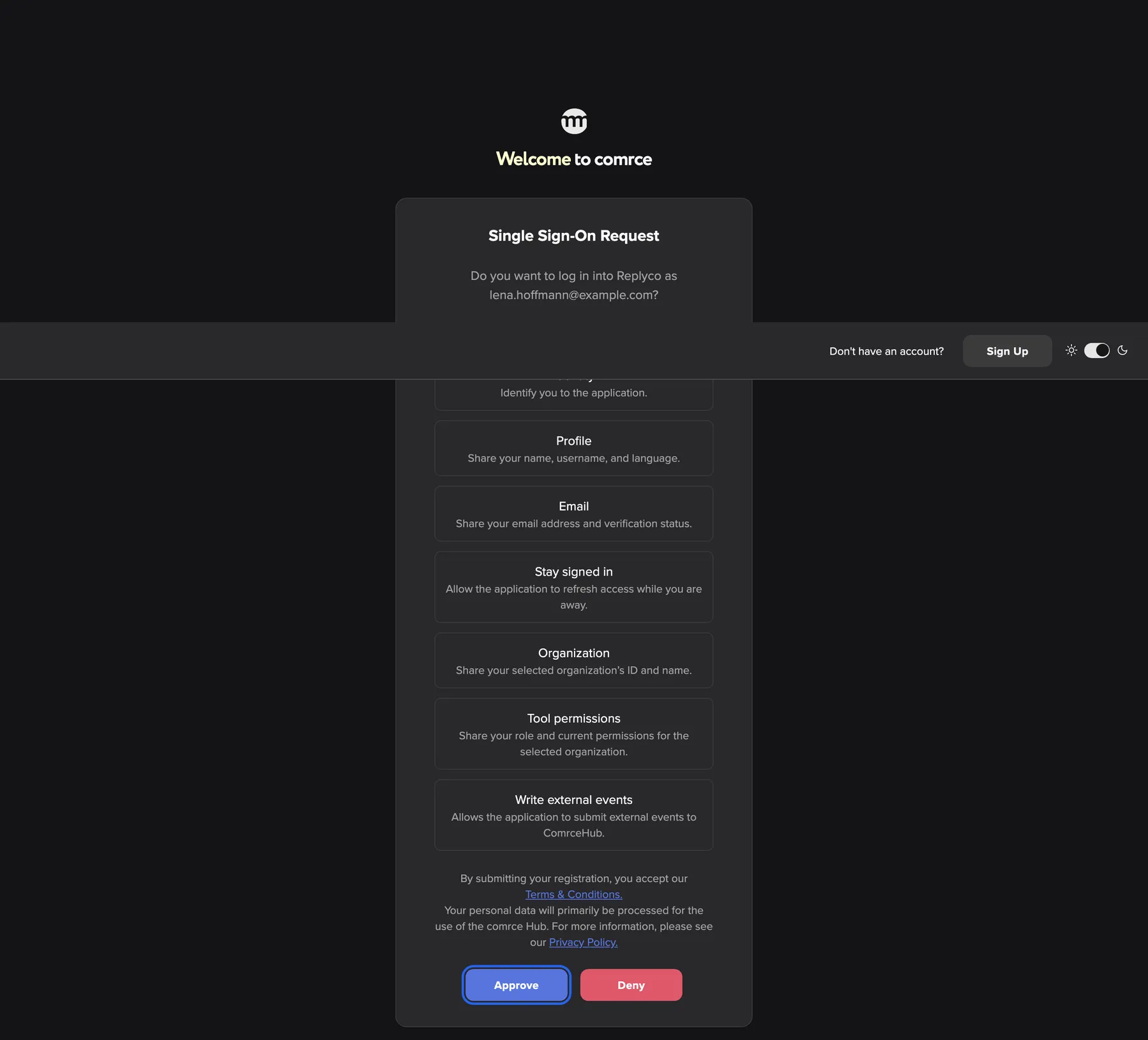
What this screenshot shows
- Screen
- Single Sign-On Request
- Highlighted
- “Approve”: approves the request and returns you to the tool, signed in
- Also visible
- Question naming the tool (Replyco) and lena.hoffmann@example.com; Seven requested data categories with descriptions; Legal notice with links; Deny button; Top bar with Sign Up and the theme switch at the right
- Purpose
- the consent step of single sign-on into a tool
Tool access and notifications
Section titled “Tool access and notifications”Notifications in the top bar, on a notification sent by a tool.
A notification from a tool can carry an action button. The button opens that tool the same way as its sidebar icon. If the tool’s tab is open, comrce Hub switches to it. The tool then receives the item to show, such as a conversation or an order.
You go from “3 unanswered customer messages” to the messages in one click.
- A Replyco notification 3 unanswered customer messages → Replyco opens and is asked to show those messages.
- A Billbee notification Billbee order import finished → the Billbee tab opens next to your other tabs.
- A VentoryOne notification Stock below minimum: Ceramic mug set → the VentoryOne tab, already open, comes to the front.
What you need to know
Section titled “What you need to know”
What you need to know
Section titled “What you need to know”| Topic | Fact |
|---|---|
| Per company | Permissions for tools apply in one company. The same person can have different tool access in another company. |
| Role presets | Member: viewing, opening, dashboard and alerts for all four tools. Partner: viewing and dashboard only. |
| When changes apply | After the person’s comrce Hub loads their account again, for example on a page reload. |
| What a tool receives on opening | Your comrce Hub email address, whether comrce support is working in your account, and your linked tool account and organization. |
| Tool links | A tool links your account itself. The company’s log shows User linked to a tool and User unlinked a tool. |
| Linked tools per company | On My companies, the tools column shows in color the tools the company’s owner has linked. |
Frequently asked questions
Section titled “Frequently asked questions”
Frequently asked questions
Section titled “Frequently asked questions”General
Section titled “General”Which tools can I open from comrce Hub?
Section titled “Which tools can I open from comrce Hub?”Amainvoice, Billbee, Replyco and VentoryOne, each from its icon at the top of the left sidebar. Partner apps from the Marketplace are not in the sidebar. They sign you in with comrce Hub once your company has installed them.
Can a tool open in a separate browser window instead of a comrce Hub tab?
Section titled “Can a tool open in a separate browser window instead of a comrce Hub tab?”No. From the sidebar, comrce Hub opens every tool in a tab inside comrce Hub, in every company. Each tool gets one tab, with the comrce Hub sidebar and top bar around it.
Does comrce Hub charge for opening tools?
Section titled “Does comrce Hub charge for opening tools?”No. Opening a tool from comrce Hub costs nothing in comrce Hub. Each tool is billed by its own vendor, under your agreement with that vendor.
How do I give a team member access to Billbee?
Section titled “How do I give a team member access to Billbee?”Go to AccountUsers and select the person. In Permissions, switch on Viewing Billbee and Opening Billbee. Select Save, then ask the person to reload comrce Hub.
Who can change tool permissions?
Section titled “Who can change tool permissions?”The company owner can change them for everyone else. People with Editing user permissions can change only the permissions they hold themselves, and never the owner’s or their own. Both work on each person’s user details under AccountUsers.
What do new team members get by default?
Section titled “What do new team members get by default?”The role decides. A Member gets viewing, opening, dashboard and alerts for all four tools. The Partner role gets viewing and dashboard only, so the tools show as grey icons. You can change any of it on the person’s user details.
I changed someone’s permissions. Why does their sidebar still look the same?
Section titled “I changed someone’s permissions. Why does their sidebar still look the same?”comrce Hub reads a person’s permissions when it loads their account. Ask the person to reload comrce Hub in the browser. The icons then match the new permissions for the company they are working in.
Can I hide a tool completely from a person?
Section titled “Can I hide a tool completely from a person?”Yes. Switch off the tool’s viewing permission, such as Viewing Replyco, on the person’s user details and save. The icon disappears after their comrce Hub reloads. Owners always see every tool.
Viewing and opening
Section titled “Viewing and opening”Why is a tool icon grey?
Section titled “Why is a tool icon grey?”The person has the viewing permission for that tool, but not the opening permission. Selecting the icon opens the tool’s tab with Request access. The button sends a request to the company owner.
What happens when someone selects Request access?
Section titled “What happens when someone selects Request access?”The Request permission dialog opens and names the company owner. The person can add a reason of up to 128 characters and send it. The owner gets an email with a link to the person’s user details, and the company’s log records the request.
Does the owner get a notification in comrce Hub for an access request?
Section titled “Does the owner get a notification in comrce Hub for an access request?”No, the owner gets the request by email, with a link to the person’s user details. The request also appears in the company’s log under AccountLogs.
Why did the tool’s tab come back after I reloaded?
Section titled “Why did the tool’s tab come back after I reloaded?”comrce Hub restores your open tabs when it reloads, including tool tabs. Close a tool’s tab with the close button at its right end if you do not want it back.
Single sign-on
Section titled “Single sign-on”Why does comrce Hub ask me to approve a sign-in every time?
Section titled “Why does comrce Hub ask me to approve a sign-in every time?”Each new sign-in a tool starts opens the Single Sign-On Request page. That way you always see which data categories the tool asks for. Approving does not store a lasting permission for the next sign-in.
Which data can a tool receive when I approve?
Section titled “Which data can a tool receive when I approve?”Only the categories listed on the approval page. They cover your identity, profile and email, and staying signed in. They also cover the company’s ID, name and invoice address, your role and permissions, and sending events to comrce Hub. A tool cannot ask for anything outside this list.
Why was a Marketplace partner app’s sign-in refused?
Section titled “Why was a Marketplace partner app’s sign-in refused?”A partner app can sign people in only while their company has it installed. Someone with Managing API connections selects Install on the partner’s page in the Marketplace. Then the sign-in can start again.
Why can’t I sign in to a tool when I belong to no company?
Section titled “Why can’t I sign in to a tool when I belong to no company?”Signing in to tools with comrce Hub needs a company to work in, because the tool receives that company’s data. An account without a company gets a refusal, or the page shows This account cannot use external SSO. Accept an invitation to a company, choose it, and start the sign-in from the tool again.
Notifications
Section titled “Notifications”What does the button on a tool’s notification do?
Section titled “What does the button on a tool’s notification do?”It opens the tool that sent the notification, the same way as the tool’s sidebar icon. It also tells the tool which item to show. If the tool’s tab is already open, comrce Hub switches to it instead of opening another tab.
Data and privacy
Section titled “Data and privacy”What does a tool learn about me when I open it from the sidebar?
Section titled “What does a tool learn about me when I open it from the sidebar?”comrce Hub passes on your comrce Hub email address and whether comrce support is working in your account. Once the tool has linked your account, it also passes your account and organization at the tool. Anything more needs your approval on the sign-in page.
What does “Tools used” on My companies mean?
Section titled “What does “Tools used” on My companies mean?”On My companies, the tools column shows which tools the company’s owner has linked to comrce Hub. It appears for companies where you have the Partner role. A color icon means linked, and grey means not linked.
Where can I see who approved a tool sign-in?
Section titled “Where can I see who approved a tool sign-in?”People with Viewing audit log see it under AccountLogs. Entries include OIDC Consent approved, OIDC Consent denied and User linked to a tool. Each entry shows the person’s email address and the time. Its details name the tool.
Troubleshooting
Section titled “Troubleshooting”
Troubleshooting
Section titled “Troubleshooting”| Symptom | What to check |
|---|---|
| A tool icon is missing | In this order: is the person working in a company? Do they have the tool’s viewing permission in that company? Has their comrce Hub reloaded since the change? |
| A tool icon is grey | The person has viewing without opening. Switch on the opening permission, or let them use Request access. |
| The tool’s tab shows You don’t have access to this page. You can request access from your organization admin. | Same cause as a grey icon. The opening permission is missing in this company. |
| A tool icon does not react | comrce has not set up that tool. Contact comrce support. |
| A tool’s tab shows “Invalid or missing URL (must start with http:// or https://)” | The tab came from a saved link. Close it and open the tool from its sidebar icon. |
| A tool’s tab stays empty | Close it and open it again from the icon. If it stays empty, the tool did not load inside comrce Hub. Contact comrce support and say when it happened. |
| The access request did not reach the owner | The request goes to the owner’s email address on file. Check the owner’s spam folder, and the company’s log for the request. |
| The sign-in page says This sign-in request is invalid or has expired. | The request has expired or was already answered. Start the sign-in from the tool again. |
| The sign-in page says This account cannot use external SSO. | An account without a company is in use. Choose a company. |
| A partner app refuses the sign-in | Has your company installed the partner on its page in the Marketplace? |