

Add your team and set who can do what
Invite colleagues by email, and each one joins your company with a role. The role brings a preset of permissions to start with. Then you fine-tune who can do what, tools included. Customers often call this rights and roles. In comrce Hub it is roles and permissions.
Choose Member for your employees and Partner for outside helpers, such as your tax adviser. An invitation is valid for 7 days. Nobody gets access before they accept it.
Before you start
Section titled “Before you start”| You need | Where it lives |
|---|---|
| The Owner role, or Inviting users to invite | AccountUsers |
| The Owner role, or Editing user permissions to change permissions | The same tab, on each member’s own tab |
| Each colleague’s email address | The address they will sign in with. They need no comrce Hub account beforehand. |
| A role for each person | Permissions and roles |
Inviting people and changing permissions costs nothing. No preset includes inviting or editing permissions, so at first only the owner can do both.
-
Pick a role for each person. Member suits your employees: they can see and open all four tools. Partner suits outside partners: they can view invoices and see the tools without opening them. The preset applies the moment someone accepts. Permissions and roles lists both presets.
-
Invite from the Users tab. Open AccountUsers and select Invite a new member. Enter the email address, keep Member or choose Partner, and select Invite. comrce Hub shows Invite sent successfully.. Users explains the dialog.
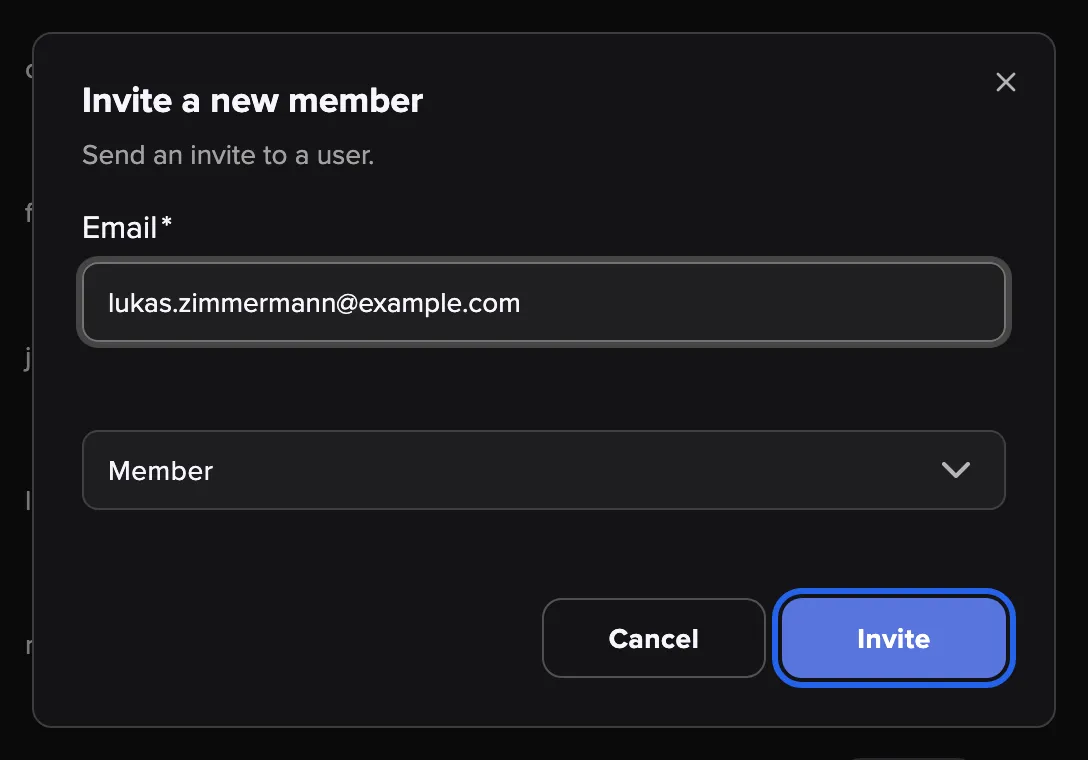
Enter the email address, keep Member or pick Partner, and send the invitation. What this screenshot shows
- Screen
- Users
- Highlighted
- “Invite”: sends the invitation email
- Also visible
- Email field with lukas.zimmermann@example.com; Role field set to Member; Cancel button
- Purpose
- invite a colleague with a role
-
Follow up on open invitations. Select Pending invites at the top of the Users tab. It lists every invitation nobody has accepted yet. A red expiry date means the link no longer works. Resend Invite sends a new link with 7 more days. The tab with open invitations covers resending and deleting.
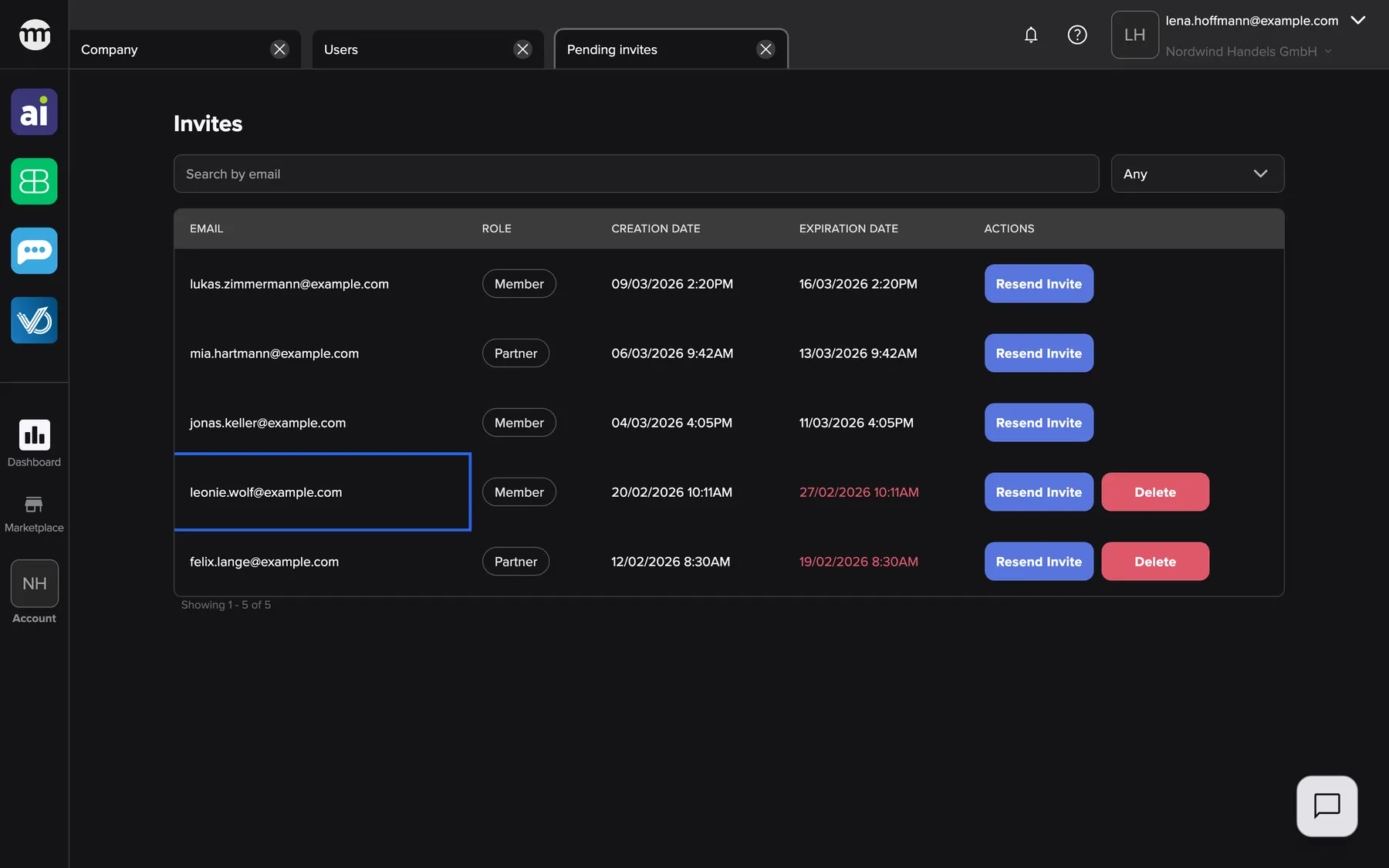
A red expiration date means the link no longer works. Resend or delete the invitation. What this screenshot shows
- Screen
- Pending invites
- Highlighted
- “leonie.wolf@example.com”: marks an invitation whose link has expired
- Also visible
- Three valid invitations; Two expired invitations with red dates and Delete
- Purpose
- follow up on invitations nobody has accepted yet
-
Adjust a member’s permissions once they have joined (optional). Open their tab with the arrow at the end of their row. Under Permissions, switch on what they need beyond the preset, then select Save. Their menus update without a new sign-in. Change permissions shows the switches.
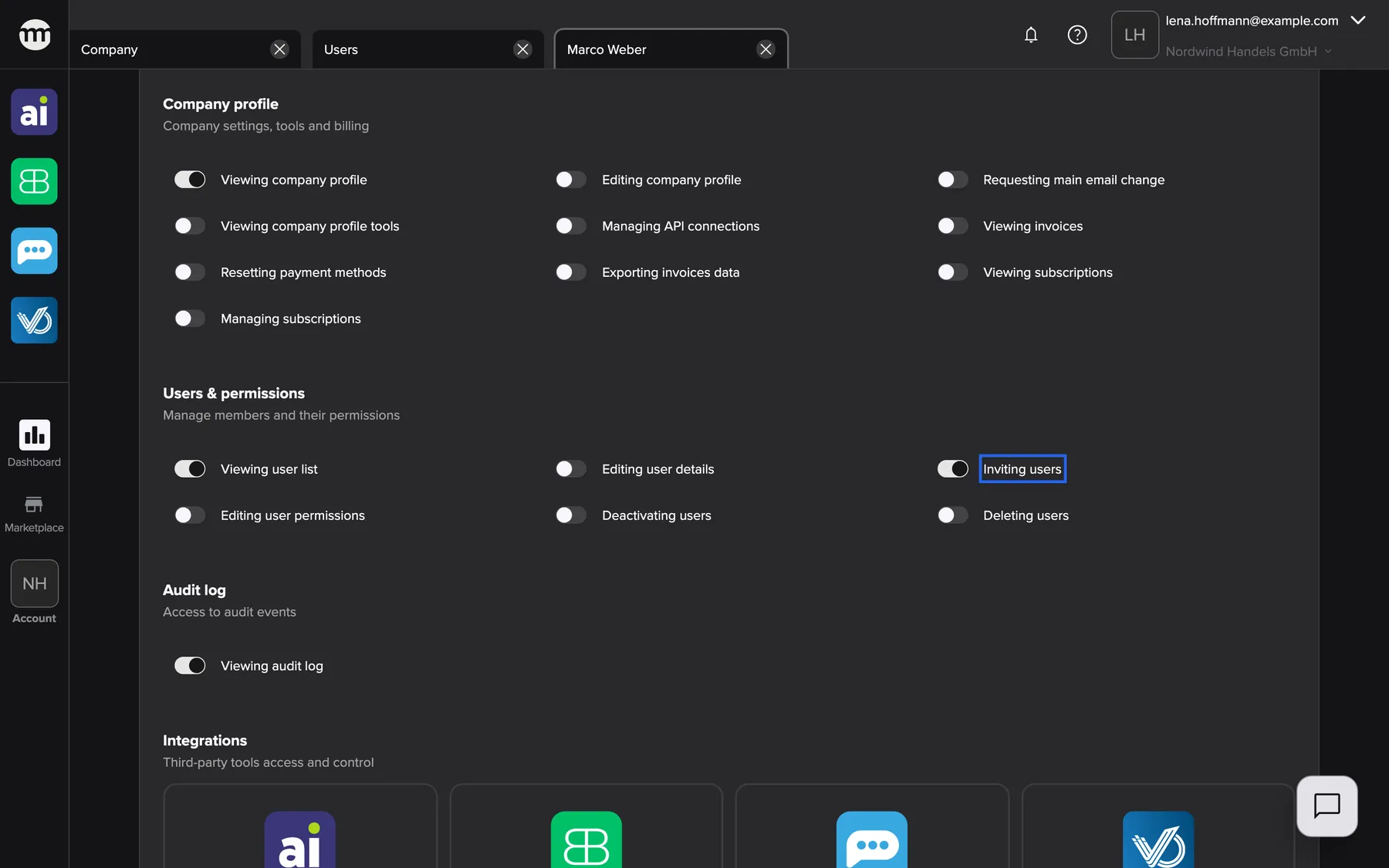
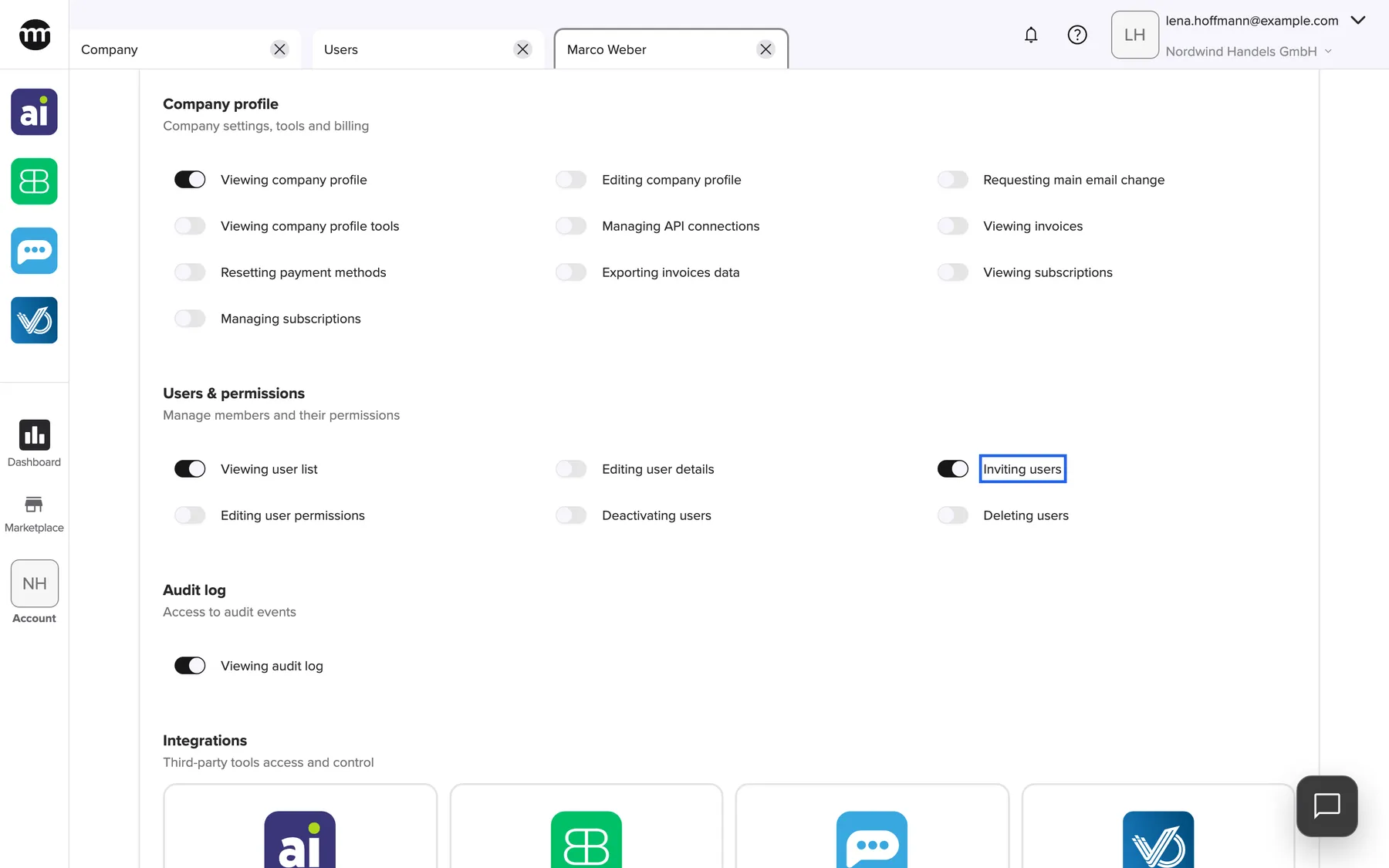
Marco is a Member with two extra permissions, Inviting users and Viewing audit log. What this screenshot shows
- Screen
- User
- Highlighted
- “Inviting users”: lets the member invite people
- Also visible
- Switches for users and permissions; Audit log switch on
- Purpose
- give one member more than the role preset
-
Decide who may open each tool (optional). In the section Integrations, each tool has one switch to see it and one to open it. Switch on opening for people who work in the tool every week. Everyone else keeps viewing only. Tool access and single sign-on explains both switches.
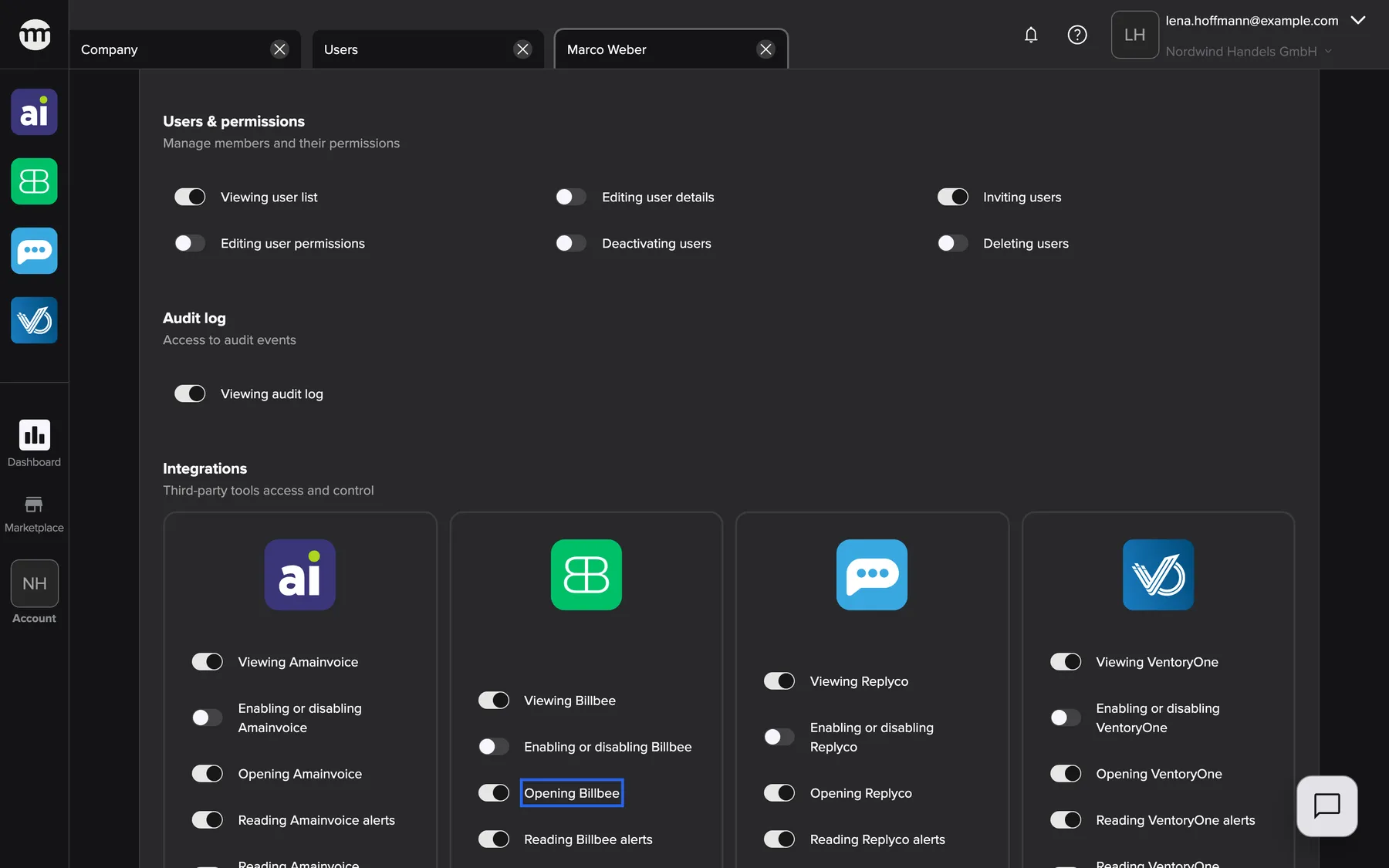
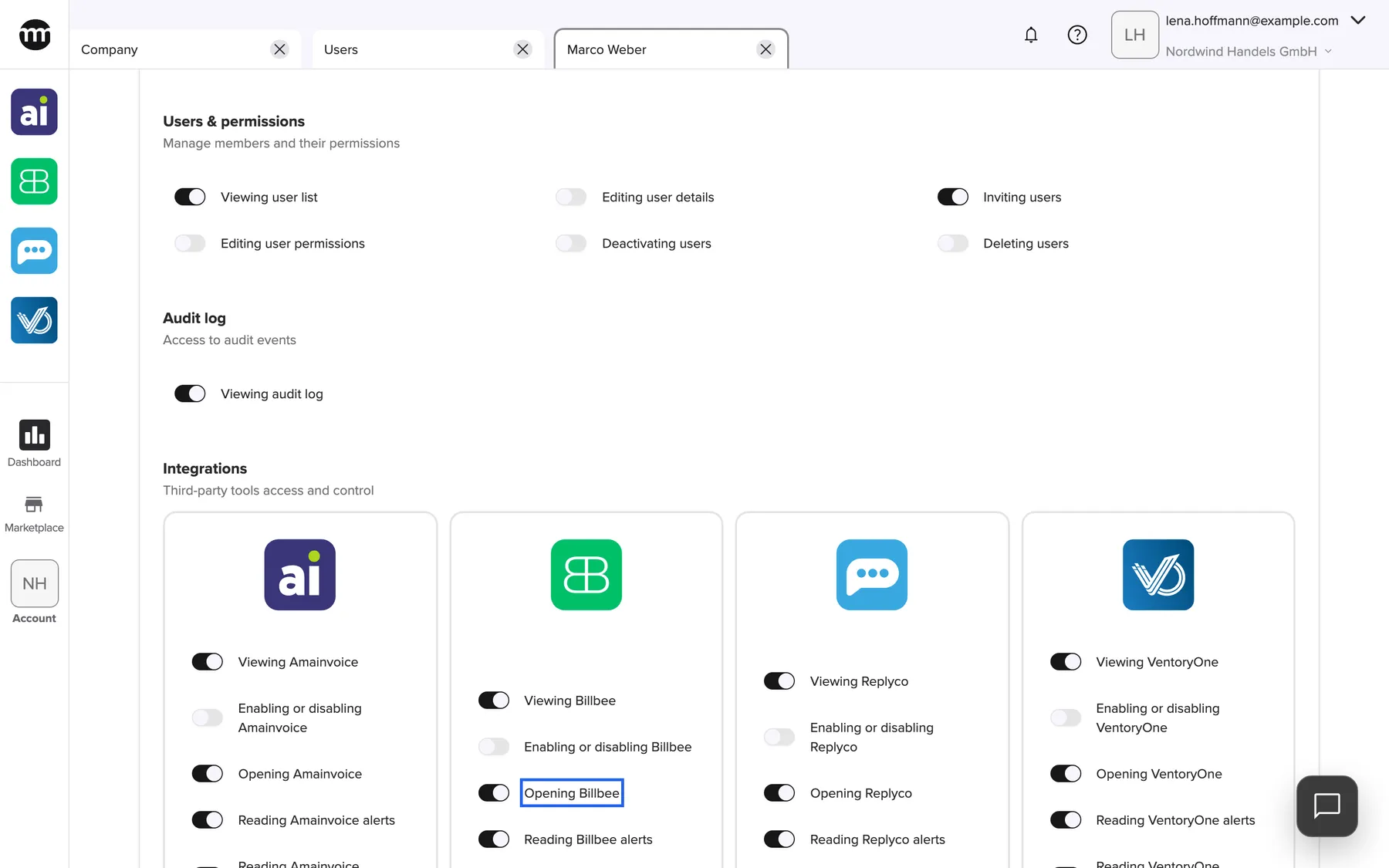
Tool access is set per tool. Seeing a tool and opening it are separate permissions. What this screenshot shows
- Screen
- User
- Highlighted
- “Opening Billbee”: lets the member open Billbee
- Also visible
- Four tool cards with their switches; Cancel and Save at the bottom
- Purpose
- decide per tool who may see it and who may open it
-
Check the changes after a week (optional). Open AccountLogs and choose the event type Edited permissions. Each row shows who changed whose permissions, and what. Logs explains the filters.
What happens next
Section titled “What happens next”When a colleague accepts, they appear on the Users tab as Active, with the preset of their role. Their invitation leaves the list of open invitations. Logs records Invitation accepted.
To check that it worked, ask your colleague to open the Account menu in the sidebar. With the Member preset, it shows Users and Company. Logs appears there only with Viewing audit log.
Options
Section titled “Options”| Choice | When to pick it | Effect |
|---|---|---|
| Member | Your own employees | View the company profile and the user list. See and open all four tools, with their dashboards and alerts. |
| Partner | Outside partners such as your accountant or agency | View and edit the company profile and view invoices. See the four tools and their dashboards without opening them. |
| A preset plus single switches | One person needs a little more, such as a team lead who invites | Only that person’s switches change, and only in this company |
- Invite one colleague first. Walk them through accepting. Once they appear on the Users tab with the right menus, invite the rest. The preset applies on acceptance, so the first person shows what everyone else will get.
- Let a team lead send invitations. Switch on Inviting users for them, so you do not send every invitation yourself. No preset includes it.
- Keep user management with one or two trusted people. No preset includes inviting, editing permissions, deactivating or deleting users. Only the owner has them until they switch them on for someone.
- Start everyone on the presets. Choosing a role on a member’s tab replaces every switch with the preset. So pick the role first, then the single switches. Switch off the tools a person does not need.
- Give opening a tool only to people who use it weekly. For everyone else, viewing keeps the tool visible. The request button is then one click away.
- Expect a few access requests in the first week. People with viewing only ask from the tool’s tab. The requests reach the owner by email.
- Give Viewing audit log to whoever checks changes. After a week, they read the Edited permissions rows in Logs.
If something goes wrong
Section titled “If something goes wrong”| Symptom | What to check | Fix |
|---|---|---|
| The invite button is missing | You lack Inviting users | Ask the company owner to switch it on |
| The dialog shows An active invitation for this user already exists | Is there an open or expired invitation under Pending invites? Is the person already a member? | Resend the invitation, or delete the expired one and invite again |
| The colleague never got the email | Their spam folder | Resend the invitation. Only the newest link works. |
| The link shows Invitation expired. | The expiry date under Pending invites is red | Resend the invitation |
| Saving the switches has no effect | Are you the owner? Do you hold every permission you switch on? | Ask the owner to make the change |
| Permissions you granted are gone | Logs, event type Edited permissions | Someone picked a role and saved. Switch the permissions on again. |
| A colleague’s tool icon is grey | The tool’s opening switch on their tab | Switch it on and save. They reload comrce Hub. |