

Client jobs
The Client- Aufträge (client jobs) tab lists every print job comrce cloudprint sent to a printer. Each row shows the file, the printer, its status and when it came in. Here you print a PDF directly, print a job again or stop one that’s still waiting. Open it with Client- Aufträge in the red bar.
What you can do here
Section titled “What you can do here”- Follow your print jobs. The status icon shows whether a job is waiting, sent, accepted, done, cancelled or failed. The screen at a glance
- Print a PDF directly. Upload a PDF and choose a printer, without a queue or a pipeline. Print a PDF directly
- Print a job again. The same file goes to the same printer once more. Print a job again
- Look into a job. See where it came from, its documents and its meta data. See where a job came from
- Stop a waiting job. A job that hasn’t left comrce cloudprint yet can be cancelled. Stop a waiting job
The screen at a glance
Section titled “The screen at a glance”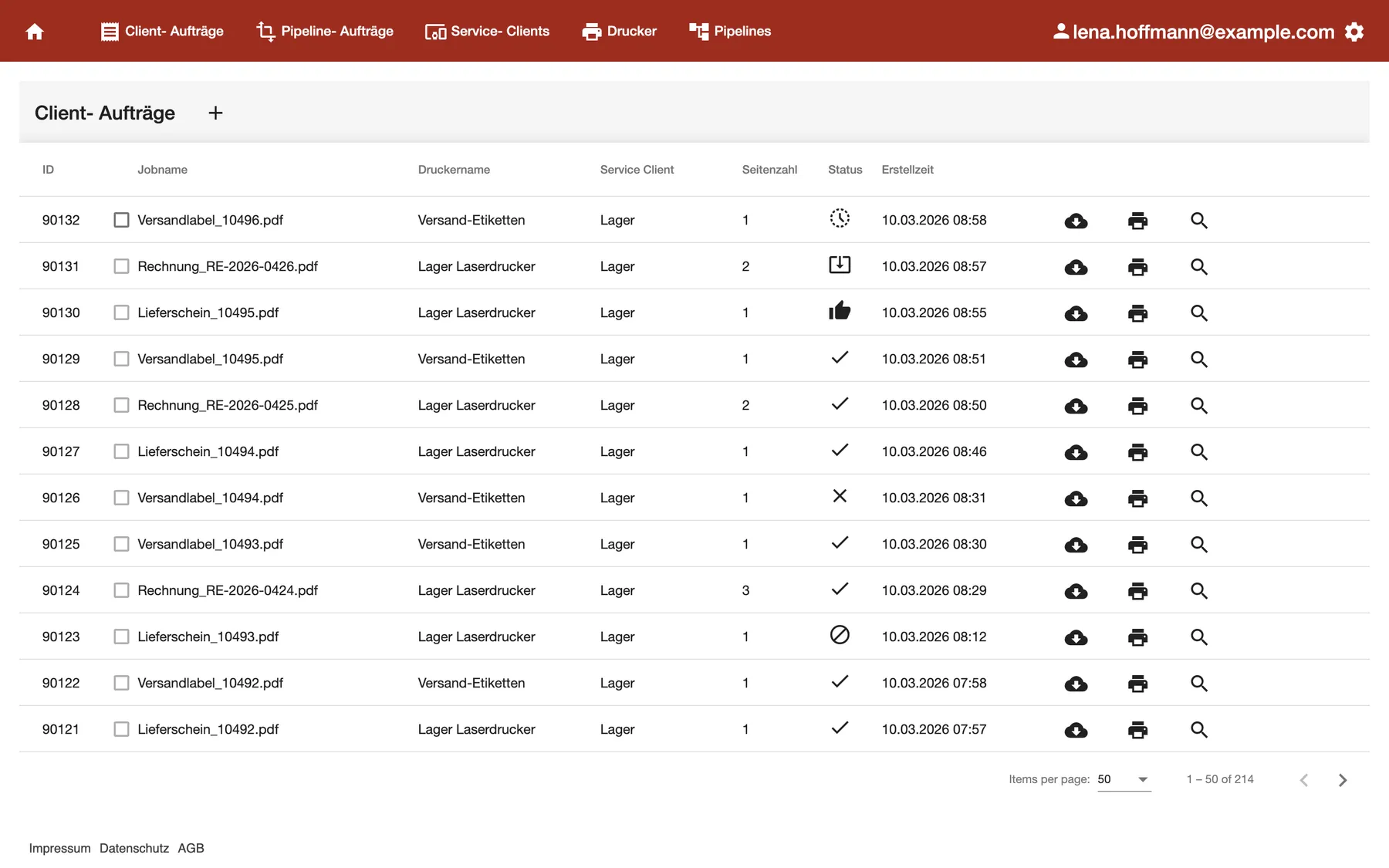
What this screenshot shows
- Screen
- Client- Aufträge
- Also visible
- 12 jobs on Versand-Etiketten and Lager Laserdrucker, Service Client Lager; all six status icons: waiting, sent, accepted, done, failed, cancelled
- Purpose
- follow print jobs to the printer
The newest job is at the top. The list shows 50 jobs per page.
| Region | What it shows | What you do there |
|---|---|---|
| Heading with + | Client- Aufträge and the button for a direct print job | Print a PDF directly |
| ID and checkbox | The job’s number; the checkbox only for waiting jobs | Select waiting jobs to stop them |
| Jobname, Druckername, Service Client | The file name, the printer and the name of its Service Client | See what went where |
| Seitenzahl and Status | The number of pages and an icon for the status | Spot failed jobs |
| Erstellzeit | Date and time the job was created | Find a job by time |
| Buttons at the right end | Download, print again, details | Act on one job |
| Paging at the bottom | Jobs per page and page arrows | Look further back |
Status icons
Section titled “Status icons”Point at an icon to see its name.
| Icon | Name | What it means |
|---|---|---|
| Clock | Auftrag wartet | Waiting to be sent to the Service Client |
| Tray with arrow | Übermittelt | Sent to the Service Client |
| Thumbs up | Auftrag angenommen | The Service Client accepted it |
| Tick | Erledigt | Printed |
| Crossed-out circle | Abgebrochen | Stopped before it was sent, for example with the bin on this tab |
| Cross | Fehlgeschlagen | Printing failed |
Print a PDF directly
Section titled “Print a PDF directly”- Select + next to the heading Client- Aufträge. The dialog Direkten Ausgabeauftrag erstellen opens.
- Under PDF- Dokument zum Drucken, choose a PDF file. It uploads at once.
- Open Wähle einen Drucker aus and choose the printer.
- Select Ok. It becomes available once the upload is complete. The dialog closes, and the job appears at the top of the list.
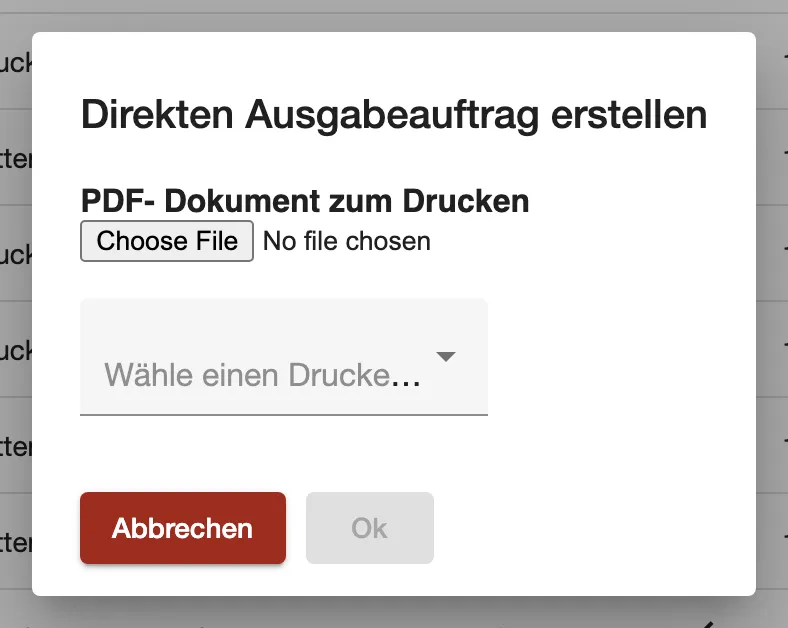
What this screenshot shows
- Screen
- Client- Aufträge
- Also visible
- file chooser for one PDF; Ok dimmed until the upload is complete
- Purpose
- print a PDF without a pipeline
The job prints with the printer’s defaults from Printers. Only PDF files work. The printer list shows only printers that are used as a printer output in a pipeline.
Print a job again
Section titled “Print a job again”Select the printer button in the job’s row. You get a new job with the same file, settings and printer. A message confirms it: Der Auftrag wurde erneut angelegt und wird in Kürze an den Drucker gesendet. The new job appears at the top.
Example: a label for order 10494 failed because the printer was out of labels. After loading a new roll, Lena selects the printer button in row 90126, and the label prints.
When comrce cloudprint no longer holds the file, the job can’t be printed again. Then the message Der Auftrag konte nicht neu angelegt werden. appears.
See where a job came from
Section titled “See where a job came from”Select the magnifier in the job’s row. The dialog Auftragsdetails shows the pipeline job behind the print job.
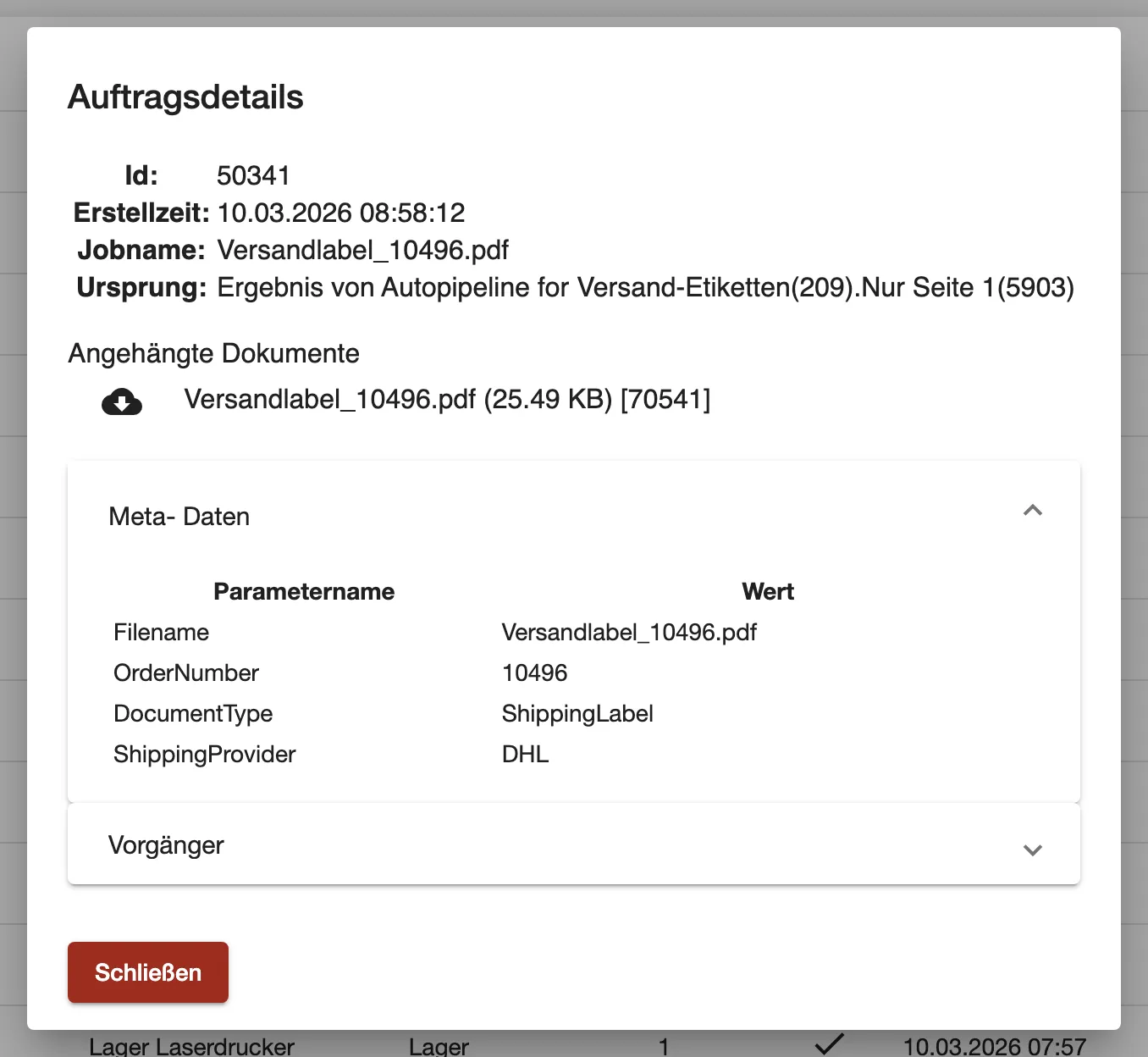
What this screenshot shows
- Screen
- Client- Aufträge
- Also visible
- Ursprung: the Seiten filtern step Nur Seite 1 of the pipeline Autopipeline for Versand-Etiketten; Meta- Daten: OrderNumber 10496, DocumentType ShippingLabel, ShippingProvider DHL
- Purpose
- see where a print job came from
- Ursprung: names where the job came from, such as an API partner and its queue. If a processing step changed the document first, it names that step. The printer output itself never appears there.
- Angehängte Dokumente lists the files with a download button.
- Meta- Daten lists the information the job brought, such as the order number.
- Vorgänger lists the jobs it was made from.
The same dialog opens on Pipeline jobs.
Stop a waiting job
Section titled “Stop a waiting job”Only a job with the clock icon can be stopped. Its checkbox is the only one you can tick.
- Tick the checkbox of the waiting job. A bin appears next to the heading.
- Select the bin. comrce cloudprint asks Sollen die markierten Druckaufträge komplett gelöscht werden?
- Select Ok.
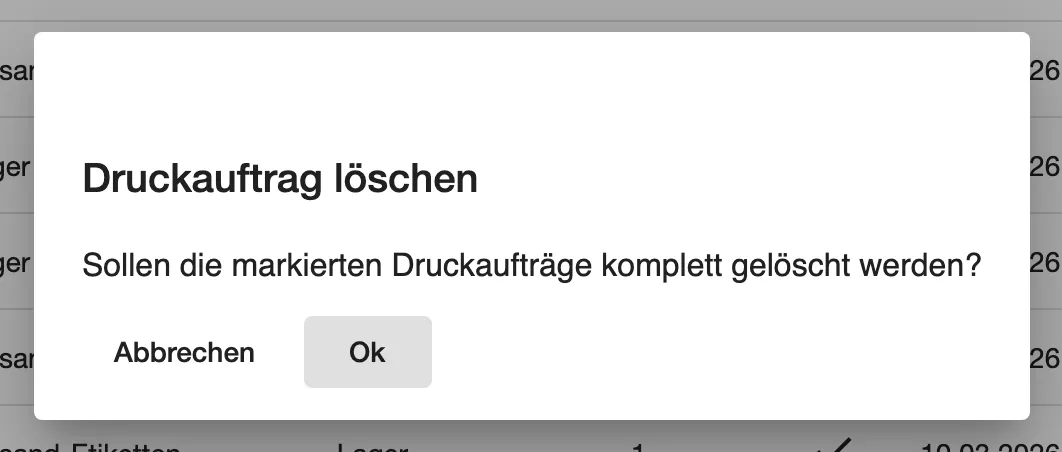
What this screenshot shows
- Screen
- Client- Aufträge
- Also visible
- Title Druckauftrag löschen with Abbrechen and Ok
- Purpose
- stop a waiting print job
The job stays in the list with the status Abgebrochen, although the question speaks of deleting. Jobs that are already sent, done or failed aren’t touched.
Every control, explained
Section titled “Every control, explained”
Every control, explained
Section titled “Every control, explained”Status
Section titled “Status”Status column. Point at the icon for its name.
One of six states, from Auftrag wartet to Fehlgeschlagen. The table under Status icons explains each one. The column can’t be sorted.
A cross or a clock that doesn’t change tells you where to look: the printer, or the Service Client.
Service Client column
Section titled “Service Client column”Service Client column.
The name you gave the Service Client on Service Clients, not the computer’s name.
Two printers with similar names on different computers are told apart by this column.
Print again
Section titled “Print again”Printer button at the right end of a row.
Creates a new job with the same file, settings and printer, and sends it at once. The original row stays as it was.
Reprint a label or invoice after a paper jam, without sending it from your shop again.
Direct print
Section titled “Direct print”+ next to the heading, which opens the dialog Direkten Ausgabeauftrag erstellen.
Takes one PDF file and one printer. The job uses the printer’s defaults and skips every pipeline.
Print a test page, or a single document that doesn’t come from a connected system.
Other controls on this page (6)
| Control | What it does | Why |
|---|---|---|
| Cloud button | Downloads the job’s file | Check what was sent to the printer |
| Magnifier | Opens Auftragsdetails | See where a job came from |
| Abbrechen in the dialog | Closes it without printing | Change your mind |
| Column headers ID, Jobname, Druckername, Service Client, Erstellzeit | Sort the list | Group jobs by printer or file |
| Jobs per page | 50, 100, 250 or 500 | See more at once |
| Page arrows | Older and newer pages | Look further back |
Frequently asked questions
Section titled “Frequently asked questions”
Frequently asked questions
Section titled “Frequently asked questions”General
Section titled “General”What’s the difference between client jobs and pipeline jobs?
Section titled “What’s the difference between client jobs and pipeline jobs?”Client-Aufträge lists the jobs that go to a printer through a Service Client. Pipeline-Aufträge lists the jobs comrce cloudprint received and processed in pipelines. One pipeline job can lead to several client jobs, for example one per printer.
Why does a job show a name instead of the computer in the Service Client column?
Section titled “Why does a job show a name instead of the computer in the Service Client column?”On Client-Aufträge, the Service Client column shows the name you gave it, such as Lager. The computer’s own name is in the Hostname column on Service Clients.
How far back can I see my print jobs?
Section titled “How far back can I see my print jobs?”Client-Aufträge has no date limit. The newest jobs come first, 50 per page. Choose up to 500 per page at the bottom, or use the page arrows to go further back.
Printing
Section titled “Printing”Can I print a Word or image file directly?
Section titled “Can I print a Word or image file directly?”No. The direct print dialog on Client-Aufträge accepts only PDF files. Save the document as a PDF first, then upload it under PDF- Dokument zum Drucken.
Why is my printer missing in the direct print dialog?
Section titled “Why is my printer missing in the direct print dialog?”The dialog on Client-Aufträge lists only printers that are used as a printer output in a pipeline. Add the printer to a pipeline on Pipelines first. Printers without a pipeline don’t appear.
Does printing again send the job to the shop or marketplace again?
Section titled “Does printing again send the job to the shop or marketplace again?”No. The printer button on Client-Aufträge sends the stored file to the same printer again. Nothing goes back to the system the job came from.
Can I stop a job that’s already printing?
Section titled “Can I stop a job that’s already printing?”No. On Client-Aufträge you can only stop jobs with the clock icon, which haven’t left comrce cloudprint yet. Once a job is sent to the Service Client, its checkbox can’t be ticked.
Is a stopped job deleted?
Section titled “Is a stopped job deleted?”No, although the question says so. After you confirm on Client-Aufträge, the job stays in the list with the status Abgebrochen. It is never sent to the printer.
Troubleshooting
Section titled “Troubleshooting”
Troubleshooting
Section titled “Troubleshooting”| Symptom | What to check |
|---|---|
| Jobs stay on the clock icon | Is the Service Client online on Service Clients? Is it switched off? |
| Jobs show a cross | Check the printer: paper, labels, power and its queue in Windows. Then print the job again. |
| Der Auftrag konte nicht neu angelegt werden. | comrce cloudprint no longer holds the file. Send the document again from its source, or use a direct print. |
| Ok stays dimmed in the direct print dialog | Wait until the file has uploaded completely. Only PDF files can be chosen. |
| A printer is missing in the direct print dialog | Only printers used in a pipeline’s printer output are listed. Set one up on Pipelines. |
| The checkbox can’t be ticked | Only waiting jobs can be stopped. The job has already left comrce cloudprint. |