

Logs
Who switched off that permission, and when? The Logs tab answers questions like that. It records what happens in your company: sign-ins, invitations, permission and status changes, company updates and ownership steps. Each row names the time, source and person.
Nobody can edit or delete a row, not even the owner. Open it from AccountLogs. You need the permission Viewing audit log, which no preset includes.
What you can do here
Section titled “What you can do here”- Review what happened in your company. One row per event, newest first, from comrce Hub and from your connected tools. The screen at a glance
- Narrow the log. Search, and filter by source, event type and date range, for example all permission changes in March. Check who changed what in your company
- Read an event’s details. The payload shows exactly what changed and who did it, and you can copy it. Read an event’s details
- Spot support sessions. Events that comrce support caused in your account carry a badge. Table columns
The screen at a glance
Section titled “The screen at a glance”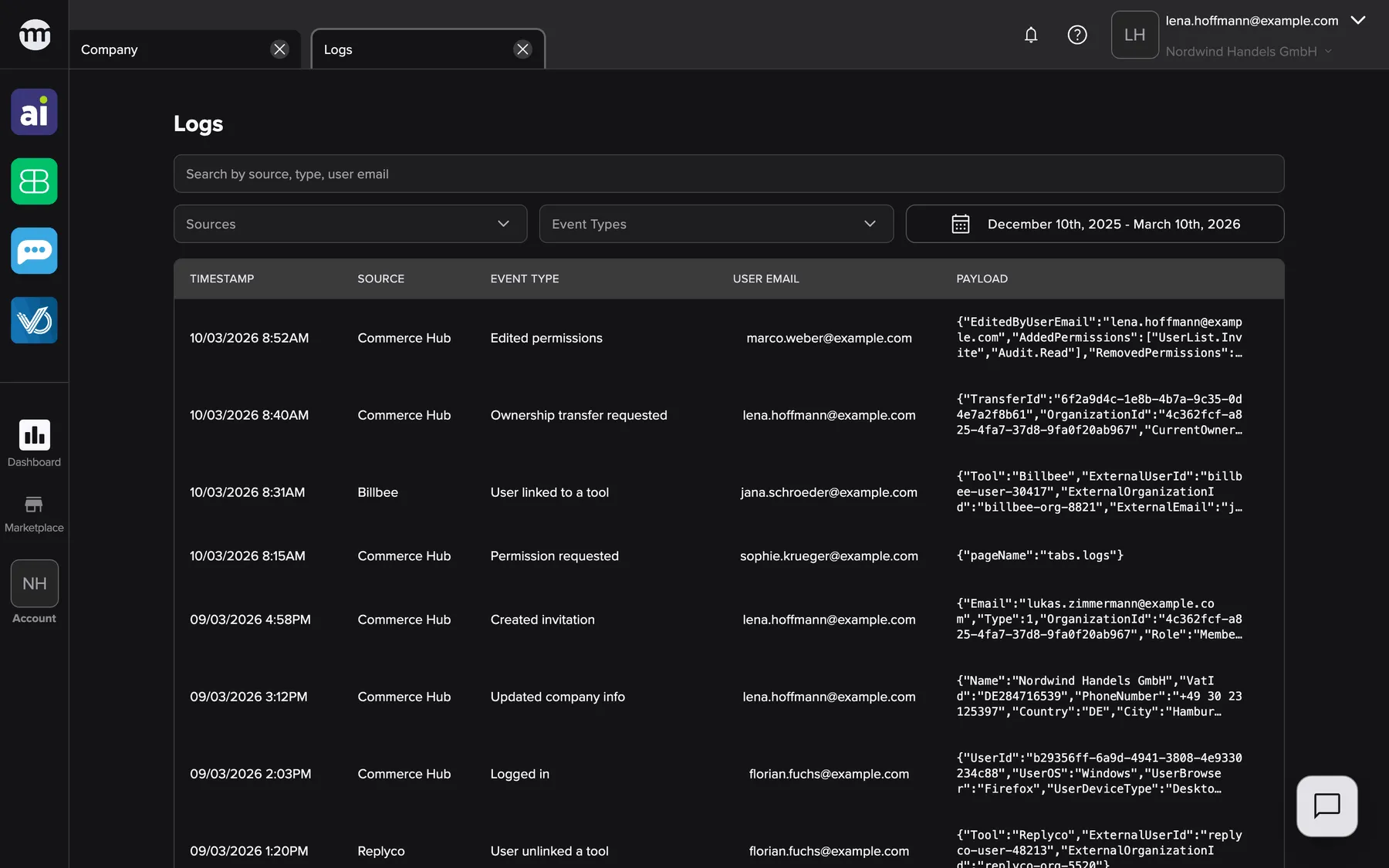
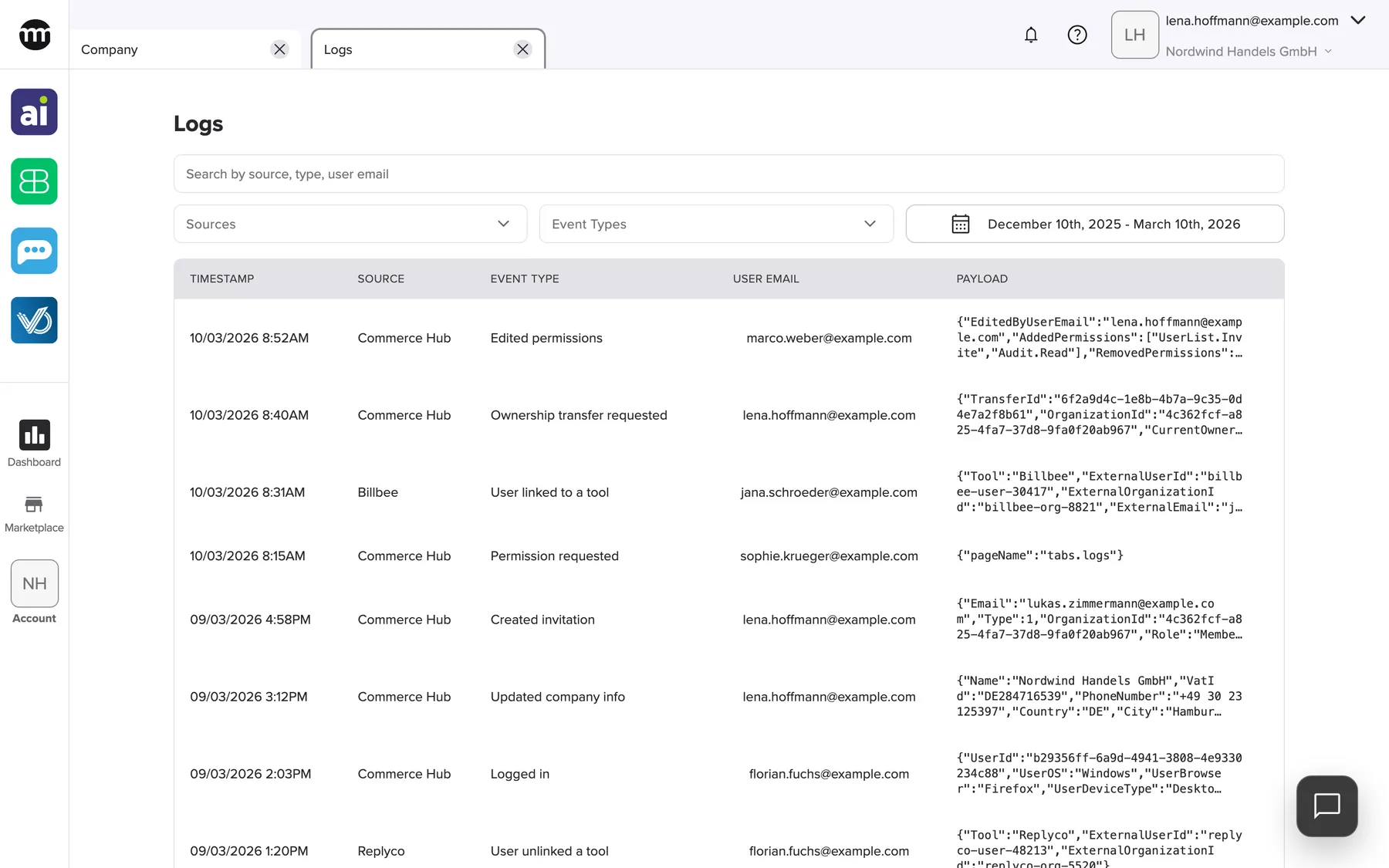
What this screenshot shows
- Screen
- Logs
- Highlighted
- “Logs”: the page title
- Also visible
- Search box, Sources, Event Types, date range set to the last three months; Events from Commerce Hub and Billbee; Payload previews
- Purpose
- the company log as it opens
| Region | What it shows | What you do there |
|---|---|---|
| Filter rows | The search box, Sources, Event Types and the date range button with the selected period | Narrow the log |
| The table | Timestamp, Source, Event Type, User Email, Payload | Read events, open a payload |
| Below the table | Which events of how many are shown, and the page buttons when there are more than 50 events | Move between pages |
The log holds this company’s events. It also holds members’ events outside any company, such as their sign-ins and password changes.
Check who changed what in your company
Section titled “Check who changed what in your company”- Type into the search box to match the source, the event type or a person’s email address.
- Open Sources and pick one or more sources.
- Open Event Types and pick one or more event types. The list has its own search field.
- Select the date range button and choose the first and the last day in the calendar.
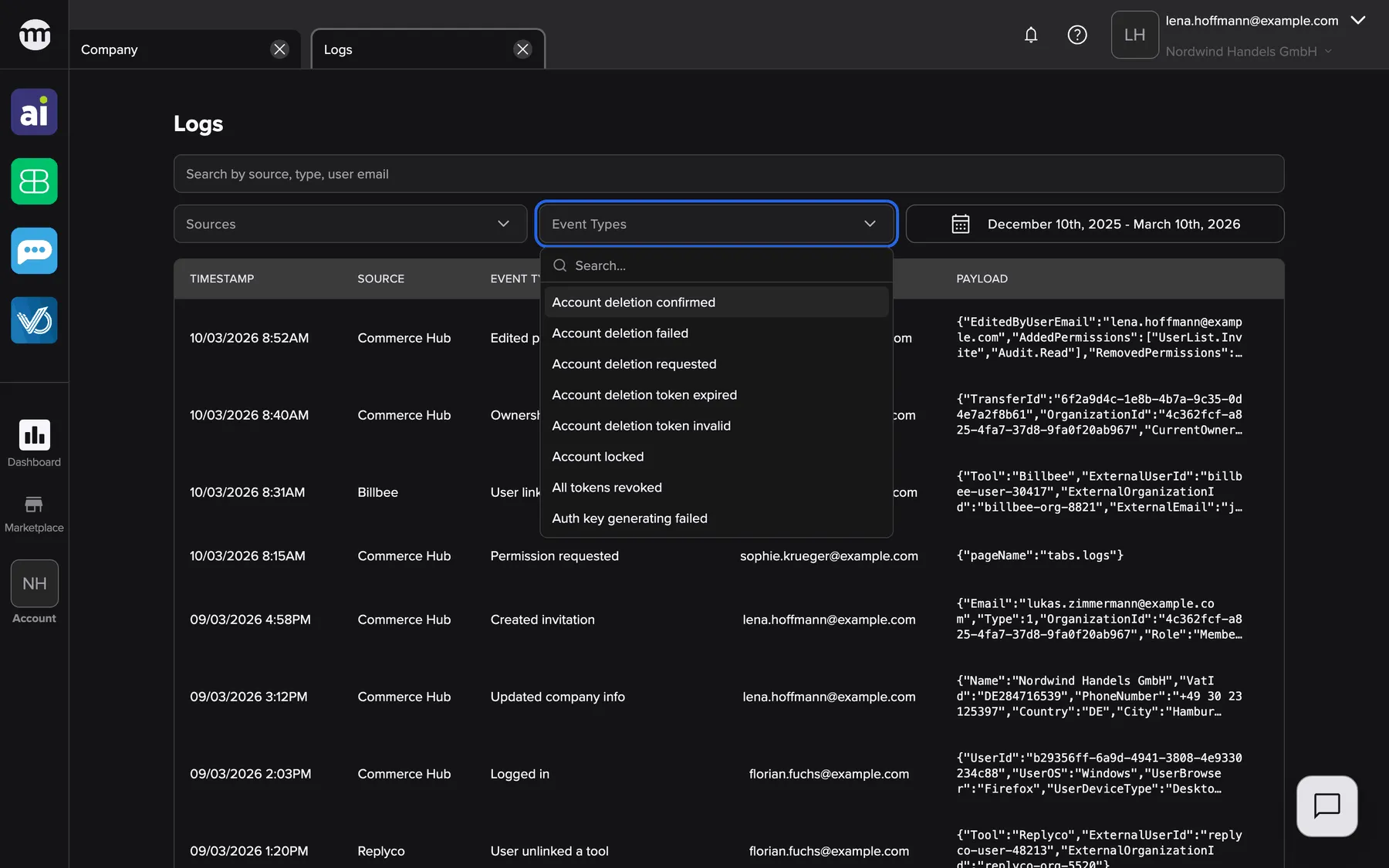
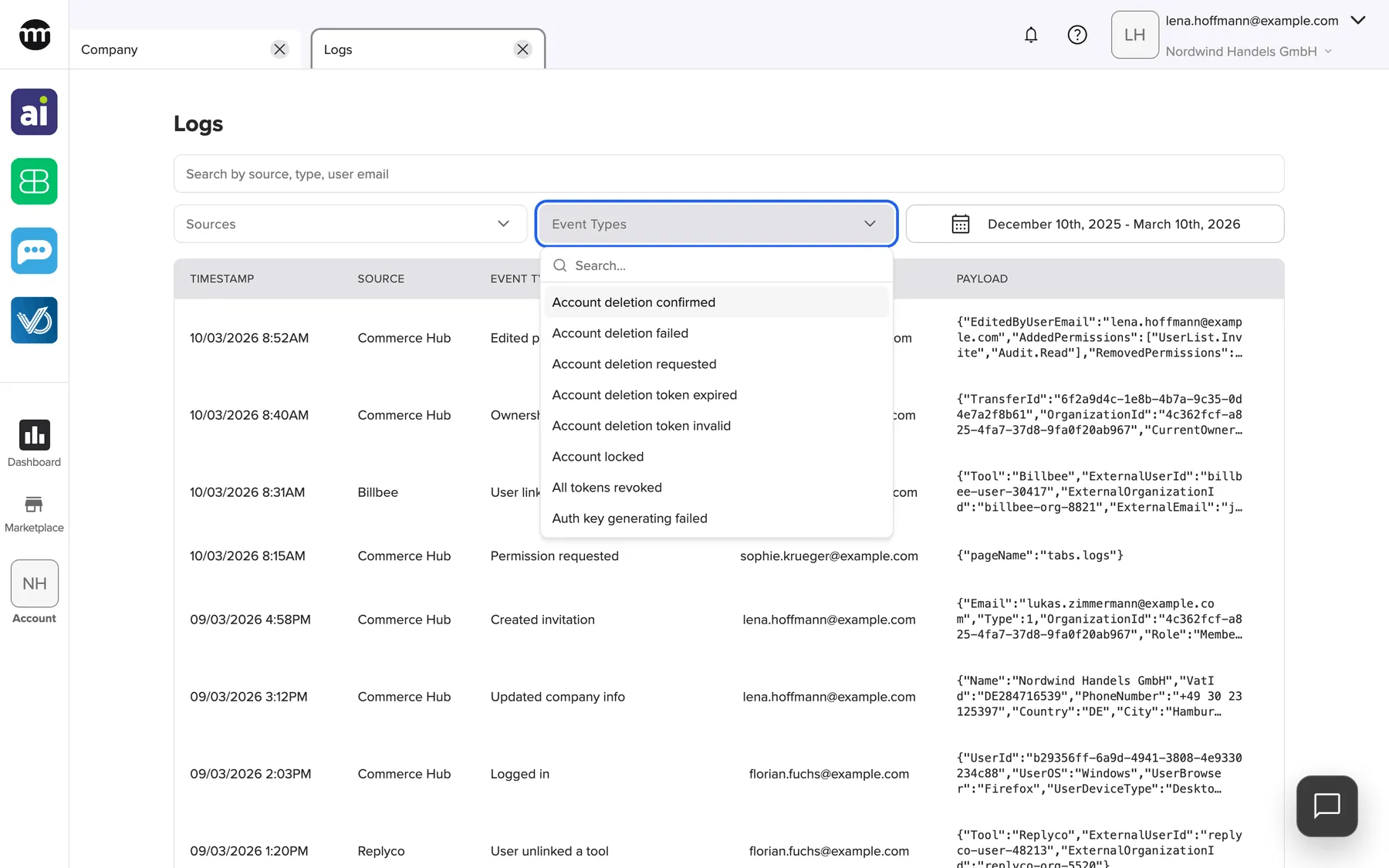
What this screenshot shows
- Screen
- Logs
- Highlighted
- “Event Types”: filters by event type
- Also visible
- Search field inside the list; Alphabetical event types; Sources filter
- Purpose
- filter the log by event type
All filters combine. The tab opens on the last three months up to today. Older events appear only when you choose an earlier first day.
Example: Lena Hoffmann wants to see every permission change at Nordwind Handels GmbH this month. She picks Edited permissions under event types and the month in the date range.
Read an event’s details
Section titled “Read an event’s details”Select the payload cell of a row. The dialog Event payload shows the event’s full data. Copy to clipboard copies it, and comrce Hub confirms with Payload copied to clipboard.
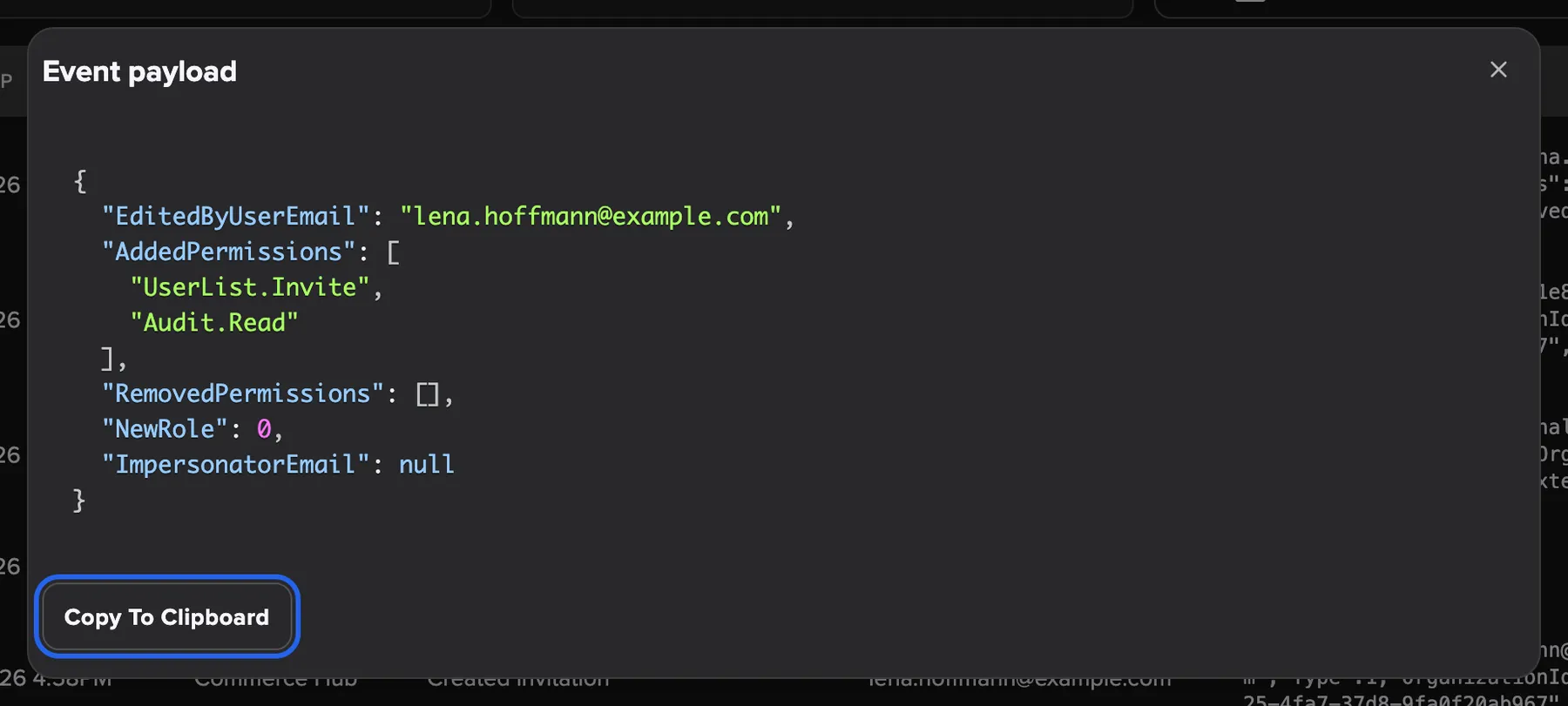
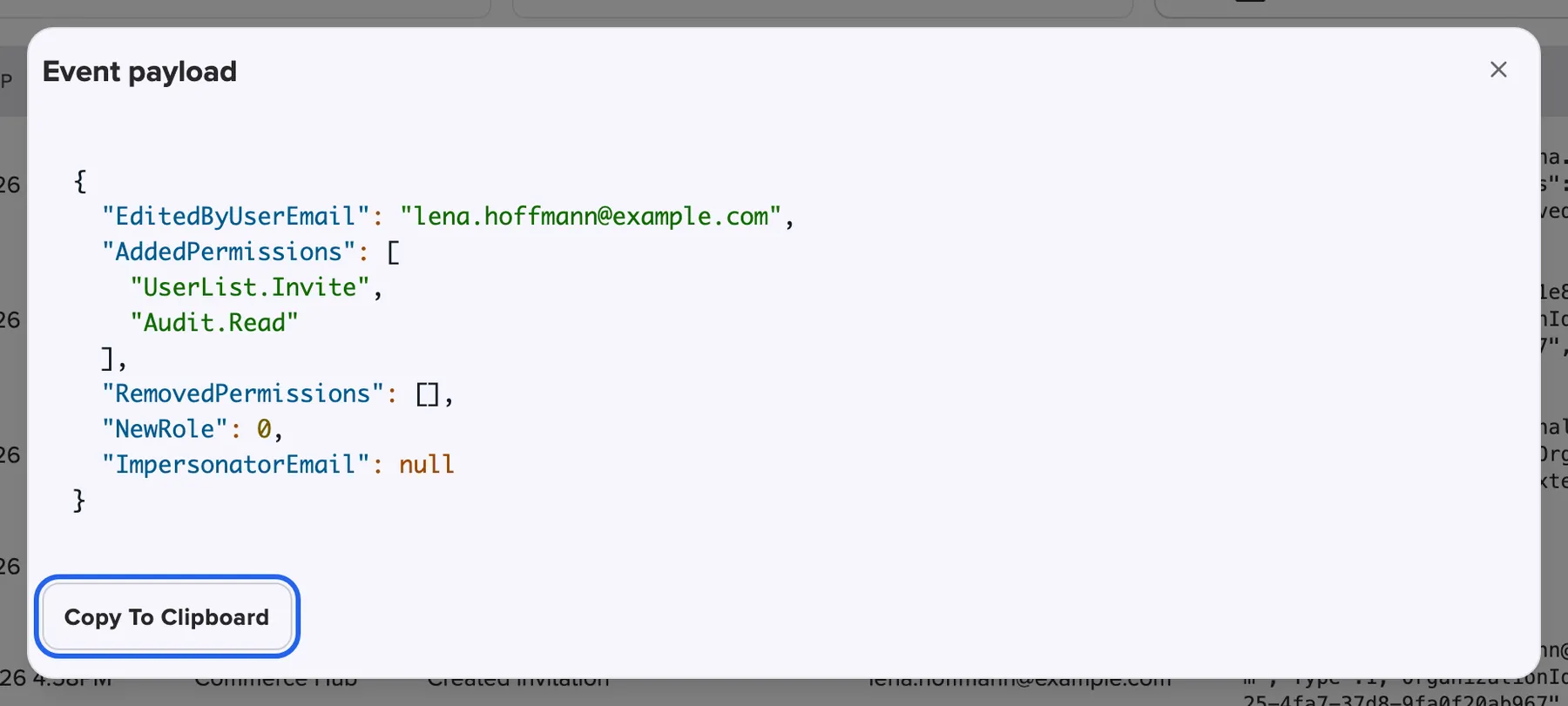
What this screenshot shows
- Screen
- Logs
- Highlighted
- “Copy to clipboard”: copies the payload JSON
- Also visible
- Formatted JSON of a PermissionsEdited event; Close button
- Purpose
- read an event's details
The payload is shown exactly as recorded, with field names in English. Typical contents:
| Event type | What the payload tells you |
|---|---|
| Edited permissions | Who edited (EditedByUserEmail), the added and removed permissions, the saved role |
| Changed user status | Who changed the status and the new status |
| Created invitation | The invited address, the role and the expiry |
| Permission requested | The page the member asked access to |
| Ownership transfer requested | The current and the new owner and the expiry of the transfer |
Every control, explained
Section titled “Every control, explained”
Every control, explained
Section titled “Every control, explained”The controls that need a word of explanation come first. The obvious ones are collapsed at the end.
Search box
Section titled “Search box”The top filter row.
Matches the source, the event type and the user’s email address. Text that matches an event type name in your language becomes an event type filter. Typing the name of Edited permissions therefore shows all permission changes.
The quickest way to see everything one person did: type their email address.
Date range
Section titled “Date range”The button in the filter rows that shows the selected period. It opens a two-month calendar.
Limits the log to whole days from the first to the last day you pick. Each time you open the tab, it is set to the last three months up to today. Events close to midnight can fall on the neighbouring day.
Investigate a specific period, or reach events older than three months.
Filters
Section titled “Filters”| Filter | Options | Why |
|---|---|---|
| Sources | Commerce Hub, Amainvoice, Billbee, Replyco, Ventory One (always in English) | Separate what happened in comrce Hub from events your tools report |
| Event Types | Every event type in alphabetical order, with a search field | Follow one kind of change, such as status changes |
Table columns
Section titled “Table columns”| Column | What it shows | Why |
|---|---|---|
| Timestamp | Date and time in your local format | Order of events |
| Source | Where the event came from, as recorded | comrce Hub or a tool |
| Event Type | The kind of event in your language | What happened |
| User Email | The person concerned, or a dash. The badge Impersonated when comrce support acted in your account. | Who did it, or to whom |
| Payload | The first lines of the event data. Select it for the full data. | The details |
Other controls on this page
| Control | What it does | Why |
|---|---|---|
| Copy to clipboard | Copies the full payload in the details dialog | Paste it into a message to support |
| Page buttons | Move between pages of 50 events | Reach older rows |
Who sees what
Section titled “Who sees what”
Who sees what
Section titled “Who sees what”| Part | Who sees it |
|---|---|
| The tab and the Logs entry in the Account menu | The owner and members with Viewing audit log |
Members without it see You don’t have access to this page. You can request access from your organization admin. and a Request access button.
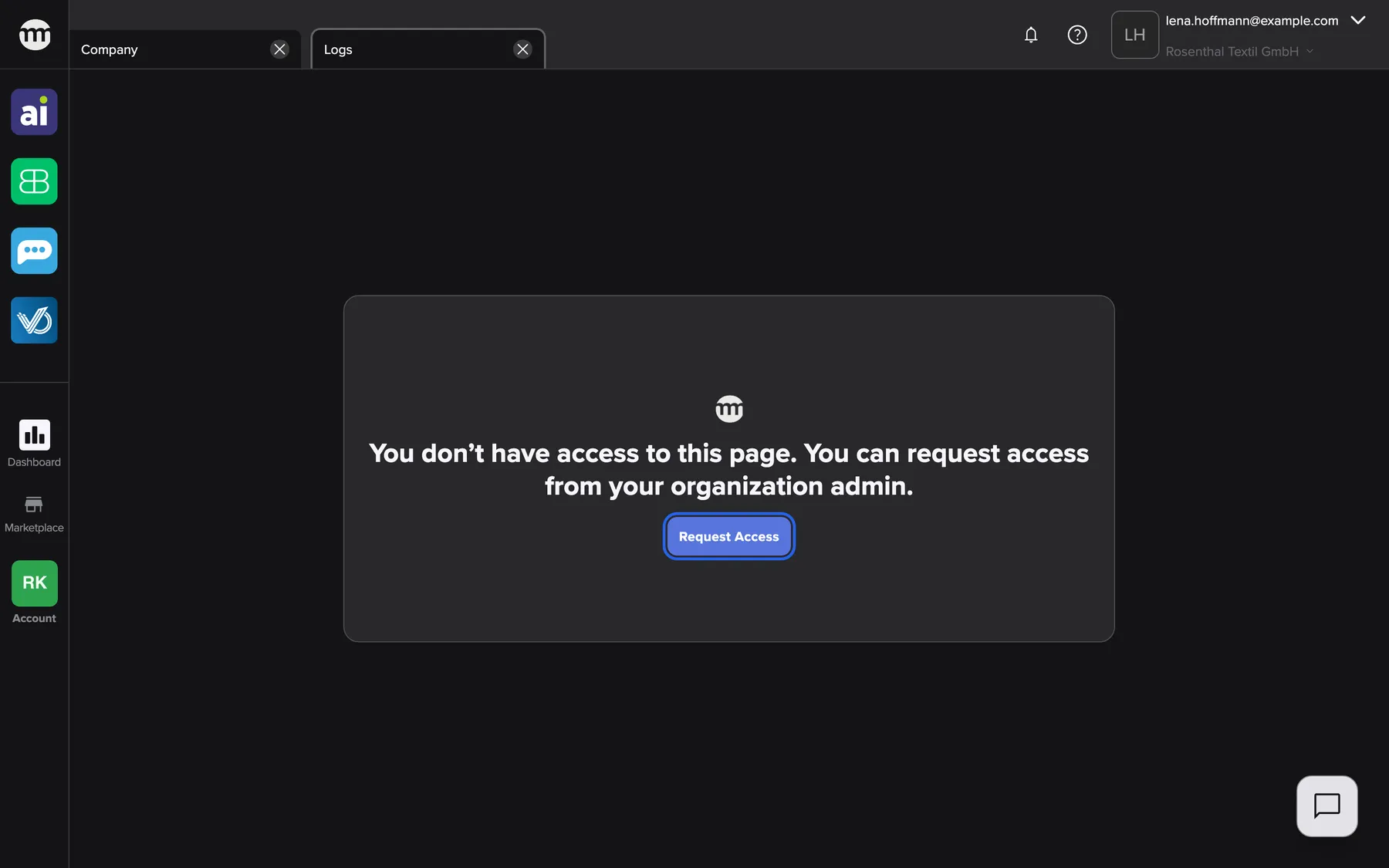
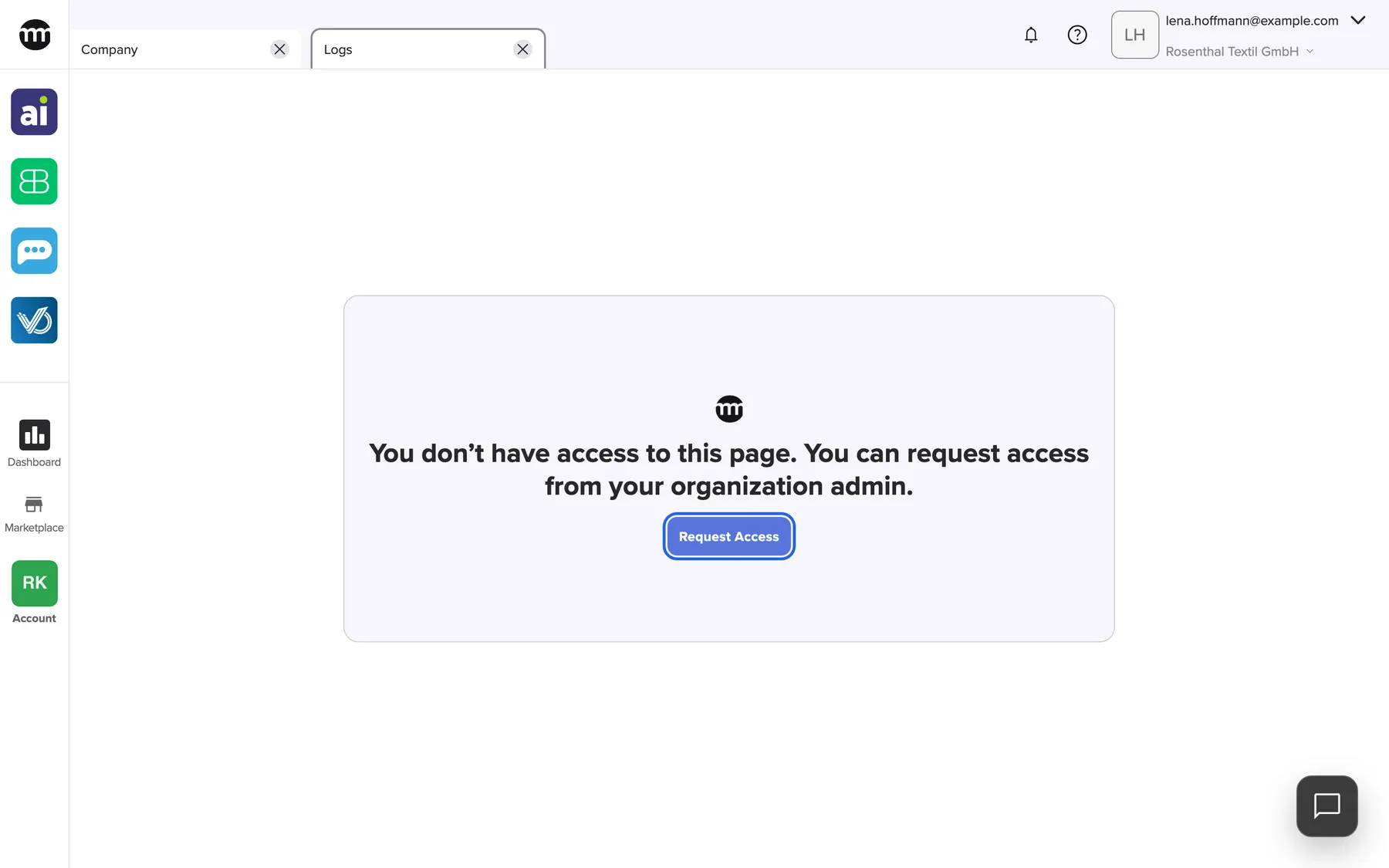
What this screenshot shows
- Screen
- Logs
- Highlighted
- “Request access”: opens the access request form
- Also visible
- No-access message; Sidebar without Logs entry
- Purpose
- what members without the permission Viewing audit log see
What you need to know
Section titled “What you need to know”
What you need to know
Section titled “What you need to know”| Topic | Fact |
|---|---|
| Page size | 50 events per page, newest first. The page buttons appear only when there are more. |
| Default period | See Date range |
| Refresh | The list reloads by itself about once a minute |
| Read-only | Events cannot be edited or deleted |
| Interface language | Event types follow your interface language. Sources and payloads stay as recorded. |
| Tool events | Connected tools report some events, for example when a user is linked to a tool |
Frequently asked questions
Section titled “Frequently asked questions”
Frequently asked questions
Section titled “Frequently asked questions”General
Section titled “General”Why can’t I open Logs?
Section titled “Why can’t I open Logs?”The Logs tab needs the permission Viewing audit log. Neither the Member nor the Partner preset includes it. Select Request access on the tab, or ask your company owner to switch it on.
Can I delete or edit a log entry?
Section titled “Can I delete or edit a log entry?”No. The Logs tab is read-only for everyone, including the owner. The entries come from comrce Hub and your connected tools. Nobody can change them afterwards.
What does the Impersonated badge mean?
Section titled “What does the Impersonated badge mean?”The badge under an email address on the Logs tab marks an action of comrce support in your account. Support works in your account only with the service PIN from your Settings tab. The badge tells these actions apart from your team’s.
Finding events
Section titled “Finding events”How do I see everything one person did?
Section titled “How do I see everything one person did?”Type the person’s email address into the search box on the Logs tab. The list then shows all events concerning that person, newest first.
How do I find all permission changes?
Section titled “How do I find all permission changes?”Open the event type filter on the Logs tab, search for “permissions” and pick the edited permissions type. Optionally set a date range. Each row’s payload lists the added and removed permissions and who made the change.
Why don’t I see events older than three months?
Section titled “Why don’t I see events older than three months?”The Logs tab opens on the last three months up to today. Select the date range button and choose an earlier first day. Older events are still recorded and appear as soon as the range covers them.
Why does my date range miss events from late evening?
Section titled “Why does my date range miss events from late evening?”The day boundaries of the date range can differ from your local time. Events close to midnight can then fall on the neighbouring day. Extend the range by one day on either side.
Details
Section titled “Details”Why are the payloads in English?
Section titled “Why are the payloads in English?”The payload shows the event data exactly as it was recorded. Only the event type column on the Logs tab follows your interface language.
Why does a change comrce support made to my company not appear in the event type filter?
Section titled “Why does a change comrce support made to my company not appear in the event type filter?”Some changes that comrce support makes cannot be picked in the event type filter. One example is an update of your company information. They still appear in the list. Use the search box with the source or email instead.
Troubleshooting
Section titled “Troubleshooting”
Troubleshooting
Section titled “Troubleshooting”| Symptom | What to check |
|---|---|
| The tab shows You don’t have access to this page. You can request access from your organization admin. | You lack Viewing audit log. Select Request access. |
| The list is empty | Clear the search box, the sources and the event types. Choose an earlier first day in the date range. |
| An event you expect is missing | Check that the date range covers it, with a day to spare on either side. Then wait for the next refresh. |
| Error loading data | After many filter changes in a row, wait a minute. Otherwise reload the tab. If it persists, contact support. |