

Processes and how they work
In comrce cloudprint, every print job takes the same route. A queue takes it in. A trigger hands it to one or more pipelines. The pipeline’s steps decide which printer prints it and what happens to the document on the way.
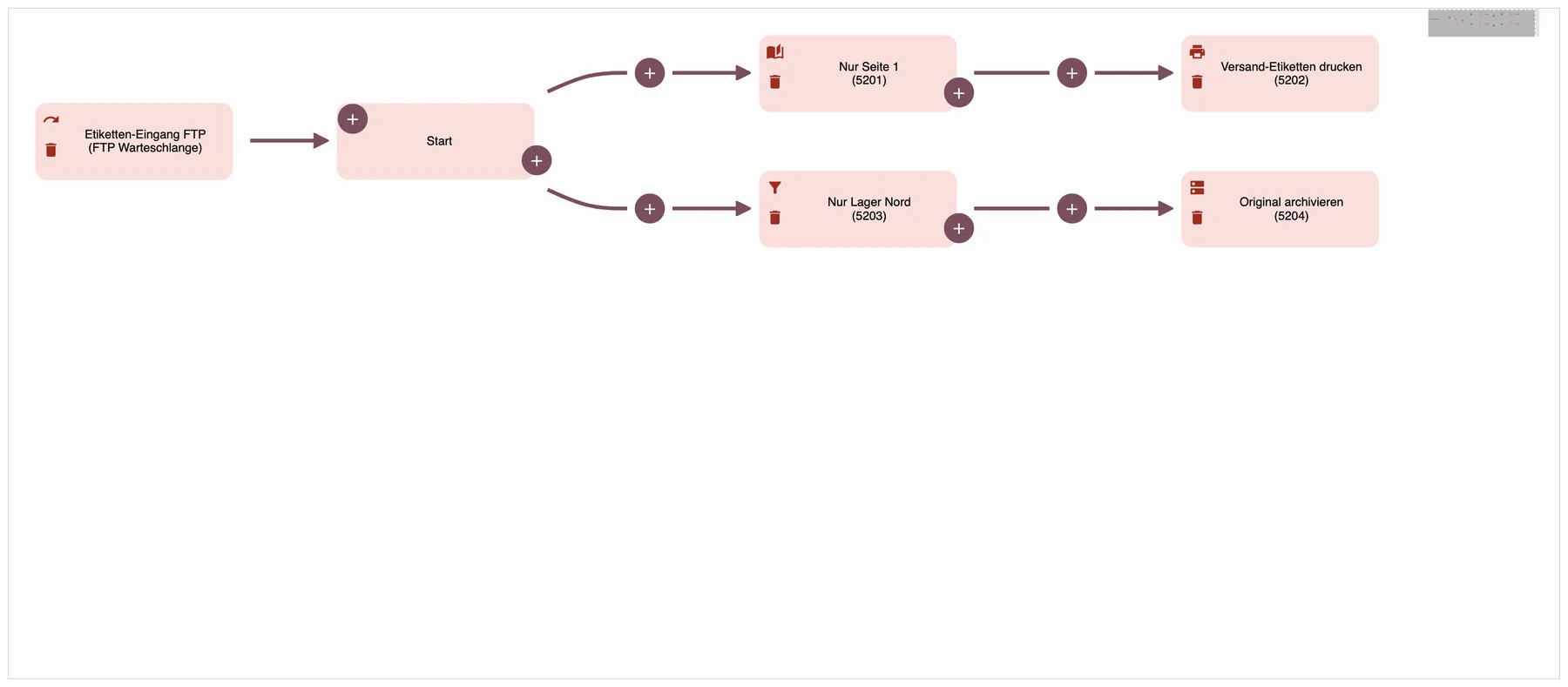
What this screenshot shows
- Highlighted
- shows a queue, Start and two branches of steps
- Also visible
- FTP queue on the left; Branch: page filter then printer output; Branch: condition then FTP output
- Purpose
- how queues and pipelines fit together
Queues
Section titled “Queues”Queues are the entry points other systems see and send jobs to. Each queue has a type, shown in brackets after its name:
- “API Warteschlange” (API queue) takes in jobs through the comrce cloudprint API.
- “Manuelle Warteschlange” (manual queue) is created with every new printer. The web app has no upload into it.
- E-Mail Warteschlange (email queue) fetches jobs from a mailbox.
- FTP Warteschlange (FTP queue) fetches jobs from an FTP server.
To print a single PDF by hand, use the plus on Client jobs. It sends the file straight to a printer, without a queue or a pipeline. How to set queues up is on Queues.
Triggers
Section titled “Triggers”A trigger links queues to a pipeline. So one queue can start several pipelines, and one pipeline can be started by several queues. You create a trigger in the pipeline editor. Use the plus at the top left of the Start tile, and comrce cloudprint names the trigger for you. See Link a queue.
Pipelines
Section titled “Pipelines”A pipeline holds the processing logic. Its steps send the job to printers or an FTP server, check conditions and change the document. When a tile has two outgoing lines, the job runs down both branches. The steps are described on Pipelines and their steps.
Pipelines comrce cloudprint creates for you
Section titled “Pipelines comrce cloudprint creates for you”comrce cloudprint sets up the route for every new printer by itself. There’s no setting to switch this on or off. When a Service Client reports a printer for the first time, comrce cloudprint creates:
- Two queues: a manual queue and an API queue. Both are called “Input for”, the printer name and a number for the Service Client. Example: “Input for Versand-Etiketten [21]”.
- A trigger that links both queues to the new pipeline.
- A pipeline called “Autopipeline for” and the printer name.
- A printer output to that printer, as the pipeline’s only step.
You can change these pipelines like any other. Alle Pipelines zurücksetzen on the pipeline list deletes all queues, triggers and pipelines. Then it creates this set again for every active printer.
Why another system lists printers that no longer exist
Section titled “Why another system lists printers that no longer exist”Another system, such as your shop software, shows the queues of comrce cloudprint, not the printers. Deleting a printer or a pipeline doesn’t delete its queues. So the old “Input for …” queues stay visible there until you delete them under Queues.