

Working with several companies
Tax advisors, agencies and owners of sister companies know the juggling act: several companies, several logins. In comrce Hub one account is enough. Each company invites the same email address, and you choose which company to work in.
Data, tools and permissions never mix, because you always work in exactly one company at a time.
What it does
Section titled “What it does”Separate accounts per client mean separate passwords and constant signing out and in. Shared accounts are worse, because nobody can tell who did what.
In comrce Hub one account holds any number of memberships, each with its own role and permissions.
- At sign-in you choose the company from a list that shows your role in each. Choosing a company at sign-in
- While working you switch companies from the top bar without signing out. Work for several companies with one login
- My companies lists all your memberships. Where you are a Partner, it also shows each company’s tools. Companies in the My companies tab
- You can leave a company yourself. Owners first hand over ownership. Leaving a company
Every action you take is recorded in the Logs of the company you were working in at that moment.
Before you start
Section titled “Before you start”| Requirement | Details |
|---|---|
| Two or more memberships | Each company invites your email address. Accept each invitation with your existing account. See Inviting people. |
| Active memberships | Deactivated or deleted memberships do not appear. Neither do companies whose owner is inactive. |
| Permission or plan | None. Every user with a company sees My companies. |
Understanding memberships
Section titled “Understanding memberships”| Your situation | What happens at sign-in | Example |
|---|---|---|
| No active company | You see only your personal settings | You left your last company |
| One active company | You go straight into it | Most team members |
| Two or more | You choose from a list | Clara Neumann, Partner at three clients |
How comrce Hub decides
Section titled “How comrce Hub decides”- Exactly one company at a time. Everything on screen belongs to the current company: tabs, menus, tools and logs.
- Your role per company. You can be Owner of one company, Member of another and Partner of a third, each with its own permissions.
- One owned company. A person can own only one company, but can belong to any number.
- Active only. Only active memberships in active companies are listed.
Setting it up in three steps
Section titled “Setting it up in three steps”-
Accept the invitations. When another company invites your email address, open the email and accept with your existing account. You are switched into that company right away.
-
Sign in and choose. From now on, signing in shows Select an organization. Select the company you want to work in.
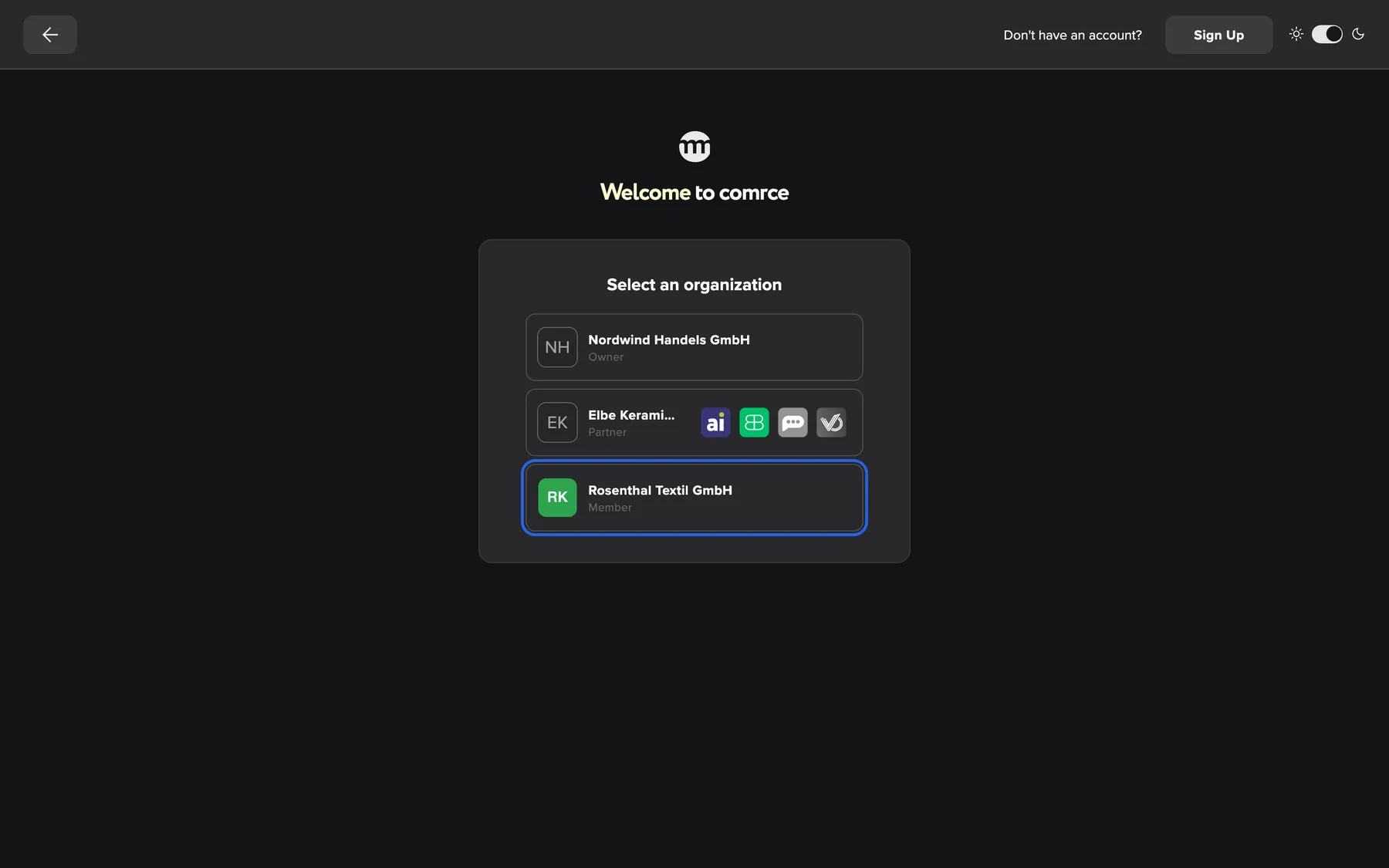
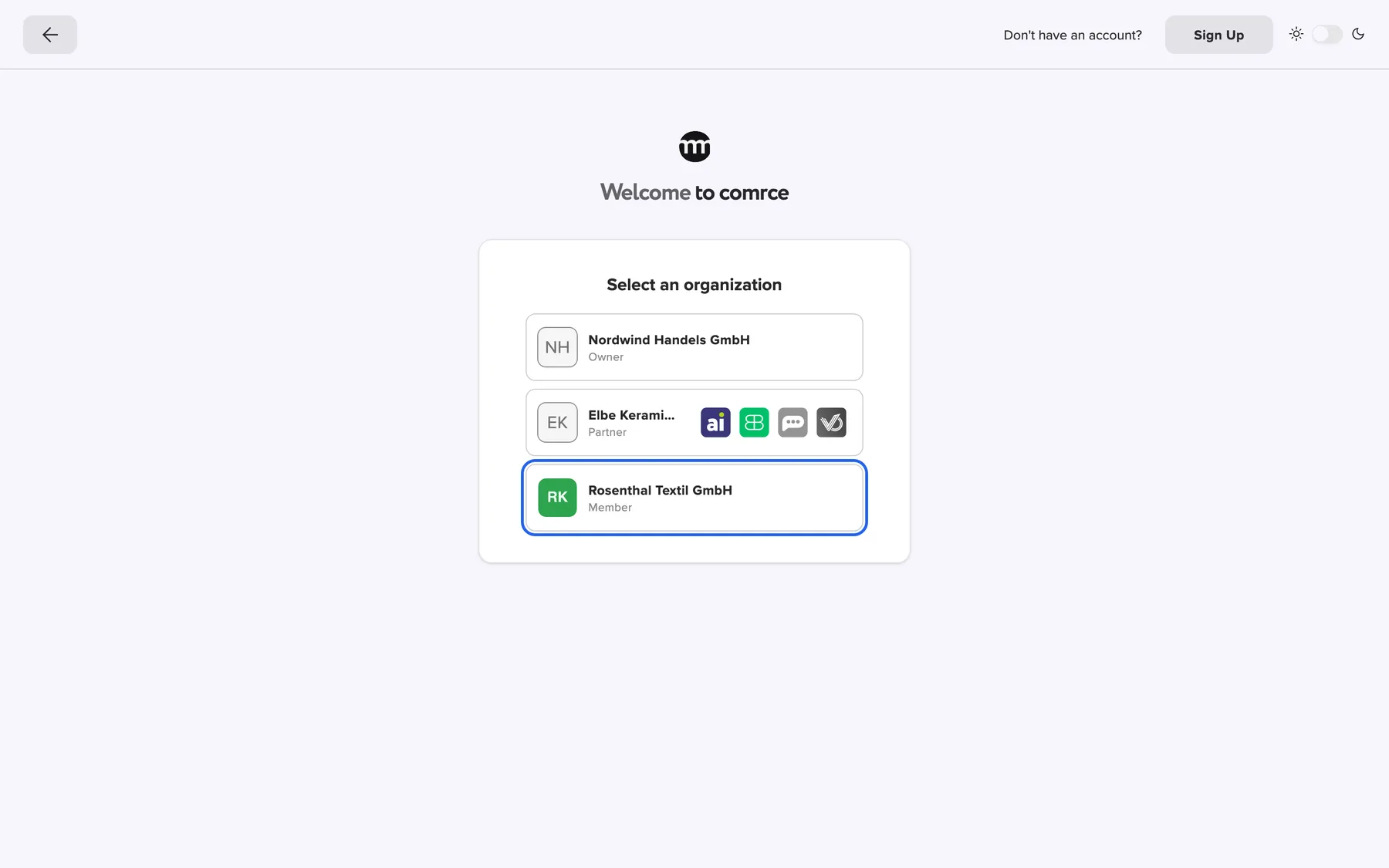
With two or more companies you choose one at every sign-in. With one company this step is skipped. What this screenshot shows
- Screen
- Select an organization
- Highlighted
- “Rosenthal Textil GmbH”: signs in to that company
- Also visible
- Three companies with roles Owner, Partner, Member; Back arrow
- Purpose
- choose the company at sign-in
-
Switch when needed. Select the company name under your email address at the top right. Then select the arrow in the other company’s row.
Every setting, explained
Section titled “Every setting, explained”
Every setting, explained
Section titled “Every setting, explained”Three controls decide which company you work in. The picker at sign-in is the one people miss most, so it comes first.
The company picker at sign-in
Section titled “The company picker at sign-in”The sign-in page, after email and password, under Select an organization.
One button per company with logo, name and your role. Where you are Partner, larger screens also show the company’s tools. Selecting a company finishes the sign-in. The back button at the top left of the page returns to the email and password form.
You start in the right company instead of switching afterwards.
The company name in the top bar
Section titled “The company name in the top bar”Under your email address at the top right, with a small arrow.
Shows the current company and opens My companies.
You always see which company you are working in.
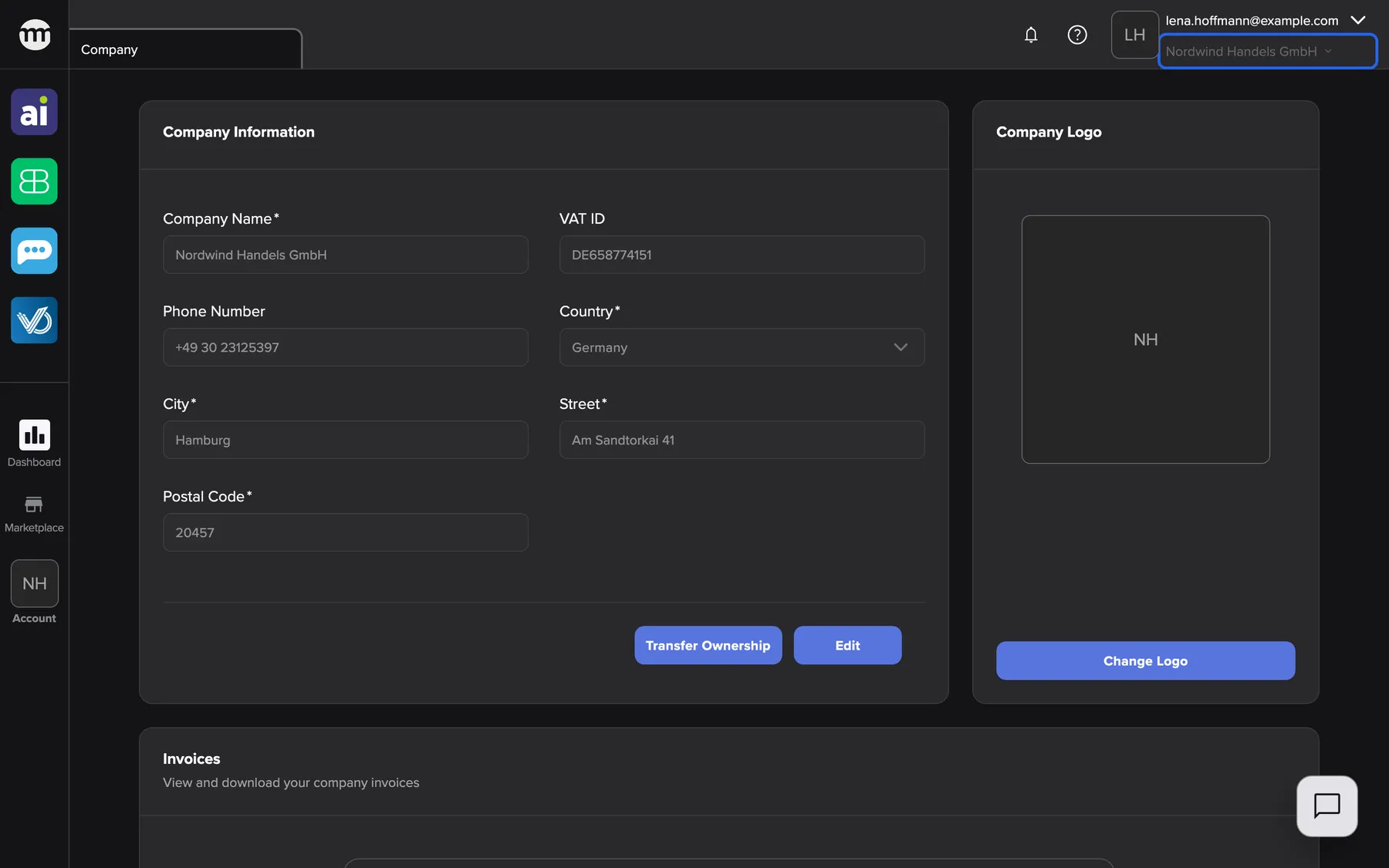
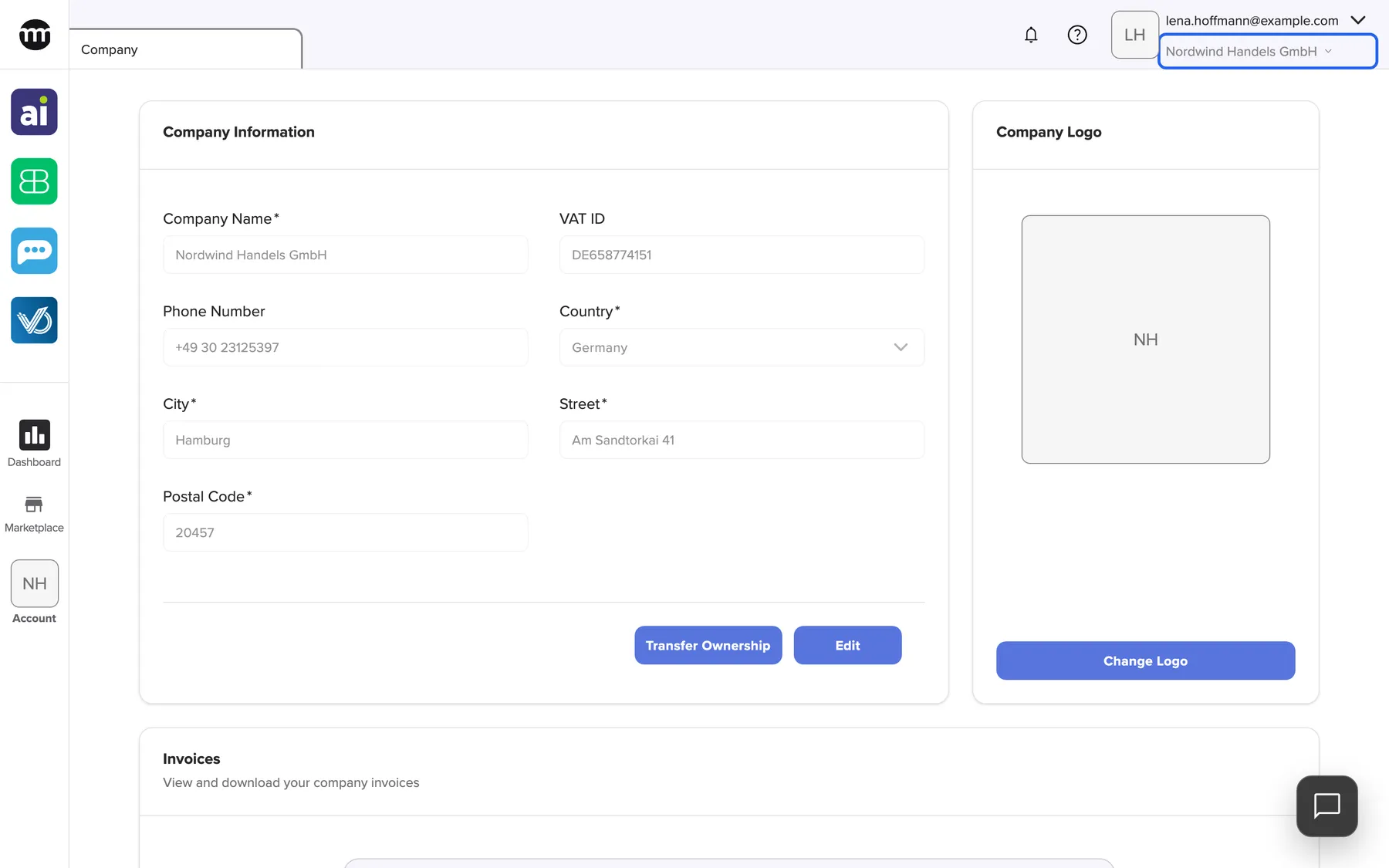
What this screenshot shows
- Screen
- Company
- Highlighted
- “Open company switcher”: opens My companies
- Also visible
- Email lena.hoffmann@example.com; Company tab
- Purpose
- the company switcher in the top bar
My companies
Section titled “My companies”The tab opened from the company name. See My companies.
All your memberships, seven per page, with search, switching and leaving.
The control centre for everyone with several companies.
Choosing a company at sign-in
Section titled “Choosing a company at sign-in”Every sign-in with email and password or Google, when you have two or more active companies.
The list shows each company’s name, logo and your role. Error messages, for example This organization is not active, please contact the owner., appear above the list.
With many clients, choosing at sign-in saves a switch.
- An accountant starts the day → sign in and choose the client whose VAT return is due.
- A seller helping in a sister company → choose the sister company, then switch back from the top bar.
- Only one company left → comrce Hub skips the list.
Companies in the My companies tab
Section titled “Companies in the My companies tab”| Indicator | Meaning |
|---|---|
| Current | The company you are working in |
| Coloured tool icon | The company uses that tool (only in Partner rows) |
| Grey tool icon | The company does not use that tool |
| Greyed-out Leave | You own the company and cannot leave it |
The Tools used column
Section titled “The Tools used column”Where you are Partner, the column shows the four tools. A tool is in colour when the company has connected it. An accountant then knows where to look for invoices or orders. Other roles show a dash.
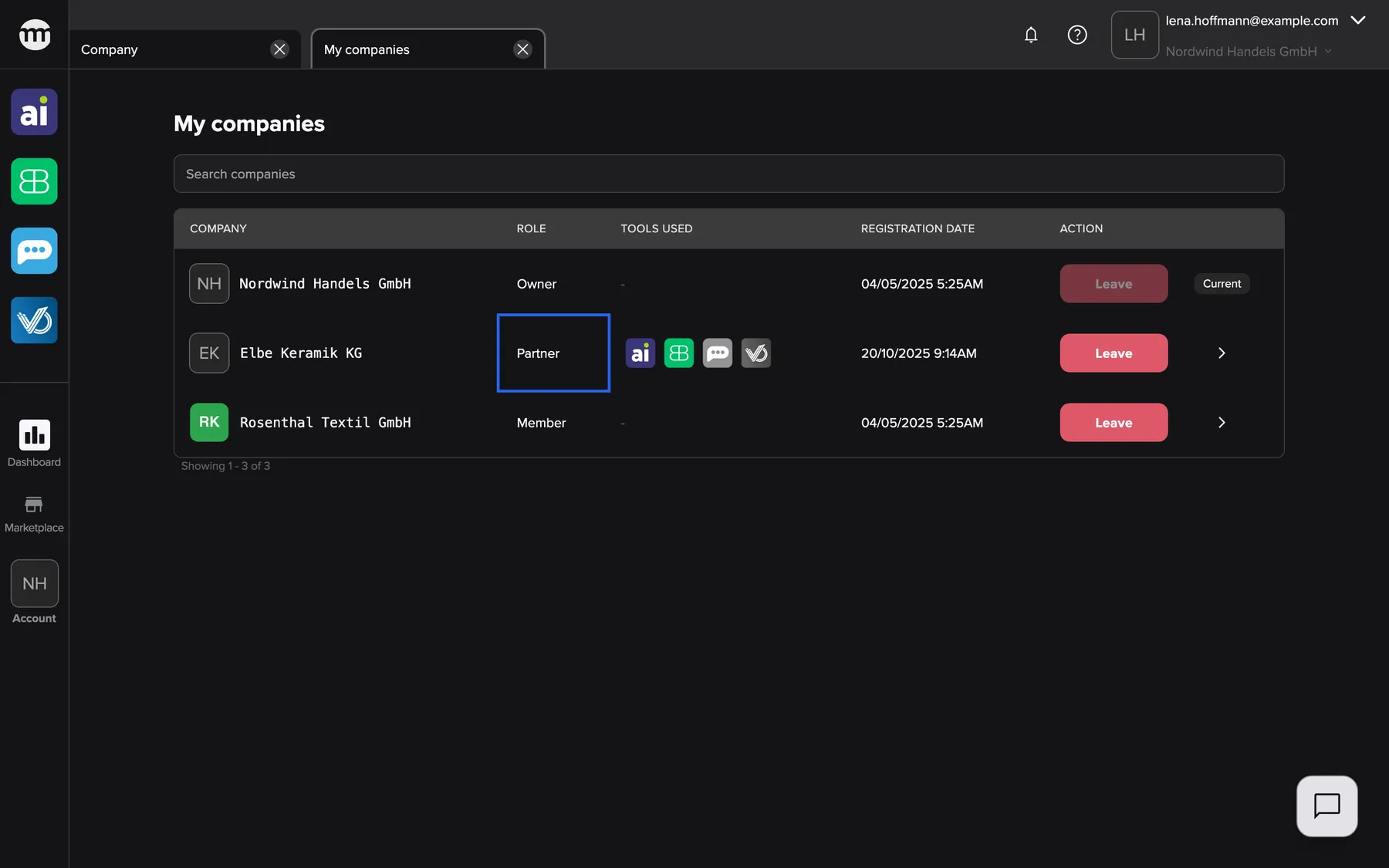
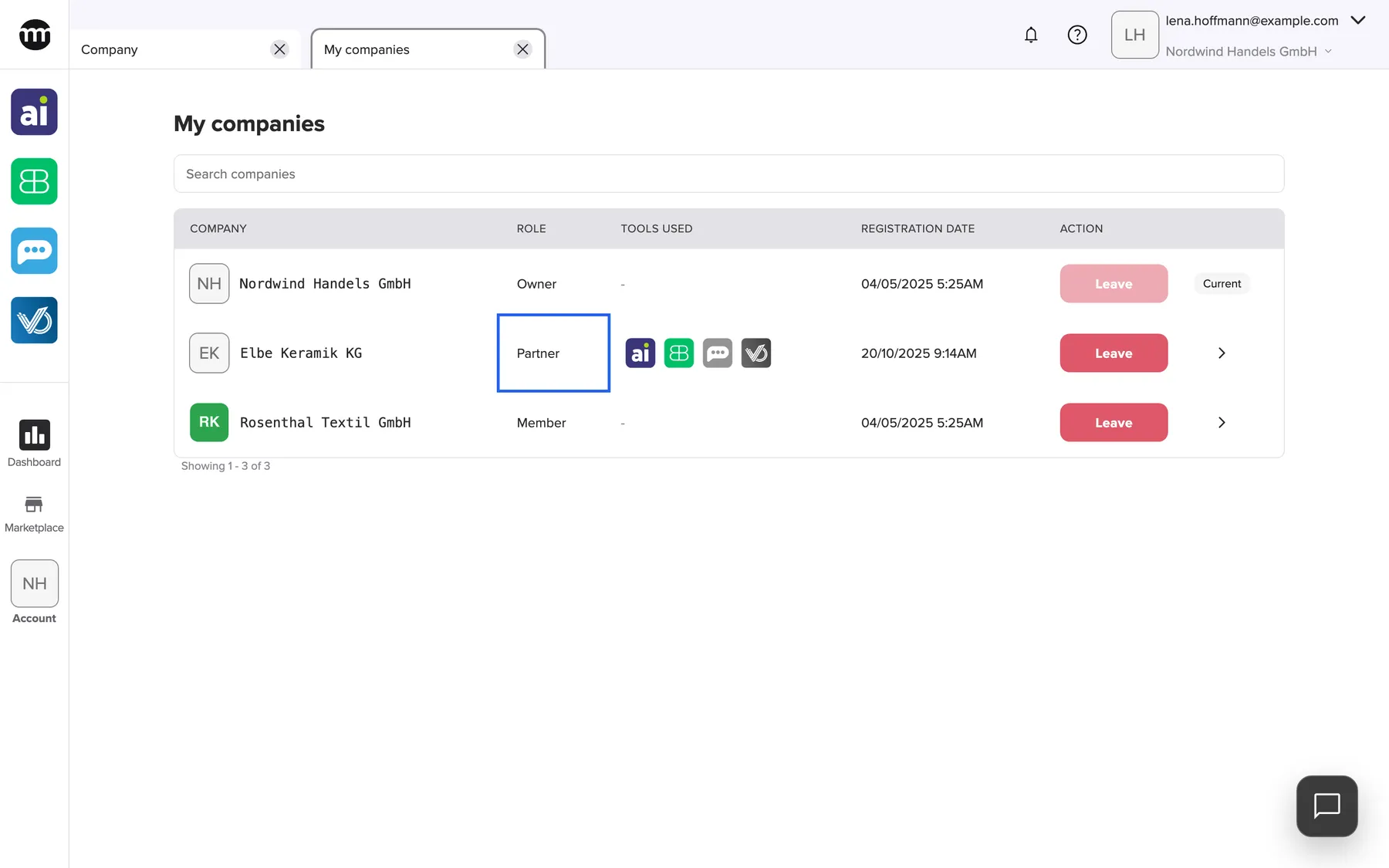
What this screenshot shows
- Screen
- My companies
- Highlighted
- “Partner”: shows your role in that company
- Also visible
- Tools used icons for the Partner row; Current badge for Nordwind; Leave buttons and switch arrows
- Purpose
- your companies at a glance
Why: partners usually work outside the company and do not see its tool setup otherwise.
Work for several companies with one login
Section titled “Work for several companies with one login”My companies, the arrow in a company’s row.
After the confirmation Switch company?, comrce Hub signs you in to the other company without a password. It closes every tab, loads that company’s menus, tools and your permissions, and shows Company switched.. With unsaved changes, the dialog Unsaved changes lists the affected tabs. The button then reads Switch and discard changes.
Closing all tabs makes sure no data of one company stays on screen in another.
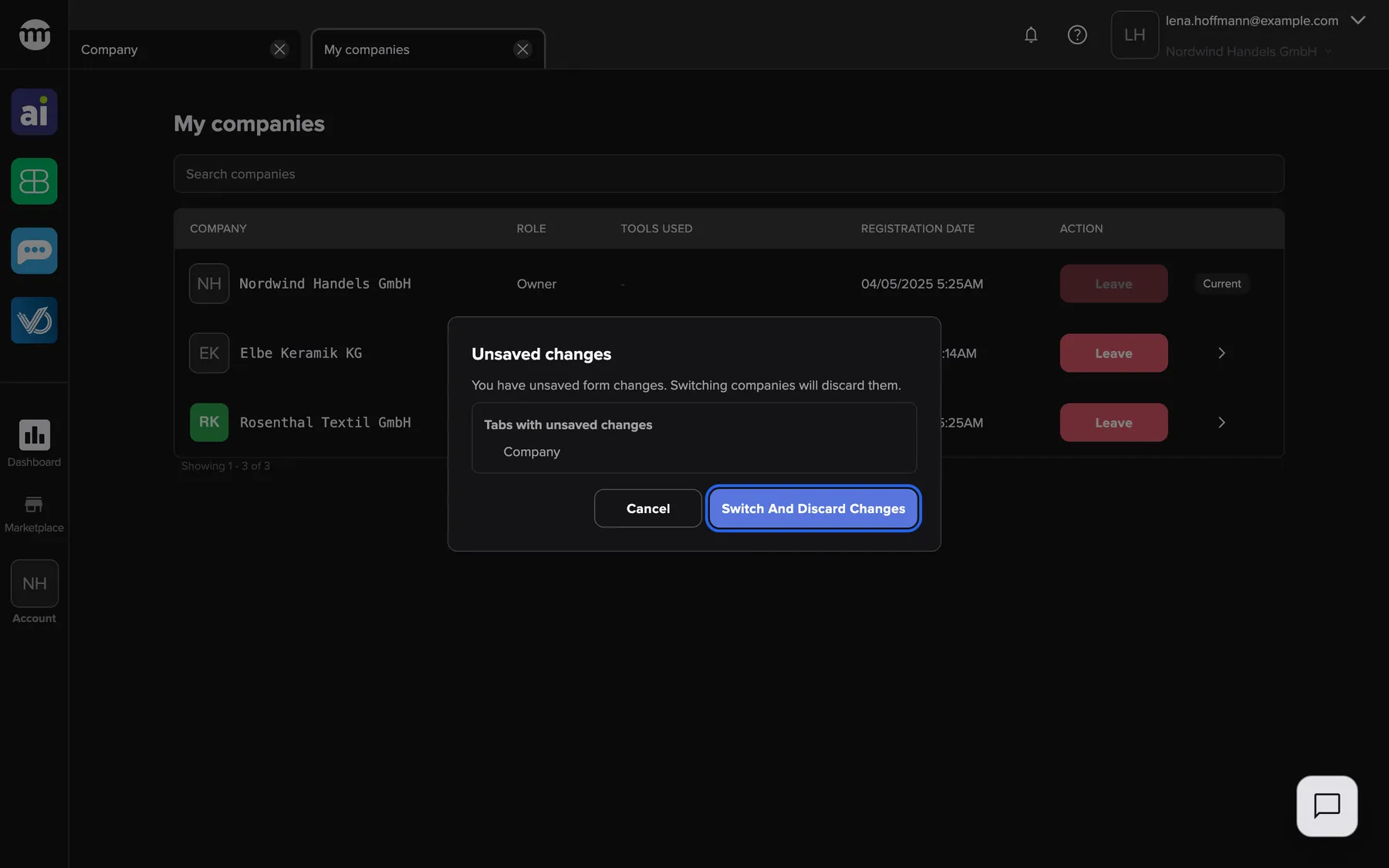
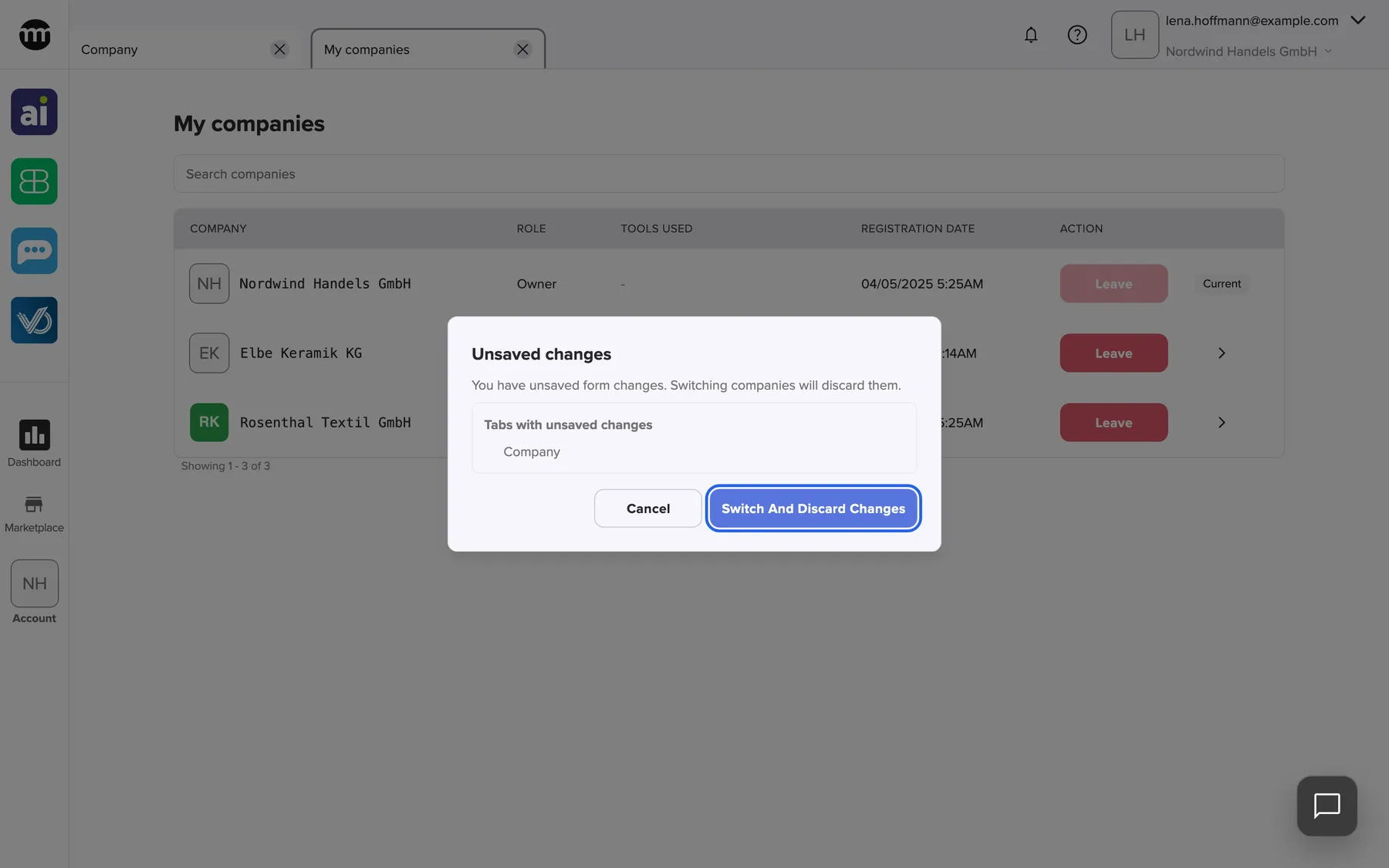
What this screenshot shows
- Screen
- My companies
- Highlighted
- “Switch and discard changes”: switches and discards unsaved changes
- Also visible
- Tabs with unsaved changes list; Cancel button
- Purpose
- switching with unsaved changes
Leaving a company
Section titled “Leaving a company”My companies, Leave in a company’s row.
Ends your membership after the confirmation Leave company?. Leaving the current company signs you out. Owners cannot leave, and the button shows Company owners cannot leave their own company..
When a client contract ends, you remove your own access without waiting for the client.
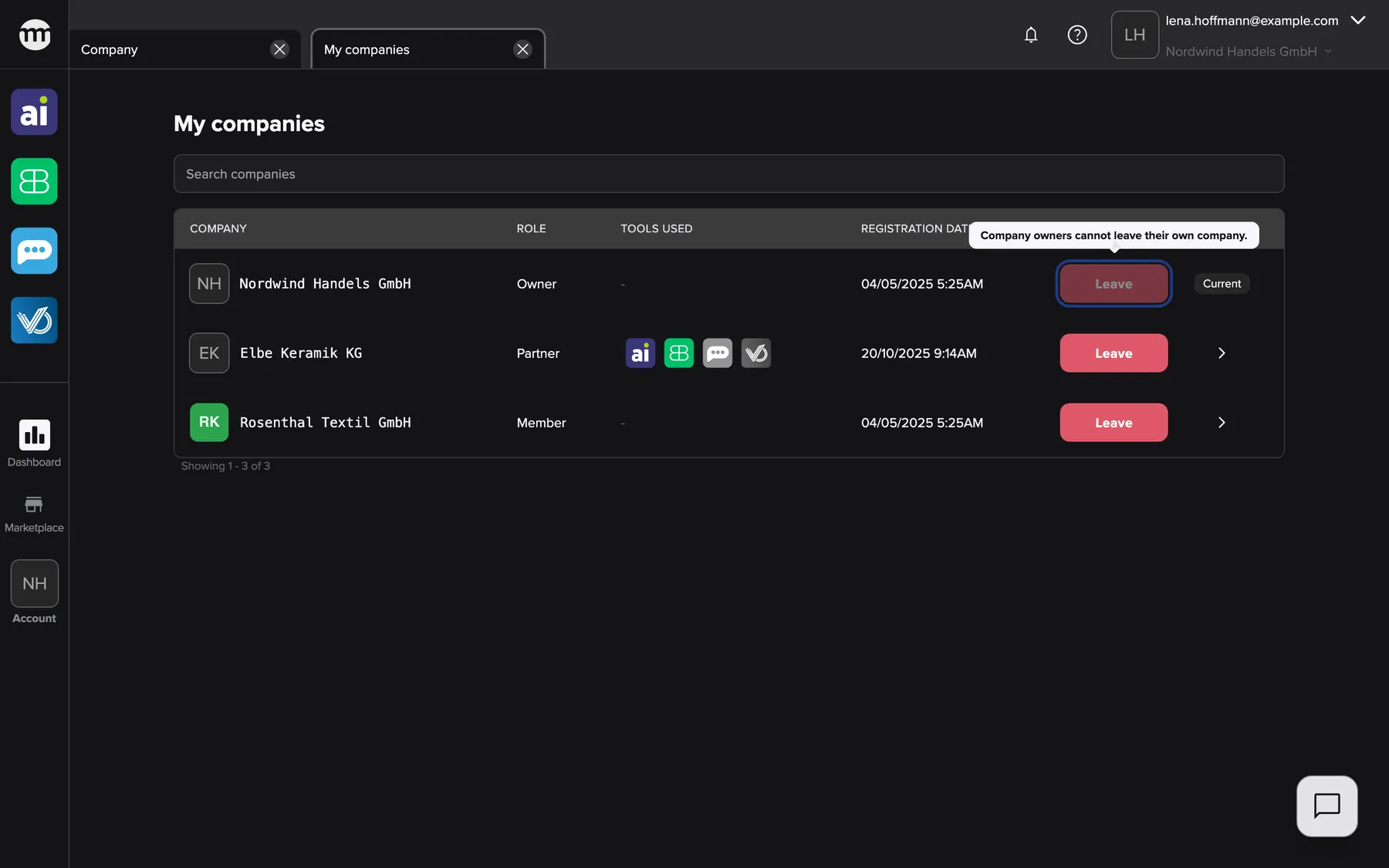
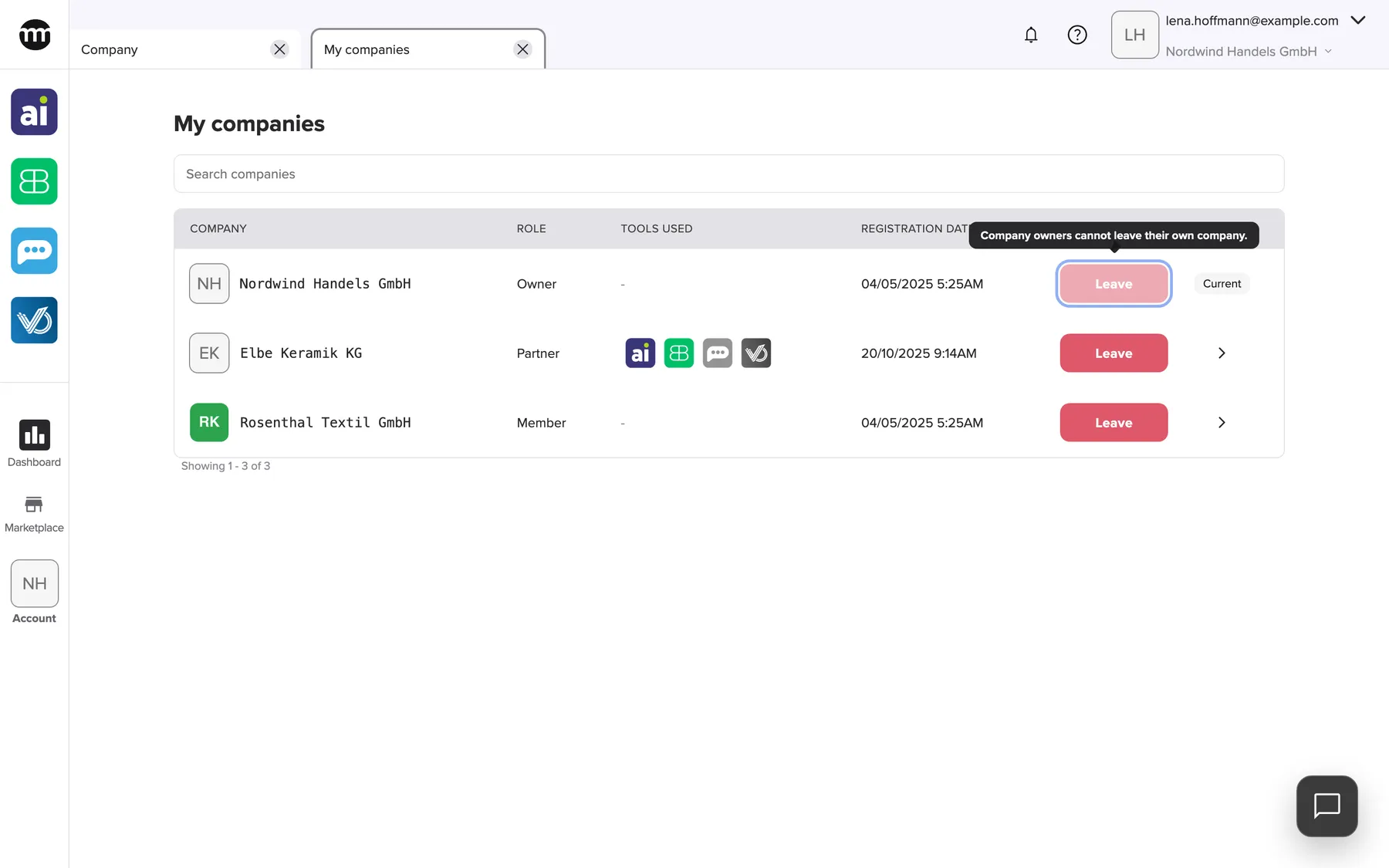
What this screenshot shows
- Screen
- My companies
- Highlighted
- “Leave”: leaving is not allowed for owners
- Also visible
- Tooltip Company owners cannot leave their own company.; Other rows with Leave enabled
- Purpose
- owners cannot leave
After you leave your last company, comrce Hub shows a reduced layout. The sidebar is empty, with no notifications and no company name. The Settings tab stays, where you still manage your account. A new invitation brings you back into a company.
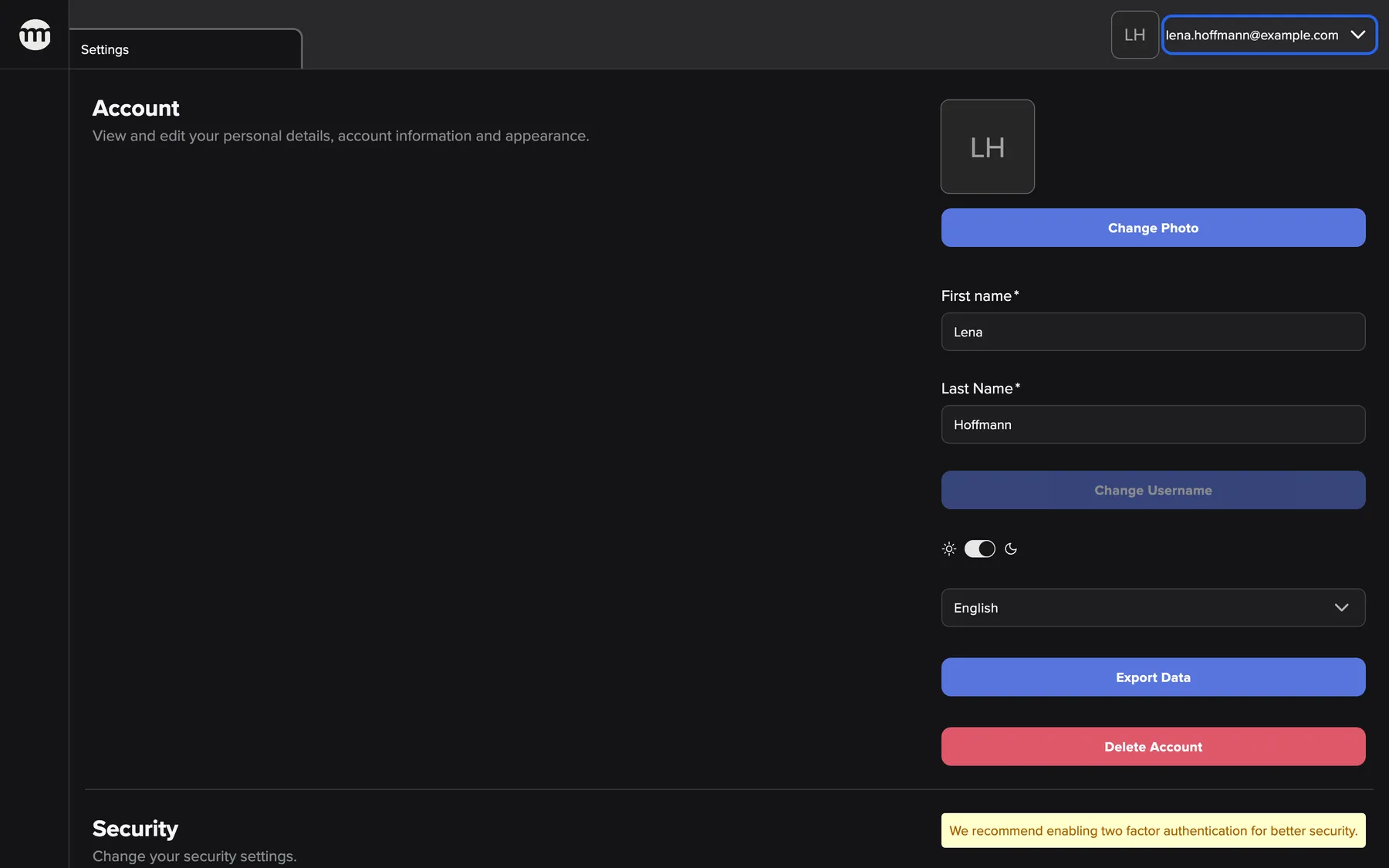
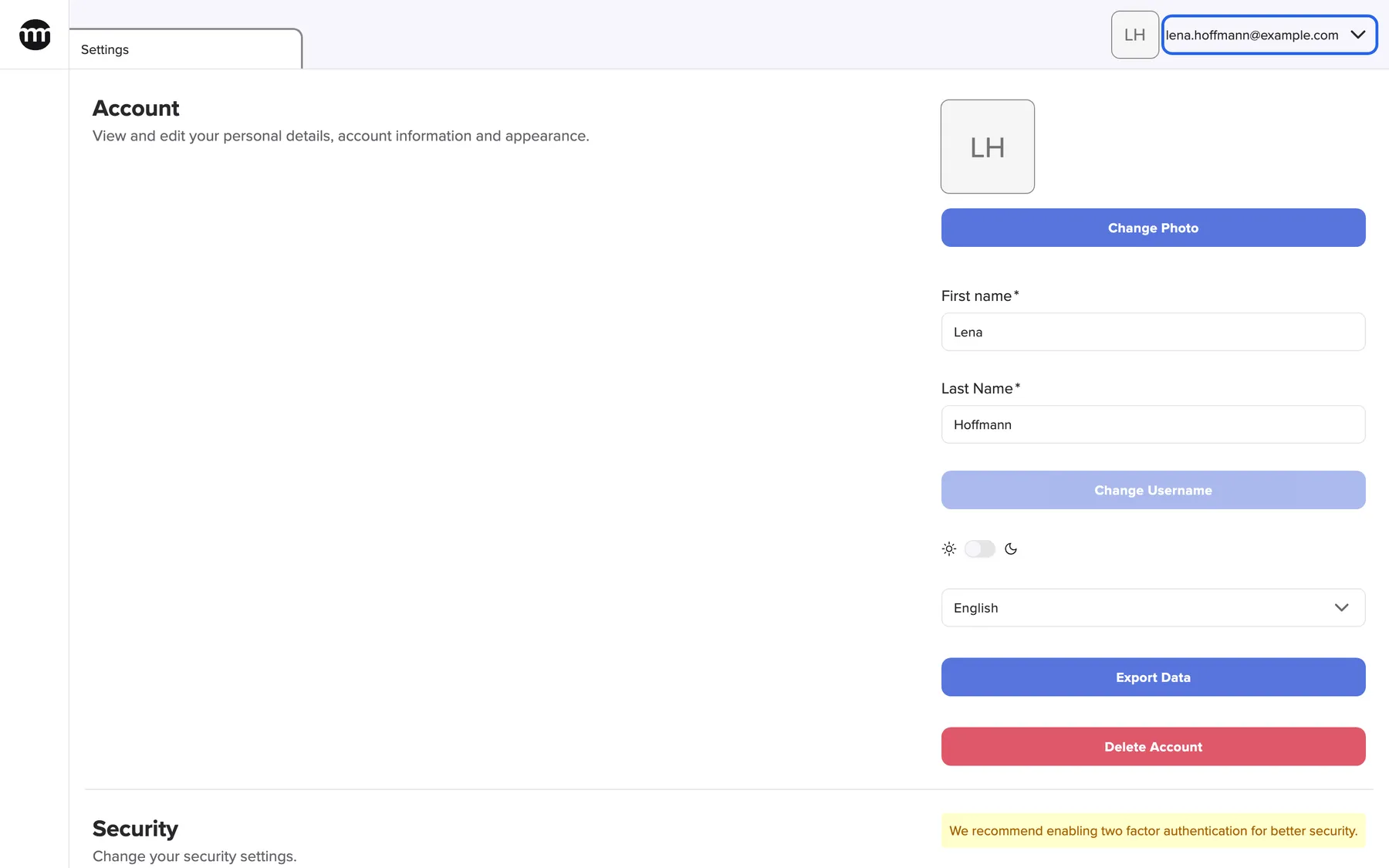
What this screenshot shows
- Screen
- Settings
- Highlighted
- “lena.hoffmann@example.com”: opens the user menu with Settings and Logout
- Also visible
- Empty sidebar; Settings tab; No company name, no bell, no help button
- Purpose
- the layout without a company
What you need to know
Section titled “What you need to know”
What you need to know
Section titled “What you need to know”| Topic | Fact |
|---|---|
| One at a time | You always work in exactly one company |
| Per membership | Role, permissions and Logs are per company |
| Per account | Name, password, language, two-factor authentication |
| Switching | No password needed. Closes every tab. |
| Leaving | Final. Owners must transfer ownership first. |
| Ownership | One owned company per person |
Frequently asked questions
Section titled “Frequently asked questions”
Frequently asked questions
Section titled “Frequently asked questions”General
Section titled “General”Can I use one account for several companies?
Section titled “Can I use one account for several companies?”Yes. Every company that invites your email address adds a membership to your existing account. Accept each invitation while signed in. The company then appears in My companies and in the list at sign-in.
Do I need a different password for each company?
Section titled “Do I need a different password for each company?”No. You have one account with one password and one two-factor setup for all your companies. Only your role and permissions differ from company to company.
Can I own two companies?
Section titled “Can I own two companies?”No. One person can own only one company in comrce Hub. You can be a Member or Partner in any number of other companies.
Sign-in
Section titled “Sign-in”Why does comrce Hub ask me to select an organization at every sign-in?
Section titled “Why does comrce Hub ask me to select an organization at every sign-in?”You have two or more active memberships, so comrce Hub asks which company to open. If you belong to only one company, the list is skipped and you go straight in.
A company is missing from the list at sign-in. Why?
Section titled “A company is missing from the list at sign-in. Why?”The list shows only active memberships in companies whose owner is active. The company is missing if your membership was deactivated or deleted. It is also missing if you have not accepted the invitation yet.
Can I go back from the company list at sign-in?
Section titled “Can I go back from the company list at sign-in?”Yes. The back button at the top left of the sign-in page returns to the email and password form. There you can sign in with another account, for example when the list shows the companies of the wrong one.
Switching
Section titled “Switching”How do I switch to another company?
Section titled “How do I switch to another company?”Select the company name at the top right to open My companies. Select the arrow in the other company’s row and confirm. comrce Hub switches without asking for your password.
Why did my open tabs close?
Section titled “Why did my open tabs close?”Switching companies always closes every tab, because tabs belong to the company you were working in. The other company opens with its default tab. That is the Company tab if you may view it, otherwise Settings.
I lost my unsaved changes after switching. Can I get them back?
Section titled “I lost my unsaved changes after switching. Can I get them back?”No. comrce Hub warns before switching when a form has unsaved changes and lists the affected tabs. Confirming the warning discards them. Save first, then switch.
Leaving
Section titled “Leaving”How do I leave a company?
Section titled “How do I leave a company?”Open My companies from the company name at the top right. Select Leave in the company’s row and confirm. The membership ends at once, and to return you need a new invitation.
Why can’t I leave a company?
Section titled “Why can’t I leave a company?”You are its owner, so the Leave button is greyed out. Transfer the ownership to another active member from the Company tab first. You then become a Member and can leave.
What happens when I leave the company I am working in?
Section titled “What happens when I leave the company I am working in?”comrce Hub ends the membership and signs you out. At your next sign-in, you choose among your remaining companies. If none is left, you see only your settings.
Can I join a company I left?
Section titled “Can I join a company I left?”Yes, with a new invitation from that company. Ask its owner, or someone there with Inviting users, to invite your email address again. Then accept the invitation while signed in.
Does my language setting change per company?
Section titled “Does my language setting change per company?”No. The interface language belongs to your account and stays the same when you switch companies. Change it on the Settings tab, and it applies to every company.
Can I see my permissions in each company?
Section titled “Can I see my permissions in each company?”Your permissions show in what each company lets you open: menus, buttons and tools. Your own member tab is read-only and shows no switches. Ask the company’s owner if you need a list.
Where it is shown
Section titled “Where it is shown”What does the Tools used column show?
Section titled “What does the Tools used column show?”Where you are a Partner, My companies shows the four tools for each company. A tool is coloured if the company uses it, grey otherwise. Where you are Owner or Member, the column shows a dash.
How do I know which company I am working in?
Section titled “How do I know which company I am working in?”The company name appears under your email address at the top right. The Account button in the sidebar shows the company’s logo or initials. In My companies, the current company carries the badge Current.
Data and privacy
Section titled “Data and privacy”Can one company see my other companies?
Section titled “Can one company see my other companies?”No. Each company sees only your membership in it. That is your name, email, role and status on its Users tab, and your actions in its Logs. Only you see My companies.
Are my actions logged in all companies?
Section titled “Are my actions logged in all companies?”No. Each action is recorded in the Logs of the company you were working in at that moment. Account-wide events such as sign-ins and password changes appear in the Logs of all your companies.
Do invitations to other companies show up anywhere in comrce Hub?
Section titled “Do invitations to other companies show up anywhere in comrce Hub?”No. Invitations arrive by email only, and My companies does not list them. Open the invitation email and accept it. The company then appears in your list.
Troubleshooting
Section titled “Troubleshooting”
Troubleshooting
Section titled “Troubleshooting”| Symptom | What to check |
|---|---|
| A company is missing in My companies or at sign-in | Your membership may be deactivated or deleted, or the invitation not accepted yet. Ask the company’s owner. |
| This organization is not active, please contact the owner. at sign-in | The company is inactive. Contact its owner. |
| Could not switch company. | Your membership there may have changed. Reload My companies. |
| Leave is greyed out | You own the company. Transfer ownership first. |
| Tabs closed unexpectedly | Someone switched companies in this browser, or you did. Switching closes all tabs. |
| After leaving, only Settings is shown | You belong to no active company. Ask for a new invitation. |
| The list at sign-in shows the companies of another account | You signed in with the wrong email address. Select the back button at the top left and sign in again. |
| Different menus after switching | Your permissions differ per company. Ask that company’s owner. |