

The News feed
The News tab is comrce’s news feed: comrce Hub, the tools, new Marketplace partners and events, all in one place. Everyone in your company can read it, and nobody needs a permission for it.
There is no menu item: select the comrce logo at the top of the left sidebar. Below the articles, the tab links to the comrce Academy, support and each tool.
What you can do here
Section titled “What you can do here”- Read what is new, favorites first. The feed shows your favorites first, then the newest articles. The screen at a glance
- Show only one category, such as Billbee or comrce Hub, with the buttons above the list. Filter the feed by category
- Keep an article as a favorite with its star, and find all favorites in one place. Keep an article as a favorite
- Open older articles that comrce moved to the archive. Find older articles in the archive
- Search the titles and full texts of the articles. Search the news
- Read an article in full in a window over the feed, and share its link. Open an article · Read an article
- Get help and learn the tools through the cards below the articles. Use the help and tool cards
The screen at a glance
Section titled “The screen at a glance”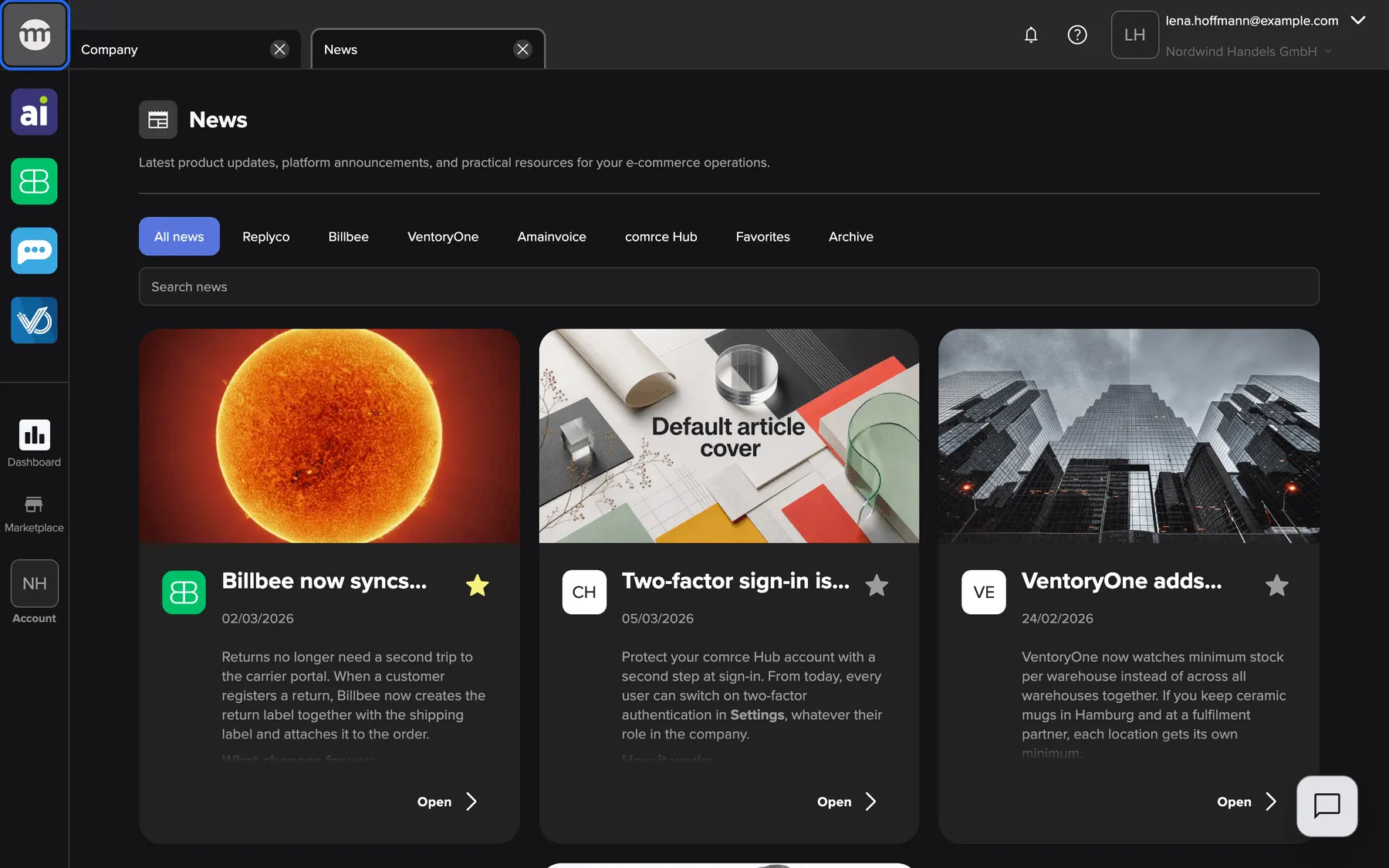
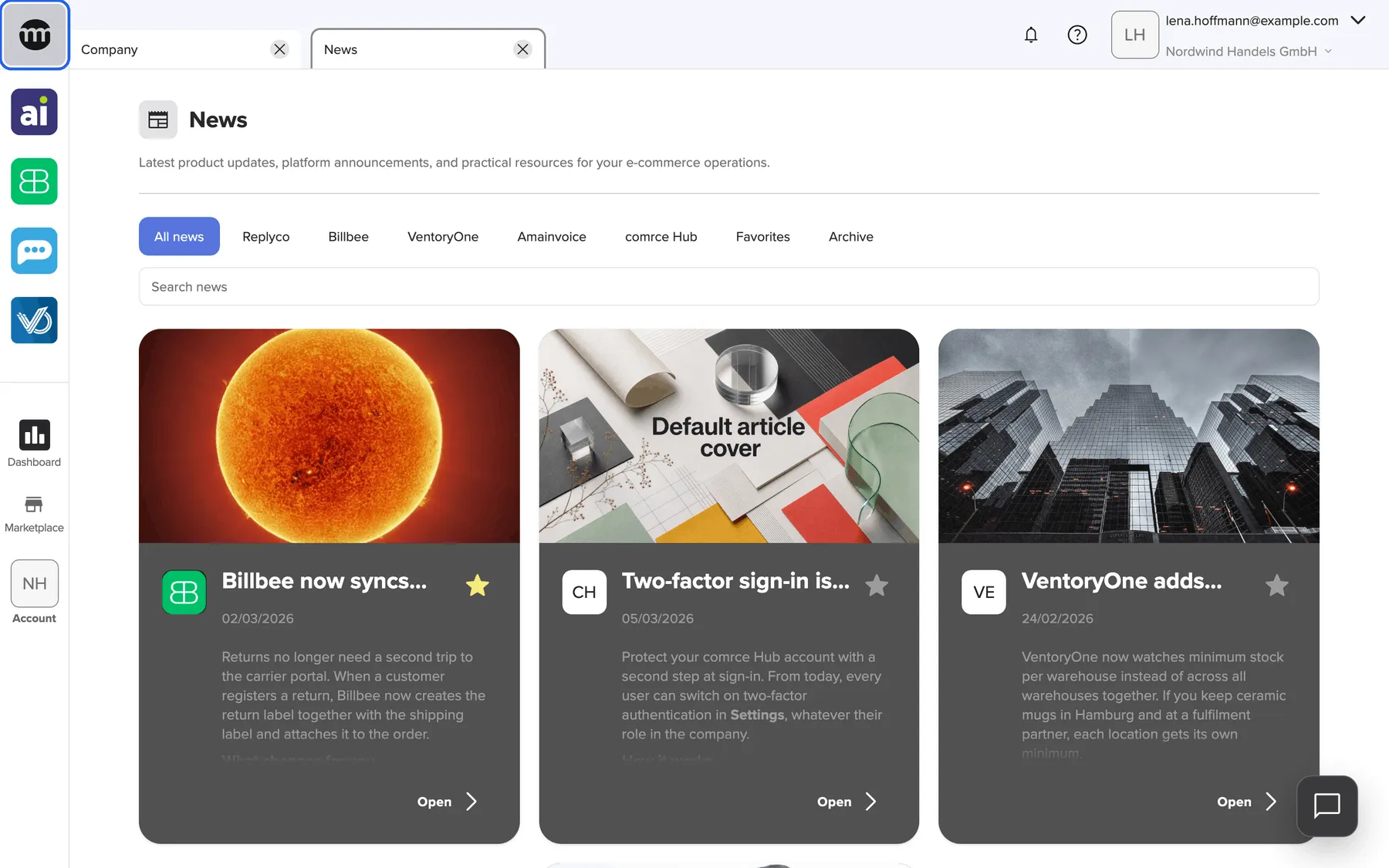
What this screenshot shows
- Screen
- News
- Highlighted
- opens the News tab
- Also visible
- Heading News with the introduction text; Filter buttons: All news (selected), one per category, Favorites, Archive; Search news field; Article cards: cover image, category logos, title, publish date, preview, star button, Open button
- Purpose
- entry point of News and the feed as it first opens
| Region | What it shows | What you do there |
|---|---|---|
| comrce logo, top of the sidebar | The way into News. Its tooltip reads News. | Open or return to the feed |
| Header | The title News and a short introduction with a link to comrce’s practical resources | Open the resources in a new browser tab |
| Filter row | All news, one button per category, Favorites and Archive | Choose what the list shows |
| Search field | The placeholder Search news | Search titles and texts |
| Article cards | Cover picture, category logos, title, publish date, the start of the text, the star and Open | Star an article or open it |
| Load more | A button under the cards when more articles exist | Add the next articles to the list |
| Help Center | Cards for the comrce Academy and Support / Chatbot | Open the Academy or support |
| Tools | One card per tool with Showcase and Learn more | Open the tool’s showcase or product page |
Keep up with what’s new at comrce
Section titled “Keep up with what’s new at comrce”News is comrce’s announcement board. One click on the comrce logo shows you everything comrce has announced.
-
In the left sidebar, select the comrce logo at the very top, above the tool icons.
-
The News tab opens with All news selected. If it is already open, comrce Hub switches to it.
The list starts with your favorites, then every other current article, newest first. In the example, Billbee now syncs return labels automatically comes before the newer two-factor article because Lena Hoffmann starred it.
Filter the feed by category
Section titled “Filter the feed by category”Each article belongs to one or more categories. The filter row has one button per category, in the order comrce set. The selected button is filled blue.
-
Select a category, for example Billbee. The list shows only the current articles with that category.
-
To go back, select the same button again or select All news.
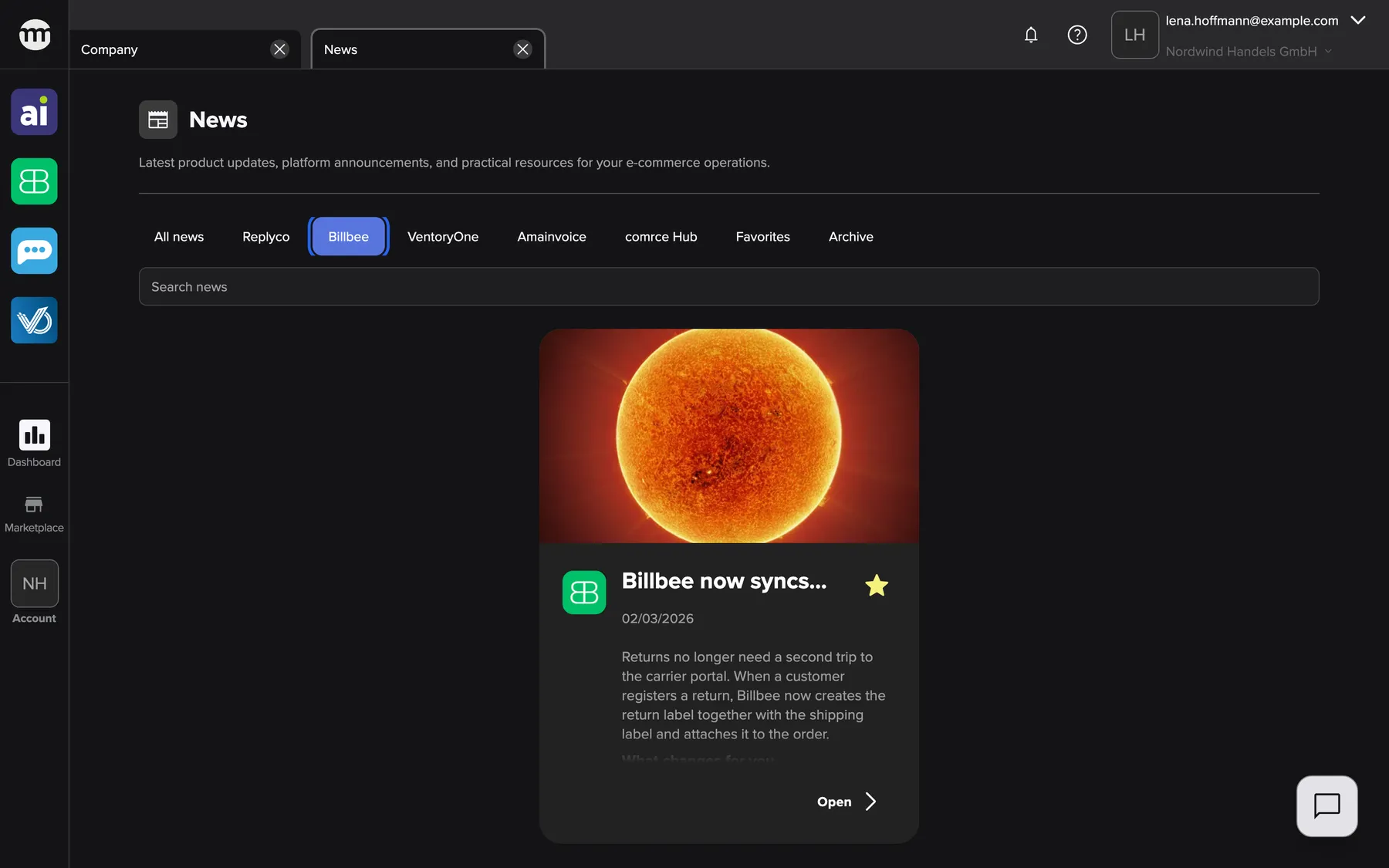
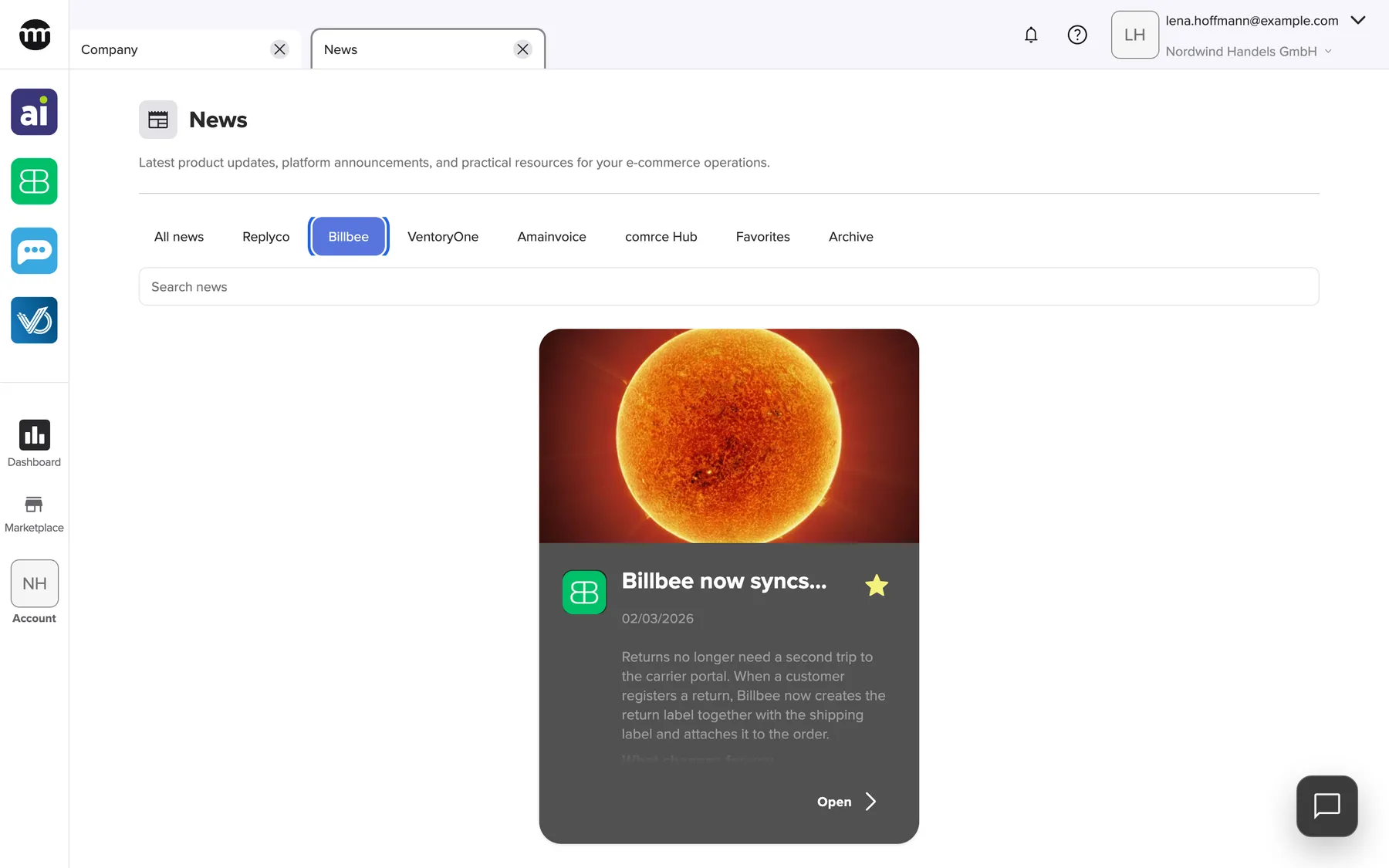
What this screenshot shows
- Screen
- News
- Highlighted
- shows only articles in the Billbee category. Selecting it again clears the filter.
- Also visible
- One article card: the Billbee article; All news no longer selected
- Purpose
- filter the feed by category
Only one button can be selected at a time. Favorites and Archive sit in the same row. So selecting a category leaves your favorites or the archive, and the other way round. An article with several categories appears under each of them.
Keep an article as a favorite
Section titled “Keep an article as a favorite”The star at the top right of every card marks an article as your favorite. A grey star means “not a favorite”, a yellow star means it is one.
-
Select the grey star on a card. comrce Hub shows News article added to favorites., and the star turns yellow.
-
To see all your favorites, select Favorites in the filter row.
-
To remove a favorite, select its yellow star. comrce Hub shows News article removed from favorites..
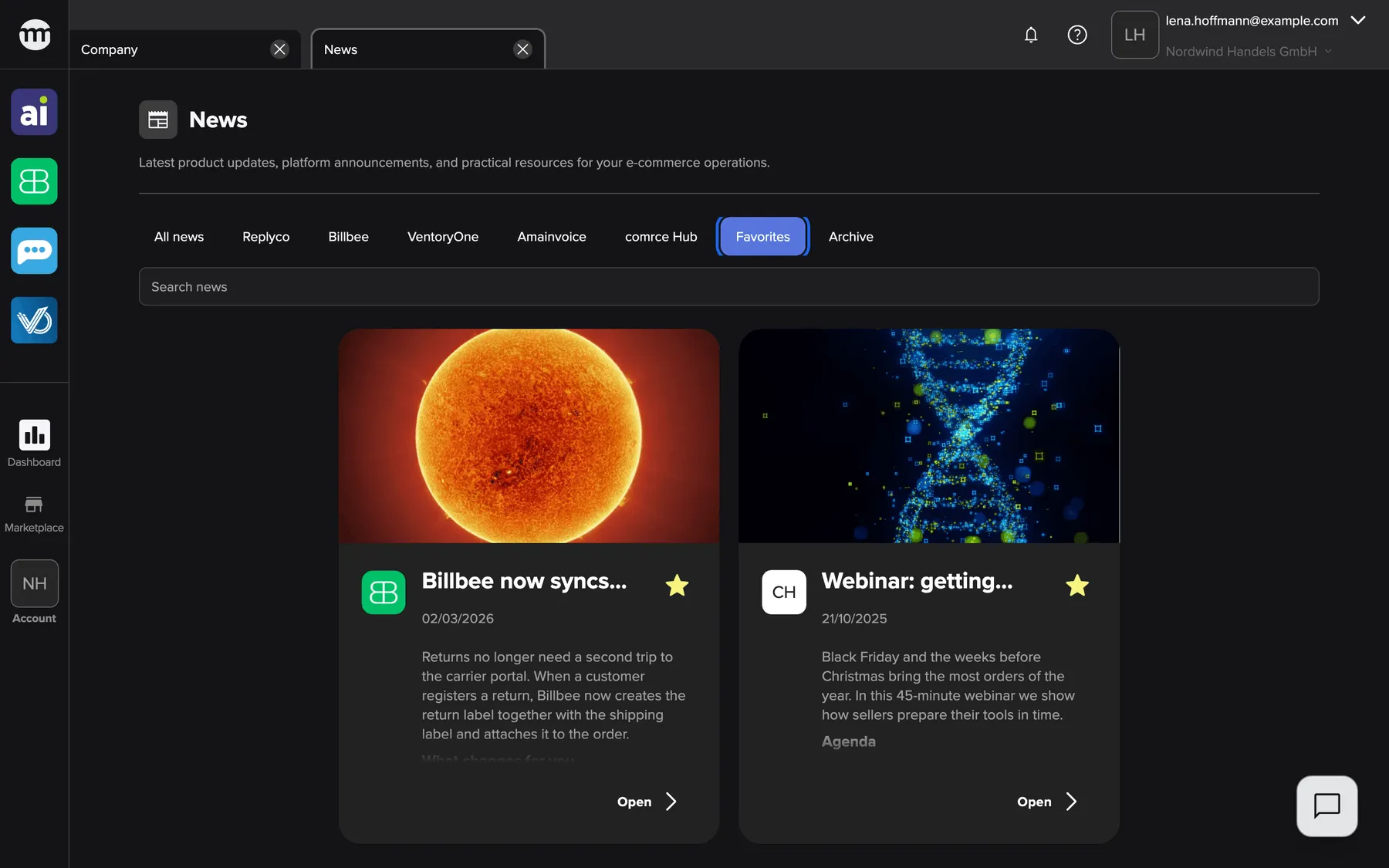
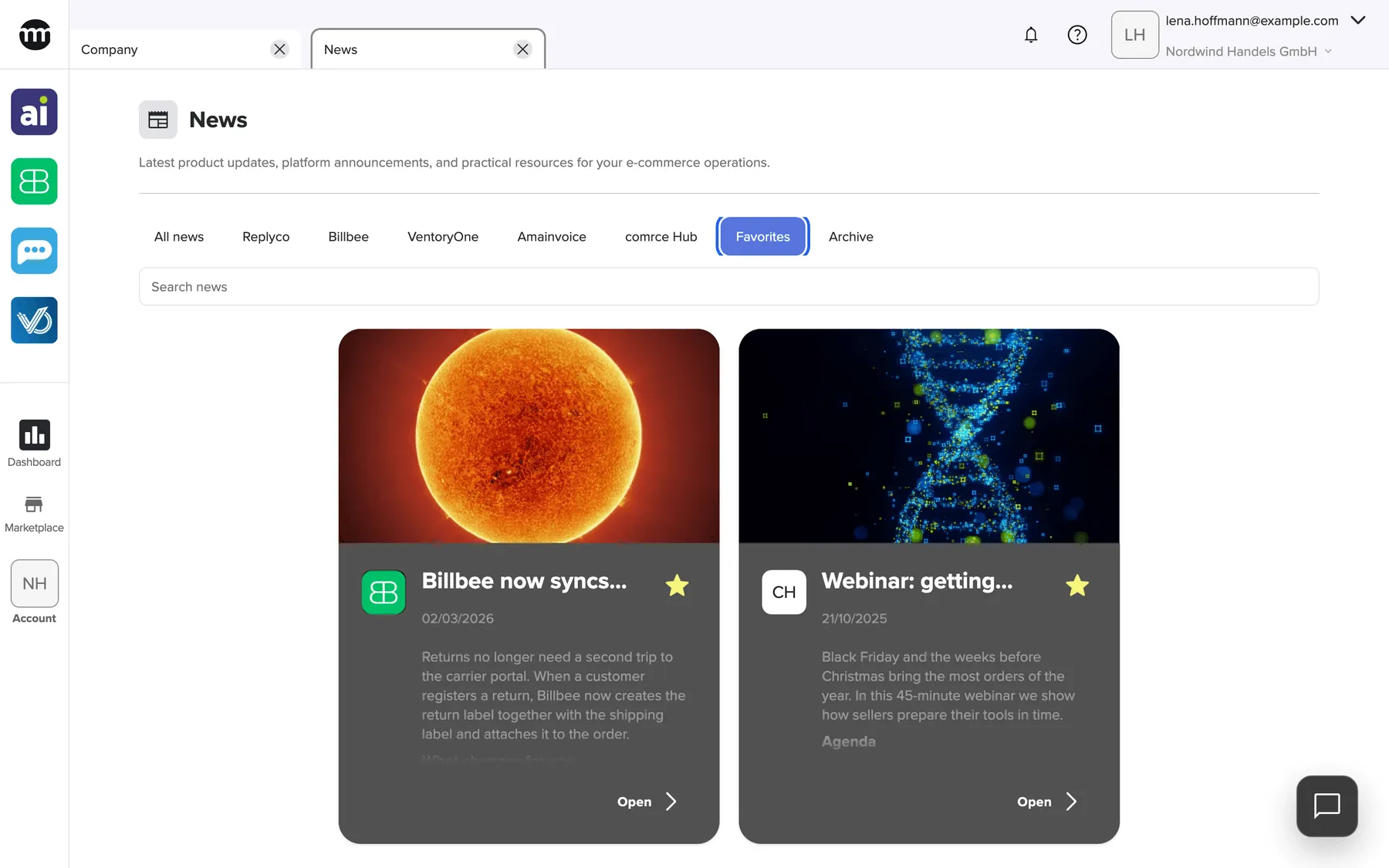
What this screenshot shows
- Screen
- News
- Highlighted
- “Favorites”: shows only the articles you starred, active and archived
- Also visible
- Two starred article cards with filled stars; One of them is archived
- Purpose
- find saved articles again
Favorites are personal. They belong to your user, not to the company, so a colleague’s stars never show up in your feed. Favorites includes archived articles, so an older article stays within reach. After you change a star, the feed reloads and a newly starred article moves to the top.
Find older articles in the archive
Section titled “Find older articles in the archive”comrce moves articles that are no longer current, such as a past webinar, to the archive. Archived articles leave All news and the category views.
-
Select Archive at the end of the filter row.
-
The list shows only archived articles, favorites first, then newest first. Select Archive again to return to all news.
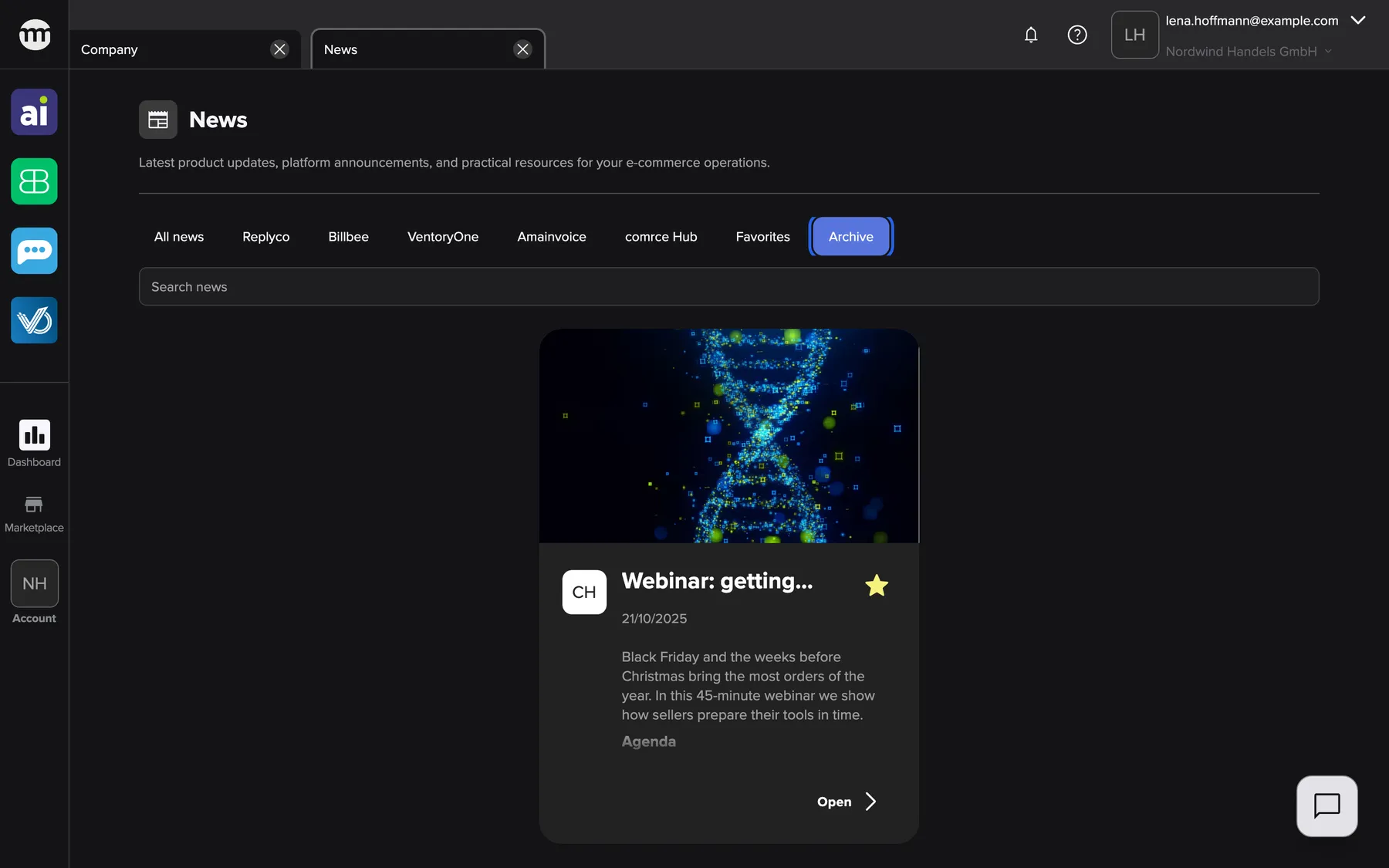
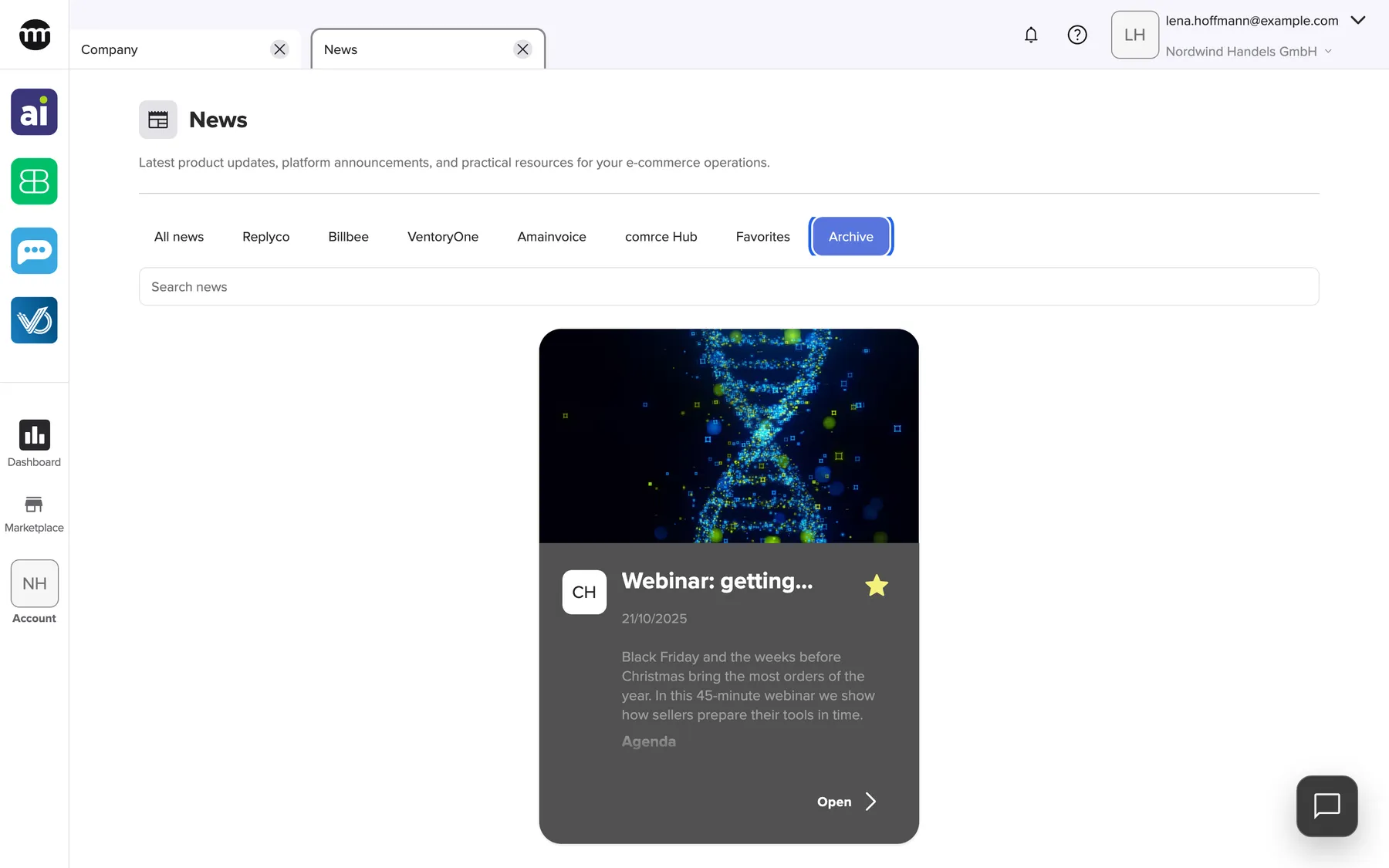
What this screenshot shows
- Screen
- News
- Highlighted
- “Archive”: shows only archived articles
- Also visible
- One archived article card with a filled star
- Purpose
- find older, archived articles
Search the news
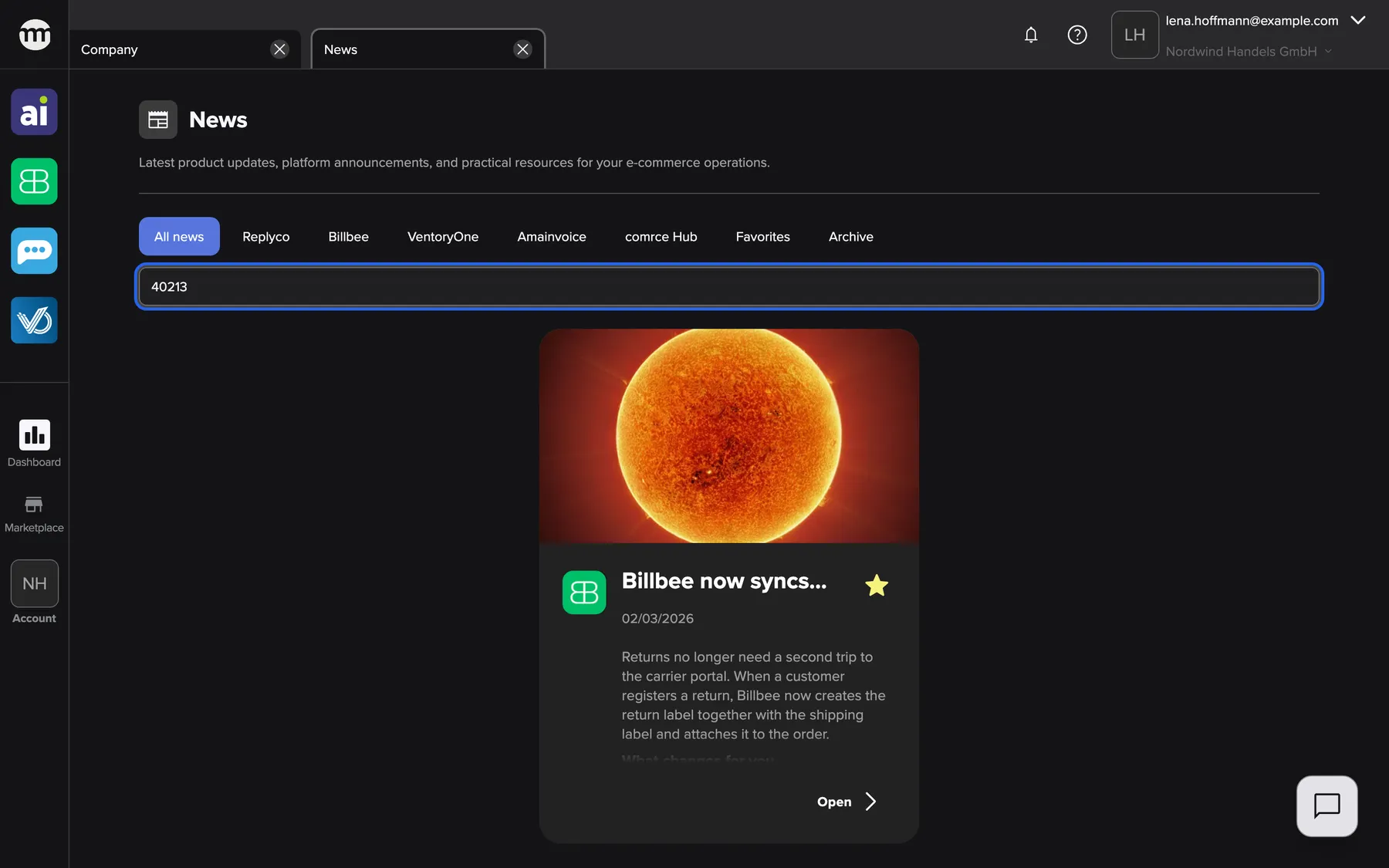
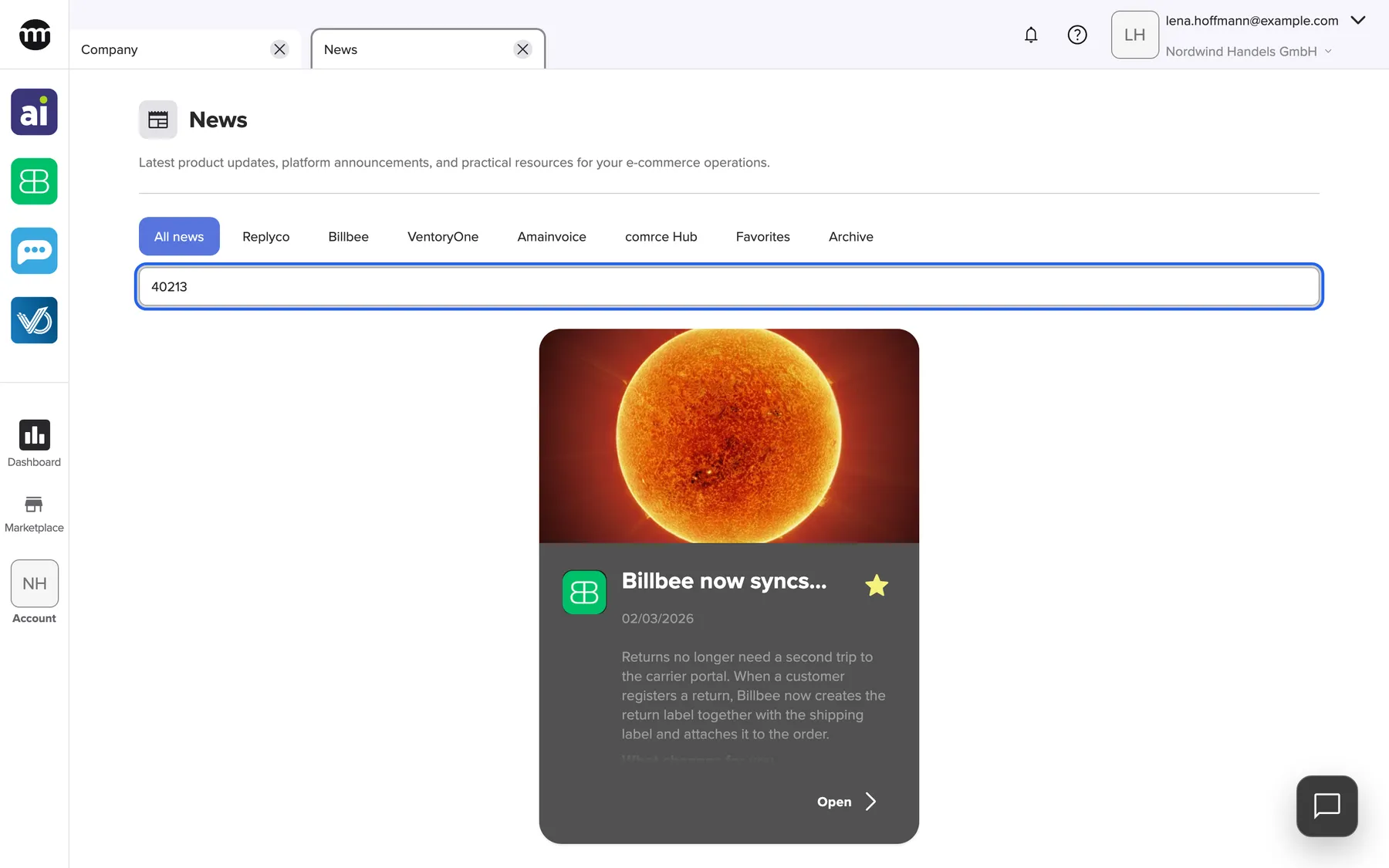
Section titled “Search the news”Type into the field Search news below the filter row. The list shows the articles whose title or full text contains what you typed, ignoring upper and lower case. The search applies to the current view, for example all current news or the archive.
An exact detail works best. An order number such as 40213 or a SKU such as MUG-0412 finds the article that mentions it. When nothing matches, the list reads No news articles found.
What this screenshot shows
- Screen
- News
- Highlighted
- “Search news”: filters the current view to articles whose title or text contains the search term
- Also visible
- One matching article card: the Billbee return-labels article; All news still selected
- Purpose
- search the news
Load more articles
Section titled “Load more articles”The feed loads 6 articles at a time. When more exist for the current view, a Load more button appears below the cards. Each click adds the next 6. Changing the category, the search or the view starts again from the top.
Open an article
Section titled “Open an article”Select Open at the bottom right of a card. The article opens in a window over the feed. The address in your browser becomes a link you can share. Closing the window returns you to the feed. Read an article explains the window.
Use the help and tool cards
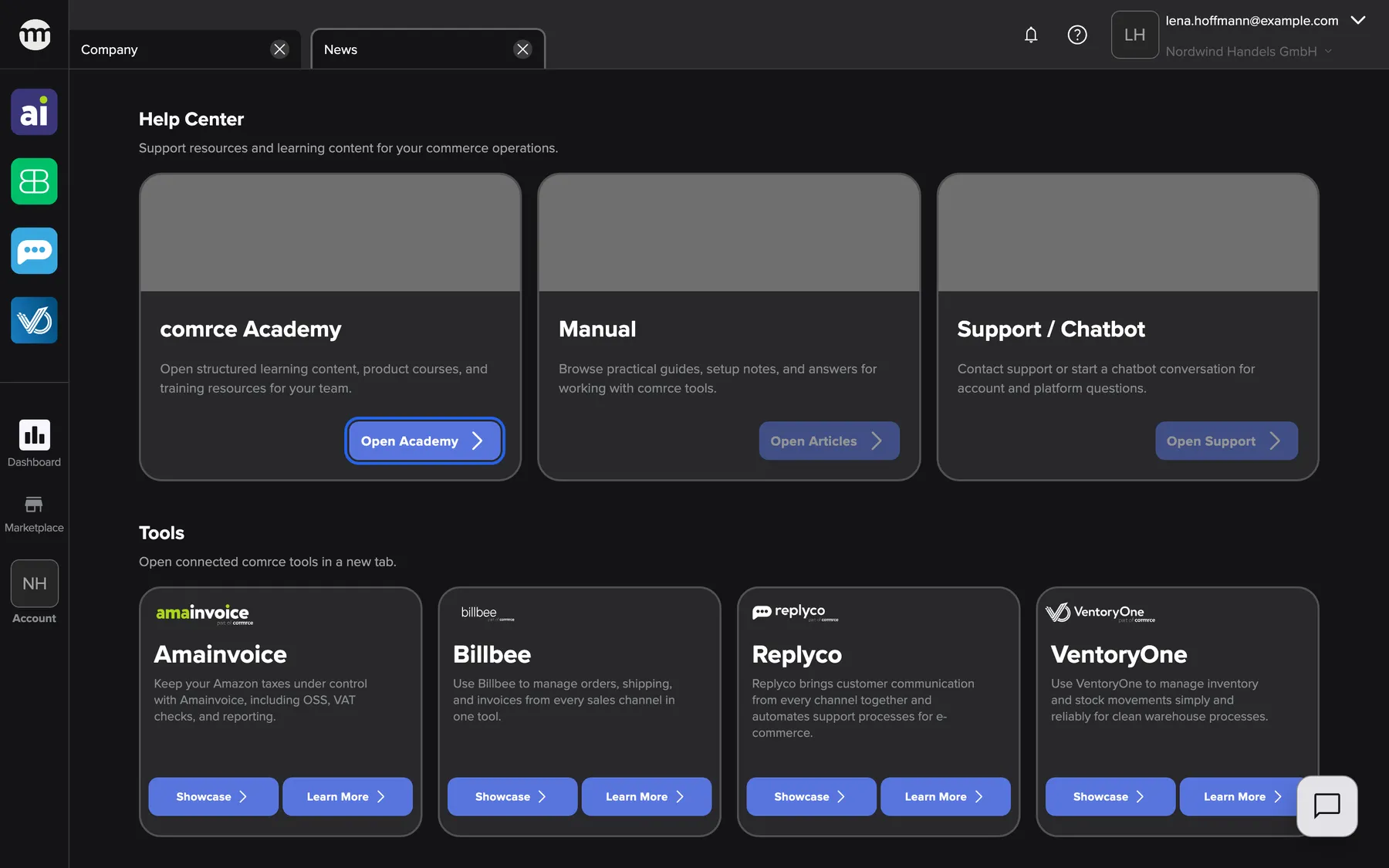
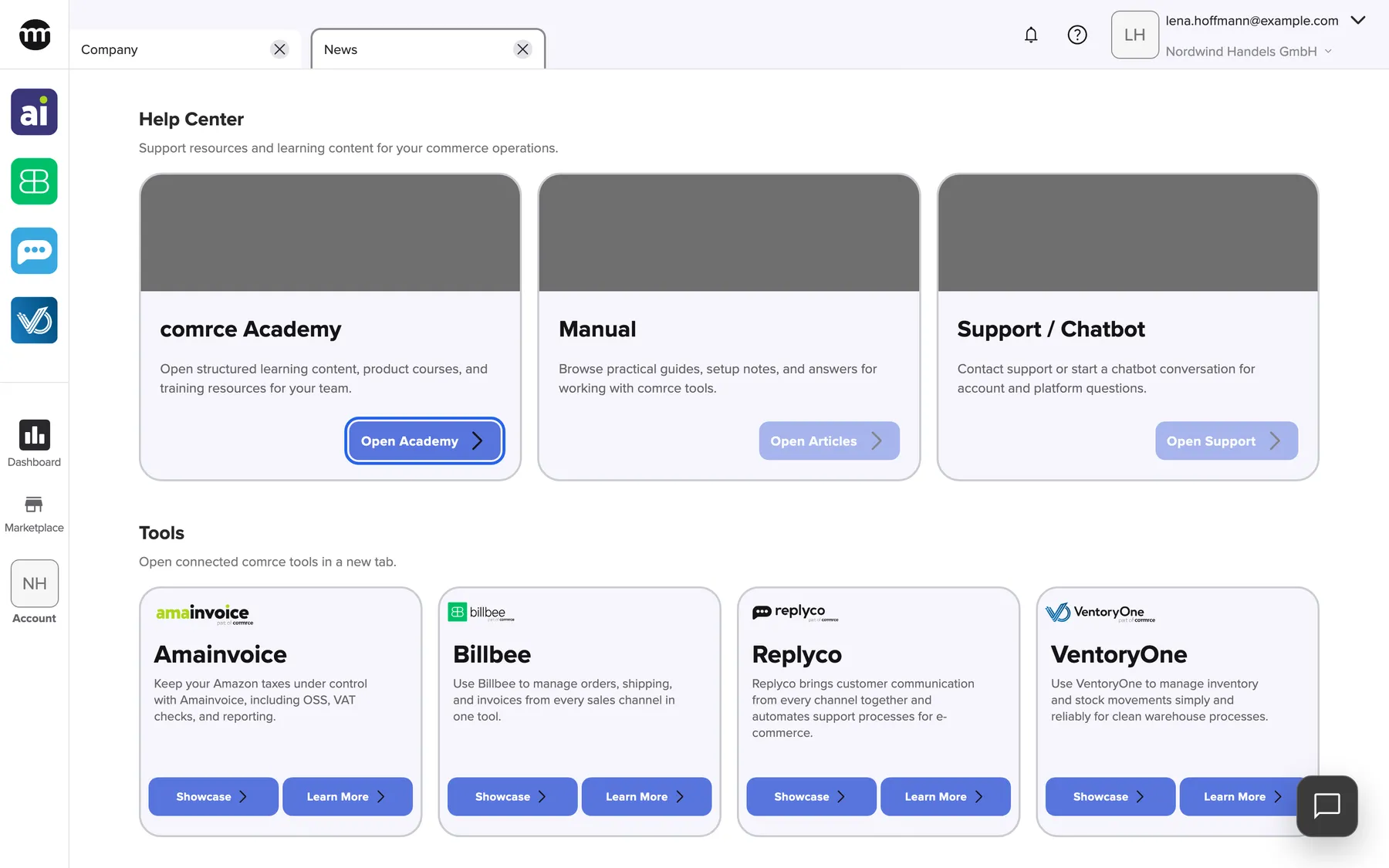
Section titled “Use the help and tool cards”Scroll below the articles to two rows of cards.
What this screenshot shows
- Screen
- News
- Highlighted
- “Open academy”: opens the comrce Academy in a new browser tab
- Also visible
- Help Center: comrce Academy, Manual (button disabled), Support / Chatbot (button disabled here); Tools: Amainvoice, Billbee, Replyco, VentoryOne with Showcase and Learn more
- Purpose
- help and tool links on the News tab
- comrce Academy: Open academy opens comrce’s learning platform in a new browser tab.
- Support / Chatbot: Open support opens the support chat inside comrce Hub, when support chat is set up for your account.
- Tools: each tool’s card has Showcase and Learn more. Both open the tool’s public pages in a new browser tab. To work in the tool, select its icon in the sidebar.
Every control, explained
Section titled “Every control, explained”
Every control, explained
Section titled “Every control, explained”The comrce logo
Section titled “The comrce logo”The category buttons, Favorites and Archive
Section titled “The category buttons, Favorites and Archive”| Button | What it shows | Why |
|---|---|---|
| All news | Every current article, favorites first, then newest first | The default view |
| One button per category | Current articles with that category. Select it again to clear. | Follow one tool or topic |
| Favorites | Every article you starred, current and archived | Keep important articles at hand |
| Archive | Archived articles only | Reread older news |
The star on a card
Section titled “The star on a card”The Help Center and Tools cards
Section titled “The Help Center and Tools cards”| Card and button | What it does | Why |
|---|---|---|
| comrce Academy · Open academy | Opens the Academy in a new browser tab. Everyone in your company can use it. | Courses and training material for your team |
| Support / Chatbot · Open support | Opens the support chat. Greyed out when support chat is not set up for your account. | Ask support a question |
| Tool card · Showcase | Opens the tool’s showcase in a new browser tab | See what the tool can do |
| Tool card · Learn more | Opens the tool’s product page in a new browser tab | Read more about the tool |
Other controls on this page
| Control | What it does | Why |
|---|---|---|
| Search field | Shows the articles of the current view whose title or text contains what you typed. Empty it to see the whole view again. | Find the announcement you remember a detail of |
| Open on a card | Opens the whole article in a window over the feed | The card shows only the first lines |
| Load more | Adds the next articles of the current view | The feed loads in steps to stay fast |
Who sees what
Section titled “Who sees what”
Who sees what
Section titled “Who sees what”| Part | Who sees it or can use it |
|---|---|
| The feed, filters, search, stars and Open academy | Everyone signed in to a company in comrce Hub |
| Open support | Everyone, when support chat is set up for the account |
What you need to know
Section titled “What you need to know”
What you need to know
Section titled “What you need to know”| Topic | Fact |
|---|---|
| What appears | Only articles that comrce has published and whose publish date has passed |
| Text language | Articles appear in your comrce Hub language. An article without a translation appears in another language with the badge Using fallback language. |
| Filters | Not saved. Reopening the tab starts again with All news. |
Frequently asked questions
Section titled “Frequently asked questions”
Frequently asked questions
Section titled “Frequently asked questions”General
Section titled “General”Where do I find News in comrce Hub?
Section titled “Where do I find News in comrce Hub?”News has no item in the sidebar menu. Select the comrce logo at the very top of the left sidebar, above the tool icons. The News tab opens. Pointing at the logo shows the tooltip News.
Who writes the articles in News?
Section titled “Who writes the articles in News?”comrce writes and publishes every article. Your company cannot add, edit or delete articles. You can read them, filter them and keep favorites. The articles are the same for every seller using comrce Hub.
Why is an older article listed above a newer one?
Section titled “Why is an older article listed above a newer one?”The feed lists your favorites first, whatever their date. Only then come the other articles, newest first. Remove the star to put an article back in date order.
How many articles does the feed show at once?
Section titled “How many articles does the feed show at once?”The News feed loads 6 articles at a time. Select Load more below the cards to add the next 6. The button appears only when more articles exist in the current view.
Filters and search
Section titled “Filters and search”Can I select two categories at once?
Section titled “Can I select two categories at once?”No. The filter row allows one selection at a time, including Favorites and Archive. Selecting a category replaces the previous choice. Selecting the same category again returns to All news.
What does the News search look in?
Section titled “What does the News search look in?”The search looks in the title and the full text of each article, not only the card preview. It ignores upper and lower case. It searches within the view you selected, for example all current news or the archive.
Why does my search find nothing?
Section titled “Why does my search find nothing?”The search looks for the exact text you typed in the selected view. Check the view first, because an archived article is only found under Archive. Then shorten the search to one distinctive word and check the spelling.
Why did my filter reset?
Section titled “Why did my filter reset?”The category, the view and the search are not saved. Closing the News tab and opening it again starts with All news and an empty search.
Favorites and archive
Section titled “Favorites and archive”Can I share an article with a colleague?
Section titled “Can I share an article with a colleague?”Yes. Open the article and copy the address from your browser’s address bar. Your colleague opens the link and sees the same article after signing in to comrce Hub.
Can my colleagues see which articles I starred?
Section titled “Can my colleagues see which articles I starred?”No. Favorites belong to your user only. Each person in your company has their own stars, so the order of the feed differs from person to person.
Where did an article go that I read last month?
Section titled “Where did an article go that I read last month?”comrce moves articles that are no longer current to the archive. Select Archive at the end of the filter row to see them. If you starred the article, it is also under Favorites.
Why does an archived article still appear under Favorites?
Section titled “Why does an archived article still appear under Favorites?”Favorites shows every article you starred, current and archived. A favorite never disappears when comrce archives it. Remove the star if you no longer need it there.
What happens when starring an article fails?
Section titled “What happens when starring an article fails?”comrce Hub shows the message Unable to update favorite status., and the star keeps its previous color. Reload the page and try again. If it keeps failing, contact support from the Support / Chatbot card.
Language
Section titled “Language”Why is an article in English when I use comrce Hub in German?
Section titled “Why is an article in English when I use comrce Hub in German?”comrce writes articles in one language and translates them. When an article has no translation into your comrce Hub language yet, the feed shows it in its original language.
How do I read the news in another language?
Section titled “How do I read the news in another language?”The feed follows the language you use comrce Hub in. Change your language under Settings in the menu under your email address at the top right. Translated articles and category names then appear in that language.
Help Center and Tools
Section titled “Help Center and Tools”Why is a button on the Help Center cards greyed out?
Section titled “Why is a button on the Help Center cards greyed out?”Open academy is open to everyone in your company and is greyed out only when the Academy is not available. Open support works only when support chat is set up for your account. Instead, use the Chat button in the top bar.
Do the Showcase and Learn more buttons open the tool?
Section titled “Do the Showcase and Learn more buttons open the tool?”No. On the cards under Tools, both buttons open public pages about the tool in a new browser tab. To work in a tool, select its icon at the top of the left sidebar.
Troubleshooting
Section titled “Troubleshooting”
Troubleshooting
Section titled “Troubleshooting”| Symptom | What to check |
|---|---|
| There is no News item in the sidebar | Select the comrce logo at the very top of the sidebar. News has no menu item. |
| The list reads No news articles found | Which view is selected: a category, Favorites or Archive. Clear the search field and select All news. |
| The list reads News articles could not be loaded. | Your internet connection. Reload the page, and if it persists, contact support. |
| An article I starred disappeared from the feed | comrce archived it. Look under Favorites or Archive. |
| The message Unable to update favorite status. appears | Reload the page and set the star again. |
| Open academy is greyed out | The Academy is not available at the moment. Try again later or contact comrce support. |
| Open support is greyed out | Support chat is not set up for your account. Use the Chat button in the top bar instead. |