

Users
Who’s actually in our company right now? The Users tab answers that at a glance. It lists everyone with their role and membership status. Here you find a colleague, open someone’s details and invite new people. Open it with AccountUsers. You need the permission Viewing user list.
What you can do here
Section titled “What you can do here”- See who belongs to the company. The list shows name, email, role and status for every member, active members first. The screen at a glance
- Find a person quickly. Search by name or email, and filter by role or status. Find people in the list
- Open a member’s details. The arrow at the end of a row opens the member’s own tab. There you change role, permissions and status. Open a member’s details · A user’s details and permissions
- Invite someone new. Send an email invitation with the role Member or Partner. Invite someone to the company · Inviting people
- Look for people who have not joined yet. When a search finds nobody, one button repeats it in the open invitations. When a search finds nobody
The screen at a glance
Section titled “The screen at a glance”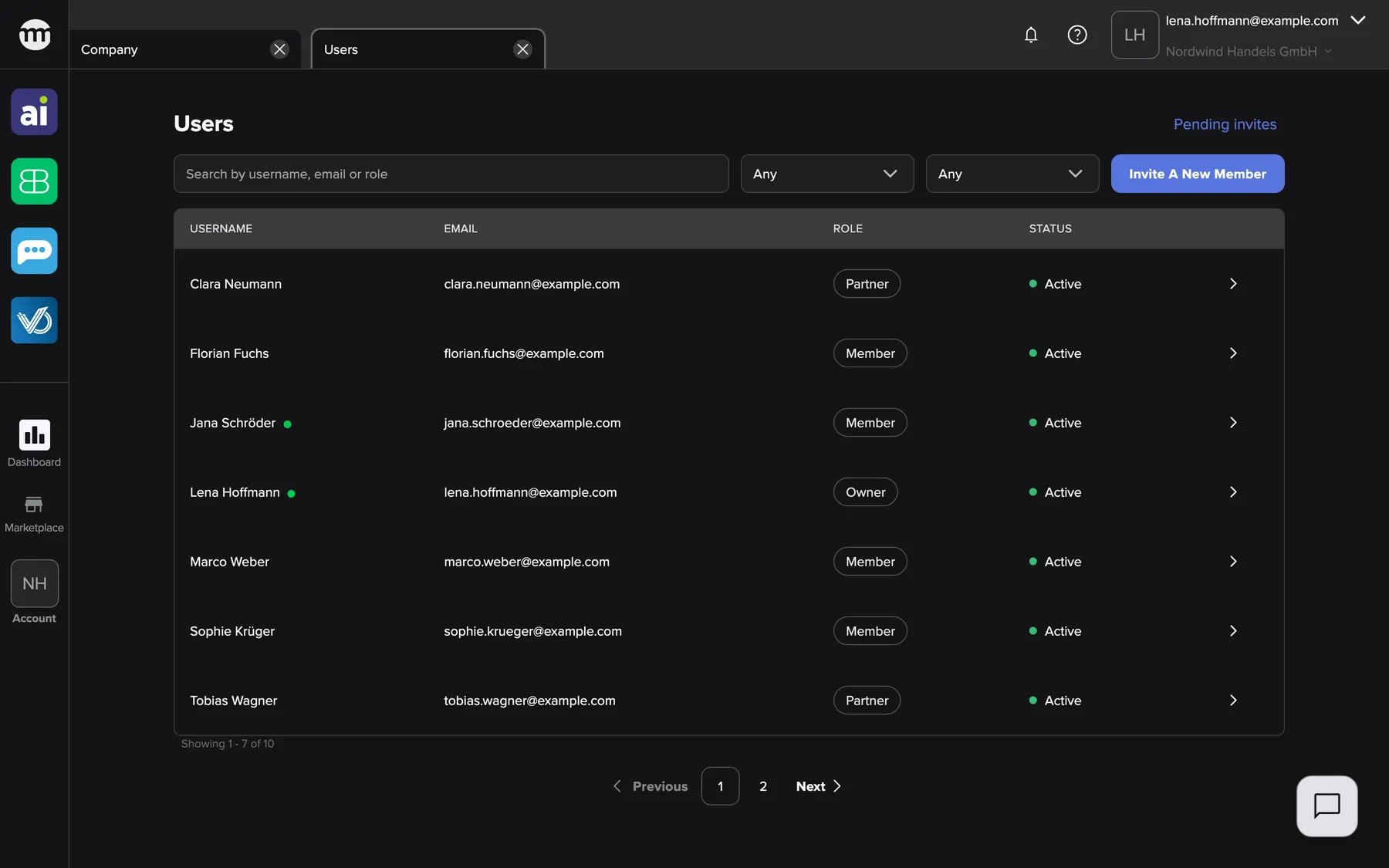
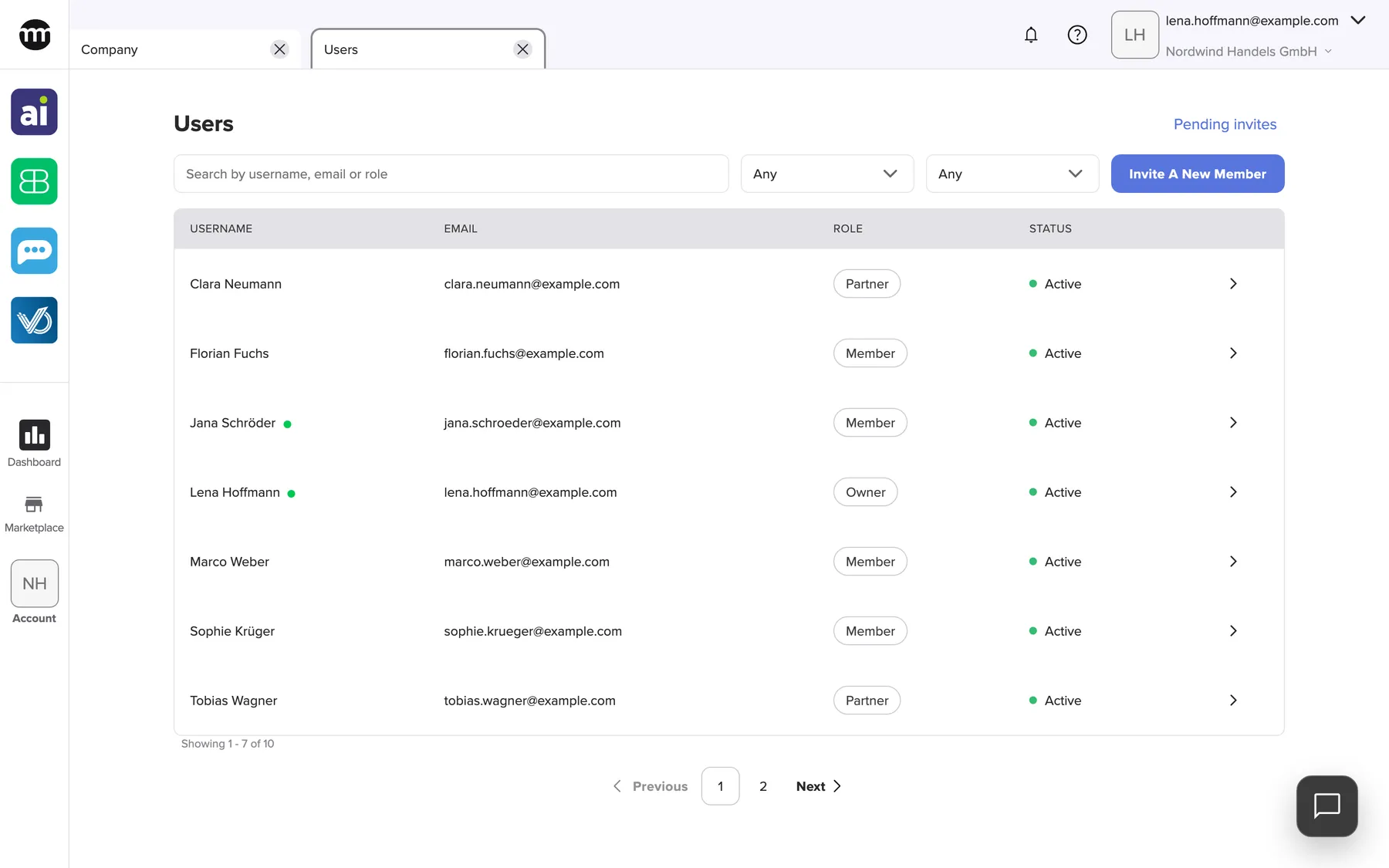
What this screenshot shows
- Screen
- Users
- Highlighted
- “Users”: the page title
- Also visible
- Search box and role and status filters; Invite a new member button; Seven active users with role badges; Online dots for Jana Schröder and Lena Hoffmann; Pagination with two pages
- Purpose
- the Users tab as it opens for the owner
| Region | What it shows | What you do there |
|---|---|---|
| Heading row | The title and, at the right, the link Pending invites | Open the list of open invitations |
| Filter row | The search box, the role filter, the status filter and the button Invite a new member | Narrow the list, invite someone |
| The table | One row per member: Username, Email, Role, Status and an arrow | Read who is in the company, open a member’s details |
| Below the table | The count, for example “1 - 7 of 10”, and the page buttons | Move between pages |
The invite button and the invitations link need a permission. Who sees what lists them. A green dot after a name means the person is signed in right now.
Find people in the list
Section titled “Find people in the list”- Type part of a name or an email address into the search box.
- Pick a role in the first filter: Owner, Partner or Member.
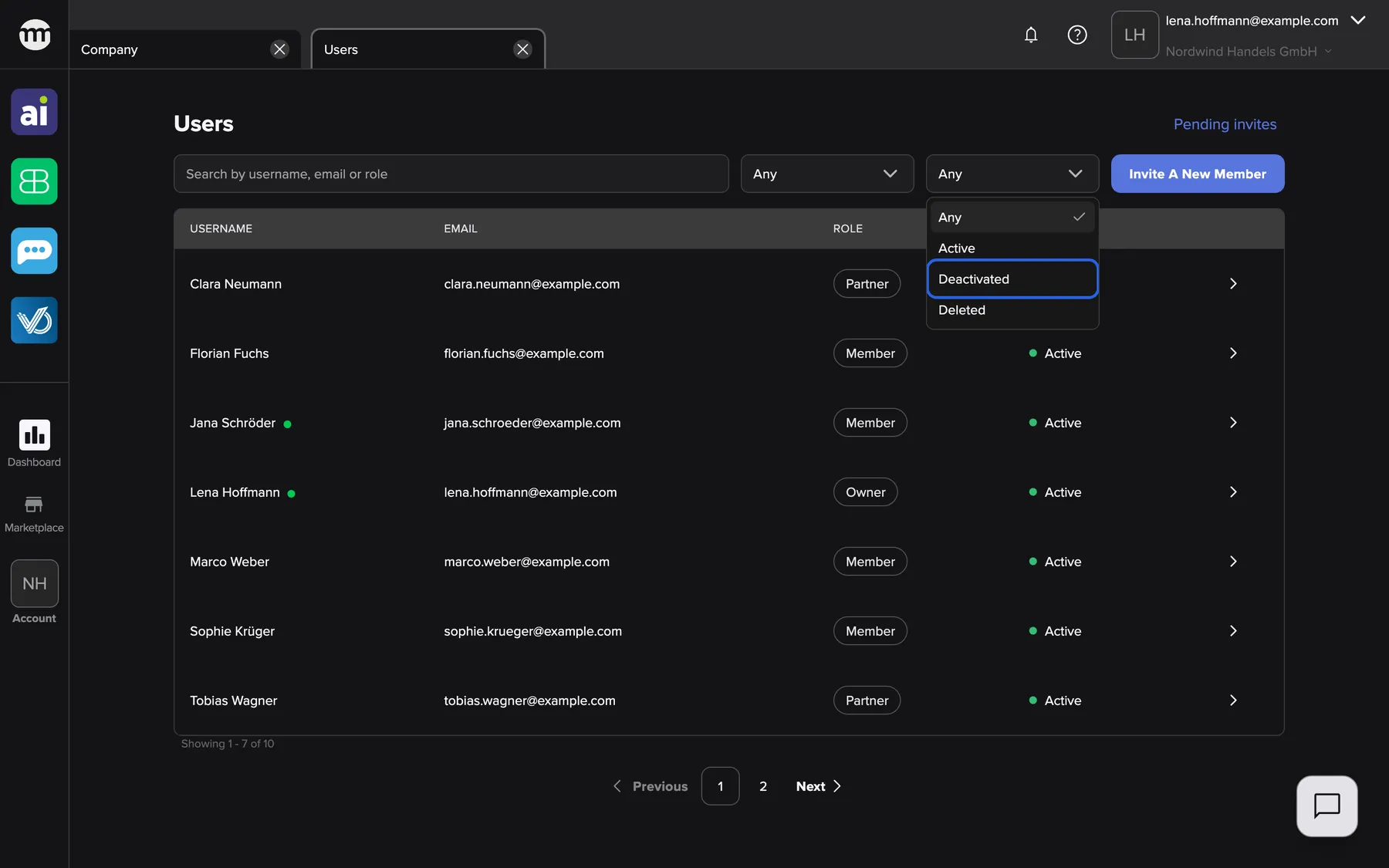
- Pick a status in the second filter: Active, Deactivated or Deleted.
Every change takes you back to page 1. The filters combine. The role Member with the status Deactivated shows only deactivated members.
What this screenshot shows
- Screen
- Users
- Highlighted
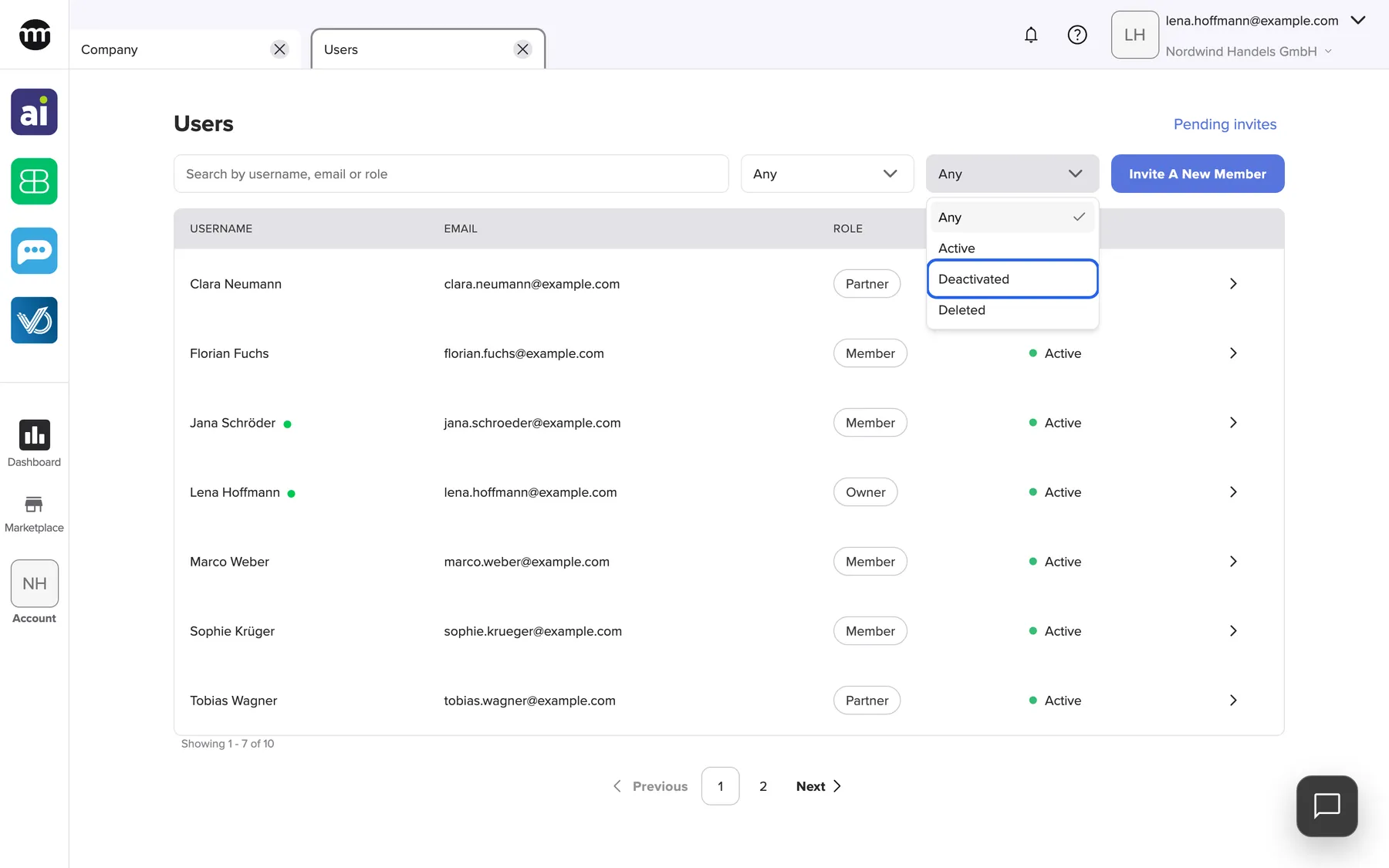
- “Deactivated”: filters the table to deactivated members
- Also visible
- Options Any, Active, Deactivated, Deleted; Role filter to the left; Invite a new member button to the right
- Purpose
- filter the user list by status
Example: To see who left the company, Lena Hoffmann sets the status filter to Deleted. The list shows Emma Schulz and Paul Richter.
Deactivated and deleted members stay in the list
Section titled “Deactivated and deleted members stay in the list”comrce Hub never removes people from the user list. Former members appear at the end, usually on the last page. What you need to know gives the sort order.
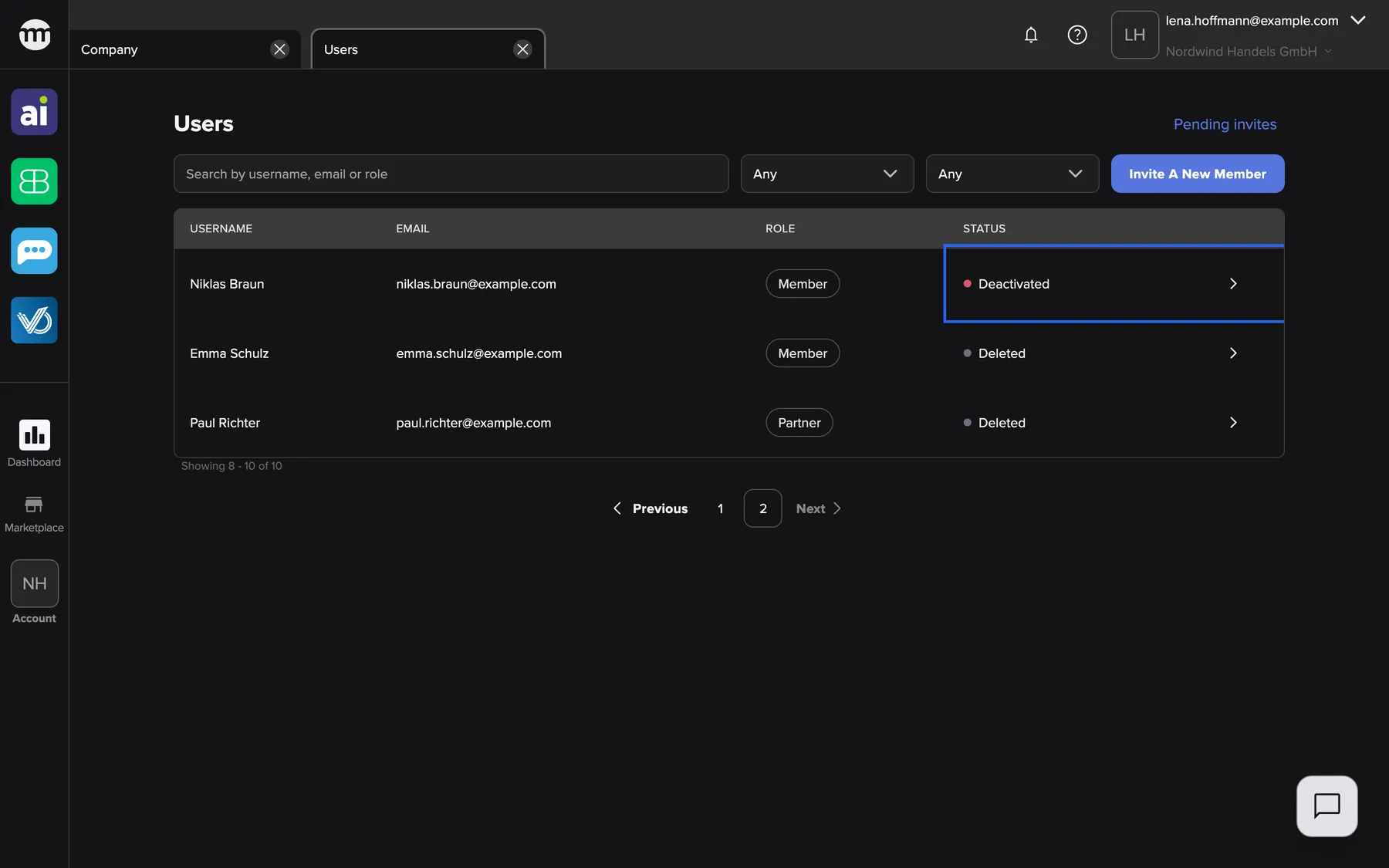
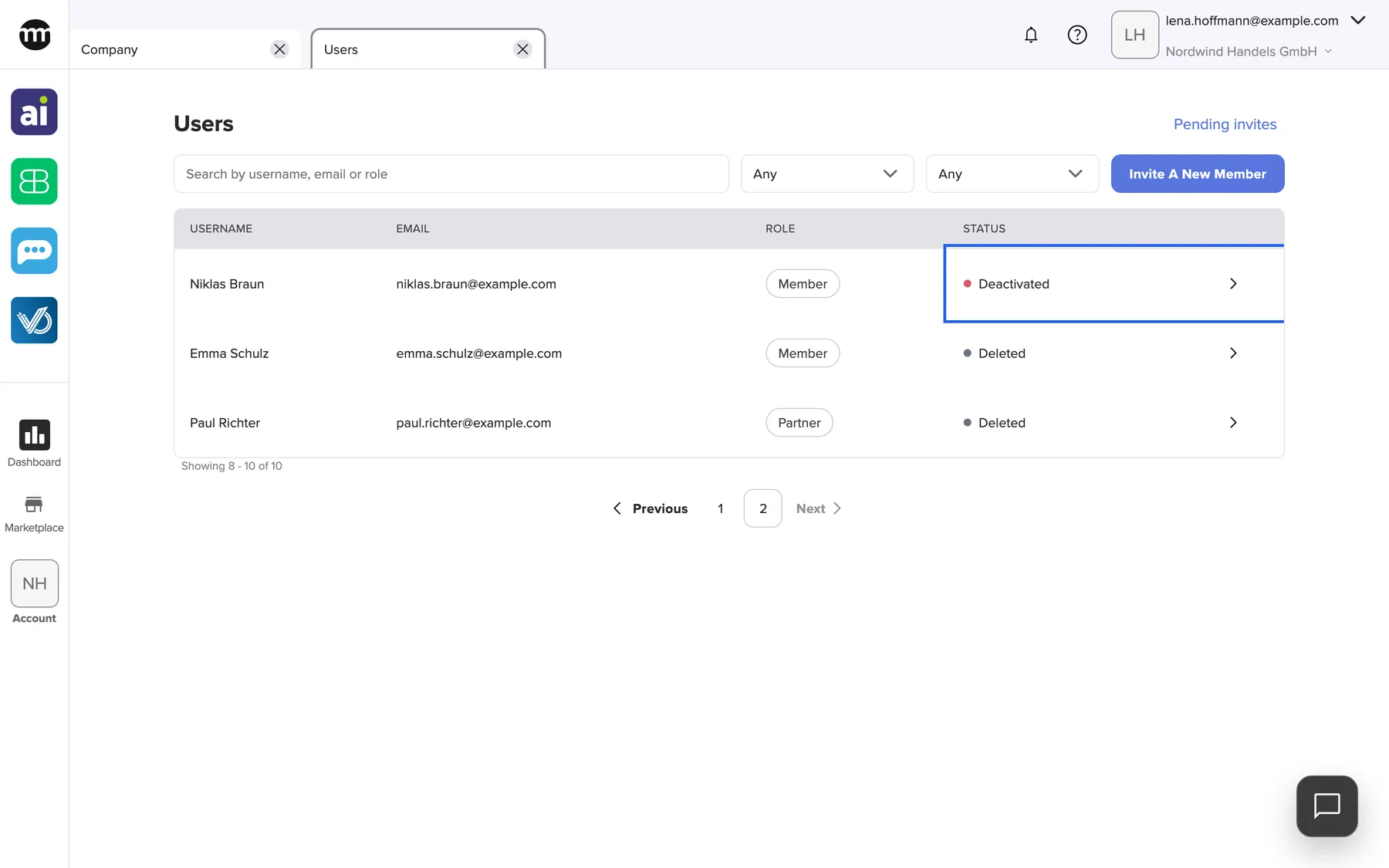
What this screenshot shows
- Screen
- Users
- Highlighted
- “Deactivated”: shows the membership status
- Also visible
- Niklas Braun Deactivated; Emma Schulz and Paul Richter Deleted; Showing 8 - 10 of 10
- Purpose
- statuses other than Active in the user list
Open a member’s details
Section titled “Open a member’s details”Select the arrow at the end of a row in the user list. The member opens in a new tab named after them. It shows role, status, important dates and, if you may change them, the permission switches. A user’s details and permissions explains what you can change there.
Invite someone to the company
Section titled “Invite someone to the company”- Select Invite a new member in the filter row.
- Enter the email address in Email.
- Keep the role Member or choose Partner.
- Select Invite. comrce Hub sends the invitation and shows Invite sent successfully..
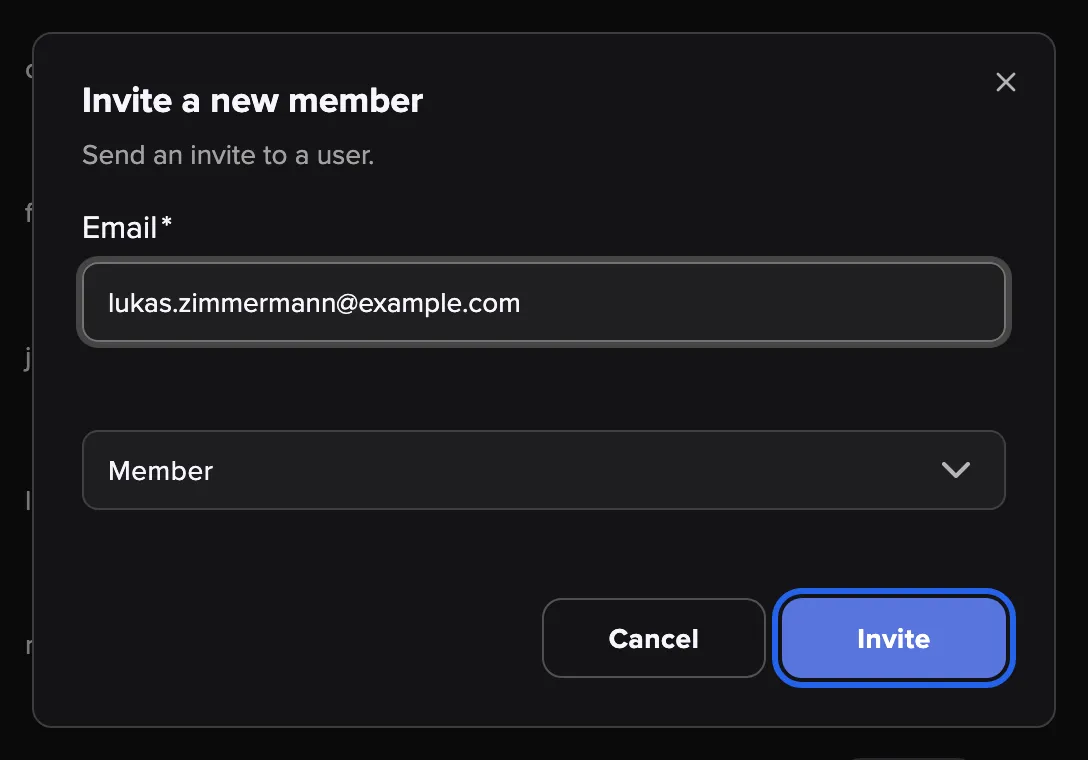
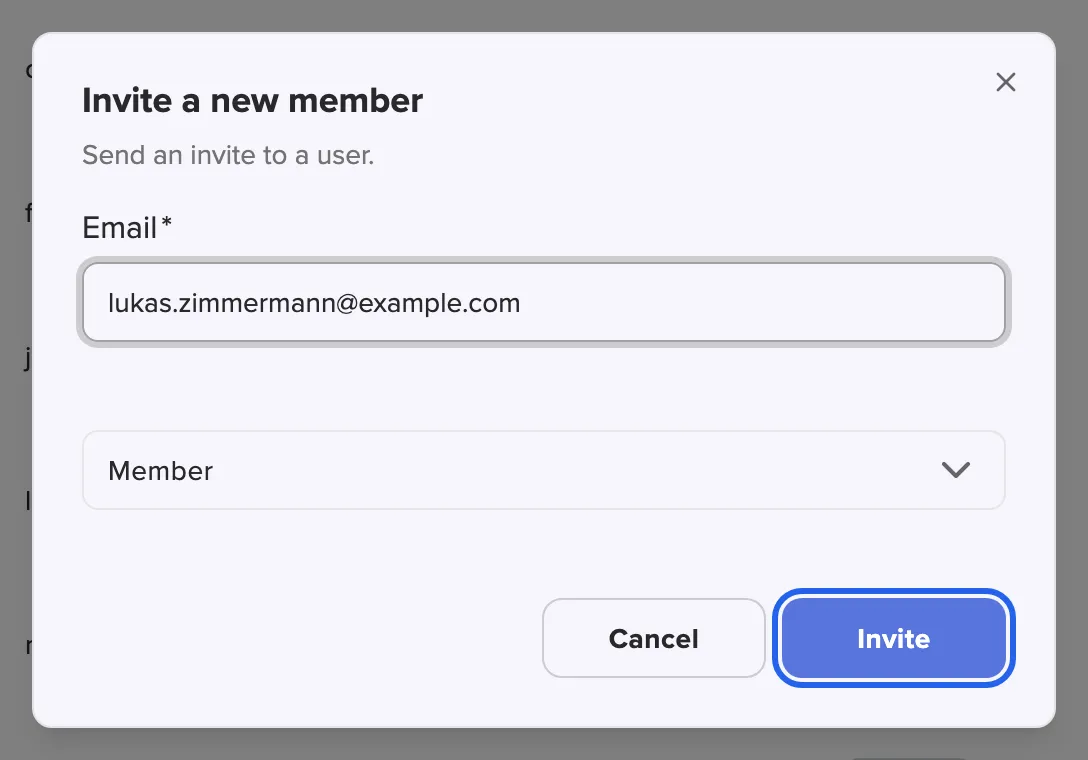
What this screenshot shows
- Screen
- Users
- Highlighted
- “Invite”: sends the invitation email
- Also visible
- Email field with lukas.zimmermann@example.com; Role field set to Member; Cancel button
- Purpose
- invite a new member from the Users tab
The invitation is valid for seven days. The invited person appears in the user list only after they accept. Until then the invitation is listed under Pending invites.
comrce Hub refuses a second invitation to an address whose earlier invitation is not accepted, even an expired one. It also refuses to invite someone who is already a member. The message then reads An active invitation for this user already exists.
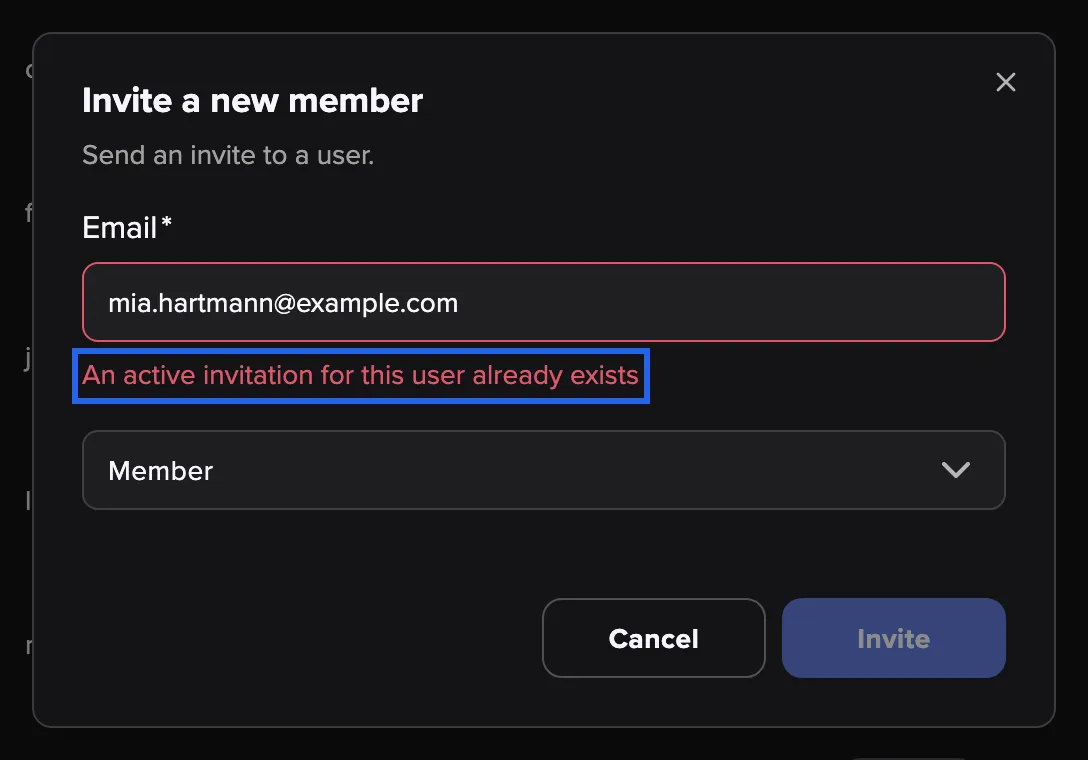
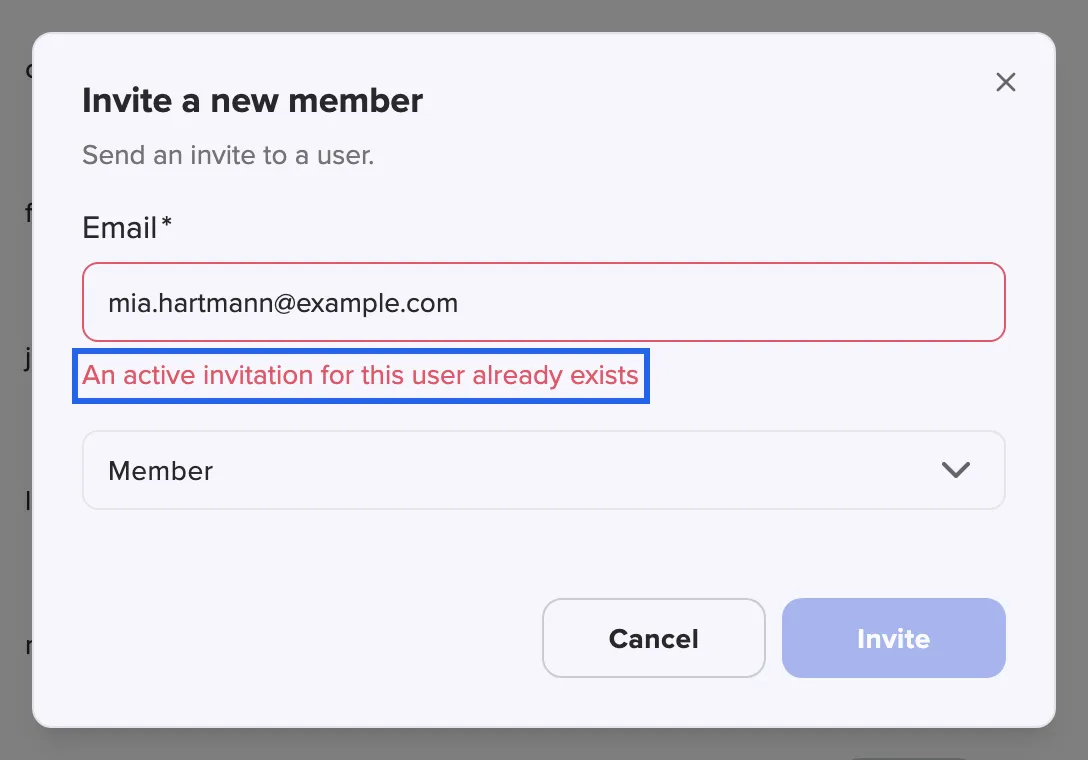
What this screenshot shows
- Screen
- Users
- Highlighted
- “An active invitation for this user already exists”: explains why the invitation was refused
- Also visible
- Email field with mia.hartmann@example.com; Role field Member; Invite and Cancel buttons
- Purpose
- duplicate invitation error
Inviting people covers roles, expiry, resending and the invitee’s side.
When a search finds nobody
Section titled “When a search finds nobody”When a search or a role filter matches no member, the user list shows No users found. If you may invite people, the button Search in invites instead appears below. It opens the open invitations with the same search text and role filled in. You then see whether the person was invited but has not joined yet.
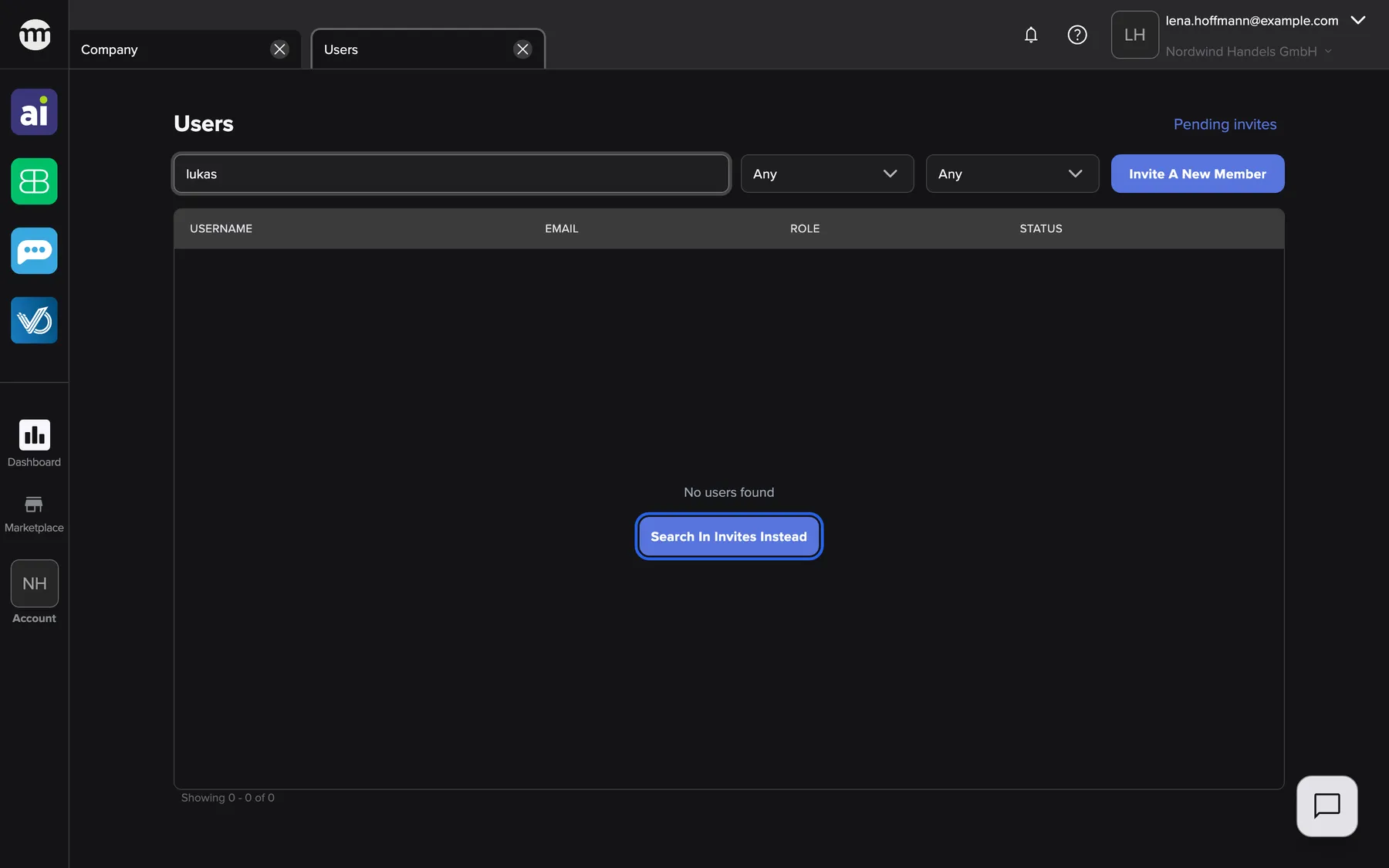
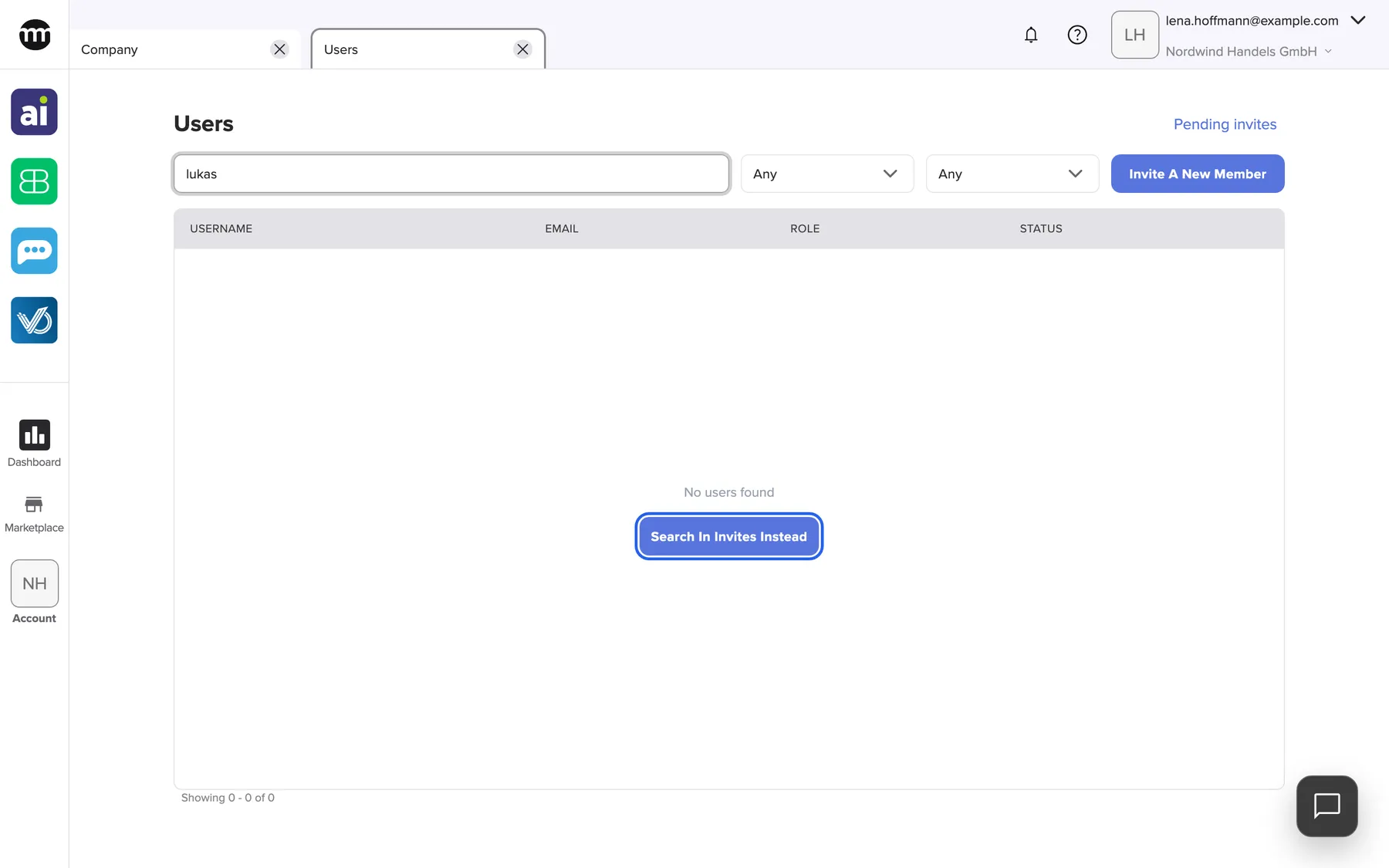
What this screenshot shows
- Screen
- Users
- Highlighted
- “Search in invites instead”: opens Pending invites with the same search
- Also visible
- Search text lukas; No users found
- Purpose
- empty search result and the jump to invitations
Every control, explained
Section titled “Every control, explained”
Every control, explained
Section titled “Every control, explained”The controls that need a word of explanation come first. The obvious ones are collapsed at the end.
Search box
Section titled “Search box”The wide field at the left of the filter row.
Finds members whose first name, last name or email contains every word you type. Upper and lower case do not matter. Role names are not matched, so use the role filter for roles.
In a larger team, typing three letters of a name is faster than paging through the list.
Role filter and status filter
Section titled “Role filter and status filter”| Filter | Options | Why |
|---|---|---|
| Role (Filter by role) | Any, Owner, Partner, Member | See for example all partners from your accountancy firm |
| Status (Filter by status) | Any, Active, Deactivated, Deleted | Check who still has access and who does not |
The status Pending can appear in the table but has no filter option.
Invite a new member button
Section titled “Invite a new member button”The blue button at the right end of the filter row, labelled Invite a new member. It opens a dialog.
Sends an email invitation to one address with the role Member (preset) or Partner. Invite stays disabled until you enter a valid address.
New colleagues join with a role that already fits, so you rarely adjust permissions afterwards.
Table columns
Section titled “Table columns”| Column | What it shows | Why |
|---|---|---|
| Username | First and last name. A green dot when the person is online (owner only). | Recognise the person |
| The address they sign in with | Tell apart people with the same name | |
| Role | Owner, Member or Partner | See the starting point of their permissions |
| Status | Active (green), Pending (orange), Deactivated (red), Deleted (grey), and the arrow to the details | See who can use the company right now |
Other controls on this page
| Control | What it does | Why |
|---|---|---|
| Pending invites link | Opens the tab with all invitations not yet accepted. See Pending invites. | Check, resend or delete an invitation |
| Previous, page numbers, Next | Move between pages of the list | Keep the list readable |
Who sees what
Section titled “Who sees what”
Who sees what
Section titled “Who sees what”| Part of the screen | Who sees it |
|---|---|
| The Users tab and the Users entry in the Account menu | The owner, and members with Viewing user list (included in the Member and Partner presets) |
| Invite button, Pending invites link, Search in invites button | The owner, and members with Inviting users |
| Green online dots | Only the company owner |
Without Viewing user list the tab shows You don’t have access to this page. You can request access from your organization admin. with a Request access button.
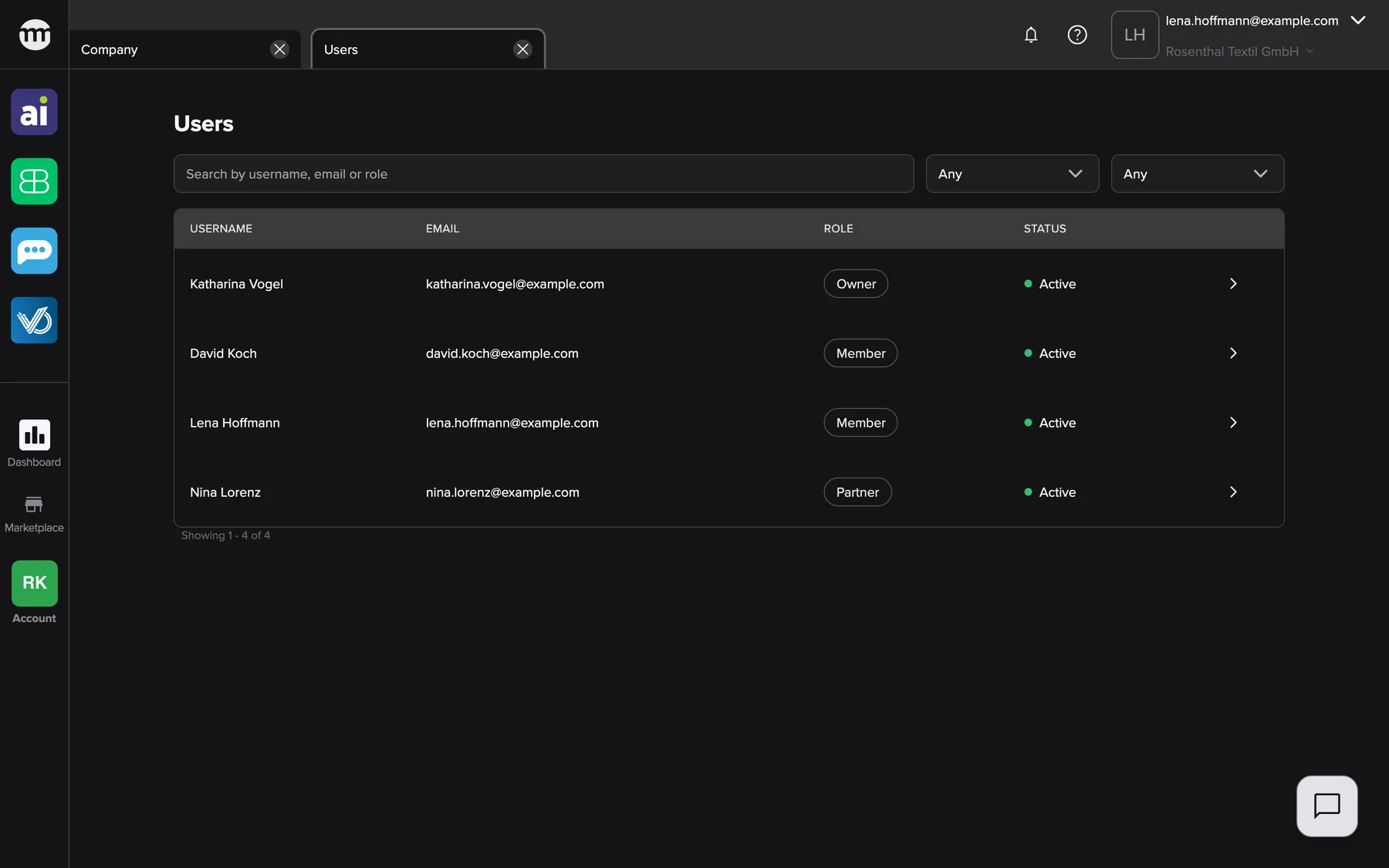
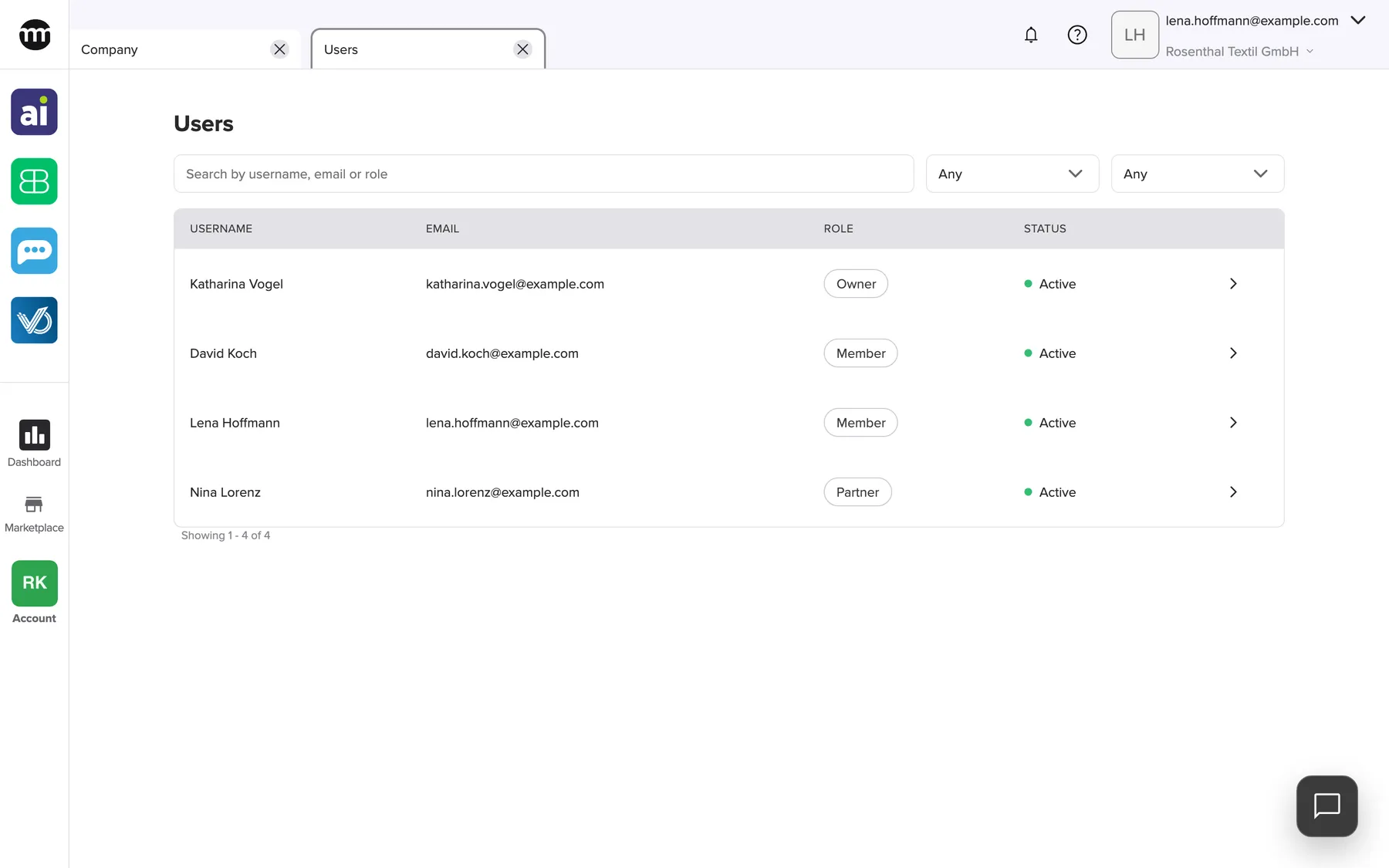
What this screenshot shows
- Screen
- Users
- Highlighted
- “Users”: the page title
- Also visible
- No invite button, no Pending invites link; Four members of Rosenthal Textil GmbH; No online dots
- Purpose
- the Users tab for a member with the Member preset
What you need to know
Section titled “What you need to know”
What you need to know
Section titled “What you need to know”| Topic | Fact |
|---|---|
| Page size | Seven members per page, fixed |
| Sorting | Active, then pending, deactivated and deleted. Within each group by first name, then email. |
| Refresh | The list refreshes by itself about once a minute. Online dots change at once. |
| Company-wide | The list belongs to the company you are signed in to. Switch company to see that company’s members. |
| Invitations | Invited people appear here only after accepting |
Frequently asked questions
Section titled “Frequently asked questions”
Frequently asked questions
Section titled “Frequently asked questions”General
Section titled “General”Why can’t I see the Users entry in the Account menu?
Section titled “Why can’t I see the Users entry in the Account menu?”The entry appears only with the permission Viewing user list. The Member and Partner presets include it, so someone removed it from your account. Ask your company owner to switch it on again on your user tab.
Why don’t I see the green online dots?
Section titled “Why don’t I see the green online dots?”Only the company owner sees whether members are online. Everyone else never sees the dots on the Users tab, whatever their permissions.
Why is someone I invited not in the list?
Section titled “Why is someone I invited not in the list?”Invited people join the user list only after accepting the invitation. Until then you find them under Pending invites on the Users tab, with the date their invitation expires.
Can I remove a person from the list completely?
Section titled “Can I remove a person from the list completely?”No. Deleting a member sets the status to Deleted and ends their access. The row stays in the user list, so the company keeps a record of who was a member. Use Filter by status to hide them.
Finding people
Section titled “Finding people”Why does searching for “Partner” find nobody?
Section titled “Why does searching for “Partner” find nobody?”The search on the Users tab matches names and email addresses, not the role labels shown in the list. Set the role filter to Partner instead of typing the role.
How do I see only deactivated members?
Section titled “How do I see only deactivated members?”Open AccountUsers and set the status filter to Deactivated. The list then shows only deactivated members and returns to page 1.
Why can’t I filter by the status Pending?
Section titled “Why can’t I filter by the status Pending?”The status filter offers only Active, Deactivated and Deleted. Pending memberships are rare. They belong to a company owner who registered but has not confirmed the email address yet. They still appear in the unfiltered list.
Inviting
Section titled “Inviting”Why don’t I have the invite button?
Section titled “Why don’t I have the invite button?”The button Invite a new member needs the permission Inviting users. Neither the Member nor the Partner preset includes it. The company owner can switch it on for you on your user tab.
Why does comrce Hub say an active invitation already exists?
Section titled “Why does comrce Hub say an active invitation already exists?”An earlier invitation to that address may still be open, even if it expired. Or the person is already a member. Resend or delete the old invitation under Pending invites, or look for the person in the user list.
Can I invite someone as owner?
Section titled “Can I invite someone as owner?”No. The invite dialog offers only Member and Partner. A company has one owner. Only the owner can hand ownership to an active member, with Transfer Ownership on the Company tab.
Troubleshooting
Section titled “Troubleshooting”
Troubleshooting
Section titled “Troubleshooting”| Symptom | What to check |
|---|---|
| The tab shows You don’t have access to this page. You can request access from your organization admin. | You lack Viewing user list. Select Request access, and your owner gets an email. |
| A member is missing from the list | Check the last page and the status filter. Then check Pending invites, because the person may not have accepted yet. |
| A search shows No users found although the person exists | Search for part of the name or email instead of the role. Clear the role and status filters. |
| The invite dialog shows An active invitation for this user already exists | Resend or delete the existing invitation under Pending invites. If the person is already a member, activate them instead. |
| A change made by a colleague does not show | Wait for the automatic refresh or reopen the tab. |