

My companies
Working for more than one company, say your own and a client’s? One comrce Hub account covers them all. This tab lists every company you belong to, with your role in each. Here you switch between them, or leave one.
Open it with the company name under your email address at the top right. It needs no permission.
What you can do here
Section titled “What you can do here”- See all your companies. Each row shows the company, your role there, the tools it uses (for partners) and when you joined. The screen at a glance
- Switch to another company. The arrow signs you in to that company, and all open tabs close. Switch to another company · Working with several companies
- Leave a company. Ends your membership for good. Owners cannot leave. Leave a company
The screen at a glance
Section titled “The screen at a glance”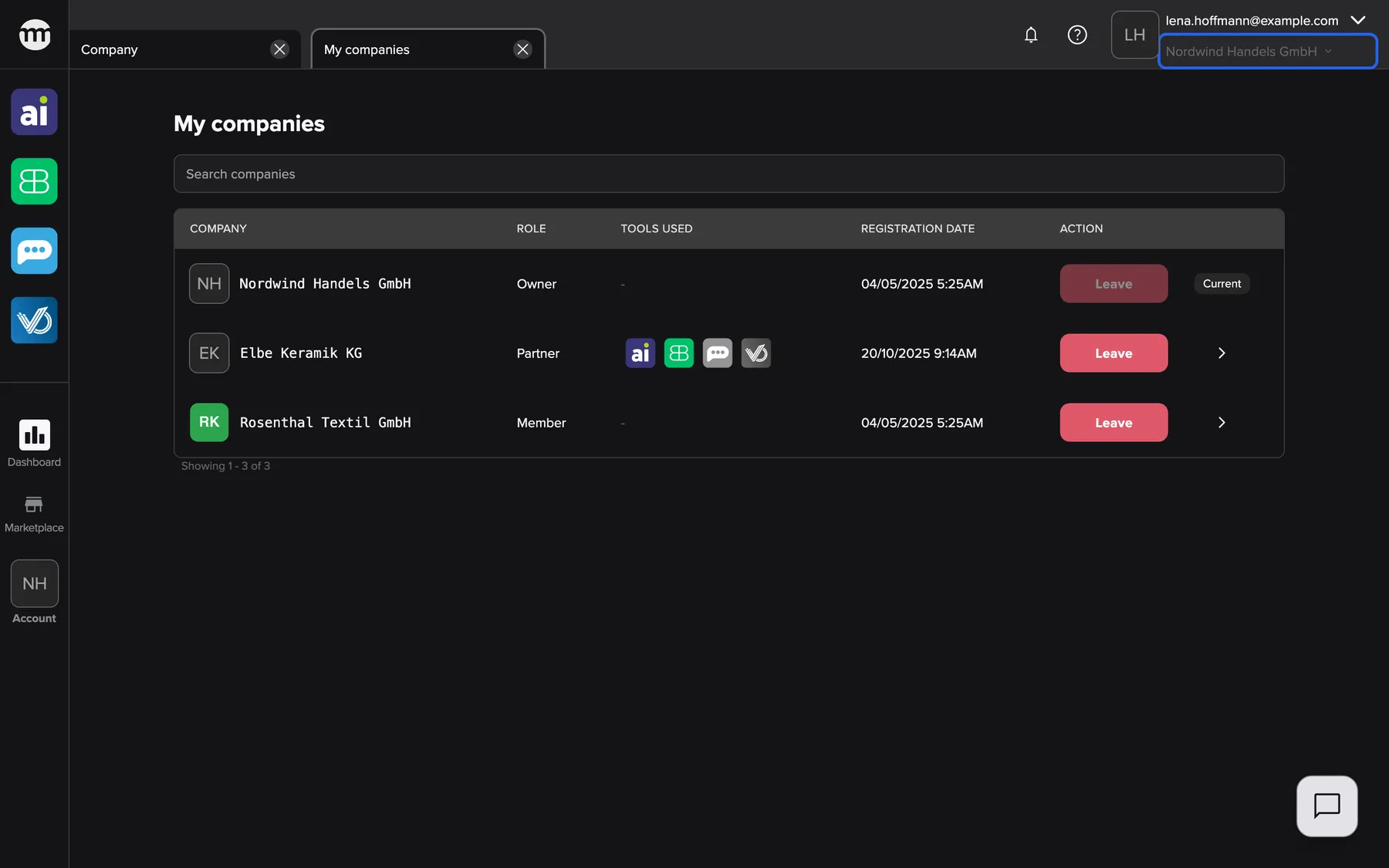
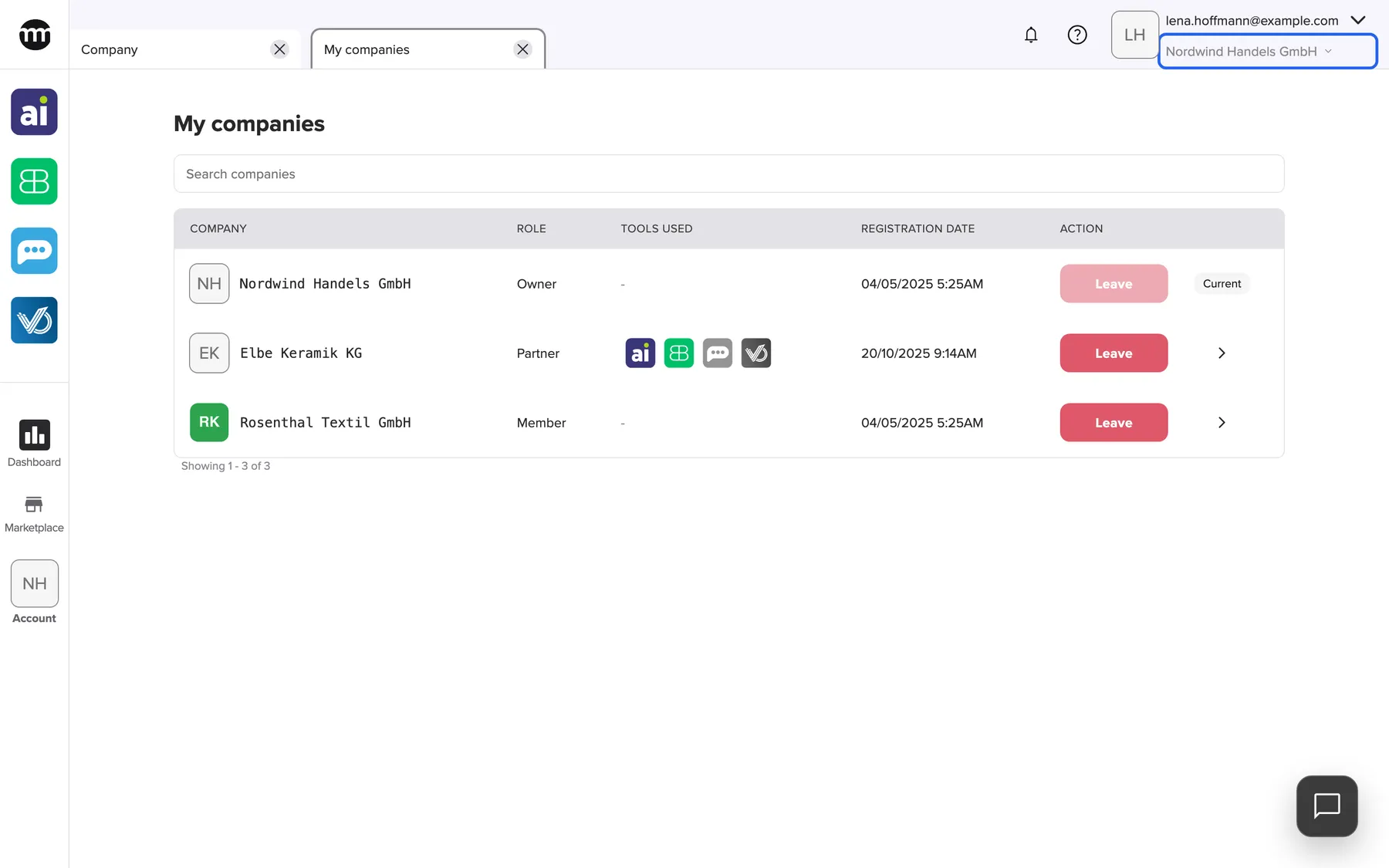
What this screenshot shows
- Screen
- My companies
- Highlighted
- “Open company switcher”: opens My companies
- Also visible
- Three companies with roles Owner, Partner, Member; Tools used icons for the Partner row; Leave buttons and switch arrows; Current badge
- Purpose
- the list of your companies
| Region | What it shows | What you do there |
|---|---|---|
| Search box | Search companies | Find a company by name |
| The table | Company, Role, Tools used, Registration date, Action | Read your memberships, switch, leave |
| Below the table | The count and the page buttons, seven companies per page | Move between pages |
The current company carries the badge Current instead of an arrow. The list shows only active memberships in companies whose owner is active. Invitations you have not accepted are not listed.
Switch to another company
Section titled “Switch to another company”- Select the arrow in the company’s row. Its tooltip reads, for example, “Switch to Rosenthal Textil GmbH”.
- Confirm with Switch company.
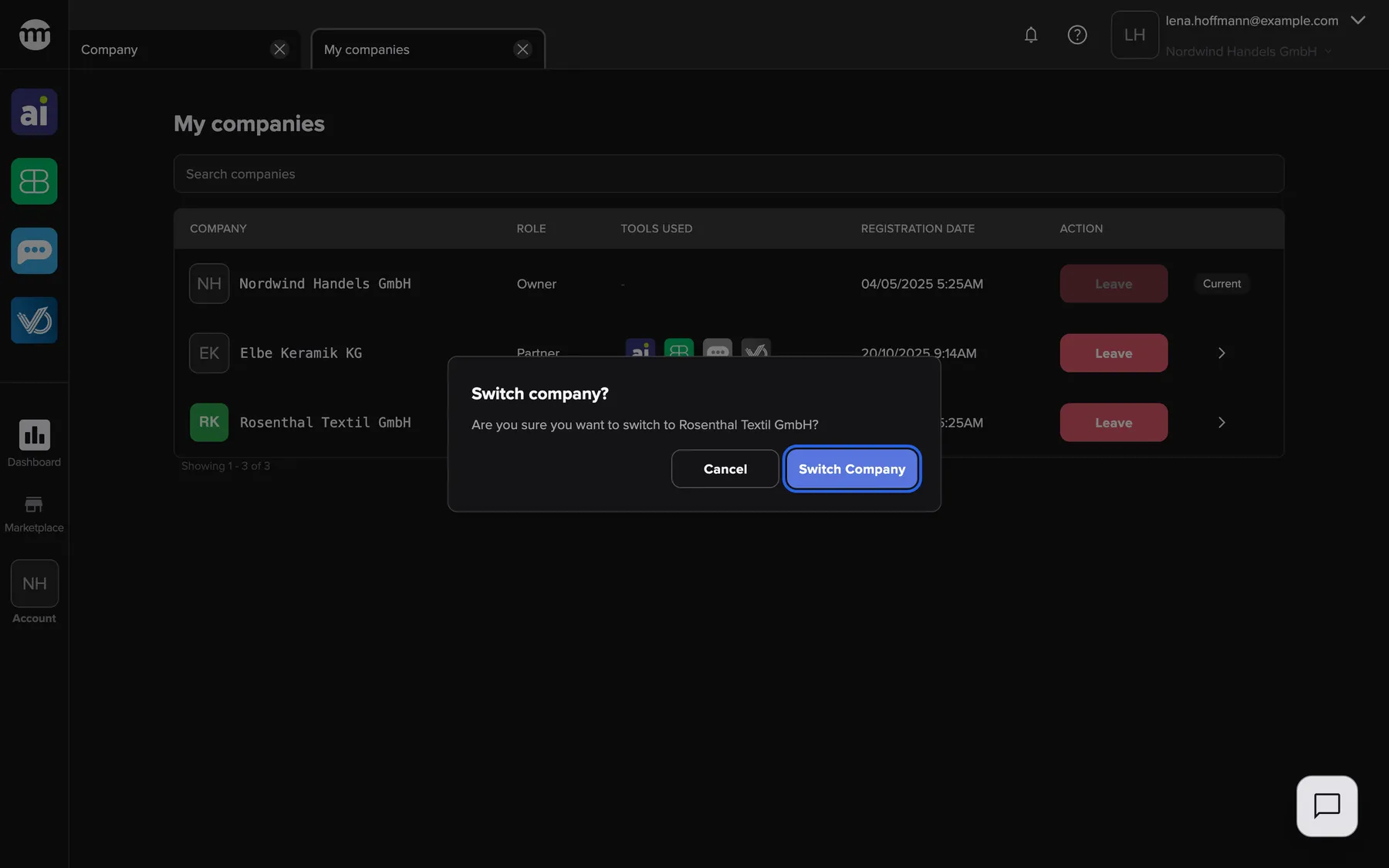
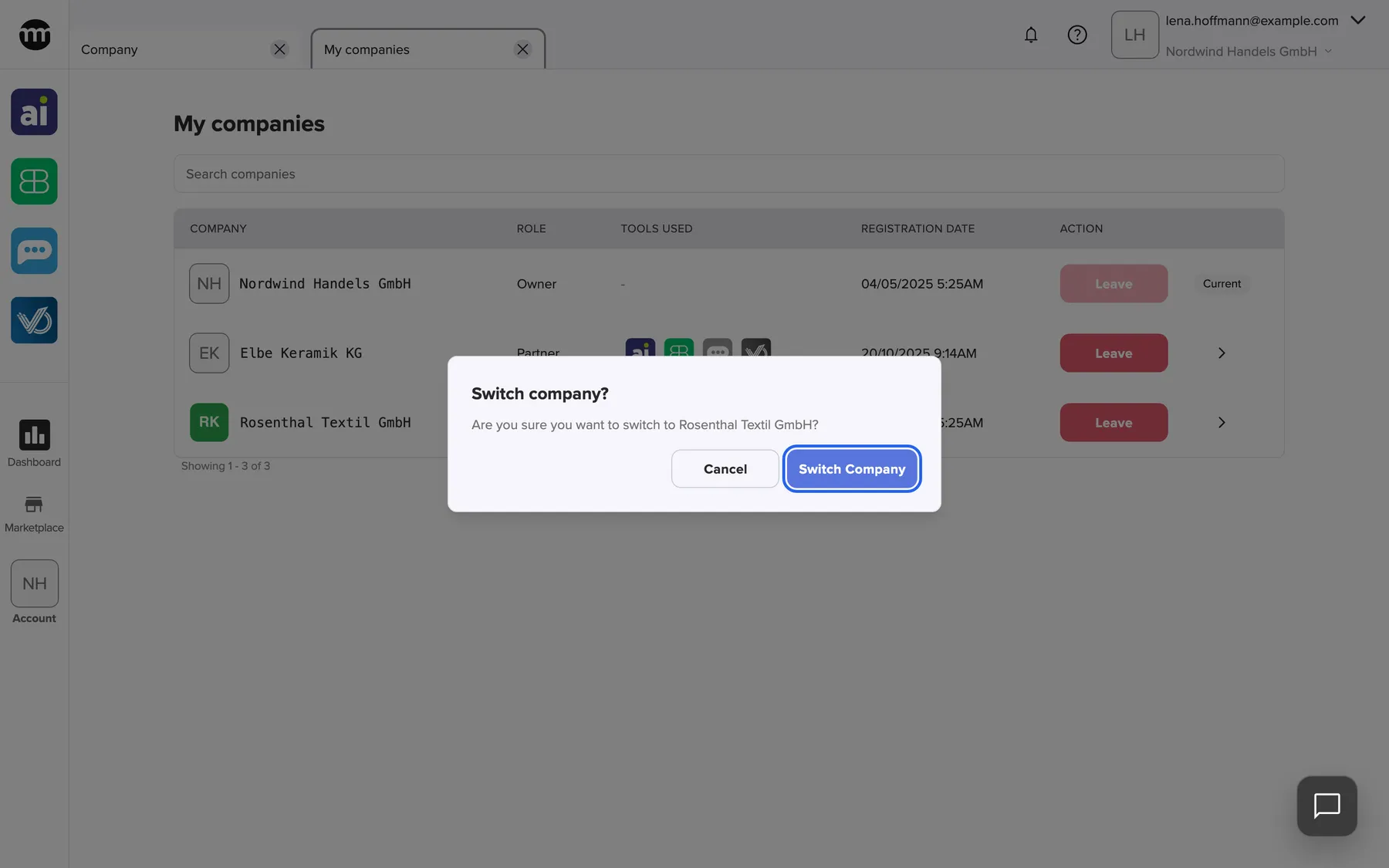
What this screenshot shows
- Screen
- My companies
- Highlighted
- “Switch company”: switches the session to the other company
- Also visible
- Switch company? dialog; Cancel button
- Purpose
- switch to another company
comrce Hub signs you in to that company and closes every open tab. It loads your role, permissions and menus there and shows Company switched.. If a tab has unsaved changes, the dialog Unsaved changes lists it first. The button then reads Switch and discard changes.
Leave a company
Section titled “Leave a company”- Select Leave in the company’s row.
- Read the confirmation Leave company? and select Leave.
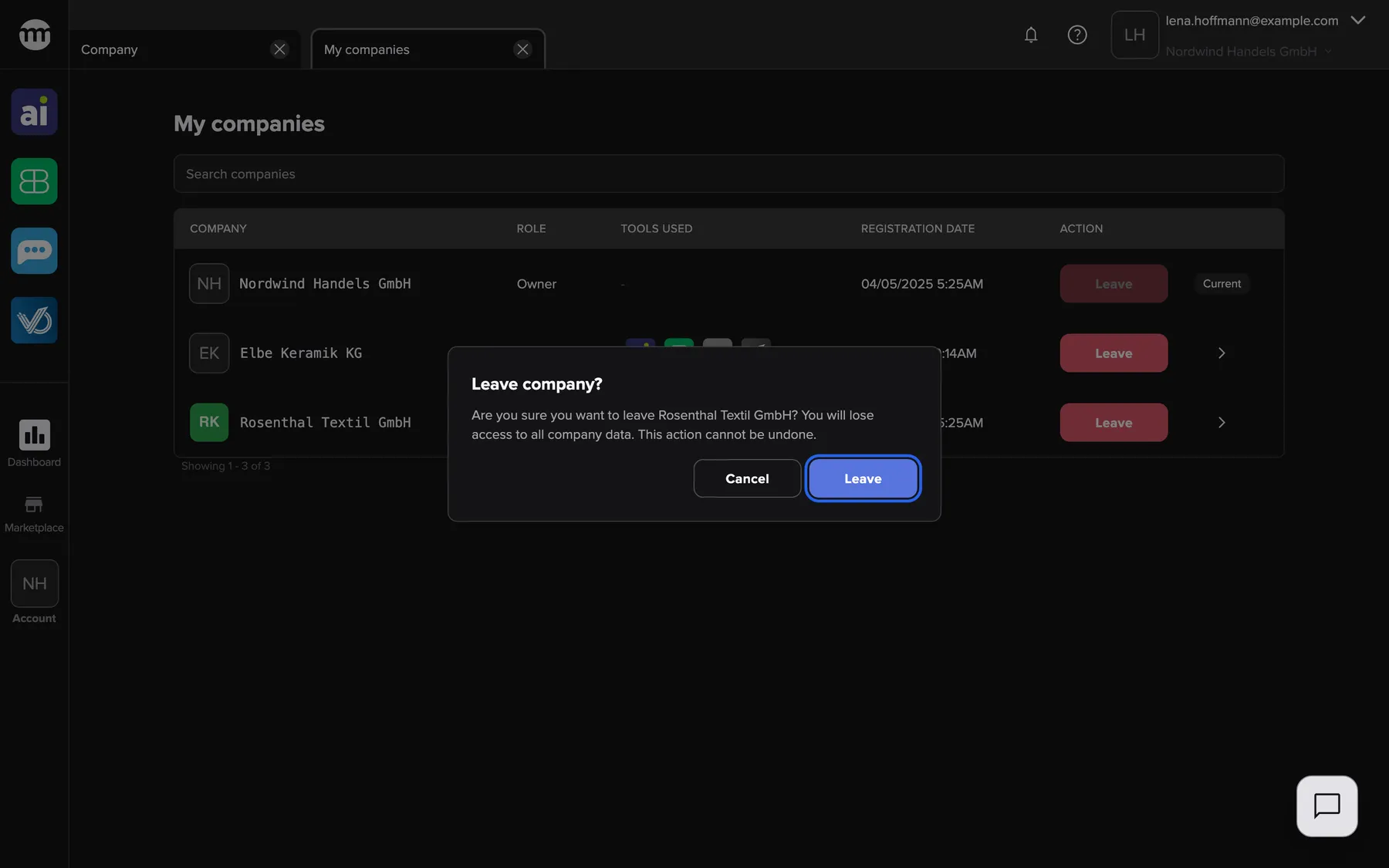
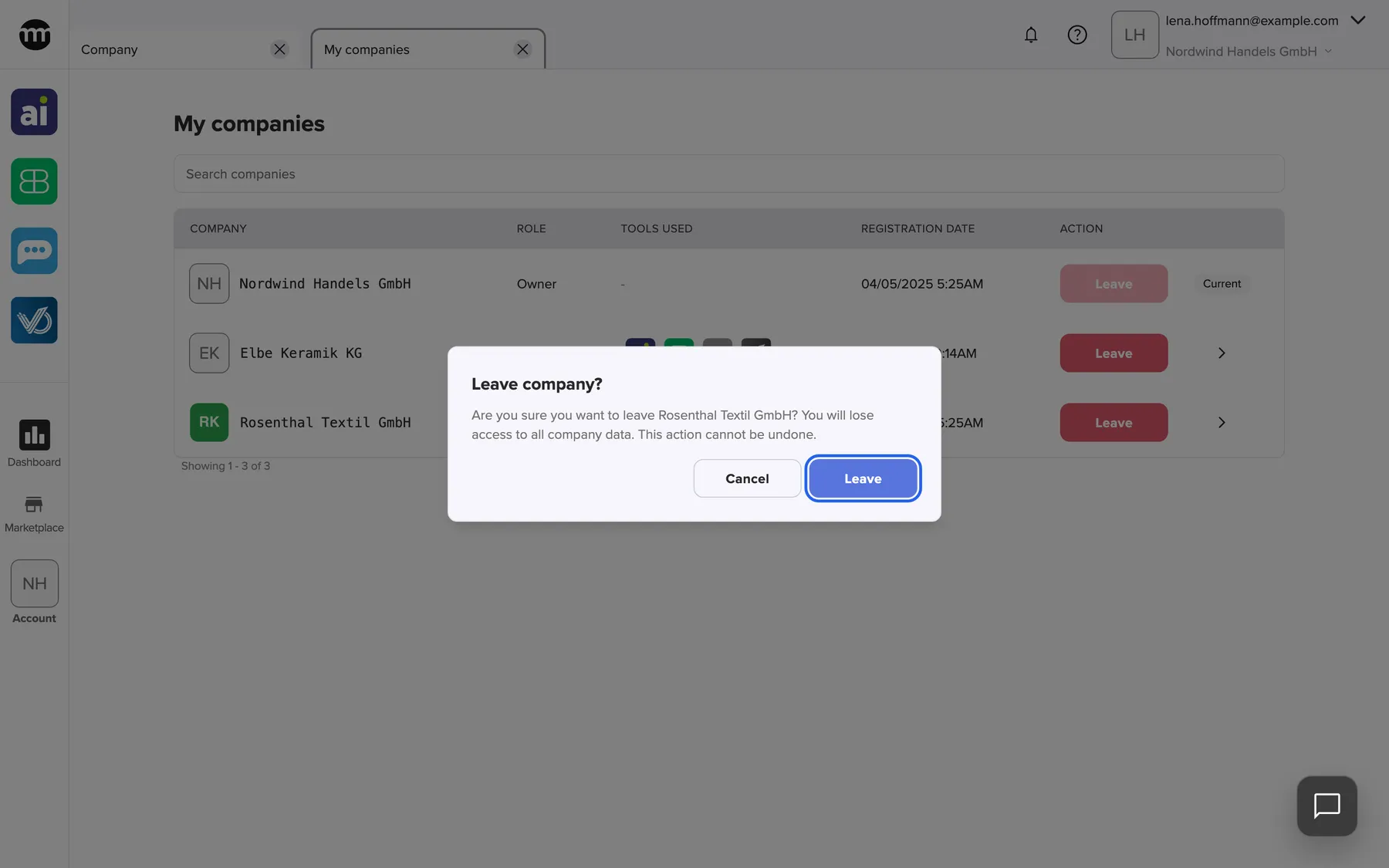
What this screenshot shows
- Screen
- My companies
- Highlighted
- “Leave”: ends the membership
- Also visible
- Leave company? dialog; Cancel button
- Purpose
- leave a company
comrce Hub ends your membership and shows Company left.. This cannot be undone. To come back you need a new invitation. If you leave the company you are working in, you are signed out. If you leave your last company, you see only your personal settings at the next sign-in.
Every control, explained
Section titled “Every control, explained”
Every control, explained
Section titled “Every control, explained”The controls that need a word of explanation come first. The obvious ones are collapsed at the end.
The red button in each row. Greyed out where you are the owner. Asks for confirmation.
Ends your membership. Errors appear briefly as a message, for example Company owners cannot leave their own company..
You can end work for a client yourself, without waiting for their owner.
Switch arrow
Section titled “Switch arrow”The last column, next to Leave. Missing in the current company’s row. Asks for confirmation.
Signs you in to the chosen company and closes all tabs.
Each company has its own data and permissions, so comrce Hub always works in exactly one.
Table columns
Section titled “Table columns”| Column | What it shows | Why |
|---|---|---|
| Company | Logo, or initials, and name | Recognise the company |
| Role | Owner, Member or Partner | Your role in that company |
| Tools used | Only for Partner: the four tool icons, in colour for the tools the company uses, grey otherwise. A dash for other roles. | See which tools a client works with |
| Registration date | The date you joined that company | See how long you have worked there |
| Action | Leave and the switch arrow, or Current | Act on a membership |
Other controls on this page
| Control | What it does | Why |
|---|---|---|
| Search box (Search companies) | Finds companies whose name contains every word you type | Tax advisors and agencies with many clients find one quickly |
| Page buttons | Move between pages of the list | Keep the list readable |
What you need to know
Section titled “What you need to know”
What you need to know
Section titled “What you need to know”| Topic | Fact |
|---|---|
| One company at a time | You always work in exactly one company. The top bar shows which. |
| Per company | Role and permissions differ between companies |
| Switching | Closes every tab. Unsaved changes are lost after the warning. |
| Leaving | See Leave a company |
Frequently asked questions
Section titled “Frequently asked questions”
Frequently asked questions
Section titled “Frequently asked questions”General
Section titled “General”Why is a company I was invited to missing?
Section titled “Why is a company I was invited to missing?”My companies lists only active memberships. An invitation you have not accepted yet does not appear, so open the invitation email and accept it. Deactivated or deleted memberships are not listed either.
Why does the Tools used column show a dash?
Section titled “Why does the Tools used column show a dash?”The tool icons on My companies appear only where your role is Partner. Where you are Owner or Member, the column shows a dash. Open the company to see its tools.
Where do I find this tab?
Section titled “Where do I find this tab?”Select the company name under your email address at the top right of comrce Hub. It opens My companies. The tab needs no permission and lists every company you are an active member of.
Switching
Section titled “Switching”Why did all my tabs close when I switched?
Section titled “Why did all my tabs close when I switched?”Tabs belong to the company you work in. Switching signs you in to the other company, closes every tab and opens the default tab there. No data from the previous company stays on screen.
Do I have to sign in again to switch?
Section titled “Do I have to sign in again to switch?”No. Select the company’s arrow on My companies and confirm. comrce Hub switches without asking for your password. Only a fresh sign-in shows the company picker.
Leaving
Section titled “Leaving”Why can’t I leave my own company?
Section titled “Why can’t I leave my own company?”Owners cannot leave a company they own, so the Leave button is greyed out in that row. Transfer the ownership to another active member first. You then become a Member and can leave.
Can I undo leaving a company?
Section titled “Can I undo leaving a company?”No. Leaving ends your membership at once. To work there again, someone with Inviting users in that company has to invite you again.
What happens to my account when I leave my last company?
Section titled “What happens to my account when I leave my last company?”Your comrce Hub account stays. When you sign in, you see only your personal settings, without tools or company menus. This lasts until a company invites you again.
Troubleshooting
Section titled “Troubleshooting”
Troubleshooting
Section titled “Troubleshooting”| Symptom | What to check |
|---|---|
| A company is missing from the list | You have not accepted its invitation yet, or your membership there is deactivated. Accept the invitation email, or ask the company’s owner. |
| Could not switch company. | Your membership there may be deactivated, or the company is no longer active. Ask its owner. |
| Company owners cannot leave their own company. | You own the company. Transfer ownership first. |
| No companies found. | Clear the search box. If the list stays empty, you belong to no active company. |