

Paper sizes
Shipping labels and delivery slips rarely come in A4. On Papiergrößen (paper sizes) you add your own formats in millimetres. A printer can then use one as its default paper. Open it with the gear icon at the right end of the top bar, then Papiergrößen.
What you can do here
Section titled “What you can do here”- Add a format your printer needs. Give it a name, a height and a width in millimetres. Add a paper size
- Set it as a printer’s default paper. Your sizes appear in Standardpapier (default paper) on Printers, next to the standard sizes. Use a size on a printer
- Correct or remove a size. Edit one at a time, or delete several at once. Edit or delete sizes
The screen at a glance
Section titled “The screen at a glance”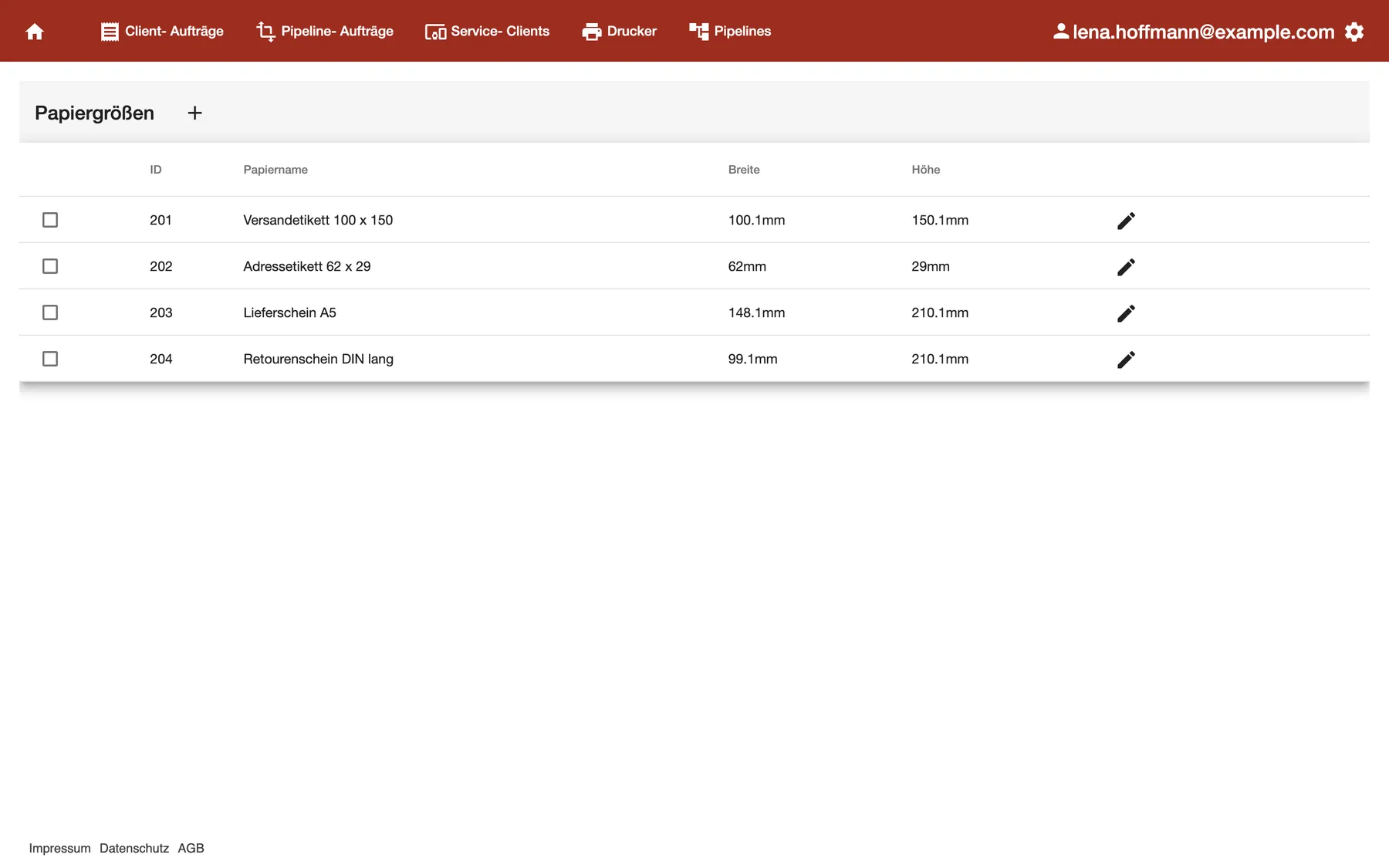
What this screenshot shows
- Screen
- Papiergrößen
- Highlighted
- “Papiergrößen”: the screen as it opens
- Also visible
- Columns ID, Papiername, Breite, Höhe; Four custom sizes for labels and slips
- Purpose
- the paper size list as it opens
| Region | What it shows | What you do there |
|---|---|---|
| Title bar | Papiergrößen, the + button, and a bin icon once you tick a row | Add a size or delete the ticked ones |
| The list | Your own sizes: a checkbox, ID, Papiername (paper name), Breite (width) and Höhe (height) | Find a size and its measurements |
| End of each row | A pencil icon | Edit the size |
The list only shows sizes you added. The standard sizes of comrce cloudprint aren’t listed here, but printers offer them too.
Add a paper size
Section titled “Add a paper size”-
Select the + next to Papiergrößen. The dialog “Papiergröße hinzufügen” (add paper size) opens.
-
Under Allgemein (general), type a Papiername of at least two characters.
-
Under Größe (size), enter Höhe first, then Breite, both in millimetres.
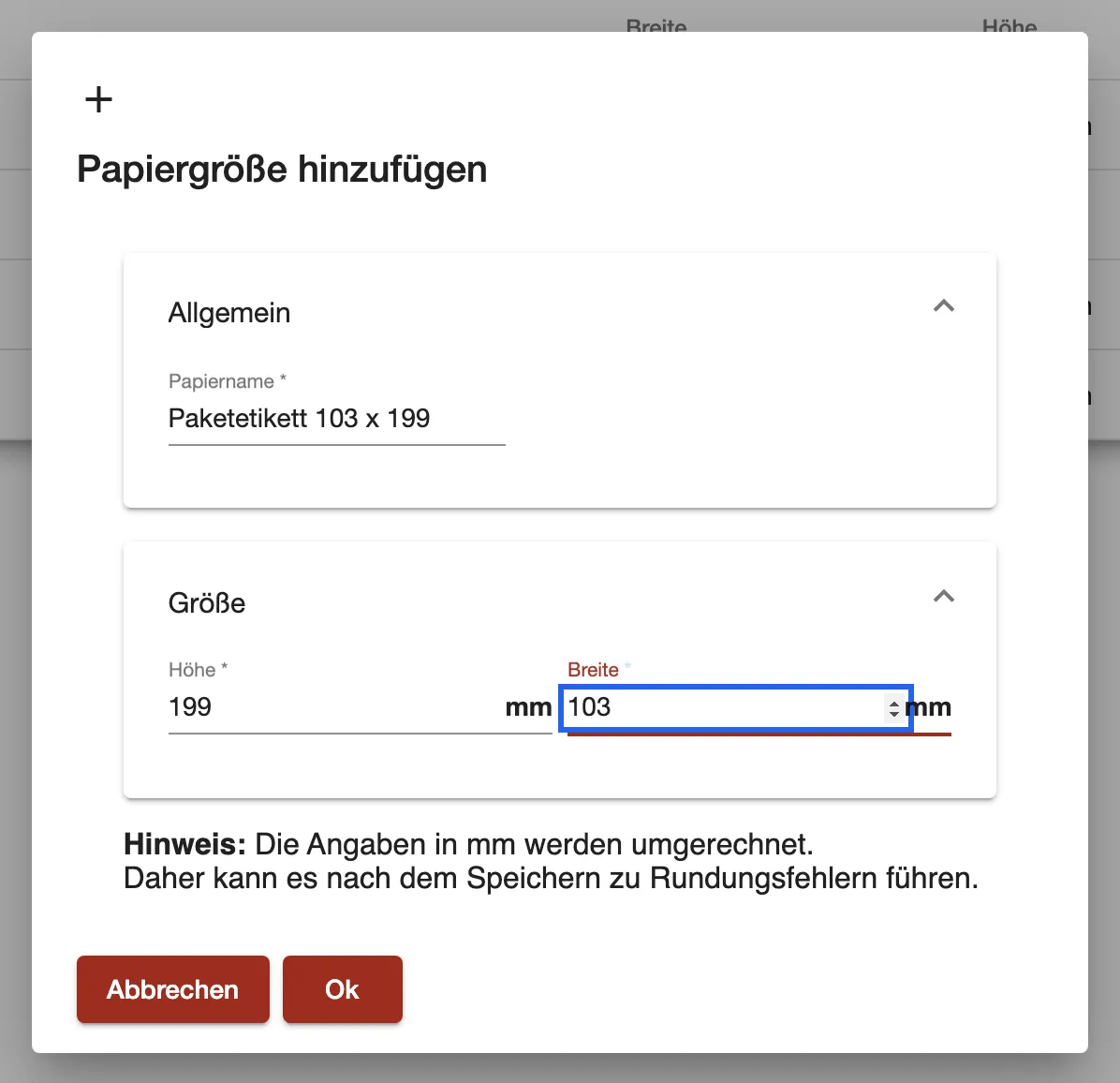
Name the size and enter height and width in millimetres. Note that Höhe comes first. What this screenshot shows
- Screen
- Papiergrößen
- Highlighted
- “Breite”: sets the width in mm
- Also visible
- Papiername, Höhe 199, Breite 103; Rounding note
- Purpose
- add a paper size
-
Select Ok. The dialog closes and the size appears in the list.
A field may be empty, the name too short or a measurement 0. Then a message “Validierungsfehler” (validation error) appears, and the dialog stays open.
Example: Your label printer uses 103 × 199 mm parcel labels. You add “Paketetikett 103 x 199” with height 199 and width 103. On the printer “Versand-Etiketten”, you then choose it as Standardpapier.
Use a size on a printer
Section titled “Use a size on a printer”On Printers, open a printer and choose the size under Standardpapier. The list shows each size with its name and measurements, such as “Versandetikett 100 x 150 (100.1x150.1mm)”. Your own sizes and the standard sizes appear together.
Edit or delete sizes
Section titled “Edit or delete sizes”Edit: select the pencil icon of a row. The dialog “Papiergröße … bearbeiten” (edit paper size) opens. Change the name or the measurements and select Ok.
Delete: tick the rows you want to remove. A bin icon appears next to the +. Select it and confirm with Ok.
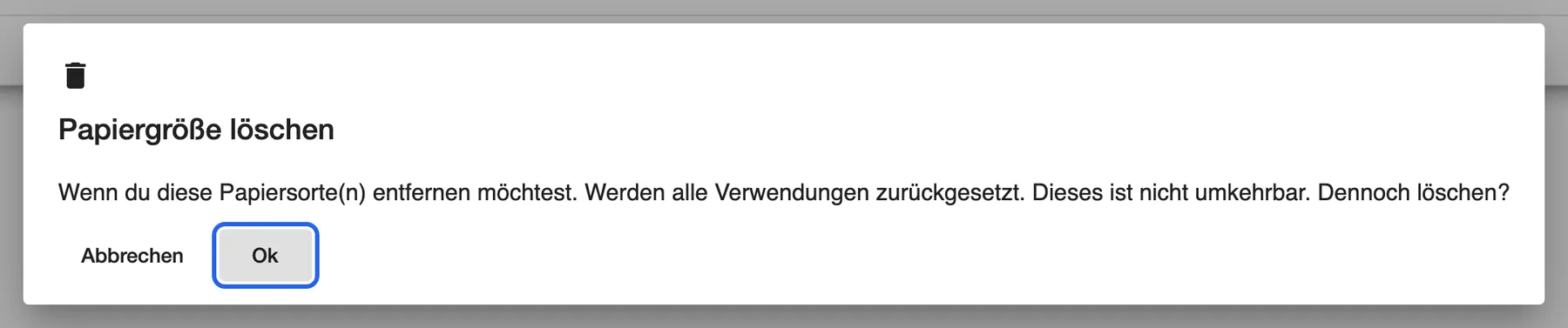
What this screenshot shows
- Screen
- Papiergrößen
- Highlighted
- “Ok”: deletes the ticked sizes
- Also visible
- Title Papiergröße löschen and the warning
- Purpose
- delete a paper size
Every control, explained
Section titled “Every control, explained”
Every control, explained
Section titled “Every control, explained”Höhe and Breite (height and width)
Section titled “Höhe and Breite (height and width)”In the dialog, under Größe. Saved with Ok.
The paper’s measurements in millimetres. Note the order: Höhe comes before Breite, while the list shows width first. Both must be greater than 0. Decimals are allowed.
So the printer knows the exact format, for example a narrow label that would otherwise print on A4.
Papiername (paper name)
Section titled “Papiername (paper name)”In the dialog, under Allgemein.
The name the printer’s Standardpapier list shows. It needs at least two characters.
Put the measurements into the name, such as “Adressetikett 62 x 29”. Then nobody has to guess which label it is.
Other controls on this page
| Control | What it does | Why |
|---|---|---|
| + | Opens “Papiergröße hinzufügen” | Add a size |
| Checkbox | Selects the row for deleting | Remove several sizes at once |
| Bin icon | Appears once a row is ticked; asks, then deletes the ticked sizes | Remove sizes you no longer use |
| Pencil icon | Opens the size in the dialog | Correct its name or measurements |
| Abbrechen | Closes the dialog without saving | Leave without changes |
Who sees what
Section titled “Who sees what”
Who sees what
Section titled “Who sees what”| Part | Who sees it |
|---|---|
| The gear icon and Papiergrößen | The comrce Hub Owner, who becomes the comrce cloudprint administrator at the first sign-in |
| Other comrce Hub members | They don’t see the gear icon or this screen |
What you need to know
Section titled “What you need to know”
What you need to know
Section titled “What you need to know”| Topic | Fact |
|---|---|
| Unit | Millimetres, stored in hundredths of an inch |
| Precision | Shown to 0.1 mm; small rounding differences are normal |
| Standard sizes | Not listed here, but offered on every printer |
| Scope | Your sizes are only visible in your company’s account |
| Deleting | Can’t be undone; printers using the size lose their default paper |
Frequently asked questions
Section titled “Frequently asked questions”
Frequently asked questions
Section titled “Frequently asked questions”General
Section titled “General”Where do I add a custom paper size in comrce cloudprint?
Section titled “Where do I add a custom paper size in comrce cloudprint?”Select the gear icon at the right end of the top bar, then Papiergrößen. Select the + next to the heading, enter a name, height and width in millimetres, and select Ok.
Why don’t I see A4 in the list?
Section titled “Why don’t I see A4 in the list?”Papiergrößen only lists the sizes you added yourself. The standard sizes of comrce cloudprint are still there. They appear in a printer’s Standardpapier list on Printers, next to your own sizes.
Where do I use a paper size?
Section titled “Where do I use a paper size?”As a printer’s default paper. On Printers, open the printer and choose the size under Standardpapier. The list shows each size with its name and its width and height in millimetres.
Measurements
Section titled “Measurements”Why does my size show 100.1 mm instead of 100 mm?
Section titled “Why does my size show 100.1 mm instead of 100 mm?”comrce cloudprint stores sizes in hundredths of an inch, then converts them back to millimetres with one decimal. 100 mm becomes 100.1 mm, while 62 mm stays 62 mm. The dialog’s Hinweis: warns about this. The difference is less than a tenth of a millimetre.
Why does the dialog ask for the height first?
Section titled “Why does the dialog ask for the height first?”That’s the order of the dialog: Höhe, then Breite. The list and the printer’s Standardpapier list show the width first. Check both values before you select Ok.
What does “Validierungsfehler” mean?
Section titled “What does “Validierungsfehler” mean?”A field is missing or invalid. The name needs at least two characters, and height and width must both be greater than 0 mm. Correct the field and select Ok again. The dialog stays open until then.
Deleting
Section titled “Deleting”What happens to my printers when I delete a paper size?
Section titled “What happens to my printers when I delete a paper size?”Every printer that uses it as Standardpapier loses that default, and the field becomes empty. The printers keep working. Open them on Printers and choose another default paper if needed.
Can I delete several paper sizes at once?
Section titled “Can I delete several paper sizes at once?”Yes. On Papiergrößen, tick every row you want to remove. Then select the bin icon next to the + and confirm with Ok. You can’t undo it.
Troubleshooting
Section titled “Troubleshooting”
Troubleshooting
Section titled “Troubleshooting”| Symptom | What to check |
|---|---|
| “Validierungsfehler” when saving | Fill in all three fields. The name needs at least two characters, and both measurements must be above 0. |
| The size shows slightly different values | That’s the rounding to hundredths of an inch. The difference stays below a tenth of a millimetre. |
| Width and height look swapped | The dialog asks for Höhe first. Edit the size and swap the values. |
| No bin icon next to the + | Tick at least one row. The bin icon only appears then. |
| A printer prints on the wrong paper again | Its default paper was deleted. Choose a new Standardpapier on Printers. |