

Confirm or accept an ownership transfer
An ownership transfer in comrce Hub runs over two emails, so nobody becomes owner by accident. The current owner opens the first link and confirms. The chosen member then gets an invitation link and accepts, which makes them the owner.
Each link works only for the person it was sent to, signed in with their own account. The transfer is valid for 48 hours from the moment the owner started it.
What you can do here
Section titled “What you can do here”- Confirm the transfer as owner. One button sends the invitation to the member you chose. Until then nothing happens. Confirm as the current owner
- Accept the transfer as the new owner. One button makes you the owner immediately. The previous owner becomes a Member. Accept as the new owner
- Switch to the right account. If you are signed in with another account, the page names the account it needs and lets you log out. When you are signed in with another account
- Recognise an expired link. The error page says the link has expired or could not be used, and how to get help. When the link does not work
Transferring company ownership explains the whole transfer.
The screen at a glance
Section titled “The screen at a glance”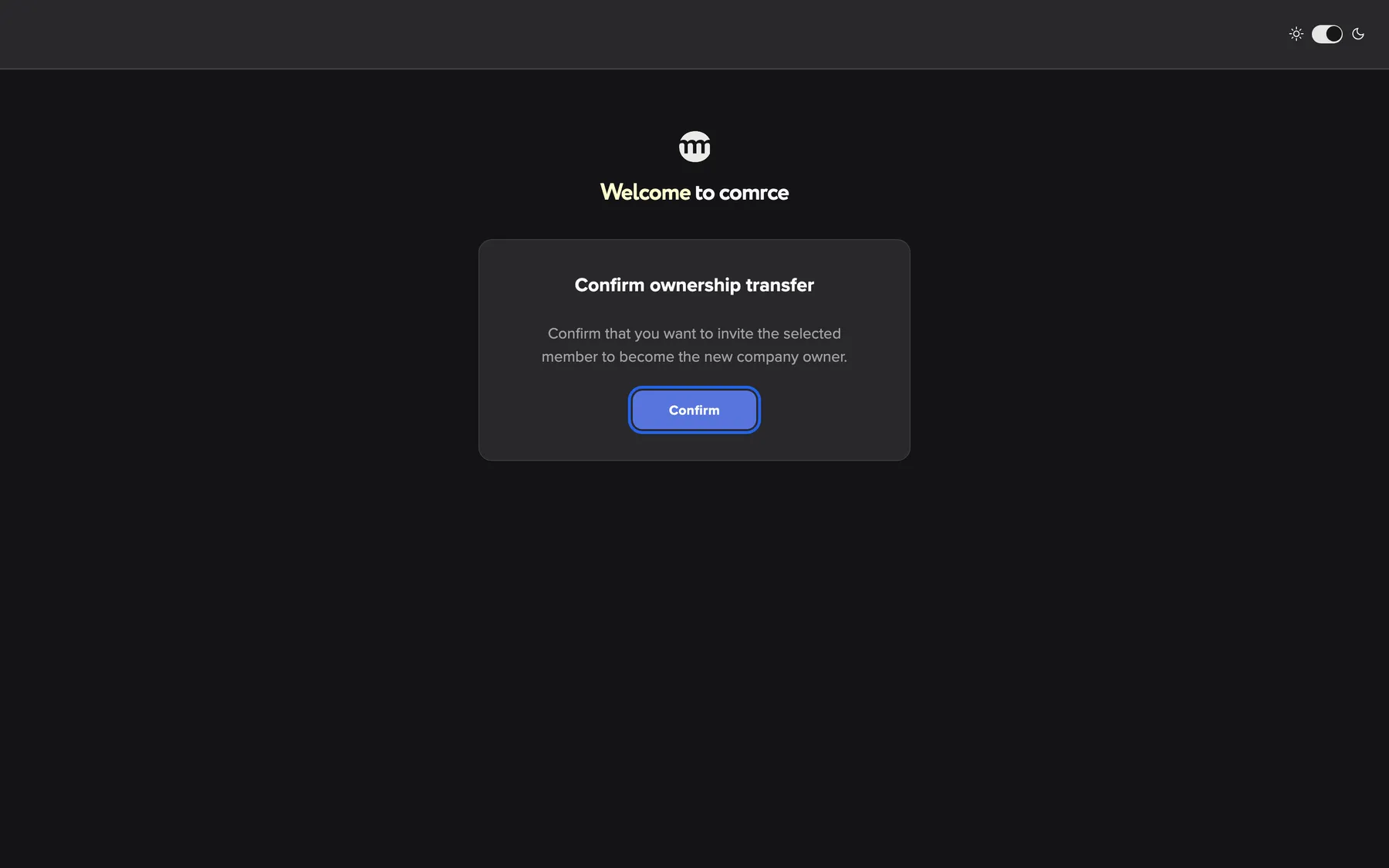
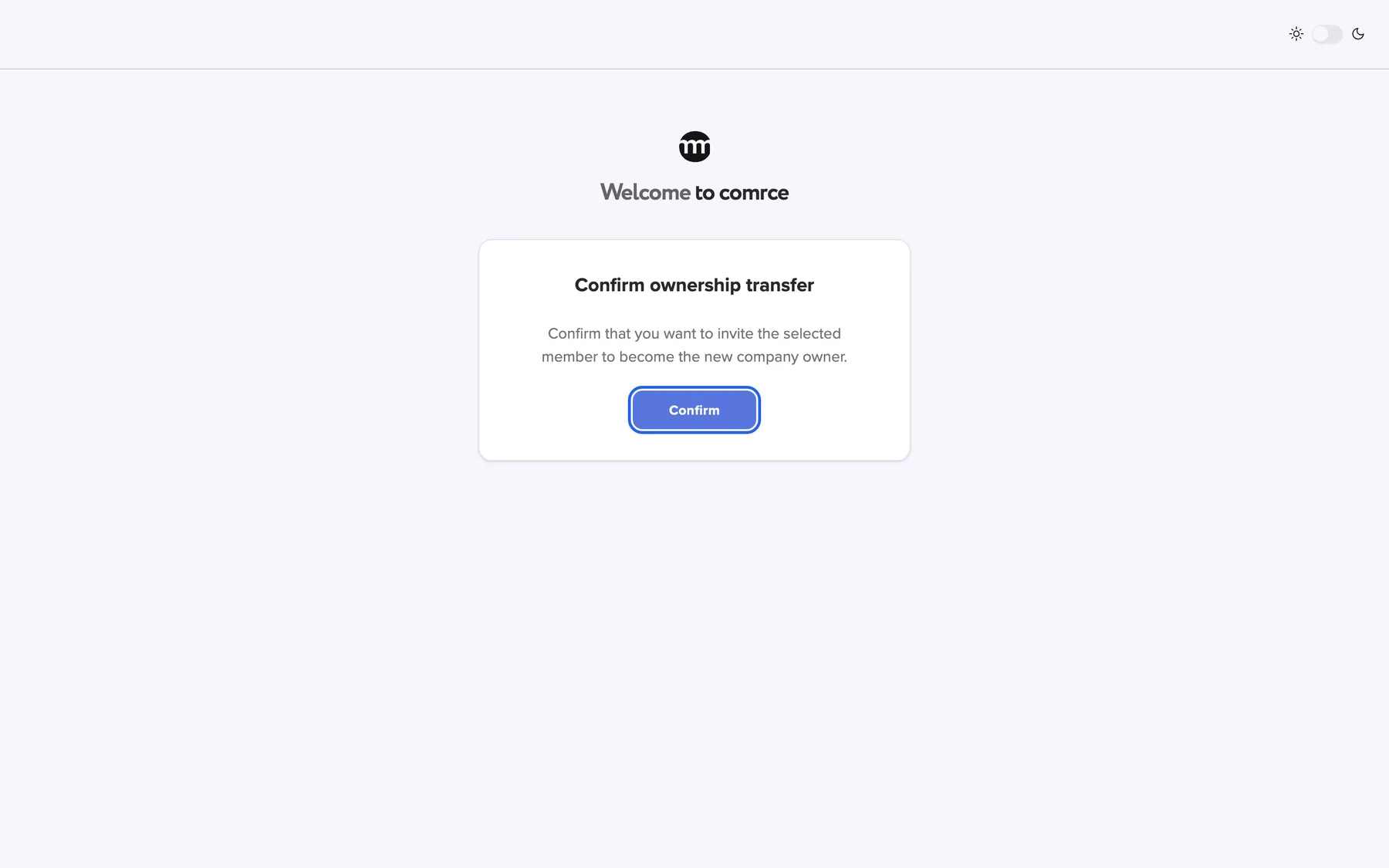
What this screenshot shows
- Screen
- Confirm ownership transfer
- Highlighted
- “Confirm”: confirms the transfer and invites the new owner
- Also visible
- Card Confirm ownership transfer; Explanation text
- Purpose
- owner confirmation from the email
| Region | What it shows | What you do there |
|---|---|---|
| Top bar | The light/dark switch at the right | Switch between light and dark display |
| Below the top bar | The comrce logo and the heading Welcome to comrce | Nothing |
| The card | A heading, one sentence and one or two buttons | Confirm, accept, log out or cancel |
If you open a link while signed out, the sign-in form appears first, in the same place. After you sign in with your email and password, the page continues.
Confirm as the current owner
Section titled “Confirm as the current owner”- Open the email comrce Hub sent after you selected Confirm transfer on the Company tab. Select its link.
- Sign in with the owner’s account if asked.
- On Confirm ownership transfer, select Confirm.
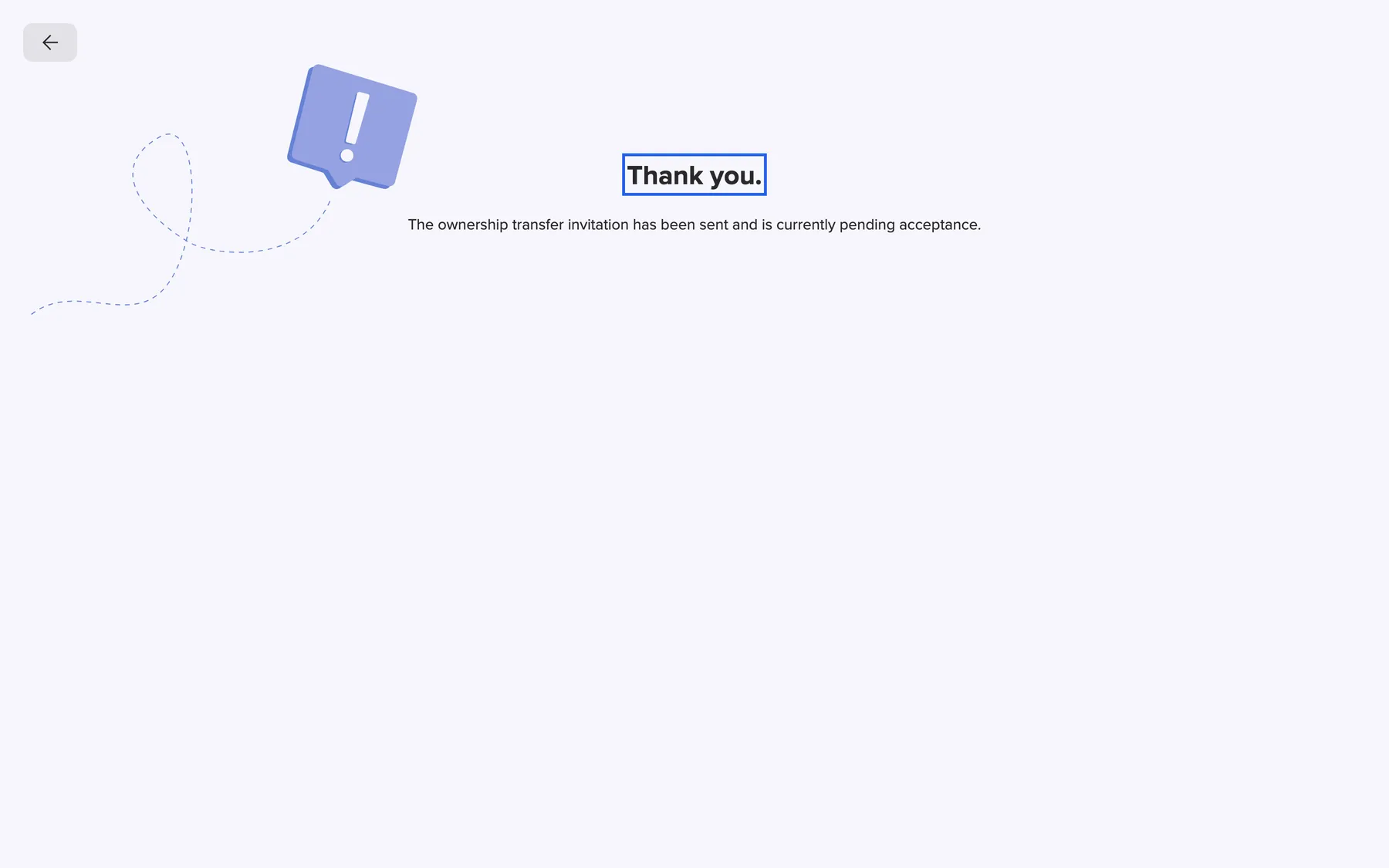
The page Thank you. follows: The ownership transfer invitation has been sent and is currently pending acceptance.. The chosen member now gets an invitation email. You stay the owner, with every permission, until they accept.

What this screenshot shows
- Screen
- Thank you.
- Highlighted
- “Thank you.”: confirms the invitation was sent
- Also visible
- Back arrow; Pending acceptance text
- Purpose
- result of the owner confirmation
Accept as the new owner
Section titled “Accept as the new owner”- Open the invitation email and select its link.
- Sign in with the account the email was sent to, if asked.
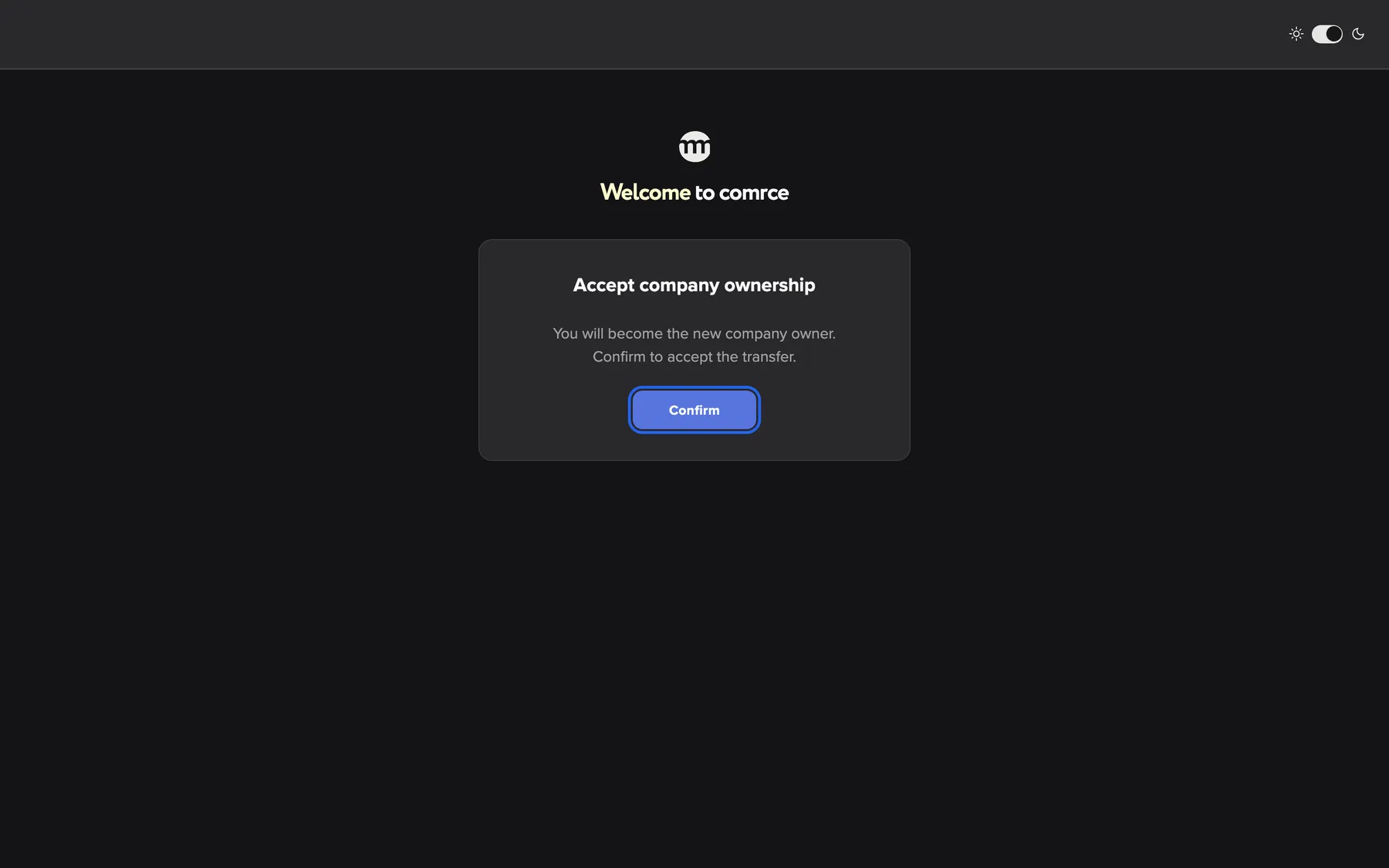
- On Accept company ownership, select Confirm.
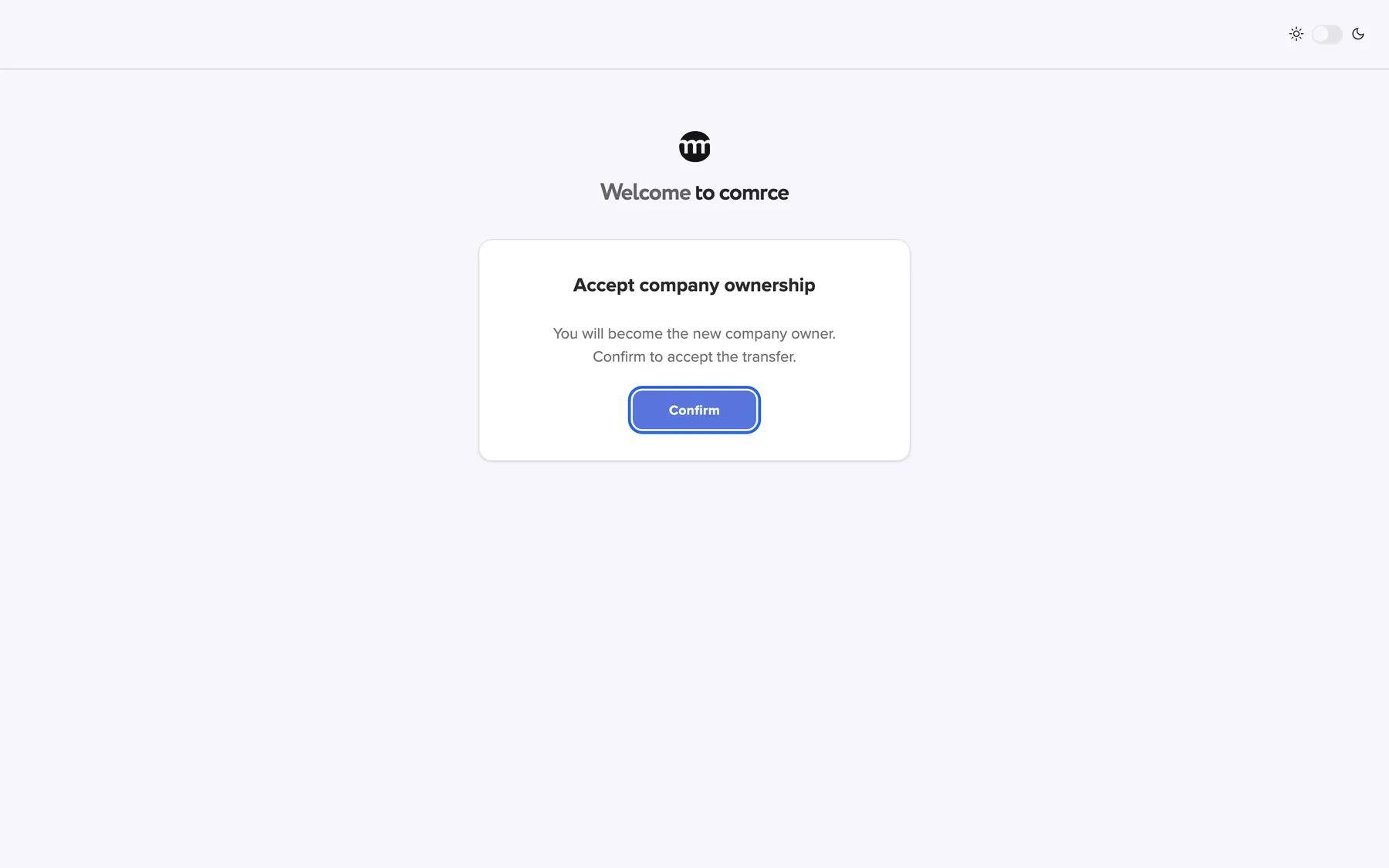
What this screenshot shows
- Screen
- Accept company ownership
- Highlighted
- “Confirm”: accepts the ownership
- Also visible
- Card Accept company ownership; Explanation text
- Purpose
- new owner acceptance from the email
The page Ownership transfer accepted confirms it. From now on you are the company’s owner with every permission. The previous owner is a Member with the Member preset of permissions. If comrce started the transfer at your request, the previous owner also gets an email that it is complete.
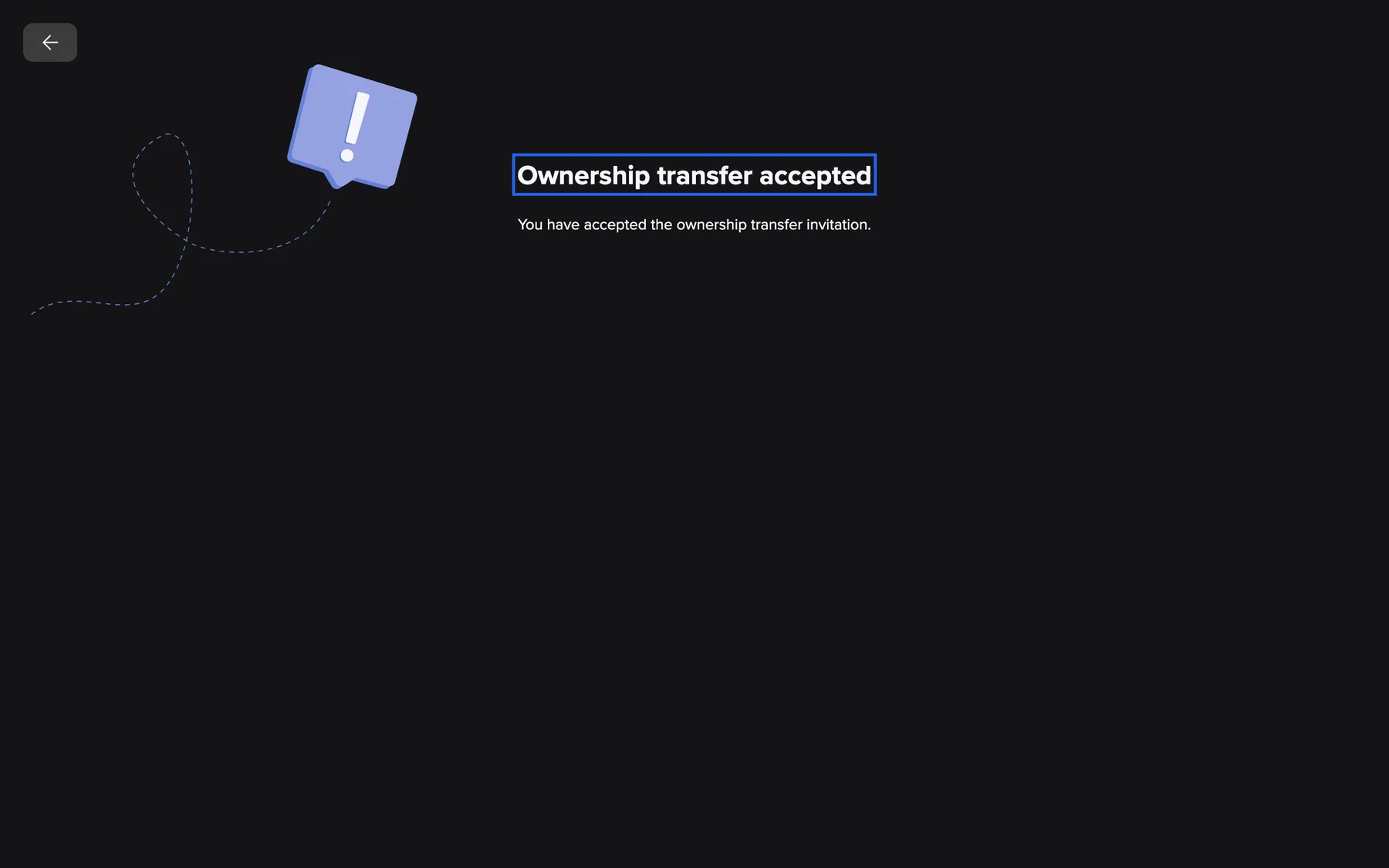
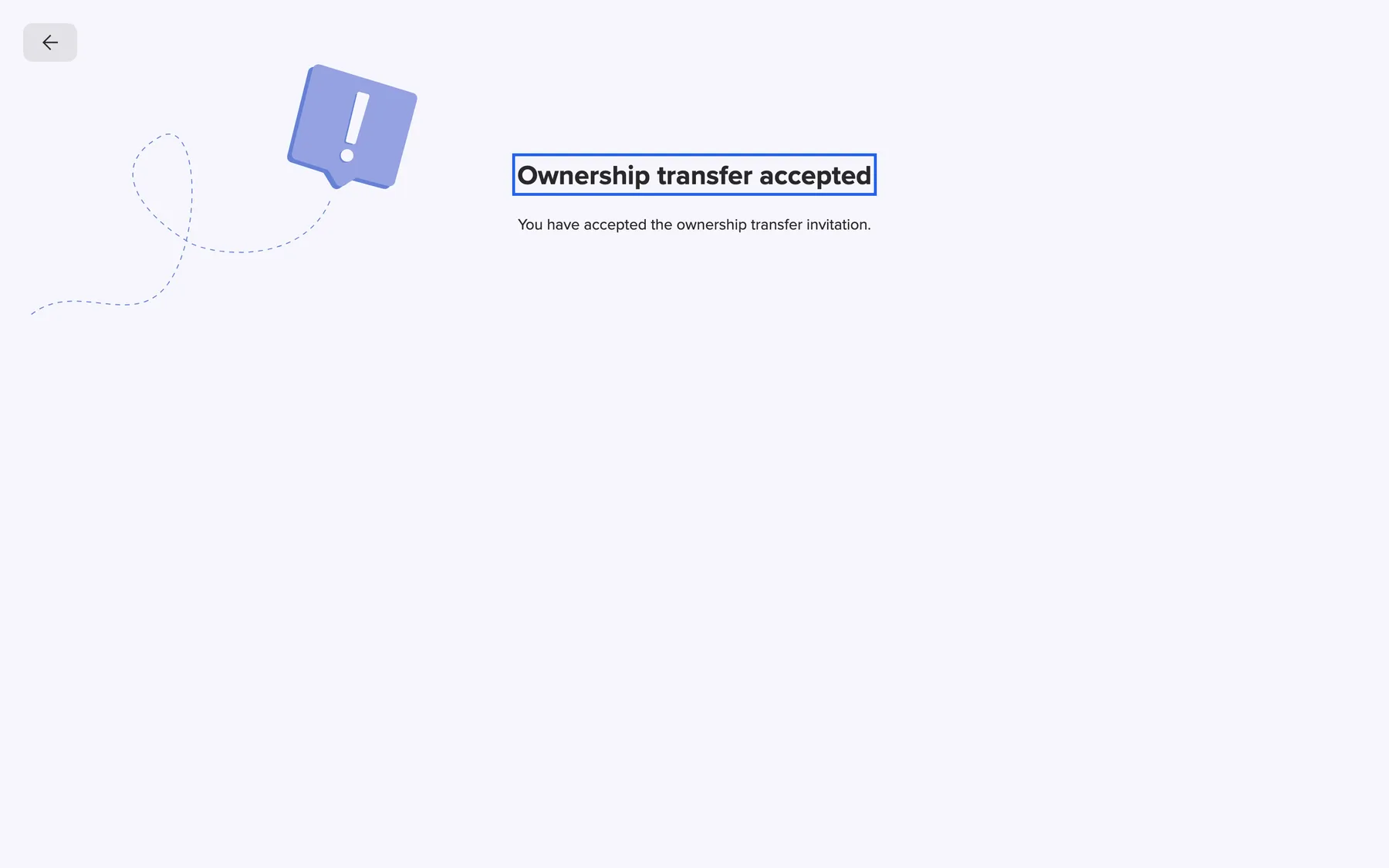
What this screenshot shows
- Screen
- Ownership transfer accepted
- Highlighted
- “Ownership transfer accepted”: confirms the completed transfer
- Also visible
- Back arrow; Accepted text
- Purpose
- result of the acceptance
When you are signed in with another account
Section titled “When you are signed in with another account”The email may be meant for a different account than the one you are signed in with. The acceptance page then shows Different account required with the expected email address. The confirmation page shows Sign in as the current owner. Select Log out, sign in with the right account and open the link again.
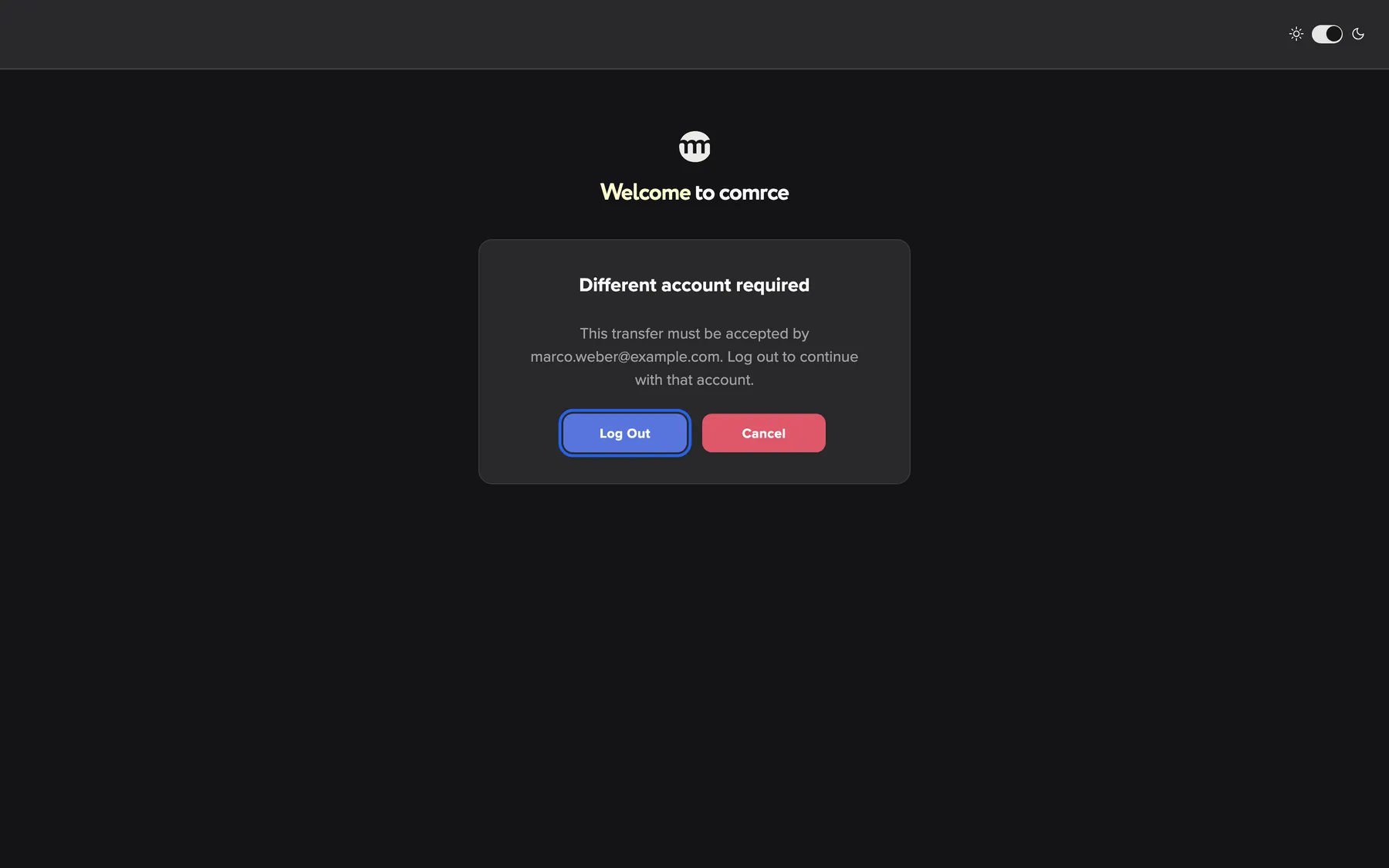
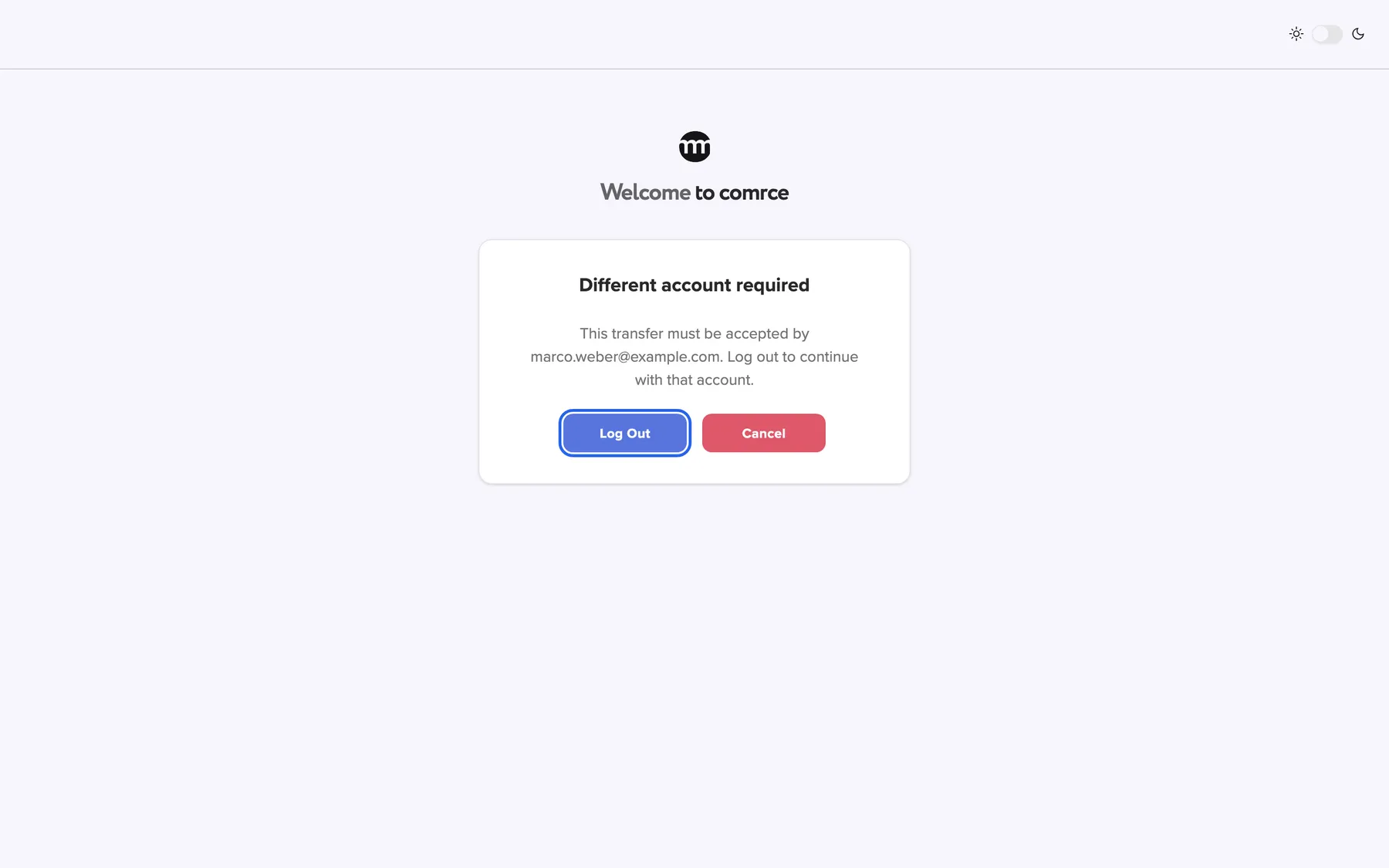
What this screenshot shows
- Screen
- Different account required
- Highlighted
- “Log out”: signs out to switch accounts
- Also visible
- Expected email marco.weber@example.com; Cancel button
- Purpose
- link opened with the wrong account
When the link does not work
Section titled “When the link does not work”The error page appears when the transfer expired, was already used or was replaced by a newer one. It also appears when the page could not be processed. An expired transfer shows This ownership transfer link has expired.. Other cases show Something went wrong.. There is no retry button. The owner starts a new transfer from the Company tab.
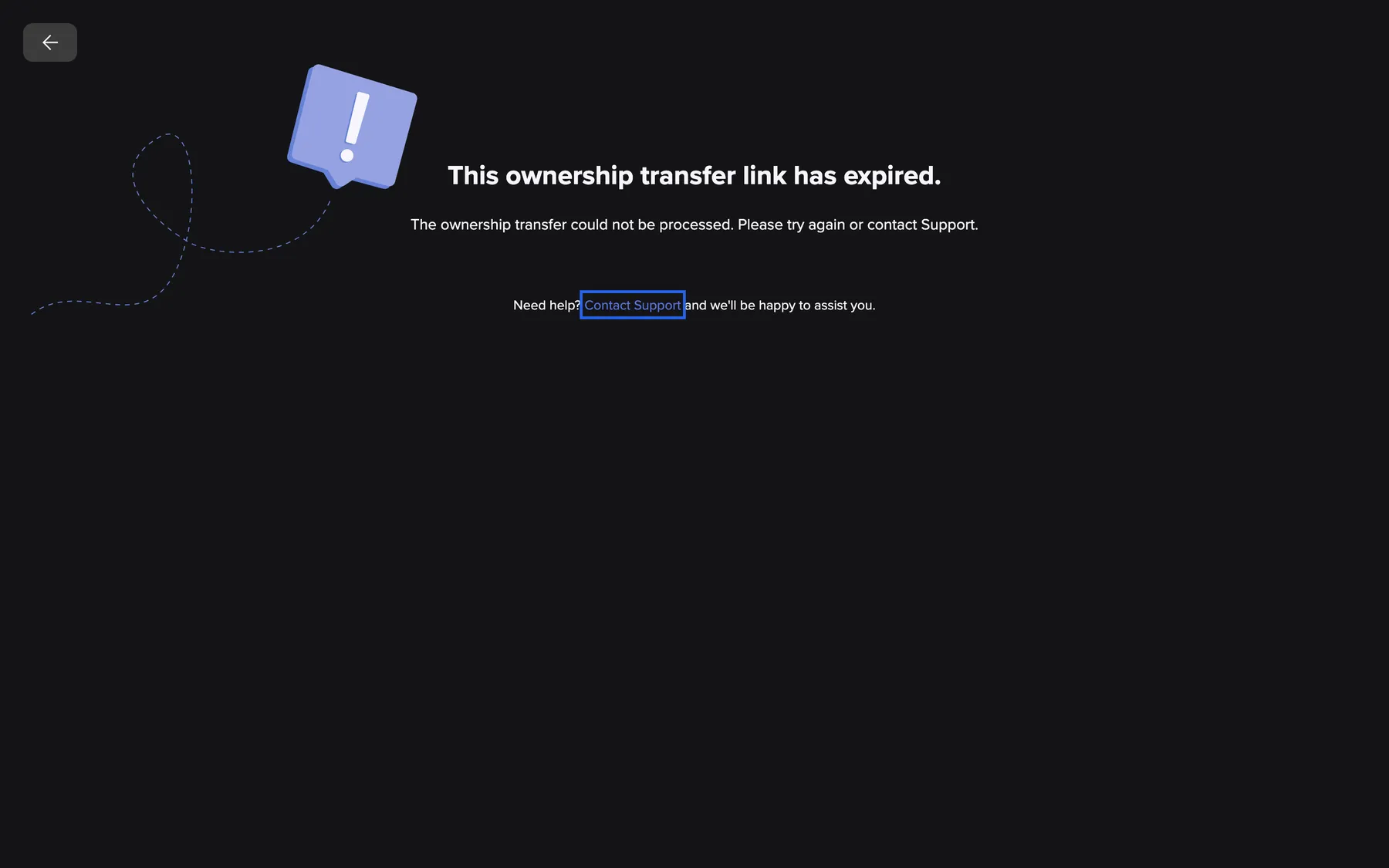
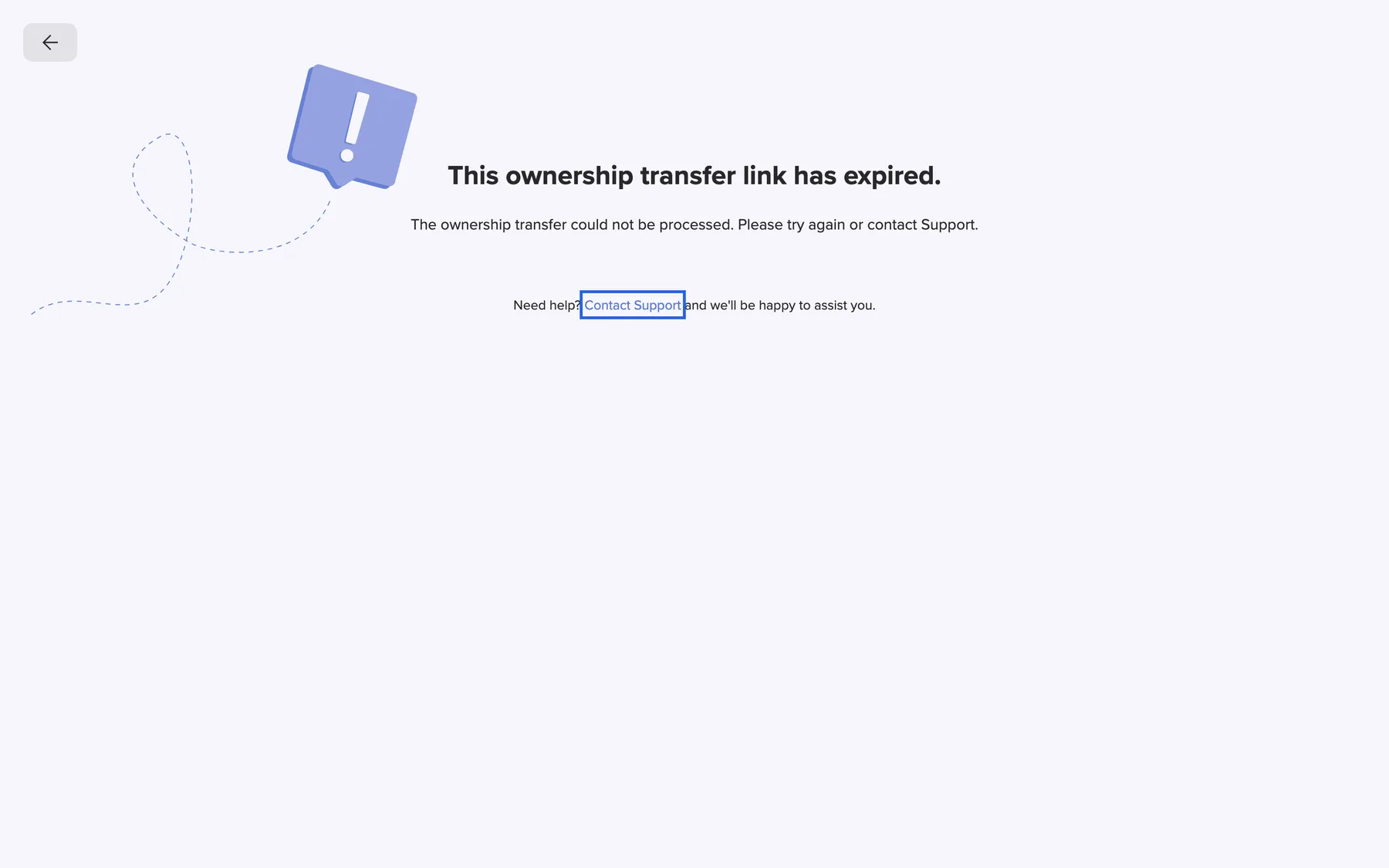
What this screenshot shows
- Screen
- Something went wrong.
- Highlighted
- “Contact Support”: opens an email to support
- Also visible
- Link expired message; Need help? line
- Purpose
- expired transfer link
Every control, explained
Section titled “Every control, explained”
Every control, explained
Section titled “Every control, explained”The controls that need a word of explanation come first. The obvious ones are collapsed at the end.
Confirm
Section titled “Confirm”The blue button on the confirmation and on the acceptance card, labelled Confirm.
On the confirmation page, it confirms the transfer and invites the chosen member. On the acceptance page, it completes the transfer. Only the right signed-in person sees it.
Two people confirm, so ownership never changes by mistake.
Other controls on this page
| Control | What it does | Why |
|---|---|---|
| Log out | Signs you out so you can sign in with the right account. Shown on the wrong-account card. | The page tells you who has to act |
| Cancel | Returns to comrce Hub without changes. Shown on the wrong-account card. | Leave the page without changing anything |
| Support link | On the error page, after Need help?. Opens an email to comrce support. | For cases a new transfer does not solve |
What you need to know
Section titled “What you need to know”
What you need to know
Section titled “What you need to know”| Topic | Fact |
|---|---|
| Validity | Both links stop working when the transfer expires |
| Open the link in time | After you open a link, its page stays usable for 30 minutes. After that, open the email link again. |
| Same browser | Open the link in the browser where you then sign in |
| One transfer | A new transfer cancels the earlier one. Only the newest links work. |
| Result | New owner: all permissions. Previous owner: Member with the Member preset. |
Frequently asked questions
Section titled “Frequently asked questions”
Frequently asked questions
Section titled “Frequently asked questions”I clicked the confirmation link but see a sign-in form. What now?
Section titled “I clicked the confirmation link but see a sign-in form. What now?”The ownership transfer pages work only for a signed-in user. Sign in on that form with the current owner’s account. The confirmation card then appears in its place.
Why does the link say it has expired?
Section titled “Why does the link say it has expired?”A transfer is valid for 48 hours after the owner started it on the Company tab. After that both links show the expired message. The owner starts a new transfer from the Company tab, which sends new emails.
Can I use the link from an older transfer email?
Section titled “Can I use the link from an older transfer email?”No. Starting a new transfer cancels the previous one, and its links stop working. Only the links in the emails of the newest transfer work.
I signed in with Google from the confirmation page and ended up on the start page. Why?
Section titled “I signed in with Google from the confirmation page and ended up on the start page. Why?”After a Google sign-in on the owner’s confirmation page, comrce Hub does not return to the confirmation. Open the link from the confirmation email again while signed in. The confirmation card then appears.
Accounts
Section titled “Accounts”Why does the page say a different account is required?
Section titled “Why does the page say a different account is required?”Only the current owner can confirm, and only the chosen member can accept. Log out with the button on the card and sign in with the account the email was sent to. Then open the link again.
Can the new owner accept from someone else’s account?
Section titled “Can the new owner accept from someone else’s account?”No. comrce Hub compares the signed-in account with the chosen member. Any other account sees the card asking for a different account and cannot accept.
Result
Section titled “Result”What happens to the previous owner?
Section titled “What happens to the previous owner?”The previous owner stays in the company as a Member, and their permissions are reset to the Member preset. The new owner can grant them more permissions on their user tab afterwards.
Can a transfer be undone?
Section titled “Can a transfer be undone?”Not directly. Once accepted, the new owner is the owner. To hand the company back, the new owner starts a transfer to the previous owner from the Company tab. This works only if that person owns no other company.
Troubleshooting
Section titled “Troubleshooting”
Troubleshooting
Section titled “Troubleshooting”| Symptom | What to check |
|---|---|
| This ownership transfer link has expired. | The transfer has expired. The owner starts a new one on the Company tab. |
| Something went wrong. | The transfer was replaced or already completed. Or the new owner meanwhile owns a company or is no longer active. Check the Company tab. |
| Different account required | Log out and sign in with the email address shown on the card. |
| The page stays on the sign-in form after signing in | Open the email link again in the same browser while signed in. |