

Pipeline jobs
The Pipeline- Aufträge (pipeline jobs) tab lists every document comrce cloudprint received, and every result its pipelines made from it. Check here that a document from Billbee, an email or an FTP folder arrived. You also see what became of it. Open it with Pipeline- Aufträge in the red bar.
What you can do here
Section titled “What you can do here”- Check that a document arrived. A row with API von, Extern von or Input Queue in Ursprung is a document that came in. Read the origin of a job
- See what processing steps made of it. A processing step such as Seiten filtern (filter pages) saves the changed document as a new Ergebnis von row. Read the origin of a job
- Download the files. Each job has a download button per attached file. The screen at a glance
- Look into a job. The details show its meta data and the jobs it was made from. Look into a job
The screen at a glance
Section titled “The screen at a glance”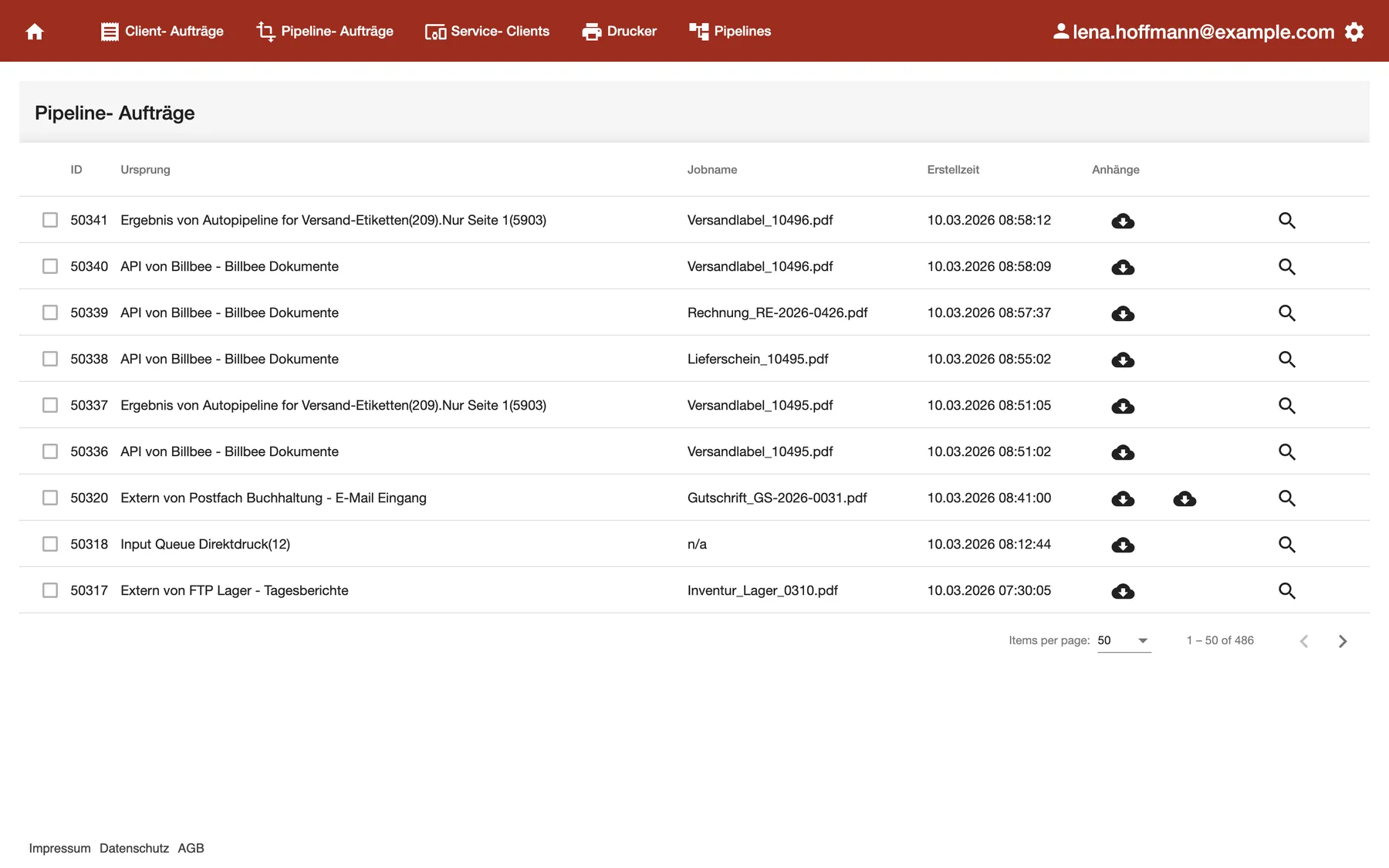
What this screenshot shows
- Screen
- Pipeline- Aufträge
- Also visible
- origins API von, Extern von and Input Queue for incoming documents; Ergebnis von only after the Seiten filtern step Nur Seite 1; one download button per attached file
- Purpose
- check that documents arrived and what processing steps made of them
The newest job is at the top. The list shows 50 jobs per page.
| Region | What it shows | What you do there |
|---|---|---|
| Checkbox | A box per row that can’t be ticked | Nothing; this tab has no bulk actions |
| ID | The job’s number | Quote it to support, find it in details |
| Ursprung | Where the job came from | See which system or step produced it |
| Jobname | The file name the job brought, or n/a | Recognise the document |
| Erstellzeit | Date and time to the second | Find a job by time |
| Anhänge | One download button per file | Open the document |
| Magnifier | Opens the job’s details | See meta data and predecessors |
Read the origin of a job
Section titled “Read the origin of a job”Ursprung tells you where a job came from. The text follows one of four patterns.
| Origin starts with | Where the job came from | Example |
|---|---|---|
| API von | A partner that sends documents through the API, then the queue | API von Billbee - Billbee Dokumente |
| Extern von | A mailbox or an FTP folder you connected, then the queue | Extern von FTP Lager - Tagesberichte |
| Input Queue | A queue directly, with its number | Input Queue Direktdruck(12) |
| Ergebnis von | A processing step, with the pipeline and the step and their numbers | Ergebnis von Autopipeline for Versand-Etiketten(209).Nur Seite 1(5903) |
Only three processing steps make an Ergebnis von row: Seiten filtern, Text rendern (render text) and Inhalt bearbeiten (edit content). A printer output makes no row here. It creates the print job on Client jobs. A document that goes straight to the printer keeps its single row with API von, Extern von or Input Queue.
Example: Billbee sends the two-page label for order 10496.
- At 08:58:09, row 50340 shows API von Billbee - Billbee Dokumente.
- The label printer’s pipeline has the Seiten filtern step “Nur Seite 1”, as in Print only the shipping label.
- Three seconds later, row 50341 shows Ergebnis von Autopipeline for Versand-Etiketten(209).Nur Seite 1(5903). That’s the label with page 1 only.
- The printer output sends it to the label printer. Print job 90132 appears on Client jobs.
The invoice in row 50339 needs no step, so it has no Ergebnis von row.
Look into a job
Section titled “Look into a job”Select the magnifier at the right end of a row. The dialog Auftragsdetails opens.
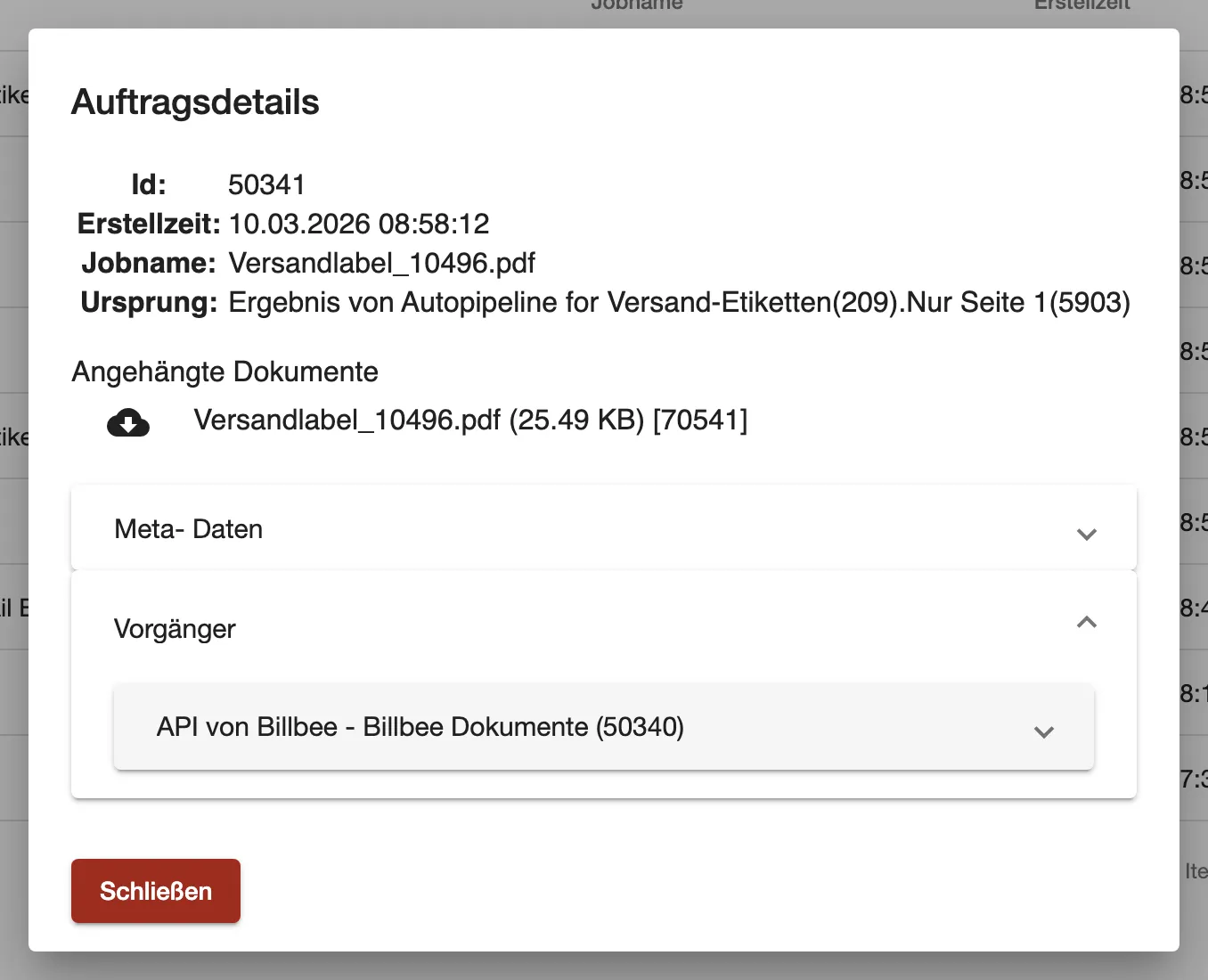
What this screenshot shows
- Screen
- Pipeline- Aufträge
- Also visible
- Vorgänger: API von Billbee - Billbee Dokumente (50340)
- Purpose
- trace a job back to its source
- The top shows the job’s number, creation time, job name and origin.
- Angehängte Dokumente lists each file with its size, its number in brackets and a download button.
- Meta- Daten lists the information the job brought, as Parametername and Wert. Pipeline steps can use it, for example through placeholders.
- Vorgänger lists the jobs this one was made from, back to the document that came in. Open one to see its time, origin and files.
Select Schließen to close the dialog.
Every control, explained
Section titled “Every control, explained”
Every control, explained
Section titled “Every control, explained”Origin
Section titled “Origin”Ursprung column, and the same line in the details.
A text built from the source. That’s the partner, mailbox or FTP folder with its queue. After a processing step, it’s the pipeline and the step with their numbers. A job you printed directly on Client jobs has no origin text.
It answers the first support question: did the document arrive, and which processing step changed it?
Job name
Section titled “Job name”Jobname column.
The file name the job brought with its meta data. When the job brought none, the column shows n/a. The attached file still has its own name under Anhänge.
Billbee and most shops name files after the order or invoice number, so you find a document by its number.
Sorting
Section titled “Sorting”The column headers.
Only ID sorts the list, up or down. The other headers show a sort arrow, but the list stays in its order, newest first.
Since numbers rise over time, sorting by ID up gives the oldest jobs first.
Other controls on this page
| Control | What it does | Why |
|---|---|---|
| Download buttons under Anhänge | Download that file; point at the button for the file name | Check exactly what arrived |
| Magnifier | Opens Auftragsdetails | See meta data and predecessors |
| Jobs per page | 50, 100, 250 or 500 | See more at once |
| Page arrows | Older and newer pages | Look further back |
Frequently asked questions
Section titled “Frequently asked questions”
Frequently asked questions
Section titled “Frequently asked questions”General
Section titled “General”Why does one document appear several times?
Section titled “Why does one document appear several times?”Pipeline-Aufträge lists the document that came in and each result a processing step made from it. A Billbee label appears once with API von Billbee. It appears again for each Seiten filtern, Text rendern or Inhalt bearbeiten step it passed. A printer output adds no row. The details link them under Vorgänger.
What’s the difference to Client-Aufträge?
Section titled “What’s the difference to Client-Aufträge?”Pipeline-Aufträge shows what comrce cloudprint received and processed. Client-Aufträge shows what went to a printer through a Service Client, with the printer’s status. Use Pipeline-Aufträge to check arrival, Client-Aufträge to check printing.
Why does the job name say n/a?
Section titled “Why does the job name say n/a?”The Jobname column on Pipeline-Aufträge shows the file name the job brought in its meta data. When the sender didn’t pass one, it shows n/a. The attached file under Anhänge still has its name. Point at the download button to see it.
Can I delete or cancel a pipeline job here?
Section titled “Can I delete or cancel a pipeline job here?”No. Pipeline-Aufträge has no delete or cancel action, and its checkboxes can’t be ticked. To stop a job that is waiting for a printer, use the bin on Client-Aufträge.
Finding jobs
Section titled “Finding jobs”Why doesn’t clicking Ursprung or Jobname sort the list?
Section titled “Why doesn’t clicking Ursprung or Jobname sort the list?”On Pipeline-Aufträge only the ID header sorts. The other headers show an arrow, but the order stays newest first. Use the page arrows, or choose up to 500 jobs per page, to find older jobs.
How do I find the job for a specific order?
Section titled “How do I find the job for a specific order?”On Pipeline-Aufträge, look for the order or invoice number in the Jobname column. Open the magnifier: under Meta- Daten, Billbee jobs list the order number, for example OrderNumber 10496.
How long does it take from arrival to the printer?
Section titled “How long does it take from arrival to the printer?”Compare the Erstellzeit of the incoming job on Pipeline-Aufträge with the Erstellzeit of its print job on Client-Aufträge. Pipeline-Aufträge shows the time to the second, Client-Aufträge to the minute. In this page’s example, the label arrived at 08:58:09. Its print job 90132 was created at 08:58. The status icon on Client-Aufträge shows whether it printed.
Where does the meta data of a job come from?
Section titled “Where does the meta data of a job come from?”The sender passes it with the document, for example Billbee with the order number and document type. Pipeline-Aufträge shows it in the details under Meta- Daten. Pipeline steps can use these values through placeholders.
Troubleshooting
Section titled “Troubleshooting”
Troubleshooting
Section titled “Troubleshooting”| Symptom | What to check |
|---|---|
| A document from Billbee or a shop is missing | Check the partner’s connection on API access and the queue it sends to. Nothing arrived if no row with API von appears. |
| An email or FTP document is missing | Check the connected mailbox or FTP folder and its queue. |
| The document arrived, but you can’t tell whether it was processed | Look on Client- Aufträge for a print job with the same Jobname. Its magnifier opens the pipeline job that reached the printer. No print job means no printer output got it. Check that a pipeline uses the queue, and its filters and conditions. Don’t wait for an Ergebnis von row: only a processing step makes one. |
| The result exists but nothing printed | Look on Client jobs for the job’s status and the Service Client. |