

Printers
The Drucker (printers) tab lists every printer your Service Clients reported to comrce cloudprint. Here you set the defaults a print job to that printer starts with: paper, margins, colour, tray and rotation. Open it with Drucker in the red bar at the top.
What you can do here
Section titled “What you can do here”- See which printers comrce cloudprint can reach. Each row is one printer, with the computer it prints through. The screen at a glance
- Set the defaults for a printer. Paper size, margins, colour, scaling, tray and rotation apply to every job that doesn’t bring its own value. Set a printer’s defaults
- Find out where a printer comes from. Printers aren’t added here. They come from the computer the Service Client runs on. Where printers come from
The screen at a glance
Section titled “The screen at a glance”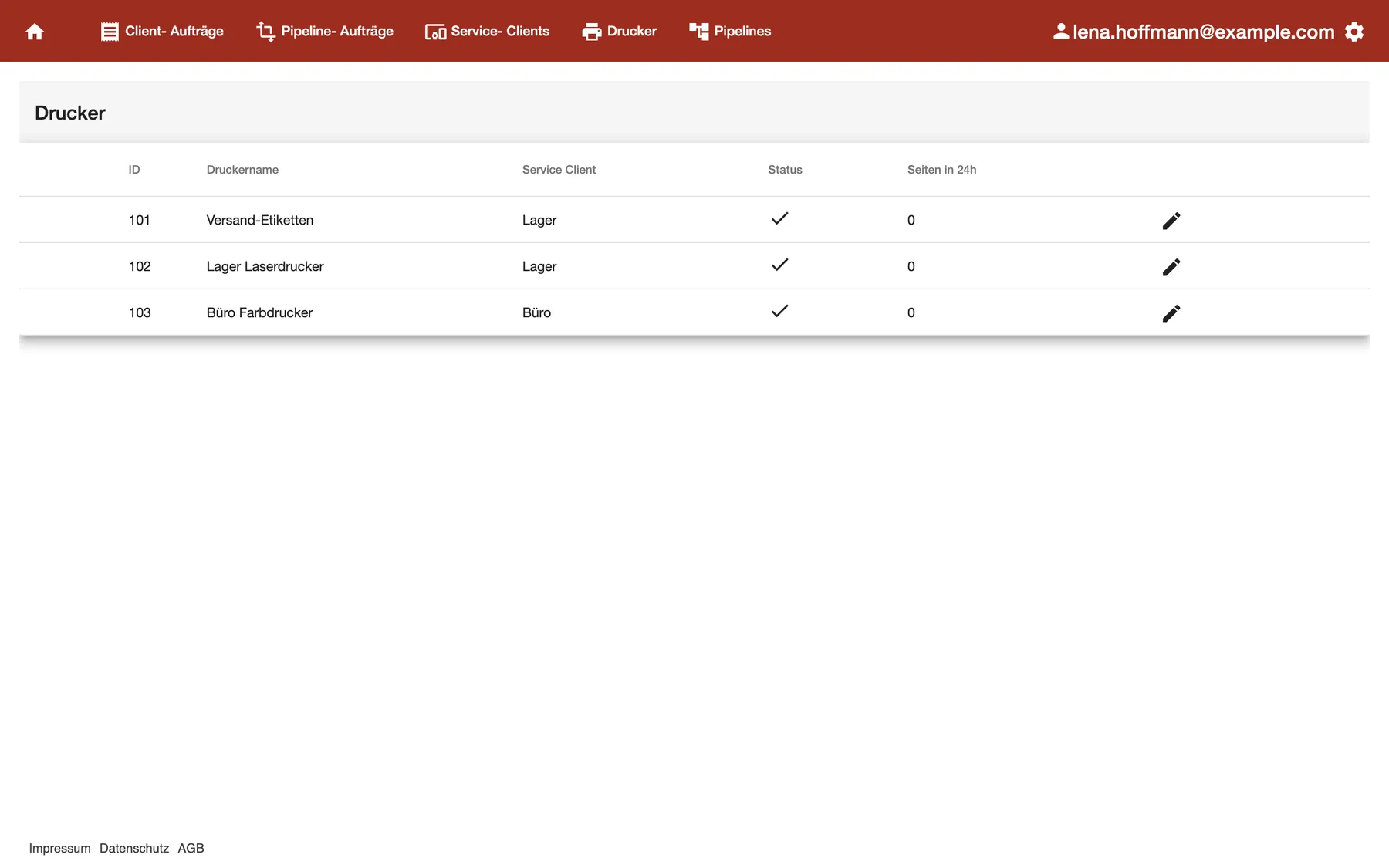
What this screenshot shows
- Screen
- Drucker
- Also visible
- 3 printers on 2 Service Clients (Lager, Büro); Status shows a tick and Seiten in 24h shows 0 on every row
- Purpose
- see the printers comrce cloudprint can reach
The tab is one list with a row per printer.
| Region | What it shows | What you do there |
|---|---|---|
| Heading Drucker | The name of the tab | Nothing; there’s no add button here |
| ID and Druckername | The printer’s number and the name Windows gave it | Find the printer you need |
| Service Client | The name of the Service Client the printer belongs to | Check which computer prints the jobs |
| Status and Seiten in 24h | A tick and 0 for every printer at the moment | Don’t rely on them; see Every control, explained |
| Pencil button at the right end of a row | Opens the printer’s settings | Set the printer’s defaults |
Set a printer’s defaults
Section titled “Set a printer’s defaults”A printer’s defaults fill whatever a print job leaves open. A job from a pipeline can bring its own settings, for example from a job settings step. The job’s own value always wins, so the printer default is the fallback.
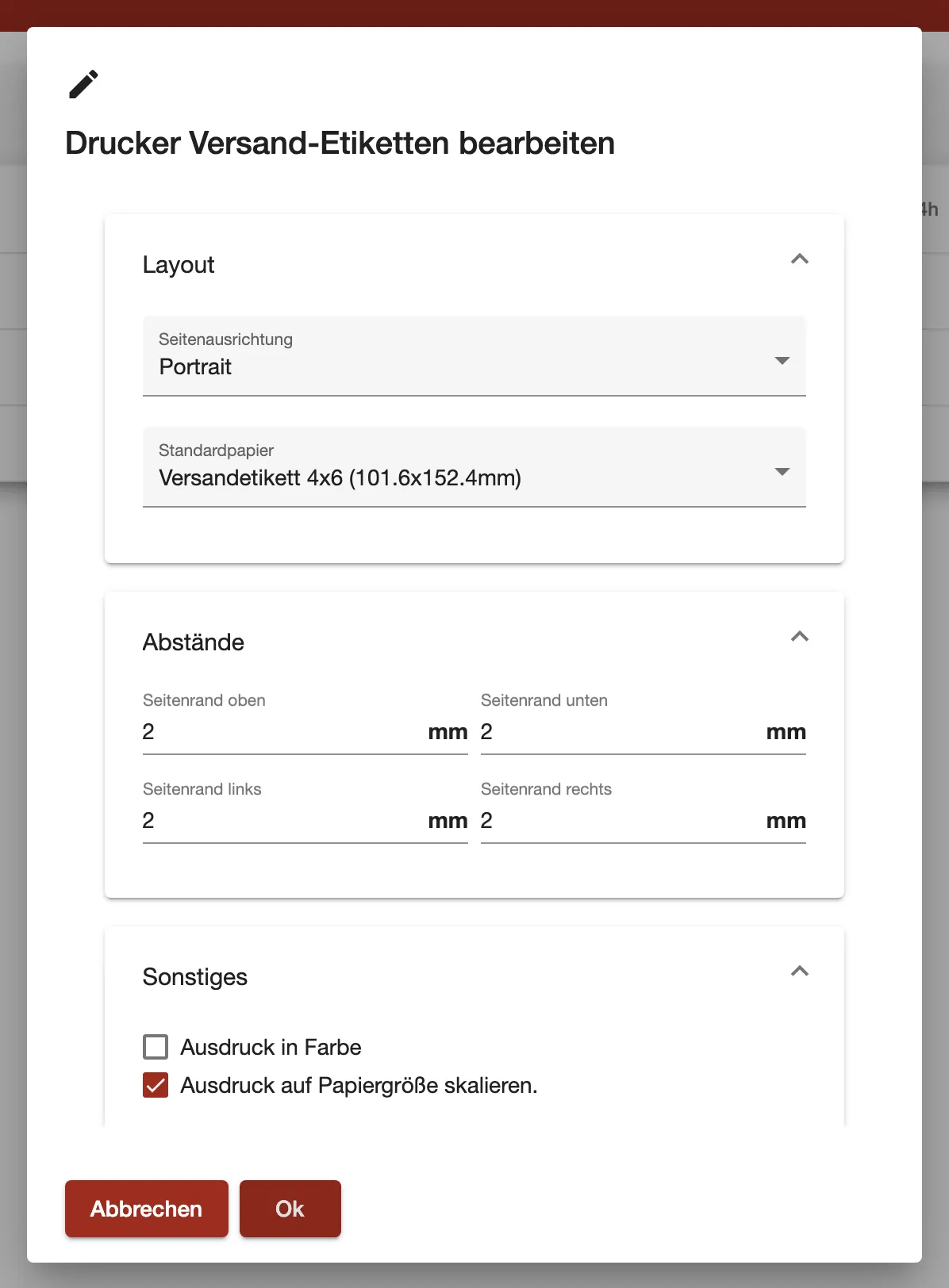
- On the Drucker tab, select the pencil button at the right end of the printer’s row. The dialog Drucker … bearbeiten (edit printer) opens with the printer’s name in its title.
- In Layout, choose the Seitenausrichtung (orientation) and the Standardpapier (default paper).
- In Abstände (margins), enter the four margins in millimetres.
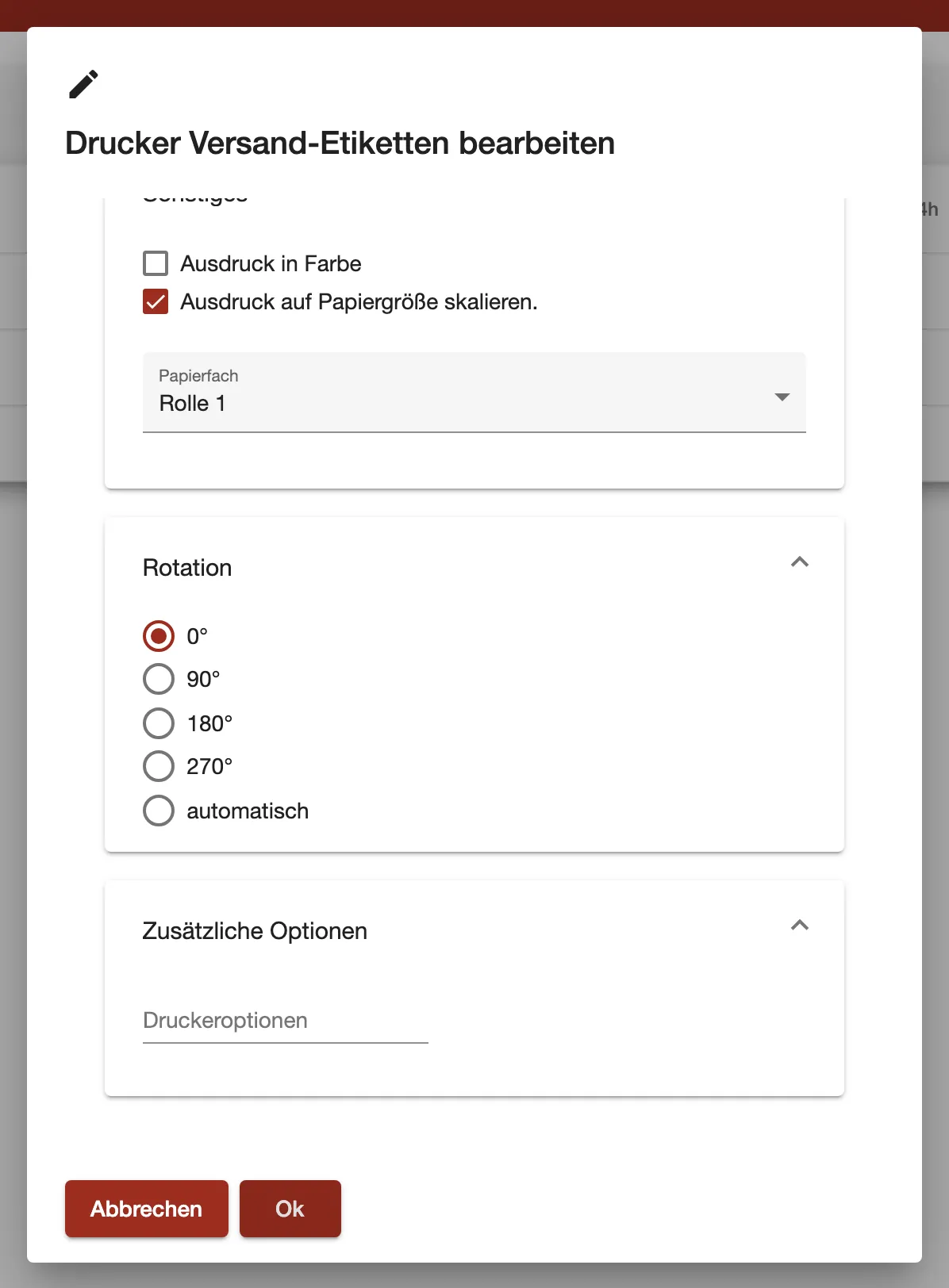
- In Sonstiges (other), tick colour and scaling, and choose the Papierfach (paper tray).
- Choose a Rotation, then select Ok. comrce cloudprint saves the defaults, and the dialog closes.
What this screenshot shows
- Screen
- Drucker
- Also visible
- Layout: Portrait, Versandetikett 4x6; Abstände: 2 mm on each side
- Purpose
- set the defaults of a printer
Example: the label printer Versand-Etiketten prints DHL labels from Billbee. Lena sets Standardpapier to Versandetikett 4x6, 2 mm on every side and the tray Rolle 1. She ticks Ausdruck auf Papiergröße skalieren.. Labels in another size now shrink onto the roll instead of being cut off.
What this screenshot shows
- Screen
- Drucker
- Also visible
- Papierfach: Rolle 1; Rotation: 0° selected; 90°, 180°, 270°, automatisch
- Purpose
- choose tray, rotation and extra printer options
Where printers come from
Section titled “Where printers come from”There’s no button to add a printer on this tab. The Service Client reports the printers installed on its computer, and comrce cloudprint lists them here. Install a printer in Windows on the computer first, then install the Service Client there. Setting it up is described in Set up comrce cloudprint and your first printer.
When you delete a Service Client on Service Clients, its printers disappear from this list too.
Every control, explained
Section titled “Every control, explained”
Every control, explained
Section titled “Every control, explained”Status and pages in 24 hours
Section titled “Status and pages in 24 hours”The Status and Seiten in 24h columns of the list.
At the moment both columns show the same values for every printer: a tick, and 0 pages. They don’t reflect whether the printer is reachable or how much it printed.
To see whether a printer can print, check two places. On Service Clients, its Service Client needs a tick in the status column. On Client jobs, you see what reached the printer.
Default paper
Section titled “Default paper”Edit dialog, section Layout, list Standardpapier. Saved with Ok.
Lists the standard sizes and your own sizes from Paper sizes, each with its width and height in millimetres. The empty entry means no default: the printer uses its own setting.
Label printers and receipt printers often use a size that isn’t A4. Add it on the Paper sizes page first, then choose it here.
Margins
Section titled “Margins”Edit dialog, section Abstände: Seitenrand oben, Seitenrand unten, Seitenrand links and Seitenrand rechts, in millimetres.
comrce cloudprint stores margins in steps of a hundredth of an inch and rounds down. When you open the dialog again, a value can come back slightly smaller: 2.5 mm shows as 2.3 mm. An empty field means no default margin.
Many printers can’t print to the very edge. A small margin keeps barcodes and addresses on the paper.
Scale to paper size
Section titled “Scale to paper size”Edit dialog, section Sonstiges, checkbox Ausdruck auf Papiergröße skalieren..
When ticked, a document in another size is scaled to fit the paper. When clear, it prints at its own size and can be cut off.
Shops and marketplaces send labels in slightly different sizes. Scaling keeps the whole label on the roll.
Paper tray
Section titled “Paper tray”Edit dialog, section Sonstiges, list Papierfach.
Shows the trays the printer reported through the Service Client. A tray chosen in a pipeline’s printer output wins over this default.
Pick the tray with the right paper, for example letterhead for invoices and plain paper for delivery notes.
Rotation
Section titled “Rotation”Edit dialog, section Rotation: 0°, 90°, 180°, 270° or automatisch.
Turns every page by the chosen angle before printing. With automatisch, comrce cloudprint compares each page with the paper. A landscape page on portrait paper, or the other way round, is turned by 90°. This needs a paper size, from the job or Standardpapier. Without one, nothing is turned.
Some label printers feed the roll sideways. A rotation of 90° puts the label upright on it.
Printer options
Section titled “Printer options”Edit dialog, section Zusätzliche Optionen, field Druckeroptionen.
Free text that the Service Client passes to the printer with each job. Options a job brings itself replace it.
Leave it empty unless comrce support gives you a value for your printer model.
Other controls on this page
| Control | What it does | Why |
|---|---|---|
| Seitenausrichtung | Portrait or Landschaft; empty means no default | Print landscape documents such as pick lists the right way round |
| Ausdruck in Farbe | Prints in colour when ticked, otherwise in black and white | Save colour toner on delivery notes |
| Abbrechen | Closes the dialog without saving | Leave the defaults as they were |
| Column headers | Sort the list by that column | Find a printer in a long list |
Frequently asked questions
Section titled “Frequently asked questions”
Frequently asked questions
Section titled “Frequently asked questions”General
Section titled “General”How do I add a new printer to comrce cloudprint?
Section titled “How do I add a new printer to comrce cloudprint?”There’s no add button on the Drucker tab. Install the printer in Windows on the computer the Service Client runs on. The Service Client reports the computer’s printers, and comrce cloudprint lists them on the Drucker tab.
Why does every printer show a tick and 0 pages?
Section titled “Why does every printer show a tick and 0 pages?”The columns Status and Seiten in 24h on the Drucker tab currently show a tick and 0 for every printer. They don’t tell you whether a printer is reachable. Check the Service Client’s status on Service Clients and the jobs on Client-Aufträge instead.
What is the name in the Service Client column?
Section titled “What is the name in the Service Client column?”It’s the name you gave the Service Client when you added it on Service Clients, for example Lager. The computer’s own name appears there in the Hostname column. Several printers on one computer share the same Service Client name.
Can I rename a printer?
Section titled “Can I rename a printer?”No. The name comes from the printer’s name in Windows on the Service Client’s computer. Rename the printer in Windows, and the Service Client reports the new name to comrce cloudprint.
Defaults
Section titled “Defaults”Do the printer defaults apply to every print job?
Section titled “Do the printer defaults apply to every print job?”They apply to every job sent to that printer, but only where the job doesn’t bring its own value. A pipeline step can set paper, margins or rotation for its jobs, and that value wins. The printer default fills the gaps.
Why did my margin change after saving?
Section titled “Why did my margin change after saving?”comrce cloudprint stores printer margins in hundredths of an inch and rounds down. When you open the edit dialog on the Drucker tab again, 2.5 mm shows as 2.3 mm. Enter a slightly larger value if you need at least a certain margin.
Where do the paper sizes in the list come from?
Section titled “Where do the paper sizes in the list come from?”The list Standardpapier in the printer’s edit dialog shows the standard sizes and your own sizes. Add your own size, such as a 4x6 inch label, on Papiergrößen in the settings menu. It then appears in every printer’s list.
Why is the paper tray list empty?
Section titled “Why is the paper tray list empty?”The Papierfach list shows the trays the printer reported through its Service Client. An empty list means the printer reported no trays. Without a choice, the printer uses its own default tray.
What does automatisch under Rotation do?
Section titled “What does automatisch under Rotation do?”With automatisch, comrce cloudprint turns a landscape page on portrait paper by 90°, and the other way round. It needs a paper size, from the job or from Standardpapier in the printer’s edit dialog. Without a paper size, no page is turned.
Troubleshooting
Section titled “Troubleshooting”
Troubleshooting
Section titled “Troubleshooting”| Symptom | What to check |
|---|---|
| A printer is missing from the list | Is it installed in Windows on the Service Client’s computer, and is the Service Client online on Service Clients? A deleted Service Client takes its printers with it. |
| The printer shows a tick but nothing prints | The tick doesn’t reflect the printer. Check the Service Client’s status and the job’s status on Client jobs. |
| Labels are cut off or tiny | Check Standardpapier, the margins and Ausdruck auf Papiergröße skalieren.. A job from a pipeline may bring its own paper size. |
| Pages print sideways | Set Rotation or Seitenausrichtung, and check the pipeline’s job settings step. |
| The wrong tray is used | A tray chosen in the pipeline’s printer output wins over Papierfach. Change it there. |