

Accept an invitation
Open the link in your invitation email. Without a comrce Hub account, enter your name and a password, and you are in the company. With an account, sign in as the invited address and select Accept. An invitation is valid for 7 days and works only for the address it was sent to.
What you can do here
Section titled “What you can do here”- Create your account and join. Fill in your name and a password, and you’re a member of the company right away. There is no separate email confirmation. With a new account
- Join with the account you already have. Sign in as the invited address and confirm. comrce Hub switches you into the new company. With the account you already have
- Fix a sign-in with the wrong account. If you are signed in with another address, comrce Hub asks you to sign out first. When you are signed in as someone else
- Recover from an old or used link. An expired, used or unknown invitation shows an error page with a way to contact support. When the invitation does not work · Inviting people
The screen at a glance
Section titled “The screen at a glance”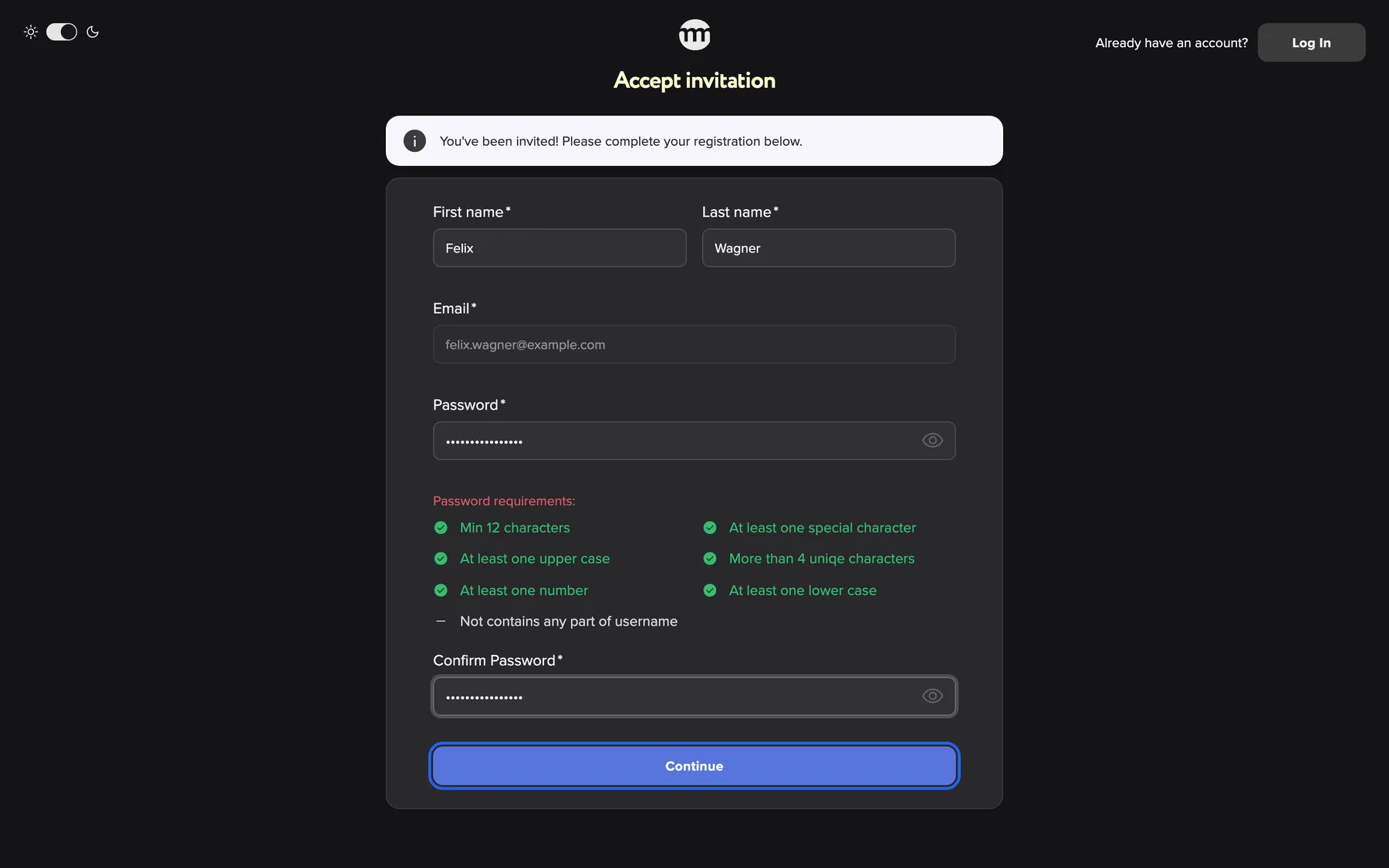
What this screenshot shows
- Highlighted
- “Continue”: creates the account and joins the company
- Also visible
- Email fixed to felix.wagner@example.com; Invitation info box
- Purpose
- joining with a new account
| Region | What it shows | What you do there |
|---|---|---|
| Top left | The theme switch | Switch between light and dark |
| Top right | Already have an account? and Log In | Leave the invitation and go to the sign-in screen |
| Heading | Accept invitation | |
| Blue box | You've been invited! Please complete your registration below. | Read it |
| Form card | Your name, the invited email address (fixed), your password | Create your account |
This is what someone without an account sees. The other situations follow below.
Join your team after an invitation
Section titled “Join your team after an invitation”A colleague invited you, and you want into your company. Your invitation email holds one link. What happens next depends on the invited address:
- No comrce Hub account yet: you create one on the spot. See With a new account.
- It already has an account: you sign in and confirm. See With the account you already have.
Either way, you join with the role your colleague chose. You can’t end up in the wrong company: the invitation names it.
With a new account
Section titled “With a new account”-
Open the invitation email from comrce Hub and select its link.
-
Enter First name and Last name. The Email field already holds the invited address and cannot be changed.
-
Choose a Password and repeat it in Confirm Password. The list under the field shows which rules your password meets.
-
Select Continue.
comrce Hub creates your account and adds you to the company with the role your colleague chose. The page shows Invitation accepted. Your email address counts as confirmed, because you opened the link from that inbox. Select the back arrow at the top left and sign in with your new password.
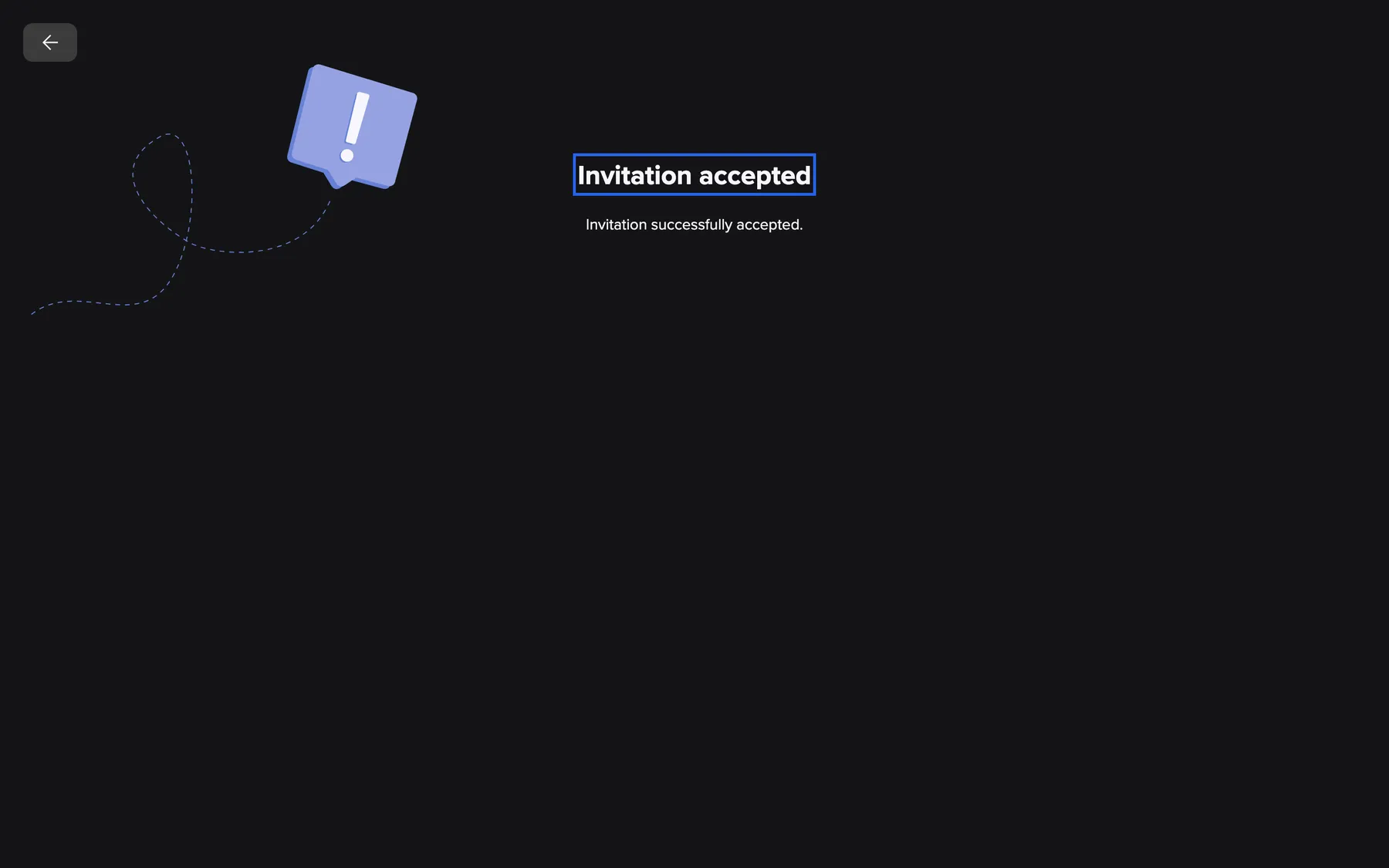
What this screenshot shows
- Highlighted
- “Invitation accepted”: confirms the invitation was accepted
- Also visible
- Back arrow
- Purpose
- result of accepting
What you can do in the company depends on your role. A Member or Partner starts with that role’s default permissions. The company owner can change them. See Permissions and roles.
With the account you already have
Section titled “With the account you already have”If the invited address already has a comrce Hub account:
-
Open the invitation link. If you are signed out, the sign-in screen appears. Sign in as the invited address, with your password or with Continue with Google.
-
comrce Hub shows Accept invitation. The question names the company and the role you are invited with.
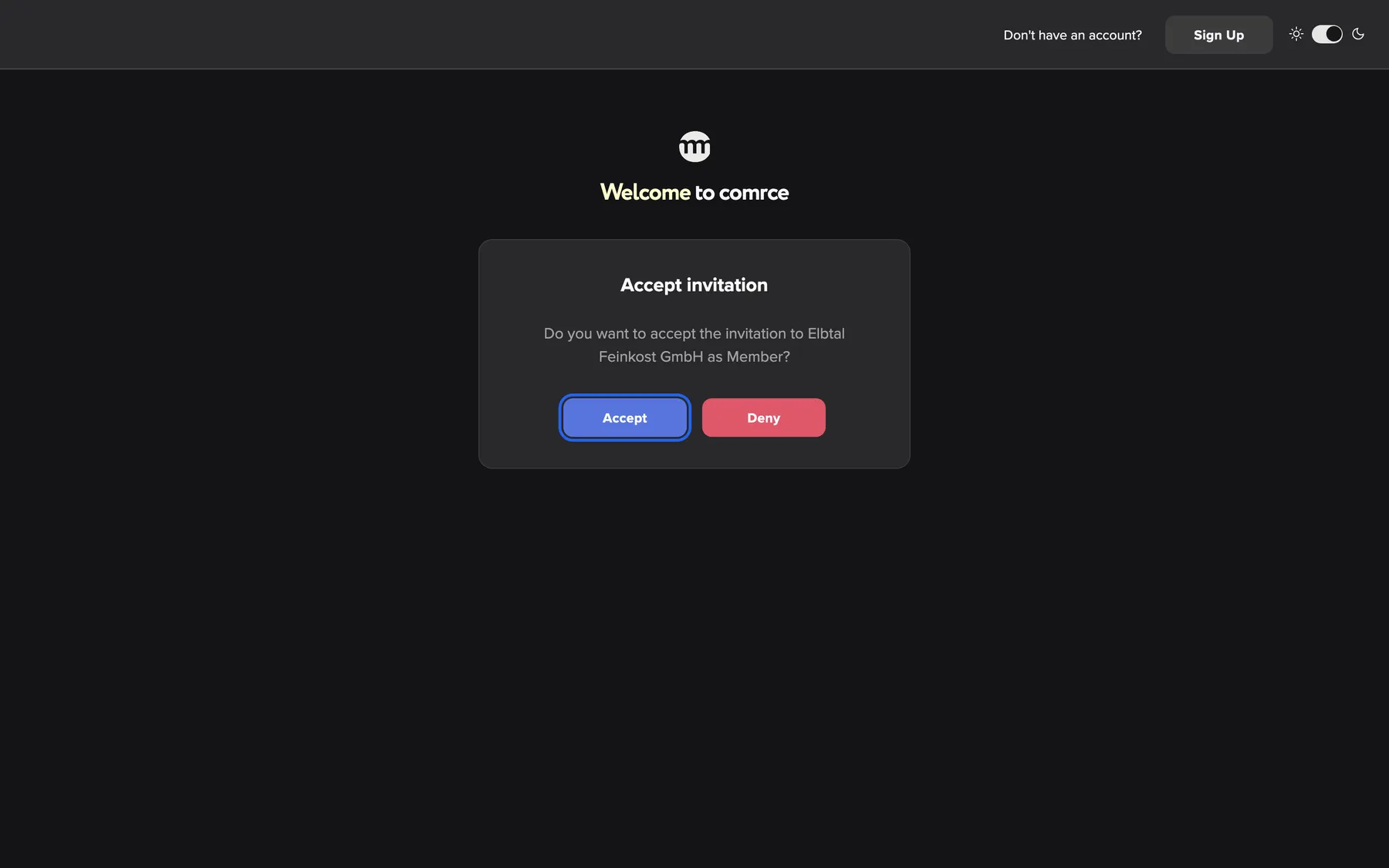
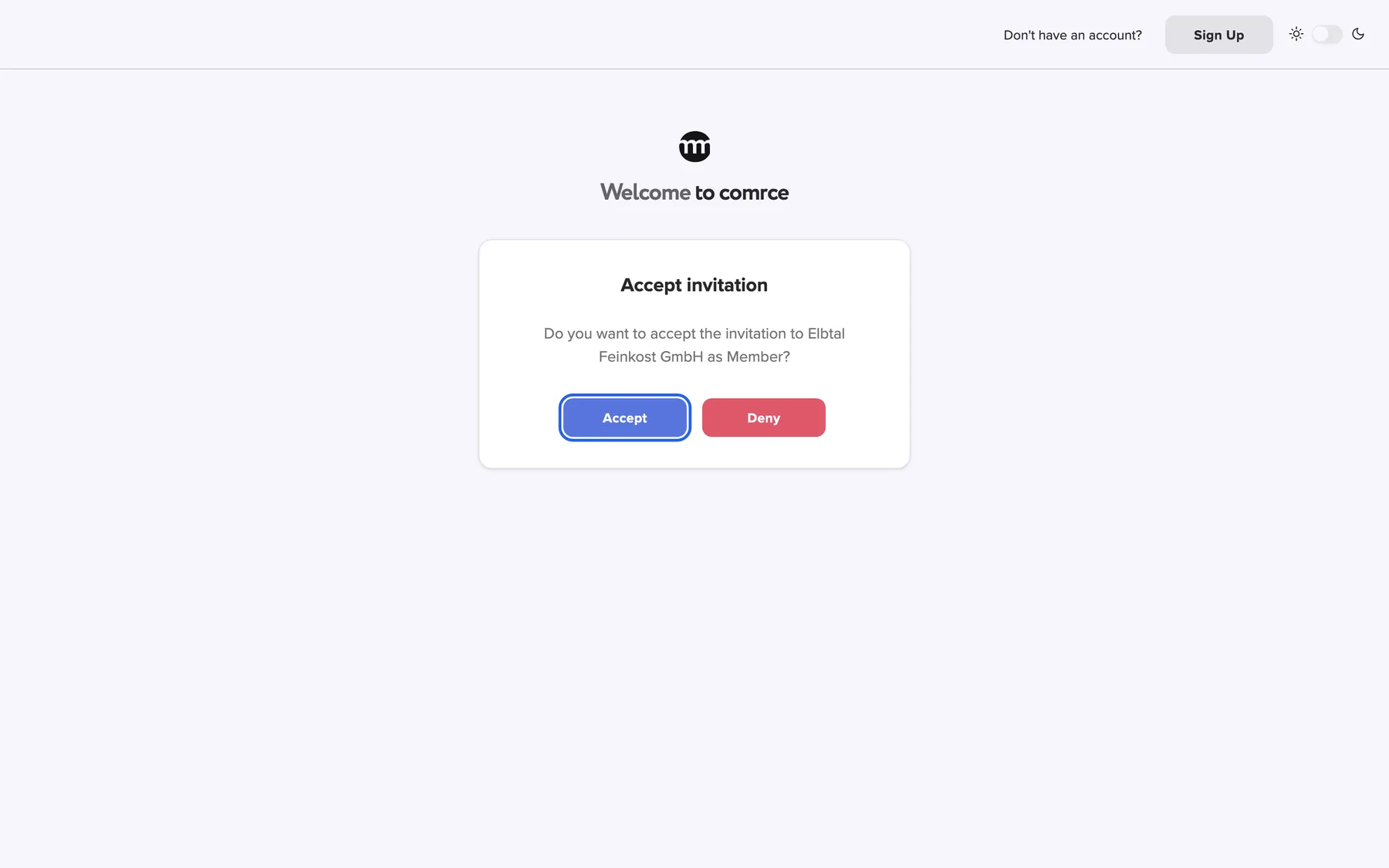
Signed in as the invited address, select Accept to join the company. What this screenshot shows
- Highlighted
- “Accept”: joins the company and switches to it
- Also visible
- Elbtal Feinkost GmbH as Member; Deny button
- Purpose
- joining with an existing account
-
Select Accept.
comrce Hub adds you to the company and shows Invitation accepted. Your session switches to the new company, confirmed by Company switched.. The company now appears in the list when you sign in, and in the overview of your companies.
Not sure yet? Deny takes you back to your workspace and changes nothing. The invitation stays valid until it expires, so you can open the link again later.
When you are signed in as someone else
Section titled “When you are signed in as someone else”comrce Hub accepts an invitation only for the address it was sent to. If you open the link while signed in with another address, the page shows Please log out. It names the invited address.
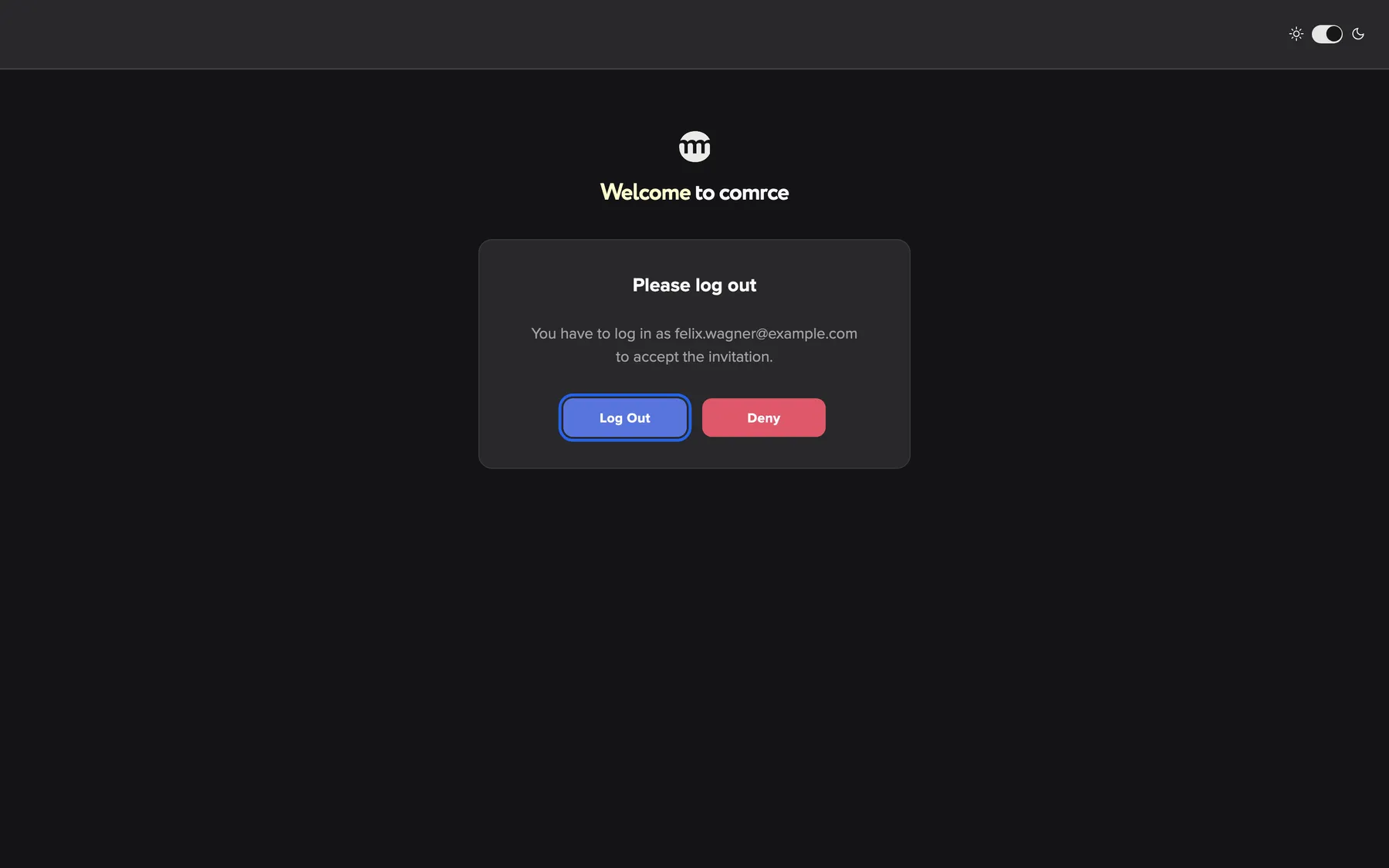
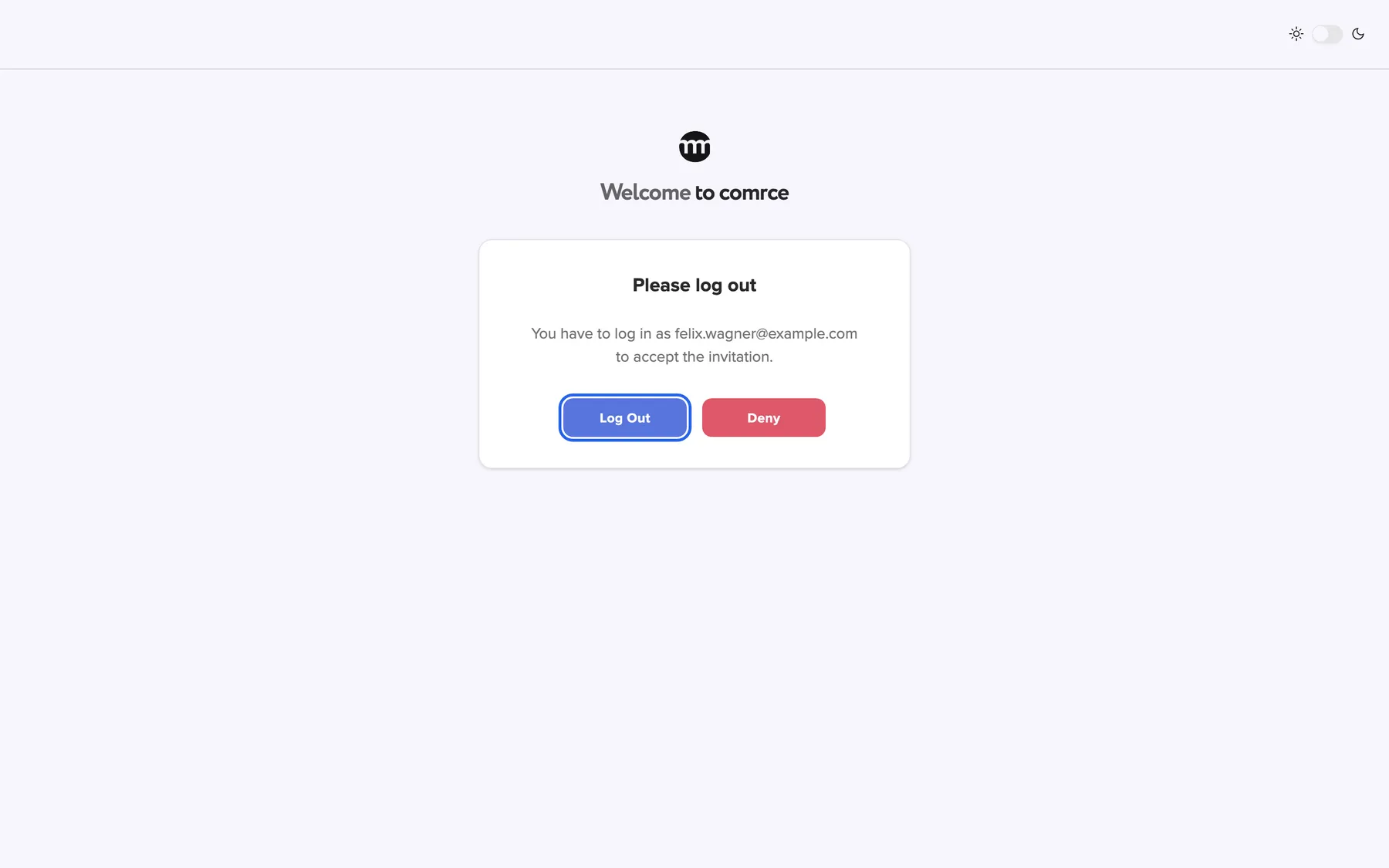
What this screenshot shows
- Highlighted
- “Log out”: signs you out
- Also visible
- Invited address felix.wagner@example.com; Deny button
- Purpose
- invitation for a different account
Select Log out to sign out. Then open the invitation link again. You now see the sign-in screen or the registration form for the invited address. Deny keeps you signed in and returns to your workspace.
The same card appears when you open an invitation to set up a new company while signed in. Such an invitation always creates a new account, so you sign out first.
When the invitation does not work
Section titled “When the invitation does not work”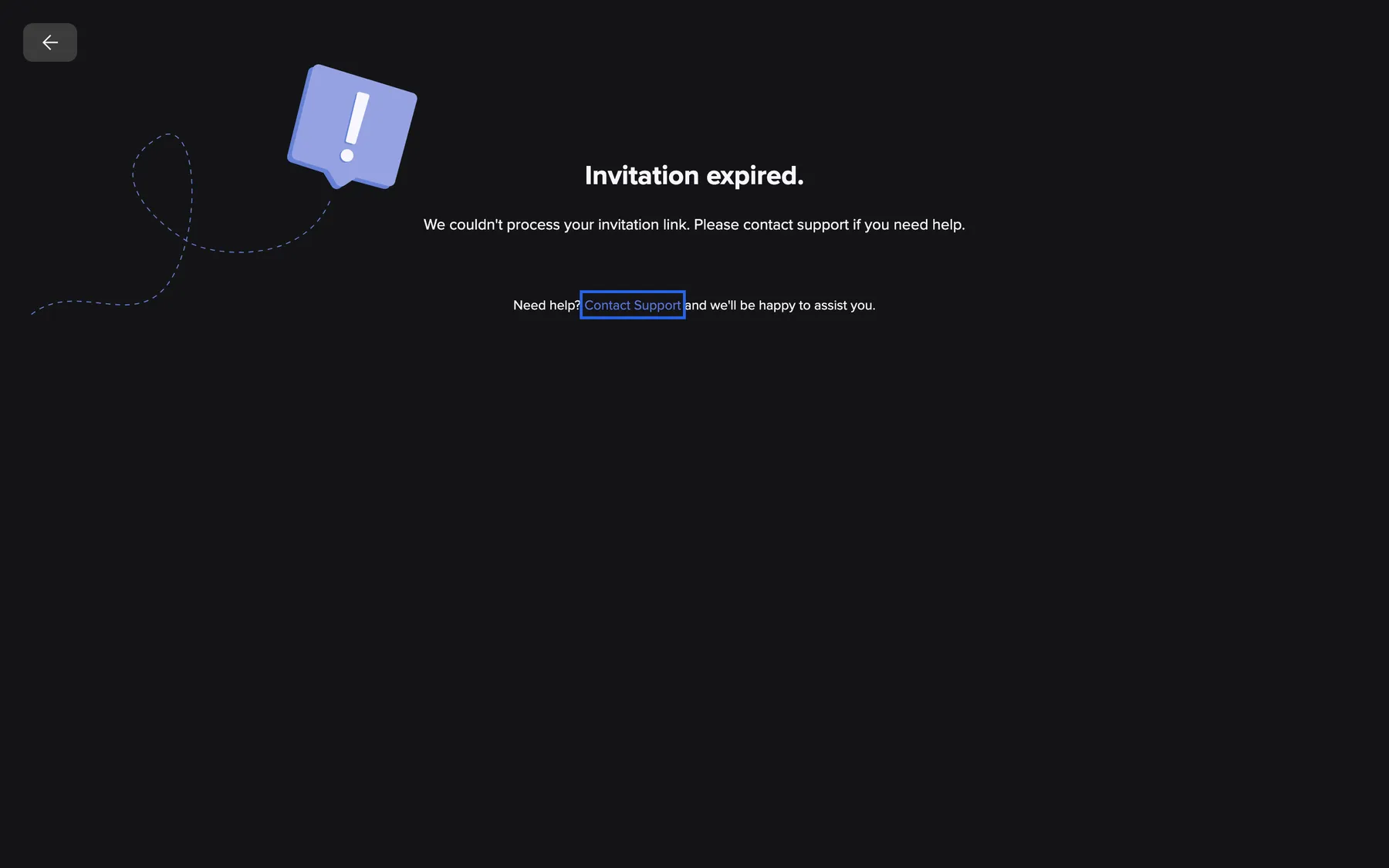
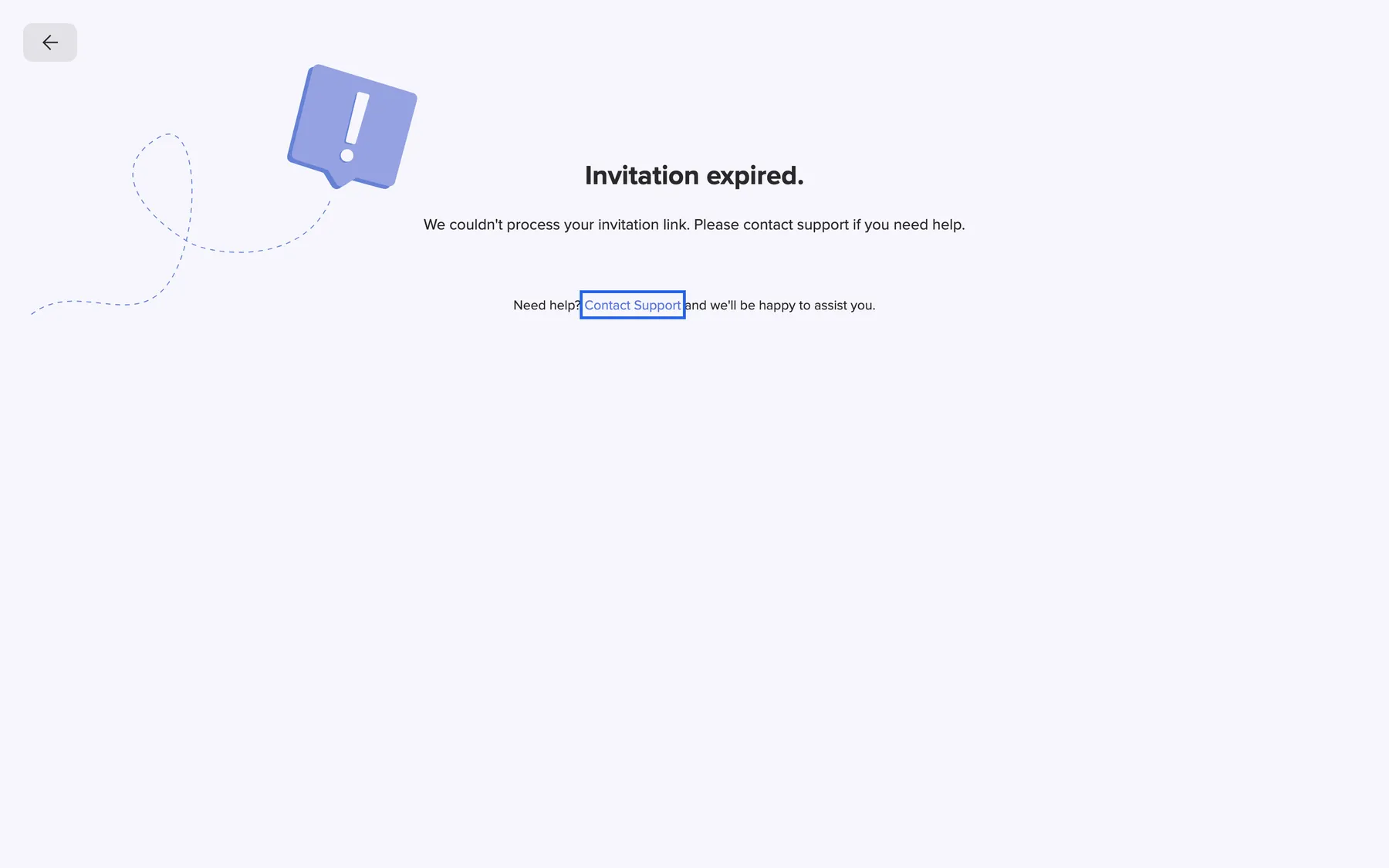
What this screenshot shows
- Highlighted
- “Contact Support”: opens an email to support
- Also visible
- Invitation expired. heading
- Purpose
- an invitation that no longer works
| The page says | Why | What to do |
|---|---|---|
| Invitation expired. | The invitation has expired, or it was already accepted | Ask your colleague to resend it. If you accepted it before, sign in normally. |
| Invitation not found or expired. | The invitation was deleted, or the link is incomplete | Ask for a new invitation, then use the newest email |
| Something went wrong | The link could not be read, or the page was left open too long | Open the link from the email again |
Every error page ends with Need help? and Contact Support. The link opens an email to comrce support.
Every control, explained
Section titled “Every control, explained”
Every control, explained
Section titled “Every control, explained”Accept and Deny
Section titled “Accept and Deny”The two buttons on the card Accept invitation, shown when you are signed in as the invited address.
Accept joins the company and switches you into it. If joining fails, you see Failed to accept invite.. Deny returns to your workspace without changing anything.
An explicit yes means nobody joins a company by opening a link by accident.
Log Out and Deny
Section titled “Log Out and Deny”The two buttons on the card Please log out.
Log out signs you out so that you can continue as the invited address. Deny returns to your workspace.
An invitation always belongs to one email address, so the right account has to be signed in.
Log In at the top right
Section titled “Log In at the top right”Already have an account? and Log In on the registration form.
Opens the normal sign-in screen and leaves the invitation. After you sign in, open the invitation link from the email again to accept it.
For people who realise they already have an account with the invited address.
Registration form
Section titled “Registration form”| Control | What it does | Rules |
|---|---|---|
| First name | Your first name | Required, no HTML |
| Last name | Your last name | Required, no HTML |
| The invited address, shown greyed out | Fixed, because the invitation belongs to this address | |
| Password and Confirm Password | Your new password | The password rules from Passwords and sign-in, starting with 12 characters |
| Continue | Creates the account and accepts the invitation | All fields valid |
Other controls on this page
| Control | What it does | Why |
|---|---|---|
| Back arrow | Top left on Invitation accepted and on the error pages. Opens the sign-in screen when you are signed out, or your workspace when you are signed in. | After accepting, the next step is to sign in or to start working. |
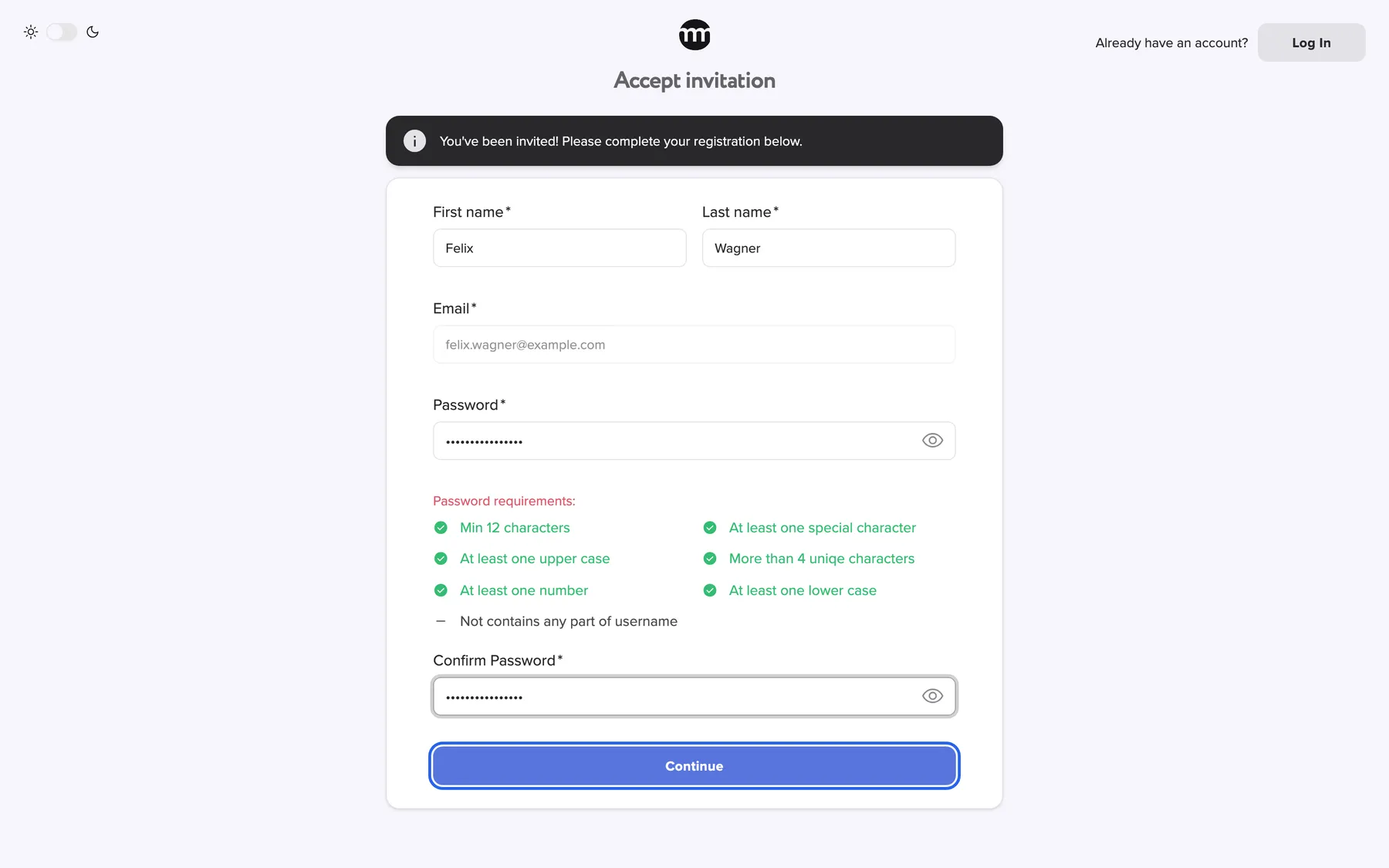
| Theme switch | Top left on the registration form. On the cards Accept invitation and Please log out, at the right end of the top bar, as on the sign-in screen. | Some people read better on a light background. |
What you need to know
Section titled “What you need to know”
What you need to know
Section titled “What you need to know”| Topic | Fact |
|---|---|
| Validity | Counts from the invitation email. A resend by your colleague starts the period again. |
| Time on the page | Finish within 15 minutes of opening the link. After that, a reload shows an error. Open the link from the email again. |
| One address only | Only the account with the invited email address can accept the invitation. |
| Email confirmation | Accounts created from an invitation are confirmed automatically. |
| Language of a new account | A new account starts in the language of this page. That is your browser’s language when comrce Hub offers it, and English otherwise. An existing account keeps its language. |
| Terms | Joining an existing company does not ask for the terms. An invitation to open a new company does. |
| Already accepted | An invitation can be used once. Opening it again shows Invitation expired.. |
| Audit log | The company’s logs record Invitation accepted. |
Frequently asked questions
Section titled “Frequently asked questions”
Frequently asked questions
Section titled “Frequently asked questions”Accepting
Section titled “Accepting”Do I need to confirm my email address after accepting?
Section titled “Do I need to confirm my email address after accepting?”No. An account created from an invitation link is confirmed automatically. Only someone with access to the invited inbox can open the link. After Invitation accepted appears, sign in with the invited email address and your new password.
Can I accept the invitation with a different email address?
Section titled “Can I accept the invitation with a different email address?”No. The invitation belongs to the address it was sent to, and the email field cannot be changed. To use another address, ask your colleague to invite that address instead. They do this under Pending invites in their comrce Hub.
I already have a comrce Hub account. Do I need a new one?
Section titled “I already have a comrce Hub account. Do I need a new one?”No, if your account uses the invited email address. Open the invitation link and sign in with it. comrce Hub then asks whether you accept the invitation. Select Accept. You keep all your other companies.
What happens if I select Deny?
Section titled “What happens if I select Deny?”Nothing changes. You return to your workspace and are not added to the company. The invitation stays open until it expires, so you can accept it later from the email link. Your colleague still sees it as pending.
Which role and permissions will I have?
Section titled “Which role and permissions will I have?”The role your colleague chose, Member or Partner, with that role’s default permissions. The company owner can change them later on your user page. So can anyone with the permission Editing user permissions.
Problems with the link
Section titled “Problems with the link”The page says the invitation expired. What now?
Section titled “The page says the invitation expired. What now?”An invitation is valid for 7 days and can be used once. If you have not accepted it yet, ask your colleague to resend it from Pending invites. The new email starts the period again. If you accepted it earlier, you are already a member. Sign in normally.
I clicked Log In on the invitation form and lost the invitation. How do I get back?
Section titled “I clicked Log In on the invitation form and lost the invitation. How do I get back?”Log In at the top right leaves the invitation and opens the normal sign-in screen. Sign in, then open the invitation link from the email again. Signed in as the invited address, you are asked to accept the invitation.
The page shows an error after I left it open for a while.
Section titled “The page shows an error after I left it open for a while.”You must complete the invitation page within 15 minutes of opening the link. After that, a reload shows an error page. Open the link from the invitation email again. It works as long as the invitation has not expired.
Troubleshooting
Section titled “Troubleshooting”
Troubleshooting
Section titled “Troubleshooting”| Symptom | What to check |
|---|---|
| Invitation expired. | The invitation has expired or was already accepted. Ask for a resend, or sign in. |
| Invitation not found or expired. | The invitation was deleted or the link is incomplete. Ask for a new invitation. |
| Please log out | You are signed in with a different address. Sign out and open the link again. |
| The sign-in screen appears instead of the form | The invited address already has an account. Sign in with it. |
| An account with this email already exists. | An account with this address already exists. Go back and sign in instead. |
| Failed to accept invite. | The invitation was deleted or expired in the meantime. Ask for a new one. |
| “Too many requests. Please try again later.” | Too many requests came from your network in a short time. The message is always in English. Wait a minute and select the button again. |