

Add a partner's service to your company
Find a partner in the Marketplace for a new sales channel, shipping or setup help. Then activate their partner app for your company. In comrce Hub, that is Install on the partner’s page.
You compare partners and contact them directly. Installing costs nothing in comrce Hub, creates no contract and does not notify the partner. Until your company installs a partner, comrce Hub refuses its app’s sign-in for everyone in your company.
Before you start
Section titled “Before you start”| You need | Where it lives |
|---|---|
| A company in comrce Hub, to install | Visitors without an account can browse, but not install |
| Managing API connections to install or uninstall. By default only the owner has it. | Your member tab, section Company profile |
| An agreement with the partner | You make it with them directly. comrce Hub sends them nothing. |
-
Open the Marketplace. Select Marketplace in the left sidebar. The services are grouped in sections, such as marketplaces you can sell on. Browse the Marketplace explains the page.
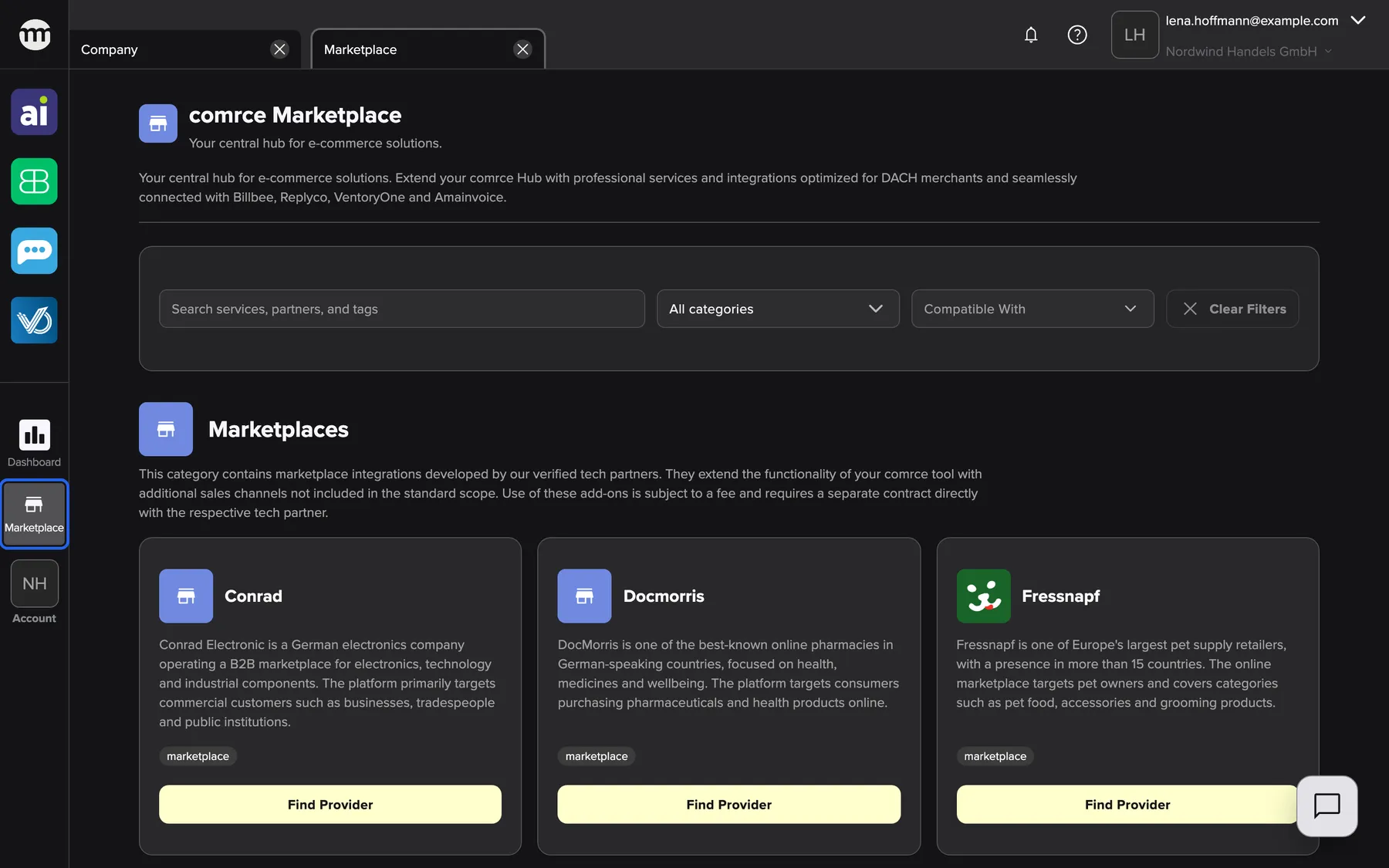
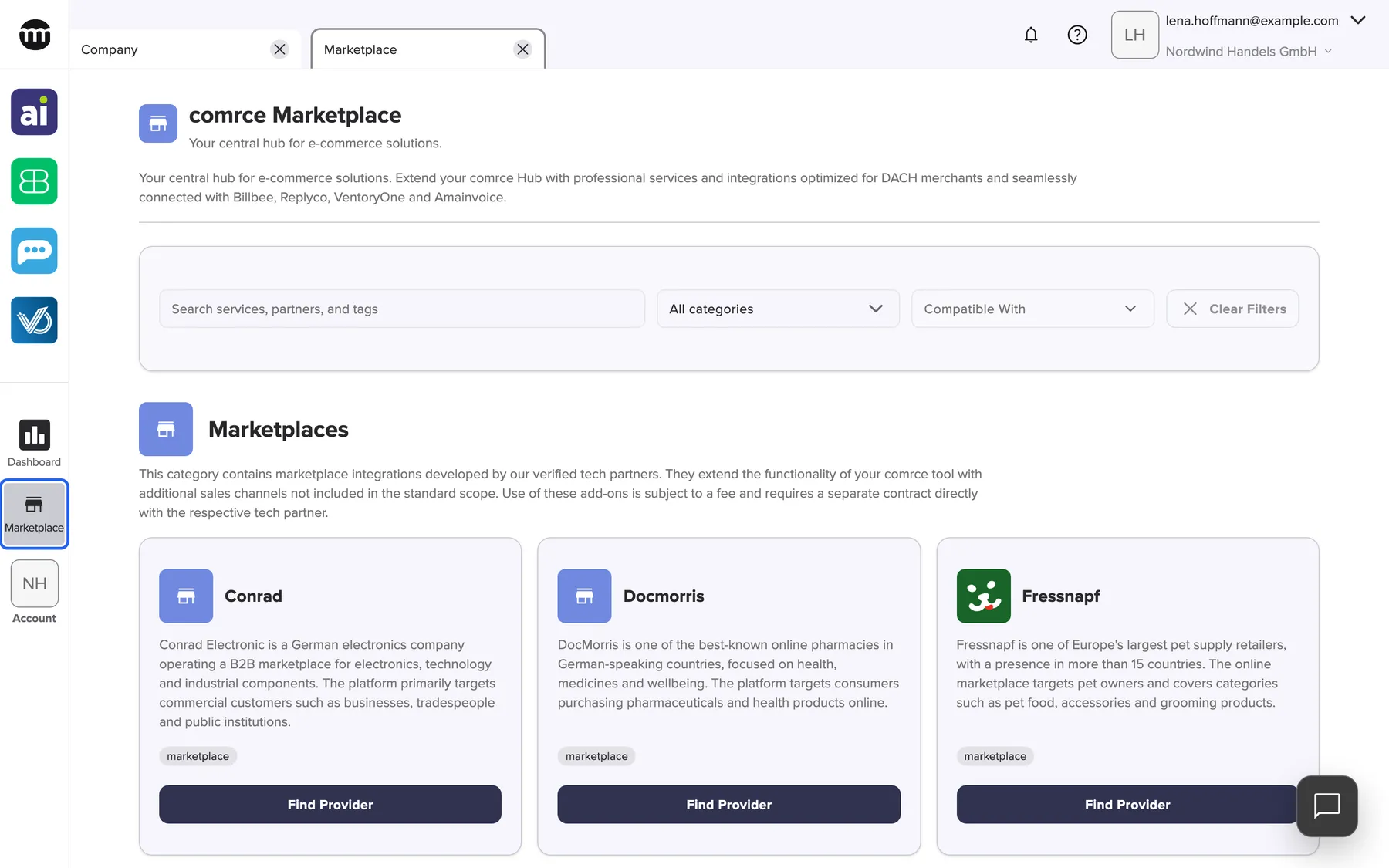
Marketplace in the sidebar opens the catalog of services and partners, grouped in sections. What this screenshot shows
- Screen
- Marketplace
- Highlighted
- “Marketplace”: opens the Marketplace tab
- Also visible
- Filter bar with search, category and compatible tools; The first section of service tiles
- Purpose
- start looking for a partner
-
Narrow by category or by the tools you use. Choose a category under All categories. Tick your tools under Compatible with, for example Billbee. A partner must work with every tool you tick. Narrow by category or compatible tool has the details.
-
Open the service and compare its partners. Select Find provider on a service tile. The service page lists every partner that offers it, and your filters come along. A service in the Marketplace covers the page.
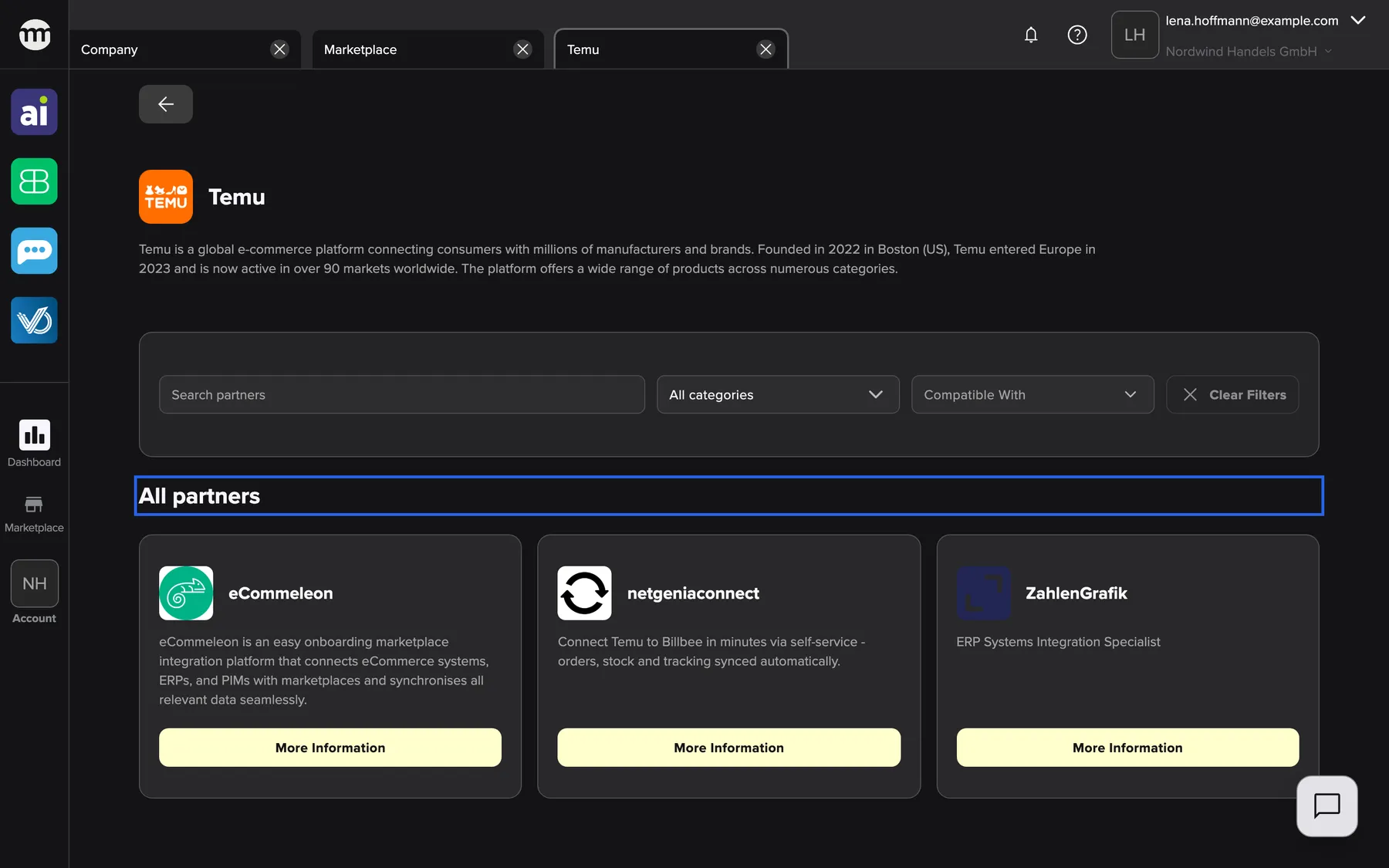
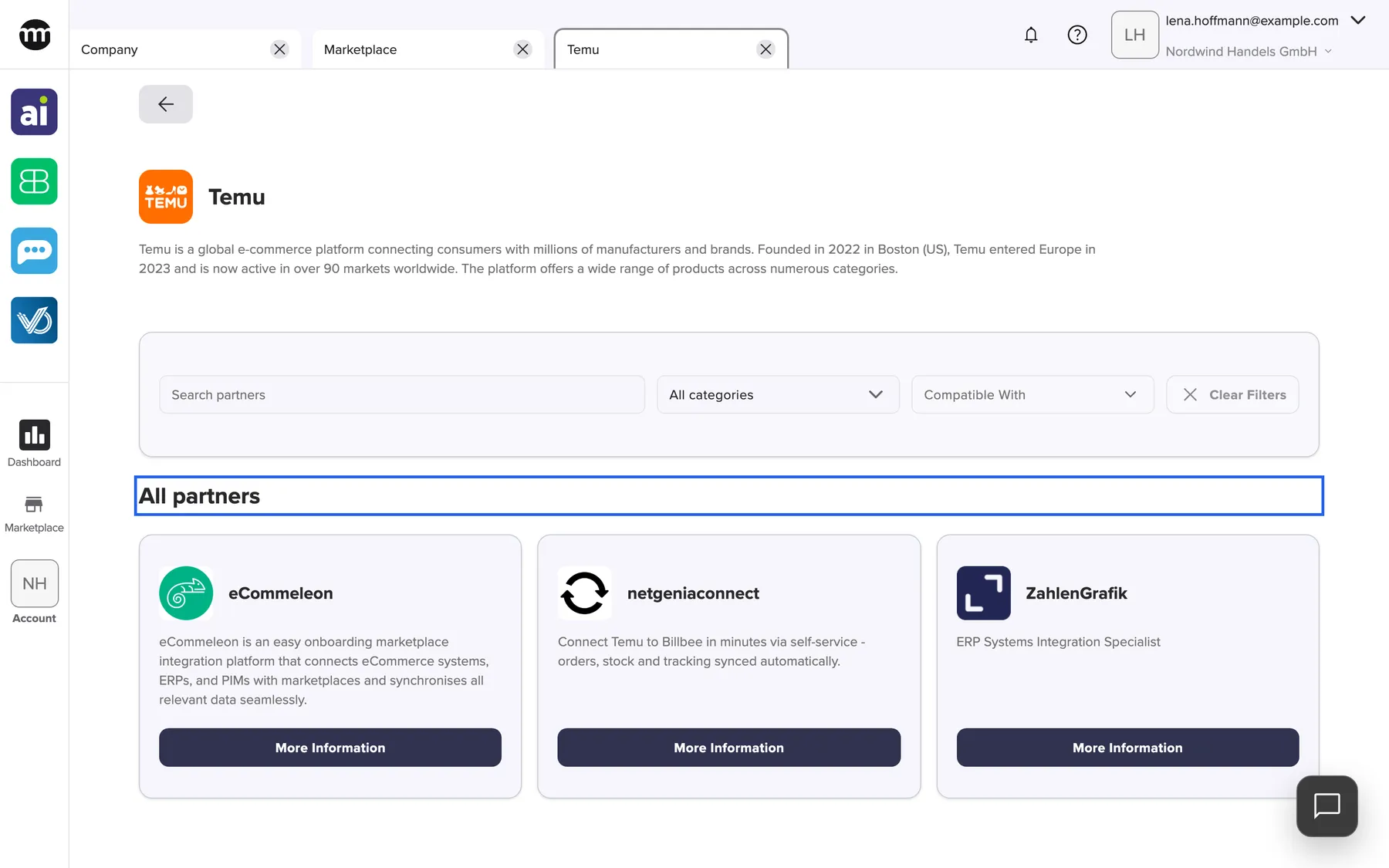
A service page lists every partner that offers the service, under All partners. What this screenshot shows
- Screen
- Marketplace
- Highlighted
- “All partners”: introduces the partners that offer the service
- Also visible
- Service title Temu with its description; Partner tiles, each with More information
- Purpose
- compare the partners for one service
-
Open a partner’s page and contact them. Select More information on a partner tile. The page shows the partner’s website, email address and phone number. Contact a partner lists every way to reach them.
-
Install the partner for your company. Select Install in the header of the partner’s page. There is no confirmation question. The button then reads Uninstall. Install a partner explains what changes.
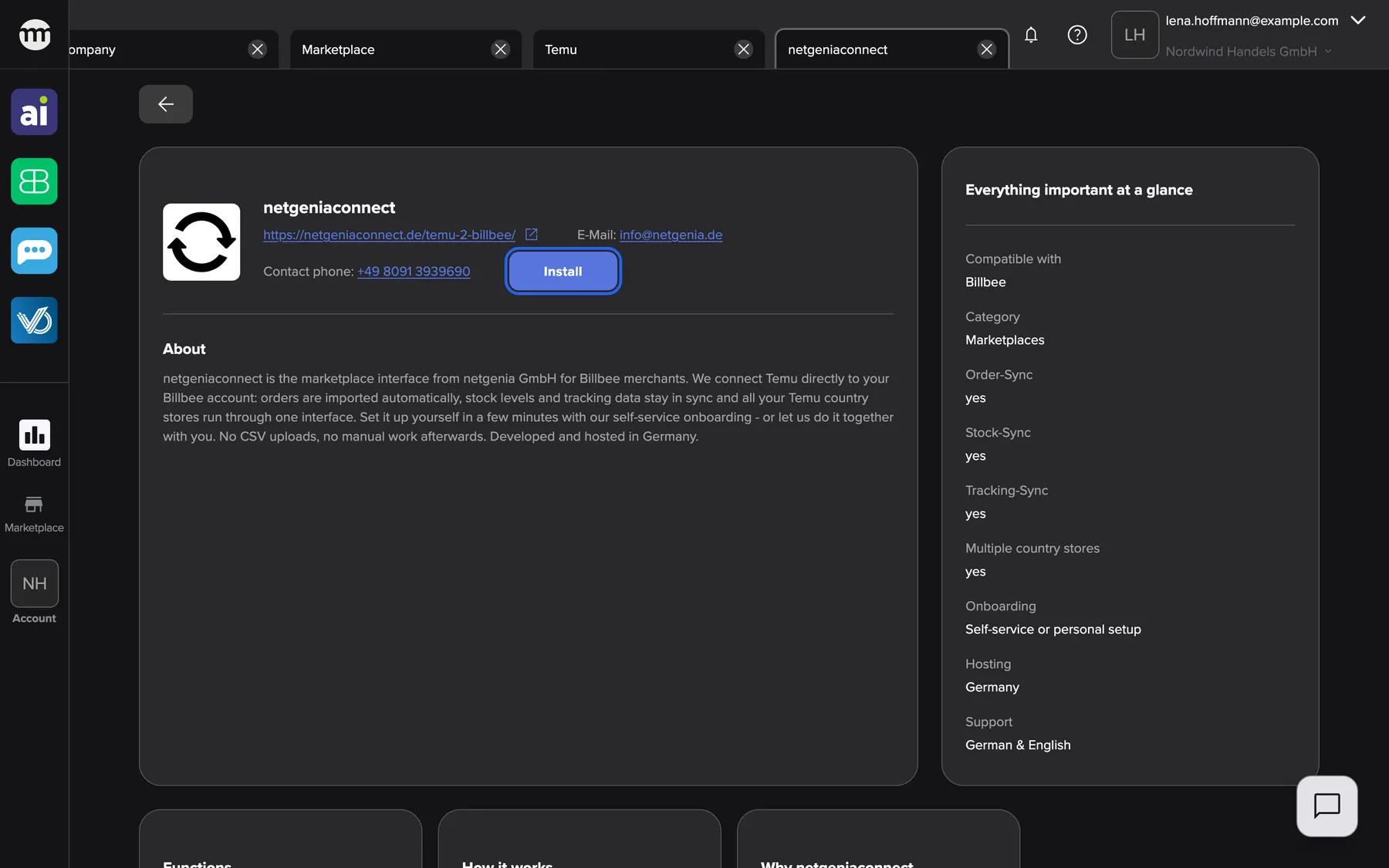
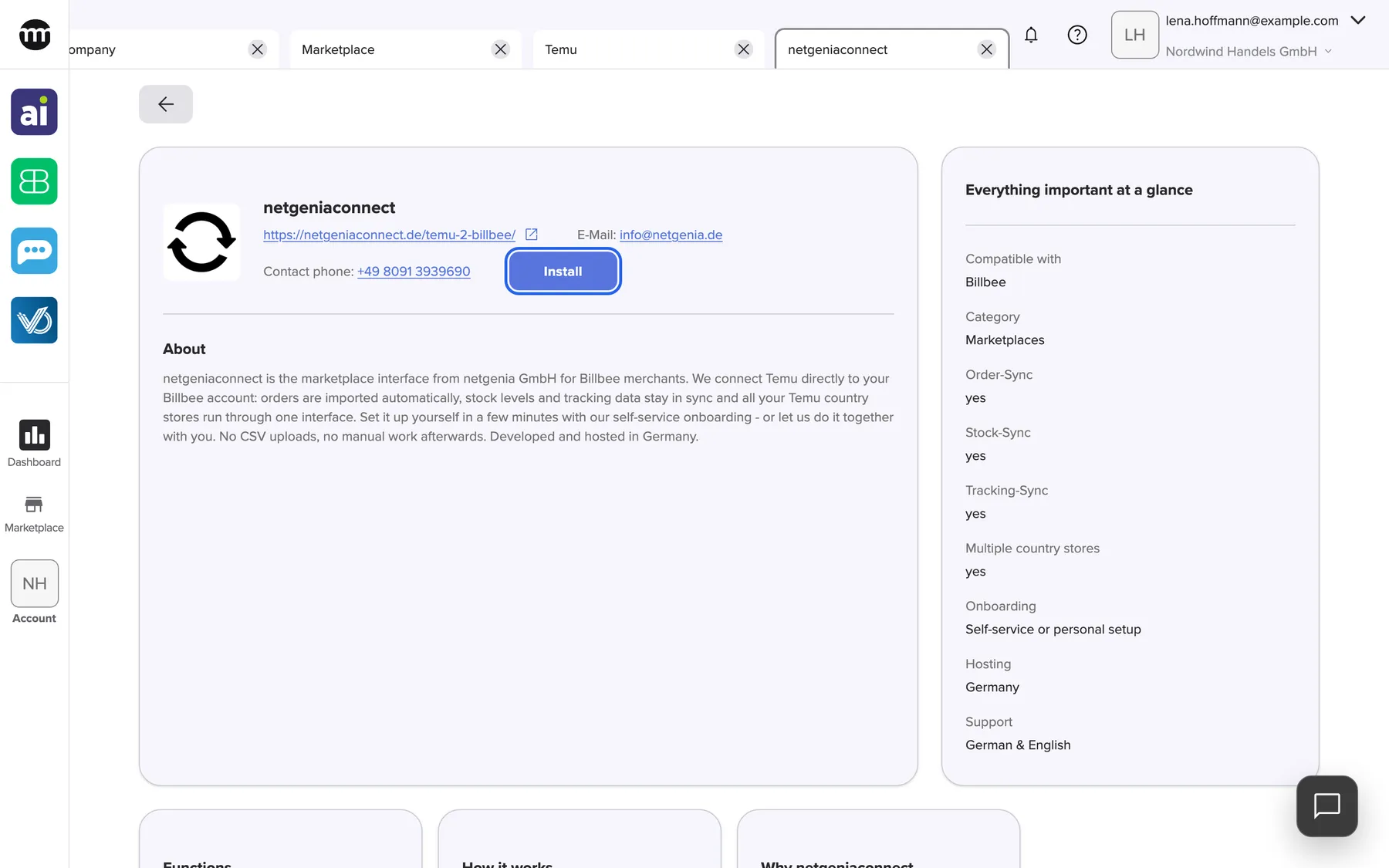
A partner's page shows how to reach them, what they offer and, with the right permission, Install. What this screenshot shows
- Screen
- Marketplace
- Highlighted
- “Install”: installs the partner for the whole company, without a confirmation
- Also visible
- Logo, name, website, email and phone; About and Important information cards
- Purpose
- read about a partner and install it
-
Sign in to the partner’s app with comrce Hub. Start the sign-in in the app. comrce Hub opens Single Sign-On Request with every kind of data the app asks for. Check it and select Approve. Connect a tool to your account explains each data category.
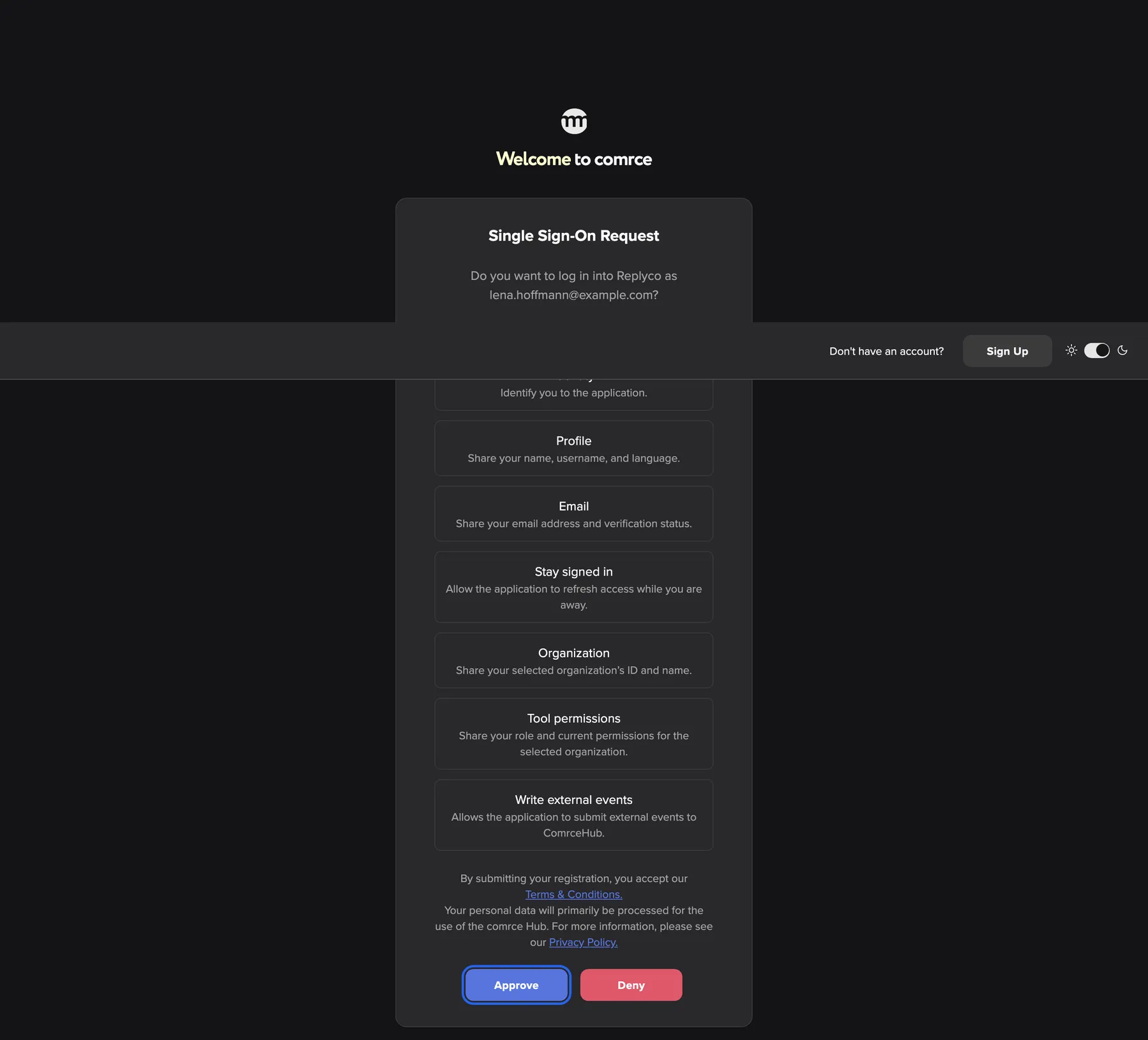
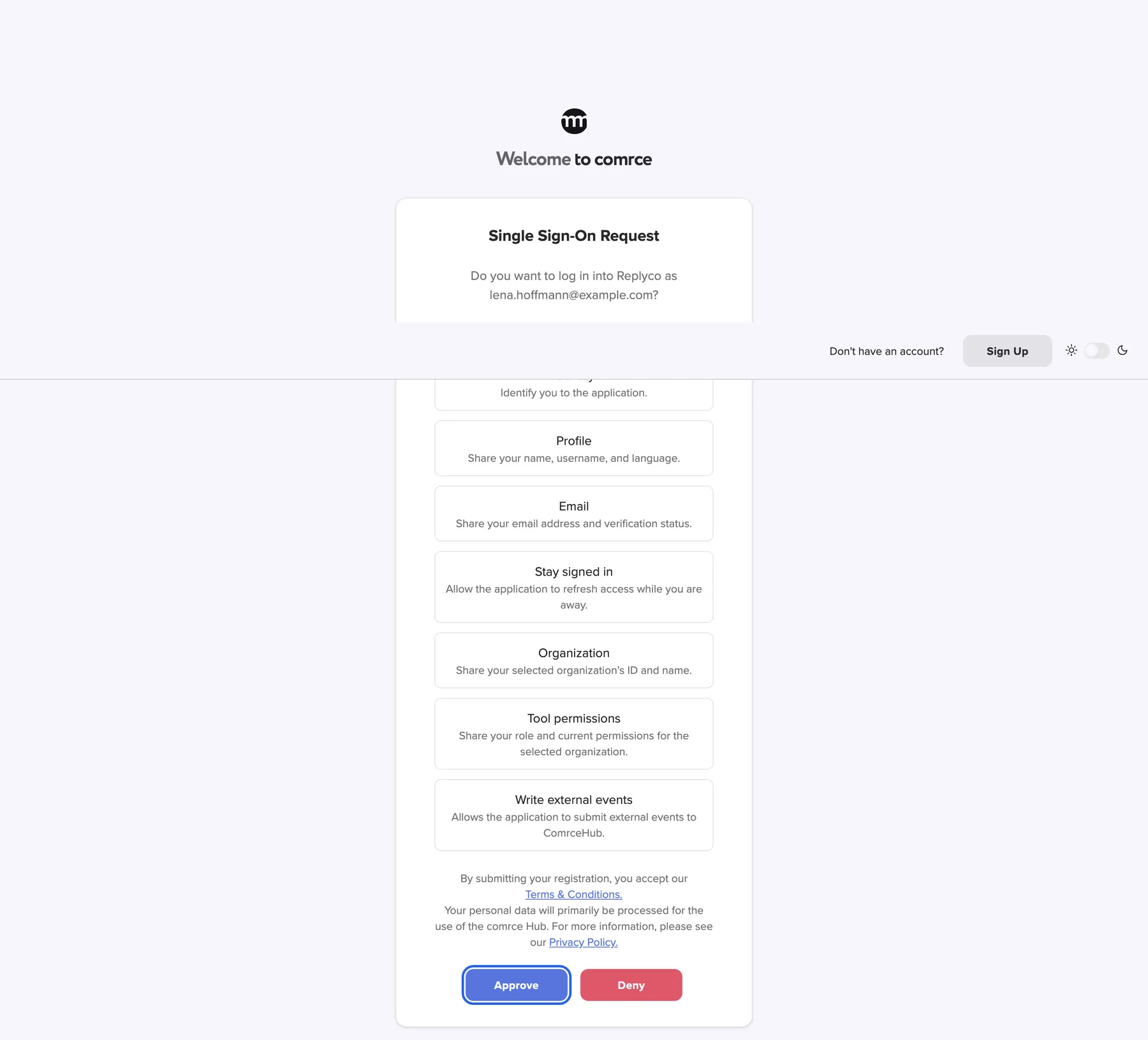
comrce Hub names the tool, your email and every kind of data the tool asks for before you approve. What this screenshot shows
- Screen
- Single Sign-On Request
- Highlighted
- “Approve”: approves the sign-in and returns you to the app
- Also visible
- The question naming the app and your email address; Every data category the app asks for; Deny button
- Purpose
- approve the partner app's sign-in with comrce Hub
What happens next
Section titled “What happens next”The partner is installed for everyone in your company. Each colleague can now sign in to the app with comrce Hub and approves their own sign-in. Logs records Installed marketplace partner.
To check that it worked, close and reopen the Marketplace tab. The partner now appears in the section Installed at the top. If the app asks for Billing address, it receives your company’s invoice address.
Options
Section titled “Options”| Choice | When to pick it | Effect |
|---|---|---|
| Install | The partner’s app signs in with comrce Hub | Everyone in your company can sign in to the app |
| Contact only | The partner offers a service without an app, such as setup help | Nothing changes in comrce Hub. You agree everything with the partner. |
| Uninstall | Your company no longer works with the partner | comrce Hub refuses the app’s sign-in for everyone in your company. Data the partner holds stays with them. |
| Browse without an account | You want to look before you sign up | The same catalog, without Install. See The Marketplace without an account. |
- Set the filters before you open a service. Your search, category and tools come along to the service page. So you only compare partners that fit.
- Agree with your team before you uninstall a partner. A colleague who uses the partner’s app every day loses its comrce Hub sign-in the moment you confirm.
If something goes wrong
Section titled “If something goes wrong”| Symptom | What to check | Fix |
|---|---|---|
| The app says This application is not installed for your organization. | Is the partner installed in the company you are working in? | Install the partner, then sign in again |
| Install is missing on the partner’s page | You lack Managing API connections | Ask the company owner to install it, or to give you the permission |
| The partner is missing from Installed | The section shows the state from when you opened the tab | Close and reopen the Marketplace tab |
| The page reads No services or partners match your current filters. | A partner must match the category and every ticked tool | Select Clear filters and narrow again |
| The app shows data of the wrong company | Which company was selected when you approved | Change the company in comrce Hub and sign in to the app again |