

Output options
Output steps take the result of a pipeline out of comrce cloudprint. There are two. Druckerausgabe (printer output) sends the job to a printer. FTP Ausgabe (FTP output) saves the document on an FTP server. An output ends its branch, so nothing can follow it. You add outputs as Pipelines and their steps shows.
Printer output
Section titled “Printer output”The printer output sends every job that reaches it to a printer of one of your Service Clients. The job then appears under Client jobs. You add it with the plus at the bottom right of a tile. The plus on a connecting line doesn’t offer it.
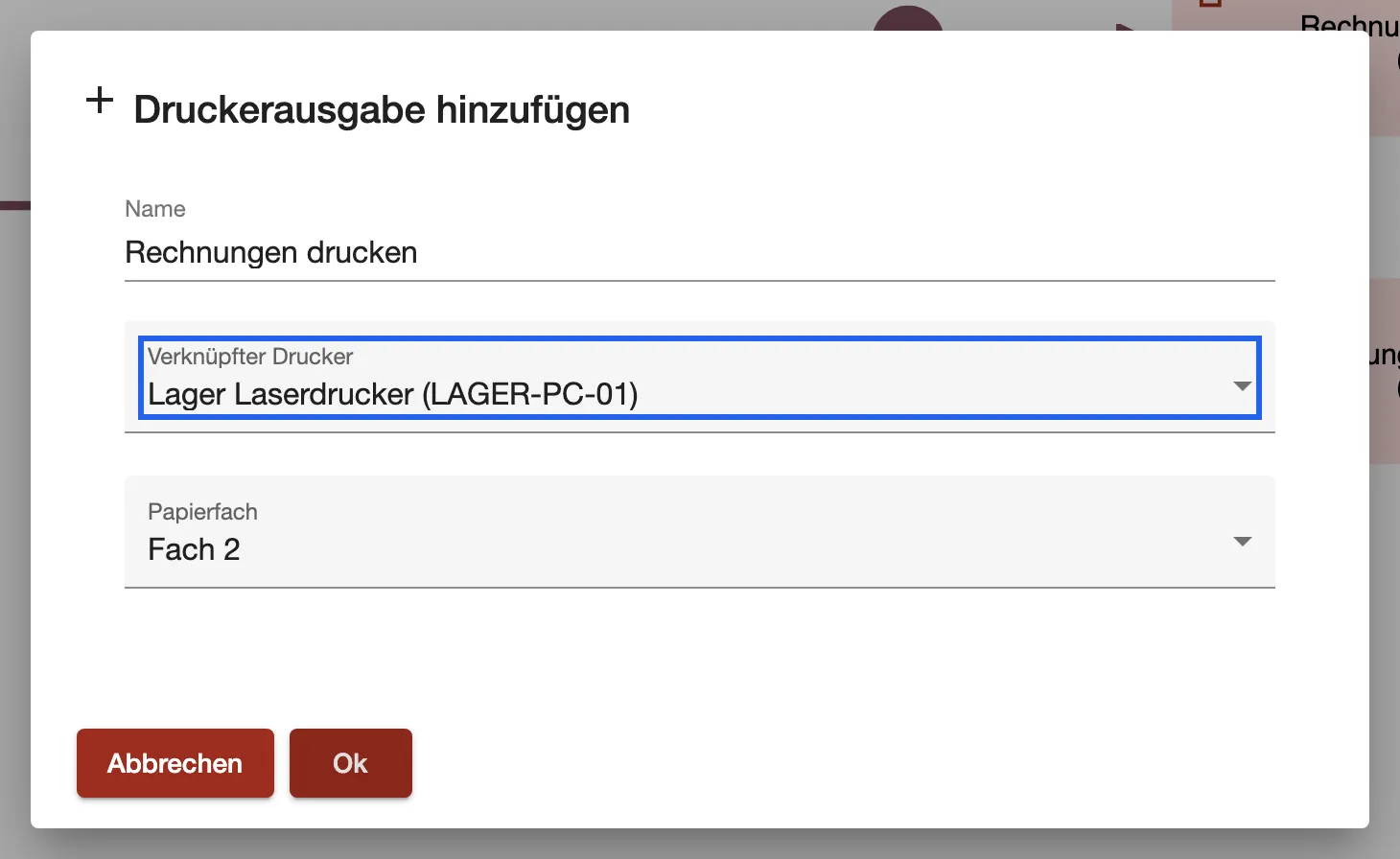
What this screenshot shows
- Highlighted
- chooses the printer that gets the job
- Also visible
- Verknüpfter Drucker: Lager Laserdrucker (LAGER-PC-01); Papierfach: Fach 2
- Purpose
- send jobs to a printer
- In Name, enter what the step should be called.
- Under Verknüpfter Drucker (linked printer), choose the printer. Each entry shows the printer and its Service Client in brackets.
- Optional: under Papierfach (paper tray), choose a tray. The list appears when the printer reports its trays. ”-” uses the printer’s default.
- Select Ok.
The dialog’s title reads Druckerausgabe hinzufügen (add printer output), also when you open a saved step.
The job prints with the settings it carries, from the job itself or a printer settings step. The printer’s defaults fill in what’s missing. A tray chosen here wins over the job’s tray and the printer’s default tray.
If the printer was deleted, the step does nothing. Choose another printer, or delete the step.
FTP output
Section titled “FTP output”The FTP output saves the job’s document in a folder on an FTP server. The file keeps its current name.
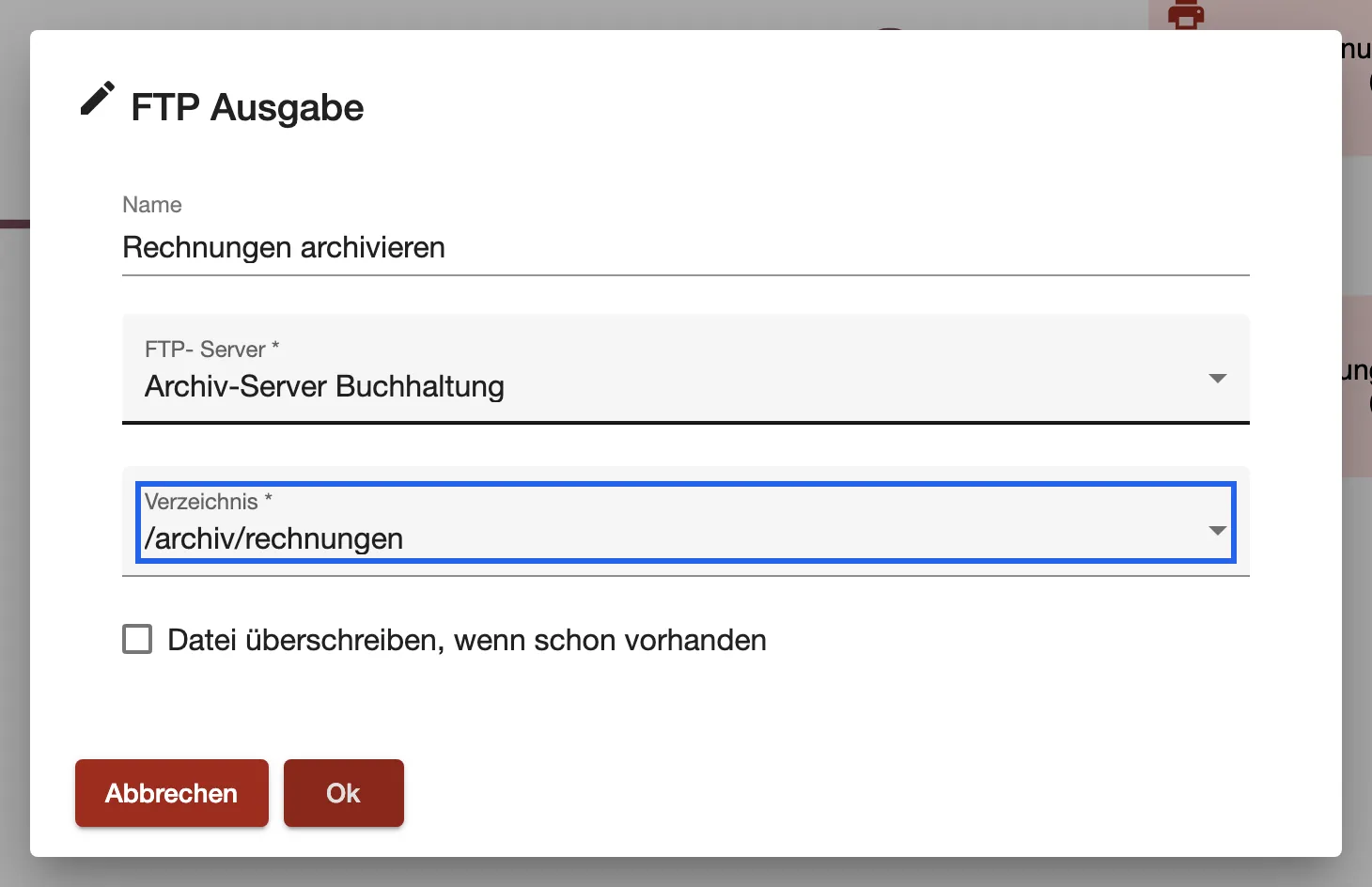
What this screenshot shows
- Highlighted
- chooses the folder the document is saved in
- Also visible
- FTP- Server: Archiv-Server Buchhaltung; Verzeichnis: /archiv/rechnungen; Overwrite box not ticked
- Purpose
- save documents on an FTP server
- In Name, enter what the step should be called.
- Under FTP- Server, choose the server. You set servers up under FTP server.
- comrce cloudprint then reads the folders on that server. Choose one under Verzeichnis (folder).
- Optional: tick Datei überschreiben, wenn schon vorhanden (overwrite the file if it exists). Then a file of the same name is replaced.
- Select Ok.
Without any FTP server, the dialog shows “Laden fehlgeschlagen” (loading failed). A note says that no FTP server is set up yet. Its Ok stays inactive until you set up a server.
Printer settings from earlier steps have no effect on an FTP output. The document is saved as it is.