

Permissions and roles
Your accountant needs your company and billing data but not your tools. A temp should help out but never delete colleagues. comrce Hub handles that with three roles and about forty permission switches per person. The role gives a sensible starting point. The switches decide exactly what each person sees and may do.
Anyone who lacks access can ask for it with one click. You can switch every permission back on the member’s tab.
What it does
Section titled “What it does”Without fine-grained access, an owner either gives everyone everything or does every task alone. The first risks that a temporary helper deletes colleagues or changes the company’s details.
In comrce Hub every company has one owner who can do everything. All others are members with the role Member or Partner, each with their own permissions in this company.
- Roles come with presets, so a new person starts with suitable access. Understanding roles and permissions
- Single switches add or remove one permission for one person, for example letting a Member invite people. Every setting, explained
- Menus, buttons and whole screens appear only with the right permission. Permissions in menus and screens
- A member without access can request it from the owner, right on the screen they are blocked on. Requesting access
- The tools you connect learn each person’s permissions in your company. Permissions in your tools
Logs records every saved change to a role or permission, with its author and what was added or removed. You can always trace who gave whom which access.
Before you start
Section titled “Before you start”| Requirement | Details |
|---|---|
| Role | The company owner, or a member with Editing user permissions. The switches are on each member’s tab under AccountUsers. |
| An active member | Permissions are saved only for members with the status Active. |
| Your own permissions (non-owners) | You can only save switches that are permissions you hold yourself. |
| Plan or cost | No plan requirement and no cost |
Understanding roles and permissions
Section titled “Understanding roles and permissions”What you can do or assign
Section titled “What you can do or assign”- As the owner, you can give any member the role Member or Partner and switch any permission on or off. You can also invite, deactivate and delete members and transfer ownership.
- As a member with Editing user permissions, you can change other members’ roles and switches. You can only save switches that are permissions you hold yourself. You cannot change your own tab or the owner’s.
- As a member with Inviting users, Deactivating users or Deleting users, you can invite, deactivate or delete members. You cannot change anyone’s permissions without Editing user permissions.
- As a member with only a preset, you can assign nothing. You can request a missing permission from the owner.
The roles
Section titled “The roles”| Role | Who it is for | Permissions |
|---|---|---|
| Owner | The person responsible for the company, exactly one per company | Every permission, always. Cannot be changed, deactivated or removed. |
| Member | Your own employees | Preset: view the company profile and the user list, see and open all four tools with their dashboards and alerts |
| Partner | Outside partners such as your accountant or agency | Preset: view and edit the company profile, view invoices, Resetting payment methods, Exporting invoices data, Viewing subscriptions, view the user list, see the four tools and their dashboards without opening them |
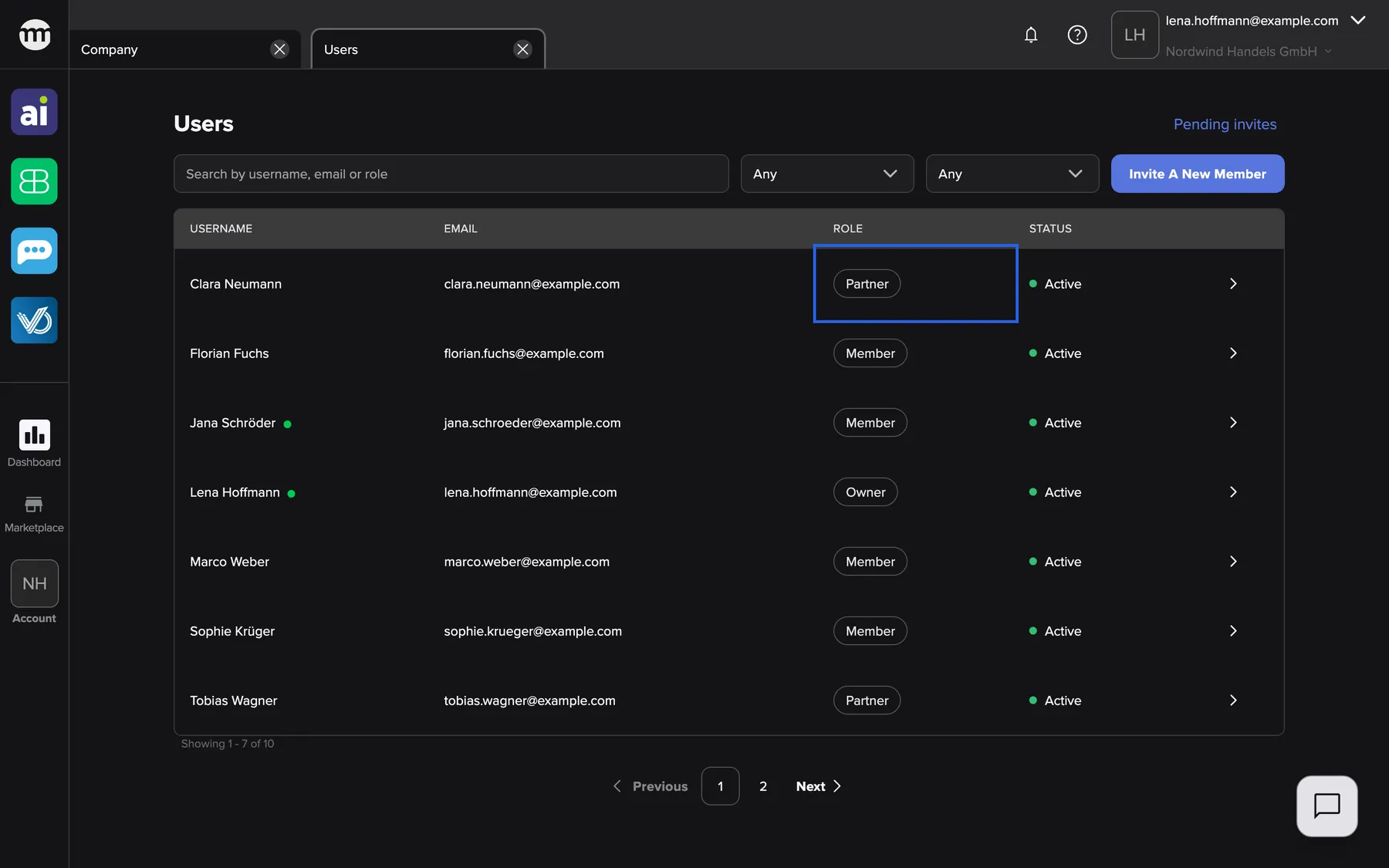
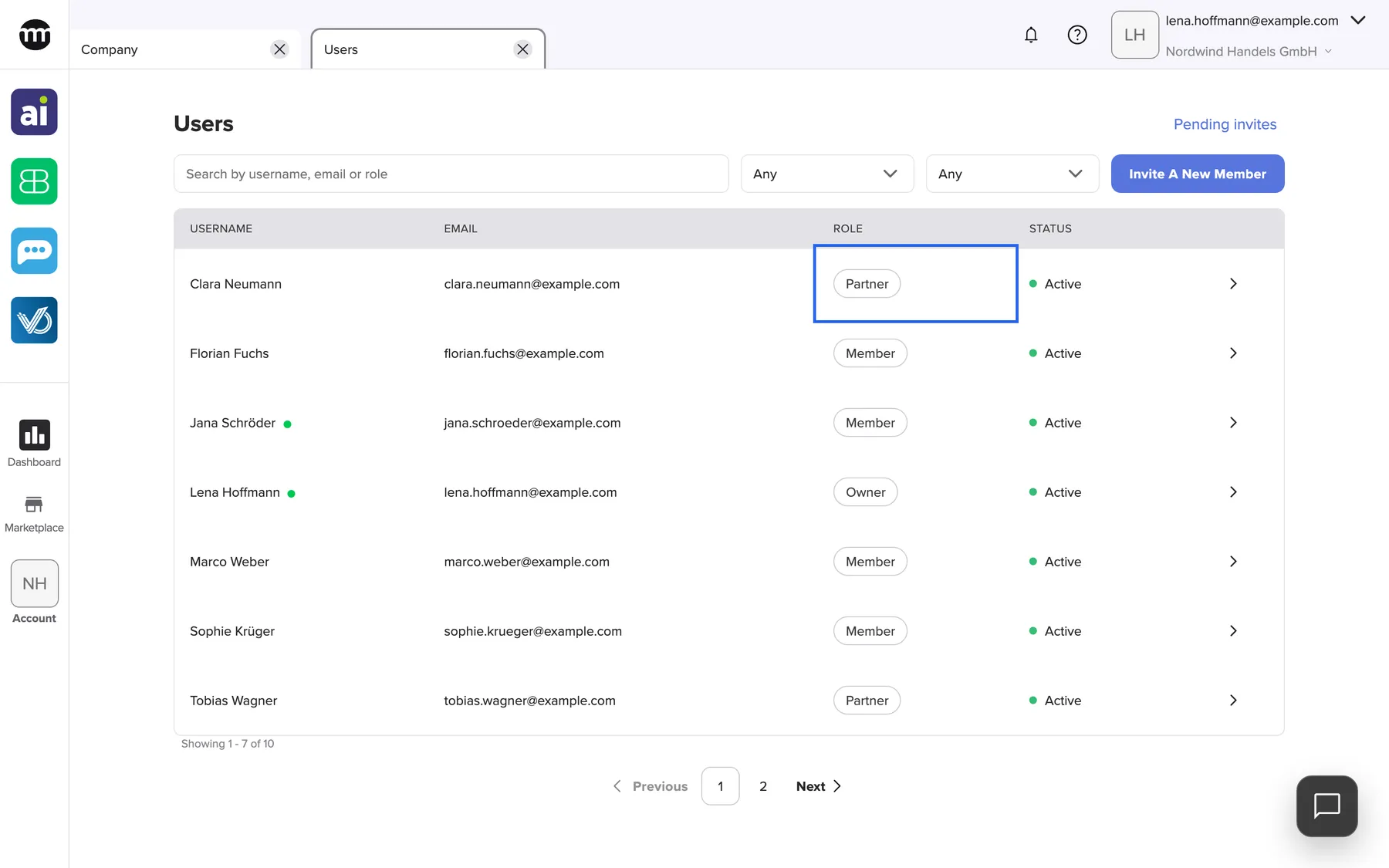
What this screenshot shows
- Screen
- Users
- Highlighted
- “Partner”: shows the role
- Also visible
- Owner, Member and Partner badges; Status Active for all rows; Detail arrows
- Purpose
- roles in the user list
No preset includes viewing the audit log, inviting people, editing permissions, deactivating or deleting users. Only the owner has these until they switch them on for someone.
How comrce Hub decides
Section titled “How comrce Hub decides”- The owner bypasses every check. Whatever the switches say, the owner can open every screen and use every button.
- Members need the exact permission. Each menu entry, button or screen checks one permission.
- Roles set permissions only when chosen. Picking a role on a member’s tab replaces all switches with the preset. An invitation applies the preset when it is accepted. A later change to a preset does not touch existing members.
- Grant only what you hold. A member who edits permissions can save only if they hold every permission that ends up switched on. Otherwise saving is refused.
- Per company. Permissions belong to the membership. The same person can be an owner in one company and a Partner with few permissions in another.
What permissions do not cover
Section titled “What permissions do not cover”- Your own tab. Nobody can change their own role, permissions or status, the owner included.
- The owner’s tab. It is read-only for everyone.
- Personal settings such as your name, password, language and two-factor authentication. Everyone manages their own.
- Your list of companies. Every member sees My companies.
- The help menu. Everyone sees its entries, whatever their permissions.
Setting it up in four steps
Section titled “Setting it up in four steps”-
Decide on roles. Use Member for your employees and Partner for outside partners. Invite with the right role from AccountUsers, so the preset applies on acceptance.
-
Open a member’s tab. Select the arrow at the end of the member’s row. The header card shows the role, and the card Permissions below shows the switches.
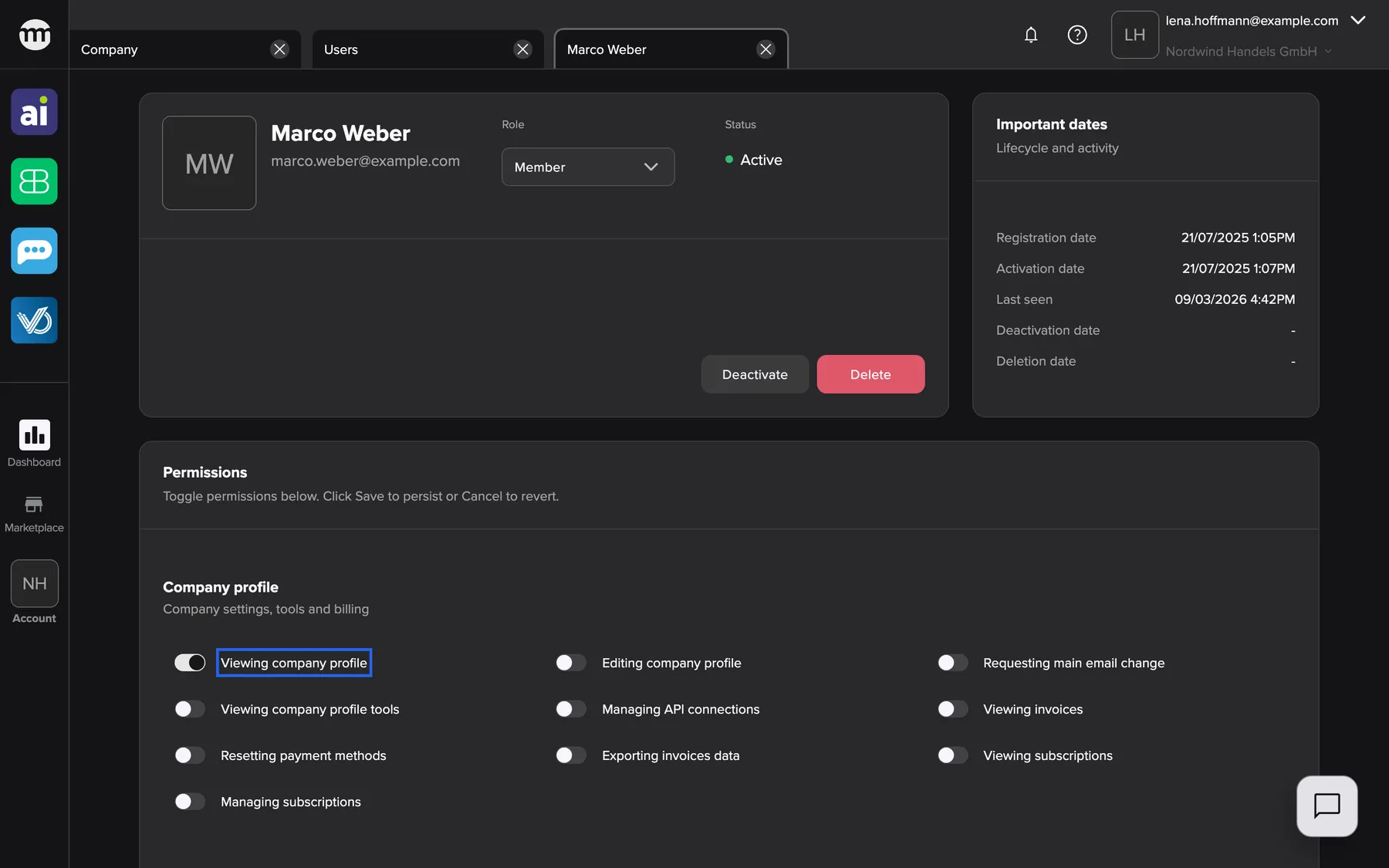
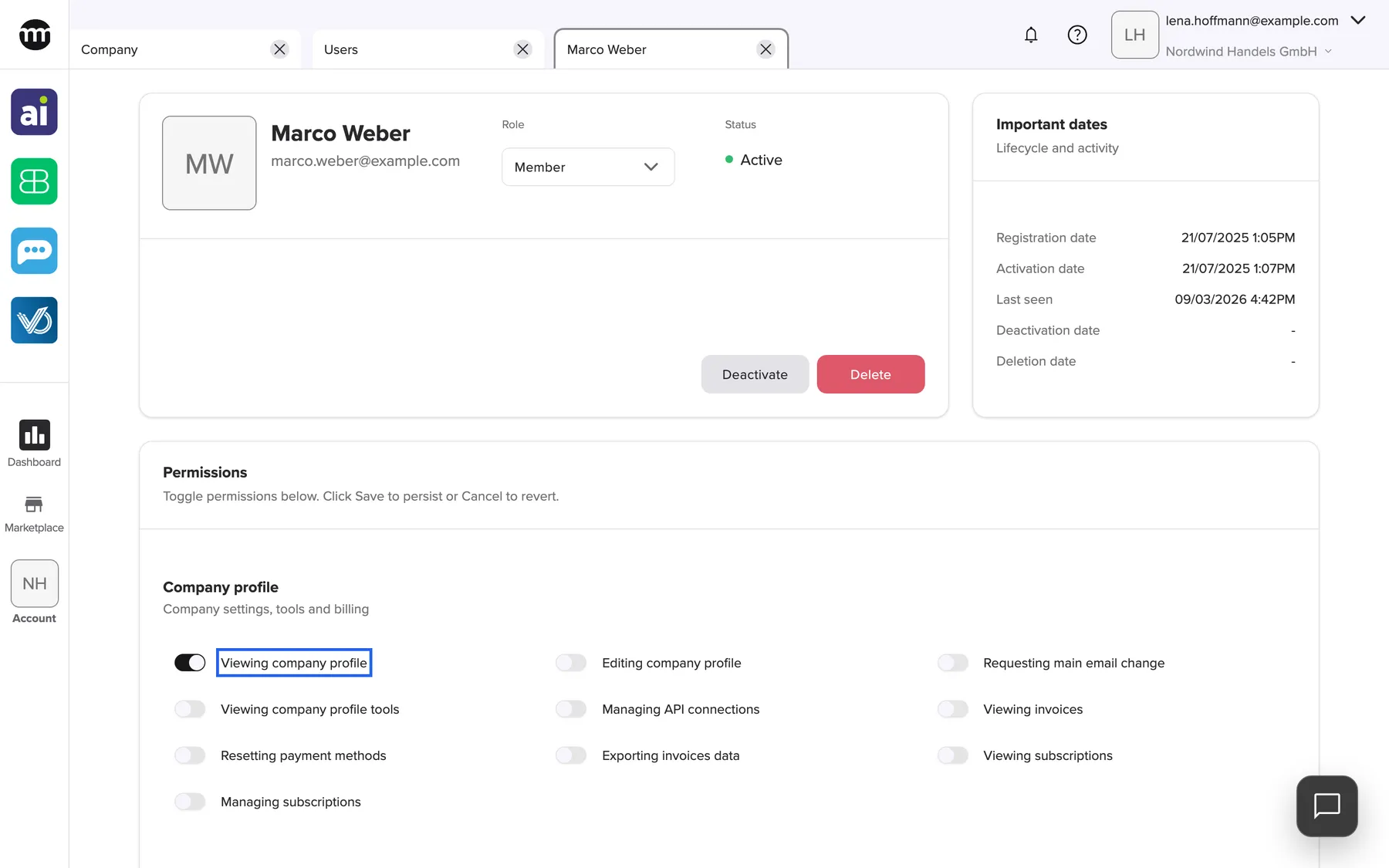
Every permission is a switch on the member's tab, grouped by area. What this screenshot shows
- Screen
- User
- Highlighted
- “Viewing company profile”: lets the member open the Company tab
- Also visible
- Company profile switches; Users & permissions switches
- Purpose
- the permission switches
-
Adjust the switches (optional). Turn on what the person needs beyond the preset, for example Inviting users for a team lead. Turn off what they should not have.
-
Save. Select Save at the bottom of the card. You see User permissions updated successfully, and the member’s menus update without a new sign-in.
Setting up a whole team? The guide Add your team and give everyone the right role shows the order that works.
Every setting, explained
Section titled “Every setting, explained”
Every setting, explained
Section titled “Every setting, explained”The switches are grouped as on the member’s tab. Each controls one permission in this company only. The role comes first, because it replaces all switches at once.
Role, the preset selector
Section titled “Role, the preset selector”The member’s tab, header card, under Role. Saved with Save in the Permissions card.
Two options, Member and Partner. Choosing one at once replaces every switch with that preset. Cancel restores the saved role and switches. Owner is never offered. The field appears only for active members other than yourself and the owner, and only with Editing user permissions.
Re-applying a preset quickly resets someone to standard access, for example when employees become external consultants.
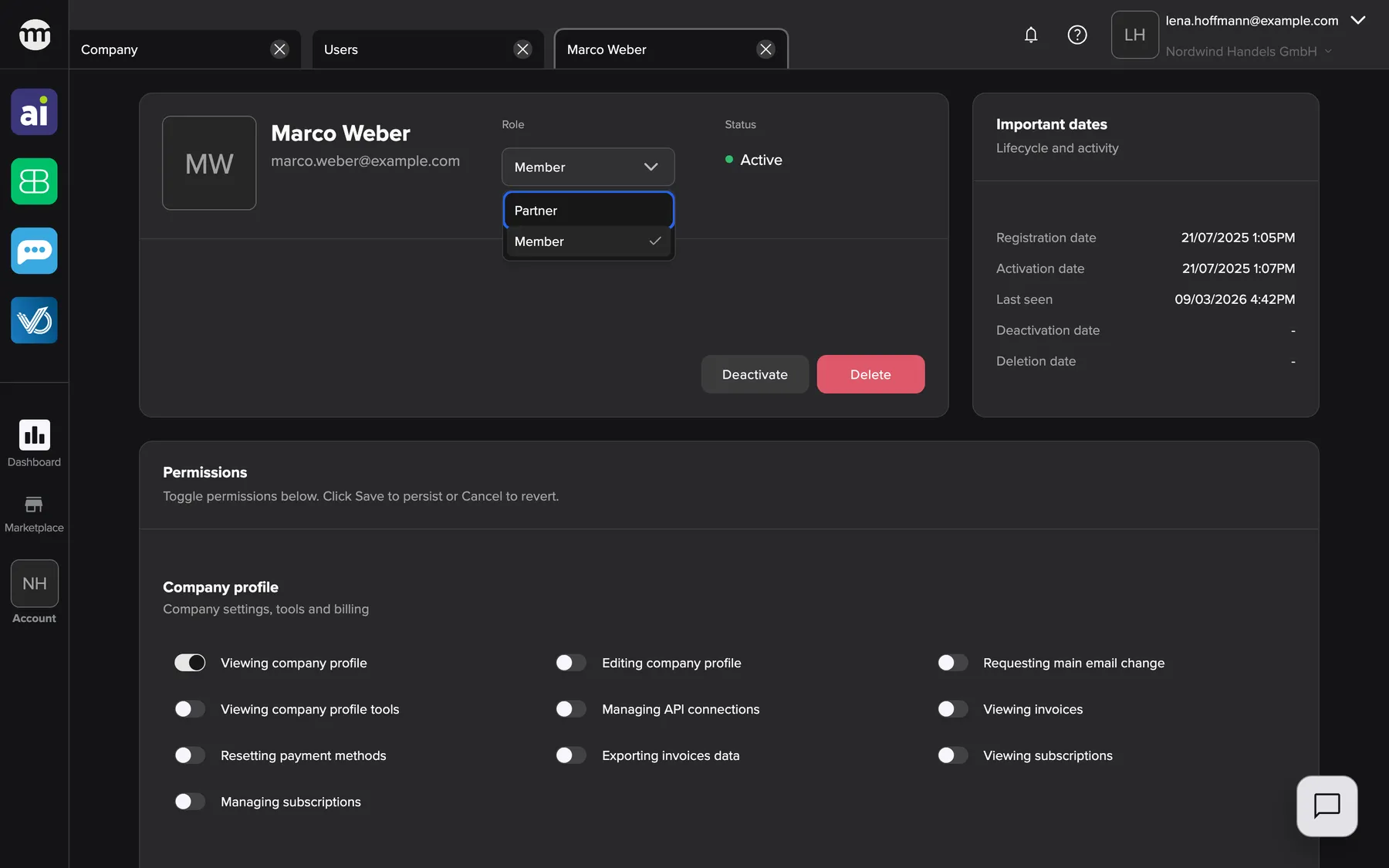
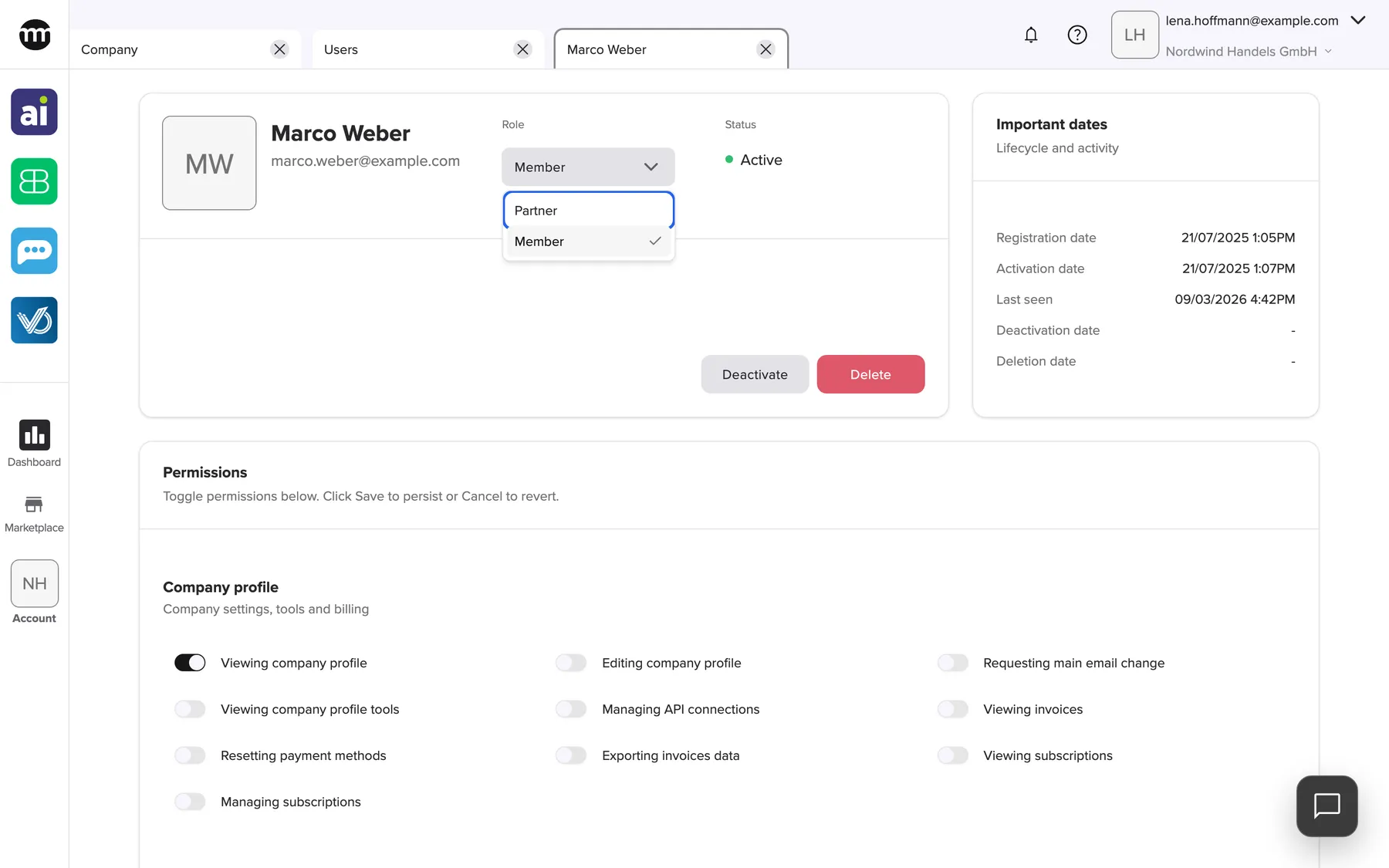
What this screenshot shows
- Screen
- User
- Highlighted
- “Partner”: applies the Partner preset
- Also visible
- Options Member and Partner; Status Active; Deactivate and Delete
- Purpose
- role presets
Company profile permissions
Section titled “Company profile permissions”Permissions card, section Company profile.
| Switch | What it allows in comrce Hub |
|---|---|
| Viewing company profile | Open the Company tab. It also becomes the tab shown after sign-in. |
| Editing company profile | Edit the company details and the logo |
| Managing API connections | Install and uninstall partners in the Marketplace |
| Viewing invoices | See the Invoices card on the Company tab |
| Requesting main email change, Viewing company profile tools, Resetting payment methods, Exporting invoices data, Viewing subscriptions, Managing subscriptions | Passed to the tools you connect. comrce Hub itself shows nothing for them. |
Company data is shared by everyone. Editing it is for the few who are responsible for it, typically the owner and the accountant.
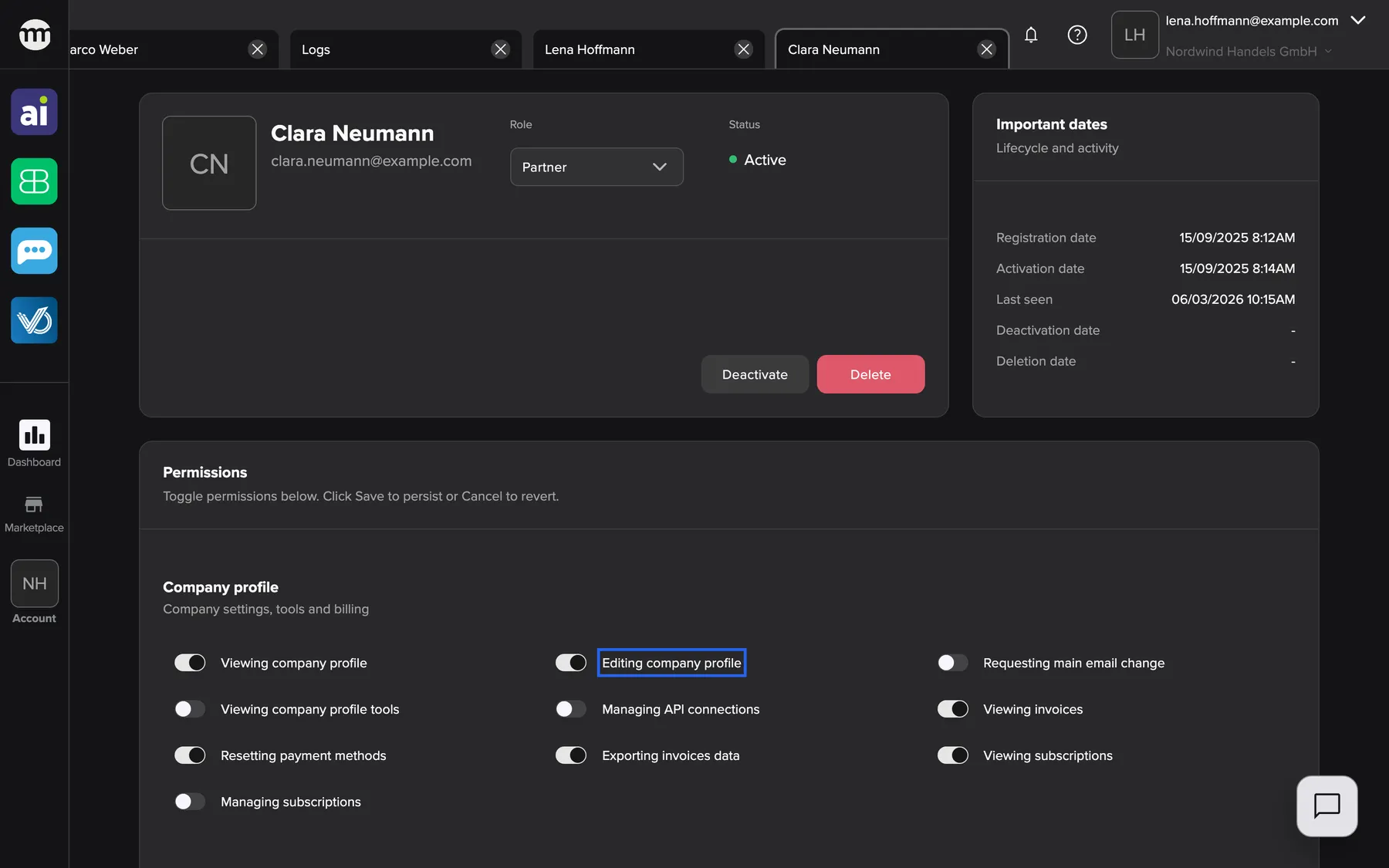
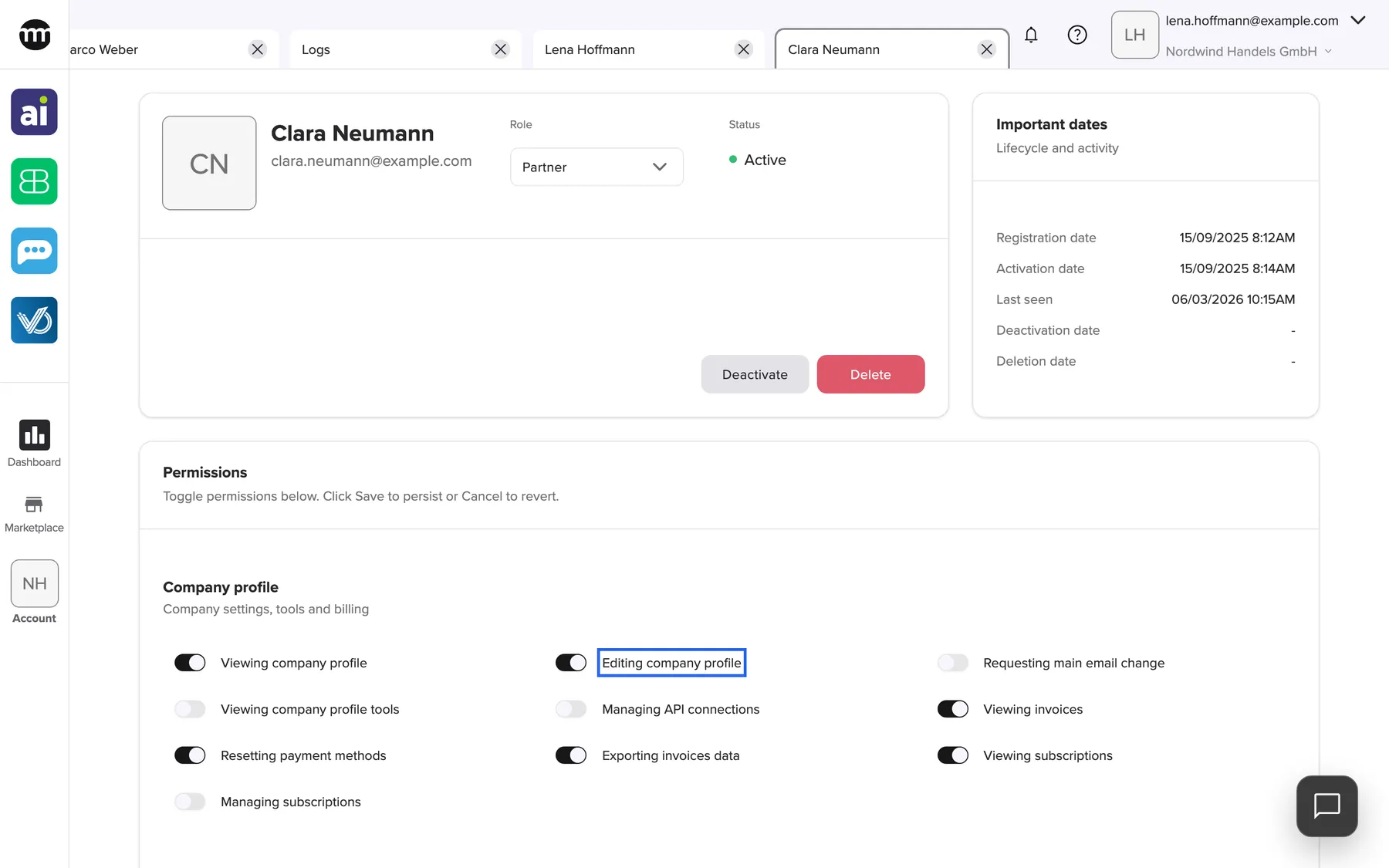
What this screenshot shows
- Screen
- User
- Highlighted
- “Editing company profile”: lets the partner edit the company profile
- Also visible
- Company profile and billing switches on; Only Viewing user list in Users & permissions; Viewing audit log off
- Purpose
- the Partner preset
Users and permissions permissions
Section titled “Users and permissions permissions”Permissions card, section Users & permissions.
| Switch | What it allows |
|---|---|
| Viewing user list | Open the Users tab and members’ tabs |
| Inviting users | Invite people, and see, resend and delete open invitations |
| Editing user permissions | Change other members’ roles and permission switches |
| Deactivating users | Deactivate and activate members |
| Deleting users | Delete memberships |
| Editing user details | Passed to the tools you connect. comrce Hub itself shows nothing for it. |
These are the keys to the company. Give them to people you would also trust with your own account.
Audit log permission
Section titled “Audit log permission”Permissions card, section Audit log.
Viewing audit log shows the Logs entry in the Account menu and opens the Logs tab. It is off in both presets.
The log contains everyone’s activity, including sign-ins. It is meant for whoever oversees security or compliance.
Tool permissions
Section titled “Tool permissions”Permissions card, section Integrations, one card per tool: Amainvoice, Billbee, Replyco and VentoryOne.
| Switch (shown for Billbee) | What it allows |
|---|---|
| Viewing Billbee | Show the tool’s icon in the sidebar |
| Opening Billbee | Open the tool from the sidebar. Without it the icon is greyed out, and opening shows a request-access card. |
| Reading Billbee dashboard | Contributes to the Dashboard tab. Any one of the four tools’ dashboard permissions shows it. |
| Reading Billbee alerts, Enabling or disabling Billbee | Passed to the tool when the member opens it. comrce Hub itself shows nothing for them. |
The other three tools have the same five switches.
Tool access is often the most sensitive part. The Partner preset can see that a tool exists but cannot open it.
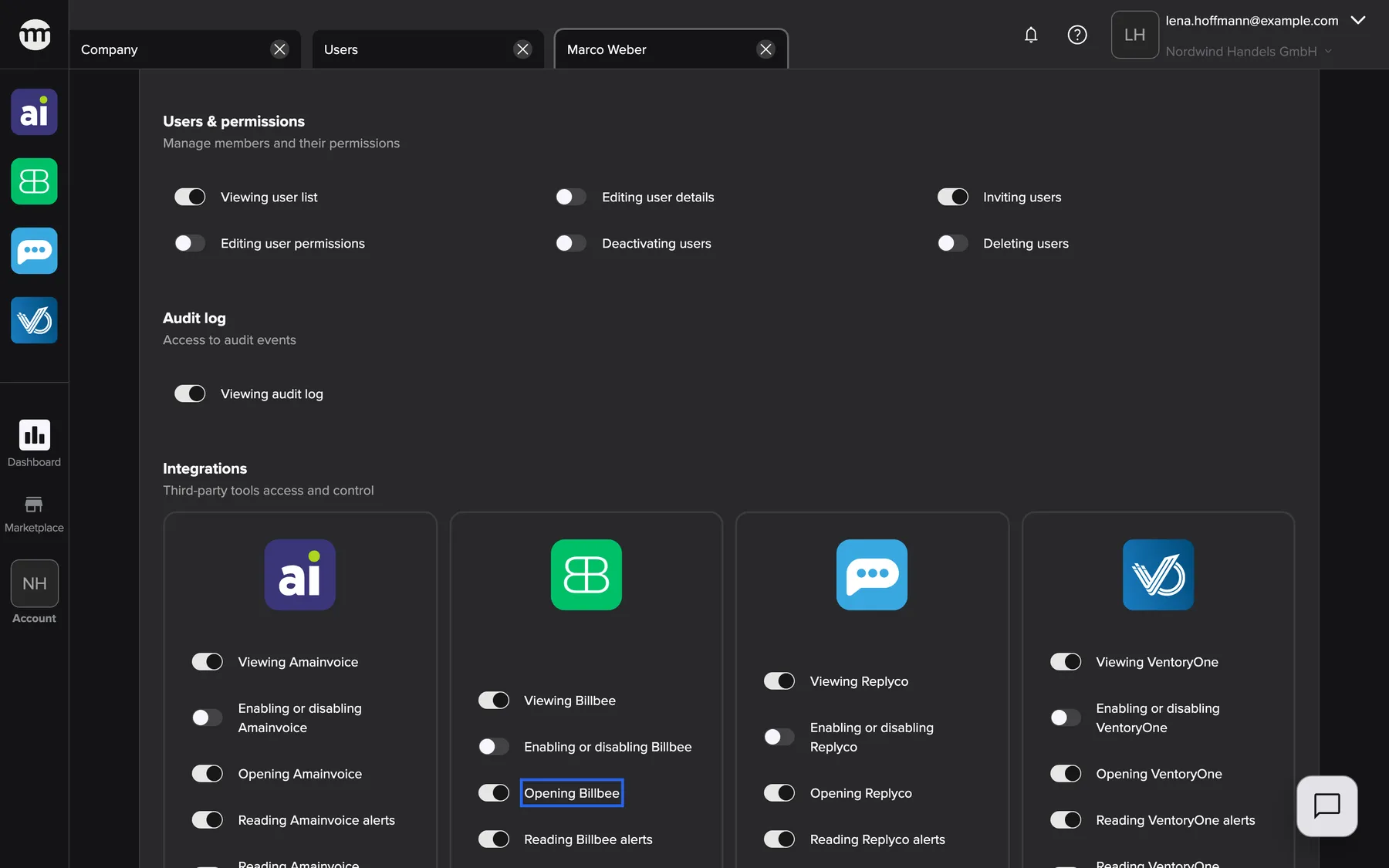
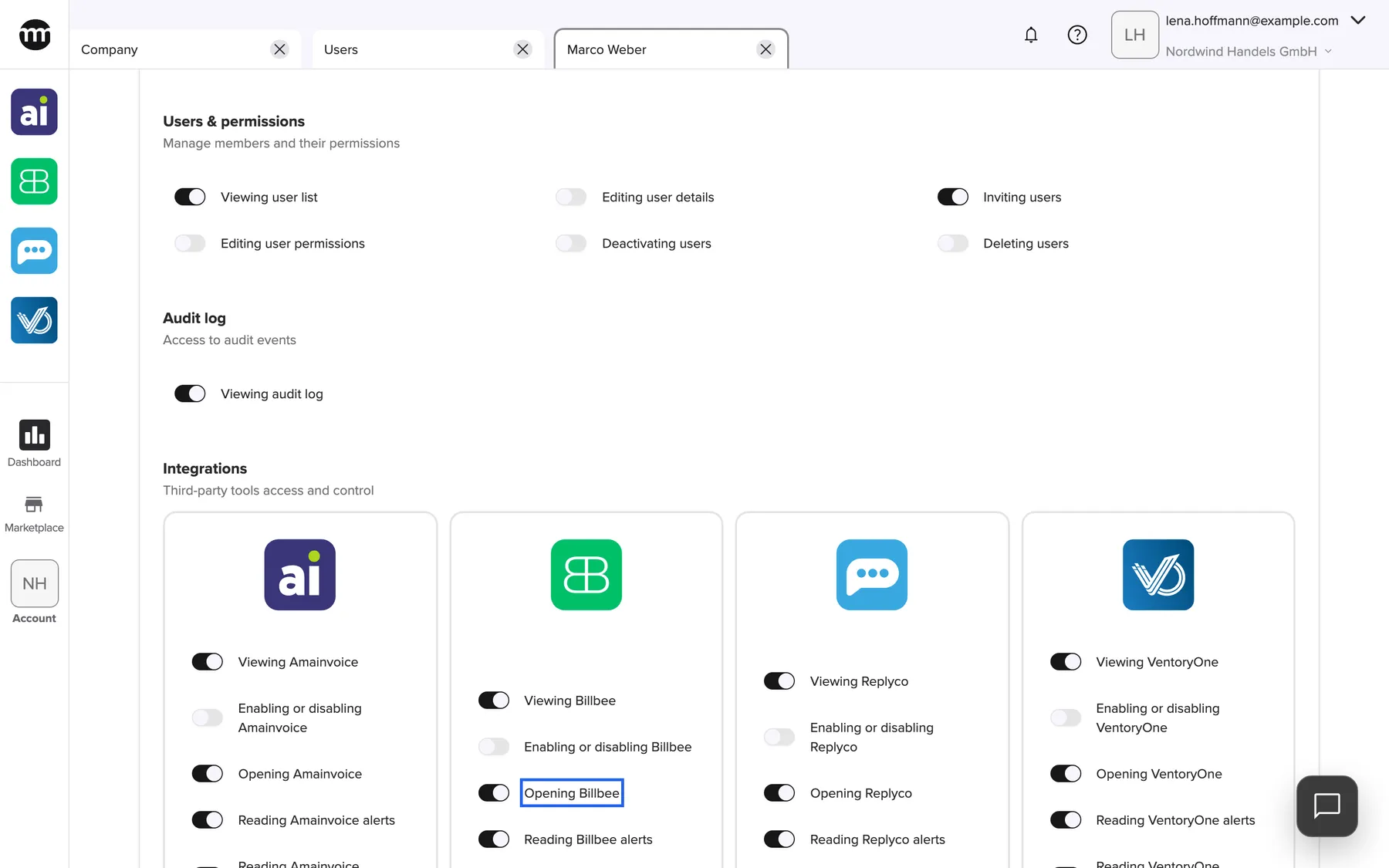
What this screenshot shows
- Screen
- User
- Highlighted
- “Opening Billbee”: lets the member open Billbee
- Also visible
- Four tool cards with five switches each; Cancel and Save
- Purpose
- tool permissions
How the settings combine
Section titled “How the settings combine”| Situation | Result |
|---|---|
| Owner, any switches | Everything allowed |
| Member with Viewing Billbee but not Opening Billbee | Billbee icon visible but greyed. Opening it shows a request-access card. |
| Member with Opening Billbee but not Viewing Billbee | No Billbee icon in the sidebar, so no way to open it from there |
| Member with none of Viewing user list, Viewing company profile, Viewing audit log | The Account button shows the company logo but opens no menu |
| Editor without a permission the member holds | Saving that member’s switches is refused |
Permissions in menus and screens
Section titled “Permissions in menus and screens”| Where | What decides it |
|---|---|
| Sidebar tool icons | Viewing Billbee and the other three view switches show them. The open switches make them usable. |
| Account menu | Users, Company and Logs each need their view permission |
| Buttons on Users, Company and member tabs | The matching edit, invite, deactivate or delete permission |
| Whole screens | Users, Pending invites, Company, Logs, a tool tab. Without the permission, the request-access card. |
The Account menu of a member
Section titled “The Account menu of a member”With the Member preset the Account menu offers only Users and Company. Logs needs Viewing audit log, which no preset includes.
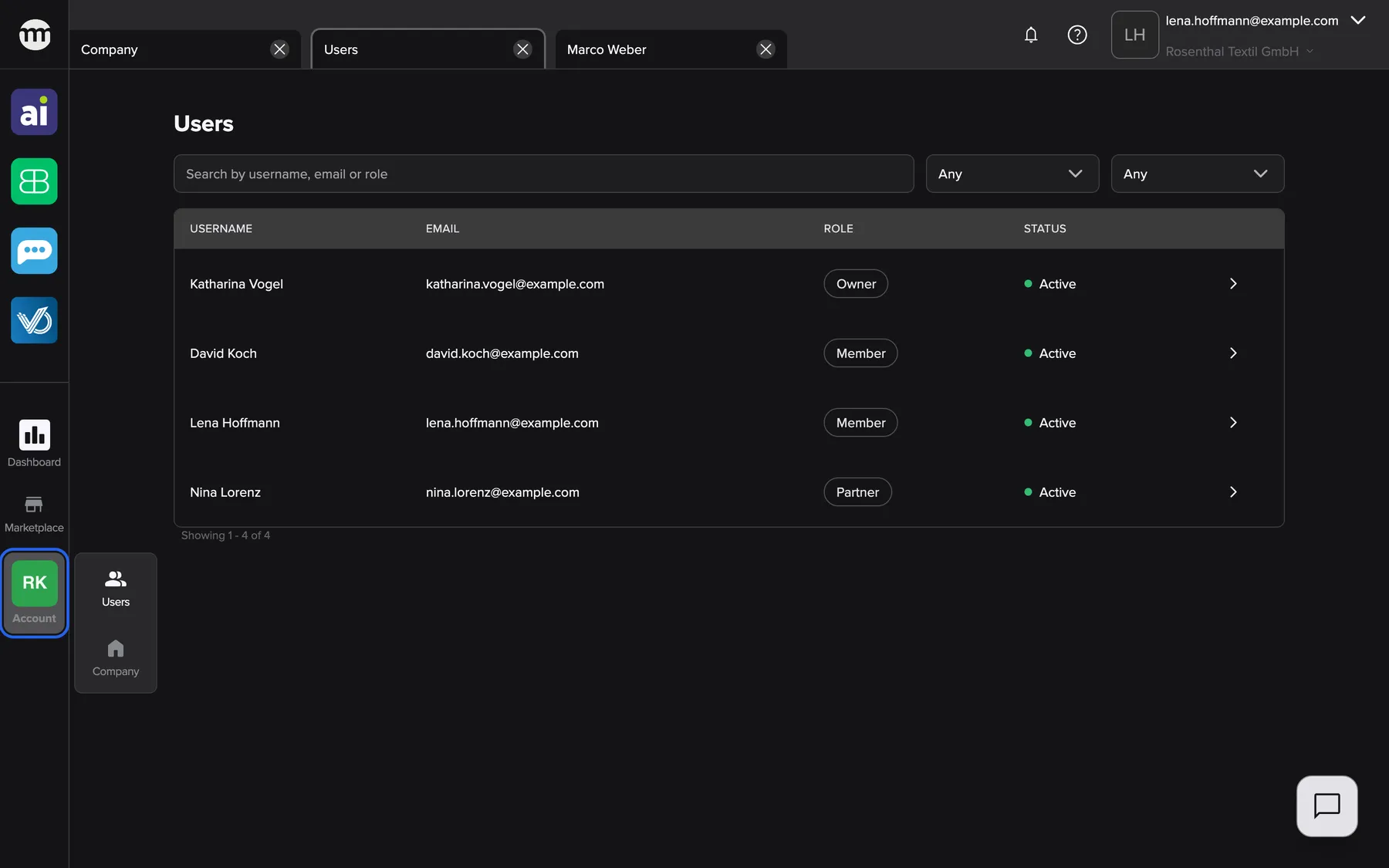
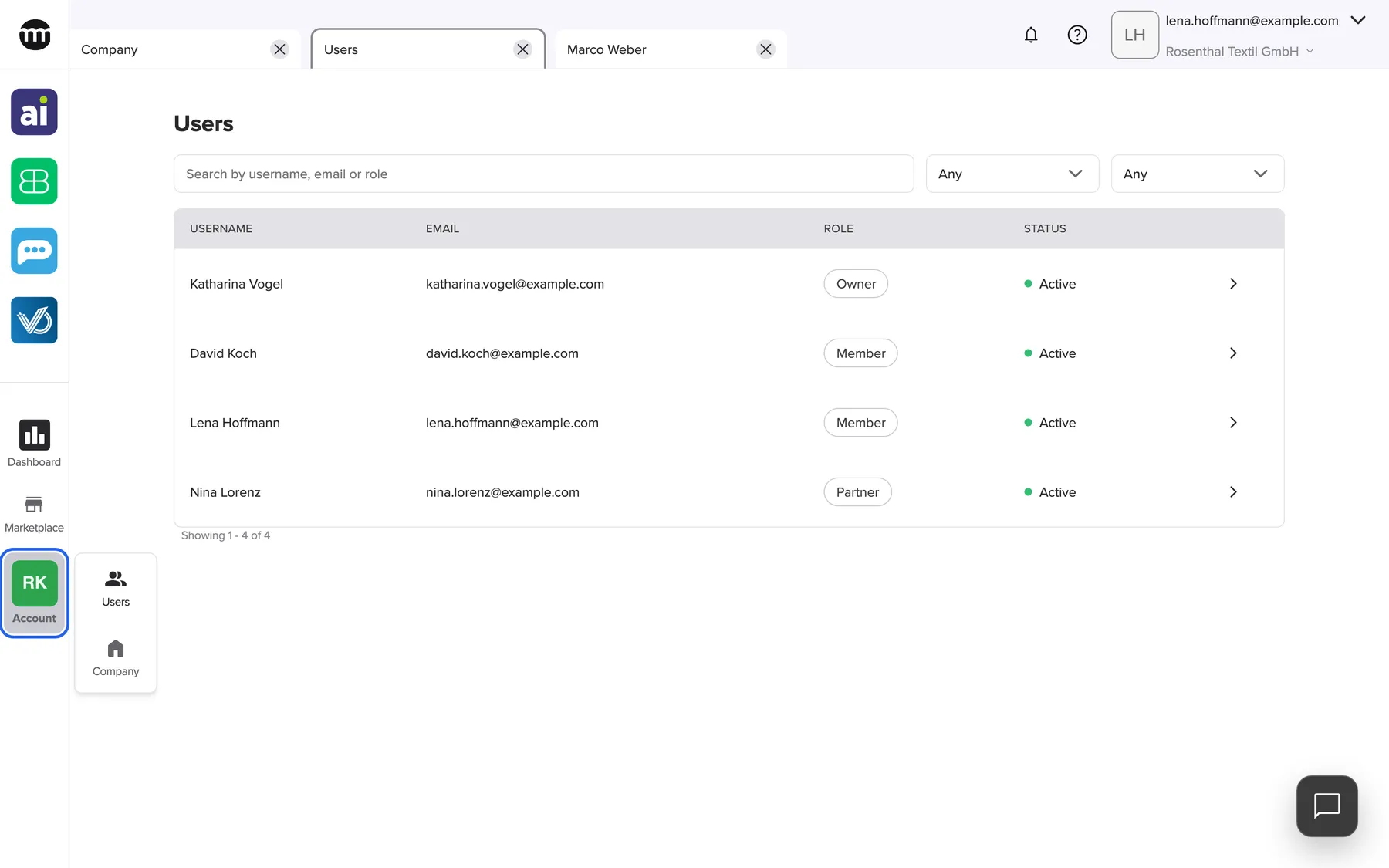
What this screenshot shows
- Screen
- Users
- Highlighted
- “Company menu”: opens the company menu
- Also visible
- Menu with Users and Company only; Users tab without invite button
- Purpose
- what a member sees in the menu
Why: a missing menu entry is the most common sign of a missing permission. Members usually notice it before they see a request-access card.
The owner’s own tab
Section titled “The owner’s own tab”The owner’s tab shows the role as a badge, without status buttons and without permission switches. This holds for everyone, the owner included.
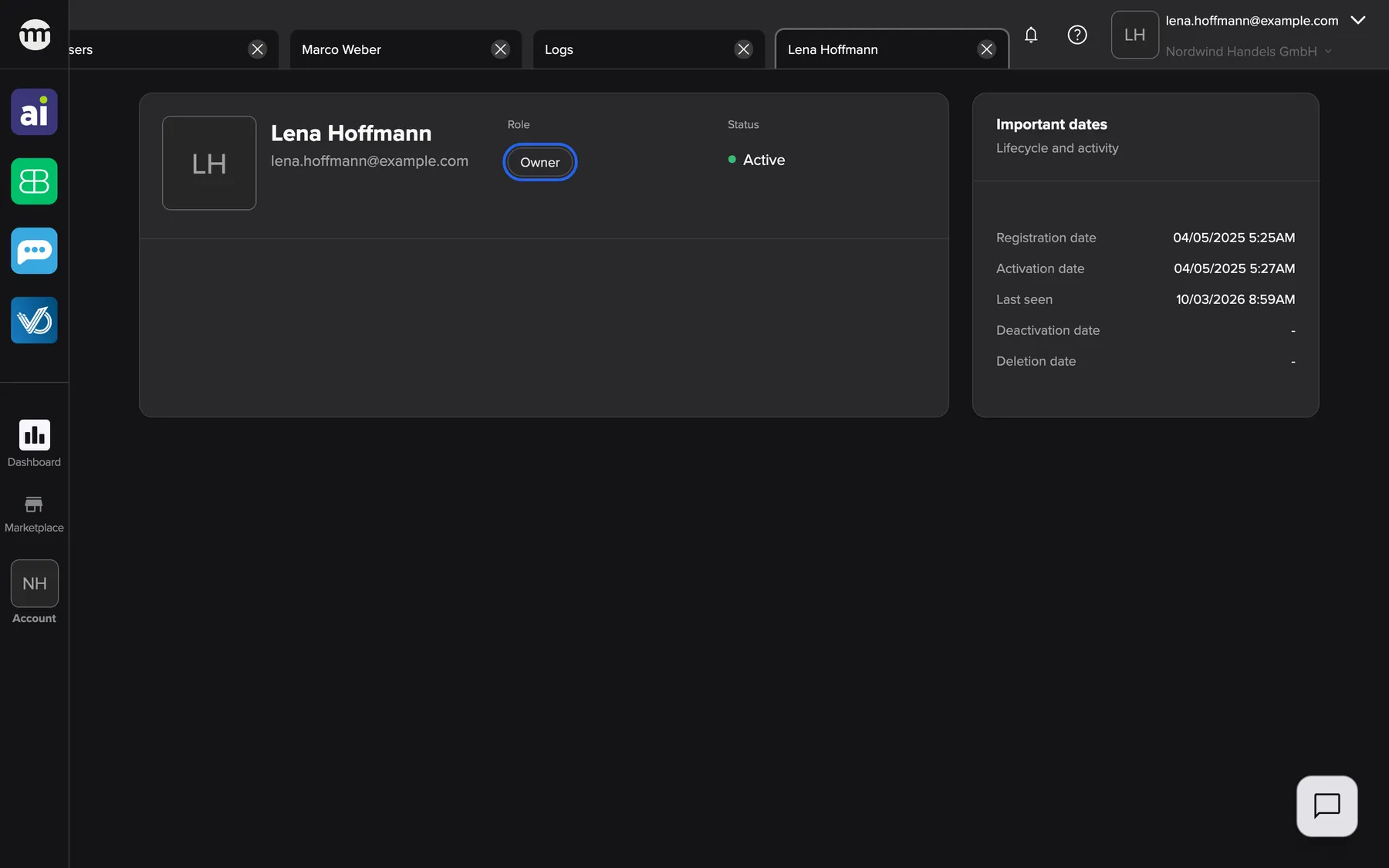
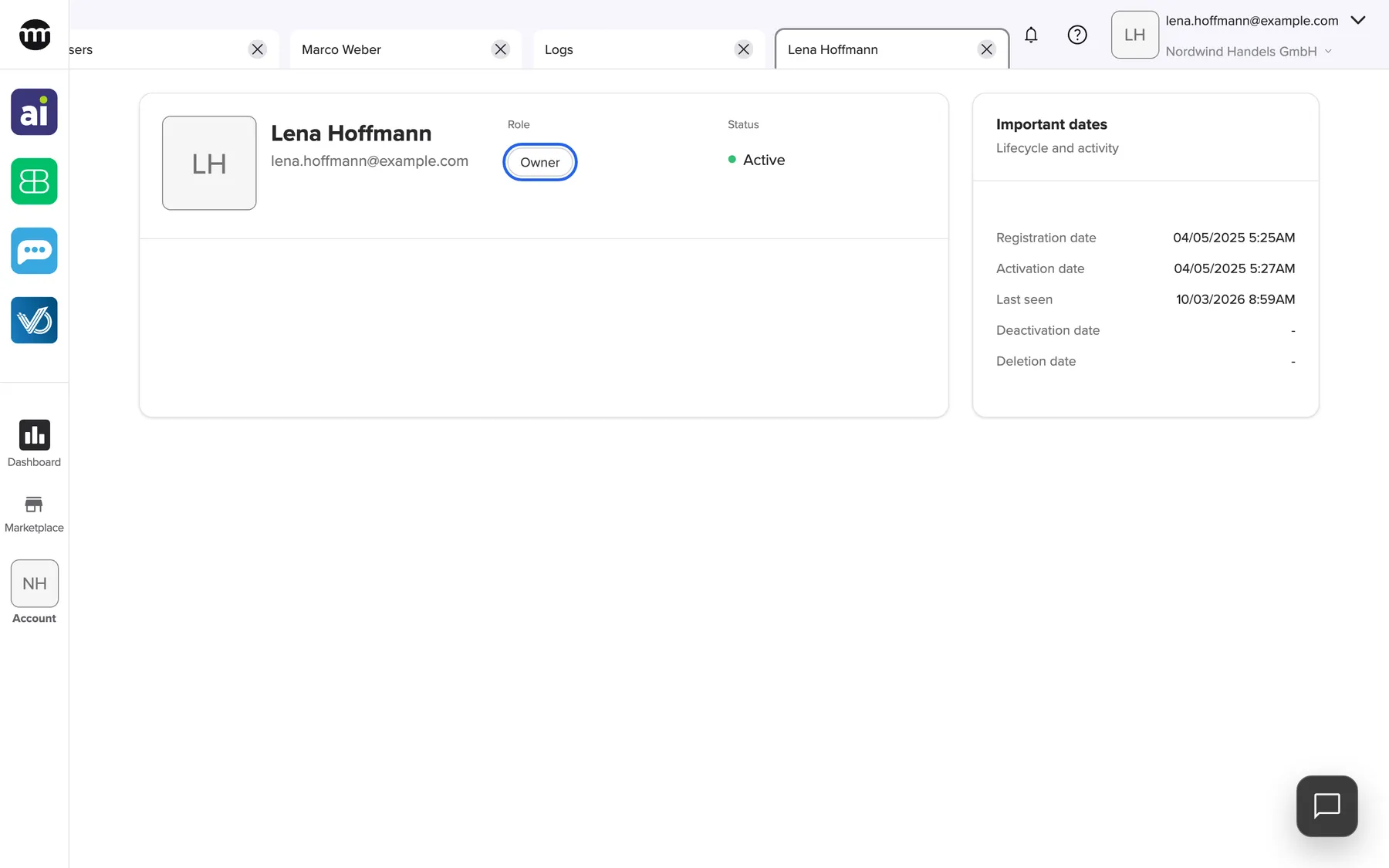
What this screenshot shows
- Screen
- User
- Highlighted
- “Owner”: shows the owner role
- Also visible
- No role select; No status buttons; No Permissions card
- Purpose
- the owner cannot be edited
Why: the owner always holds every permission. Only an ownership transfer from the Company tab changes who the owner is.
Requesting access
Section titled “Requesting access”Any screen a member may not open, such as Logs, Users, Company, a member’s tab or a tool tab. It shows the card You don’t have access to this page. You can request access from your organization admin. with the button Request access.
The button opens Request permission, which names the owner who receives the request. An optional Reason takes up to 128 characters of plain text.
Confirm emails the owner the member’s name, the page and the reason, with a link to the member’s tab. Logs records Permission requested, and the card shows You have requested permission. Nothing changes until someone switches the permission on.
The member does not need to know which of forty switches is missing. The owner sees the page they were blocked on.
- Blocked on Logs → the owner switches on Viewing audit log.
- Billbee icon greyed → the owner switches on Opening Billbee.
- Users tab blocked → the owner switches on Viewing user list.
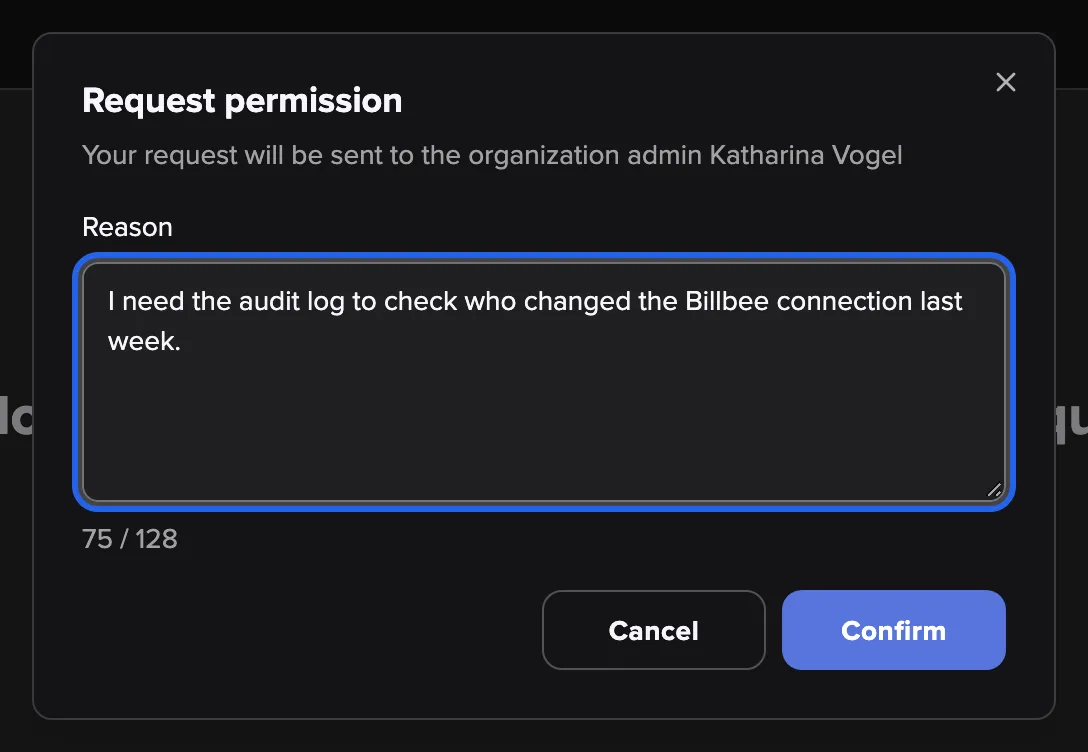
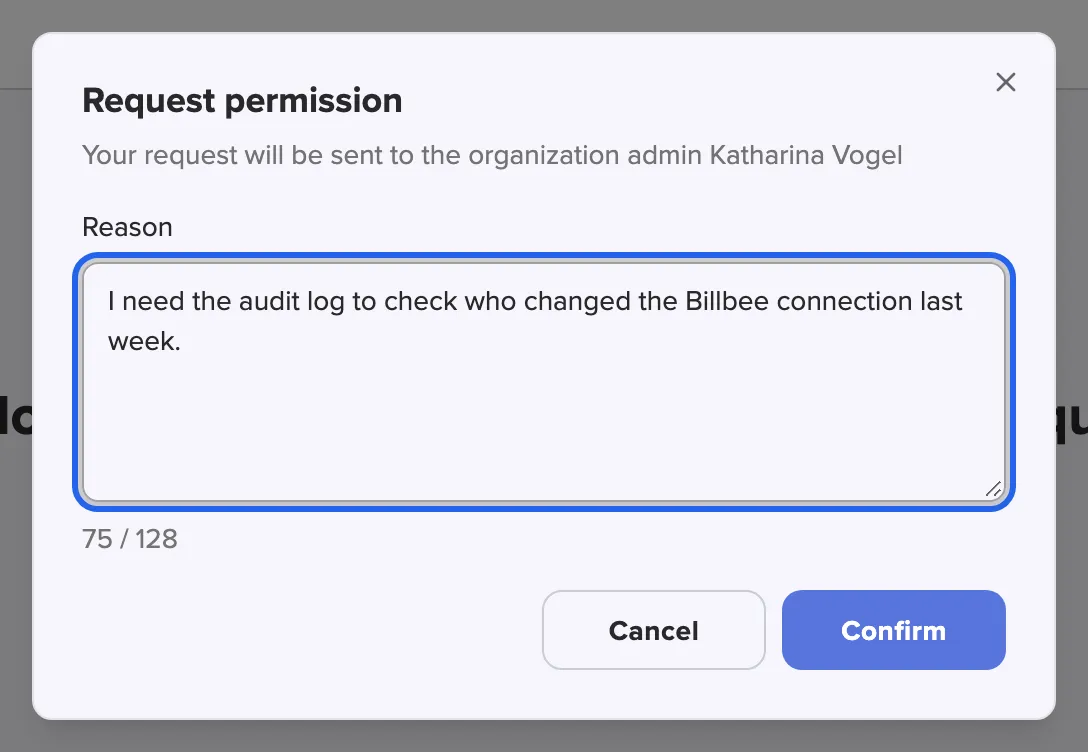
What this screenshot shows
- Screen
- Logs
- Highlighted
- “Reason”: reason sent with the request
- Also visible
- Owner name Katharina Vogel; Character counter out of 128; Confirm button
- Purpose
- request access to a page
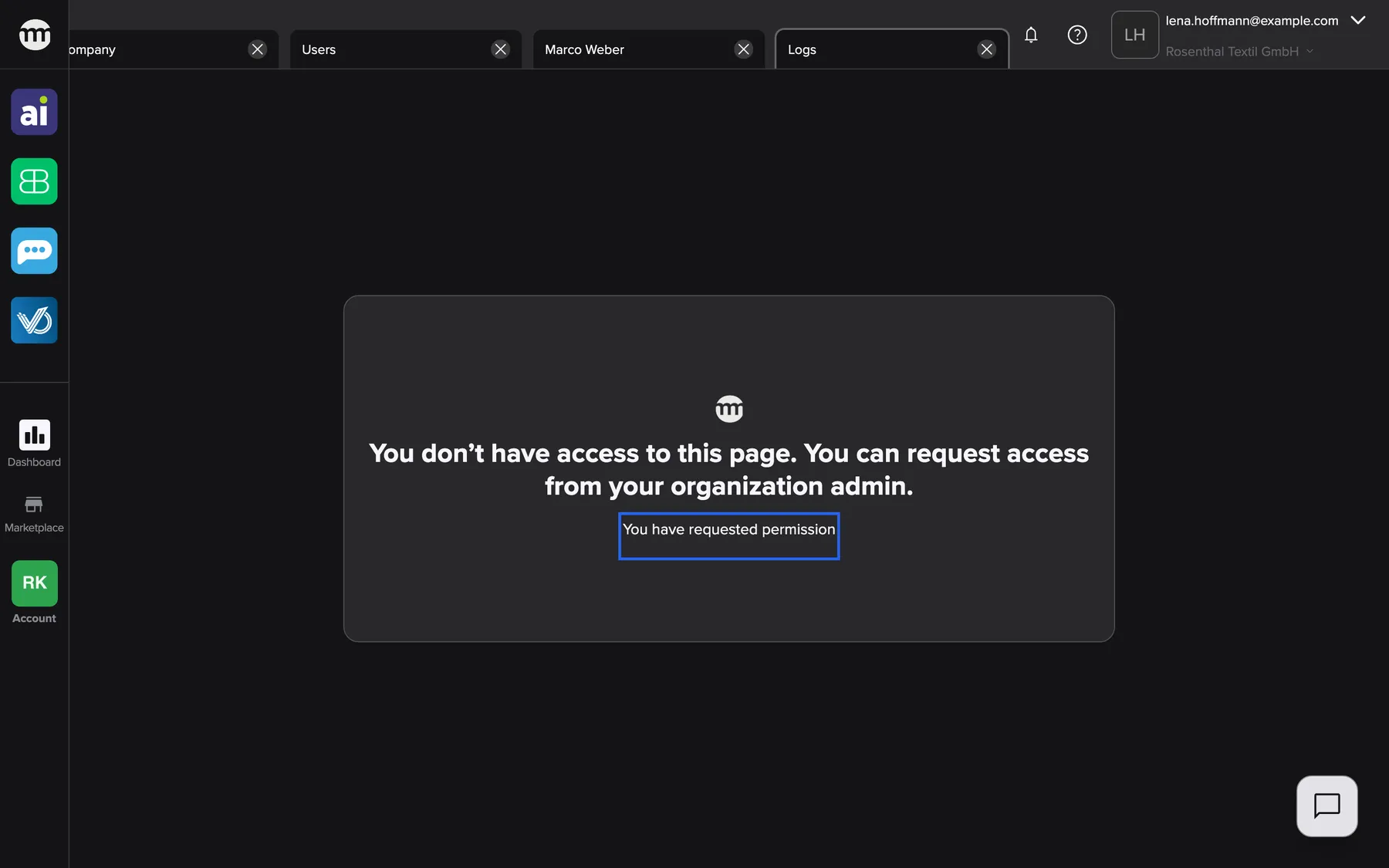
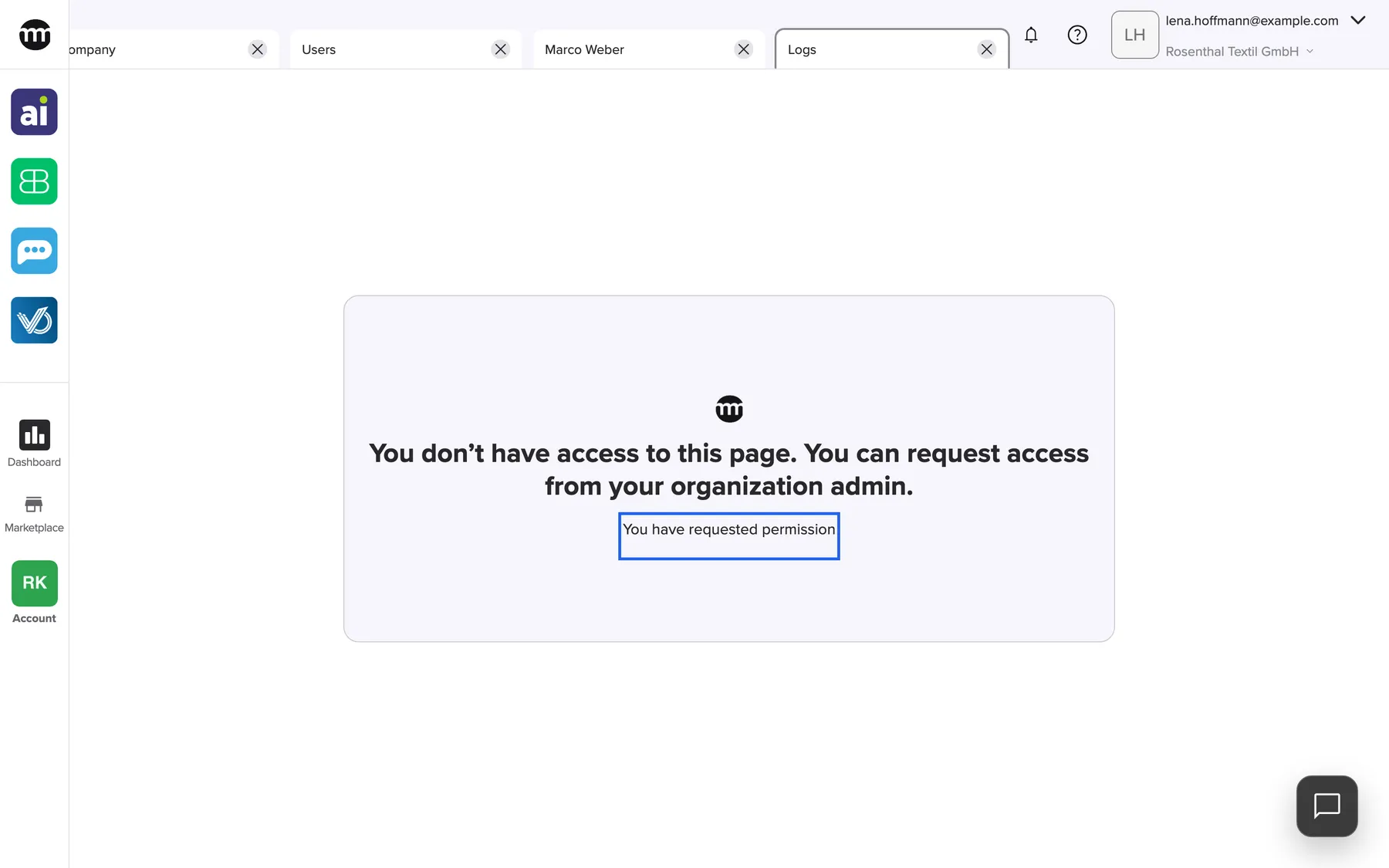
What this screenshot shows
- Screen
- Logs
- Highlighted
- “You have requested permission”: confirms the request was sent
- Also visible
- No-access card; Sidebar without Logs entry
- Purpose
- request sent
Permissions in Logs
Section titled “Permissions in Logs”AccountLogs, event type Edited permissions.
Every saved change of switches or role writes one entry for the member concerned. Its payload lists who edited (EditedByUserEmail), the added and the removed permissions and the saved role. An entry made by comrce support in your account carries the badge Impersonated.
When access is questioned, the log shows exactly who granted it and when.
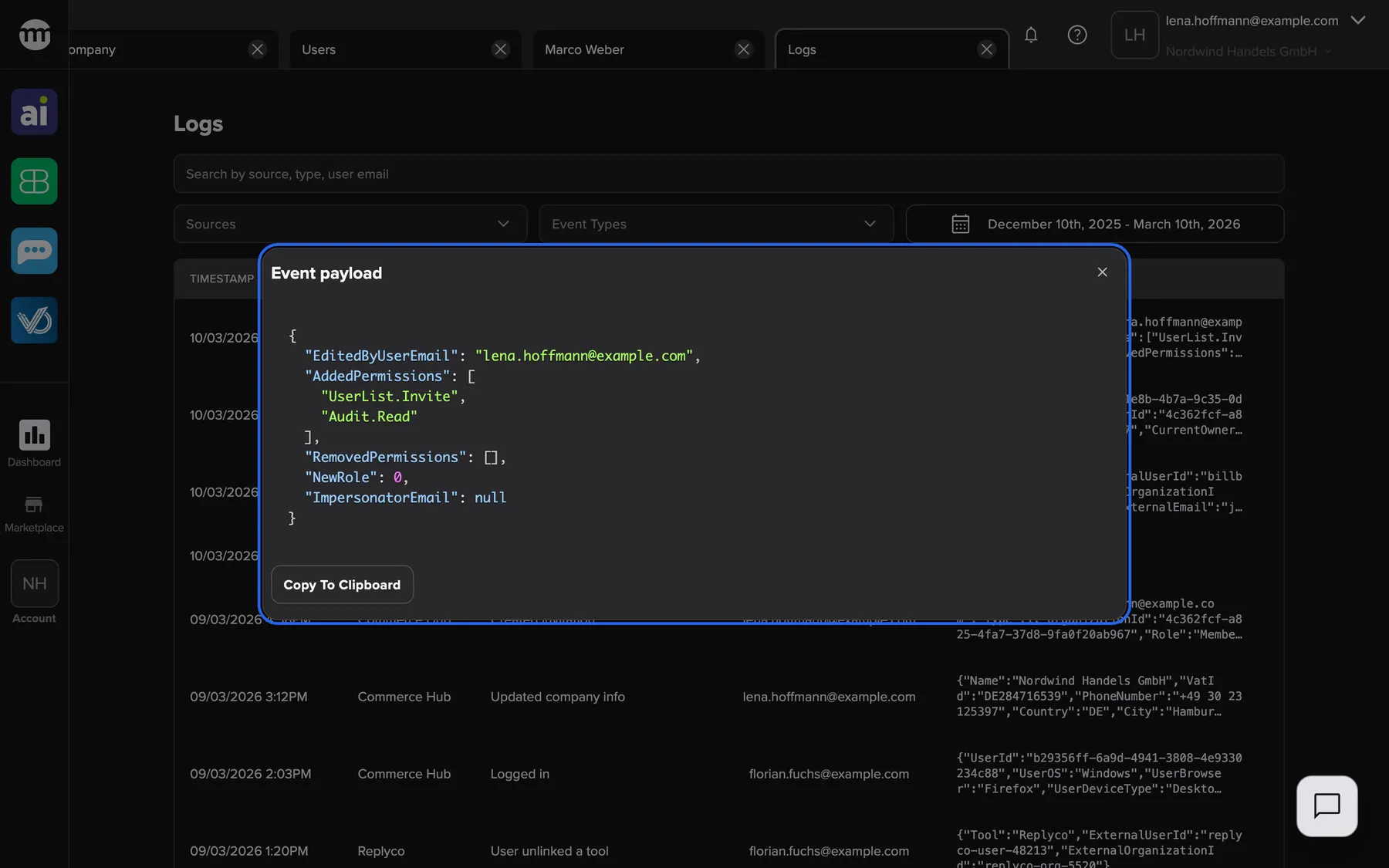
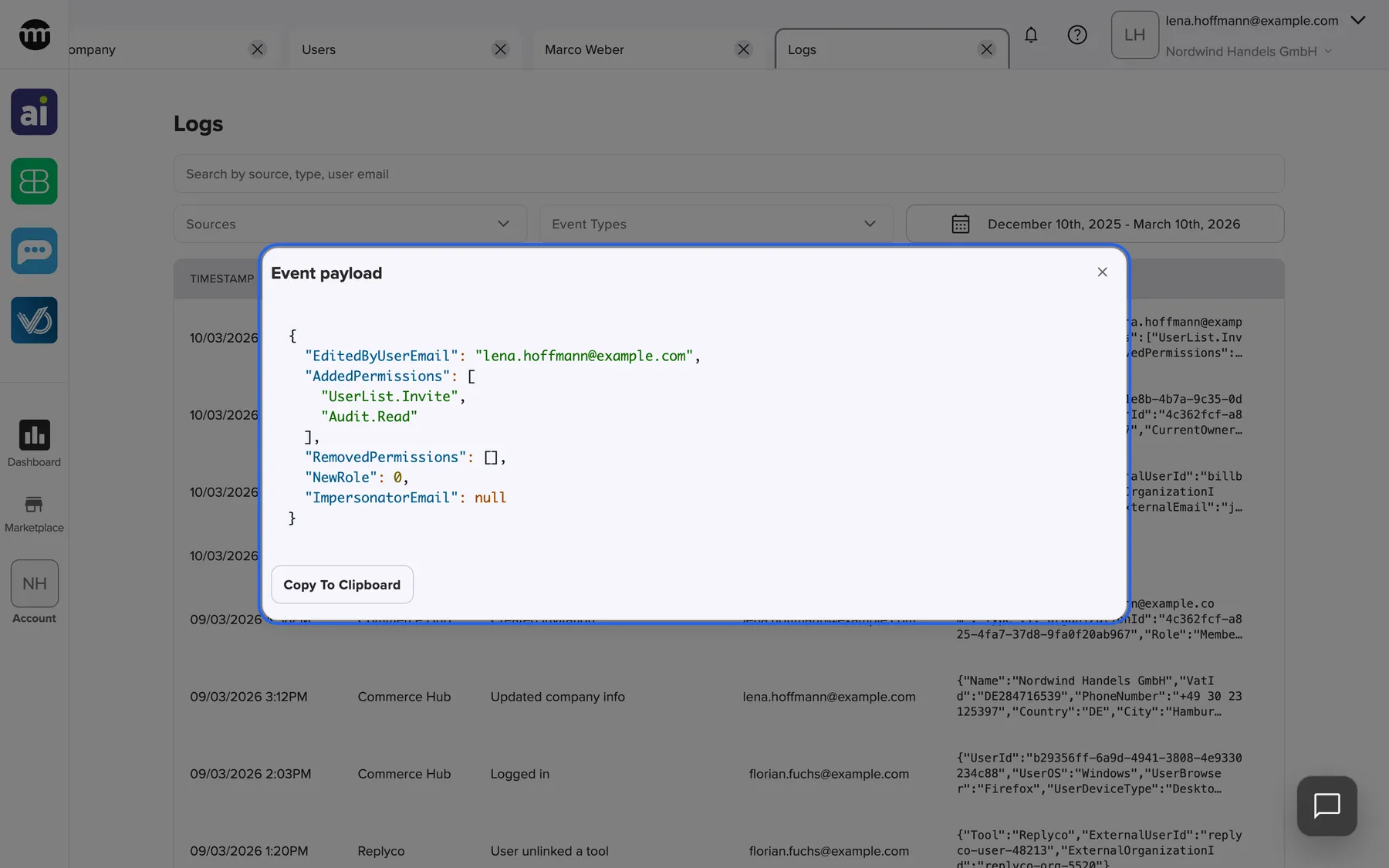
What this screenshot shows
- Screen
- Logs
- Highlighted
- “Event payload”: shows the recorded change
- Also visible
- AddedPermissions with UserList.Invite and Audit.Read; EditedByUserEmail with the address of the person who made the change; Copy to clipboard
- Purpose
- audit trail of permission changes
Permissions in your tools
Section titled “Permissions in your tools”A tool you connect learns the member’s role and every permission switched on for them in your company. This includes the switches comrce Hub itself shows nothing for:
- the alert and enable-or-disable switches of each tool
- Requesting main email change
- Viewing company profile tools
- Resetting payment methods
- Exporting invoices data
- Viewing subscriptions
- Managing subscriptions
- Editing user details
The tool decides what these switches do there. In comrce Hub, permissions control only the menus, buttons and screens described above.
What you need to know
Section titled “What you need to know”
What you need to know
Section titled “What you need to know”| Topic | Fact |
|---|---|
| Scope | Permissions apply to one company. Each membership has its own set. |
| Owner | Exactly one. Has everything, cannot be edited and changes only by transfer. |
| Presets | Applied when a role is chosen or an invitation is accepted. Later preset changes do not affect existing members. |
| When it saves | Only with Save. Unsaved changes trigger a warning when you close the tab or switch company. |
| Effect | Menus and screens update shortly after saving, without a new sign-in |
| Inactive members | Permissions can be saved only for active members |
| Non-owner editors | Can only save switches they hold themselves |
| Audit | Every save is logged with added and removed permissions |
| Request reason | See Requesting access |
Frequently asked questions
Section titled “Frequently asked questions”
Frequently asked questions
Section titled “Frequently asked questions”General
Section titled “General”What is the difference between Member and Partner?
Section titled “What is the difference between Member and Partner?”Member is meant for your employees and can see and open all four tools. Partner is meant for outside partners. It can edit company data but only see the tools, not open them. Both can be adjusted per person on the member’s tab.
Can a company have more than one owner?
Section titled “Can a company have more than one owner?”No. Every company in comrce Hub has exactly one owner. To give someone the same powers, switch on all permissions on their member tab. Or transfer the ownership from the Company tab.
Why can’t I edit the owner’s permissions?
Section titled “Why can’t I edit the owner’s permissions?”The owner always holds every permission, and nobody can change the owner’s role, permissions or status. The owner’s member tab therefore shows the role as a badge and has no permission switches.
Do permissions carry over to my other companies?
Section titled “Do permissions carry over to my other companies?”No. Permissions belong to one membership. If you work for three companies, each has its own role and switches for you. That company’s owner or permission managers set them.
Who can change permissions?
Section titled “Who can change permissions?”The company owner, and members with Editing user permissions. Non-owners can save only switches that are permissions they hold themselves. Nobody can change their own permissions or the owner’s.
Why did the switches change when I picked a role?
Section titled “Why did the switches change when I picked a role?”Choosing a role on a member’s tab replaces every switch with that role’s preset. Nothing is stored until you select Save at the bottom of the Permissions card. Cancel restores the saved state.
Do changed presets update existing members?
Section titled “Do changed presets update existing members?”No. Presets apply only when a role is chosen on a member’s tab or an invitation is accepted. Existing members keep their switches until someone changes and saves them.
I selected Save but nothing changed. Why?
Section titled “I selected Save but nothing changed. Why?”A non-owner cannot save when a switched-on permission is one they do not hold. It also refuses when the member is not active. The refusal shows no message. Ask the company owner to make the change.
Can I give someone permission to manage permissions without making them owner?
Section titled “Can I give someone permission to manage permissions without making them owner?”Yes. Switch on Editing user permissions on their member tab. They can then change other members’ switches, limited to the permissions they hold. They can never change the owner’s switches or their own.
Why is a tool icon grey for a member?
Section titled “Why is a tool icon grey for a member?”The member has the view permission for that tool but not the open permission. Switch on the open switch for that tool on the member’s tab, for example Opening Billbee, and save. The icon then becomes usable.
Why doesn’t a Partner see the tools in colour?
Section titled “Why doesn’t a Partner see the tools in colour?”The Partner preset includes viewing the four tools and their dashboards, but not opening them. Switch on the open permission for the tools the partner should use, on their member tab.
What do the switches do that change nothing in comrce Hub?
Section titled “What do the switches do that change nothing in comrce Hub?”These are the alert and enable-or-disable switches, and seven company and user switches. comrce Hub passes them to the tools you connect, and each tool decides what they do. See Permissions in your tools.
Requesting access
Section titled “Requesting access”What happens when I select Request access?
Section titled “What happens when I select Request access?”A dialog names your company owner and lets you add a reason of up to 128 characters. Sending emails the owner your name, the page and the reason, and records the request in Logs. Your access changes only when someone switches the permission on.
Who receives my access request?
Section titled “Who receives my access request?”Always the company owner, by email, even if other members can manage permissions. The email contains a link to your member tab, where the owner can switch the permission on.
Can I request access to a tool?
Section titled “Can I request access to a tool?”Yes. Opening a tool you may only view shows the request-access card in the tool’s tab. Send the request from there. The owner then switches on the open permission for that tool.
What if sending my access request fails?
Section titled “What if sending my access request fails?”comrce Hub shows Failed to request permission and keeps the dialog Request permission open with your reason. Select Confirm again. The owner gets no email until a request goes through.
Where it is shown
Section titled “Where it is shown”Why is Logs missing from my Account menu?
Section titled “Why is Logs missing from my Account menu?”Logs needs Viewing audit log. Neither the Member nor the Partner preset includes it. Ask your company owner to switch it on, or open Logs and request access there.
Why does the Account button not open a menu?
Section titled “Why does the Account button not open a menu?”The Account button opens its menu only with a view permission for users, the company profile or the audit log. Without any of them it shows only the company logo. Ask your owner for the permission you need.
Data and privacy
Section titled “Data and privacy”Who can see which permissions I have?
Section titled “Who can see which permissions I have?”The company owner and members with Viewing user list can open your member tab. Only the owner and members who may edit permissions see the switches.
Is every permission change recorded?
Section titled “Is every permission change recorded?”Yes. Each save writes an entry of the type edited permissions to Logs. It names who made the change and which permissions were added or removed. The owner and members with Viewing audit log can read it.
Troubleshooting
Section titled “Troubleshooting”
Troubleshooting
Section titled “Troubleshooting”| Symptom | What to check |
|---|---|
| A member says a menu entry is missing | Open their tab. The entry needs its view permission, for example Viewing audit log for Logs. |
| A tool icon is greyed out | The open switch for that tool is off. |
| A member sees You don’t have access to this page. You can request access from your organization admin. | Check which screen. Switch on the matching view permission, or ask them to request access. |
| Saving the switches has no effect | You are not the owner, and the member holds or would get a permission you lack. Or the member is not active. |
| The role field is a plain badge | It is your own tab, the owner’s tab or a deleted member’s. Or you lack Editing user permissions. |
| No Permissions card on a member’s tab | You lack Editing user permissions, or it is your own, the owner’s or a deleted member’s tab. |
| Granted permissions vanished | Someone picked a role afterwards and saved. Check Edited permissions in Logs. |
| An access request never arrived | Requests go to the owner’s email. Check spam, then check Permission requested in Logs. |