

Print Billbee invoices and labels automatically
Print invoices, shipping labels and other documents from Billbee without downloading them. You connect comrce cloudprint in Billbee once. Billbee then forwards the documents to comrce cloudprint automatically, and comrce cloudprint prints them. Printing through comrce cloudprint must already work, so set it up first.
Before you start
Section titled “Before you start”| You need | Where it lives |
|---|---|
| comrce cloudprint, fully set up, with a printer you can print to | Set up comrce cloudprint and your first printer |
| A comrce Hub beta account. The Billbee connection is currently available only to comrce Hub beta users. | comrce Hub |
-
Open Billbee’s printer and cloud storage settings. Open Billbee, for example from its icon in the comrce Hub sidebar, as Open a tool describes. Then go to app.billbee.io/app_v2/settings/cloud/devices and select the plus.
-
Add comrce cloudprint. Select “Comrce Cloud Print hinzufügen”, as Billbee writes it.
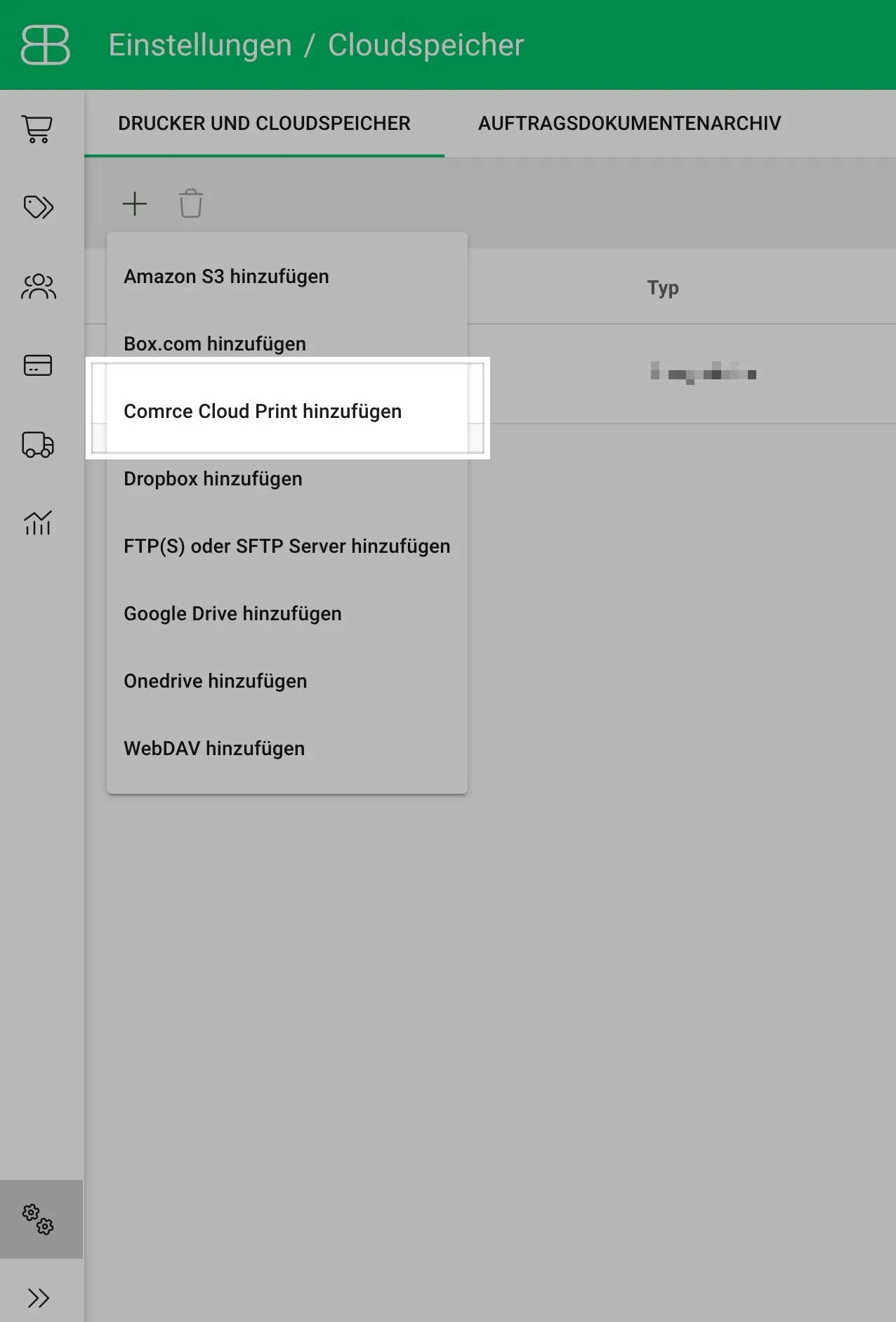
In Billbee, the plus on the "Drucker und Cloudspeicher" tab offers "Comrce Cloud Print hinzufügen".Screenshot from Billbee, checked against the source on October 29, 2026 What this screenshot shows
- Also visible
- Menu of cloud storage connections to add
- Purpose
- start the comrce cloudprint connection in Billbee
-
Grant Billbee access in comrce cloudprint. comrce cloudprint opens “API- Rechte freigeben”. It lists what Billbee may do with your account. Confirm the access there.
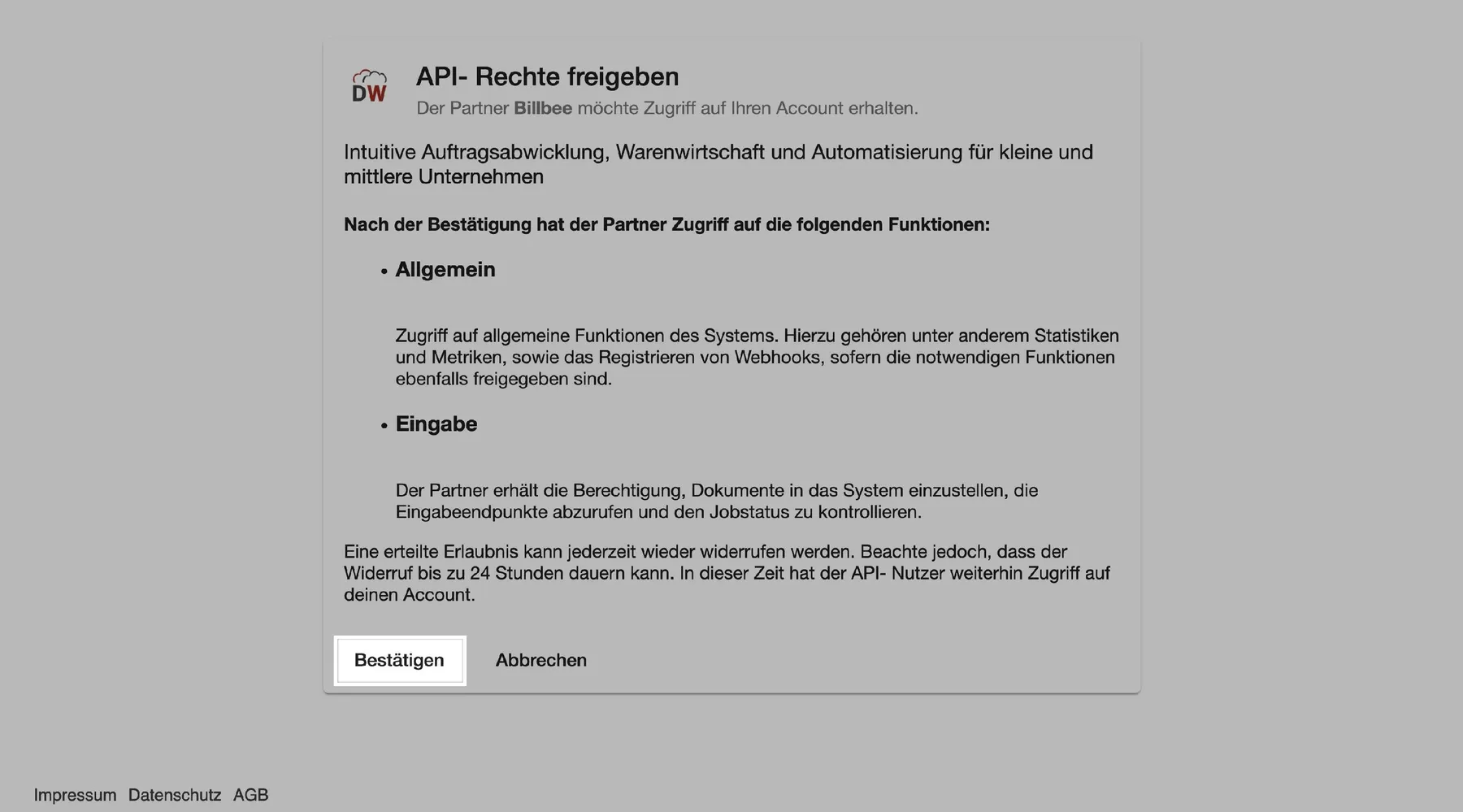
comrce cloudprint lists what Billbee may do. "Bestätigen" grants the access.Screenshot from comrce cloudprint, checked against the source on October 29, 2026 What this screenshot shows
- Also visible
- The functions Allgemein and Eingabe with their explanations; Buttons Bestätigen and Abbrechen
- Purpose
- let Billbee send documents to comrce cloudprint
-
Set up the connection. Back in Billbee, give the connection a name. Under “Warteschlange”, choose a printer from your comrce cloudprint queues. Tick “Als Drucker nutzen” so Billbee uses the selection as a printer. Then save.
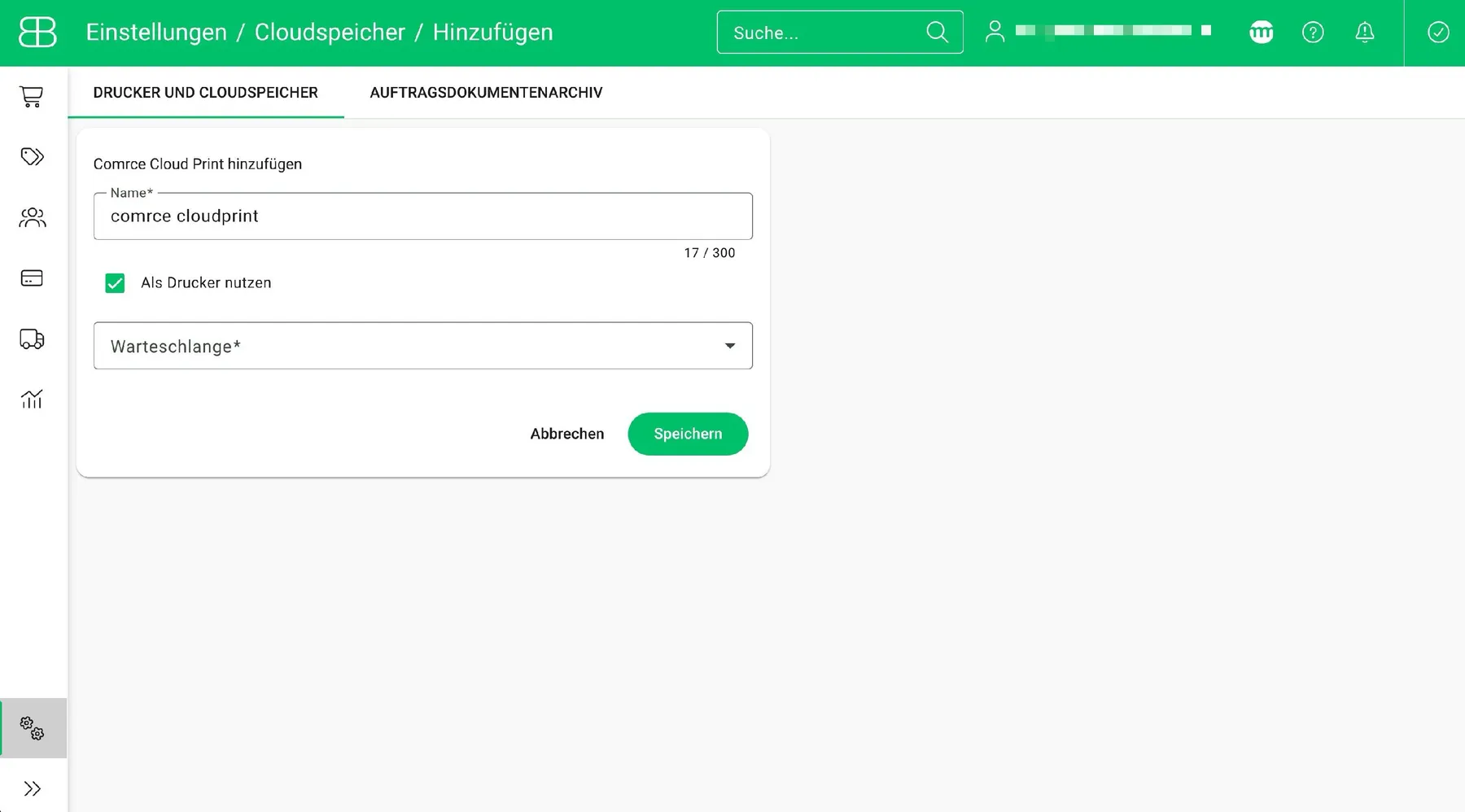
Name the connection, tick "Als Drucker nutzen", choose a "Warteschlange" and save.Screenshot from Billbee, checked against the source on October 29, 2026 What this screenshot shows
- Also visible
- Name field with comrce cloudprint; Checkbox Als Drucker nutzen, ticked; Selection Warteschlange
- Purpose
- set up the comrce cloudprint connection in Billbee
-
Print a test document. In Billbee, tick an order and create an order document with the document icons.
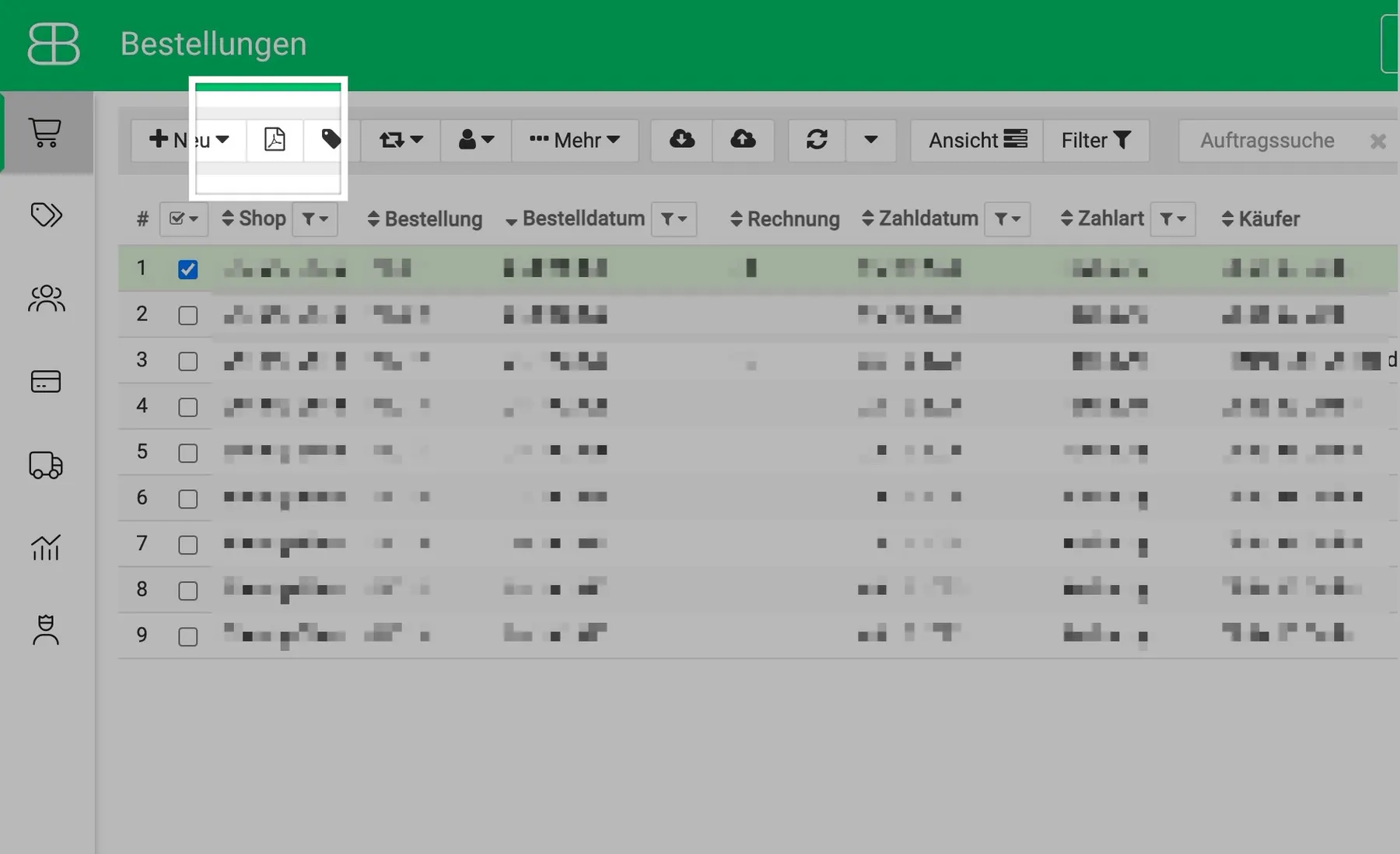
Tick an order in Billbee and use the document icons to create an order document.Screenshot from Billbee, checked against the source on October 29, 2026 What this screenshot shows
- Also visible
- Order list with one order ticked; Document icons in the toolbar
- Purpose
- create a test document in Billbee
Choose your printer as “Ausgabeformat”. Billbee shows the name you gave the connection, in this example “comrce cloudprint”. Select “Dokument(e) erstellen”. Billbee sends the document to comrce cloudprint, and it’s printed.
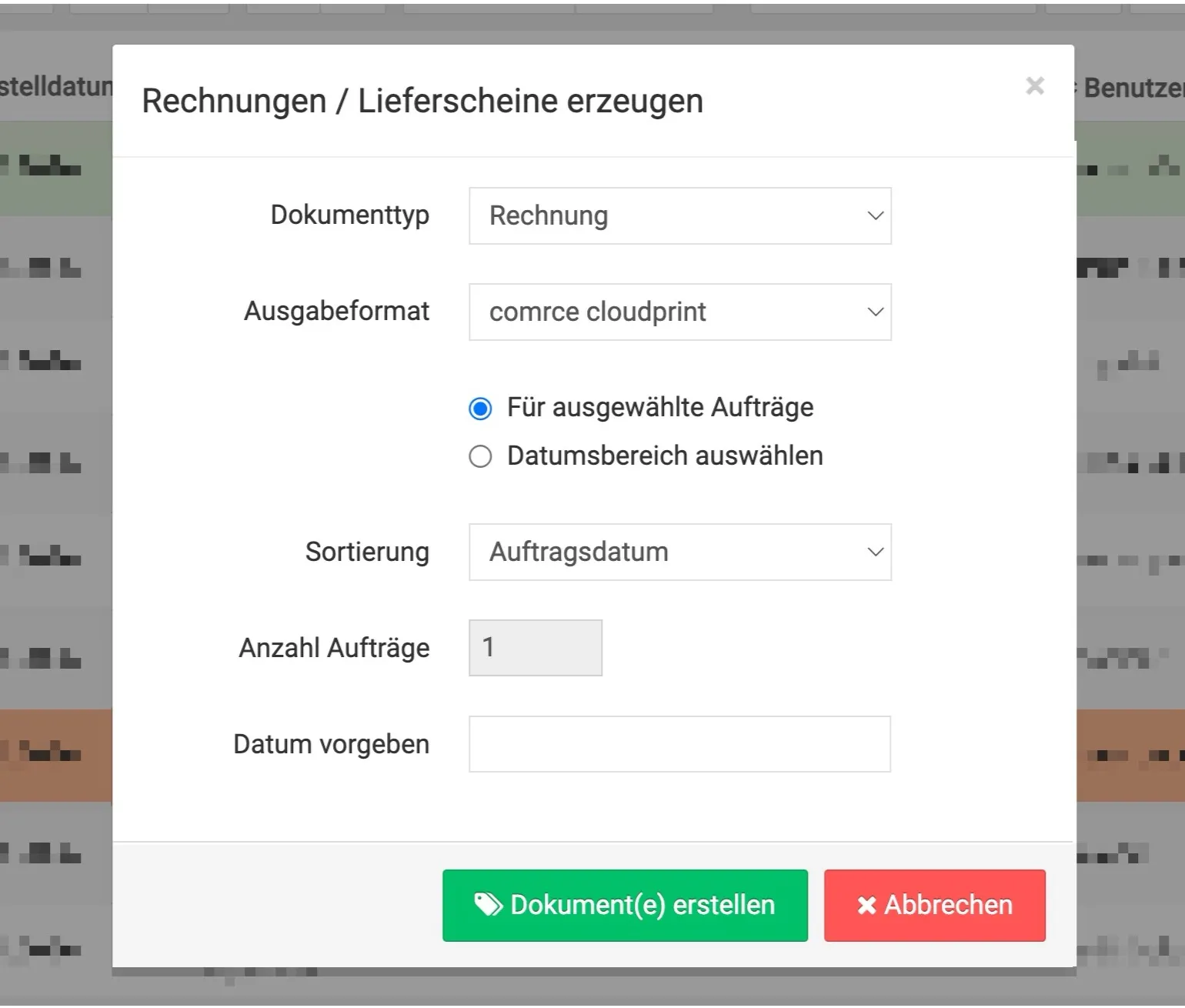
Choose your comrce cloudprint printer as "Ausgabeformat" and select "Dokument(e) erstellen".Screenshot from Billbee, checked against the source on October 29, 2026 What this screenshot shows
- Also visible
- Ausgabeformat set to comrce cloudprint; Button Dokument(e) erstellen
- Purpose
- print a test document through comrce cloudprint
What happens next
Section titled “What happens next”The comrce cloudprint printer is now available in Billbee’s automations and workflows. You can use it in several places in Billbee:
- As the output for shipping labels. Billbee’s guide setting up DHL business shipping shows this for DHL.
- As the output for order documents.
- As the output in automations, for example when shipping or for order documents.