

Service Clients
The Service- Clients (Service Clients) tab lists the computers that print for comrce cloudprint. A Service Client is a small program on such a computer. It fetches your print jobs and sends them to the printers installed there. Here you add one, download its setup and see whether it’s online. Open the tab with Service- Clients in the red bar.
What you can do here
Section titled “What you can do here”- Add a Service Client and download its setup. You give it a name, and comrce cloudprint builds a Windows setup for it. Add a Service Client
- See which computers are online. The status shows a tick while the Service Client is in contact, and when it last was. Check whether a Service Client is online
- Update an old Service Client. A red version number with a download arrow means a newer setup exists. Update a Service Client
- Switch a Service Client off, on or delete it. Deleting it also removes its printers. Switch off or delete a Service Client
The screen at a glance
Section titled “The screen at a glance”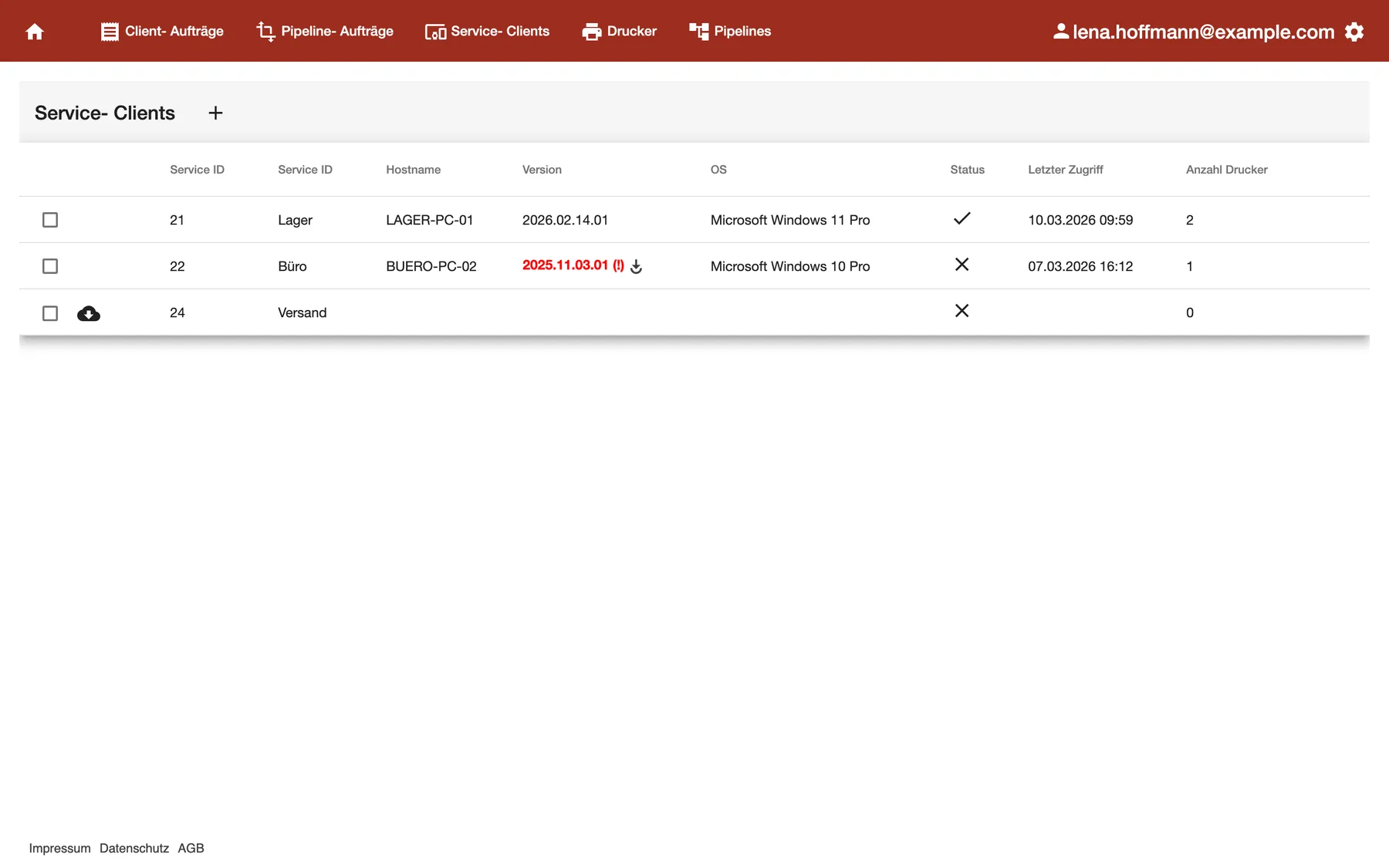
What this screenshot shows
- Screen
- Service- Clients
- Also visible
- 3 Service Clients: Lager online, Büro offline, Versand not installed yet; Büro's version in red with (!) and a download arrow
- Purpose
- see which computers print for comrce cloudprint
| Region | What it shows | What you do there |
|---|---|---|
| Heading with + | Service- Clients and the button to add one | Add a Service Client |
| Checkbox and download button | A box to select the row; a cloud button while a new setup is ready to download | Select rows, download a setup |
| First Service ID column | The Service Client’s number in comrce cloudprint | Quote it to support |
| Second Service ID column | The name you gave the Service Client | Recognise your computers |
| Hostname, Version and OS | The computer’s name, the installed version and Windows edition | Spot an outdated version |
| Status and Letzter Zugriff | Online or not, and the last contact | Check that printing works |
| Anzahl Drucker | How many printers the computer reported | Check that every printer arrived |
Add a Service Client
Section titled “Add a Service Client”- Select + next to the heading Service- Clients. The dialog Service- Client hinzufügen opens.
- Enter a Name, for example the place of the computer such as Versand. Leave Typ on Windows.
- Select Ok. The new row appears in the list, and comrce cloudprint starts building the setup.
- When the setup is ready, a cloud button appears at the start of the row. Select it to download the setup, then run it on the computer.
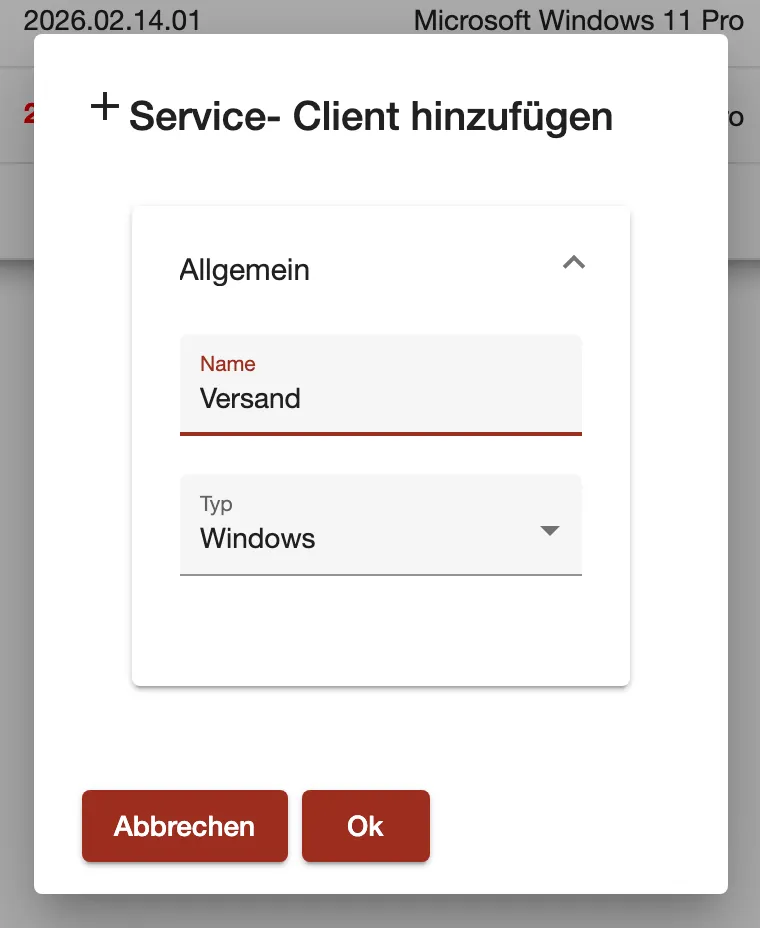
What this screenshot shows
- Screen
- Service- Clients
- Also visible
- Name: Versand; Typ: Windows
- Purpose
- add a Service Client
The setup belongs to this one row. It registers one computer, and it must be installed within 7 days. After registration the computer’s name, version and Windows edition fill in. Installing on Windows step by step is in Set up comrce cloudprint and your first printer.
Is the name already taken by another Service Client? Then comrce cloudprint adds an underscore and 20 random characters.
Check whether a Service Client is online
Section titled “Check whether a Service Client is online”The Status column shows a tick when the Service Client was in contact during the last 5 minutes. A cross means no contact for longer, or a new Service Client that isn’t installed yet. Letzter Zugriff shows the date and time of the last contact.
Example: on 10 March at 10:00, Lager shows a tick and 09:59. Büro shows a cross and 07.03.2026 16:12: that computer has been off since Saturday afternoon. Its printer Büro Farbdrucker gets no jobs until it’s back.
Update a Service Client
Section titled “Update a Service Client”A red version number with (!) and a download arrow means a newer Windows setup exists. Select the arrow, download the setup and run it on that computer. The marker appears only for Windows Service Clients that have been in contact at least once.
Switch off or delete a Service Client
Section titled “Switch off or delete a Service Client”Tick the checkbox of one or more rows. Buttons appear next to the heading.
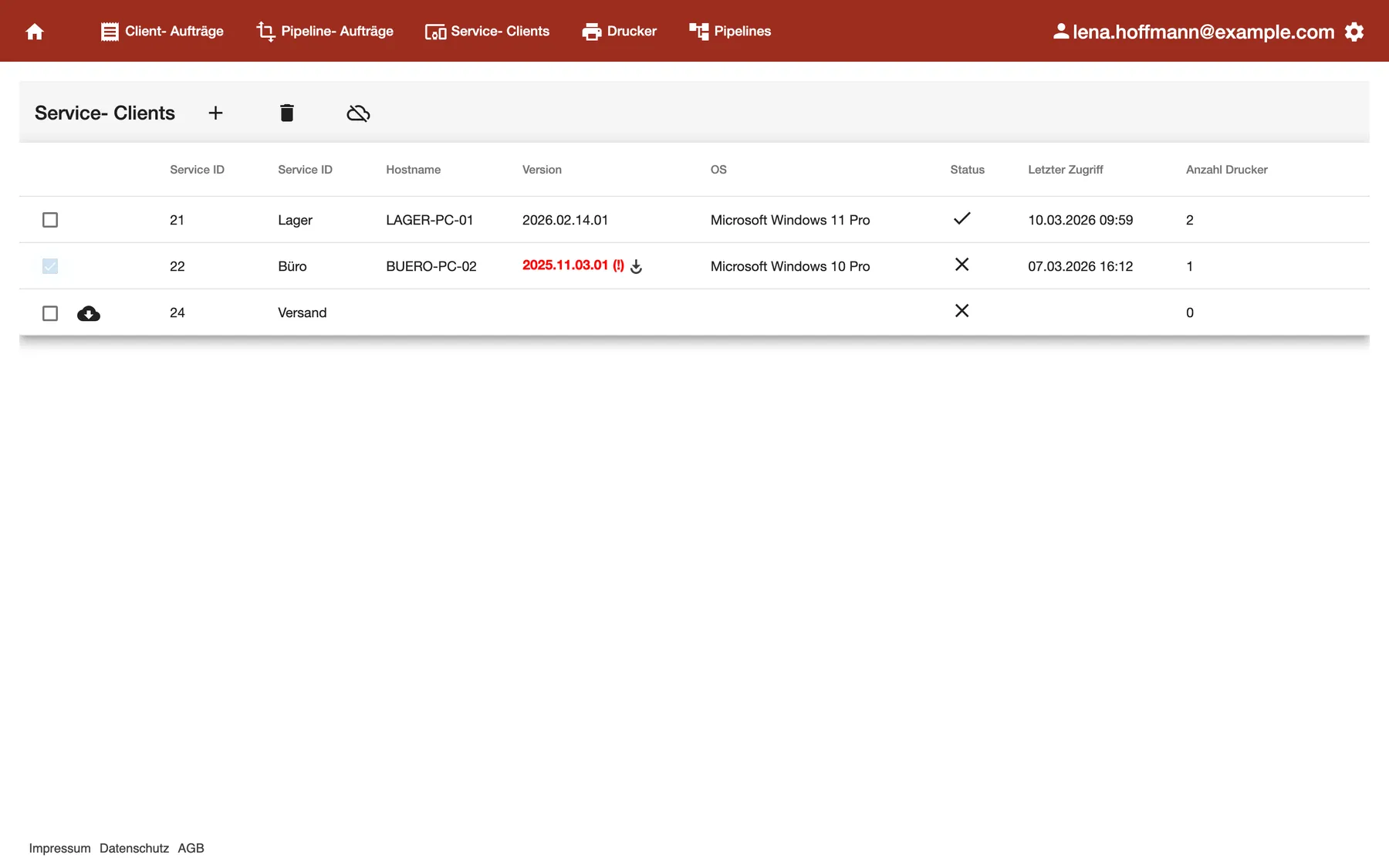
What this screenshot shows
- Screen
- Service- Clients
- Also visible
- Büro ticked; Bin and crossed-out cloud next to the heading
- Purpose
- switch off or delete a Service Client
- Switch off with the crossed-out cloud. A switched-off Service Client gets no jobs, and the status shows the crossed-out cloud. Select the row and the cloud button to switch it on again.
- Delete it for good with the bin. comrce cloudprint asks first.
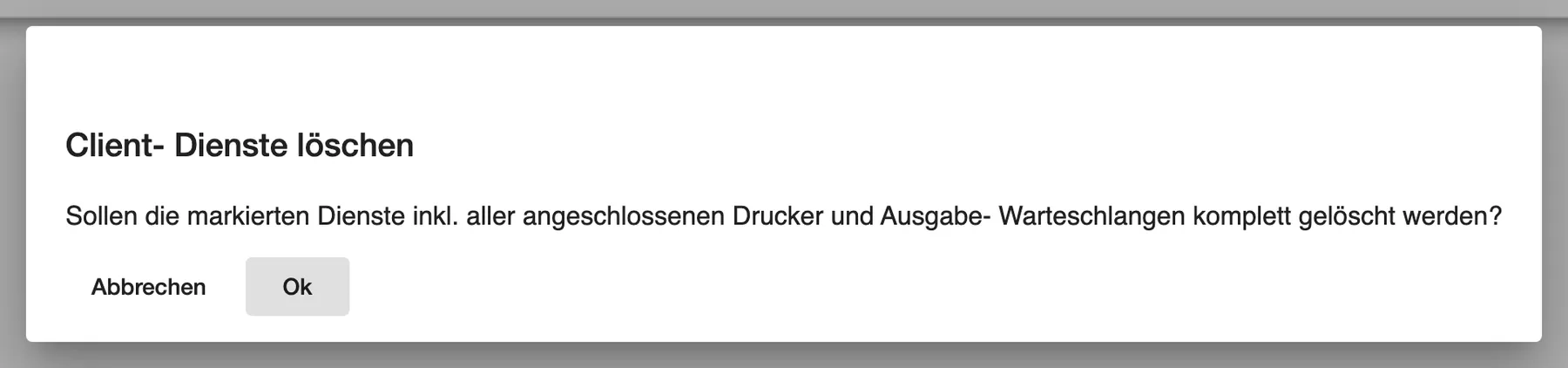
What this screenshot shows
- Screen
- Service- Clients
- Also visible
- Title Client- Dienste löschen with buttons Abbrechen and Ok
- Purpose
- confirm deleting a Service Client
Every control, explained
Section titled “Every control, explained”
Every control, explained
Section titled “Every control, explained”Status
Section titled “Status”Status column of the list.
- Tick: online, as described in Check whether a Service Client is online.
- Cross: offline, or never installed.
- Crossed-out cloud: switched off.
A cross on a computer that should print is the first thing to check when jobs stay waiting.
Setup download
Section titled “Setup download”The cloud button at the start of a row, next to the checkbox.
Appears when the setup for a new Service Client is ready. It stays for 5 days after you added the row, or until the setup registers a computer.
The setup carries the key that connects the computer to this Service Client. That’s why it’s offered only for a short time.
Version
Section titled “Version”Version column.
The version the Service Client reported. In red with (!) and a download arrow when a newer Windows setup exists.
Newer versions fix problems. Update when you see the red marker.
Dialog Service- Client hinzufügen, list Typ.
Windows builds a Windows setup. Linux shows access data once, in a message titled Clientservice Zugangsdaten. Write them down, because they aren’t shown again. MacOS asks for the Service Register Key of a Mac client.
The setup guides describe Windows. Choose Windows unless comrce support tells you otherwise.
Switch off and on
Section titled “Switch off and on”Crossed-out cloud and cloud button next to the heading, after you tick rows.
Switching off stops jobs to the Service Client and keeps it with its printers. Switching on lets it receive jobs again.
Pause a computer that is being repaired, without losing its printers. A switched-off Service Client also doesn’t count as an additional service on your start page.
Other controls on this page
| Control | What it does | Why |
|---|---|---|
| + | Opens Service- Client hinzufügen | Add a computer |
| Bin | Deletes the selected Service Clients after you confirm | Remove a computer for good |
| Abbrechen | Closes the dialog without adding anything | Change your mind |
| Column headers | Sort the list | Find a computer in a long list |
Frequently asked questions
Section titled “Frequently asked questions”
Frequently asked questions
Section titled “Frequently asked questions”General
Section titled “General”What is a Service Client?
Section titled “What is a Service Client?”A Service Client is a small program on a computer in your company. It fetches print jobs from comrce cloudprint and sends them to the printers installed on that computer. You add it on the Service Clients tab and install its setup on the computer.
Why are there two Service ID columns?
Section titled “Why are there two Service ID columns?”The Service Clients list has two columns with the same header. The first shows the Service Client’s number in comrce cloudprint. The second shows the name you gave it when you added it.
How many Service Clients can I add?
Section titled “How many Service Clients can I add?”The Service Clients tab sets no limit. Your plan includes a number of Service Clients. Each additional one that was online during the last 7 days counts under Zusätzliche Dienste on the start page.
How long can I download the setup?
Section titled “How long can I download the setup?”On the Service Clients tab, a new Service Client’s download button stays for 5 days. It disappears earlier when the setup registers a computer. Install the setup within 7 days, or add a new Service Client.
Can I install one setup on two computers?
Section titled “Can I install one setup on two computers?”No. A setup registers one computer, once. For a second computer, add another Service Client on the Service Clients tab and download its own setup.
Why did my Service Client get a long name with an underscore?
Section titled “Why did my Service Client get a long name with an underscore?”Another Service Client already had that name. So comrce cloudprint added an underscore and 20 random characters. Choose a distinct name, such as the room or the computer, when you add one.
Day to day
Section titled “Day to day”When does a Service Client count as online?
Section titled “When does a Service Client count as online?”The Service Clients tab shows a tick when the Service Client was in contact during the last 5 minutes. After 5 minutes without contact the tick turns into a cross. Letzter Zugriff shows the time of the last contact.
What’s the difference between switching off and deleting?
Section titled “What’s the difference between switching off and deleting?”Switching off on the Service Clients tab pauses the computer: no jobs go to it, but it keeps its printers. Deleting removes it, and its printers disappear from the Drucker tab. You can switch a Service Client back on, but you can’t undo a deletion.
How do I update a Service Client?
Section titled “How do I update a Service Client?”On the Service Clients tab, a red version with (!) and a download arrow means a newer Windows setup exists. Select the arrow, download the setup and run it on that computer.
Troubleshooting
Section titled “Troubleshooting”
Troubleshooting
Section titled “Troubleshooting”| Symptom | What to check |
|---|---|
| No download button appears after adding a Service Client | Building the setup takes a moment. Reload the page. If the button still doesn’t appear, add the Service Client again. |
| Die Erstellung einer Setup- Datei ist fehlgeschlagen. | comrce cloudprint couldn’t build the setup. Delete the row and add the Service Client again. |
| The status stays a cross after installing | Is the computer on and connected to the internet? Was the setup installed within 7 days? Check the service on Windows: Service Client troubleshooting on Windows. |
| Anzahl Drucker shows 0 | Install the printers in Windows on that computer. The Service Client reports them to comrce cloudprint. |
| The version is red | Download the newer setup with the arrow and install it on the computer. |