

Filters and conditions
A condition decides whether a job goes on in its branch of the pipeline. If the condition is met, the job continues to the next step. If not, the job stops in this branch. Other branches of the pipeline aren’t affected. You add a condition with the step Bedingung (condition), as Pipelines and their steps shows.
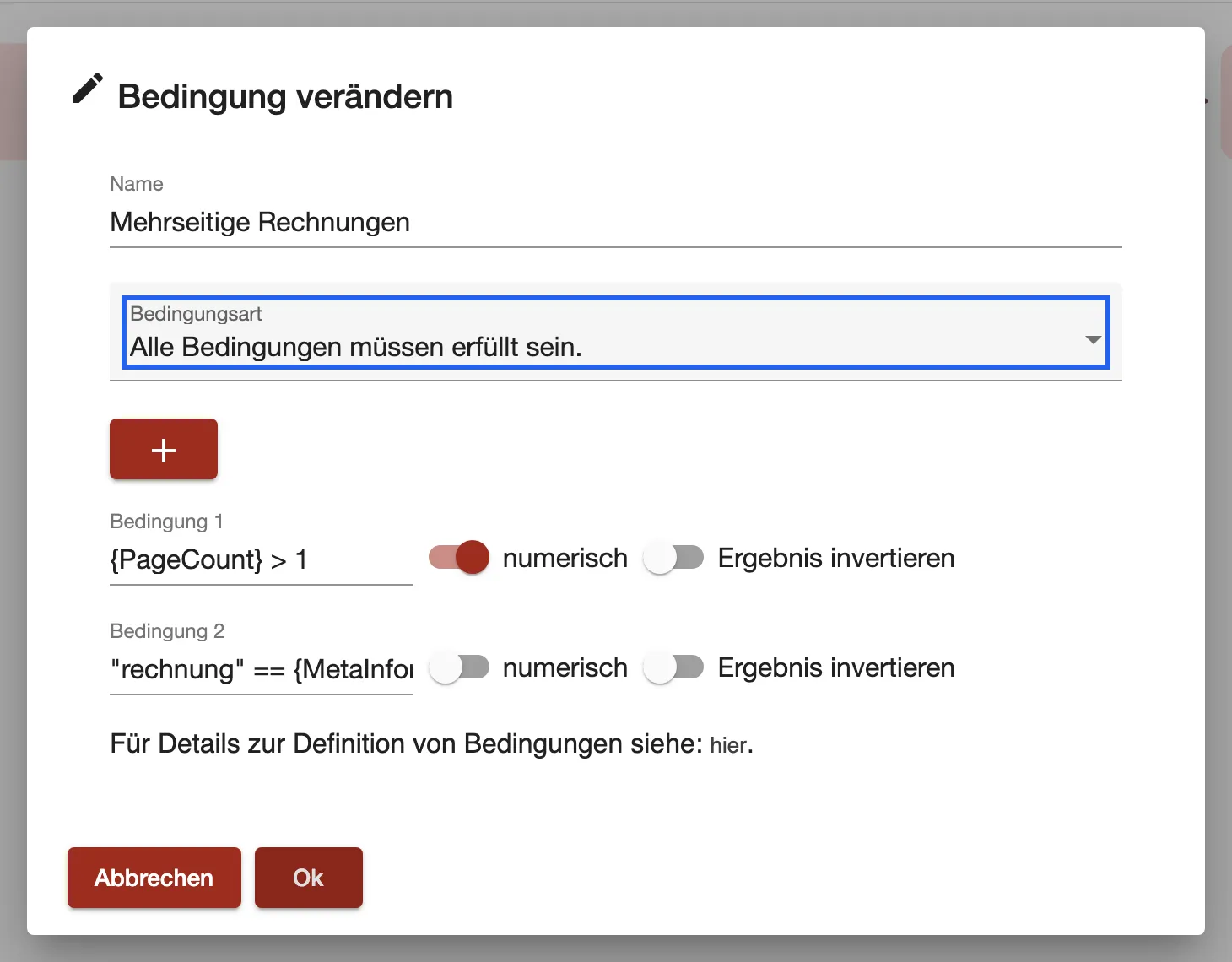
What this screenshot shows
- Highlighted
- decides whether one rule or all rules must be met
- Also visible
- Bedingungsart: all rules; A numeric rule and a text rule; Switches numerisch and Ergebnis invertieren per rule
- Purpose
- set up a condition
Set up a condition
Section titled “Set up a condition”- In Name, enter what the step should be called.
- Choose the Bedingungsart (condition type).
- Write the first rule in “Bedingung 1” (rule 1). The plus adds a further rule, as many as you need.
- Set the two switches of each rule, then select Ok.
The condition type decides how many rules must be met:
| Bedingungsart | The job goes on when |
|---|---|
| Alle Bedingungen müssen erfüllt sein. | every rule is met |
| Eine der Bedingungen muss erfüllt sein. | at least one rule is met |
A new condition starts with Eine der Bedingungen muss erfüllt sein..
Rule syntax
Section titled “Rule syntax”There are two kinds of rules, numeric and text. The switch numerisch (numeric) decides which one a rule is. Both can use placeholders. Write placeholders exactly as listed, including upper and lower case.
Numeric rules
Section titled “Numeric rules”Turn on numerisch for a rule that calculates and compares numbers. Use placeholders that return numbers, such as {PageCount}.
| Operators | Meaning |
|---|---|
+ - * / and ( ) | Calculate |
= == != | Equal, equal, not equal |
< > <= >= | Compare |
&& || | And, or |
For example, {PageCount} = 20 checks whether the document has 20 pages. {PageCount} > 1 lets through every document with more than one page.
Text rules
Section titled “Text rules”Turn off numerisch for a rule that compares two texts. A text rule has exactly one == (equal) or != (not equal), with one text on each side.
- Put every text you type in double quotes:
"rechnung". - Write placeholders without quotes. comrce cloudprint adds them when it inserts the value.
- A text can’t contain an equals sign.
You can change a text before comparing it. Add the function after the text, separated by a full stop:
| Function | What it does |
|---|---|
.LowerCase | Lower case |
.UpperCase | Upper case |
.Trim | Removes spaces at the start and end |
.SubString[start,length] | Takes part of the text. Counting starts at 0 |
For example, this rule checks whether the field UserName in the meta information holds “bcd”:
"abcdef".LowerCase.SubString[1,3] == {MetaInformation.UserName}Invert the result
Section titled “Invert the result”The switch Ergebnis invertieren (invert result) reverses a rule. The rule {PageCount} = 20 then lets through every document that doesn’t have 20 pages.
When a rule can’t be checked
Section titled “When a rule can’t be checked”A rule that comrce cloudprint can’t evaluate counts as not met. That happens with a typo or a text rule without == or !=. It also happens with a meta information field the job doesn’t have. Ergebnis invertieren doesn’t change that.