

A user's details and permissions
Someone changed jobs, joined a new team or left? Every member of your company has a tab of their own in comrce Hub. That’s where you match their access to the job. It shows their role, status, important dates and permissions in this company.
Here you change the role and the permissions, and deactivate, activate or delete the membership. Open it from AccountUsers with the arrow at the end of a member’s row.
What you can do here
Section titled “What you can do here”- Change a member’s role. Switching between Member and Partner loads that role’s permission preset into the switches. Change the role · Permissions and roles
- Grant or remove single permissions. About forty switches in four sections decide exactly what the member can do. Change permissions
- Deactivate or activate a member. Deactivating ends their access to this company immediately. Activating gives it back. Change or end a colleague’s access
- Delete a membership. Deleting ends the membership for good. The person stays in the list with the status Deleted. Change or end a colleague’s access
- Check important dates. Registration, activation, last visit, deactivation and deletion are listed on the right. Important dates
The screen at a glance
Section titled “The screen at a glance”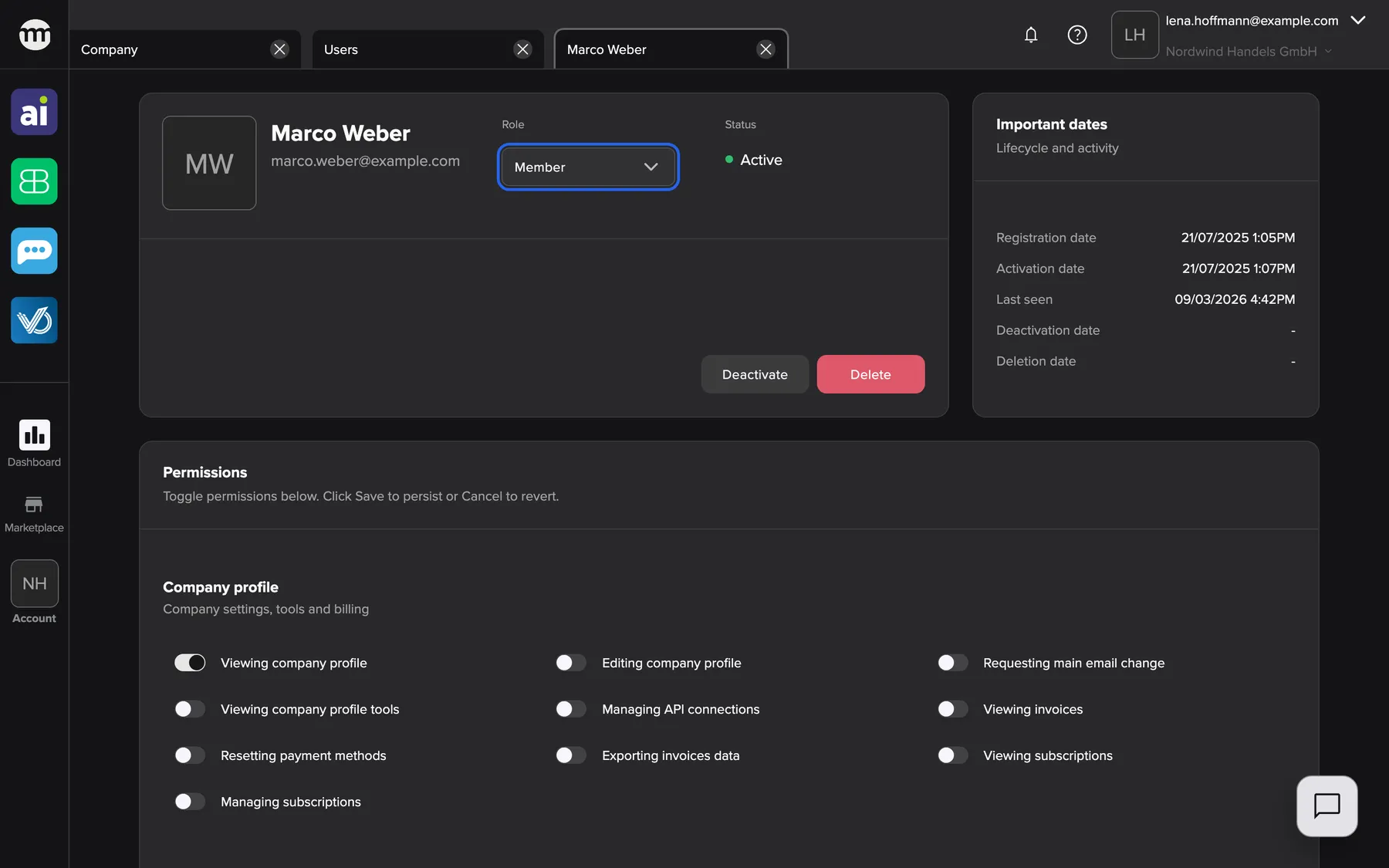
What this screenshot shows
- Screen
- User
- Highlighted
- “Change user role”: changes the role and loads that role's permission preset
- Also visible
- Status Active; Deactivate and Delete buttons; Important dates card; Permissions card start
- Purpose
- a member's detail tab as the owner sees it
| Region | What it shows | What you do there |
|---|---|---|
| Header card | Avatar, name, email, Role and Status, status buttons | Change the role, deactivate, activate or delete |
| Important dates | Registration date, Activation date, Last seen, Deactivation date, Deletion date | Read when things happened. A dash means never. |
| Permissions | Switches in four sections, with Cancel and Save at the bottom | Grant and remove permissions |
What you see depends on your own permissions and on the member. Your own tab and the owner’s tab are always read-only.
Change the role
Section titled “Change the role”- Open the member’s tab and select the role field in the header card.
- Choose Member or Partner. All permission switches change to that role’s preset.
- Adjust single switches if needed.
- Scroll to the end of the Permissions card and select Save. comrce Hub confirms with User permissions updated successfully.
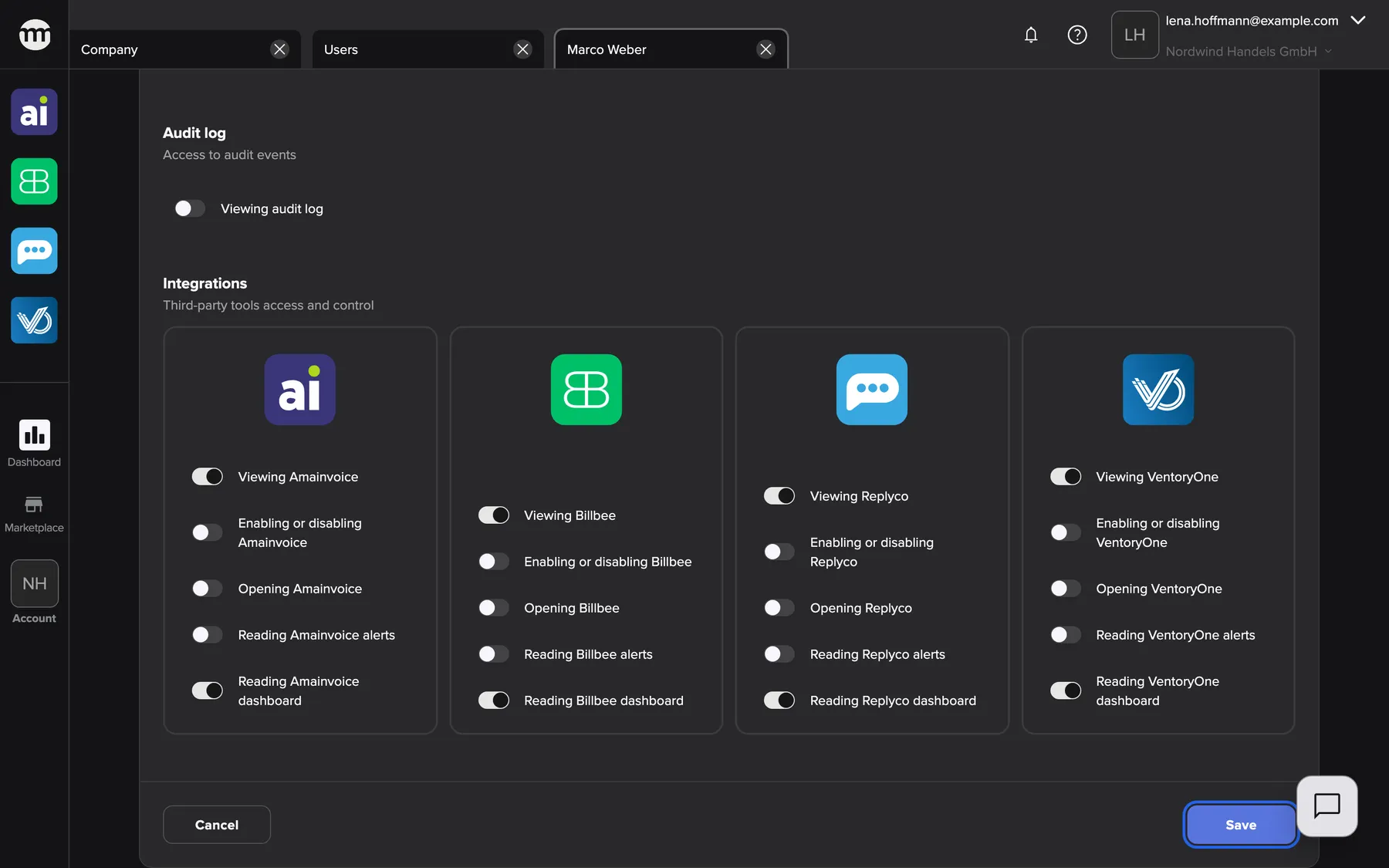
What this screenshot shows
- Screen
- User
- Highlighted
- “Save”: saves role and permissions
- Also visible
- Tool cards with Partner preset; Cancel button enabled
- Purpose
- role change loads a preset that still needs saving
The role and the switches are saved together, and Cancel undoes both. Changing the role overwrites every switch, including permissions you granted by hand. Check the switches before saving. The owner role is not offered here. Ownership moves only with a transfer from the Company tab.
Change permissions
Section titled “Change permissions”- Open the member’s tab and scroll to Permissions.
- Turn switches on or off. Nothing is stored yet.
- Select Save at the bottom of the card.
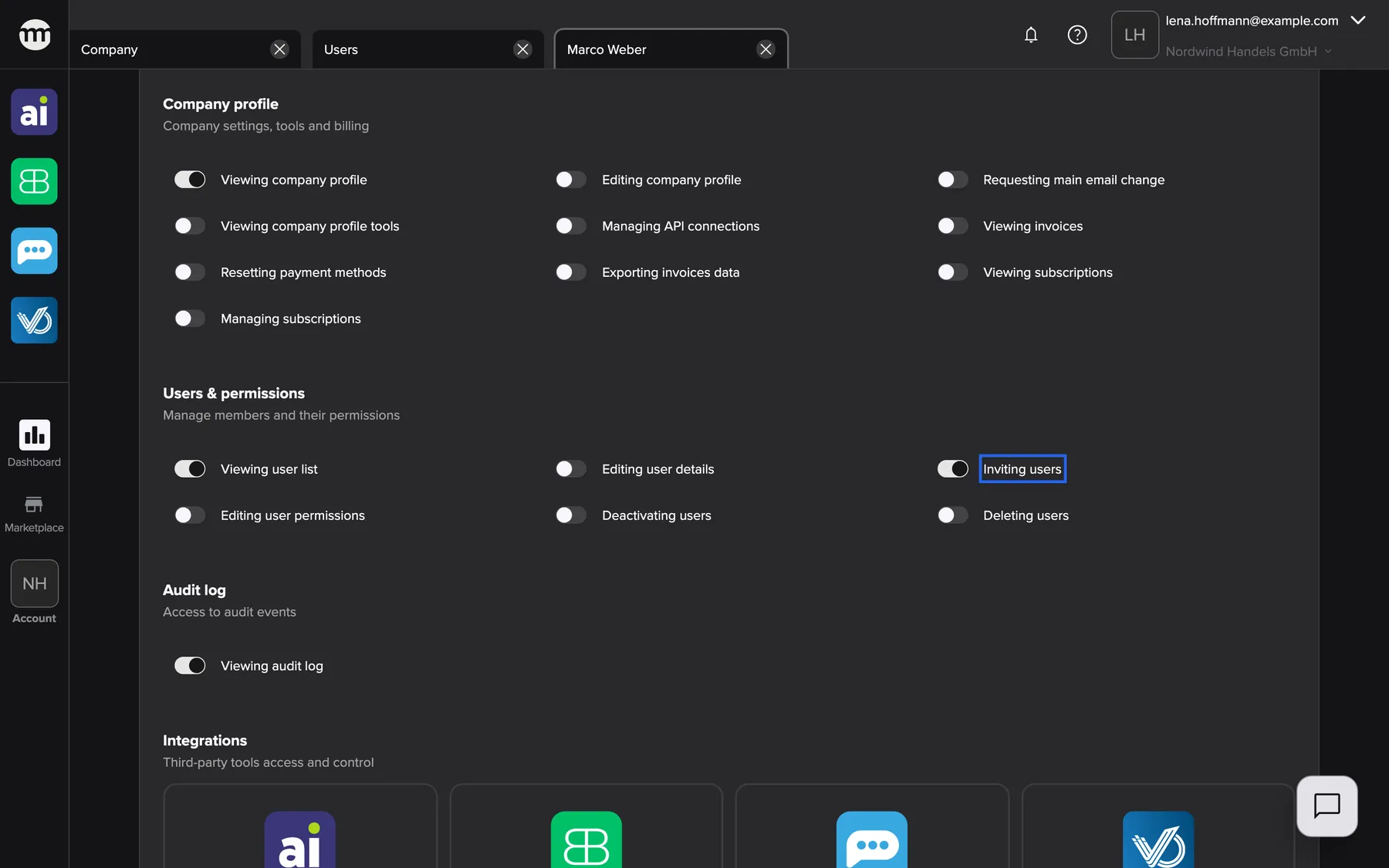
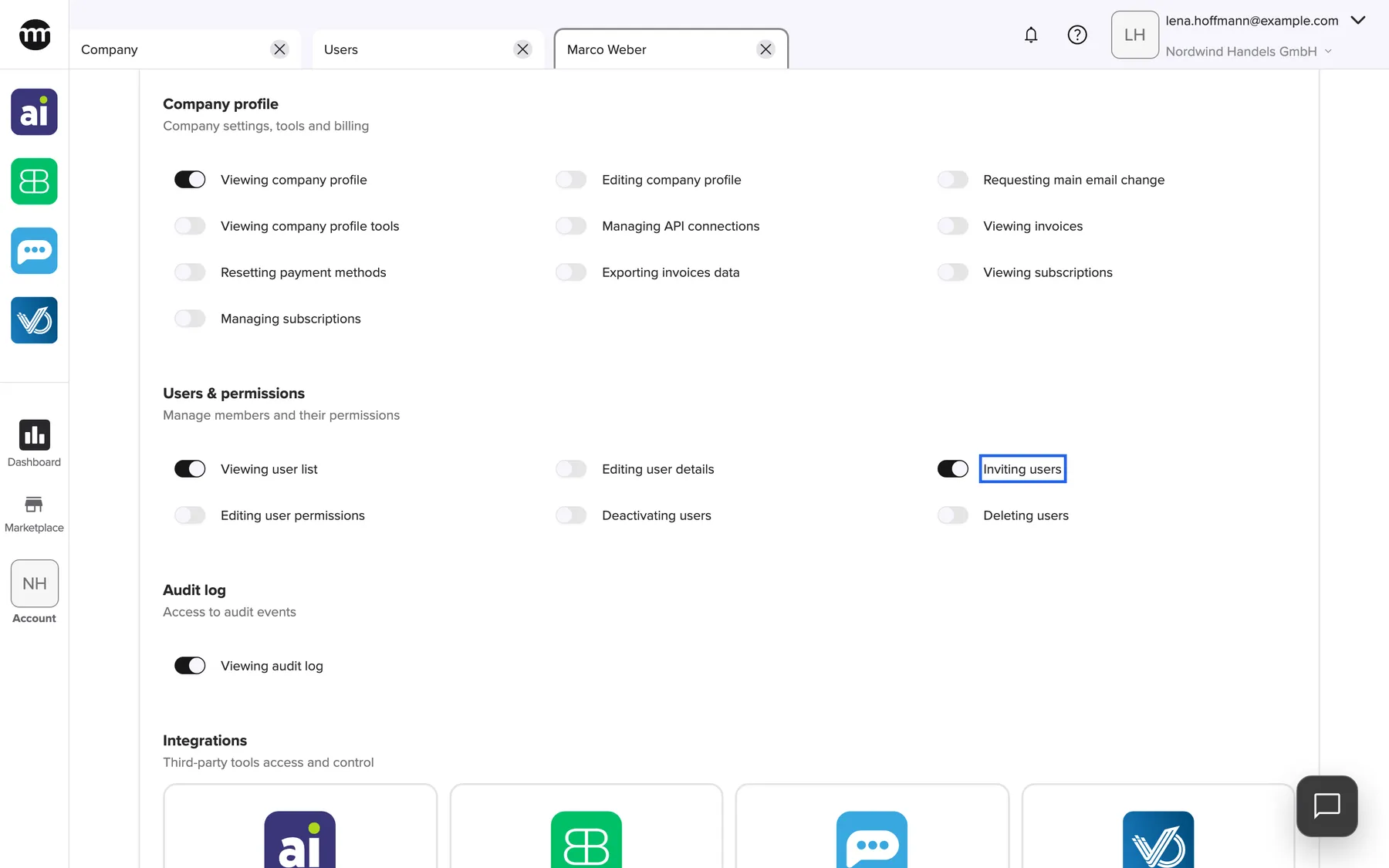
What this screenshot shows
- Screen
- User
- Highlighted
- “Inviting users”: lets the member invite people
- Also visible
- Users & permissions switches; Audit log switch on; Integrations section start
- Purpose
- individual permissions beyond the role preset
Example: Marco Weber is a Member who handles new staff. Lena Hoffmann switches on Inviting users and Viewing audit log and saves. Marco now sees the invite button and the Logs entry in his Account menu. The company log records the change as Edited permissions.
The member’s menus update without a new sign-in. Permissions and roles lists what each switch does.
Change or end a colleague’s access when their job changes
Section titled “Change or end a colleague’s access when their job changes”| Current status | Buttons shown | What they do |
|---|---|---|
| Active | Deactivate, Delete | Pause or end the membership |
| Deactivated | Activate, Delete | Give access back or end the membership |
| Pending | Activate, Delete | Activate the membership or end it |
| Deleted | none | The membership has ended |
Each button asks for confirmation first.
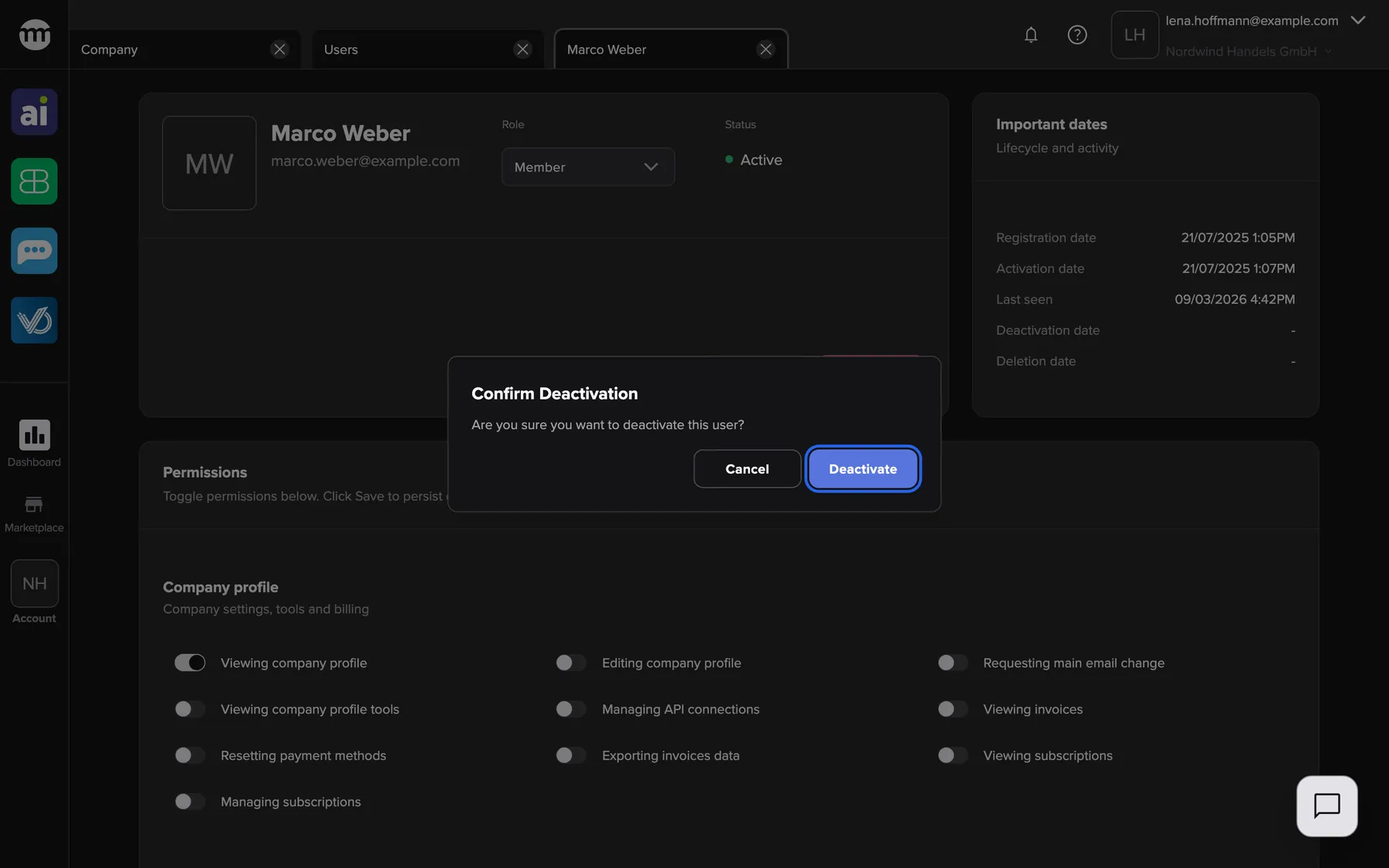
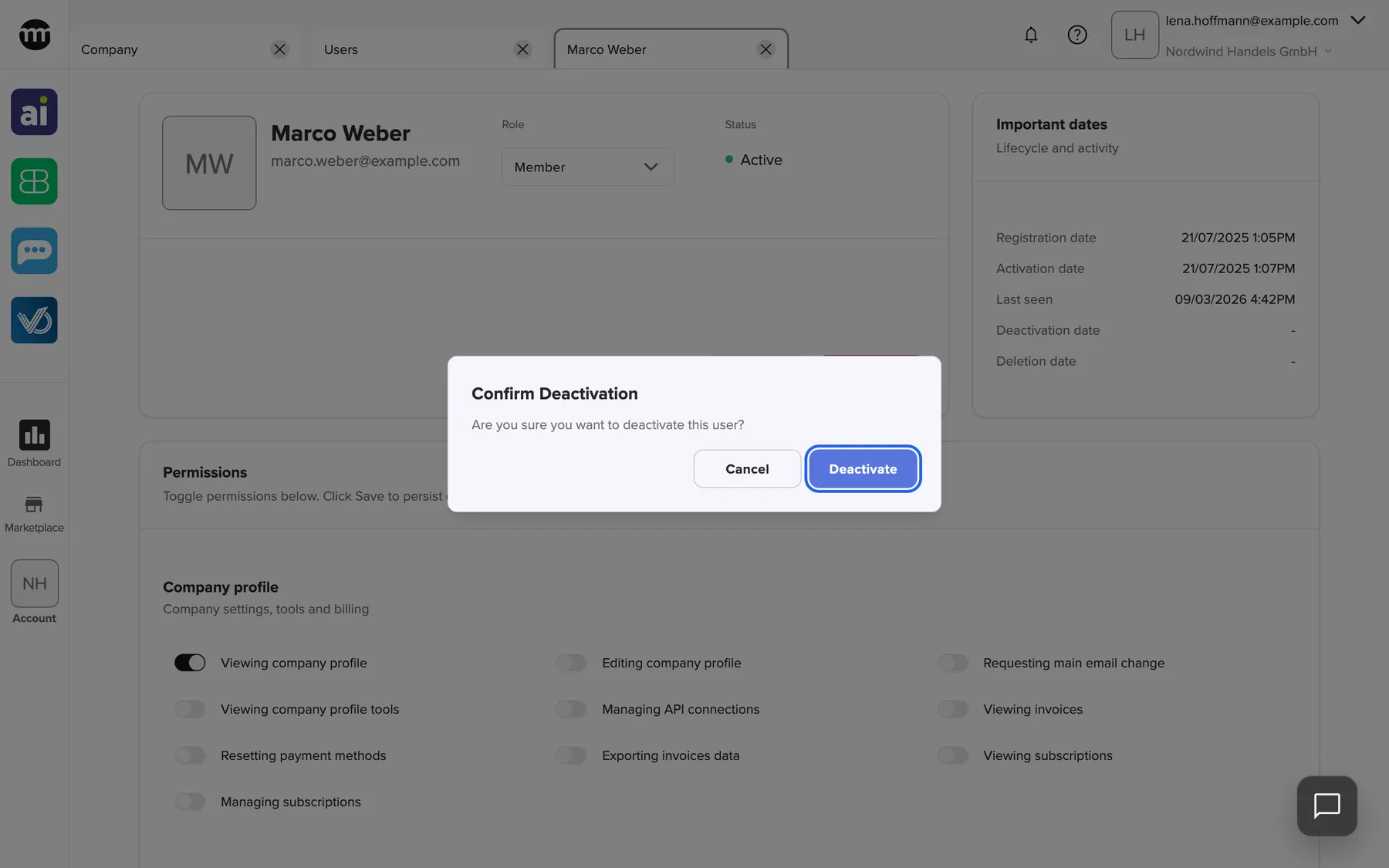
What this screenshot shows
- Screen
- User
- Highlighted
- “Deactivate”: deactivates the membership
- Also visible
- Confirm Deactivation dialog; Cancel button
- Purpose
- deactivate a member
- Deactivate sets the status to Deactivated and records the date. The person is signed out of this company at once. Their account, their permissions here and their other companies stay as they are.
- Activate sets the status back to Active, with the permissions the member had before.
- Delete sets the status to Deleted, records the date and signs the person out of this company. You cannot undo it here. To work with the person again, invite them again. Their comrce Hub account is not deleted.
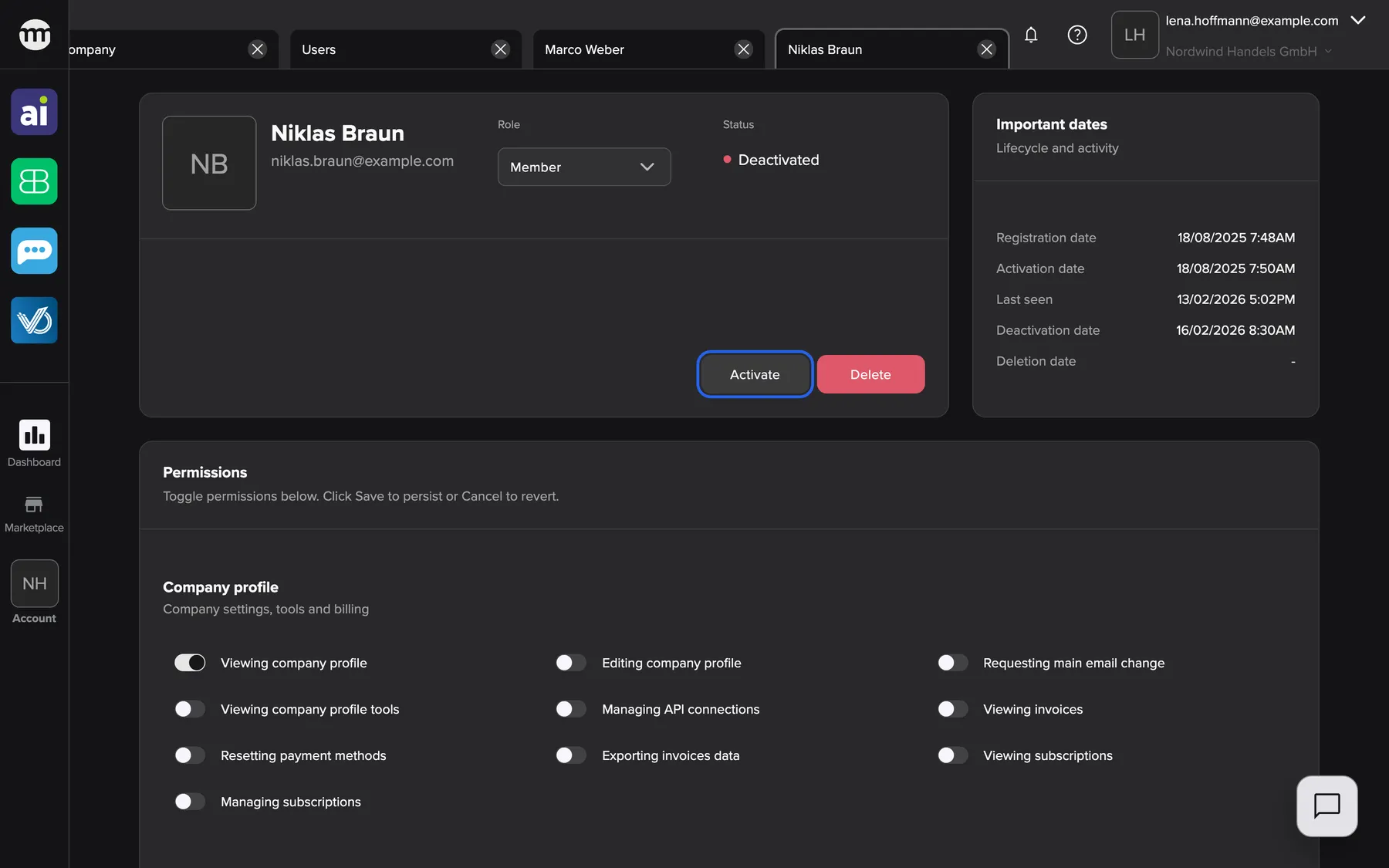
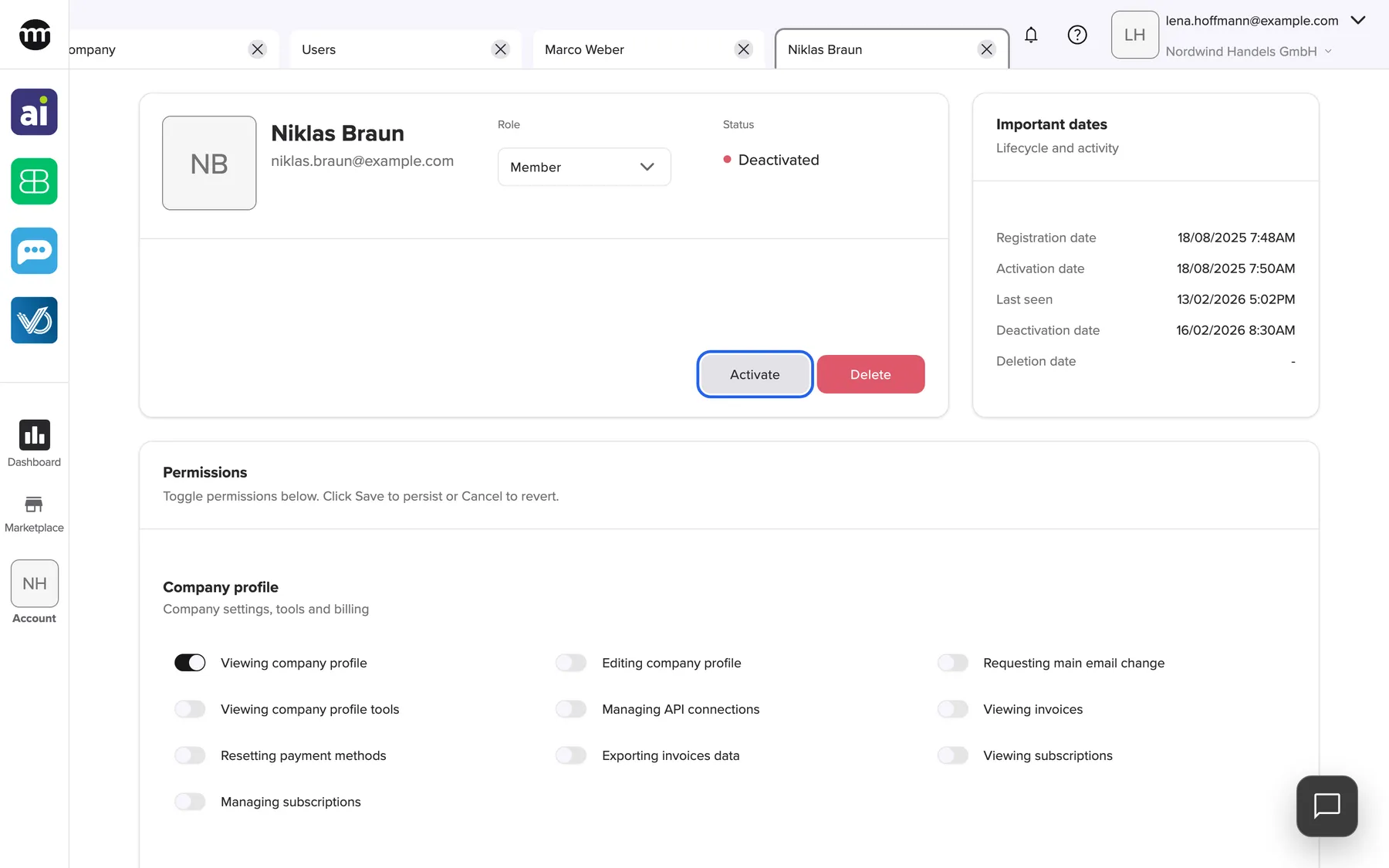
What this screenshot shows
- Screen
- User
- Highlighted
- “Activate”: reactivates the membership
- Also visible
- Status Deactivated; Delete button; Deactivation date 16/02/2026
- Purpose
- a deactivated member's actions
Example: Niklas Braun is away for a semester. Lena deactivates him. When he returns, Activate brings him back exactly as before.
Every control, explained
Section titled “Every control, explained”
Every control, explained
Section titled “Every control, explained”The controls that need a word of explanation come first. The obvious ones are collapsed at the end.
Role field
Section titled “Role field”The header card, under Role. Saved with Save in the Permissions card.
Options Member and Partner. Choosing one replaces all switches with that role’s preset. It is a select only with Editing user permissions. It is never a select for yourself, the owner or a deleted member. There it shows the role as a plain badge.
Presets give a sensible starting point for an employee or for an outside partner such as your accountant.
Permission switches
Section titled “Permission switches”The card Permissions, in four sections:
- Company profile
- Users & permissions
- Audit log
- Integrations
One switch per permission, for this company only. Shown only with Editing user permissions, and not for yourself, the owner or a deleted member. The switches also appear for deactivated and pending members, but comrce Hub saves permissions only for active members.
Lets you give each person exactly the access their work needs.
Status and status buttons
Section titled “Status and status buttons”The header card, under Status, with the buttons at the bottom right. Each button opens a confirmation.
Activate and Deactivate need Deactivating users. Delete needs Deleting users. No buttons appear for yourself or the owner. Success shows Updated user status.
Deactivating is the reversible way to cut access quickly, for example when someone leaves or loses a device.
Important dates
Section titled “Important dates”The card Important dates to the right of the header card. Read-only.
| Date | Meaning |
|---|---|
| Registration date | When the person joined this company |
| Activation date | When the membership last became active |
| Last seen | The last time the person was active in this company |
| Deactivation date | The latest deactivation. Cleared on activation. |
| Deletion date | When the membership was deleted |
Helps you spot accounts nobody has used for months, which are worth deactivating.
Other controls on this page
| Control | What it does | Why |
|---|---|---|
| Save | Saves the role and the switches together. Disabled until something changed. | Store your changes |
| Cancel | Discards unsaved changes to the role and the switches | Start again from the saved state |
Who sees what
Section titled “Who sees what”
Who sees what
Section titled “Who sees what”| Part | Who sees it |
|---|---|
| The tab itself | The owner and members with Viewing user list |
| Role field and permission switches | The owner and members with Editing user permissions |
| Activate and Deactivate | The owner and members with Deactivating users |
| Delete | The owner and members with Deleting users |
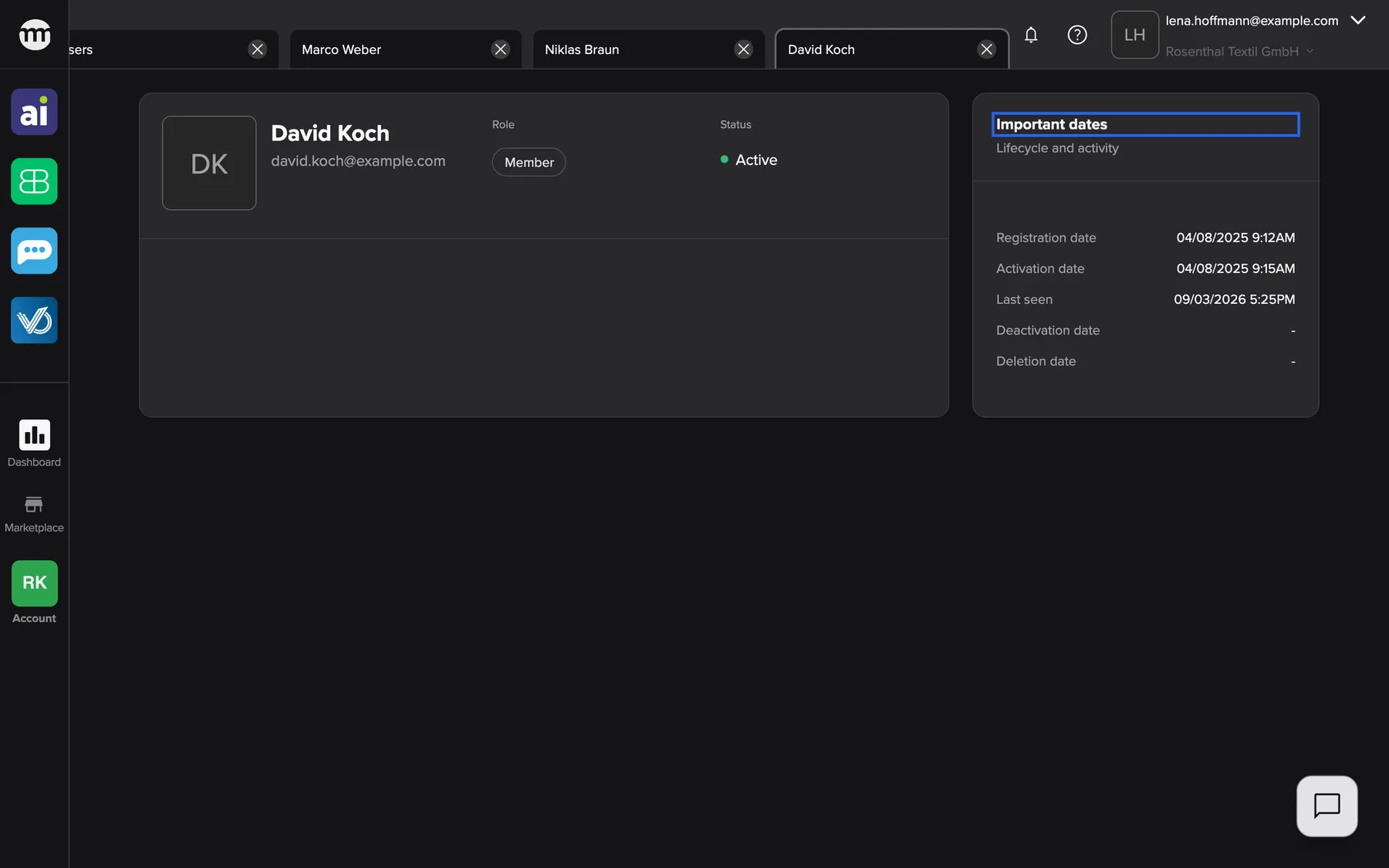
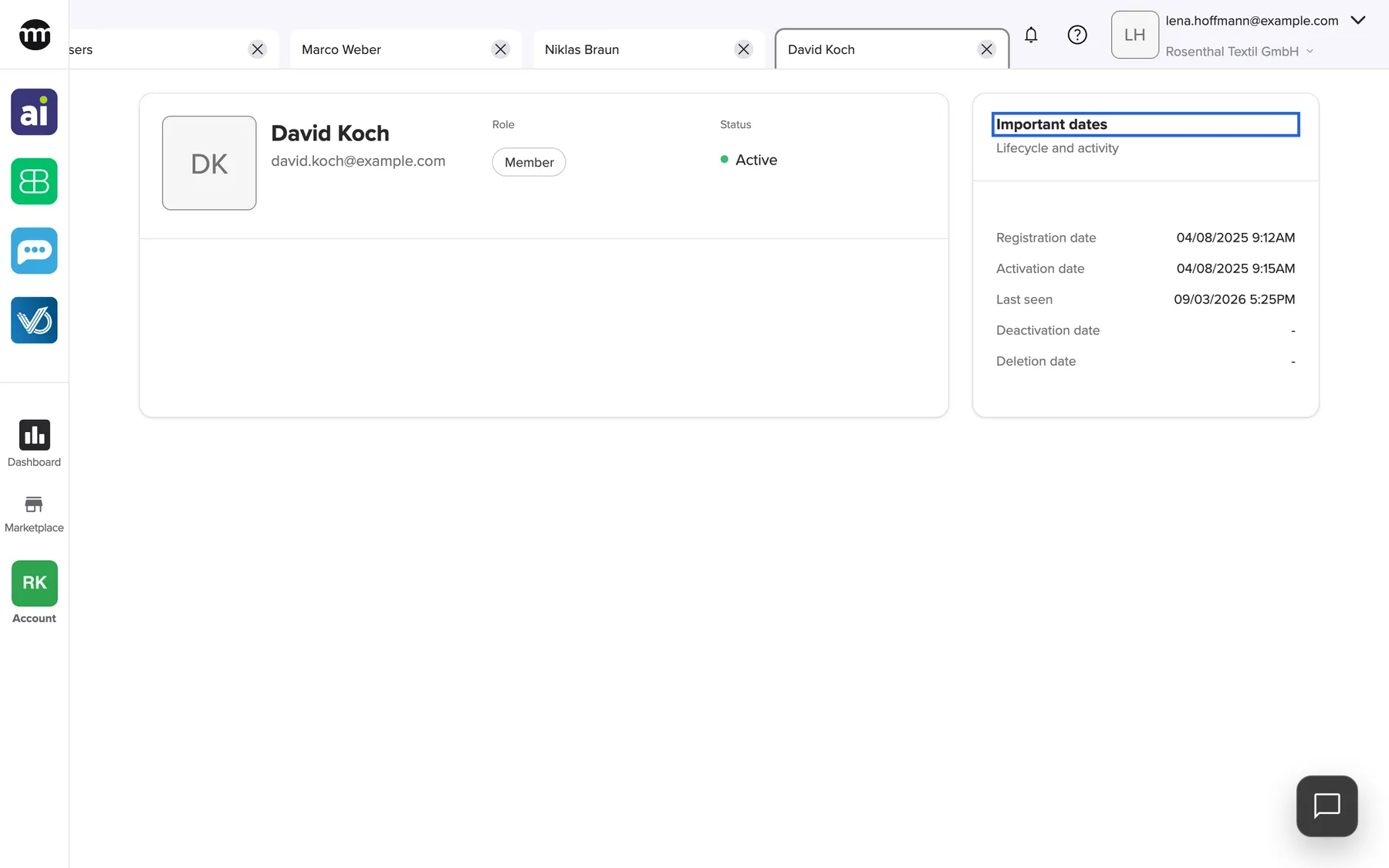
What this screenshot shows
- Screen
- User
- Highlighted
- “Important dates”: lists lifecycle dates
- Also visible
- Role badge Member; Status Active; No status buttons; No Permissions card
- Purpose
- read-only view of a user
What you need to know
Section titled “What you need to know”
What you need to know
Section titled “What you need to know”| Topic | Fact |
|---|---|
| Per company | Role and permissions apply only in this company. The same person can be a Partner elsewhere. |
| When it saves | Nothing is stored until you save. Closing the tab or switching company warns about unsaved changes. |
| Refresh | The tab reloads its data by itself about once a minute |
| Audit | Every saved change and every status change is recorded in Logs |
Frequently asked questions
Section titled “Frequently asked questions”
Frequently asked questions
Section titled “Frequently asked questions”Roles and permissions
Section titled “Roles and permissions”Why can’t I change the role of a member?
Section titled “Why can’t I change the role of a member?”The role field is a select only if you have Editing user permissions. The member must also be neither you, the owner nor deleted. Otherwise the member’s tab shows the role as a plain badge.
Why did my saved permissions disappear after I changed the role?
Section titled “Why did my saved permissions disappear after I changed the role?”Choosing a role in the header card replaces every switch with that role’s preset. If you then saved, the earlier switches were overwritten. Switch the extra permissions on again and select Save at the bottom of the Permissions card.
I selected Save, but the switches went back. Why?
Section titled “I selected Save, but the switches went back. Why?”If you are not the owner, comrce Hub saves only when you hold every permission that is switched on. It also saves only for active members. In other cases the save is refused without a message. Ask the company owner to make the change.
Can I change my own permissions?
Section titled “Can I change my own permissions?”No. Your own tab is always read-only, even for the owner. The owner, or another member with Editing user permissions, changes your permissions on your user tab.
Status
Section titled “Status”What is the difference between Deactivate and Delete?
Section titled “What is the difference between Deactivate and Delete?”Deactivate pauses the membership. The person is signed out of this company and can be activated again with the same permissions. Delete ends the membership for good, and working with the person again needs a new invitation.
Does deactivating a member delete their comrce Hub account?
Section titled “Does deactivating a member delete their comrce Hub account?”No. Deactivating and deleting affect only the membership in this company. The person keeps their comrce Hub account, their settings and their other companies, and can still sign in to those.
Why is there no Activate button for a deleted member?
Section titled “Why is there no Activate button for a deleted member?”A deleted membership cannot be restored on the user tab. Invite the person again from the Users tab. When they accept, the membership is active again with the preset of the role you chose.
Why can’t I deactivate the owner?
Section titled “Why can’t I deactivate the owner?”The company owner always has every permission and cannot be edited, deactivated or deleted. To change the owner, the current owner transfers ownership from the Company tab.
Troubleshooting
Section titled “Troubleshooting”
Troubleshooting
Section titled “Troubleshooting”| Symptom | What to check |
|---|---|
| The tab shows Could not load user info | You lack Viewing user list, or the member no longer belongs to this company. Ask your owner for the permission. |
| No permission switches are shown | You lack Editing user permissions, or the tab is your own, the owner’s or a deleted member’s. |
| Saving permissions does nothing | Check that the member is Active and that you hold every permission switched on. Otherwise ask the owner. |
| Failed to update user status after a status button | You may have lost the permission meanwhile, or the member is the owner. Reload the tab and try again. |
| Save stays disabled | Nothing has changed yet. Save and Cancel become active as soon as a switch or the role changes. |