

FTP server
On FTP- Server you save the access to your own FTP server once. Queues and pipeline steps then use it. To open the screen, select the gear icon in the top bar, then Erweiterte FunktionenExterne AnbindungenFTP Server.
An FTP queue picks up print jobs from a folder on that server. The pipeline step FTP Ausgabe (FTP output) saves documents to it.
What you can do here
Section titled “What you can do here”- Save your FTP access once. Name, address, user name and password are stored together. Queues and pipeline steps pick the server by its name. Add an FTP server
- Check the access before you rely on it. Testen (test) signs in with what you entered, without saving. Test the connection
- Change the address or password. Edit a saved server. Leave the password empty to keep the stored one. Edit a server
- Remove a server you no longer use. Deleting also deletes every FTP queue that reads from it. Delete a server
The screen at a glance
Section titled “The screen at a glance”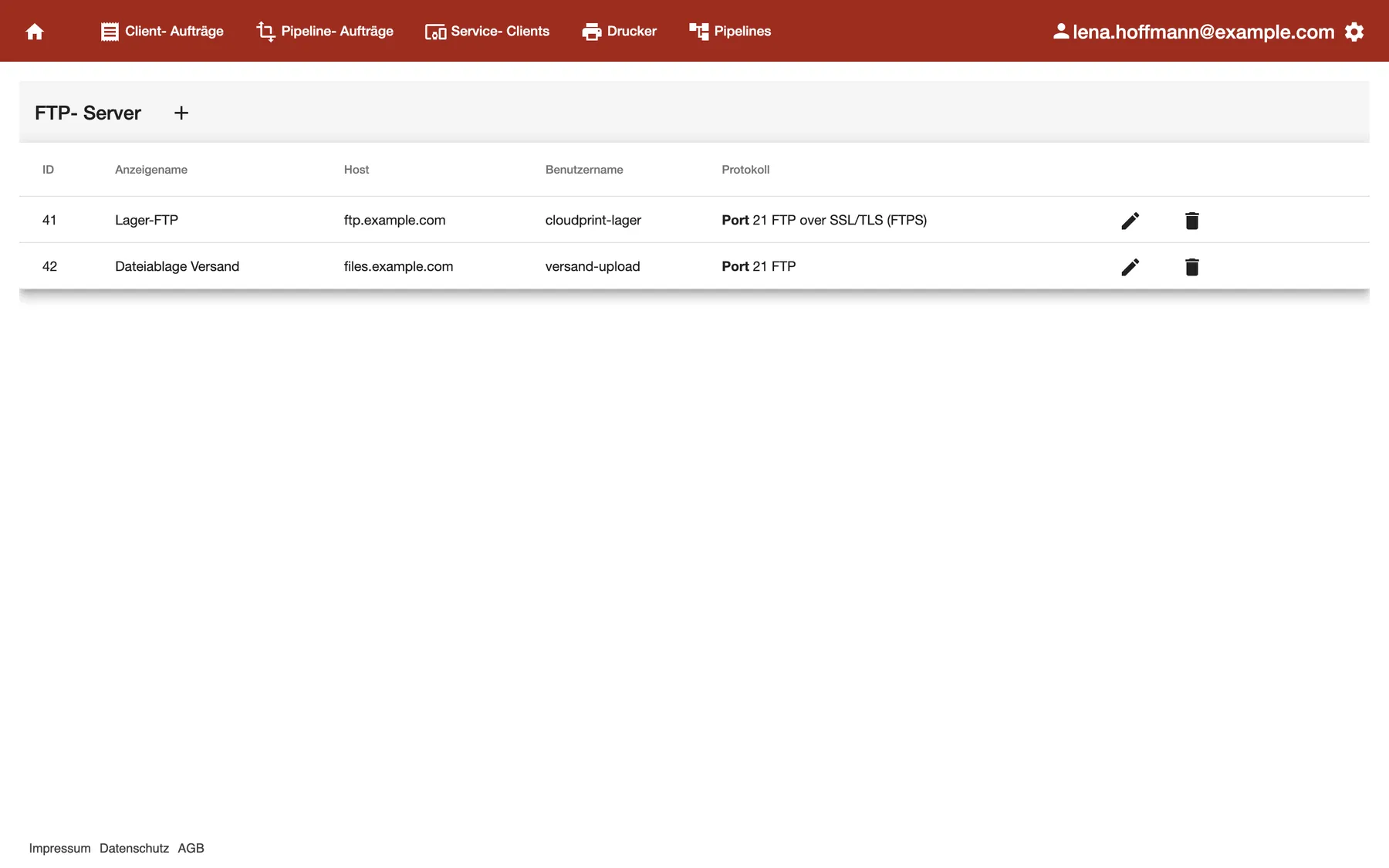
What this screenshot shows
- Screen
- FTP- Server
- Highlighted
- “FTP- Server”: the screen as it opens
- Also visible
- + button next to the heading; Columns ID, Anzeigename, Host, Benutzername, Protokoll; Two servers, one with FTPS
- Purpose
- the FTP server list as it opens
| Region | What it shows | What you do there |
|---|---|---|
| Title bar | FTP- Server and the + button | Add a server |
| The list | One row per server: ID, Anzeigename (display name), Host, Benutzername (user name) and Protokoll (protocol) | Check which servers are saved and how they connect |
| End of each row | A pencil and a bin icon | Edit or delete the server |
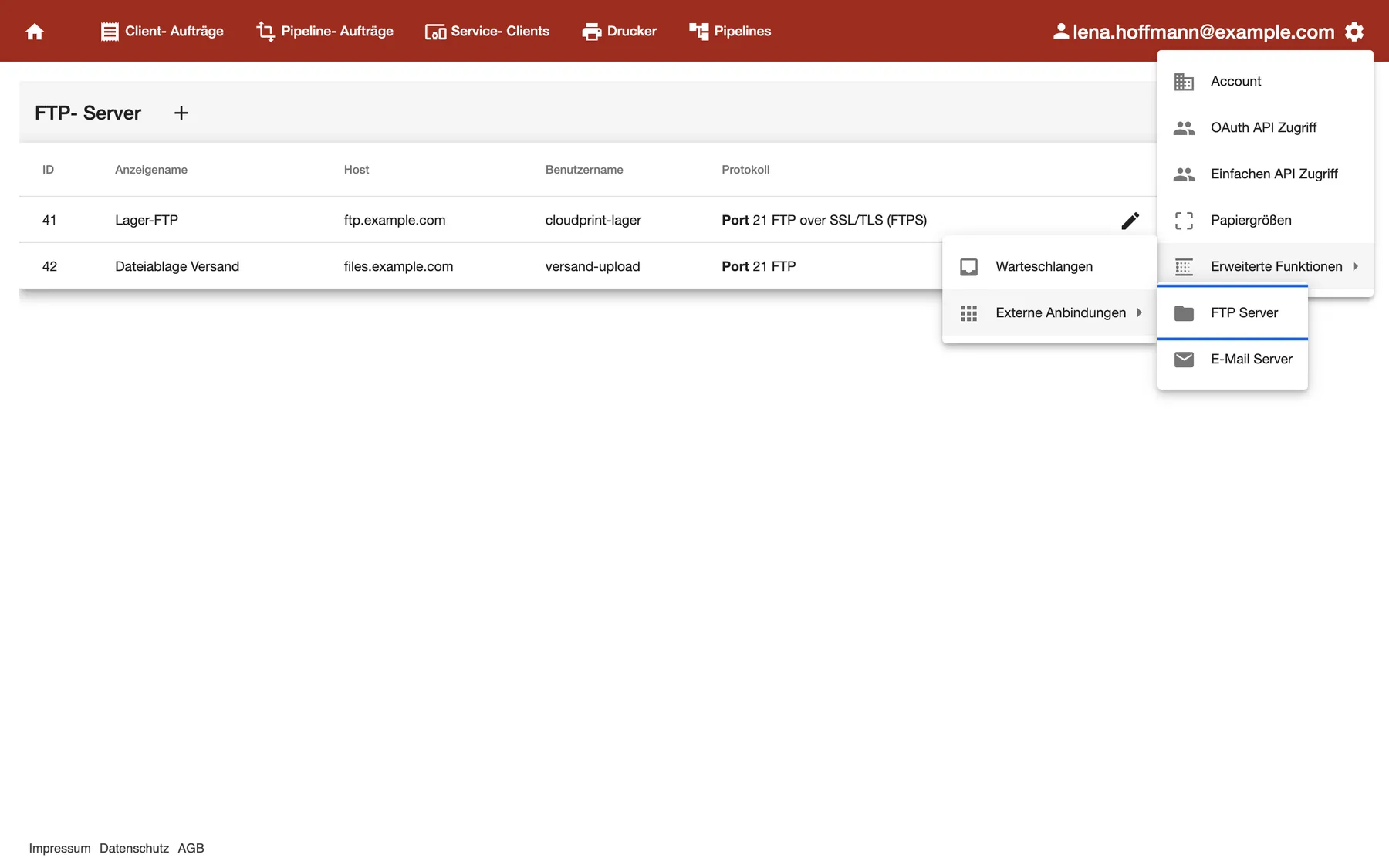
What this screenshot shows
- Screen
- FTP Server
- Highlighted
- “FTP Server”: opens the FTP server list
- Also visible
- Three open menus: settings, Erweiterte Funktionen, Externe Anbindungen; Entries FTP Server and E-Mail Server
- Purpose
- where to find the FTP servers
Add an FTP server
Section titled “Add an FTP server”-
Select the + next to FTP- Server. The dialog “Neuen FTP-Server anlegen” (create FTP server) opens.
-
Under Zugangsdaten (access details), fill in:
- Anzeigename: the name you’ll pick in queues and pipeline steps.
- Server: the host name, such as
ftp.example.com. - Benutzername and Passwort (password): your FTP access.
-
Under FTP- Einstellungen (FTP settings), check Port. It starts at 21. Under Verschlüsselung (encryption), choose keine (none) or FTPS (FTP over SSL/TLS), as your provider tells you.
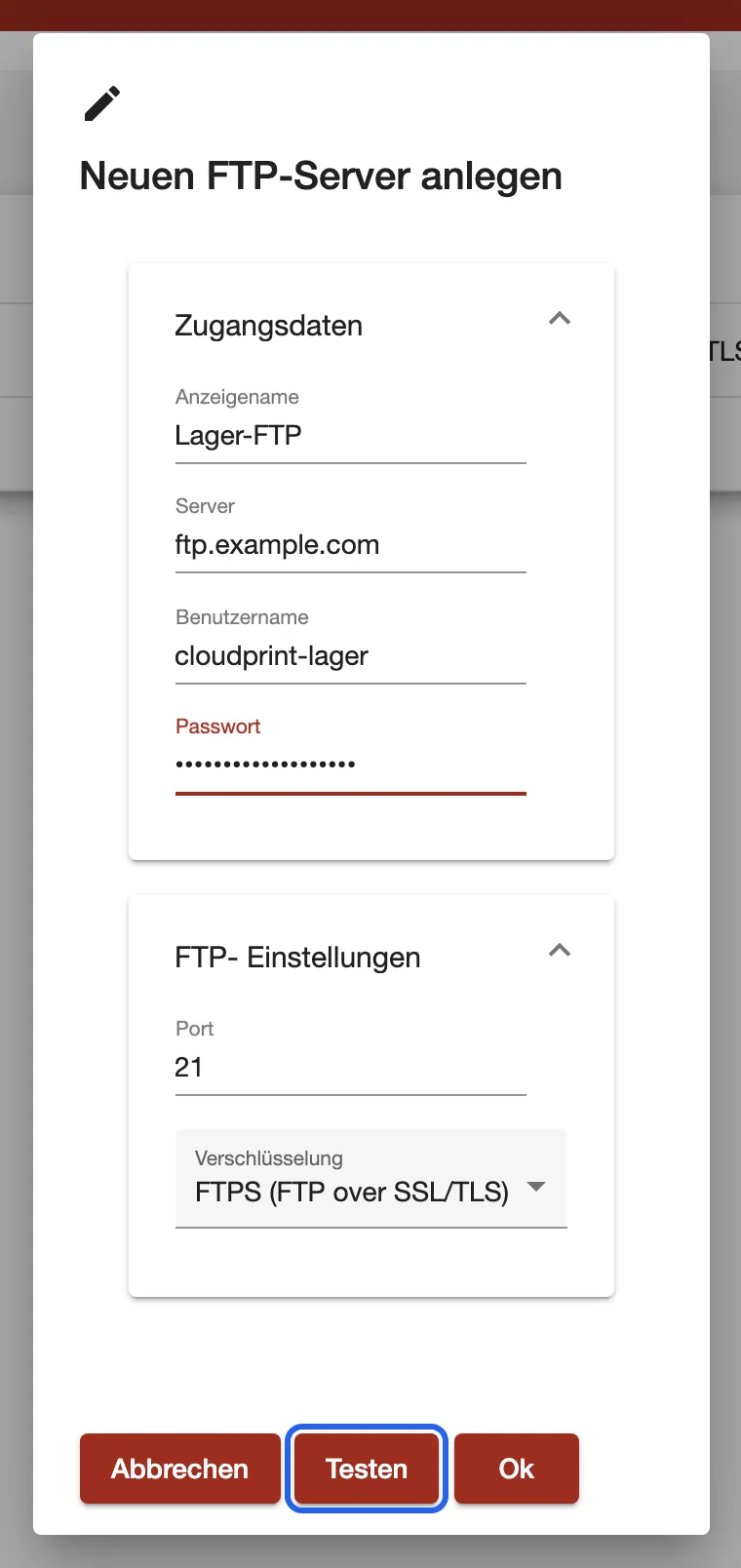
Fill in the access details, then select Testen before you save with Ok. What this screenshot shows
- Screen
- FTP- Server
- Highlighted
- “Testen”: checks the details without saving
- Also visible
- Zugangsdaten filled in, password masked; Port 21, Verschlüsselung FTPS
- Purpose
- add an FTP server
-
Select Testen. Then select Ok to save. comrce cloudprint confirms with “Gespeichert” (saved).
The server now appears in the list. Next, use it in an FTP queue or in the FTP Ausgabe step of a pipeline.
Example: The warehouse writes delivery notes to ftp.example.com. You save it as “Lager-FTP” with the user cloudprint-lager, port 21 and FTPS. In the queue dialog you then just choose “Lager-FTP”.
Test the connection
Section titled “Test the connection”Testen signs in to the server with the details in the dialog and reads its top folder. Nothing is saved. After a moment, a message appears at the bottom of the window for five seconds.
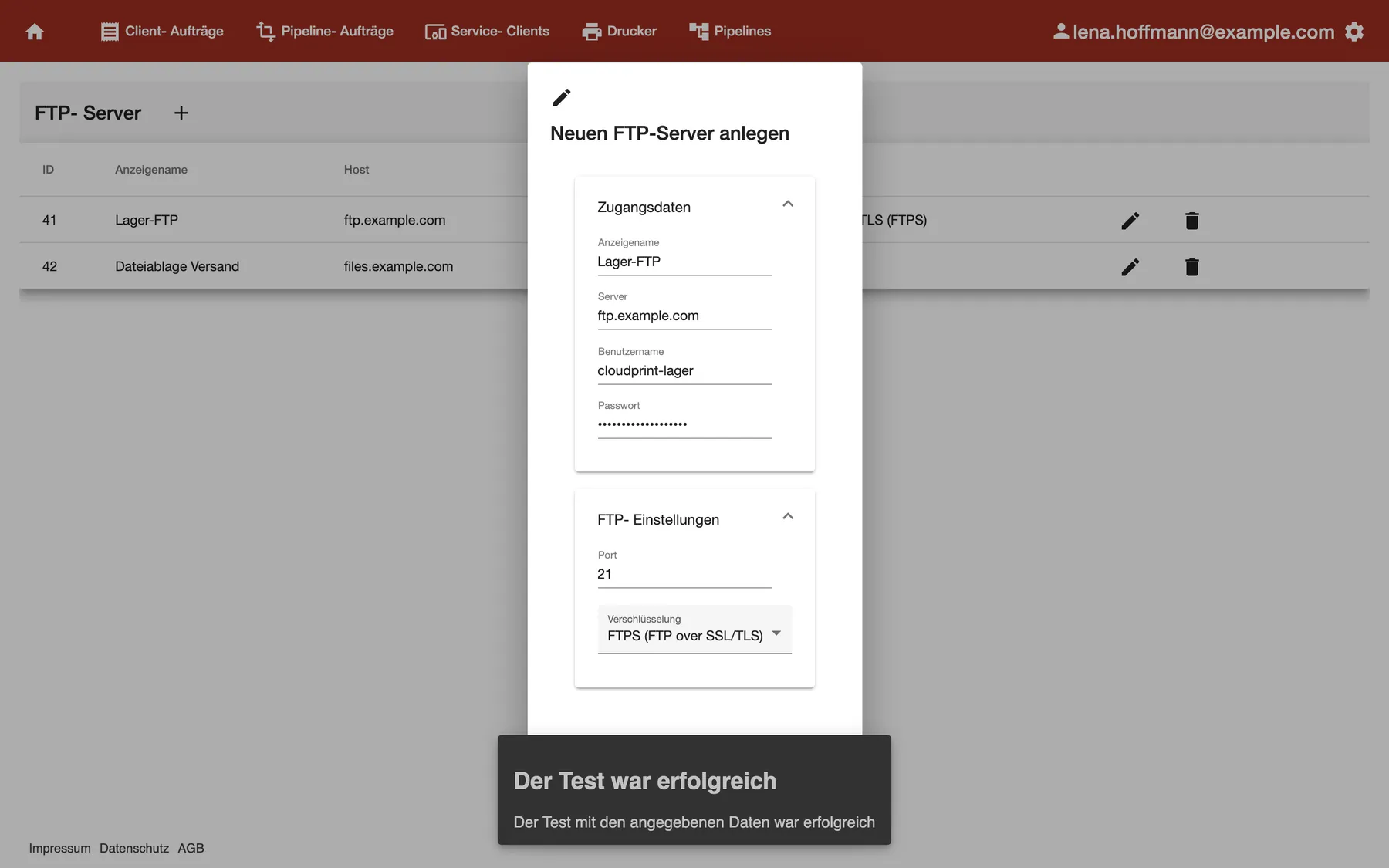
What this screenshot shows
- Screen
- FTP- Server
- Highlighted
- “Der Test war erfolgreich”: confirms that comrce cloudprint could sign in
- Also visible
- The filled dialog behind the message
- Purpose
- test the FTP access details
- “Der Test war erfolgreich” (the test was successful): the details work. Select Ok to save.
- “Der Test ist fehlgeschlagen” (the test failed): the message names the reason the server gave. Correct the details and test again.
Testen stays dimmed until Passwort holds a password.
Edit a server
Section titled “Edit a server”Select the pencil icon at the end of the row. The dialog opens with the saved details, except the password: Passwort is always empty. Change what you need and select Ok.
- Leave the password empty to keep the stored one.
- Type a password to replace it.
- To test while editing, type the password again. Testen needs it.
Queues and steps that use the server pick up the new details on their next run.
Delete a server
Section titled “Delete a server”Select the bin icon at the end of the row. The server is deleted at once, without a question.
Every control, explained
Section titled “Every control, explained”
Every control, explained
Section titled “Every control, explained”Passwort (password)
Section titled “Passwort (password)”In the dialog, under Zugangsdaten. Saved with Ok.
The password of your FTP user, shown as dots. A saved password is never shown again, so the field is empty when you edit. Empty on saving means: keep the stored password.
So the password stays private, even for people who can open this screen.
Verschlüsselung (encryption)
Section titled “Verschlüsselung (encryption)”In the dialog, under FTP- Einstellungen.
keine (none) connects over plain FTP. FTPS (FTP over SSL/TLS) encrypts the connection. The list column Protokoll shows the choice with the port, for example “Port 21 FTP over SSL/TLS (FTPS)”.
Use FTPS whenever your server offers it, so documents and the password don’t travel unencrypted.
Testen (test)
Section titled “Testen (test)”At the bottom of the dialog, between Abbrechen and Ok.
Signs in with the details in the dialog and reads the top folder. It doesn’t save anything. Dimmed while the password field is empty.
A wrong password in a queue only shows later, as files that never arrive. The test shows it now.
Other controls on this page (8)
| Control | What it does | Why |
|---|---|---|
| + | Opens “Neuen FTP-Server anlegen” | Add a server |
| Pencil icon | Opens the saved server | Change its details |
| Bin icon | Deletes the server and its FTP queues, without asking | Remove a server you no longer use |
| Anzeigename | The name queues and steps show | Recognize the server |
| Server | The host name | Tell comrce cloudprint where to connect |
| Benutzername | The FTP user | Sign in |
| Port | The port, 21 by default | Match your provider’s setup |
| Abbrechen | Closes the dialog without saving | Leave without changes |
Who sees what
Section titled “Who sees what”
Who sees what
Section titled “Who sees what”| Part | Who sees it |
|---|---|
| The gear icon and FTP Server | The comrce Hub Owner, who becomes the comrce cloudprint administrator at the first sign-in |
| Other comrce Hub members | They don’t see the gear icon or this screen |
What you need to know
Section titled “What you need to know”
What you need to know
Section titled “What you need to know”| Topic | Fact |
|---|---|
| Where it’s used | FTP queues and the pipeline step FTP Ausgabe |
| Saved password | Never shown again after saving |
| Encryption | None or FTPS. SFTP isn’t offered. |
| Deleting | Immediate, without a question, and it deletes the server’s FTP queues |
| Sorting | Selecting a column header doesn’t sort the list |
Frequently asked questions
Section titled “Frequently asked questions”
Frequently asked questions
Section titled “Frequently asked questions”General
Section titled “General”Where do I set up an FTP server in comrce cloudprint?
Section titled “Where do I set up an FTP server in comrce cloudprint?”Select the gear icon at the right end of the top bar, then Erweiterte FunktionenExterne AnbindungenFTP Server. Select the + next to the heading to add one. Only the comrce Hub Owner sees the gear icon.
Does comrce cloudprint come with an FTP server?
Section titled “Does comrce cloudprint come with an FTP server?”No. It connects to an FTP server you already have, for example from your hosting provider or in your own network. Save its address and access details on FTP- Server once, then use it in queues and pipelines.
What can I use a saved FTP server for?
Section titled “What can I use a saved FTP server for?”Two things. An FTP queue on Queues picks up print jobs from one of its folders. The pipeline step FTP Ausgabe on Pipelines saves documents to it. Both let you choose the server by its display name.
Connection
Section titled “Connection”Does comrce cloudprint support SFTP?
Section titled “Does comrce cloudprint support SFTP?”No. Under Verschlüsselung you can choose keine or FTPS (FTP over SSL/TLS). SFTP, which runs over SSH, isn’t offered. Ask your provider for an FTP or FTPS account instead.
Which port do I enter?
Section titled “Which port do I enter?”The one your provider gives you. The dialog starts with port 21, the usual FTP port. If your provider names another port, enter it under FTP- Einstellungen.
Why is the Testen button dimmed?
Section titled “Why is the Testen button dimmed?”Testen needs a password in the dialog. When you edit a saved server, the password field is always empty, because comrce cloudprint never shows the stored password. Type the password again, then test.
Does a passed test save the server?
Section titled “Does a passed test save the server?”No. The test only signs in with the details in the dialog and reads the top folder. Select Ok afterwards to save. Selecting Abbrechen discards everything.
Changing and deleting
Section titled “Changing and deleting”How do I change the password of a saved server?
Section titled “How do I change the password of a saved server?”On FTP- Server, select the pencil icon of the server. Type the new password into Passwort and select Ok. Queues and pipeline steps use the new password from their next run.
What happens to my queues when I delete an FTP server?
Section titled “What happens to my queues when I delete an FTP server?”They’re deleted too. The bin icon removes the server and every FTP queue that reads from it. Their links to pipelines go as well, and there’s no question first. Jobs the queues took in stay in the job lists.
Troubleshooting
Section titled “Troubleshooting”
Troubleshooting
Section titled “Troubleshooting”| Symptom | What to check |
|---|---|
| “Der Test ist fehlgeschlagen” | Read the reason in the message. Check the host name, user name, password, port and encryption with your provider’s details. |
| Testen is dimmed | Type the password. When editing, the saved password isn’t filled in. |
| The server is missing in the queue dialog | Check that it’s still on FTP- Server. Deleted servers don’t appear. |
| An FTP queue disappeared | Its server was deleted. Add the server again and create the queue on Queues. |
| Your provider only offers SFTP | comrce cloudprint can’t use it. Ask for FTP or FTPS access. |