

Inviting people
New people join your company in comrce Hub only by invitation, so nobody gets in uninvited. You enter an email address and a role, and comrce Hub sends the invitation. The person accepts with a new or an existing account and starts with the permissions of that role.
Open invitations stay listed until they are accepted. Inviting costs nothing.
What it does
Section titled “What it does”Each new colleague or tax advisor needs access to the right company with the right permissions. Nobody can join a company uninvited.
An invitation is a personal email link, valid for seven days. It adds one email address to your company with the role Member or Partner.
- You choose the role, and with it the permissions the person starts with. Setting it up in four steps
- People without a comrce Hub account register on the invitation page. People with an account join with one click and keep their other companies. Invitations on the invitee’s side
- Open invitations are listed with their expiry. You can resend them, and delete them once expired. Invitations in the Pending invites tab
- comrce Hub refuses duplicate invitations and invitations to existing members. Understanding invitations
Logs records every created, resent, deleted and accepted invitation with the address and the role. You can always check who invited whom.
Before you start
Section titled “Before you start”| Requirement | Details |
|---|---|
| Role | The company owner, or a member with Inviting users. It is switched on under AccountUsers › the member’s tab. No preset includes it. |
| An email address | The address the person will sign in with |
| A decision on the role | Member for staff, Partner for outside partners. See Permissions and roles. |
| Cost | None |
Understanding invitations
Section titled “Understanding invitations”| State | What you see | What the person can do |
|---|---|---|
| Open | Listed under Pending invites with its expiry date | Accept from the email link |
| Expired | The expiry date is red, and Delete appears | Nothing. The link shows Invitation expired.. |
| Resent | A new expiry date | Accept with the newest email only |
| Accepted | Gone from the invitations. The person appears on the Users tab as Active. | Work in the company |
| Deleted | Gone. Only expired invitations can be deleted. | Nothing |
How comrce Hub decides
Section titled “How comrce Hub decides”- One open invitation per address and company. A new invitation is refused while an earlier one to that address is not accepted, even an expired one.
- No invitation for existing members. An address that belongs to an active, pending or deactivated member is refused. Deleted former members can be invited again.
- The role is fixed at sending. Resending keeps it. To change it, change the role on the member’s tab after they join.
- The preset applies on acceptance. The person gets exactly the preset of the invited role. Adjust the switches afterwards.
- Deleted members come back with a fresh preset. Their old permissions are not restored.
What does not get an invitation
Section titled “What does not get an invitation”- The owner role. Invitations offer only Member and Partner.
- An address with an open or expired invitation in your company.
- An address that already belongs to an active, pending or deactivated member.
Setting it up in four steps
Section titled “Setting it up in four steps”-
Open the Users tab. Go to AccountUsers and select Invite a new member.
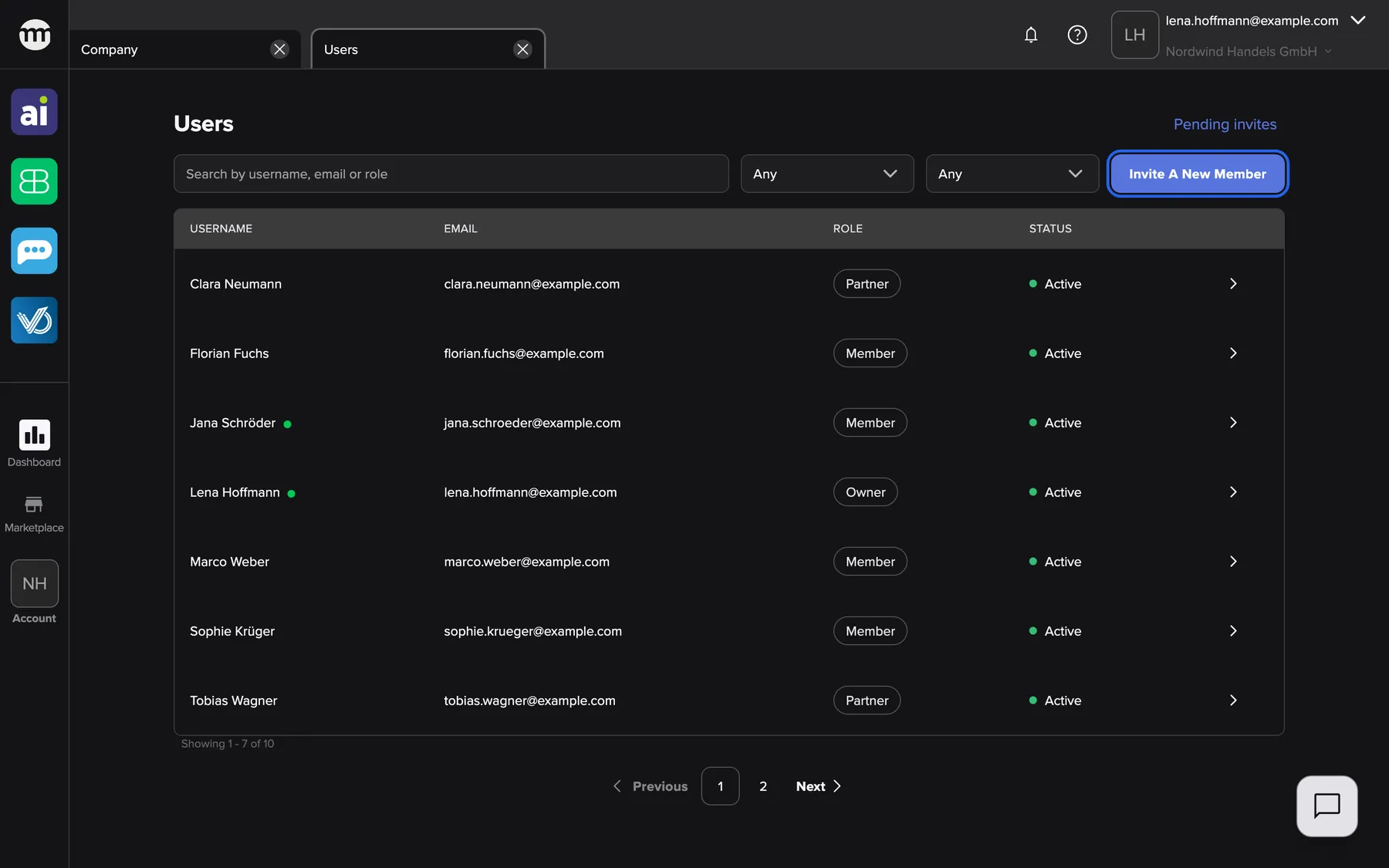
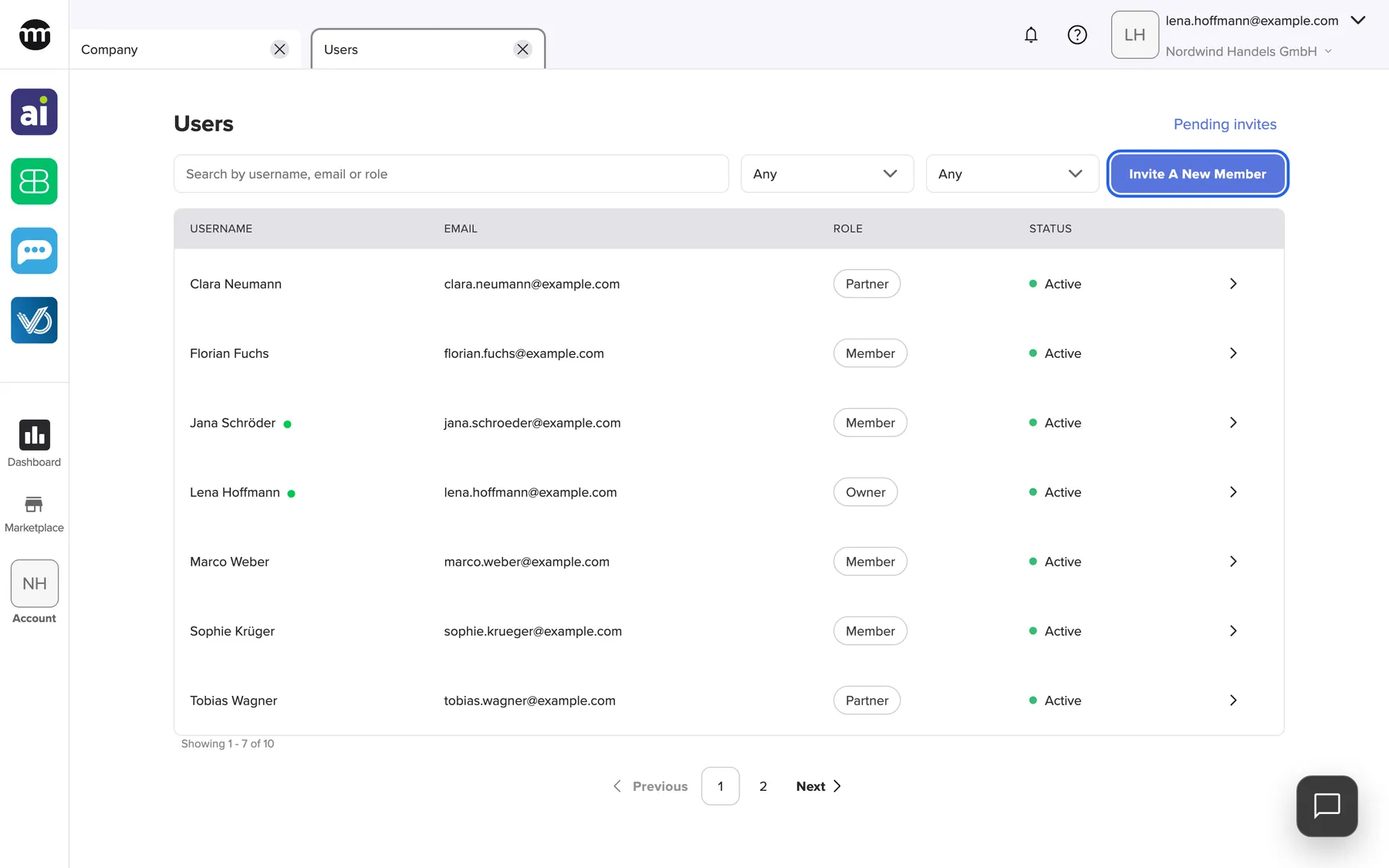
Invitations start on the Users tab. The button needs the invite permission. What this screenshot shows
- Screen
- Users
- Highlighted
- “Invite a new member”: opens the invitation dialog
- Also visible
- Pending invites link; Seven active members
- Purpose
- entry point for invitations
-
Enter the email address. Type it into Email.
-
Choose the role. Keep Member or pick Partner.
-
Send. Select Invite. comrce Hub shows Invite sent successfully., and the invitation appears under Pending invites.
Bringing in a whole team? The guide Add your team and give everyone the right role shows the order that works.
Every setting, explained
Section titled “Every setting, explained”
Every setting, explained
Section titled “Every setting, explained”The invitation dialog has two settings. The email decides who can accept, so it comes first.
Email, who is invited
Section titled “Email, who is invited”The dialog Invite a new member, field Email. Sent with Invite.
Required. A valid email address without spaces and without letters with accents such as ä or é. Messages: Email is required, Invalid email address and An active invitation for this user already exists.
The address is the person’s future sign-in. Only the person reading that mailbox can accept.
| Do | Don’t |
|---|---|
| Use the address the person already signs in with, if they have a comrce Hub account | Invite a shared mailbox such as info@ that several people read |
| Double-check spelling before sending | Send a second invitation instead of resending the first |
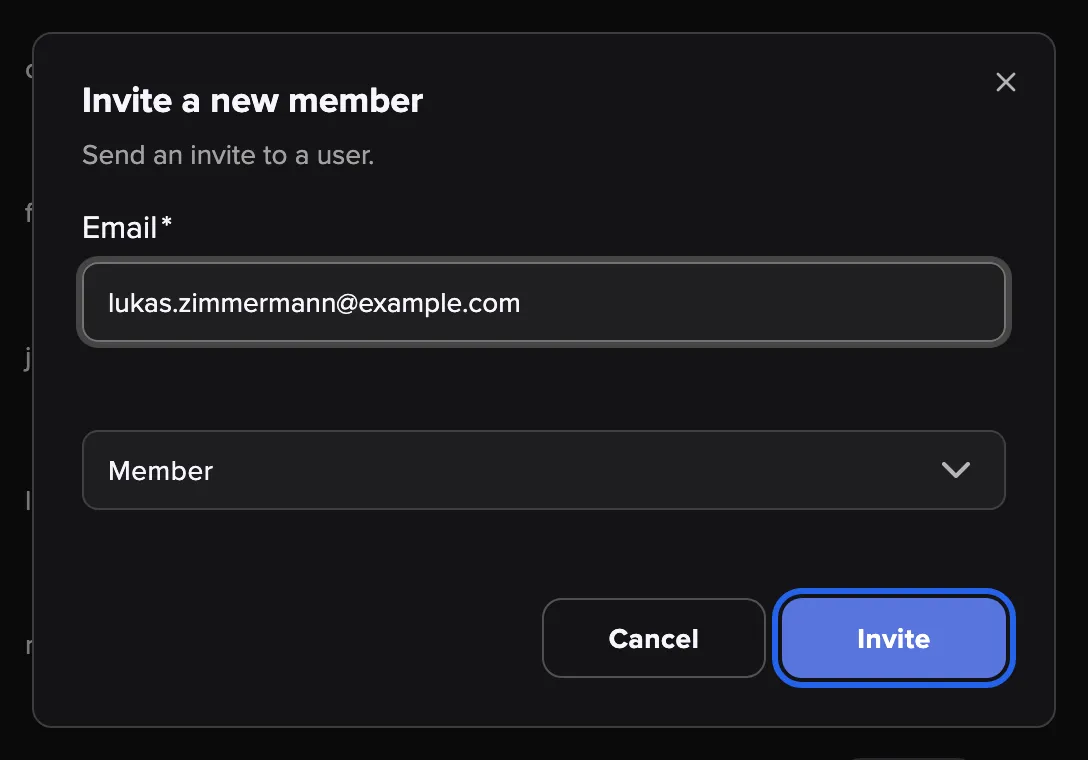
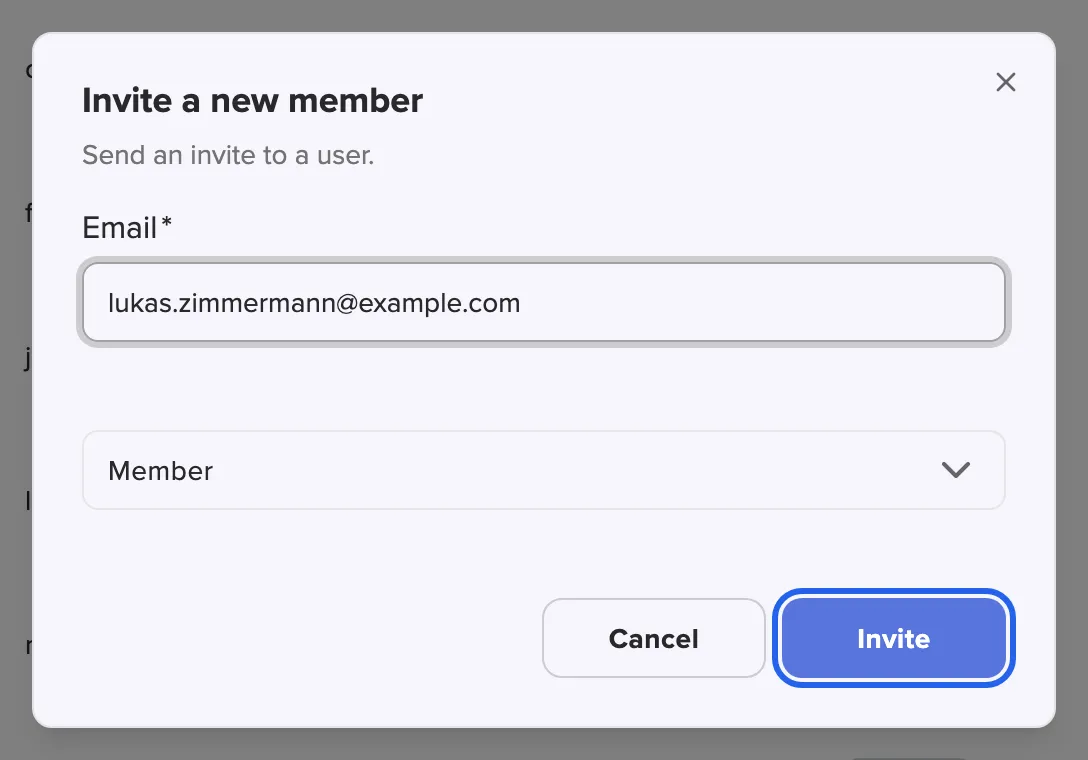
What this screenshot shows
- Screen
- Users
- Highlighted
- “Invite”: sends the invitation
- Also visible
- Email lukas.zimmermann@example.com; Role Member; Cancel button
- Purpose
- send an invitation
Role, what they start with
Section titled “Role, what they start with”The same dialog, the field below the email. It shows Select role when empty. Preset: Member.
Member or Partner. The person receives that role’s permission preset on accepting.
The right role now saves adjusting switches later.
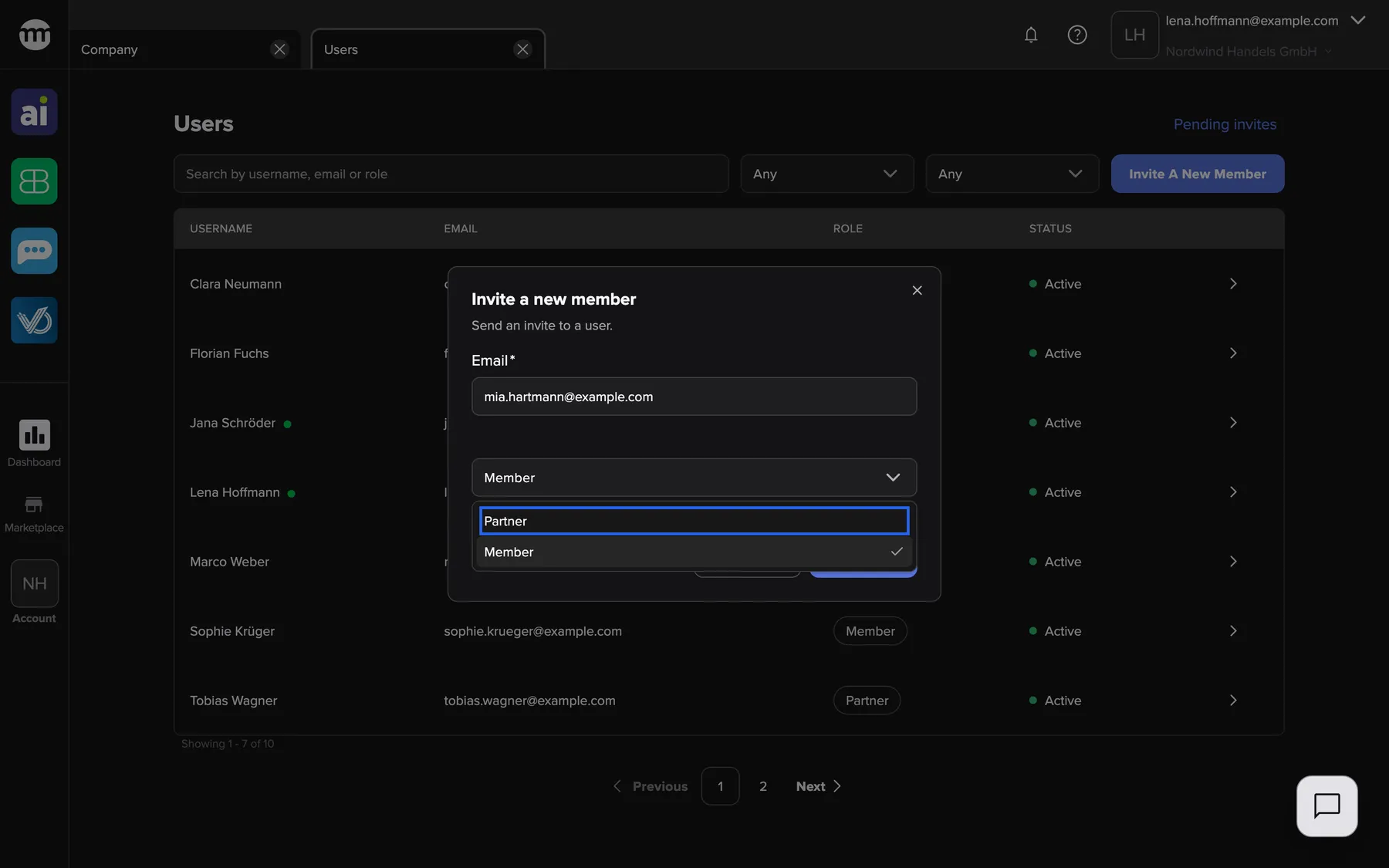
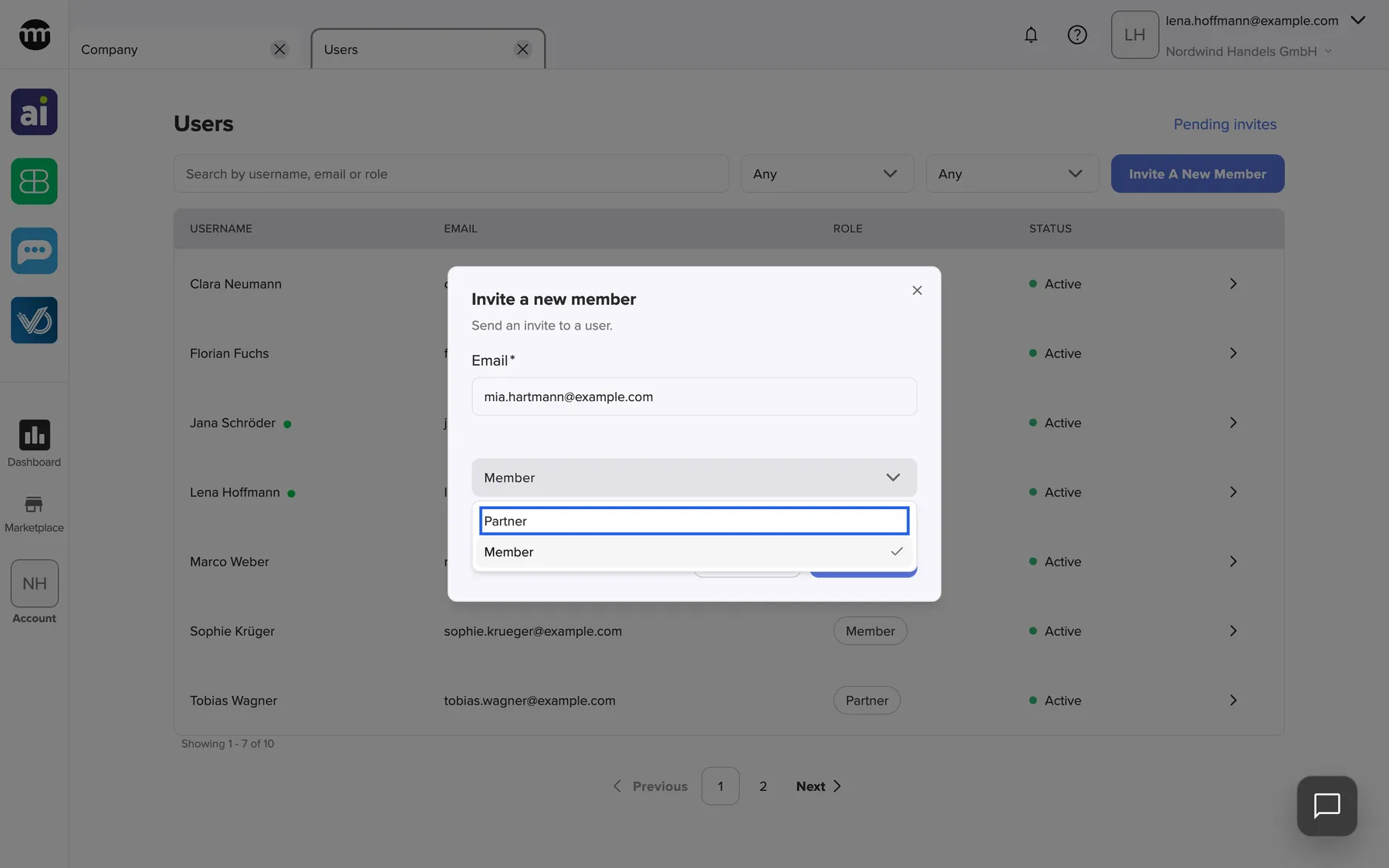
What this screenshot shows
- Screen
- Users
- Highlighted
- “Partner”: chooses the Partner role
- Also visible
- Email mia.hartmann@example.com; Options Partner and Member
- Purpose
- choose the role of the invitee
Invitations in the Users tab
Section titled “Invitations in the Users tab”| Indicator | Meaning |
|---|---|
| Pending invites link | Opens the open invitations |
| Search in invites instead | Appears when a search finds no member, and repeats the search in the invitations |
| An active invitation for this user already exists | The address is already invited or a member |
The duplicate check
Section titled “The duplicate check”A refused invitation shows its message under the email field. Resend or delete the earlier invitation, or look for the person among the members.
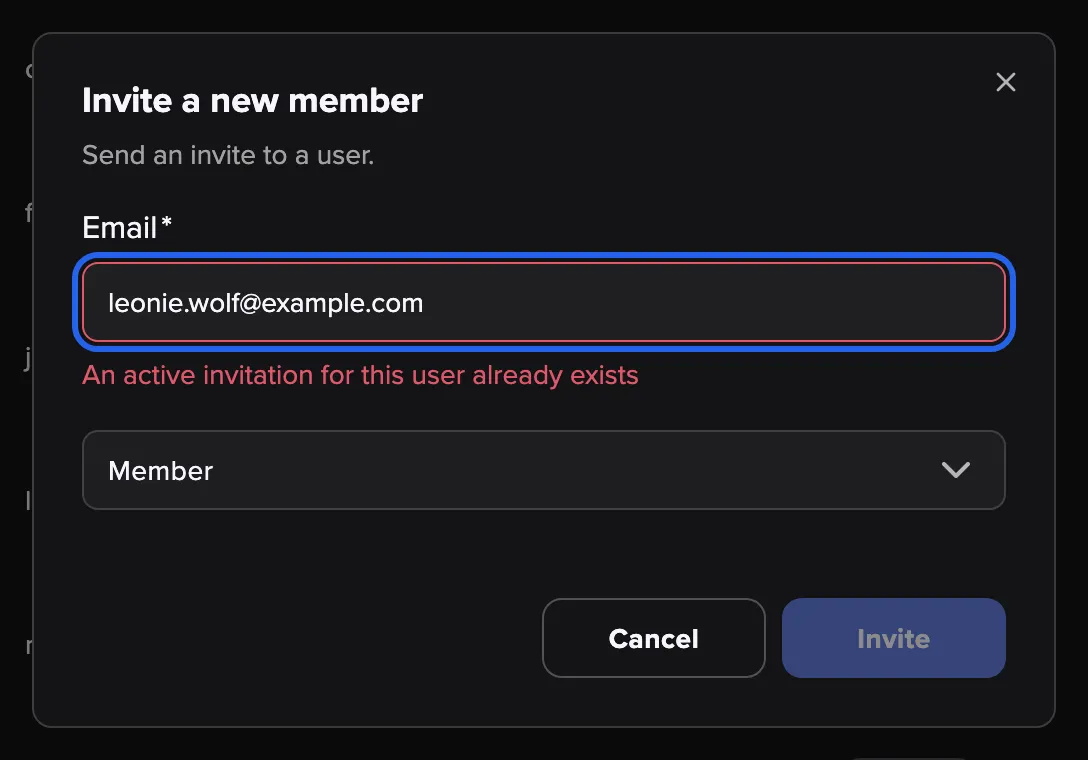
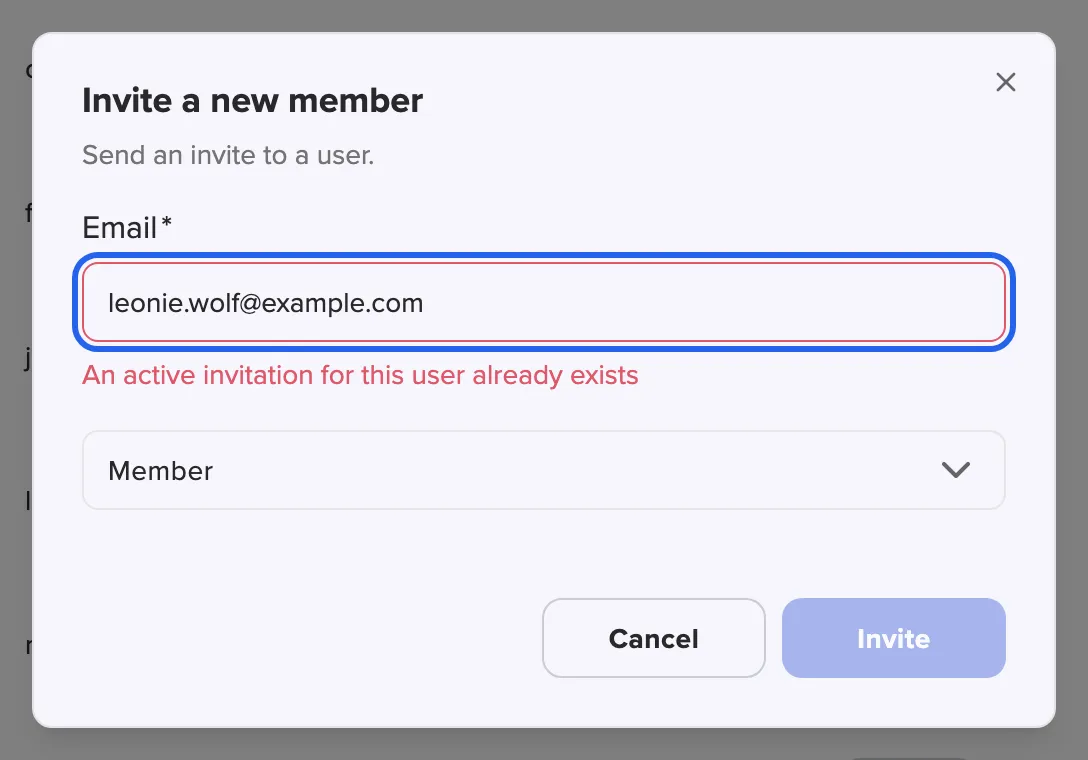
What this screenshot shows
- Screen
- Users
- Highlighted
- “Email”: shows why the invitation was refused
- Also visible
- Error An active invitation for this user already exists; Role Member
- Purpose
- duplicate invitation
Why: two open links for one person would leave it unclear which role applies.
Searching across members and invitations
Section titled “Searching across members and invitations”If a search on the Users tab finds nobody, Search in invites instead opens the invitations with the same search.
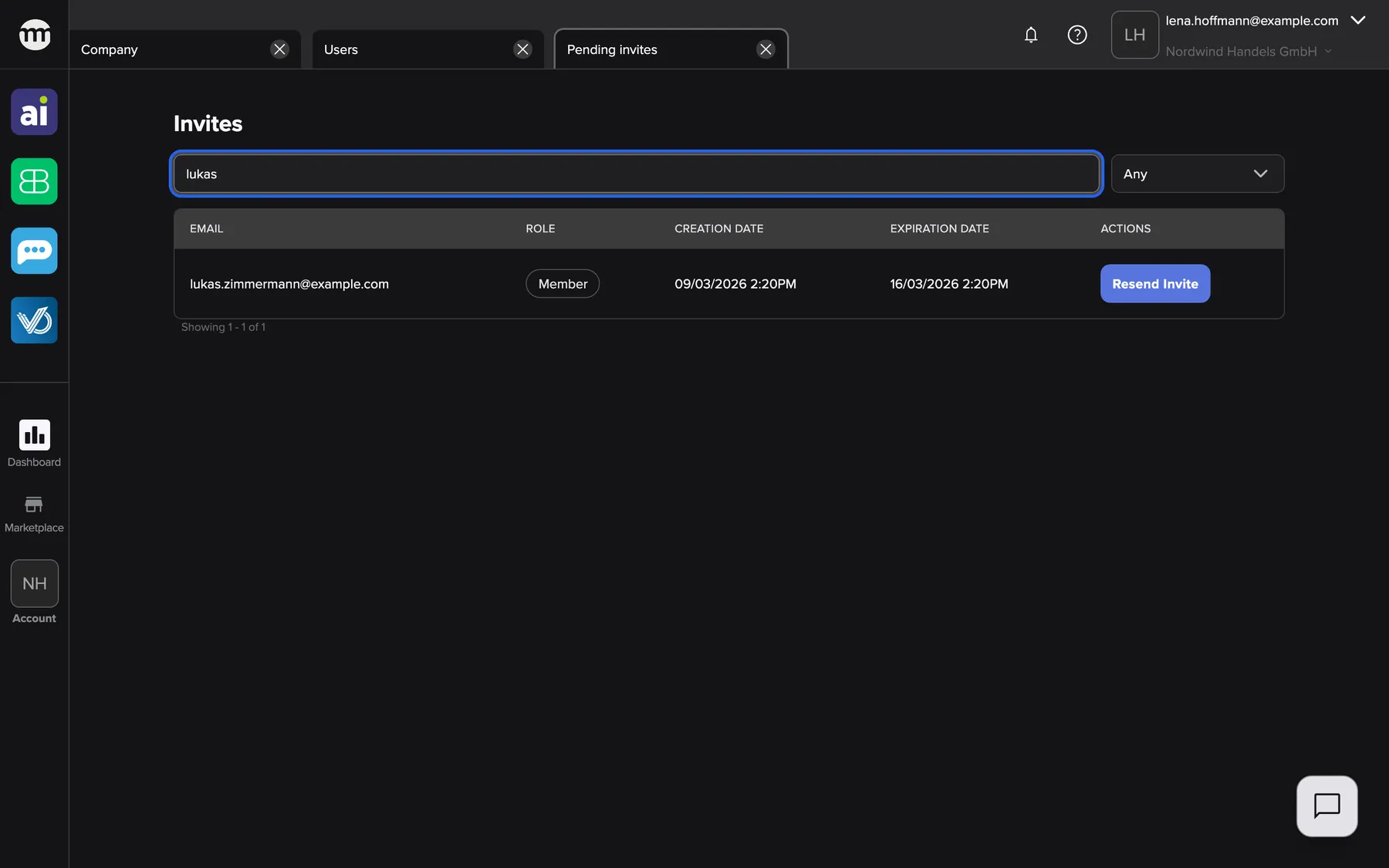
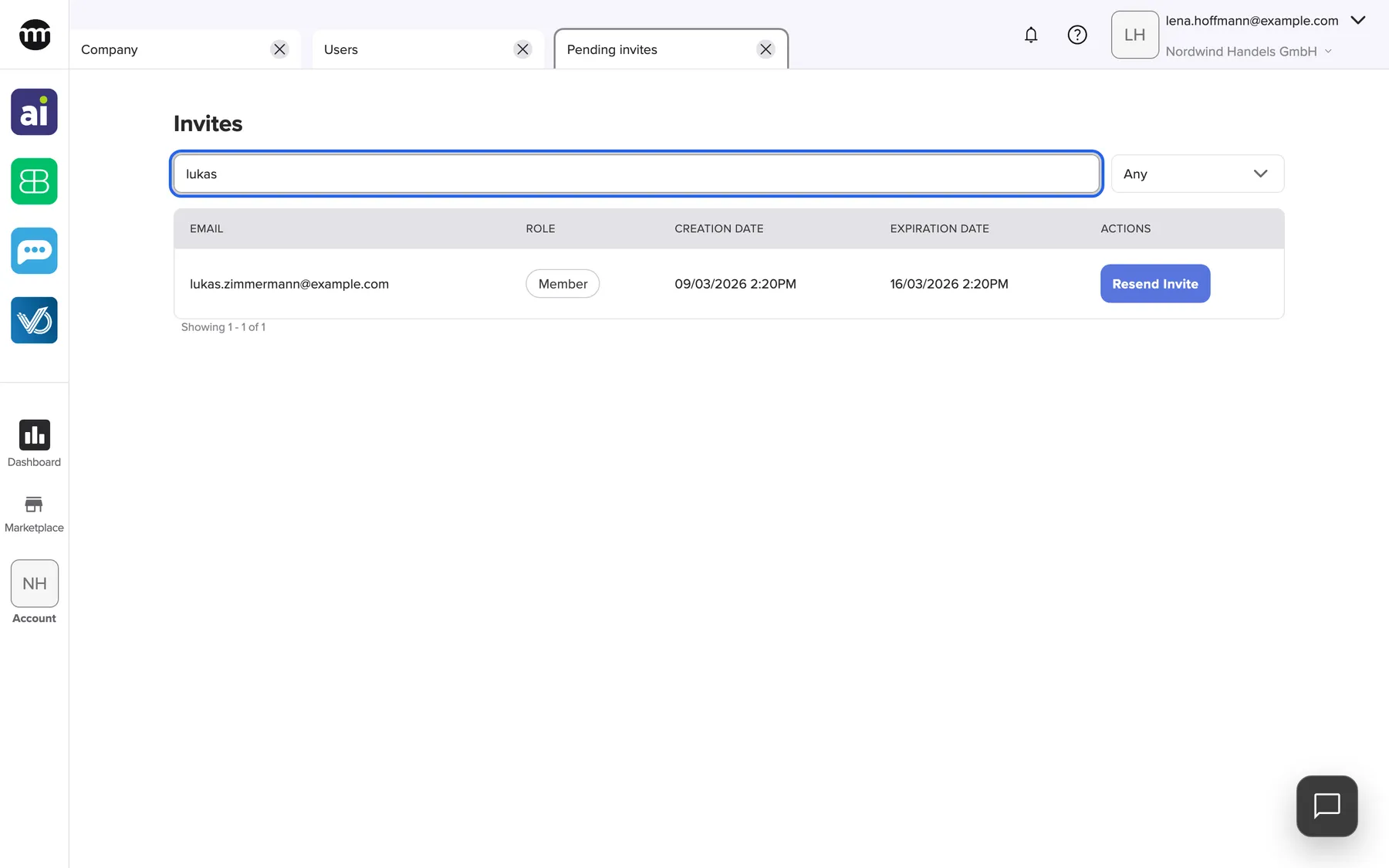
What this screenshot shows
- Screen
- Pending invites
- Highlighted
- “Search invites”: filters invitations by email
- Also visible
- Search text lukas; One invitation for lukas.zimmermann@example.com
- Purpose
- find an invitation from the user list
Why: “Is Lukas in the system?” has two answers, member or invited. One click checks both.
Invitations in the Pending invites tab
Section titled “Invitations in the Pending invites tab”AccountUsers › Pending invites. See Pending invites.
All unaccepted invitations, newest first, seven per page, with role, creation date and expiry. Every row offers Resend Invite. Expired rows also offer Delete.
This is the only place to see invited people before they join.
- Lukas did not receive the email → Resend Invite, and ask him to check spam.
- Leonie’s invitation expired during her holiday → resend it, which restarts its validity.
- Felix will not join after all → wait for the expiry, then delete.
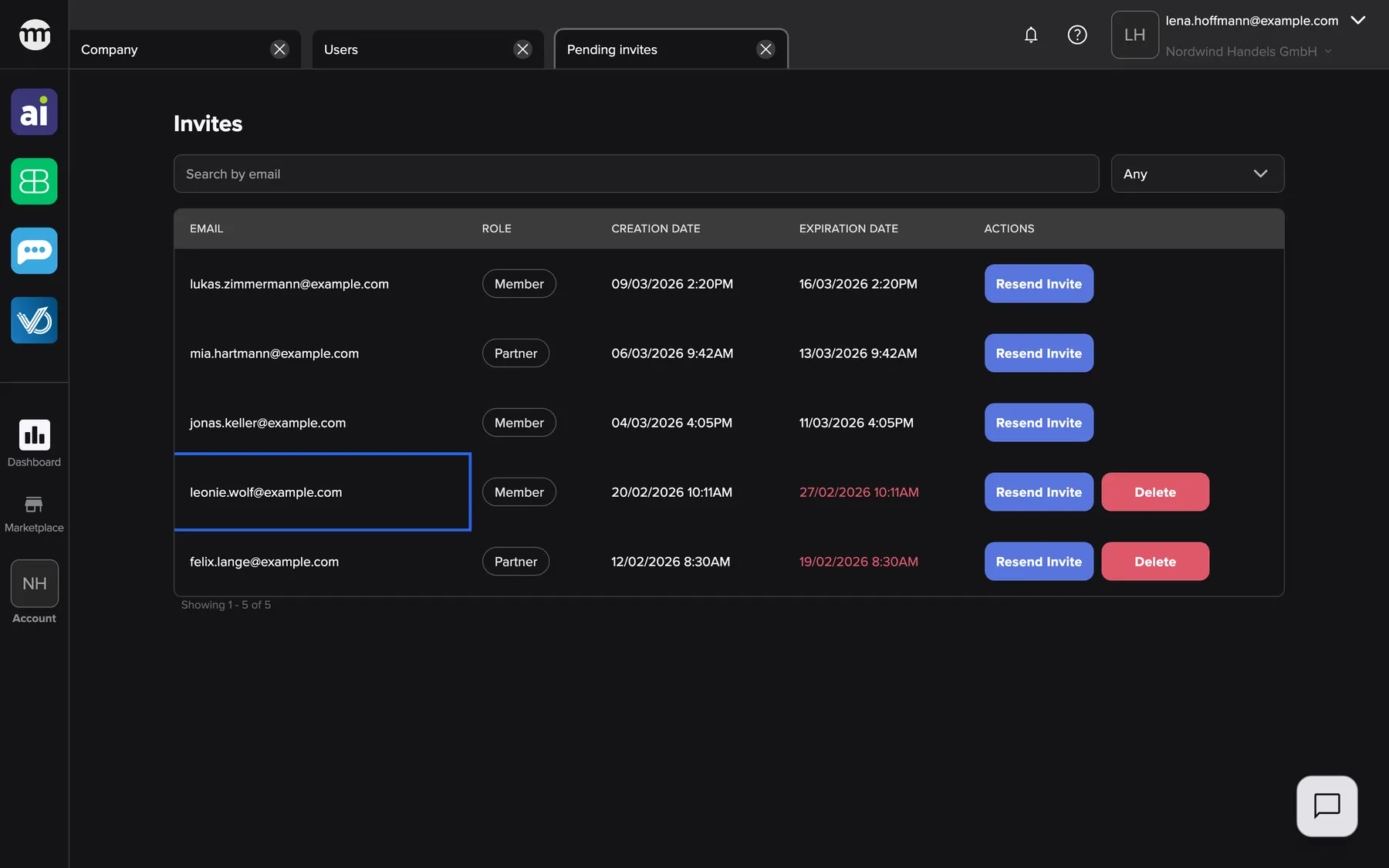
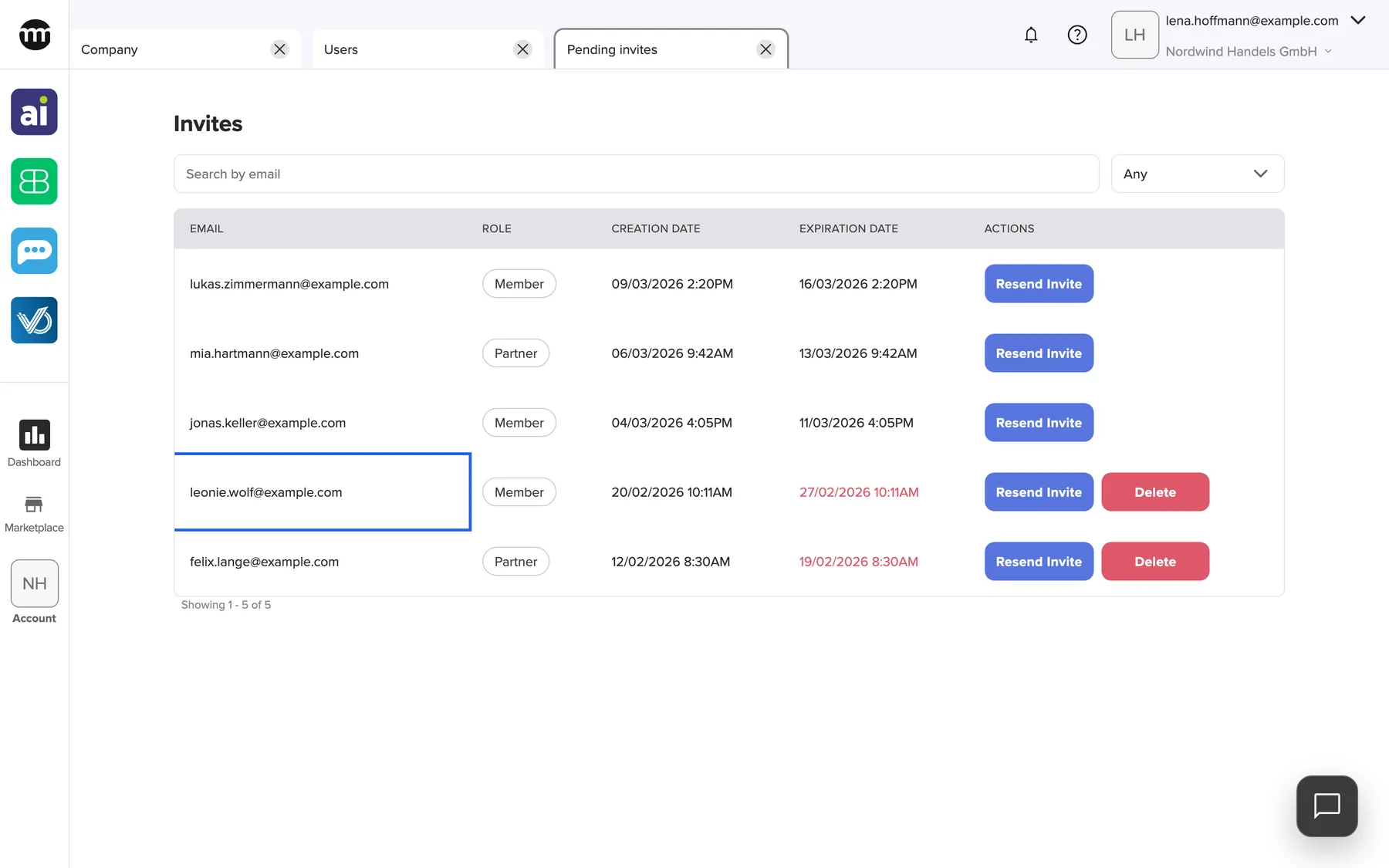
What this screenshot shows
- Screen
- Pending invites
- Highlighted
- “leonie.wolf@example.com”: shows the expired date in red
- Also visible
- Three valid invitations; Two expired invitations with Delete
- Purpose
- expired and valid invitations
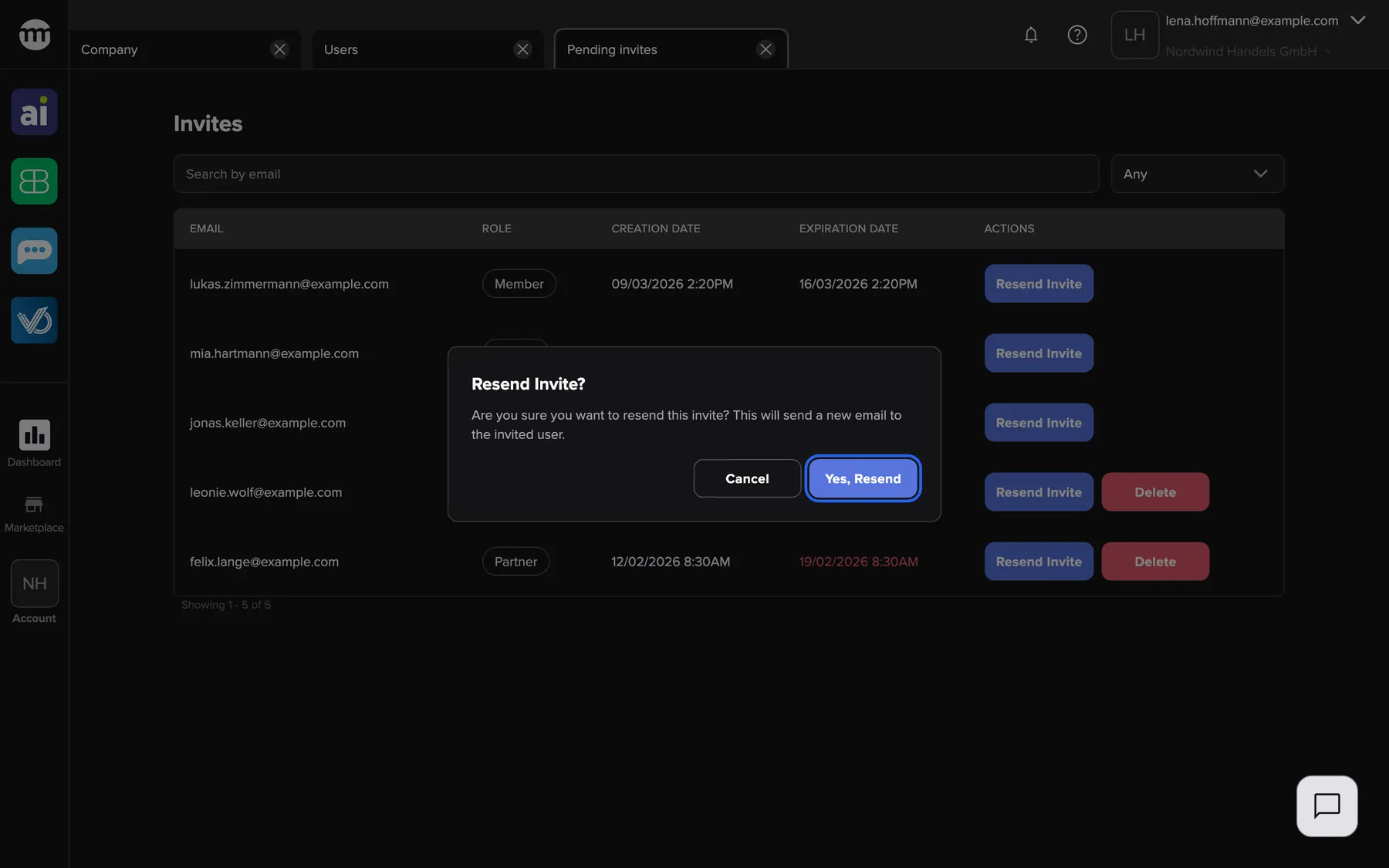
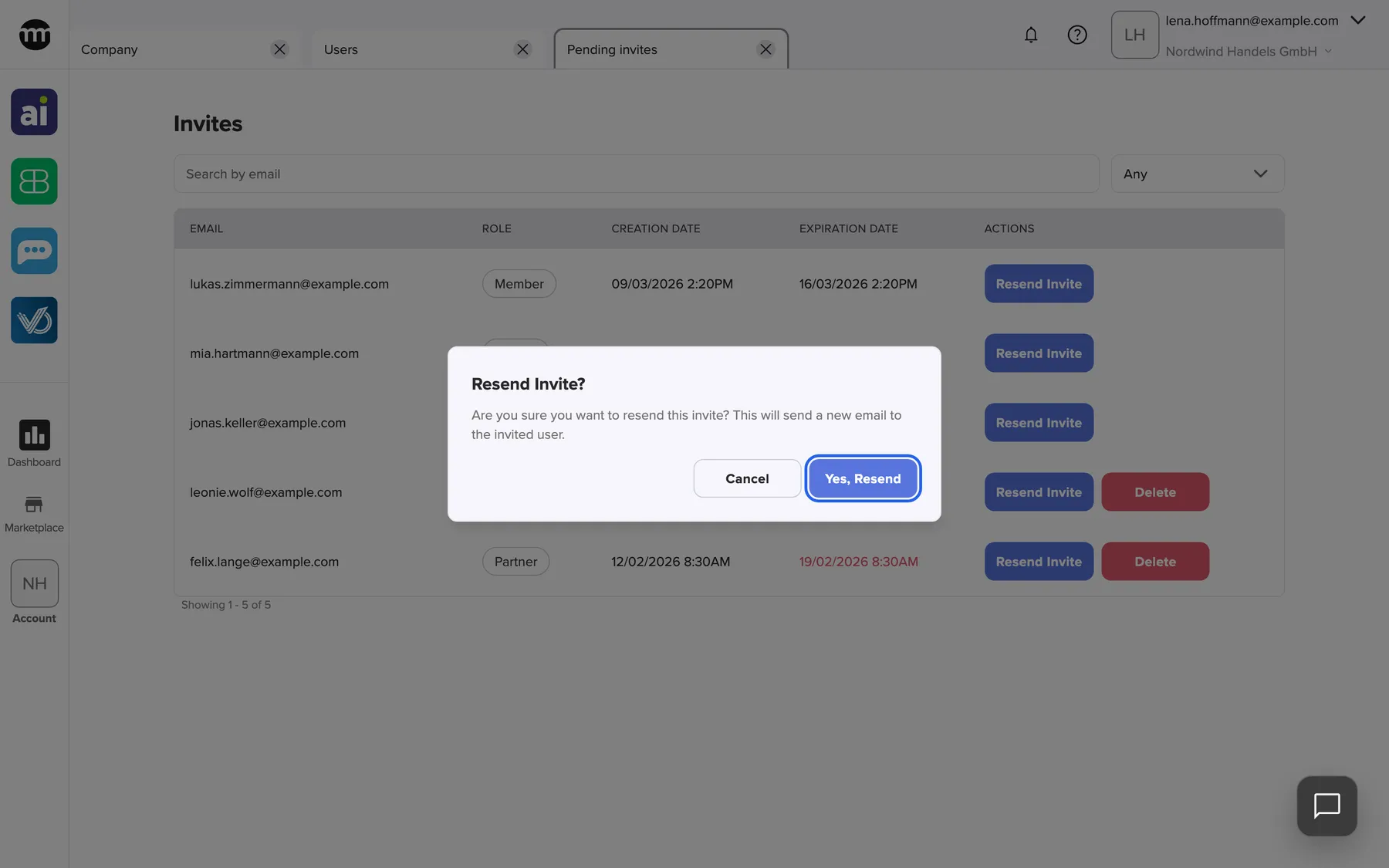
What this screenshot shows
- Screen
- Pending invites
- Highlighted
- “Yes, resend”: resends with a new seven-day validity
- Also visible
- Resend Invite? dialog; Cancel button
- Purpose
- resend an expired invitation
Invitations on the invitee’s side
Section titled “Invitations on the invitee’s side”The email link opens comrce Hub’s invitation page. What the person sees depends on whether they have an account and are signed in.
| Situation | What the page shows |
|---|---|
| No account yet | A registration form with the email address filled in and locked |
| Account exists, signed out | The sign-in form, then the accept card |
| Account exists, signed in with that address | The card Accept invitation with Accept and Deny |
| Signed in with another address | The card Please log out, asking to log out first |
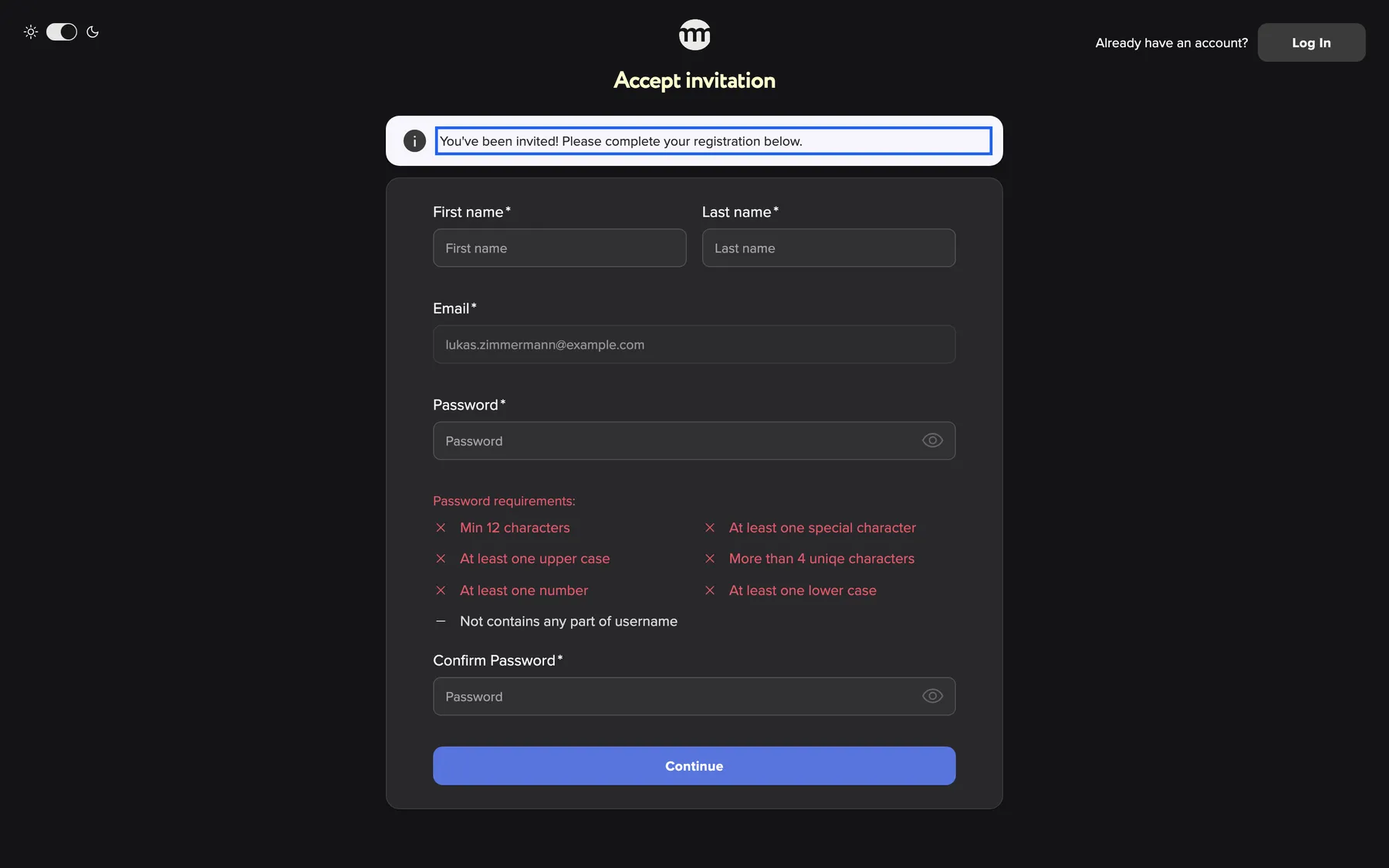
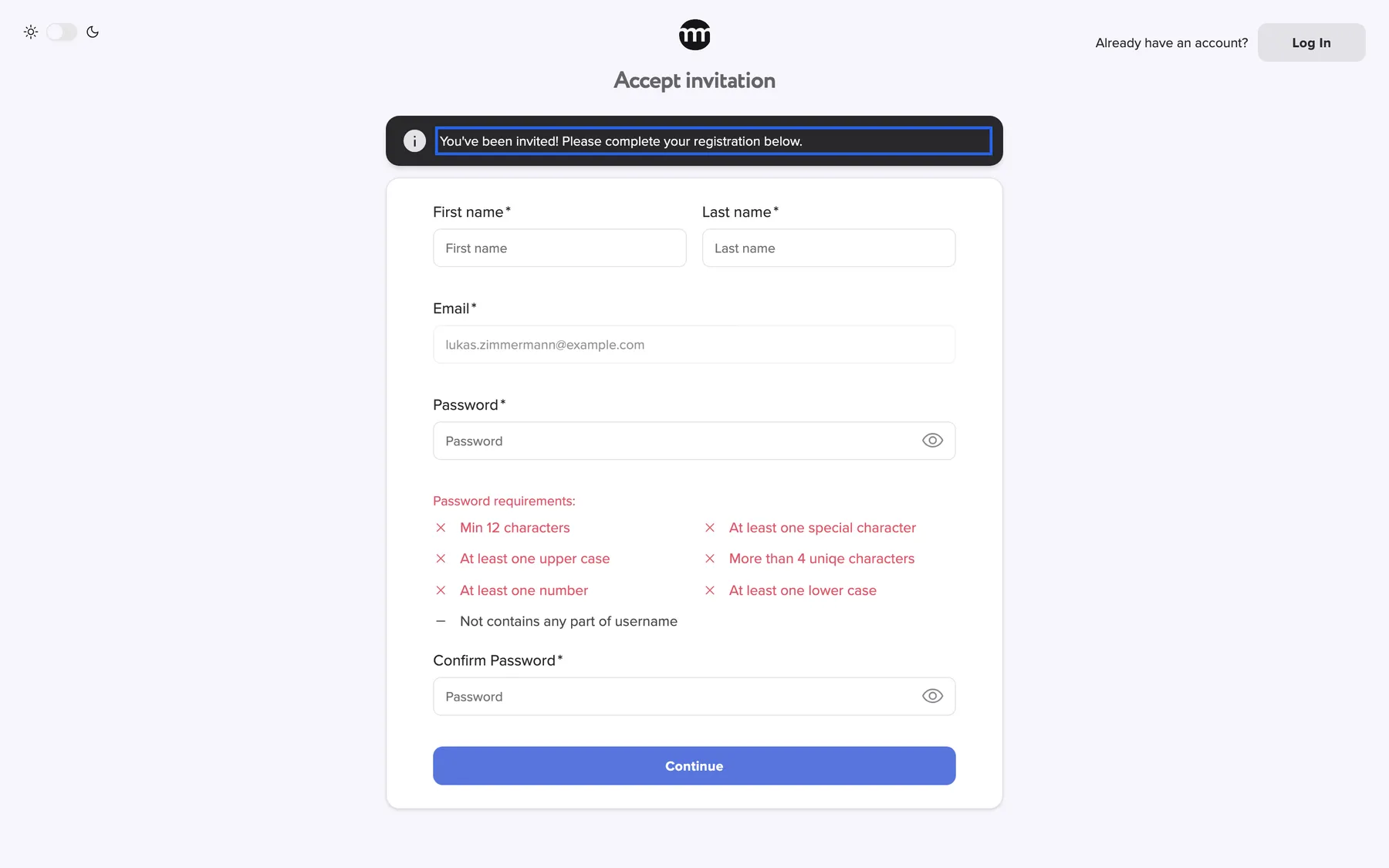
What this screenshot shows
- Screen
- Accept invitation
- Highlighted
- “You've been invited! Please complete your registration below.”: explains the registration
- Also visible
- Locked email field; Name and password fields; Continue button
- Purpose
- invitee without an account
New accounts start with a confirmed email address, so no separate confirmation email follows. Existing users who accept switch into your company at once and keep their other companies.
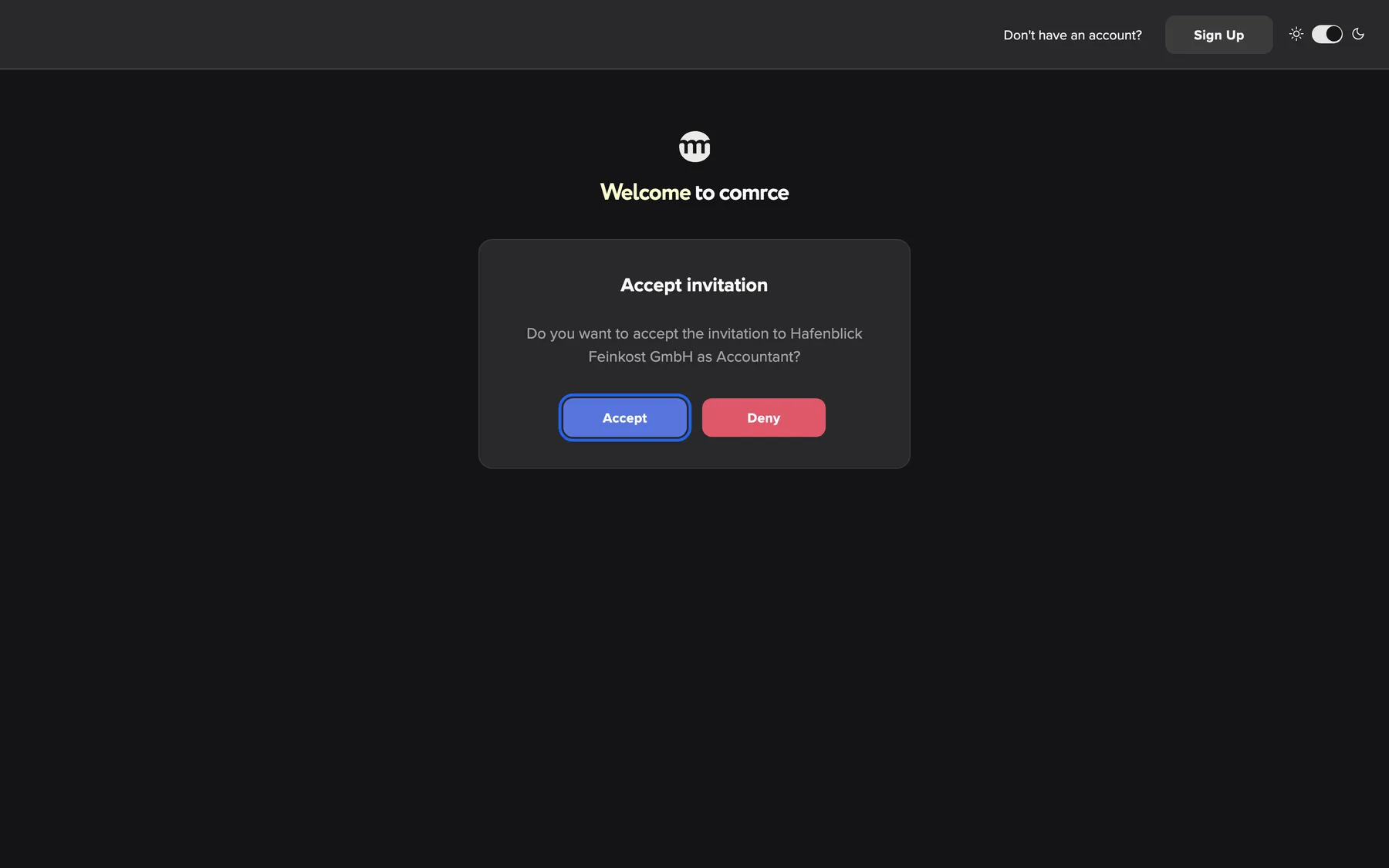
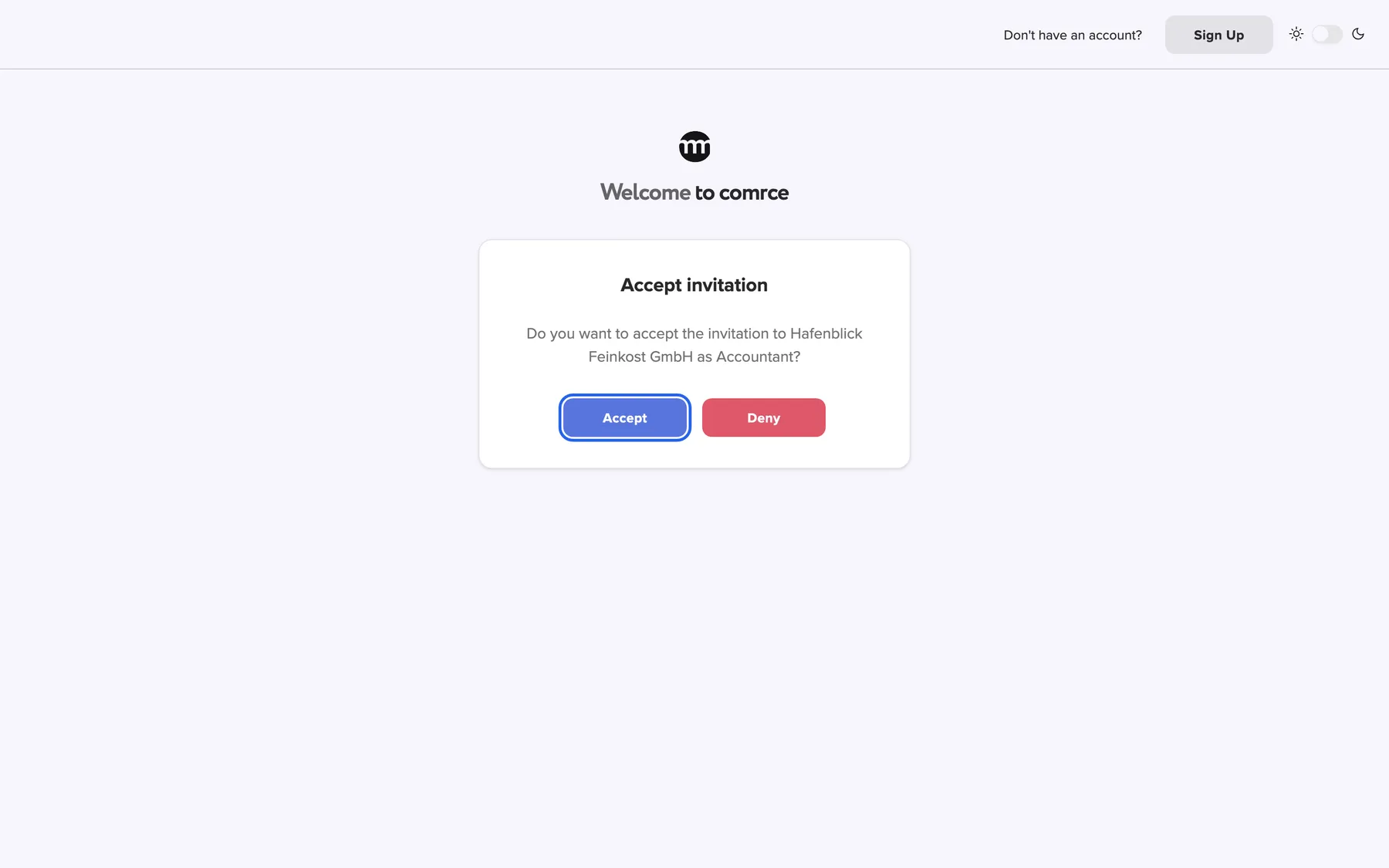
What this screenshot shows
- Screen
- Accept invitation
- Highlighted
- “Accept”: joins the company
- Also visible
- Company Hafenblick Feinkost GmbH; Role shown as Accountant; Deny button
- Purpose
- invitee with an existing account
The full invitee guide is Accept an invitation.
What you need to know
Section titled “What you need to know”
What you need to know
Section titled “What you need to know”| Topic | Fact |
|---|---|
| Validity | See What it does. A resend restarts it. |
| Accept in time | After opening the link, the invitation page stays usable for 15 minutes. After that, open the email link again. |
| Roles | Member or Partner, never Owner |
| Starting permissions | The role’s preset on acceptance. Adjust them afterwards. |
| Duplicates | One unaccepted invitation per address and company |
| Former members | Deleted members can be invited again. They return with the new role’s preset. |
| Deletion | Only expired invitations |
| Audit | Created, resent, deleted and accepted invitations appear in Logs |
Frequently asked questions
Section titled “Frequently asked questions”
Frequently asked questions
Section titled “Frequently asked questions”General
Section titled “General”Who can invite people?
Section titled “Who can invite people?”The company owner, and members with the permission Inviting users. Neither the Member nor the Partner preset includes it. The owner switches it on for team leads on their member tab under Users.
How long is an invitation valid?
Section titled “How long is an invitation valid?”Seven days from the moment it was sent or last resent. After that the link no longer works, and the expiry date turns red on the Pending invites tab. Resend the invitation there to restart it.
Can I invite someone as owner?
Section titled “Can I invite someone as owner?”No. Invitations offer only Member and Partner. A company has one owner. Ownership moves only through a transfer that the current owner starts on the Company tab.
Does the invited person need a comrce Hub account?
Section titled “Does the invited person need a comrce Hub account?”No. Without an account, the invitation page shows a short registration form. With an account, the person signs in, accepts and keeps their other companies.
Which role should I choose?
Section titled “Which role should I choose?”Choose Member for your own staff, who need to open the tools. Choose Partner for outside partners such as accountants, who need company and billing data but not the tools. You can adjust single permissions after the person joins.
Can I invite several people at once?
Section titled “Can I invite several people at once?”No. The invitation dialog on the Users tab takes one email address at a time. Send one invitation per person. Each gets its own email and its own validity.
Can I change the role of an open invitation?
Section titled “Can I change the role of an open invitation?”No. Resending keeps the role. Once the person has accepted, change the role on their member tab. Or delete the invitation after it expires and invite again with the other role.
Duplicates and errors
Section titled “Duplicates and errors”Why does comrce Hub say an active invitation already exists?
Section titled “Why does comrce Hub say an active invitation already exists?”An earlier invitation to that address in your company was never accepted, even if it has expired. Or the person is already a member. Resend or delete the earlier invitation on the Pending invites tab, or look the person up on the Users tab.
Can I invite a former member again?
Section titled “Can I invite a former member again?”Yes, if their membership was deleted. They return with the preset of the role in the new invitation, not with their earlier permissions. A deactivated member cannot be invited. Activate them on their member tab instead.
The person says the link does not work. What should I do?
Section titled “The person says the link does not work. What should I do?”Resend the invitation from the Pending invites tab. Ask the person to use only the newest email. An older link stops working after a resend.
On the invitee’s side
Section titled “On the invitee’s side”The invited person sees a log-out message. Why?
Section titled “The invited person sees a log-out message. Why?”They are signed in with another account than the invited address. They log out with the button on the card and open the invitation link again. Then they register or sign in with the invited address.
Does the new member have to confirm their email address?
Section titled “Does the new member have to confirm their email address?”No. Accounts created from an invitation have a confirmed email address, because the person received the invitation at that address. They can sign in right after registering.
Why does the accept card show a different role name?
Section titled “Why does the accept card show a different role name?”The card that asks existing users to accept shows the English word “Accountant” instead of the role label. It is the same role that comrce Hub shows as Partner everywhere else.
What happens if the person selects Deny?
Section titled “What happens if the person selects Deny?”Nothing changes. They return to comrce Hub, and the invitation stays open until it expires. They can still accept it from the email until then.
Can a Partner invite people?
Section titled “Can a Partner invite people?”Only if the owner switches on Inviting users for them. The Partner preset does not include it, just like the Member preset. With the permission, a Partner sees the invite button on the Users tab.
Can I take back an invitation I sent by mistake?
Section titled “Can I take back an invitation I sent by mistake?”Not while it is valid. comrce Hub deletes only expired invitations on the tab with open invitations. If the person joins in the meantime, delete their membership on their member tab. Otherwise delete the invitation once it has expired.
Where it is shown
Section titled “Where it is shown”Why doesn’t the invited person appear on the Users tab?
Section titled “Why doesn’t the invited person appear on the Users tab?”People appear on the Users tab only after accepting. Until then, look for them under Pending invites, where the row shows when their invitation expires.
Where can I see who invited whom?
Section titled “Where can I see who invited whom?”In Logs, the event for a created invitation records the invited address, the role and the expiry. It also records the email of the person who sent it.
Data and privacy
Section titled “Data and privacy”What does the invitation email contain?
Section titled “What does the invitation email contain?”The invitation goes to the address you entered. It contains a personal link to join your company. It also names the company and the person who invited them.
What happens to an expired invitation’s data?
Section titled “What happens to an expired invitation’s data?”An expired invitation stays listed on the Pending invites tab until you delete or resend it. Deleting removes it for good. Its creation and deletion remain in Logs.
Troubleshooting
Section titled “Troubleshooting”
Troubleshooting
Section titled “Troubleshooting”| Symptom | What to check |
|---|---|
| The invite button is missing | You lack Inviting users. Ask the owner. |
| An active invitation for this user already exists | An unaccepted invitation exists, maybe an expired one under Pending invites. Or the person is a member. |
| Invalid email address | Check the address for typos, spaces and letters with accents such as ä or é. |
| The email never arrived | Ask the person to check spam, then resend the invitation. |
| The link shows Invitation expired. | Resend the invitation. |
| The link shows Invitation not found or expired. | The invitation was resent, deleted or already accepted. Use the newest email or send a new invitation. |
| The person sees Please log out | They are signed in with another account. They log out and open the link again. |
| The page asks to log out although the address is right | Check upper and lower case. The invited address and the signed-in address must be written identically. |
| The person joined but lacks a permission | They got the role’s preset. Adjust the switches on their member tab. |
| The new expiry date does not show after resending | Wait for the list’s automatic refresh, or reopen the tab. |