

Browse the Marketplace
The Marketplace tab opens the comrce Marketplace. Think of it as a shop window. It holds every service comrce lists for online sellers, grouped in sections, with search and filters. Open it from Marketplace in the left sidebar.
Anyone signed in to a company can browse it, and so can visitors without an account. A service tile leads to the partners that offer it. Browsing costs nothing and commits you to nothing.
What you can do here
Section titled “What you can do here”- Browse services by section. Each section groups related services as tiles with a description and tags. The screen at a glance.
- Search the names, descriptions and tags of sections, services and partners. Every word you type has to match. Search the Marketplace.
- Narrow the catalog by category and by the tools a partner works with, for example only partners compatible with Billbee. Narrow by category or compatible tool.
- Open a service to see its partners. Your filters come along. Open a service · A service in the Marketplace.
- See your installed partners in their own section at the top. See your installed partners · A partner’s page.
The screen at a glance
Section titled “The screen at a glance”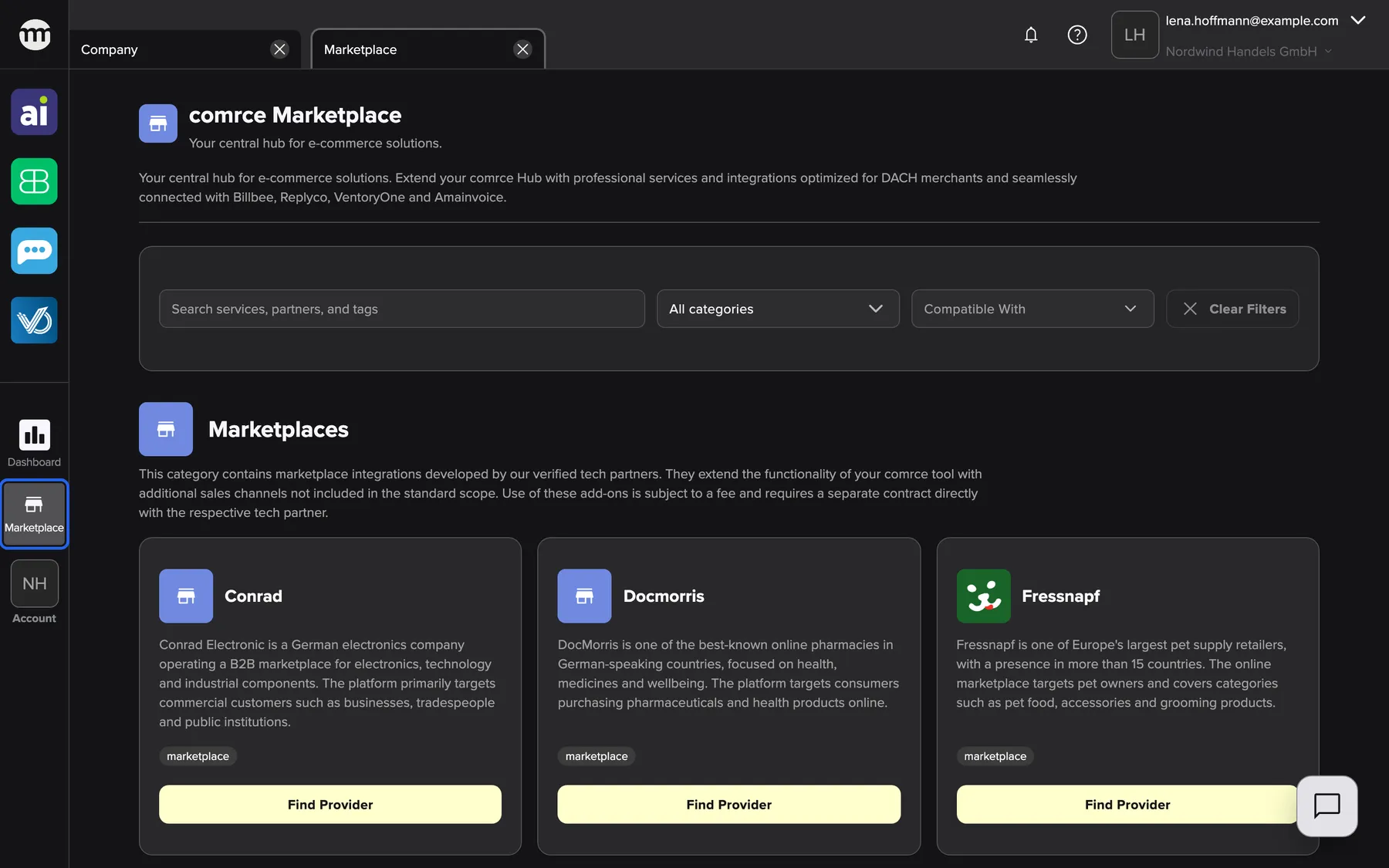
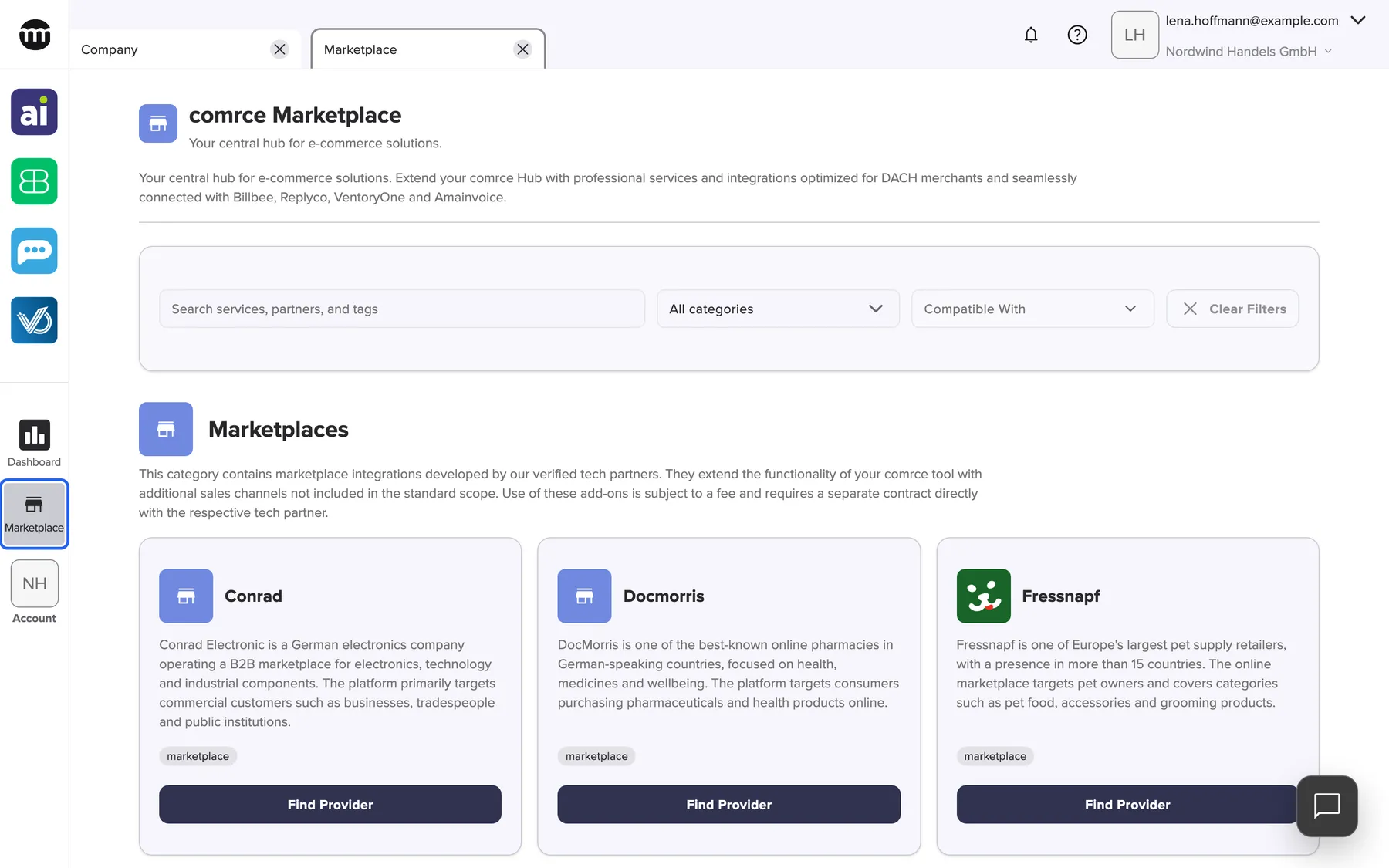
What this screenshot shows
- Screen
- Marketplace
- Highlighted
- “Marketplace”: opens the Marketplace tab
- Also visible
- comrce Marketplace; Filter bar: search, category, compatible with, clear filters; Section Marketplaces with the service tiles Conrad, Docmorris and Fressnapf
- Purpose
- entry point of the Marketplace
| Region | What it shows | What you do there |
|---|---|---|
| Header | comrce Marketplace, Your central hub for e‑commerce solutions. and an introduction | – |
| Filter bar | The search field, All categories, Compatible with and Clear filters | Narrow the catalog |
| Installed | Tiles of the partners your company installed, only when there is at least one | Open an installed partner |
| Sections | A title, a description and a grid of service tiles per section | Pick a service |
| Service tile | Icon, title, description, tags and Find provider, or the badge Coming soon! | Open the service |
Search the Marketplace
Section titled “Search the Marketplace”Type into the search field (placeholder Search services, partners, and tags). The page updates while you type. It keeps everything in which all of your words appear, ignoring upper and lower case. The search looks in these fields:
| What | Fields searched |
|---|---|
| A section | Its title and description |
| A service | Its title, description and tags, plus the title and description of its section |
| A partner | Its name and short description |
When a section or service matches, all of its partners are kept. When only a partner matches, its service stays visible with that partner. Typing furniture keeps the services Home24, Maison du Monde and XXXLutz. Their descriptions mention furniture. When nothing matches, the page reads No services or partners match your current filters..
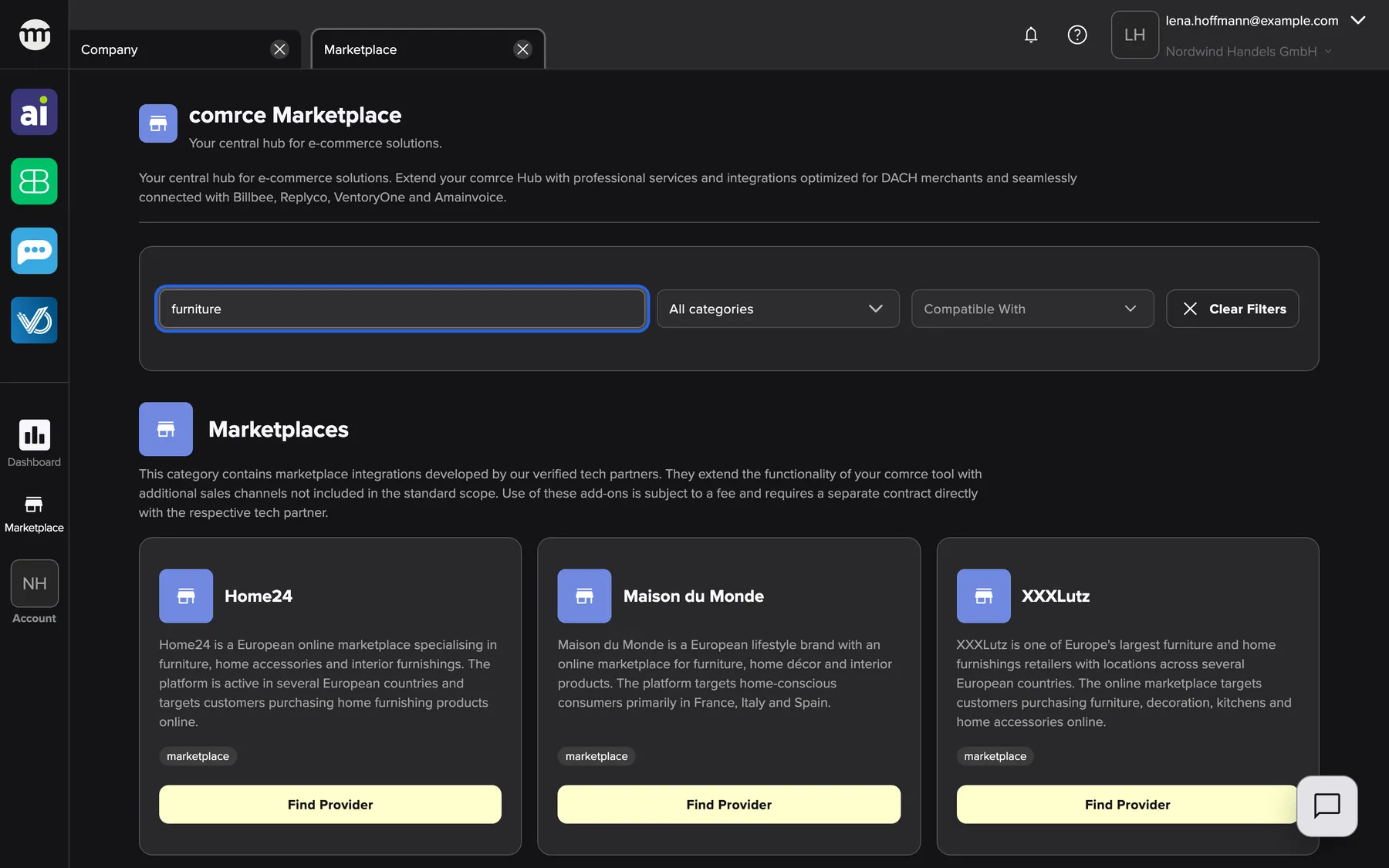
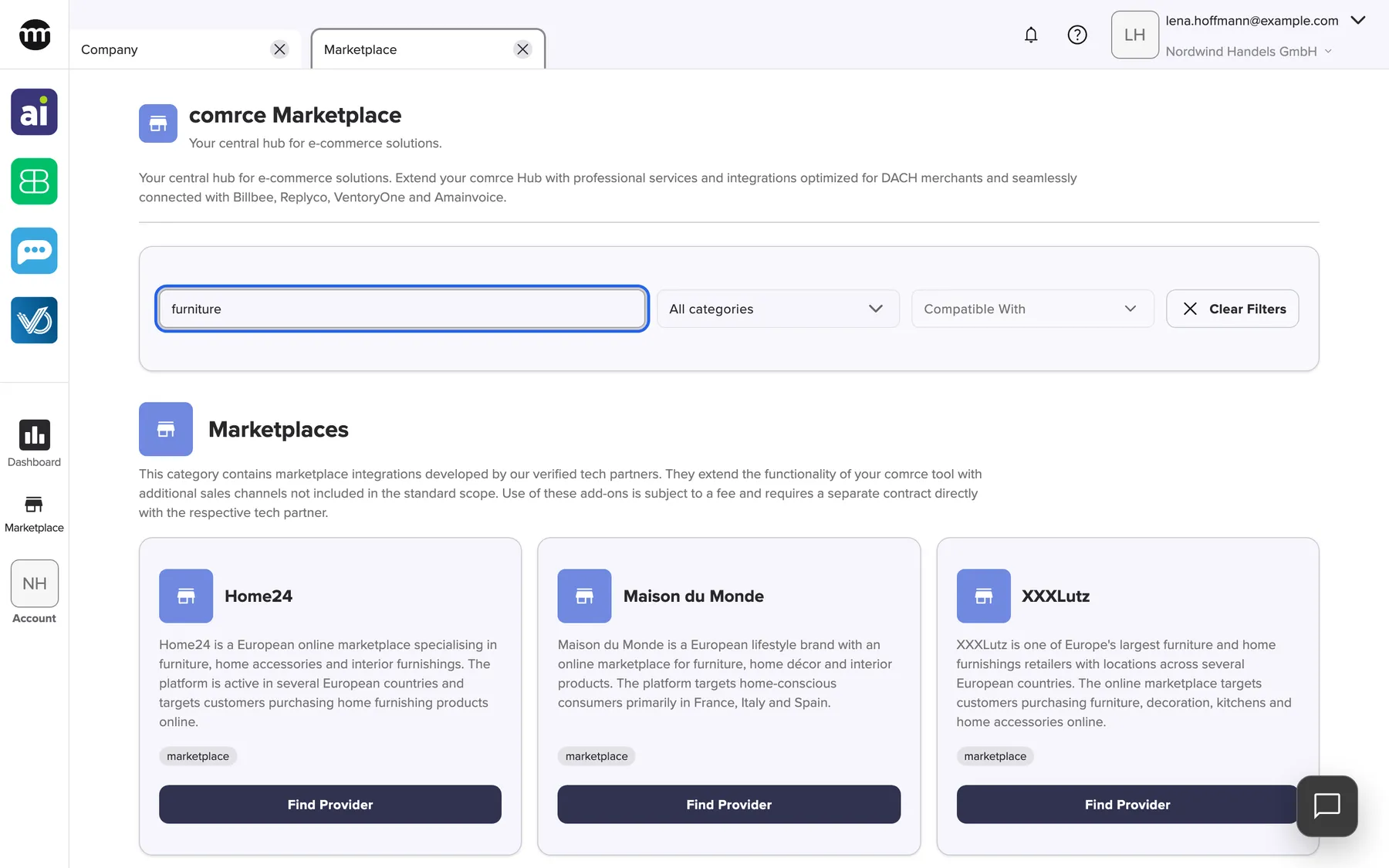
What this screenshot shows
- Screen
- Marketplace
- Highlighted
- “Search marketplace”: keeps sections, services and partners that contain every typed word
- Also visible
- Section Marketplaces with the service tiles Home24, Maison du Monde and XXXLutz; Clear filters enabled
- Purpose
- search the Marketplace
The search also finds services that no partner offers yet, such as Zalando. While you browse, these services have no tile. Their service page lists no partners.
Narrow by category or compatible tool
Section titled “Narrow by category or compatible tool”-
Open All categories and choose one category. The list has a search field of its own.
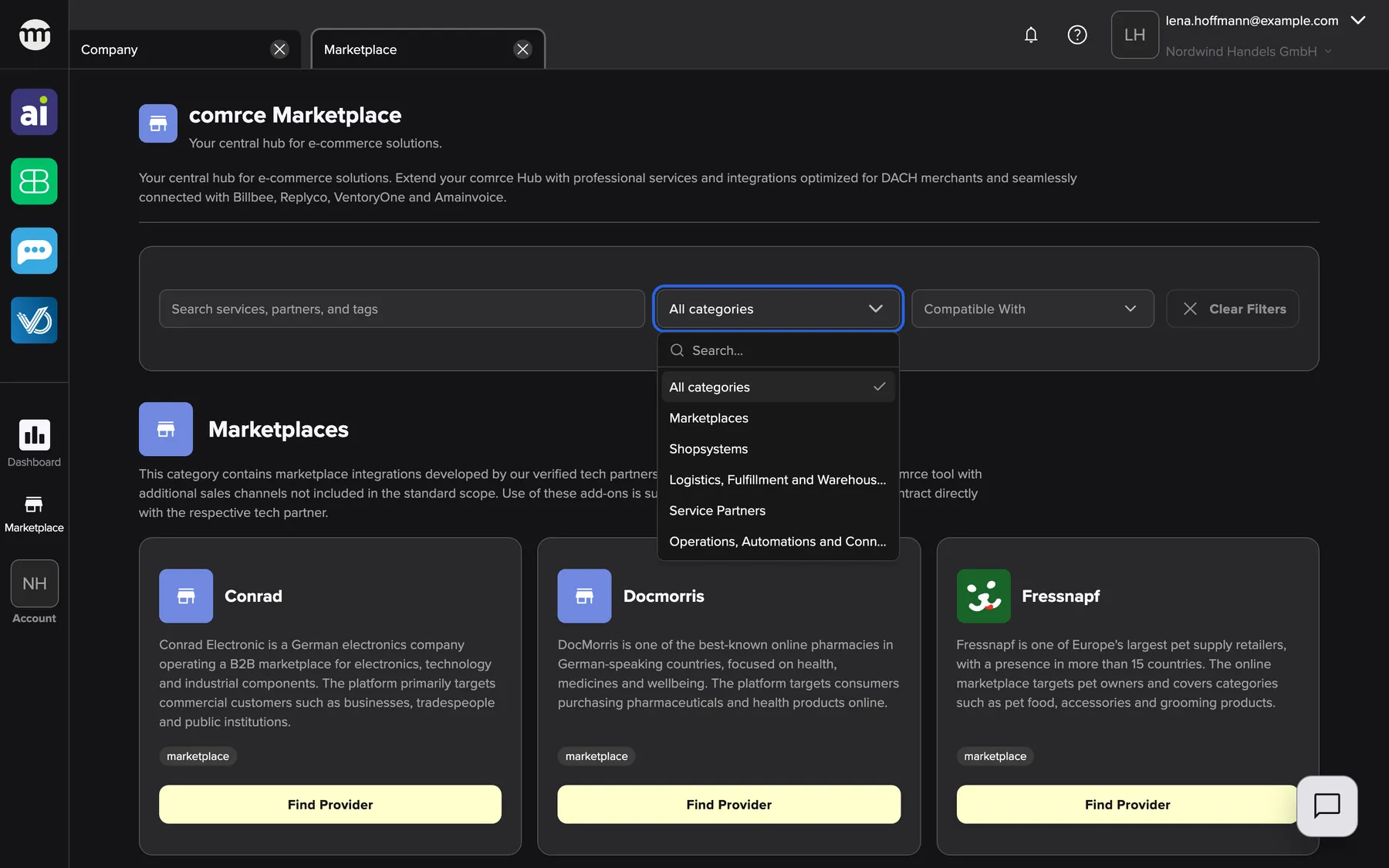
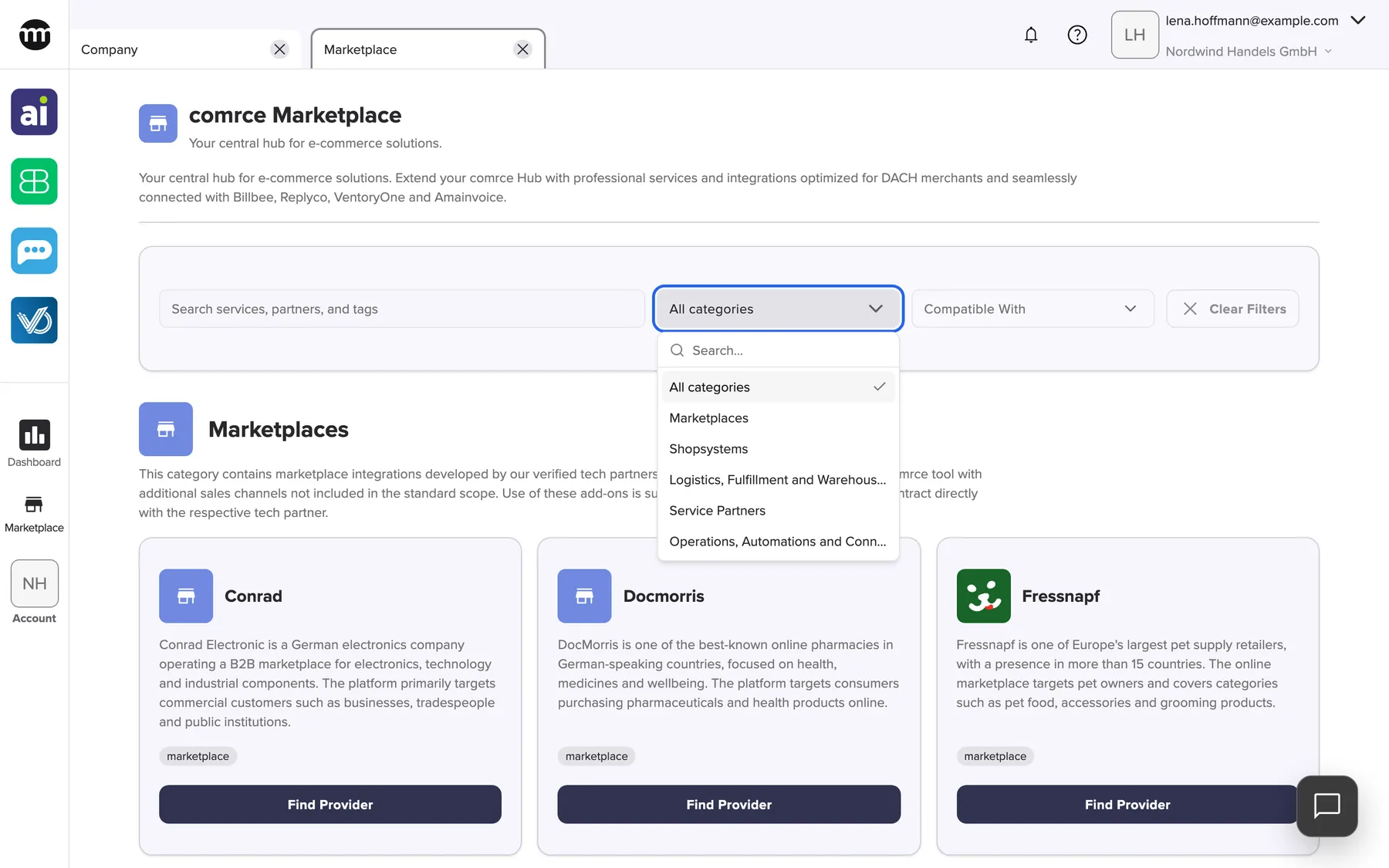
The category list narrows the Marketplace to partners of one category. What this screenshot shows
- Screen
- Marketplace
- Highlighted
- “All categories”: lists the categories. You can choose one at a time.
- Also visible
- Options: All categories, Marketplaces, Shopsystems, Logistics…, Service Partners, Operations…
- Purpose
- filter by category
-
Open Compatible with and tick one or more tools, for example Replyco. Press Esc or select outside the list to close it.
-
The page now shows only services that have at least one partner matching the filters.
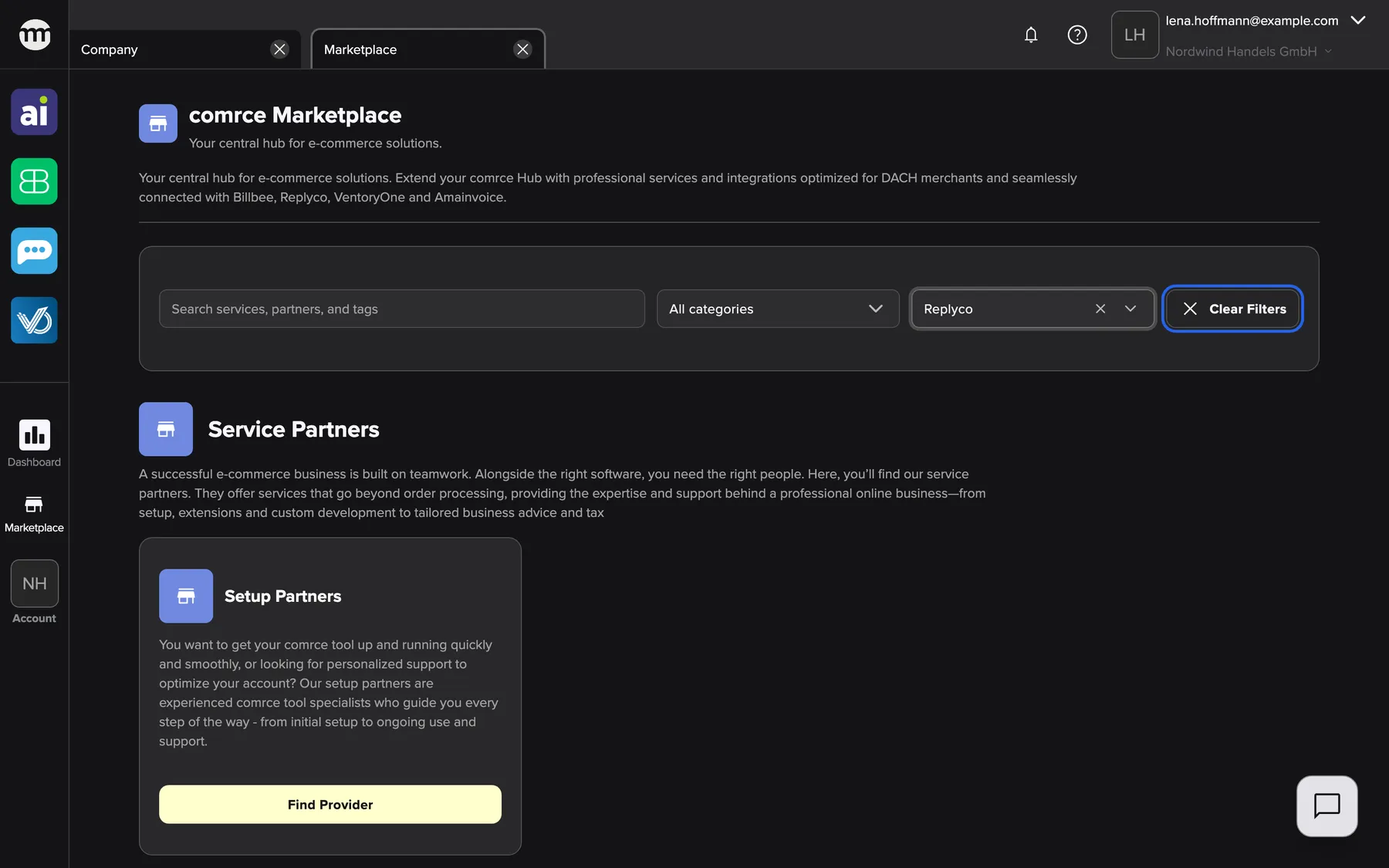
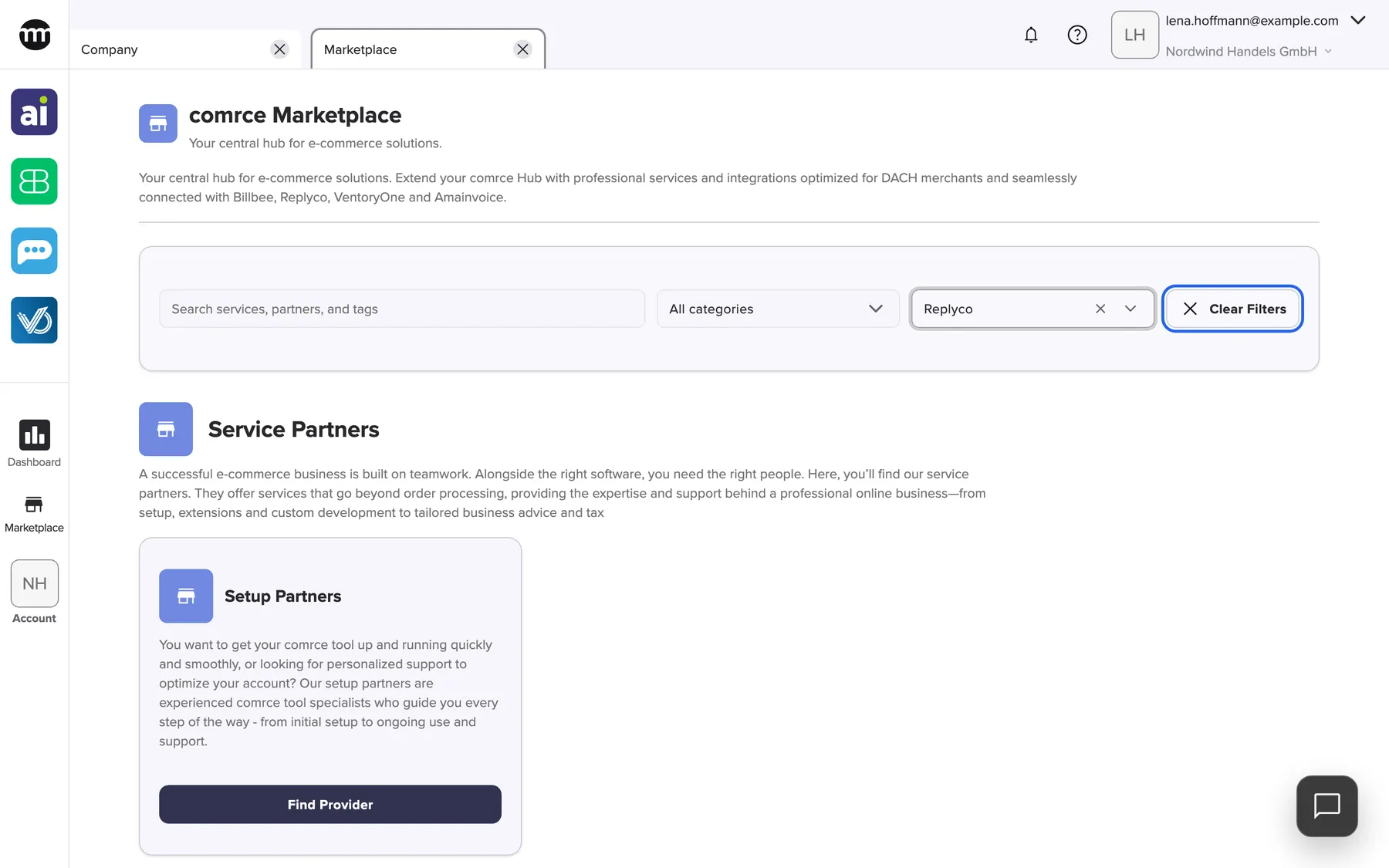
With a filter set, only services with a matching partner remain. Clear filters resets everything at once. What this screenshot shows
- Screen
- Marketplace
- Highlighted
- “Clear filters”: clears search, category and compatibility filters
- Also visible
- Compatible with: Replyco selected; Section Service Partners with the service tile Setup Partners
- Purpose
- filter by compatible tool and reset filters
-
Select Clear filters to remove the search, the category and every tool at once.
The two filters look at partners, not at services. A partner matches Compatible with only if it works with every tool you ticked. Ticking Billbee and Replyco keeps partners compatible with both, not with either. A service without a matching partner disappears. A service marked Coming soon! disappears too, because it has no partners yet.
Open a service
Section titled “Open a service”Every service tile with partners has a Find provider button. Select it, and the service opens in a new tab named after the service, next to the Marketplace tab. The search and the filters you set come along to the service page, so a Billbee filter still applies there. A service in the Marketplace explains that page.
A tile with the badge Coming soon! has no button. The service is announced, but no partner offers it yet.
See your installed partners
Section titled “See your installed partners”When your company has installed at least one partner, the section Installed appears with a heart icon. It sits directly under the filter bar, before all other sections. It shows the installed partners as tiles with More information. The search and filters apply to it too.
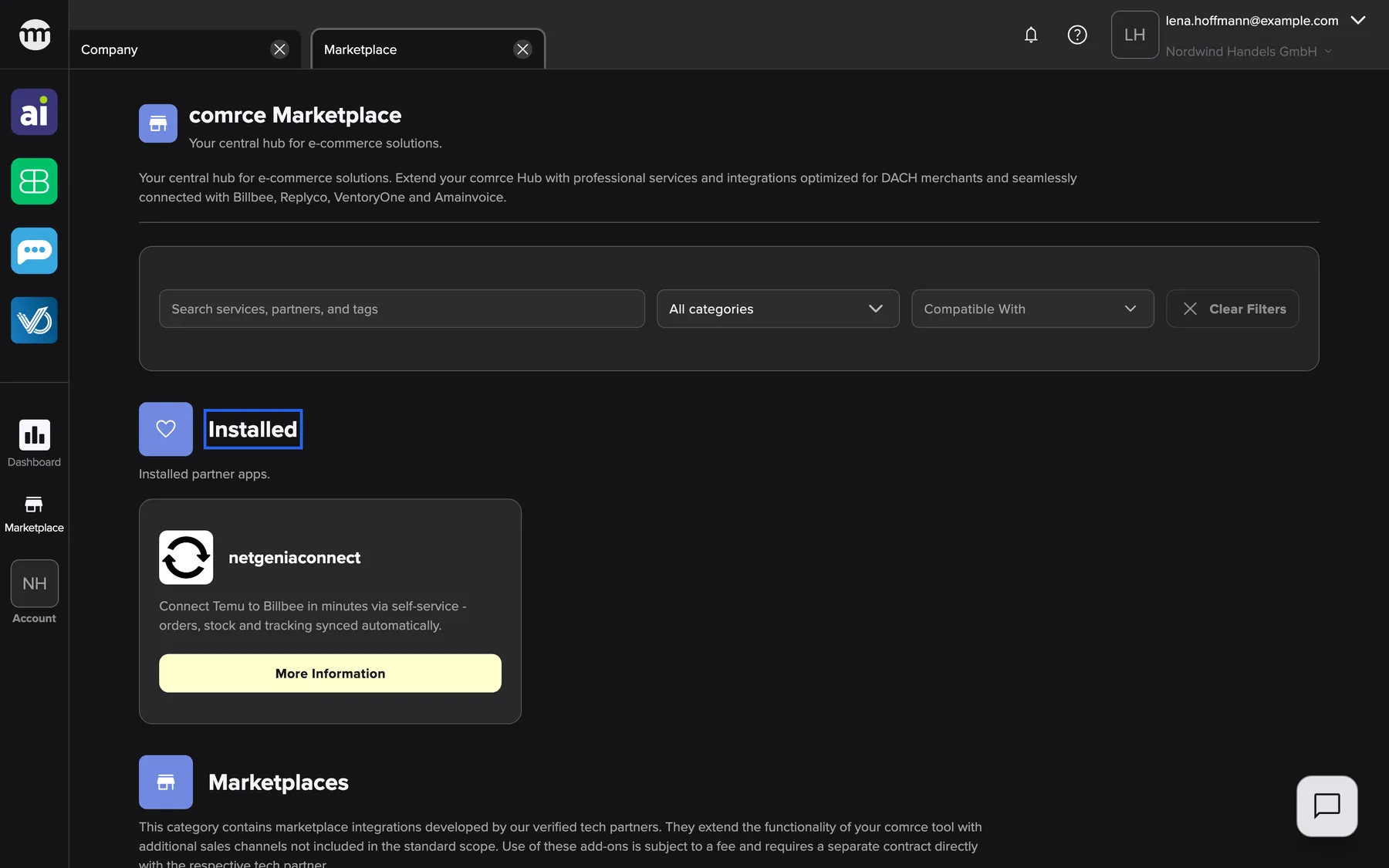
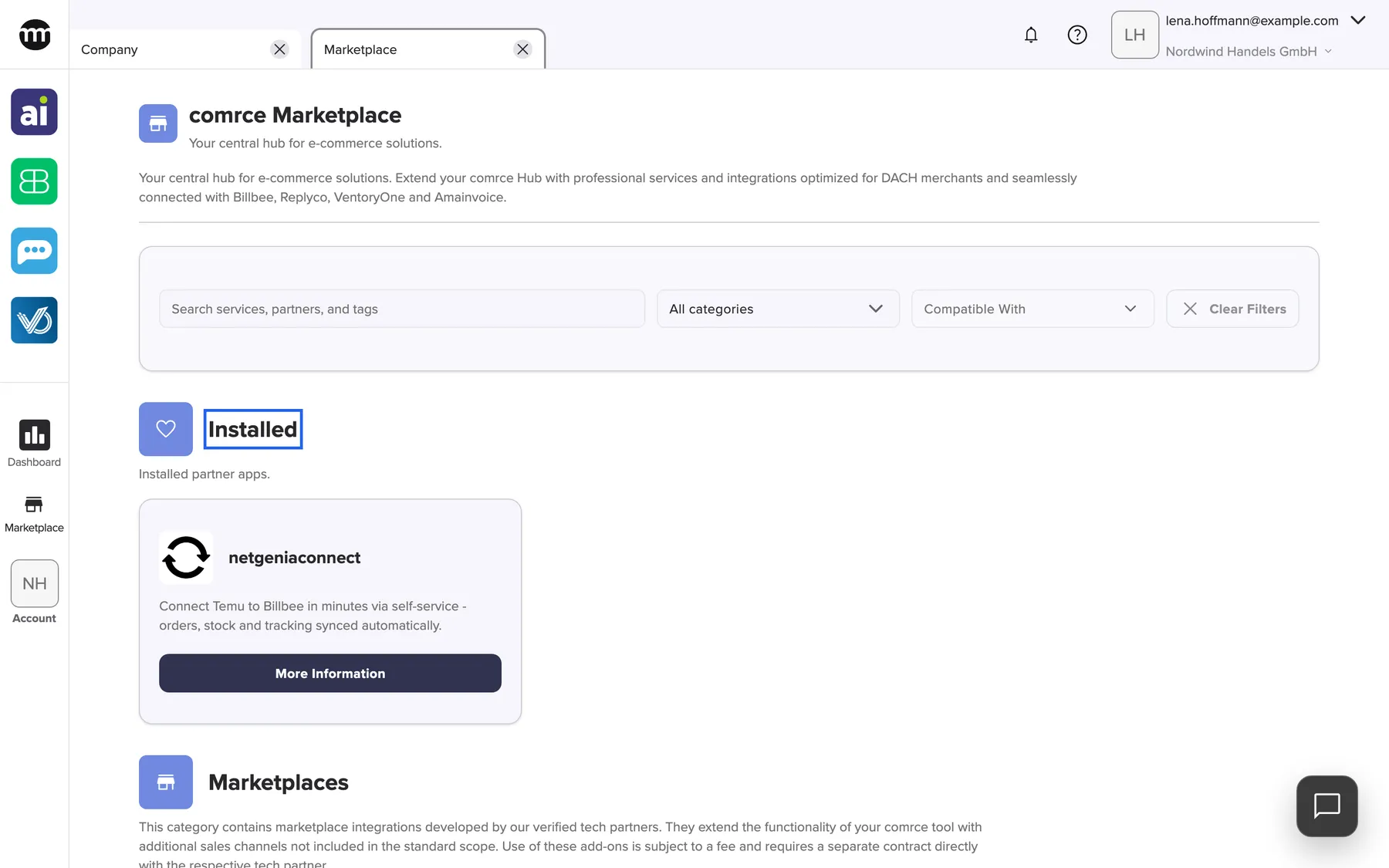
What this screenshot shows
- Screen
- Marketplace
- Highlighted
- “Installed”: none. The section lists the installed partners.
- Also visible
- Installed partner apps.; Partner tile netgeniaconnect with More information
- Purpose
- see which partners your company installed
The section shows the state from when you opened the tab. After you install a partner on its page, close and reopen the Marketplace tab to see it here.
Every control, explained
Section titled “Every control, explained”
Every control, explained
Section titled “Every control, explained”The Marketplace tab has a sidebar entry, four filter controls and one button per tile. The controls people misread most often come first.
Compatible with
Section titled “Compatible with”All categories
Section titled “All categories”The service tile
Section titled “The service tile”The partner tile in Installed
Section titled “The partner tile in Installed”Other controls on this page
| Control | What it does | Why |
|---|---|---|
| Marketplace in the sidebar | Opens the Marketplace tab, or switches to it when it is open. Everyone signed in to a company sees it. | The way into the catalog |
| Search field (Search marketplace) | Keeps sections, services and partners that contain all typed words. Search the Marketplace | Find a service by name, description or tag |
| Clear filters | Clears the search, the category and the tools. It is greyed out while nothing is set. | Start over in one step |
What you need to know
Section titled “What you need to know”
What you need to know
Section titled “What you need to know”| Topic | Fact |
|---|---|
| Order | Sections, services and partners appear in the order comrce set |
| What is listed | Only what comrce made visible. A service without partners appears only when it is marked Coming soon! or matches your search. A section without such services is not shown. |
| Filters | Not saved in your account. The page’s link keeps them, so reloading the page keeps them too. They reset when you close the tab and are passed on to a service you open. |
| Text language | Labels follow your comrce Hub language. Catalog texts without a German version appear in English. |
| Refresh | The catalog loads when you open the tab. Reopen the tab to see changes. |
Frequently asked questions
Section titled “Frequently asked questions”
Frequently asked questions
Section titled “Frequently asked questions”General
Section titled “General”What is the comrce Marketplace?
Section titled “What is the comrce Marketplace?”The comrce Marketplace is a catalog of services and partners for online sellers, curated by comrce. Open it from Marketplace in the left sidebar of comrce Hub. Browse services by section and contact the partners directly.
Does it cost anything to use the Marketplace?
Section titled “Does it cost anything to use the Marketplace?”Browsing the Marketplace and installing a partner in comrce Hub costs nothing and creates no contract. Any prices or contracts are agreed directly between your company and the partner, outside comrce Hub.
Can I request a quote or book a partner in the Marketplace?
Section titled “Can I request a quote or book a partner in the Marketplace?”No. comrce Hub has no request or booking form. Open the partner’s page and contact the partner there, through the website link, the email address or the phone number.
Why is part of the Marketplace in English although I use comrce Hub in German?
Section titled “Why is part of the Marketplace in English although I use comrce Hub in German?”The buttons and labels follow your comrce Hub language. The texts of sections, services and partners come from comrce’s Marketplace catalog. Where the catalog has no German version, the English text is shown.
Search and filters
Section titled “Search and filters”Why does my search in the Marketplace find nothing?
Section titled “Why does my search in the Marketplace find nothing?”Every word you type must appear in the same section, service or partner. A long search therefore narrows the results a lot. Remove words until results appear and check the spelling. Also make sure no category or tool filter is still set. Clear filters removes all of them.
I ticked Billbee and Replyco under Compatible with. Why did partners disappear?
Section titled “I ticked Billbee and Replyco under Compatible with. Why did partners disappear?”The Compatible with filter keeps only partners that work with every tool you ticked. A partner that works with Billbee but not with Replyco is hidden. Tick a single tool to see all partners for that tool.
Why did a Coming soon service disappear when I set a filter?
Section titled “Why did a Coming soon service disappear when I set a filter?”A service with the badge Coming soon! has no partners yet. The category and compatibility filters only keep services with at least one matching partner. Select Clear filters to see it again.
Are my Marketplace filters saved?
Section titled “Are my Marketplace filters saved?”No, not in your account. The search and filters stay while the Marketplace tab is open, also when you reload the page. They are passed to a service you open with Find provider. Closing the tab resets them.
Services and installed partners
Section titled “Services and installed partners”Why can’t I open a service that says Coming soon?
Section titled “Why can’t I open a service that says Coming soon?”comrce shows the badge Coming soon! on services it has announced but that no partner offers yet. These tiles have no Find provider button. The button appears once a partner is listed.
Where do I see which partners my company installed?
Section titled “Where do I see which partners my company installed?”Open the Marketplace from Marketplace in the sidebar. When your company has installed at least one partner, the section Installed appears first, directly under the filter bar.
I installed a partner, but the Installed section does not show it. Why?
Section titled “I installed a partner, but the Installed section does not show it. Why?”The Marketplace tab loads the catalog when you open it. Close the Marketplace tab and open it again from the sidebar. The newly installed partner then appears in Installed.
Troubleshooting
Section titled “Troubleshooting”
Troubleshooting
Section titled “Troubleshooting”| Symptom | What to check |
|---|---|
| The page reads Could not load marketplace. | Your internet connection. Select Try again below the message. |
| The page reads No services or partners match your current filters. | The search words and filters. Select Clear filters. |
| A service I saw before is missing | A filter is set, or comrce removed or hid the service |
| Clear filters is greyed out | Nothing is set, so the full catalog is shown |
| A newly installed partner is not under Installed | Close and reopen the Marketplace tab |
Related
Section titled “Related”- A service in the Marketplace
- A partner’s page
- Marketplace overview
- Marketplace catalog – every service and partner, each with its own page
- The Marketplace without an account – the same catalog for visitors
- Add a partner’s service to your company – the guide from finding a partner to using their app
- Tool access and single sign-on