

Connect your tools and open them with one sign-in
Open Amainvoice, Billbee, Replyco and VentoryOne from the comrce Hub sidebar. You sign in to them with your comrce Hub account. This is single sign-on (SSO), with no separate password for the tool.
Each tool opens in its own comrce Hub tab. You start the sign-in in the tool and approve it on a comrce Hub page. The approval page waits 10 minutes, and it applies to the company you are working in at that moment.
Before you start
Section titled “Before you start”| You need | Where it lives |
|---|---|
| A company in comrce Hub | Tool icons appear only while you work in a company |
| The tool’s permissions to see and to open it | Your member tab under AccountUsers. Owners always have them. |
| An account at the tool, if its vendor needs one | The tool’s vendor decides |
| The tool set up by comrce | An icon that does not react belongs to a tool comrce has not set up |
Opening tools in comrce Hub is free. The tools are billed by their vendors.
-
Switch to the right company first. The approval and the company data the tool receives come from the company you are working in. Its name is under your email address at the top right. Work for several companies with one login shows how to change it.
-
Open the tool from the sidebar. Select the tool’s icon at the top of the left sidebar. The tool opens in its own tab, and comrce Hub passes on your email address. Open a tool covers the tab and the icons.
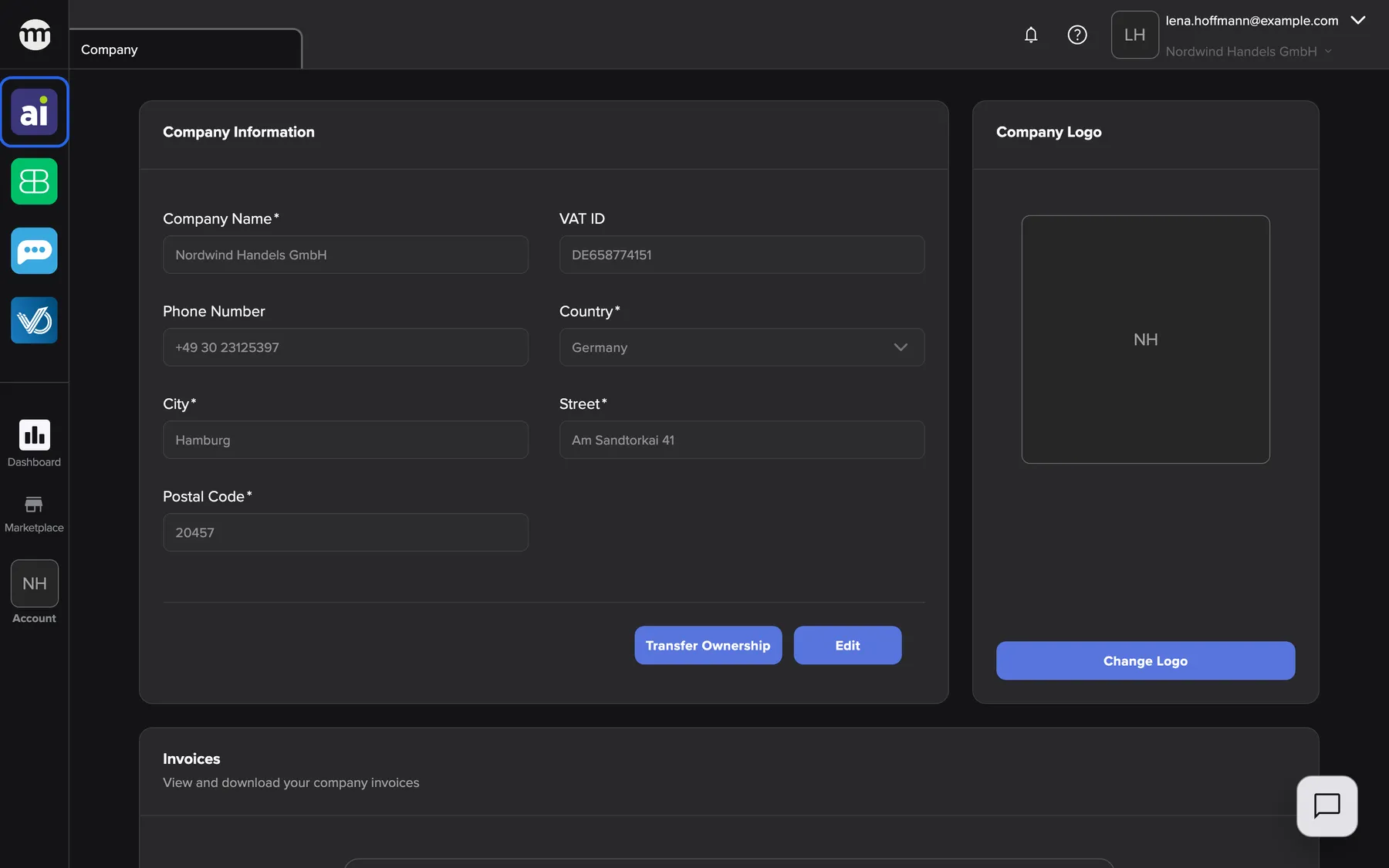
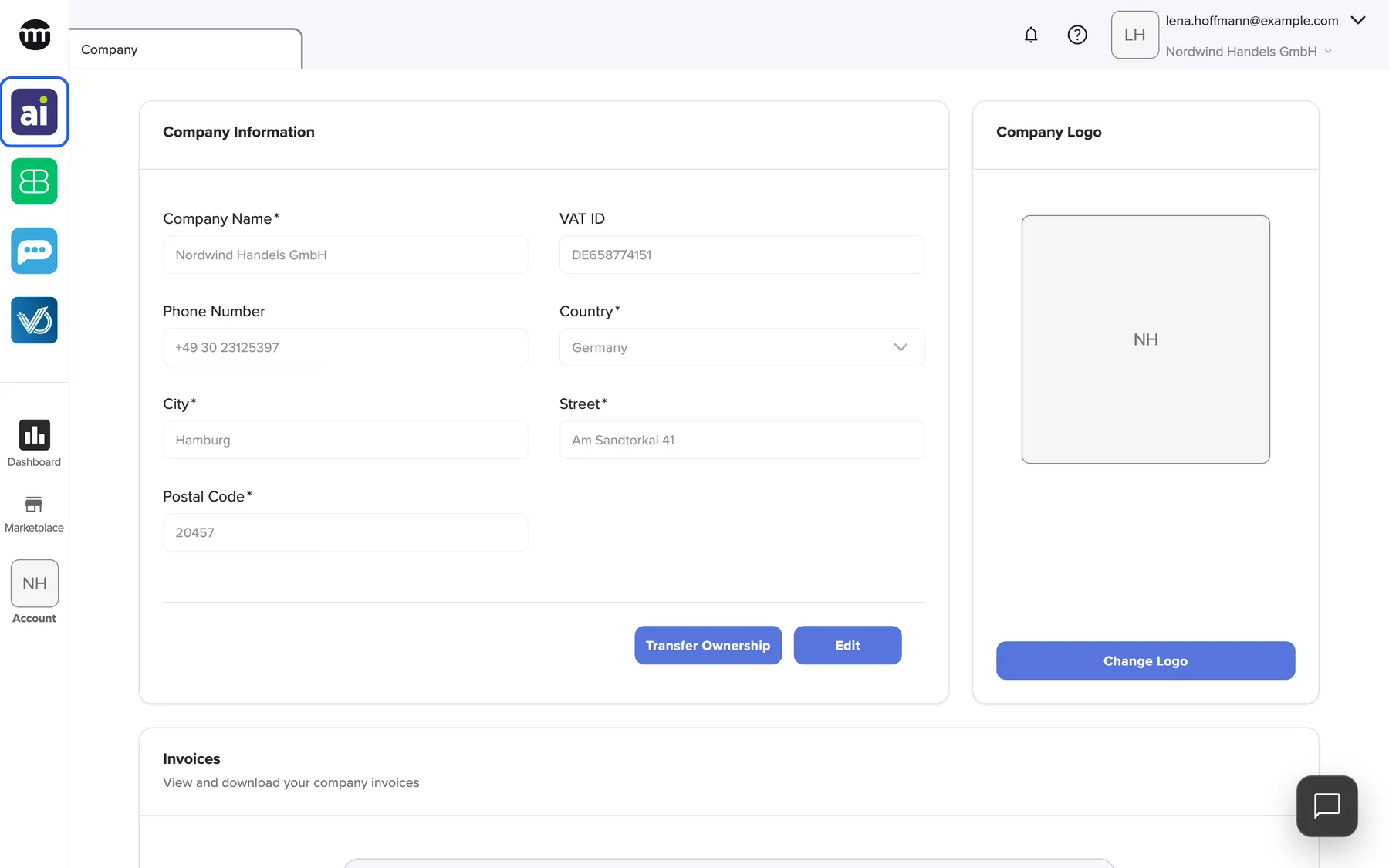
Every tool you may see has a color icon at the top of the sidebar. One click opens it. What this screenshot shows
- Screen
- Amainvoice
- Highlighted
- “Amainvoice”: opens Amainvoice in its own tab
- Also visible
- Four tool icons in colour; The Company tab open
- Purpose
- where your team opens the tools every day
-
Start the sign-in with comrce Hub in the tool. The tool sends you to the comrce Hub page Single Sign-On Request. If you are signed out of comrce Hub, you sign in first, and the page follows by itself.
-
Check the data and approve. The page names the tool and your email address. Under This application is requesting:, it lists every kind of data the tool asks for. Select Approve, and you are back in the tool, signed in. Connect a tool to your account explains each data category.
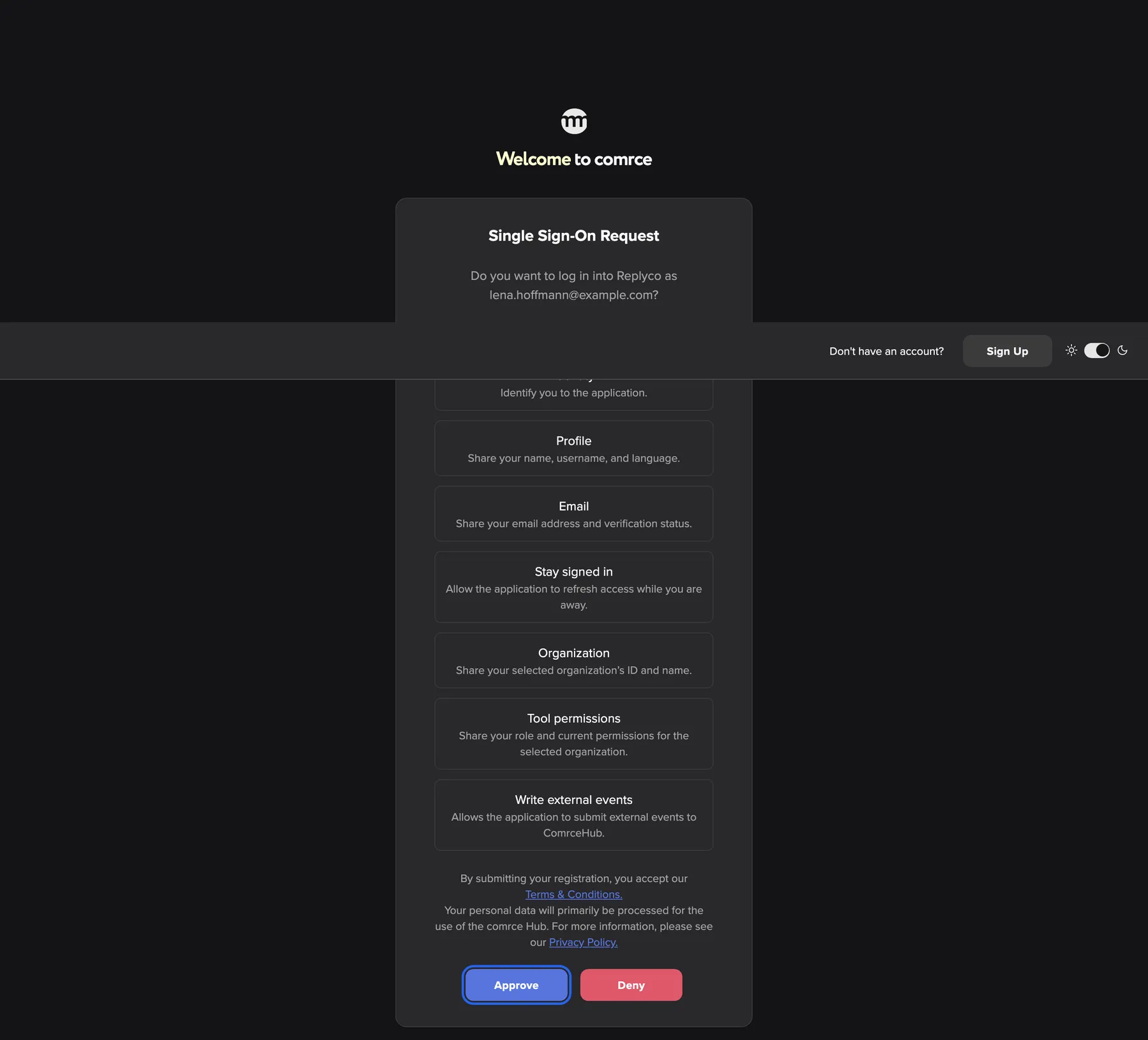
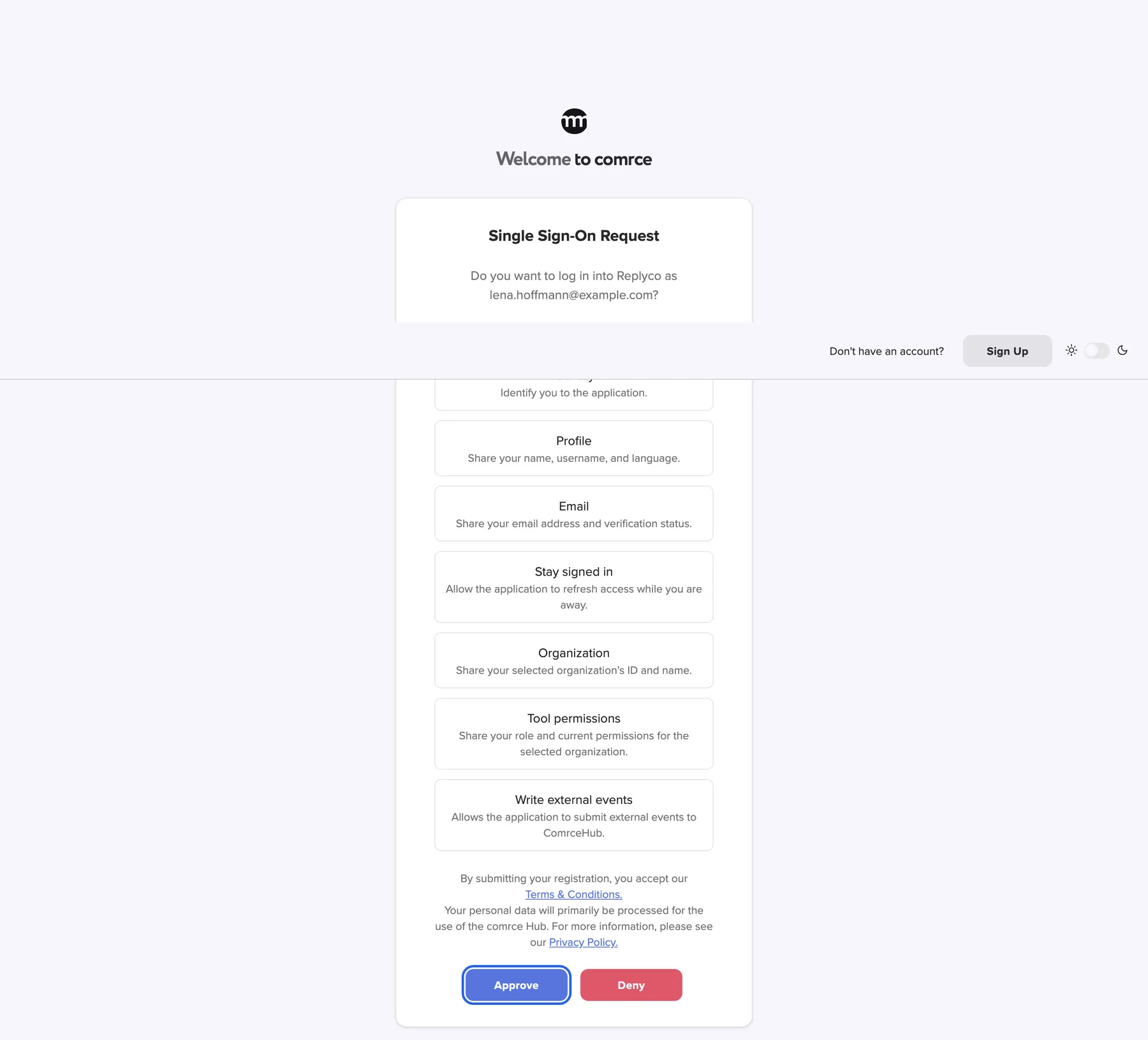
comrce Hub names the tool, your email and every kind of data the tool asks for before you approve. What this screenshot shows
- Screen
- Single Sign-On Request
- Highlighted
- “Approve”: approves the sign-in and returns you to the tool
- Also visible
- The question naming Replyco and lena.hoffmann@example.com; Every data category the tool asks for; Deny button
- Purpose
- approve a tool's sign-in with comrce Hub
-
Let your team open the tools (owner). On each colleague’s tab, the section Integrations has two switches per tool. Viewing shows the icon, and opening lets them use the tool. Select Save, and ask the colleague to reload comrce Hub. Tool access and single sign-on explains the switches.
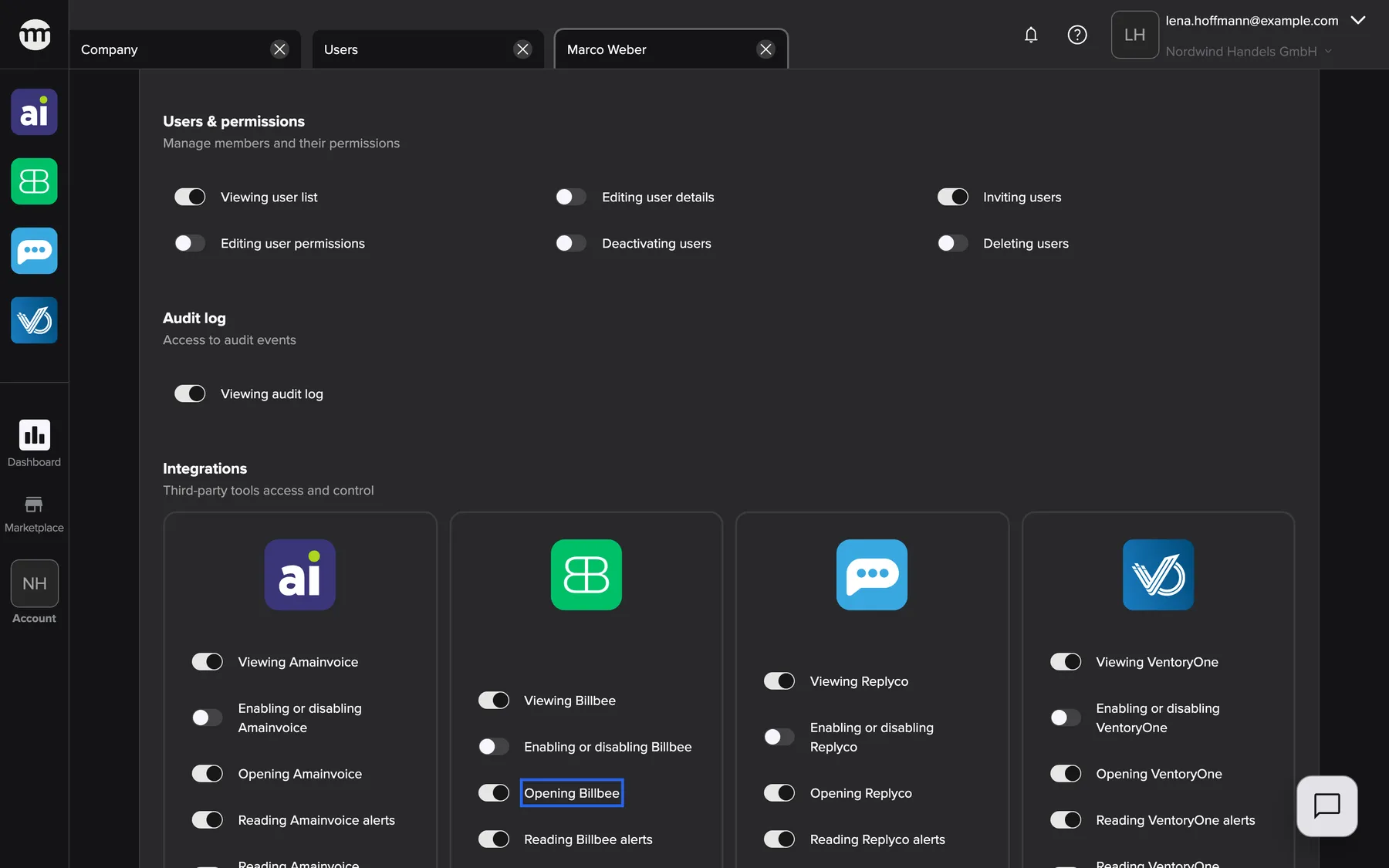
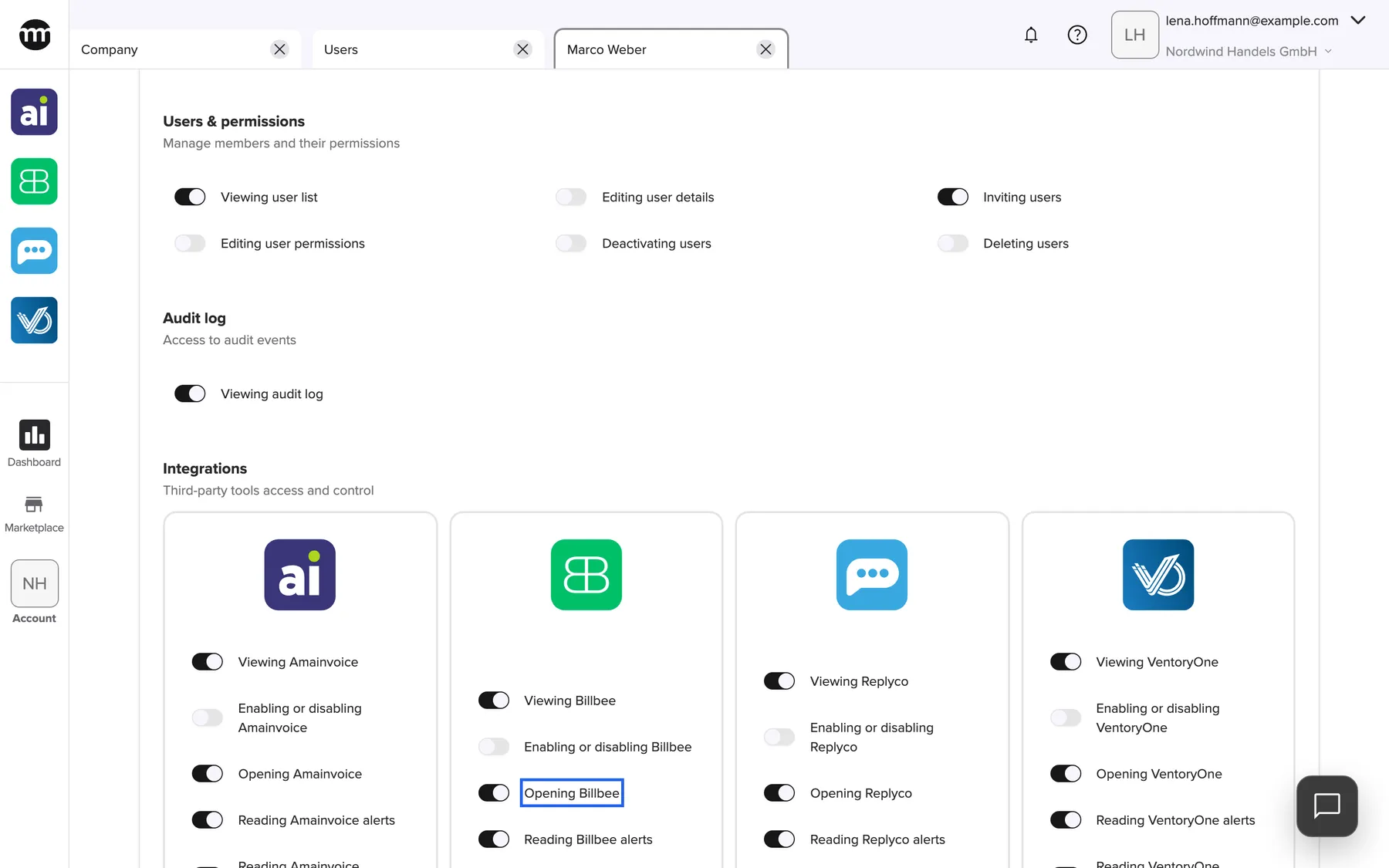
Tool access is set per tool. Seeing a tool and opening it are separate permissions. What this screenshot shows
- Screen
- User
- Highlighted
- “Opening Billbee”: lets the member open Billbee
- Also visible
- Four tool cards with their switches; Cancel and Save at the bottom
- Purpose
- decide who on the team may open each tool
-
Each colleague signs in once. Every person starts the sign-in in the tool and approves it for themselves. Nobody can approve for someone else.
What happens next
Section titled “What happens next”The tool links your account to comrce Hub. From then on, the sidebar icon opens the tool, and comrce Hub passes on your linked tool account. A notification from the tool can also open it directly.
To check that it worked, open AccountLogs. You find OIDC Consent approved and User linked to a tool with your email address. comrce Hub asks again each time the tool starts a new sign-in, because an approval is not a permanent setting.
Options
Section titled “Options”| Choice | When to pick it | Effect |
|---|---|---|
| Approve | The tool, your email address and the data are what you expect | You are signed in, and the tool receives the listed data |
| Deny | You did not start this sign-in, or the data looks wrong | The tool receives a refusal and none of your data. You can start again any time. |
| Change the company, then sign in again | You work for several companies | The tool receives the data of the company you changed to |
If something goes wrong
Section titled “If something goes wrong”| Symptom | What to check | Fix |
|---|---|---|
| The page shows This sign-in request is invalid or has expired. | More than 10 minutes passed, or you already answered in another browser tab | Start the sign-in from the tool again |
| The page shows This account cannot use external SSO. | You are signed in without a company | Sign in with your own account, choose a company and start again |
| The tool shows data of the wrong company | Which company was selected when you approved | Change the company in comrce Hub and start the sign-in again |
| The tool’s icon is grey | You can see the tool but not open it | Select Request access in its tab. The owner gets your request by email. |
| The tool’s icon is missing | Are you working in a company? Do you have the viewing switch? | Ask the owner, then reload comrce Hub |
| A data box reads This request contains an unsupported data category and cannot be approved. | The tool asks for a category comrce Hub does not allow | Contact the tool’s vendor |