

Pipelines and their steps
A pipeline decides what happens to a print job. It picks the printer, and it can filter, change or archive the document. Under Pipelines (pipelines) in the red bar you see every pipeline of your company. Each one opens in a graphical editor. Every change you confirm there is saved at once and applies to the next job.
What you can do here
Section titled “What you can do here”- See your pipelines and their queues. The list shows each pipeline with the queues that start it. comrce cloudprint creates one pipeline per printer for you. The screen at a glance
- Create a pipeline. You give it a name, and the editor opens with an empty pipeline. Create a pipeline
- Read a pipeline in the editor. Queues, the Start tile and the steps appear as a diagram from left to right. Read a pipeline
- Link or unlink a queue. A queue decides which incoming jobs run through the pipeline. Link a queue
- Add, change and delete steps. There are seven step types, from printer output to condition. Add a step · Change or delete a step
- Delete a pipeline or reset all of them. Resetting rebuilds the automatic pipelines for every active printer. Delete or reset pipelines
The screen at a glance
Section titled “The screen at a glance”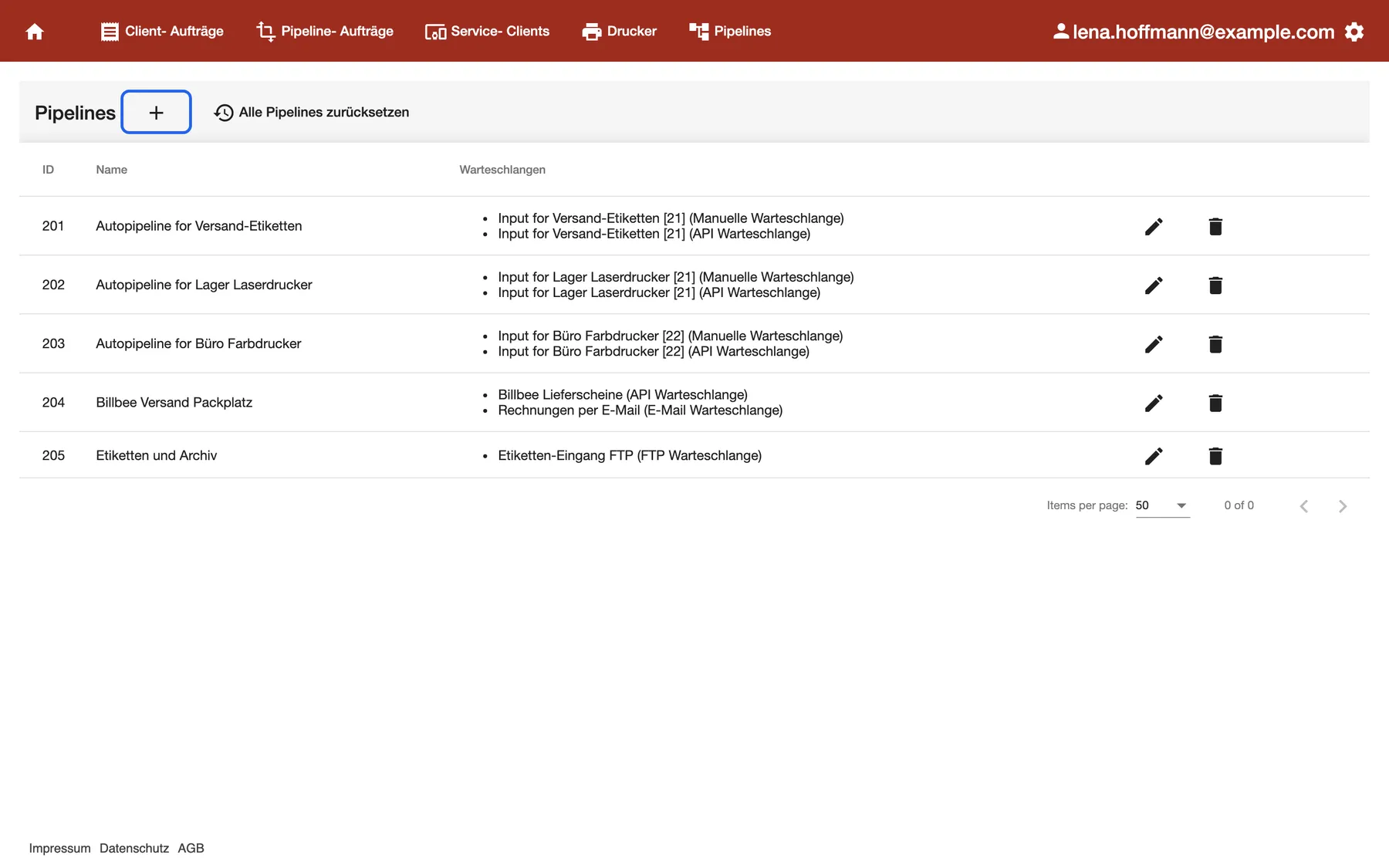
What this screenshot shows
- Highlighted
- opens the dialog for a new pipeline
- Also visible
- Columns ID, Name and Warteschlangen, five pipelines; Three automatic pipelines named "Autopipeline for …"; Pencil and bin icon on every row
- Purpose
- find, open and create pipelines
The list has no filter or search. Each row is one pipeline.
| Region | What it shows | What you do there |
|---|---|---|
| Page bar | Pipelines, a plus and Alle Pipelines zurücksetzen (reset all pipelines) | Create a pipeline or reset all pipelines |
| ID | The pipeline’s number | Tell pipelines with similar names apart |
| Name | The pipeline’s name | Find the pipeline |
| Warteschlangen (queues) | Every queue that starts the pipeline, with its type in brackets | See where the pipeline’s jobs come from |
| Pencil and bin | Open the pipeline, delete it | Edit or remove the pipeline |
Pipelines that comrce cloudprint created for a printer are called “Autopipeline for” and the printer name. Their two queues are called “Input for”, the printer name and a number in square brackets. The number identifies the printer’s Service Client.
Create a pipeline
Section titled “Create a pipeline”-
On Pipelines, select the plus next to the heading. The dialog “Neue Pipeline anlegen” (create a new pipeline) opens.
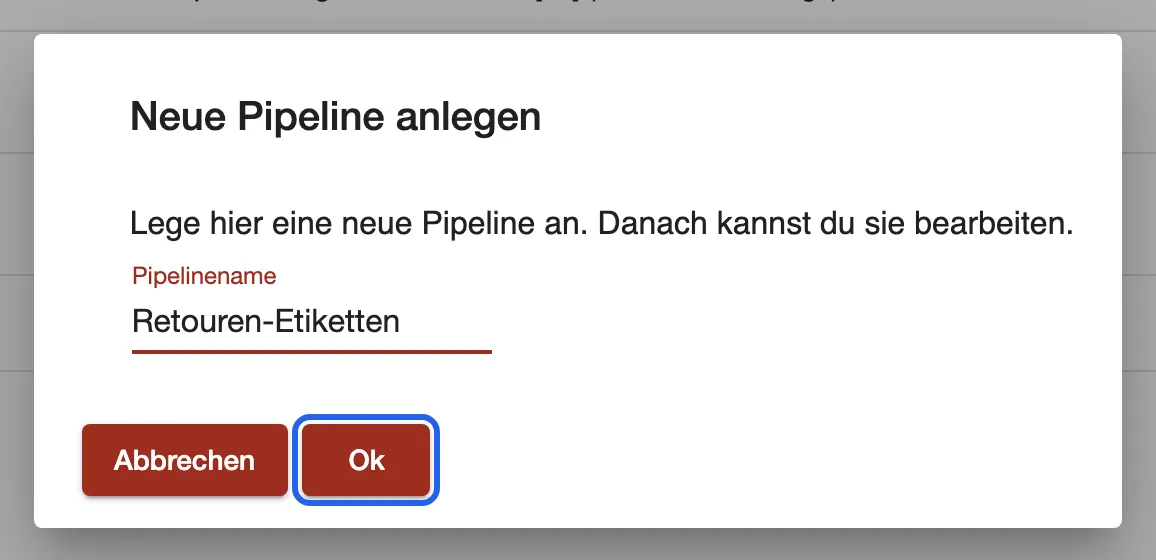
Name the new pipeline. Ok creates it and opens the editor. What this screenshot shows
- Highlighted
- “Ok”: creates the pipeline and opens it
- Also visible
- Field Pipelinename with "Retouren-Etiketten"; Abbrechen and Ok
- Purpose
- create a pipeline
-
Enter a name in “Pipelinename”. Ok stays inactive until the name has at least three characters.
-
Select Ok. comrce cloudprint creates the pipeline and opens it in the editor.
A new pipeline holds only the Start tile. It does nothing until you link a queue and add a step. Example: Lena Hoffmann creates “Retouren-Etiketten” for return labels. She links the queue her shop system sends returns to and adds a printer output.
Read a pipeline
Section titled “Read a pipeline”The pencil in the list opens the editor. Its heading shows the pipeline’s name.
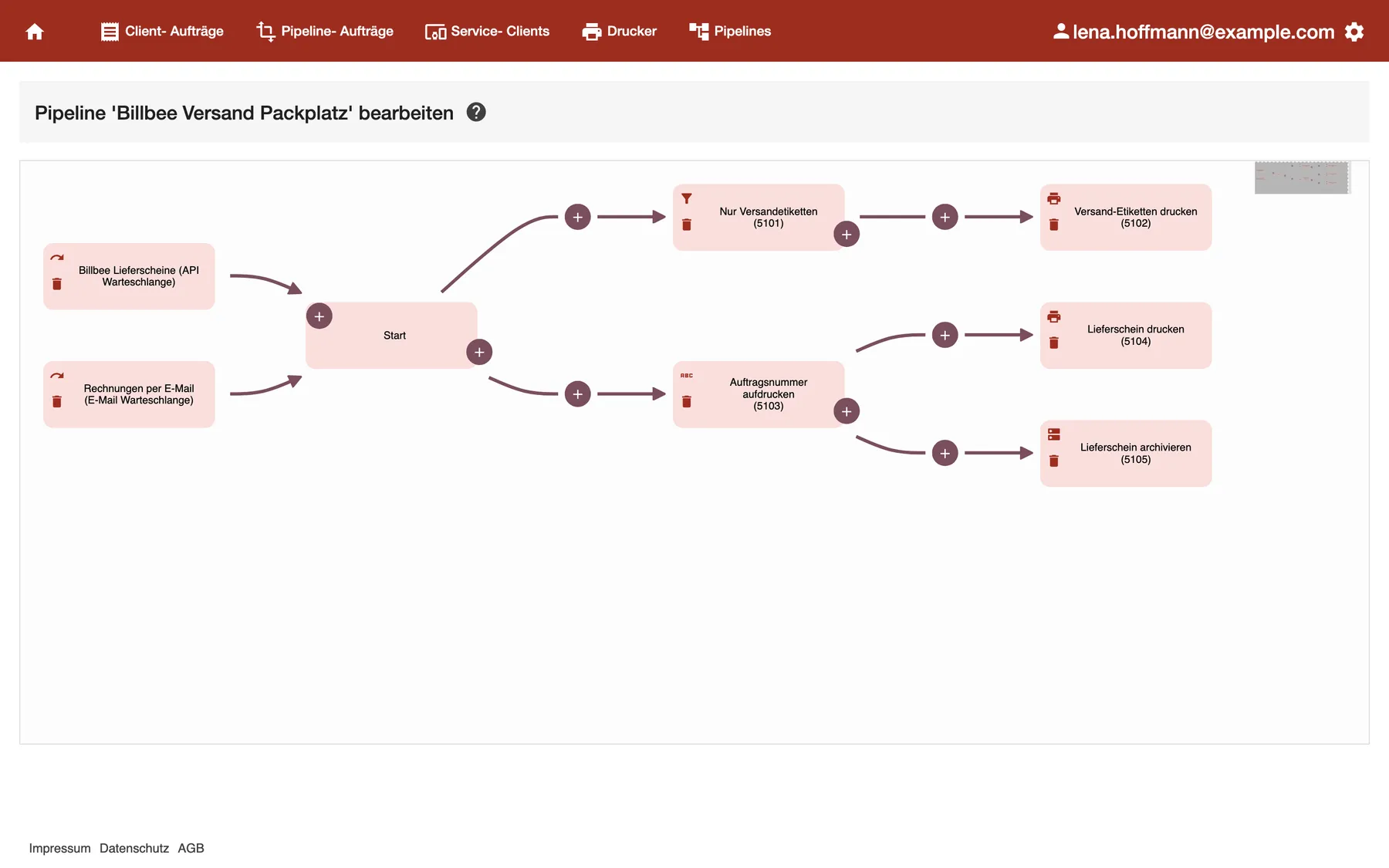
What this screenshot shows
- Highlighted
- shows how jobs flow from the queues through the steps
- Also visible
- Two queue tiles feeding Start; A condition branch and a text branch with two parallel outputs; A plus on every connecting line; Minimap at the top right
- Purpose
- the parts of a pipeline
The diagram runs from left to right:
- Queues sit on the left. Each tile shows the queue’s name and type.
- Start follows. Every job that arrives in one of the queues begins here.
- Steps follow Start. Each tile shows the step’s name and its number in brackets.
- Lines connect the tiles. A job travels along every line that leaves a tile.
A tile with two outgoing lines sends the job down both branches. Use this to print one document on two printers, or to print and archive it.
You can’t drag tiles: comrce cloudprint arranges them. Zoom with the mouse wheel and move the view with the small map at the top right.
Link a queue
Section titled “Link a queue”A queue links to a pipeline through a trigger. That’s why the dialog for a new queue speaks of a trigger, Auslöser.
-
In the editor, select the plus at the top left of the Start tile.
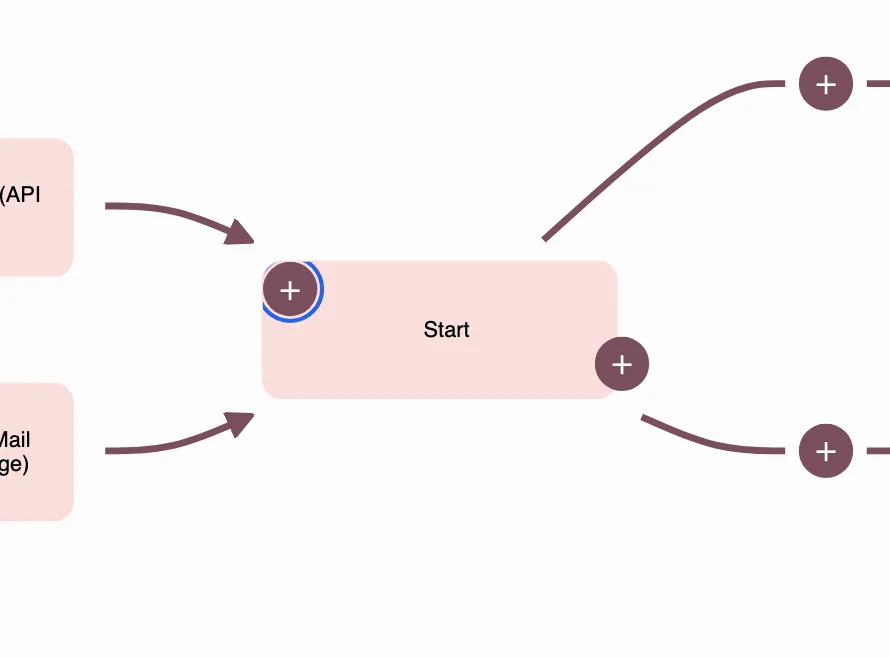
The plus at the top left of Start adds a queue. The one at the bottom right adds a step. What this screenshot shows
- Highlighted
- opens the dialog that links another queue
- Also visible
- Start tile with a plus on each side; Two queues leading into Start
- Purpose
- add a queue or a step at the start
-
The dialog “Neuen Auslöser anlegen” (create a new trigger) opens. Pipeline is already set to this pipeline.
-
Choose the queue under Warteschlange (queue) and select Ok.
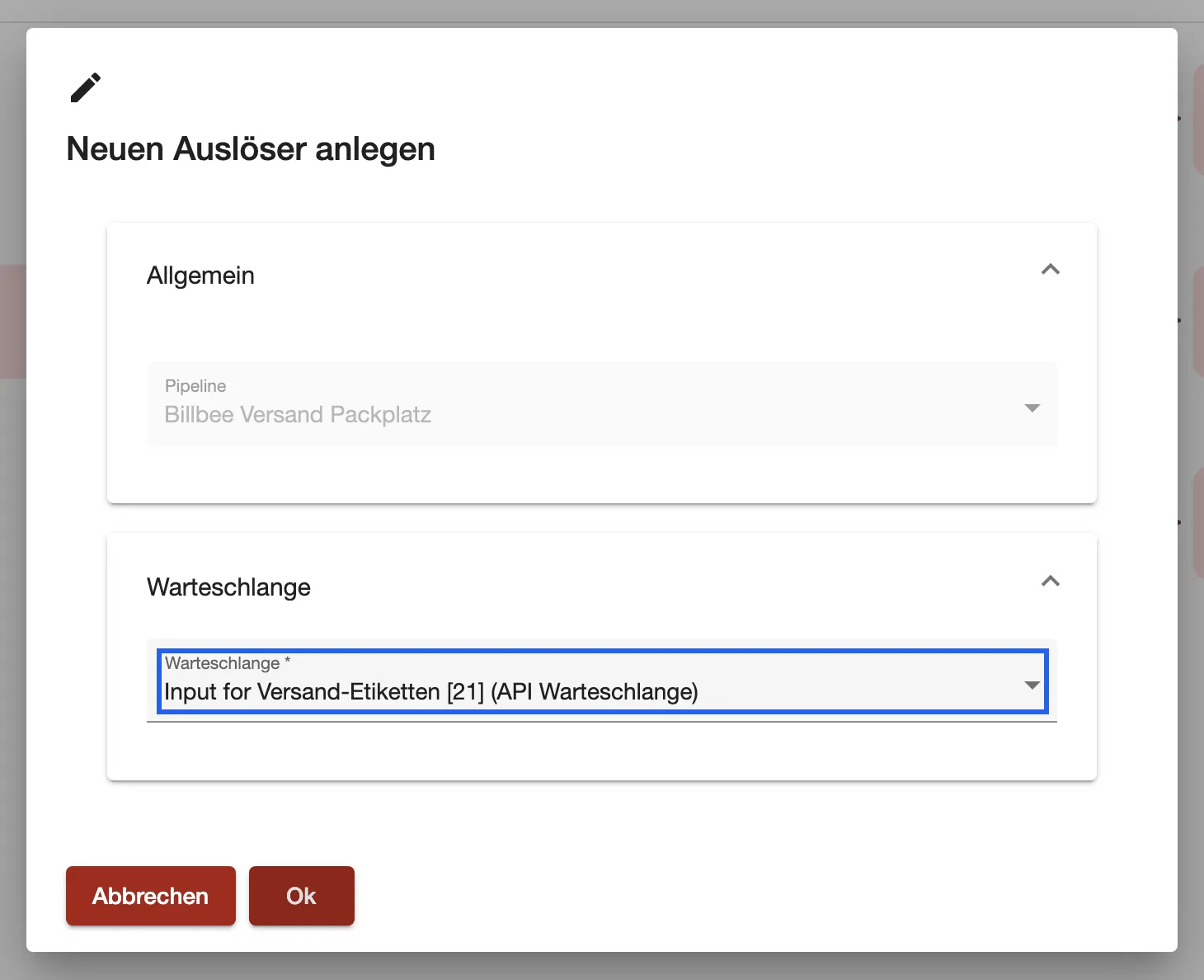
Pick the queue to link. Queues already in the pipeline are not offered. What this screenshot shows
- Highlighted
- chooses the queue that starts this pipeline
- Also visible
- Pipeline field, fixed to the open pipeline; Warteschlange list with a queue chosen; Abbrechen and Ok
- Purpose
- link a queue to a pipeline
The list offers only queues that aren’t linked to this pipeline yet. So each queue appears at most once per pipeline. One queue can start several pipelines, though. To create a queue, use Queues.
To unlink a queue, select the bin on its tile. comrce cloudprint removes the link at once, without asking. The queue itself stays. The icon above the bin opens the queue’s settings.
Add a step
Section titled “Add a step”There are two kinds of plus, and they place the step differently:
| Plus | Where the new step goes |
|---|---|
| On a connecting line | Between the two tiles the line connects |
| At the bottom right of a tile | After that tile. If the tile already has a successor, the new step starts a parallel branch |
-
Select the plus where the step should go. A menu with the step types opens.
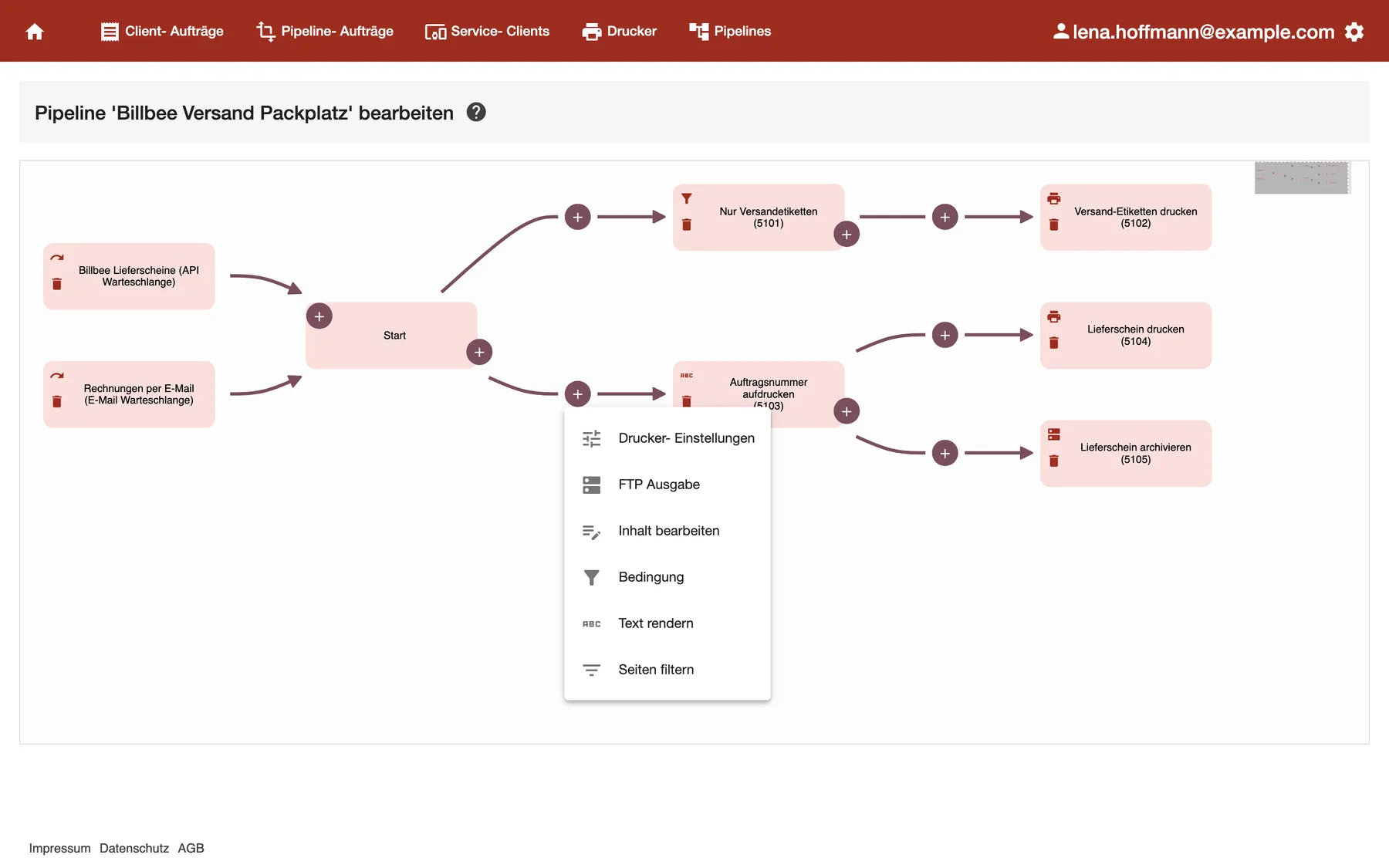
The plus on a connecting line inserts a step there. Its menu has no printer output. What this screenshot shows
- Highlighted
- lists the step types that can be inserted between two steps
- Also visible
- Six step types with icons; The menu opened from the plus between Start and Auftragsnummer aufdrucken
- Purpose
- insert a step into a pipeline
-
Choose the step type. Its dialog opens.
-
Enter a name and the settings, then select Ok. comrce cloudprint saves the pipeline and shows “Pipeline bearbeitet” (pipeline edited).
Every step needs a name. Without one, comrce cloudprint shows “Speichern fehlgeschlagen” (saving failed) and “Bitte gib einen Namen an.” (please enter a name).
The step types:
| Step | What it does | Details |
|---|---|---|
| Druckerausgabe (printer output) | Sends the job to a printer of a Service Client | Output options |
| FTP Ausgabe (FTP output) | Saves the document in a folder on an FTP server | Output options |
| Bedingung (condition) | Lets the job continue only when its rules are met | Filters and conditions |
| Inhalt bearbeiten (edit content) | Scales, crops, extends, rotates or mirrors every page | Processing steps |
| Text rendern (render text) | Prints a text onto chosen pages | Processing steps |
| Seiten filtern (filter pages) | Keeps only the pages you list | Processing steps |
| Drucker- Einstellungen (printer settings) | Sets margins, colour, scaling and rotation for the print | Job settings |
Outputs end a branch, so their tiles have no plus at the bottom right. Druckerausgabe is in the menu of a tile’s plus only, not of a line’s plus.
After a step that changes the document, the next steps work with the changed document. A branch that splits off before that step keeps the original.
Change or delete a step
Section titled “Change or delete a step”- Change a step: select the icon at the top left of its tile. The step’s dialog opens with its settings. Ok saves the change at once.
- Delete a step: select the bin on its tile and confirm “Element entfernen” (remove element). The steps after it move up to the step before it.
A Drucker- Einstellungen step can’t be opened again after saving: its icon does nothing. To change it, delete it and add a new one.
Delete or reset pipelines
Section titled “Delete or reset pipelines”Delete one pipeline: select the bin in its row and confirm “Pipeline löschen” (delete pipeline). Its triggers and steps are deleted with it. The queues stay, and so do the pipeline jobs. The client jobs its printer outputs created are deleted.
Reset all pipelines: select Alle Pipelines zurücksetzen and confirm “Pipelines zurücksetzen”.
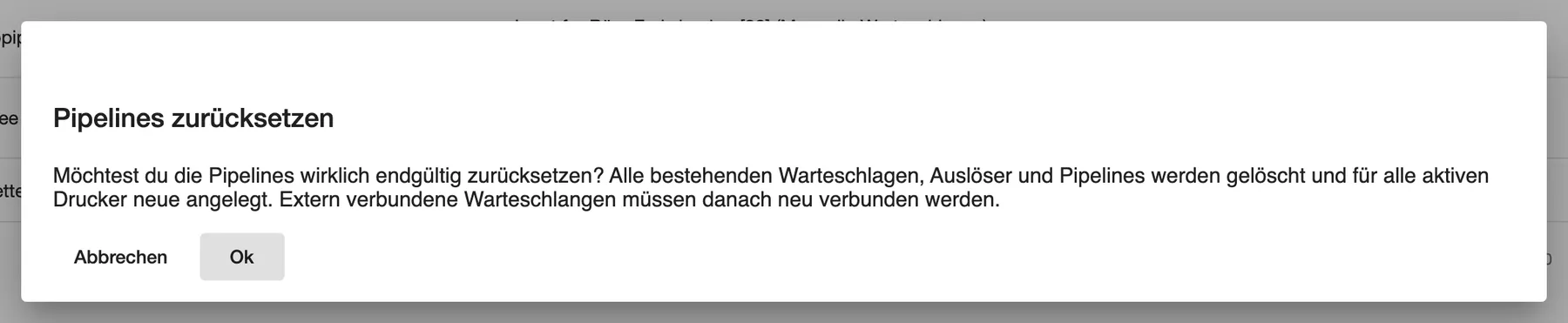
What this screenshot shows
- Highlighted
- asks before the reset deletes and rebuilds everything
- Also visible
- Title Pipelines zurücksetzen; What the reset deletes and recreates; Abbrechen and Ok
- Purpose
- reset all pipelines to the automatic ones
Every control, explained
Section titled “Every control, explained”
Every control, explained
Section titled “Every control, explained”The two plus buttons on the Start tile
Section titled “The two plus buttons on the Start tile”The plus on a connecting line
Section titled “The plus on a connecting line”The step icon
Section titled “The step icon”The bin on a tile
Section titled “The bin on a tile”Alle Pipelines zurücksetzen
Section titled “Alle Pipelines zurücksetzen”Other controls on this page
| Control | What it does | Why |
|---|---|---|
| Plus next to Pipelines | Opens “Neue Pipeline anlegen” | Create a pipeline |
| Pencil in a row | Opens the pipeline in the editor | See and change its steps |
| Bin in a row | Deletes the pipeline after a confirmation | Remove a pipeline you no longer use |
| Question mark next to the editor heading | Opens a help article on another site | Background reading |
| Small map, top right of the editor | Shows the whole diagram and moves the view | Find your way in a large pipeline |
What you need to know
Section titled “What you need to know”
What you need to know
Section titled “What you need to know”| Topic | Fact |
|---|---|
| Changes | Every confirmed change is saved at once. There is no draft and no undo. |
| Automatic pipelines | When a Service Client reports a new printer, comrce cloudprint creates a pipeline, a manual queue, an API queue and a printer output for it. |
| Edited pipelines and plans | comrce cloudprint notes when you create or change pipelines, queues or triggers. A plan change to a plan without extended functions then asks to delete and recreate them. |
| Who sees it | Only the comrce Hub Owner. Other members of the company don’t see Pipelines. |
Frequently asked questions
Section titled “Frequently asked questions”
Frequently asked questions
Section titled “Frequently asked questions”General
Section titled “General”Where do I find the pipelines?
Section titled “Where do I find the pipelines?”Select Pipelines in the red bar of comrce cloudprint. The list shows every pipeline of your company. The pencil in a row opens the editor.
Why do I already have pipelines I never created?
Section titled “Why do I already have pipelines I never created?”comrce cloudprint creates one for every printer your Service Client reports. It’s called “Autopipeline for” and the printer name. It prints every job from its two queues on that printer.
What’s the difference between a queue and a pipeline?
Section titled “What’s the difference between a queue and a pipeline?”A queue takes jobs in, for example through the API or by email. A pipeline decides what happens to them. The pipeline list shows which queues start each pipeline.
Do my changes apply to jobs that are already printing?
Section titled “Do my changes apply to jobs that are already printing?”No. comrce cloudprint saves each change at once, and it applies to jobs that arrive afterwards. Jobs already sent to a printer keep their settings.
Editing
Section titled “Editing”How do I print one document on two printers?
Section titled “How do I print one document on two printers?”Add a second printer output from the plus at the bottom right of the tile before it. Both outputs then run in parallel, and each printer gets the job.
How do I put a condition in front of an existing printer output?
Section titled “How do I put a condition in front of an existing printer output?”Select the plus on the line that leads to the printer output and choose Bedingung. The condition goes between the two tiles.
Why can’t I add a printer output on a connecting line?
Section titled “Why can’t I add a printer output on a connecting line?”A step on a line always has a successor, and an output can’t have one. Use the plus at the bottom right of a tile instead.
Can I move a step to another place?
Section titled “Can I move a step to another place?”No. Tiles can’t be dragged, and comrce cloudprint arranges them on its own. Delete the step and add it again at the new place.
How do I change a step’s settings?
Section titled “How do I change a step’s settings?”Select the icon at the top left of its tile. The step’s dialog opens, and Ok saves the change at once.
Why does nothing happen when I select the icon of a printer settings step?
Section titled “Why does nothing happen when I select the icon of a printer settings step?”A saved Drucker- Einstellungen step can’t be opened again. Delete it with the bin and add a new step with the settings you want.
What happens to the steps after a step I delete?
Section titled “What happens to the steps after a step I delete?”They move up to the step before the deleted one, so the rest of the branch keeps working without changes.
Queues
Section titled “Queues”How do I add a queue to a pipeline?
Section titled “How do I add a queue to a pipeline?”Open the pipeline and select the plus at the top left of the Start tile. Choose the queue under Warteschlange and select Ok.
Why is my queue missing from the list when I link one?
Section titled “Why is my queue missing from the list when I link one?”The list leaves out queues that are already linked to this pipeline. A queue you haven’t created yet isn’t there either: create it under Queues.
Does removing a queue from a pipeline delete the queue?
Section titled “Does removing a queue from a pipeline delete the queue?”No. The bin on a queue tile only removes the link to this pipeline. The queue stays under Queues, and other pipelines keep it.
Deleting and resetting
Section titled “Deleting and resetting”What does deleting a pipeline delete?
Section titled “What does deleting a pipeline delete?”Its triggers and steps go, and so do the client jobs its printer outputs created. Its queues and the pipeline jobs stay.
What does resetting all pipelines do?
Section titled “What does resetting all pipelines do?”It deletes all queues, triggers and pipelines and creates one automatic pipeline per active printer. Systems connected to your old queues must be connected again.
Can I get a deleted pipeline back?
Section titled “Can I get a deleted pipeline back?”No. Deleting can’t be undone, and comrce cloudprint keeps no copy. Create the pipeline again, link its queues and add its steps.
Troubleshooting
Section titled “Troubleshooting”
Troubleshooting
Section titled “Troubleshooting”| Symptom | What to check |
|---|---|
| “Speichern fehlgeschlagen” and “Bitte gib einen Namen an.” | Enter a name in the step’s Name field. |
| Ok stays inactive in “Neue Pipeline anlegen” | The name needs at least three characters. |
| A queue isn’t offered in “Neuen Auslöser anlegen” | It’s already linked to this pipeline, or it doesn’t exist yet. Check Queues. |
| The step menu has no printer output | You opened the plus on a line. Use the plus at the bottom right of a tile. |
| A printer settings step doesn’t open | A saved step of this type can’t be opened again. Delete it and add a new one. |
| Another system can’t reach a queue after a reset | The reset created new queues. Connect the other system to the new queue. |
| Jobs don’t reach a printer | Check that a queue is linked to the pipeline, and that the printer output names the right printer. |