

Set up comrce cloudprint and your first printer
Print from the cloud on your own printers with comrce cloudprint. You activate it in comrce Hub, which in the Marketplace is Install. Then you sign in to the comrce cloudprint app with your comrce Hub account. There you add a Service Client and install it on a Windows computer with your printers. It connects comrce cloudprint to them.
Before you start
Section titled “Before you start”| You need | Where it lives |
|---|---|
| Managing API connections to install. By default only the owner has it. | Your member tab, section Company profile |
| A Windows computer with access to the printers you want to use | Your office or warehouse. The Service Client is available for Windows. |
| The printers, installed locally on that computer | Windows |
-
Find comrce cloudprint in the Marketplace. Select Marketplace at the bottom of the left sidebar. In the section Operations, Automations and Connectors, select Find provider on the Cloudprint tile. The page lists every provider for cloud printing.
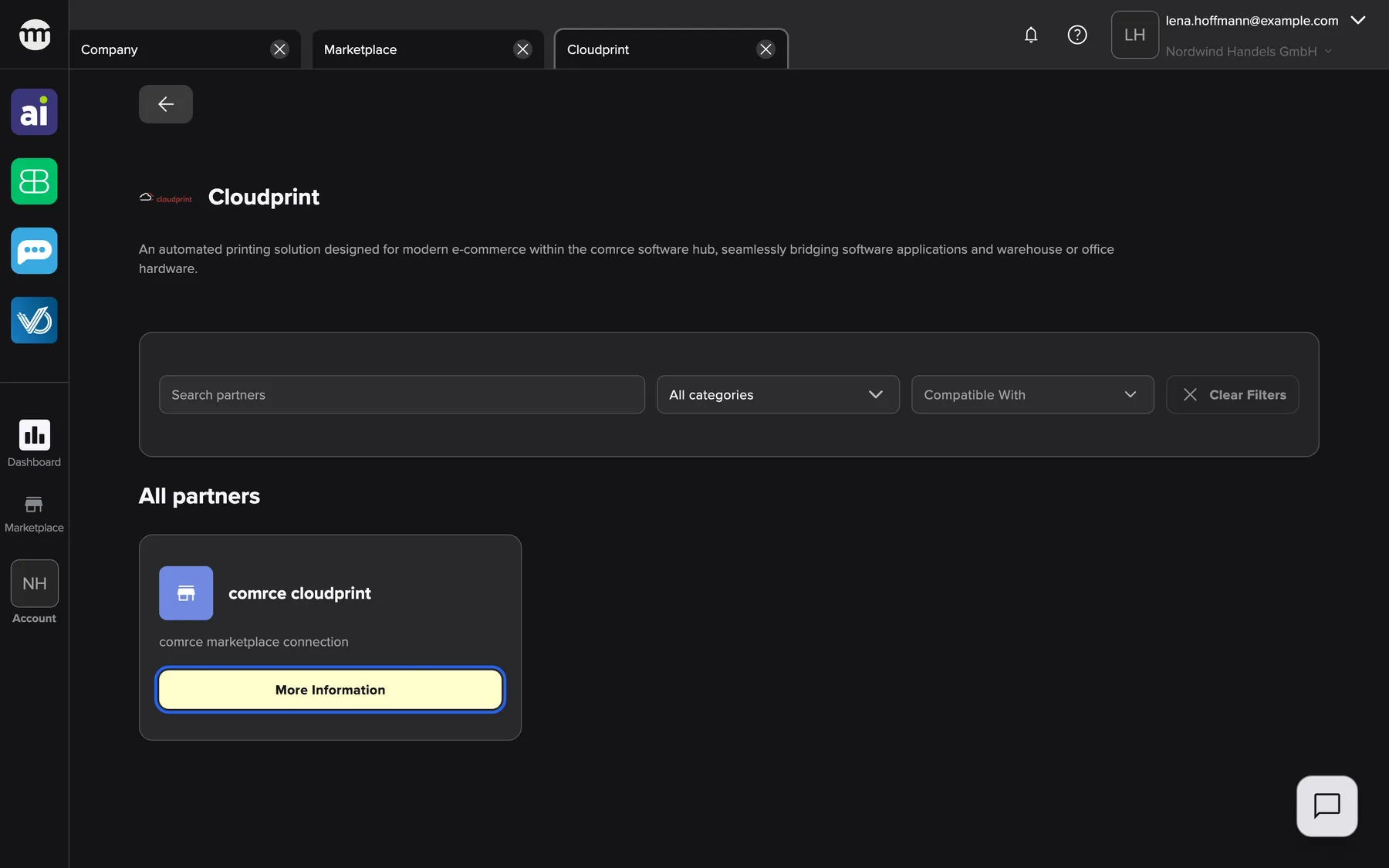
The Cloudprint service lists comrce cloudprint as its partner. More information opens its page. What this screenshot shows
- Screen
- Cloudprint
- Highlighted
- “More information”: opens the page of the partner comrce cloudprint
- Also visible
- Service title Cloudprint with its catalog description; 1 partner tile, comrce cloudprint
- Purpose
- find comrce cloudprint in the Marketplace
-
Install comrce cloudprint. Select More information on the comrce cloudprint tile, then Install. This installs comrce cloudprint for your company and creates your comrce cloudprint account. Install a partner explains what else changes.
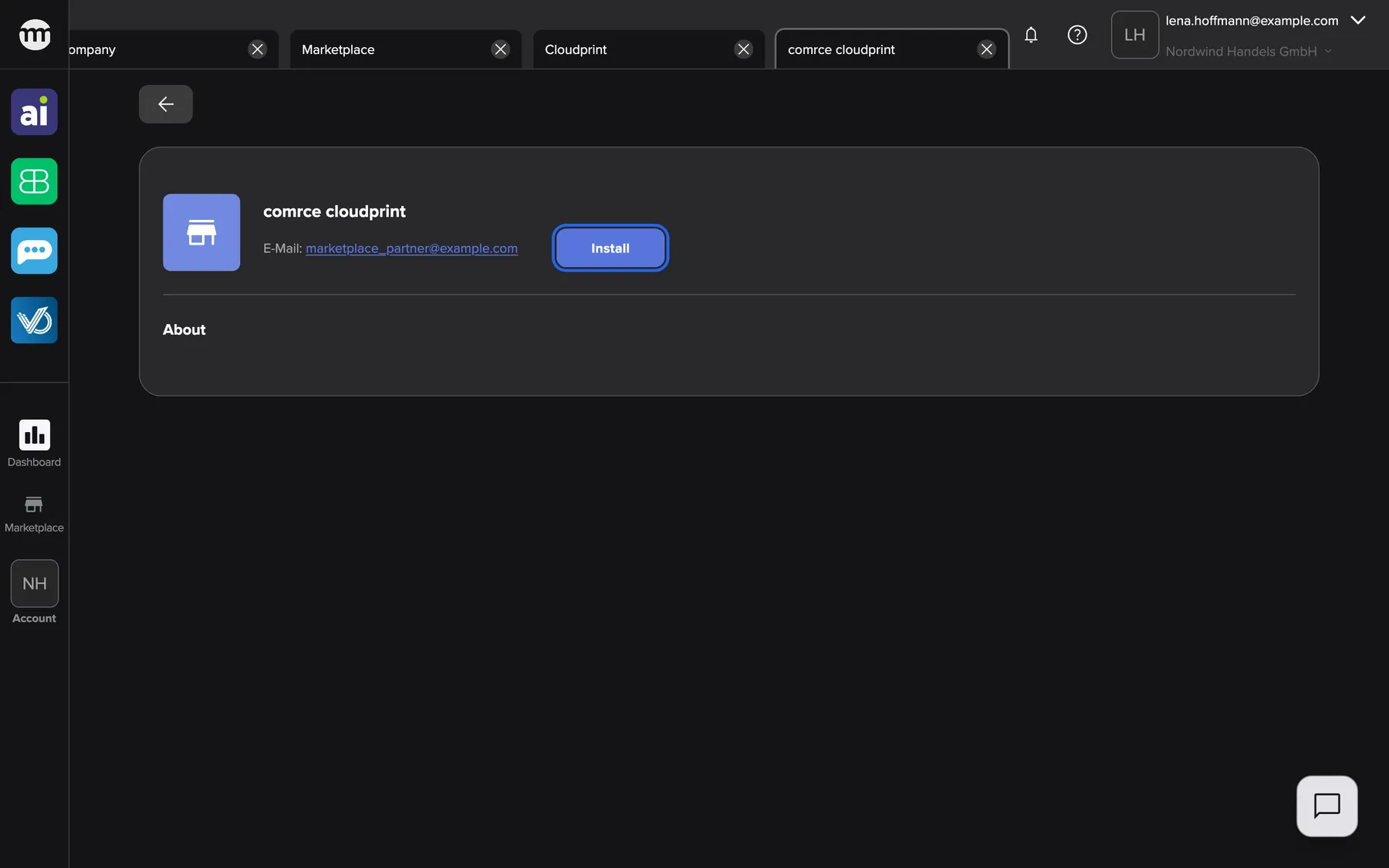
Install on the comrce cloudprint page installs it for your company. What this screenshot shows
- Screen
- comrce cloudprint
- Highlighted
- “Install”: installs comrce cloudprint for the whole company, without a confirmation
- Also visible
- Placeholder icon, name and email address; About
- Purpose
- install comrce cloudprint
-
Open the app and approve the sign-in. Open cloudprint.app.comrce.io. You sign in through comrce Hub, which shows Single Sign-On Request. Select Approve. Connect a tool to your account explains each kind of data in the request.
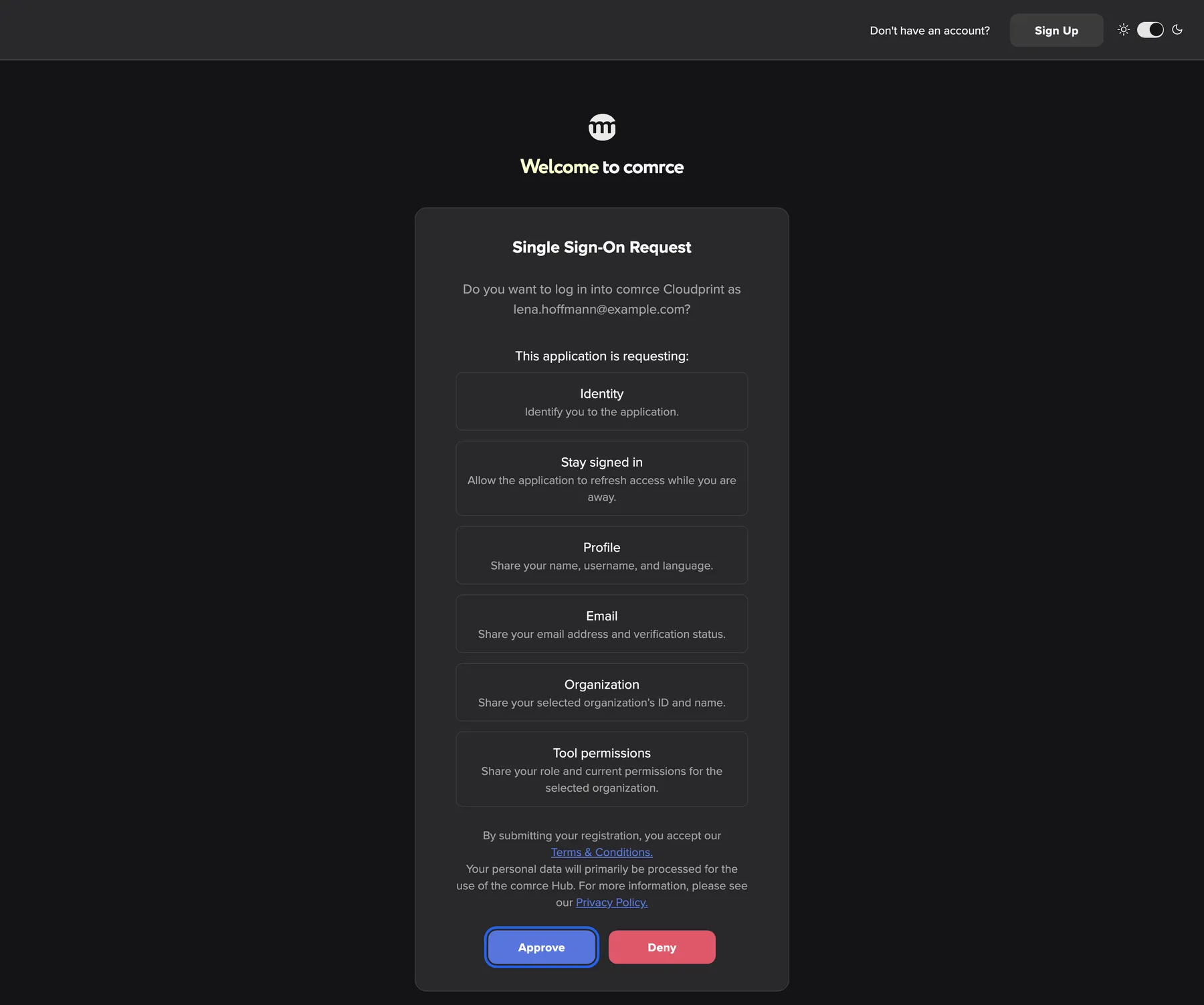
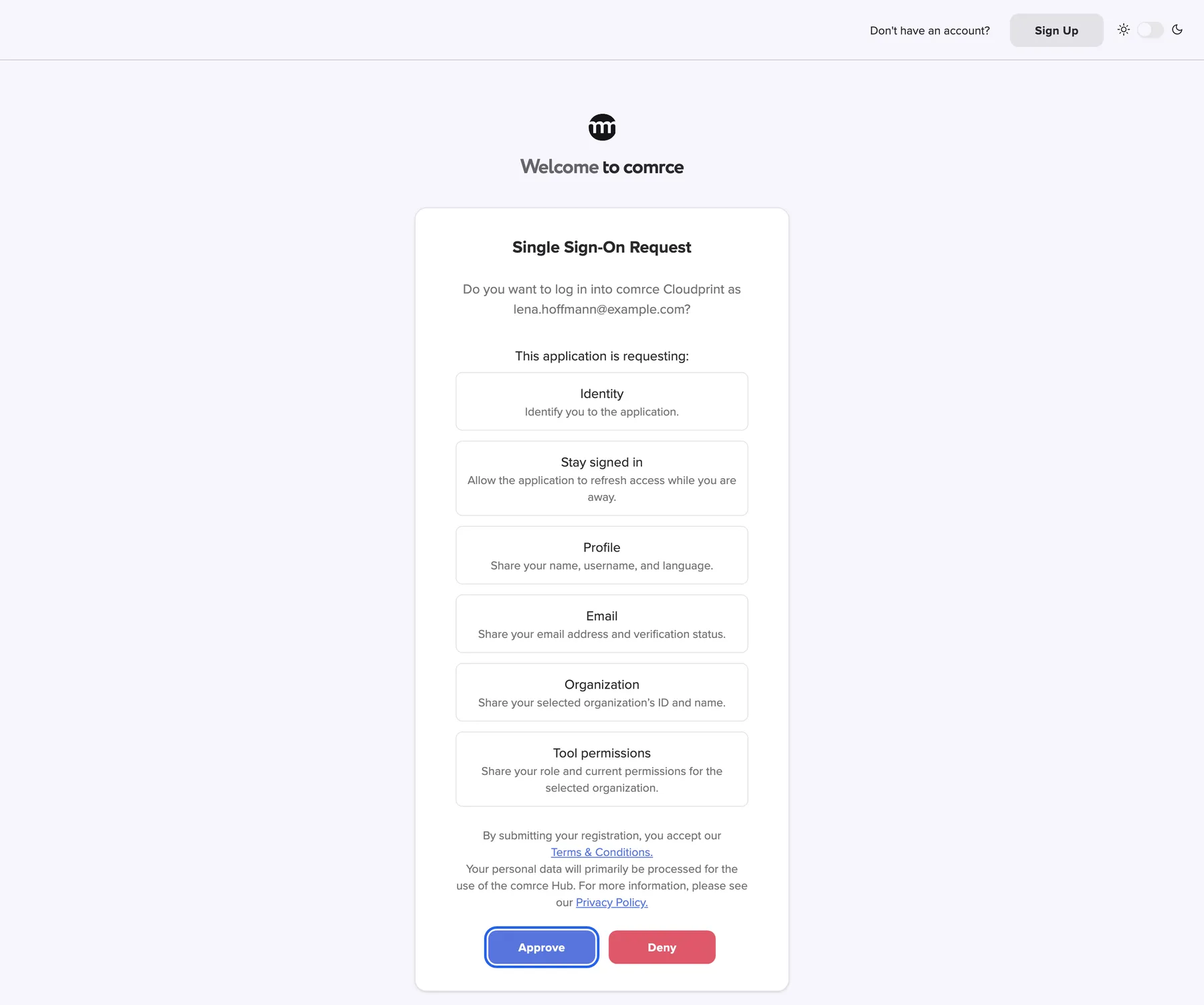
comrce Hub asks whether comrce cloudprint may sign you in. Approve lets it in. What this screenshot shows
- Screen
- Single Sign-On Request
- Highlighted
- “Approve”: approves the sign-in and opens comrce cloudprint
- Also visible
- The question naming comrce Cloudprint and your email address; Six requested data categories with explanations; Deny button
- Purpose
- approve the comrce cloudprint sign-in with comrce Hub
The comrce cloudprint app opens on its dashboard.
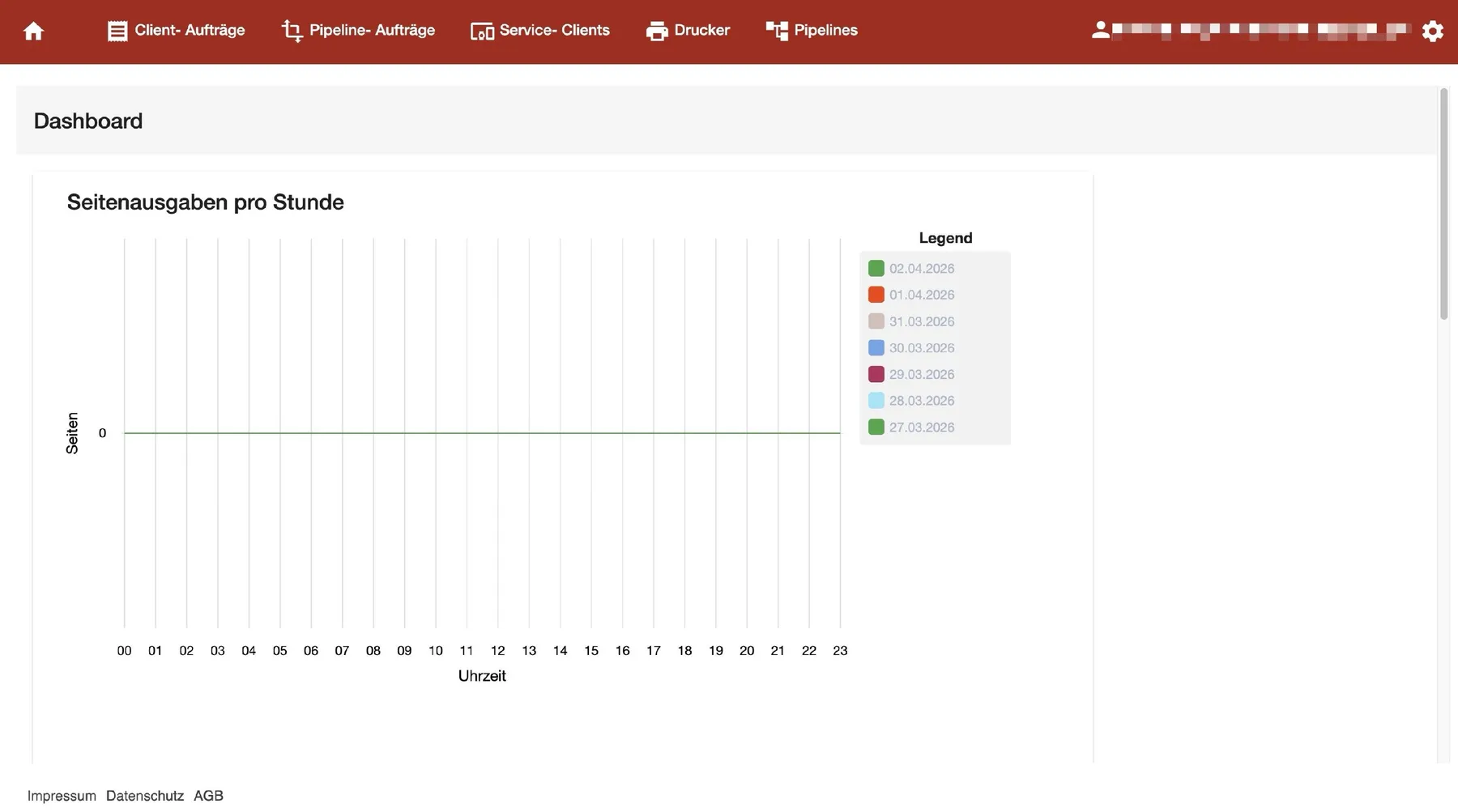
After you sign in, the comrce cloudprint app opens on its dashboard. The tabs at the top lead to Service Clients, printers and pipelines.Screenshot from comrce cloudprint, checked against the source on October 29, 2026 What this screenshot shows
- Also visible
- Tabs: Client- Aufträge, Pipeline- Aufträge, Service- Clients, Drucker, Pipelines; Chart of pages output per hour for the last seven days
- Purpose
- the comrce cloudprint app right after the first sign-in
-
Install your printers on the computer first. Install every printer locally on the Windows computer that will run the Service Client. The installation in step 7 then registers all of them automatically.
-
Add a Service Client. In the comrce cloudprint app, open the “Service-Clients” tab and select ”+”.
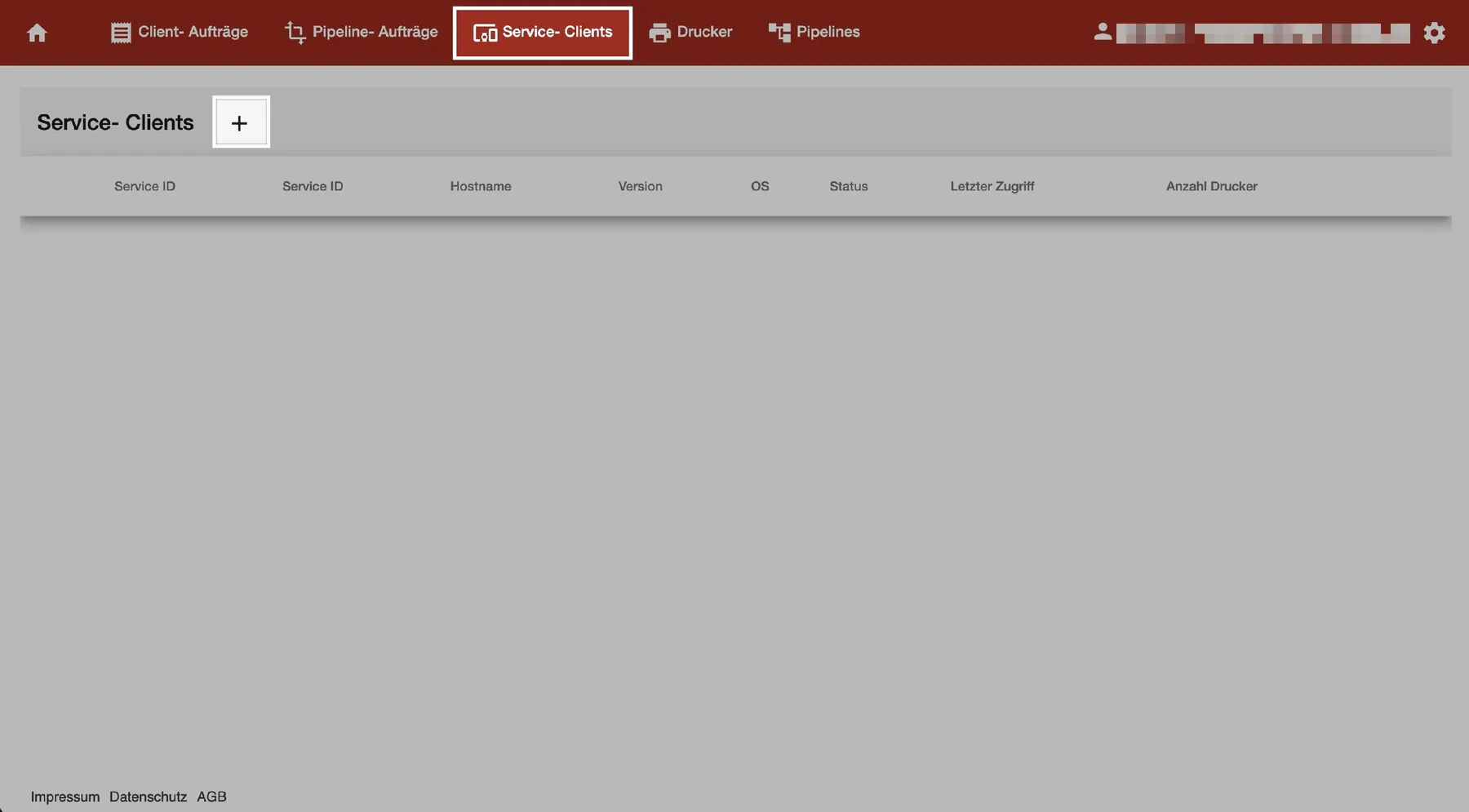
The "+" next to the heading adds a Service Client.Screenshot from comrce cloudprint, checked against the source on October 29, 2026 What this screenshot shows
- Also visible
- Empty list of Service Clients with its column headings; The + button next to the heading
- Purpose
- start adding a Service Client
Enter a name you’ll recognise the computer by later, then select “OK”.
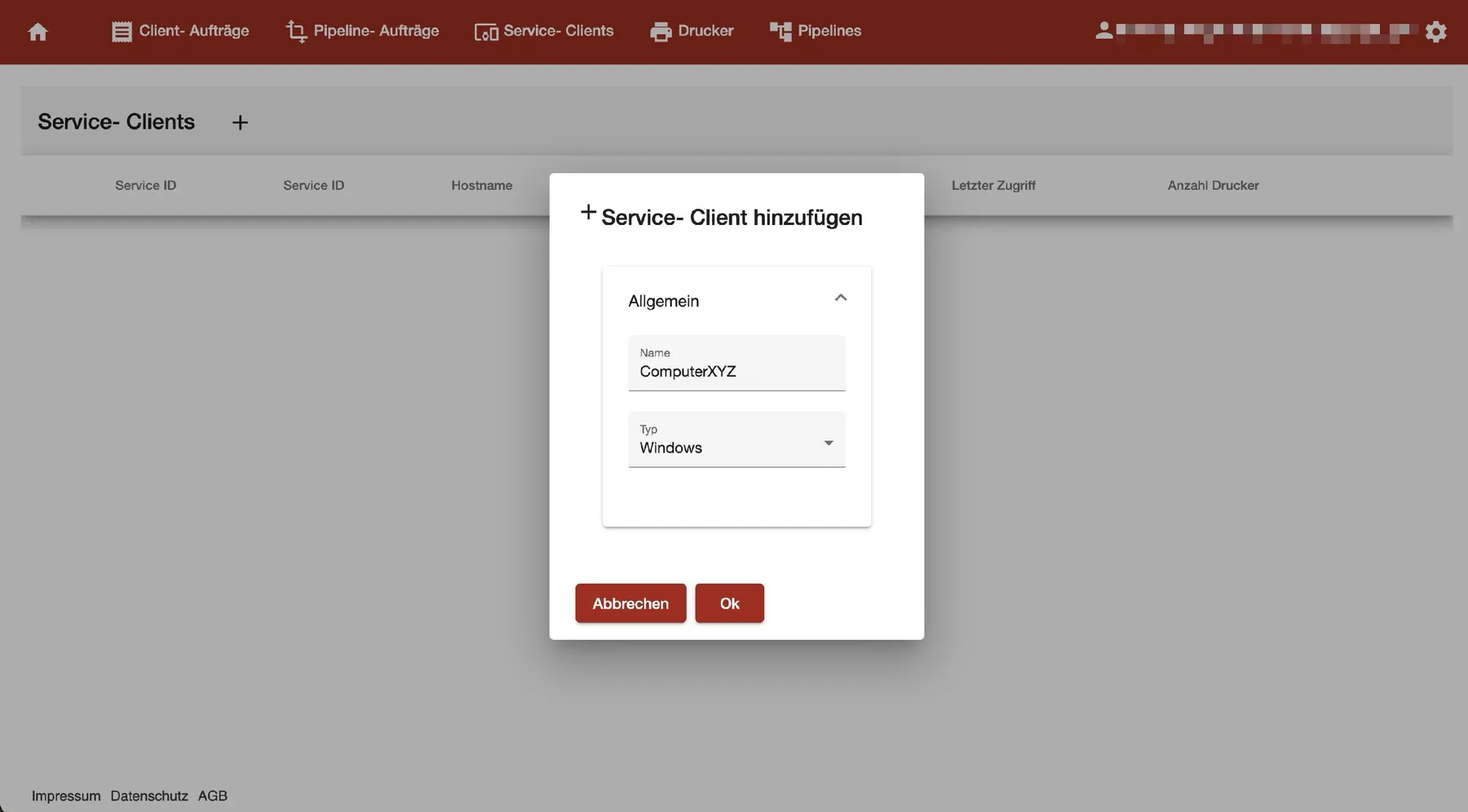
Give the Service Client a name you will recognise later, then select "Ok".Screenshot from comrce cloudprint, checked against the source on October 29, 2026 What this screenshot shows
- Also visible
- Name field with ComputerXYZ; Typ field with Windows
- Purpose
- name the new Service Client
-
Download the setup file. comrce cloudprint now creates a setup file with your access details. As soon as the notification appears, download it with the download icon in the new row.
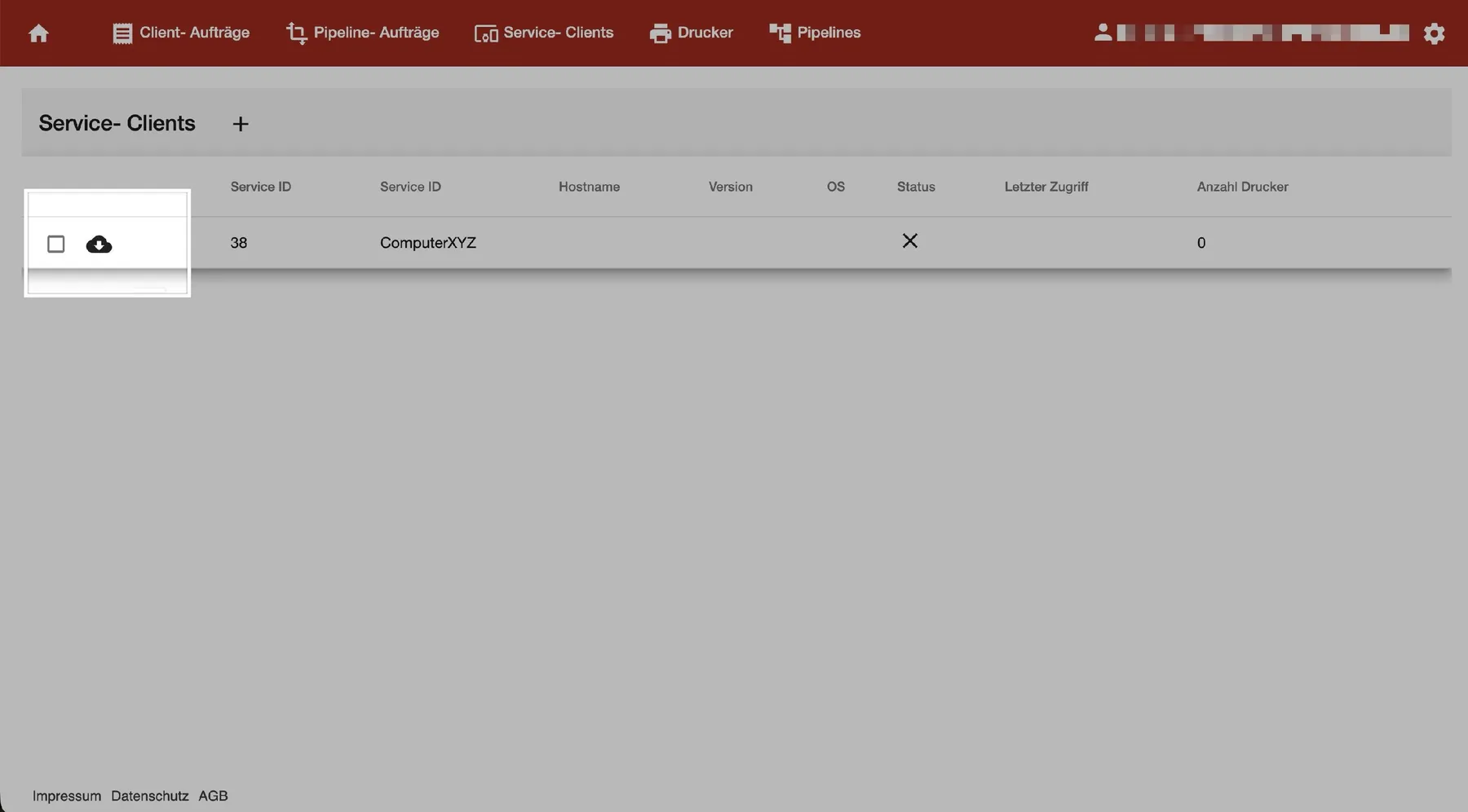
The download icon in the new row gets the setup file with your access details.Screenshot from comrce cloudprint, checked against the source on October 29, 2026 What this screenshot shows
- Also visible
- New row ComputerXYZ with a cross as status; Download icon at the left of the row
- Purpose
- download the Service Client setup file
-
Run the installer on Windows. Start the downloaded .exe file on the computer with your printers and go through the setup wizard.
At “Benutzer auswählen” (select user), choose who the Service Client runs as. Pick “Lokaler Benutzer (empfohlen)” and enter a local account with admin rights. Some printers need that working environment. Entering it now saves setting it up later. Run the Service Client with a local user shows how to assign it afterwards.
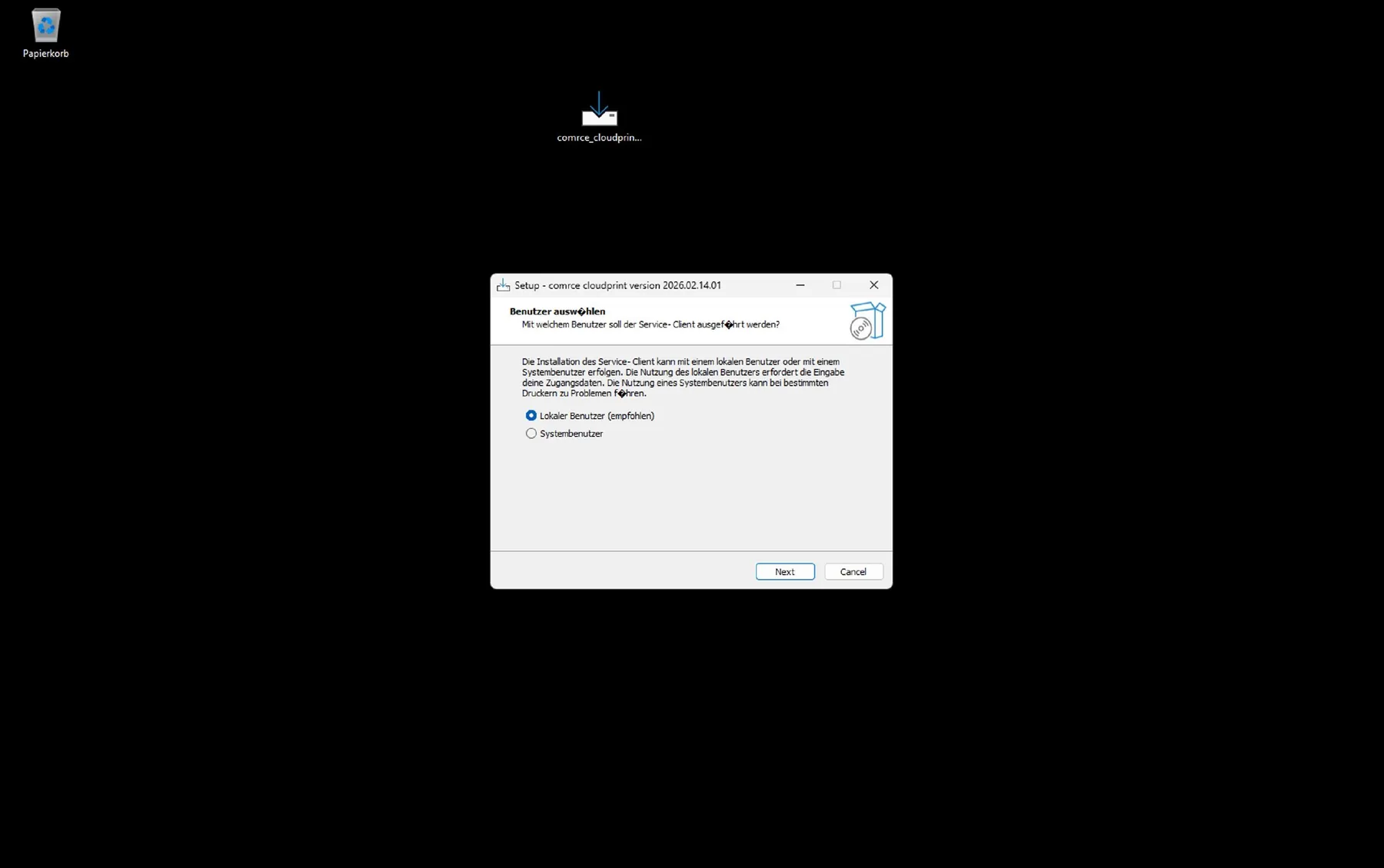
The wizard lets you run the Service Client as a local user, which it recommends, or as the system user.Screenshot from Windows, checked against the source on October 29, 2026 What this screenshot shows
- Also visible
- Options Lokaler Benutzer (empfohlen) and Systembenutzer; Buttons Next and Cancel
- Purpose
- choose the user the Service Client runs as
-
Check that it’s online. Return to the “Service-Clients” tab. A check mark in the status column shows that the Service Client is online.
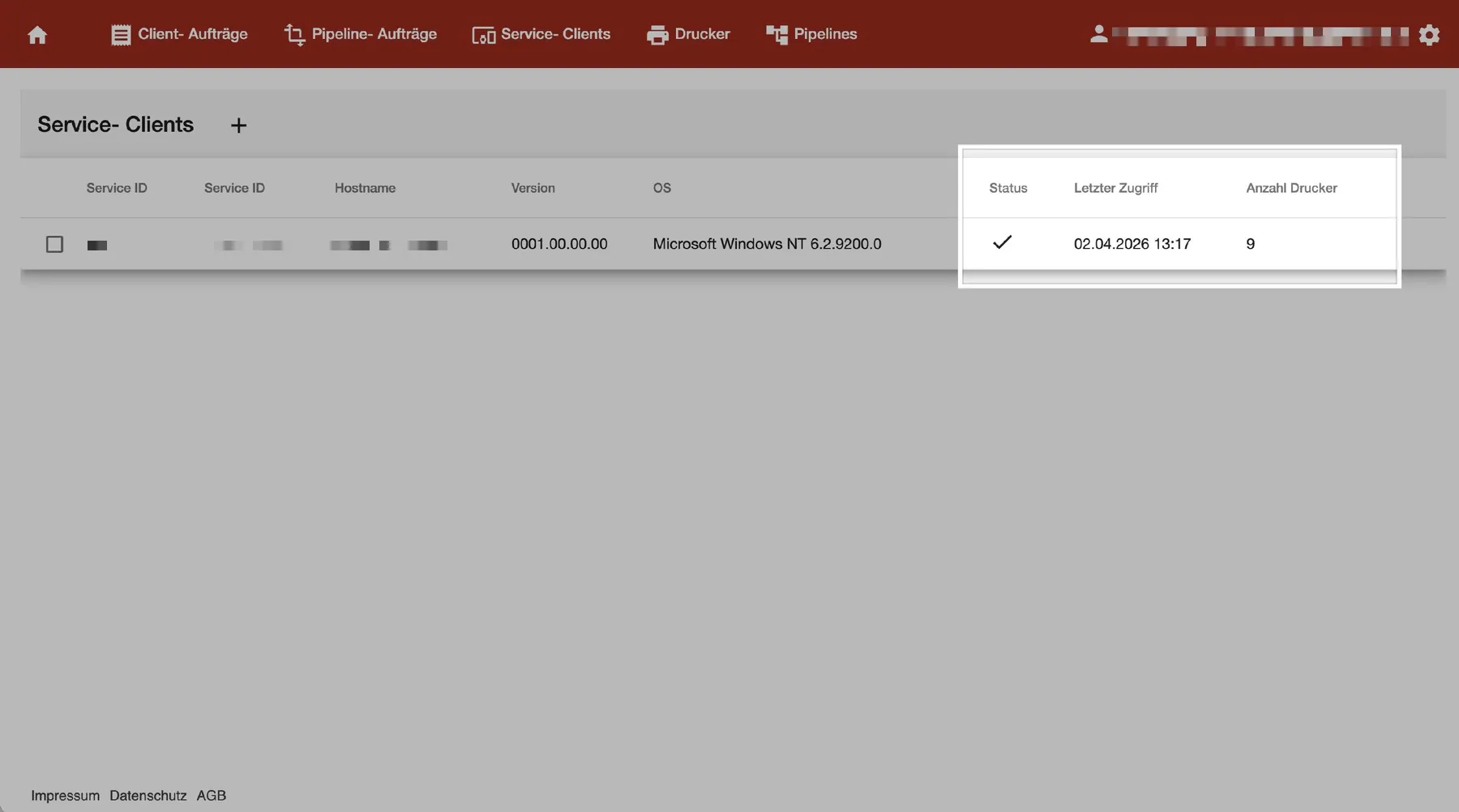
A check mark under "Status" shows that the Service Client is online.Screenshot from comrce cloudprint, checked against the source on October 29, 2026 What this screenshot shows
- Also visible
- Status check mark, last access and number of printers highlighted
- Purpose
- check that the Service Client is online
What happens next
Section titled “What happens next”The Service Client now runs on that computer as a service, in the background, all the time. It connects comrce cloudprint to the printers attached to or installed on the computer.
Next, decide how documents reach your printers:
- From Billbee: Print Billbee invoices and labels automatically.
- Through queues and pipelines of your own: Processes and how they work.
If something goes wrong
Section titled “If something goes wrong”| Symptom | What to check | Fix |
|---|---|---|
| Install is missing on the comrce cloudprint page | You lack Managing API connections | Ask the company owner to install it, or to give you the permission |
| The service doesn’t start correctly on Windows 7 or 8 | These versions don’t support TLS 1.1 and 1.2 by default | Enable them as Service Client troubleshooting on Windows describes |
| A printer has problems while the Service Client runs as the system user | Which user you chose in the setup wizard | Assign a local account with admin rights |
| The Service Client needs a restart | The “cloudprint-Client” service in Windows | Restart the Service Client |