

Processing steps
Processing steps change the PDF document while a pipeline runs. There are three: Inhalt bearbeiten (edit content), Text rendern (render text) and Seiten filtern (filter pages). You add them with a plus in the pipeline editor, as Pipelines and their steps explains.
What a processing step does to the job
Section titled “What a processing step does to the job”A processing step doesn’t overwrite the document. It saves the changed PDF as a new job, and the steps after it work with that one. A branch that splits off before the step keeps the original. In Pipeline- Aufträge (pipeline jobs), the new job’s details list the original under Vorgänger (predecessor).
Every processing step needs a name. You choose it freely. It appears on the step’s tile.
Edit content
Section titled “Edit content”Inhalt bearbeiten opens the dialog Inhalt transformieren (transform content). In Funktion (function) you choose one of five operations. Each step carries out one operation on every page. For several operations, chain several steps.
skalieren changes the size of every page. There are three ways:
| Option | Fields | What happens |
|---|---|---|
| Prozentuales skalieren (symmetrisch) | Skalierung in % | Width and height change by the same percentage |
| Prozentuales skalieren (asymmetrisch) | Skalierung X and Skalierung Y in % | Width and height change by their own percentage |
| Auf Zielformat skalieren | Zielformat Höhe and Zielformat Breite in mm | Every page gets exactly this size. The content is stretched to fit, so its proportions can change |
A new step starts with the first option at 100 %.
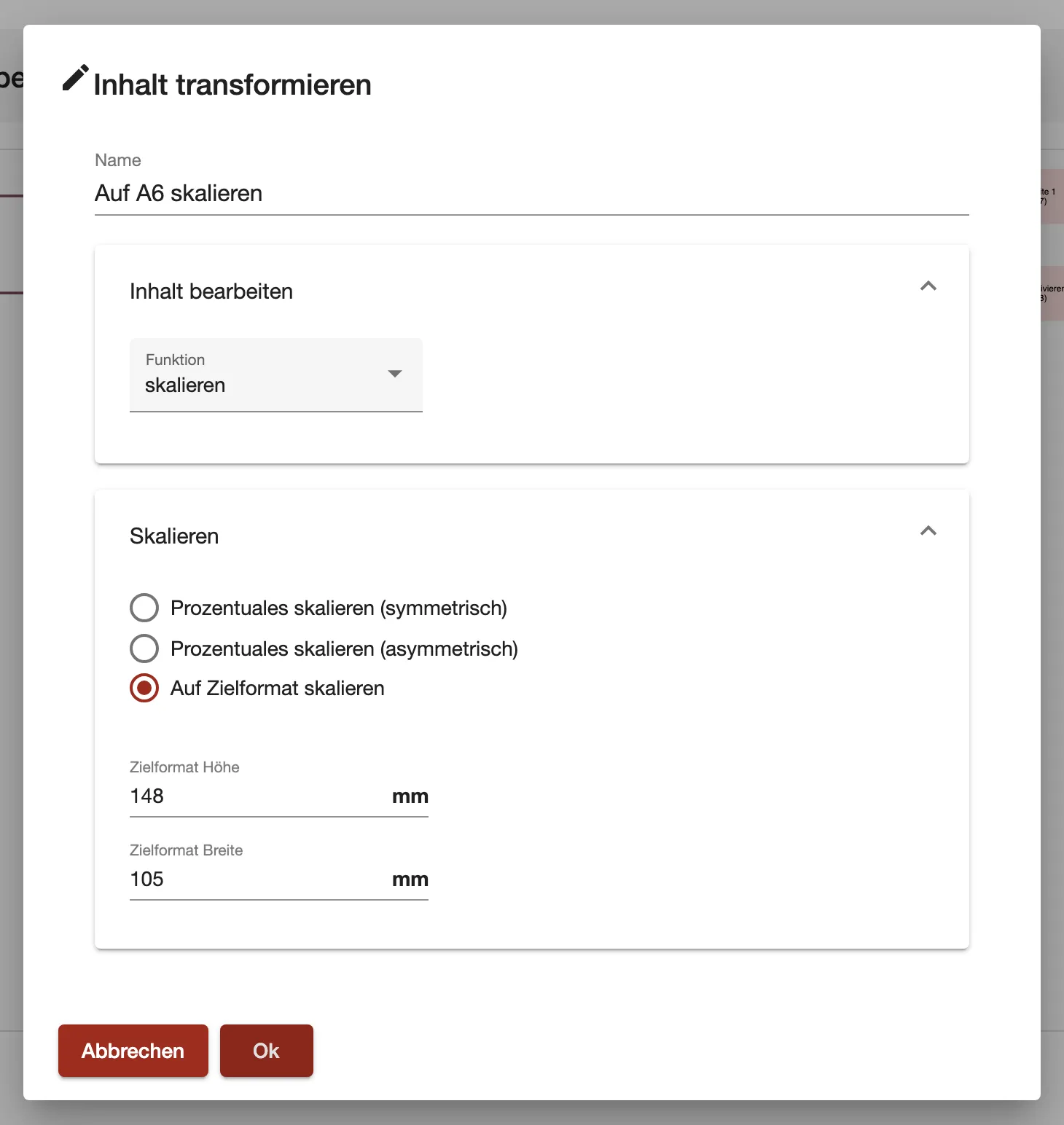
What this screenshot shows
- Highlighted
- “Auf Zielformat skalieren”: scales every page to the entered format
- Also visible
- Funktion: skalieren; Three scaling options; Target 148 × 105 mm
- Purpose
- scale a document
zuschneiden makes every page smaller. Enter in mm how much to take off at the top, bottom, left and right. The page shrinks by these values. comrce cloudprint currently takes the whole amount off the right and bottom edges. The content keeps its place at the top left.
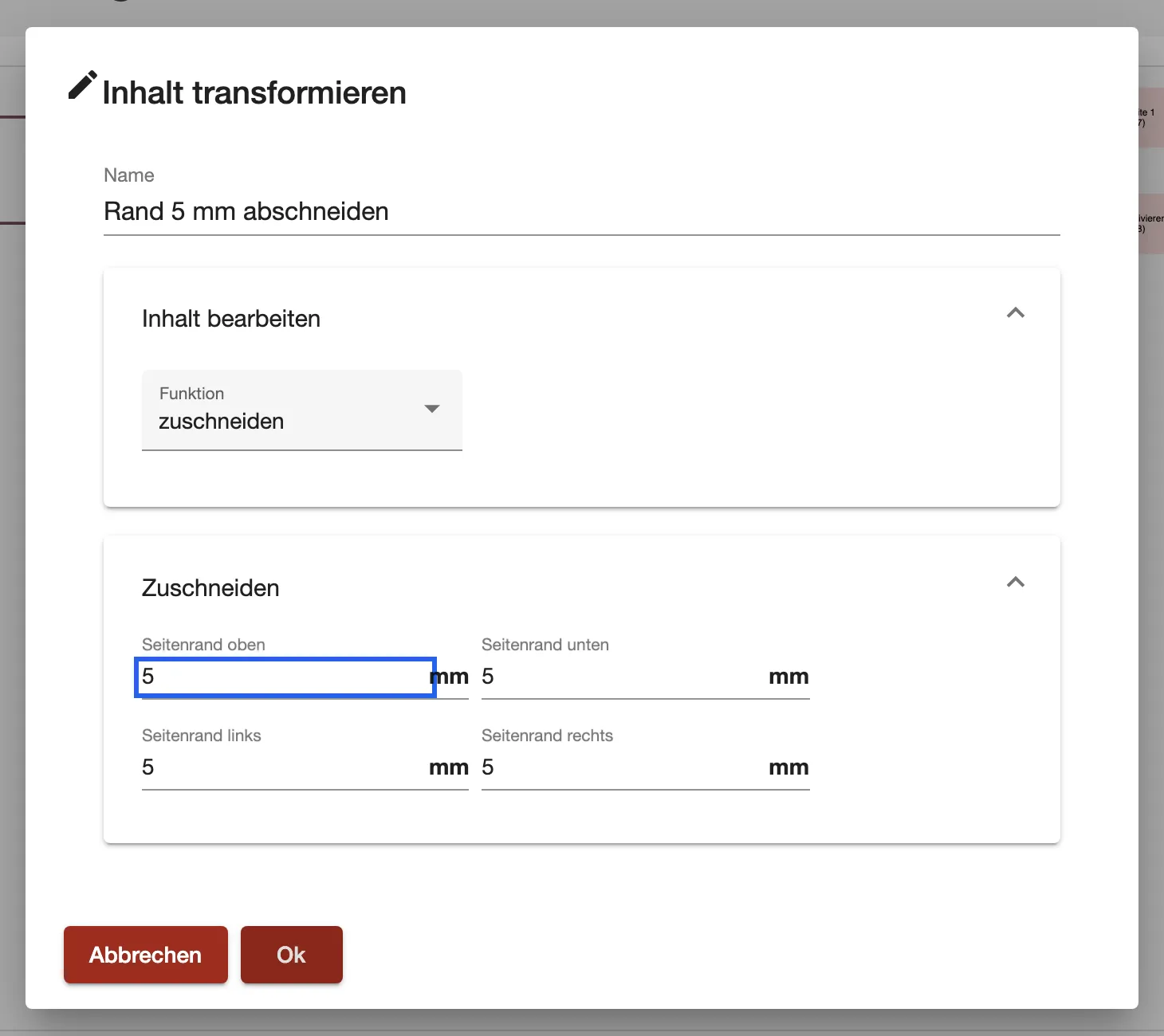
What this screenshot shows
- Highlighted
- sets how much the page shrinks on each side
- Also visible
- Funktion: zuschneiden; Four margins of 5 mm
- Purpose
- crop a document
Extend
Section titled “Extend”überfüllen makes every page larger by adding blank space. Enter in mm how much to add on each side. The content moves in by the left and top values.
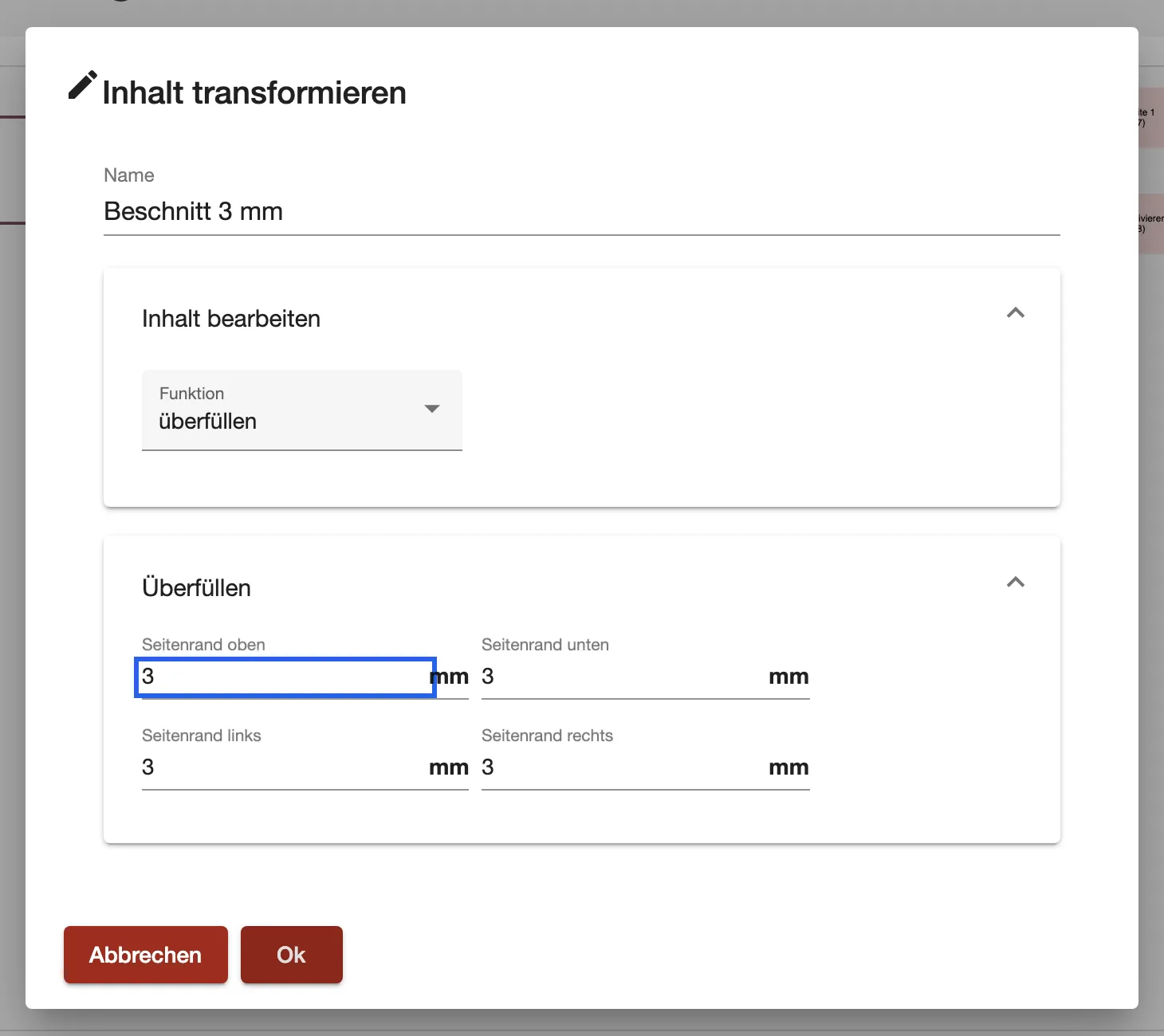
What this screenshot shows
- Highlighted
- sets the blank space added on each side
- Also visible
- Funktion: überfüllen; Four margins of 3 mm
- Purpose
- extend a document
Rotate
Section titled “Rotate”rotieren turns every page. Choose the Winkel (angle), 0°, 90°, 180° or 270°. Then choose the Richtung (direction): im Uhrzeigersinn (clockwise) or gegen den Uhrzeigersinn (anticlockwise).
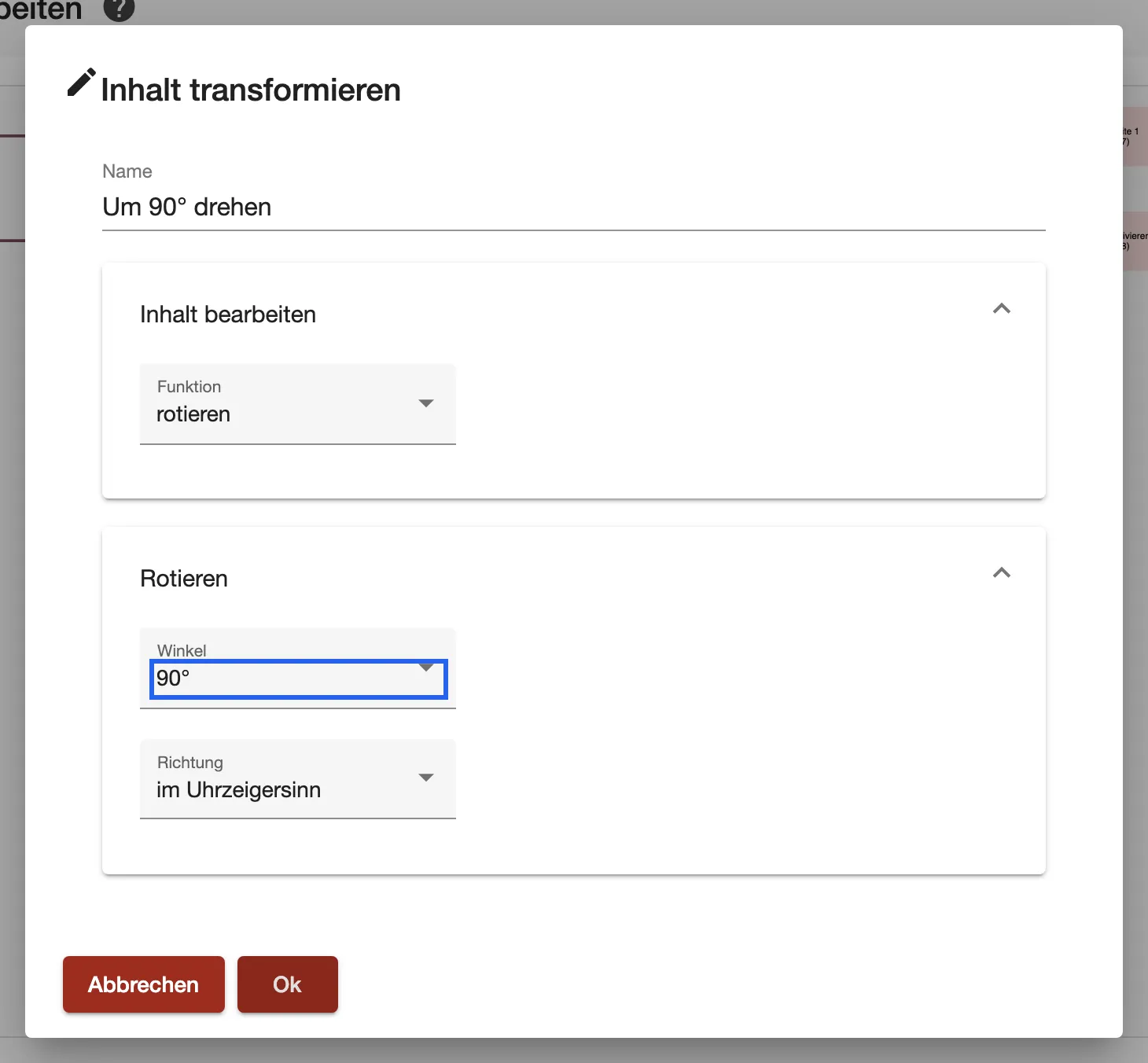
What this screenshot shows
- Highlighted
- sets the angle every page is turned by
- Also visible
- Funktion: rotieren; Winkel 90°, Richtung im Uhrzeigersinn
- Purpose
- rotate a document
Mirror
Section titled “Mirror”spiegeln flips every page. horizontal swaps left and right. vertikal turns the page upside down.
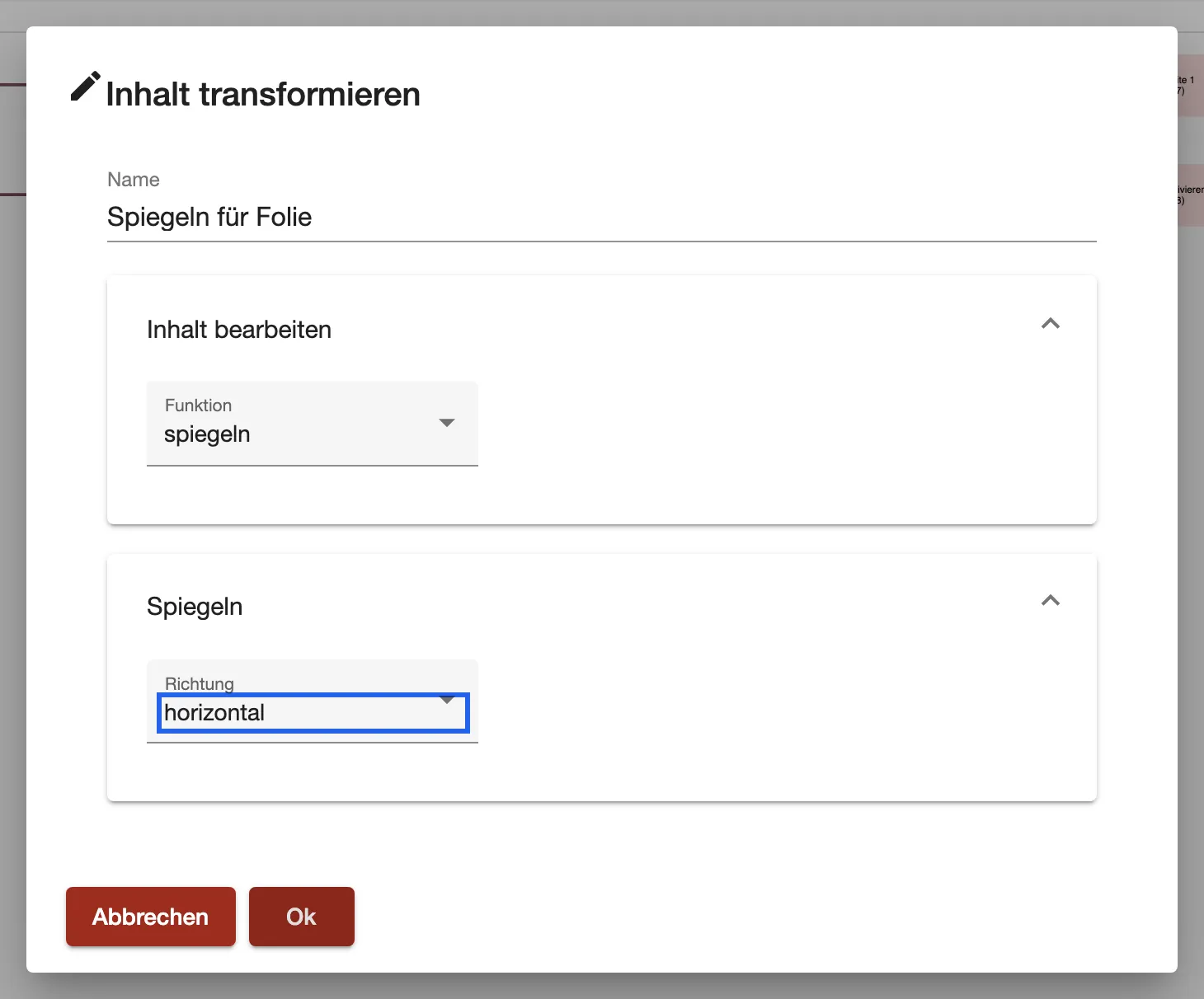
What this screenshot shows
- Highlighted
- sets the mirror direction
- Also visible
- Funktion: spiegeln; Richtung: horizontal
- Purpose
- mirror a document
Render text
Section titled “Render text”Text rendern prints a text onto chosen pages of the document, in black.
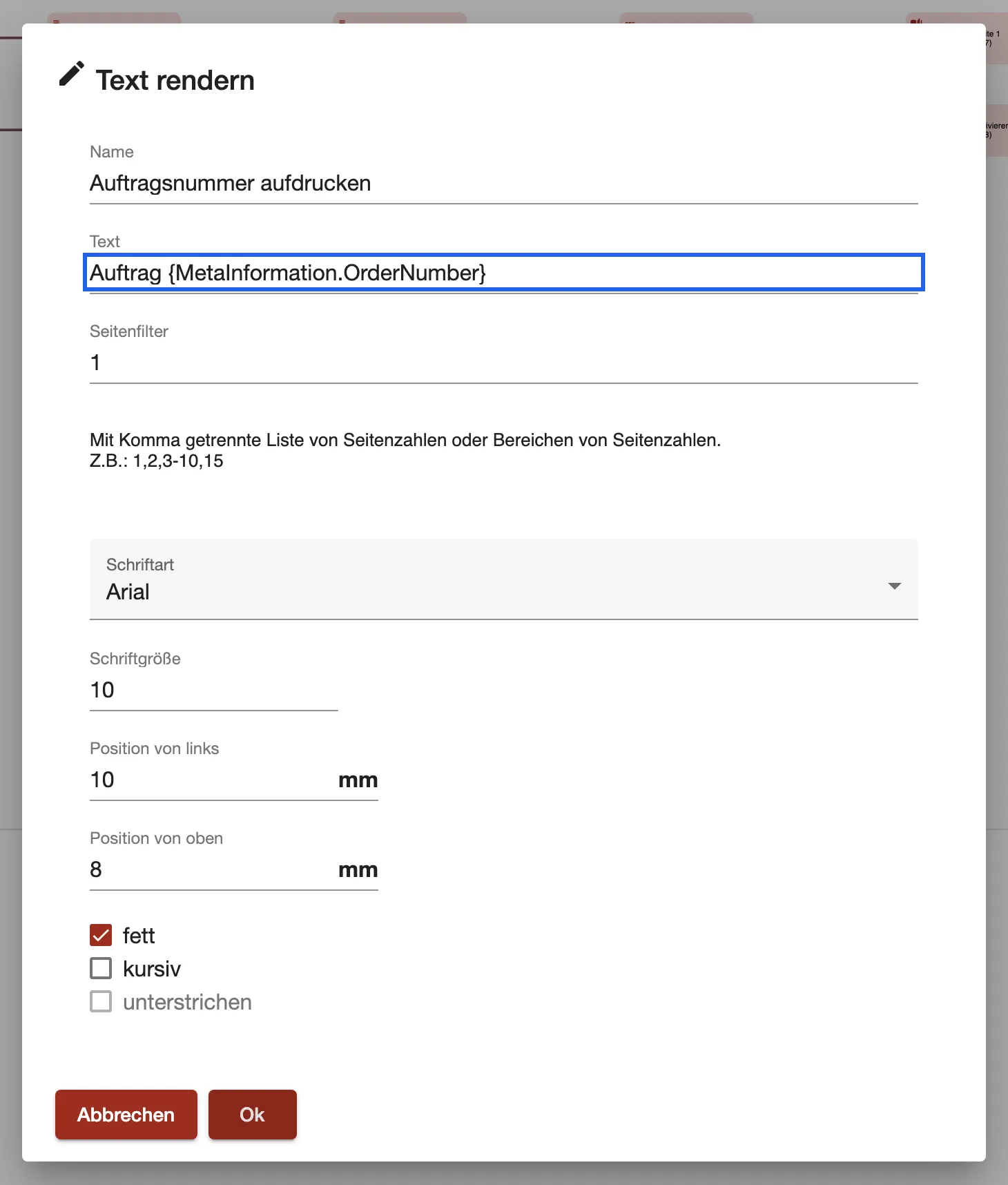
What this screenshot shows
- Highlighted
- sets the text that is printed onto the pages
- Also visible
- Text with a placeholder; Seitenfilter 1; Font, size and position in mm; fett ticked, unterstrichen greyed out
- Purpose
- add a text to a document
| Field | What it sets |
|---|---|
| Text | The text. It can contain placeholders. Here {Page} also works, for the page number. |
| Seitenfilter (page filter) | The pages the text goes on, in the format of Filter pages. Left empty, the text goes on every page. |
| Schriftart (font) | The font. A new step starts with Arial. |
| Schriftgröße (font size) | The size in points. A new step starts with 14. |
| Position von links and Position von oben | Where the text starts, in mm from the left and top edge of the page. A new step starts at 50 mm each. |
| fett, kursiv, unterstrichen | Bold, italic, underlined. Underlined can’t be combined with bold or italic. |
Filter pages
Section titled “Filter pages”Seiten filtern keeps only the pages you name and deletes all others.
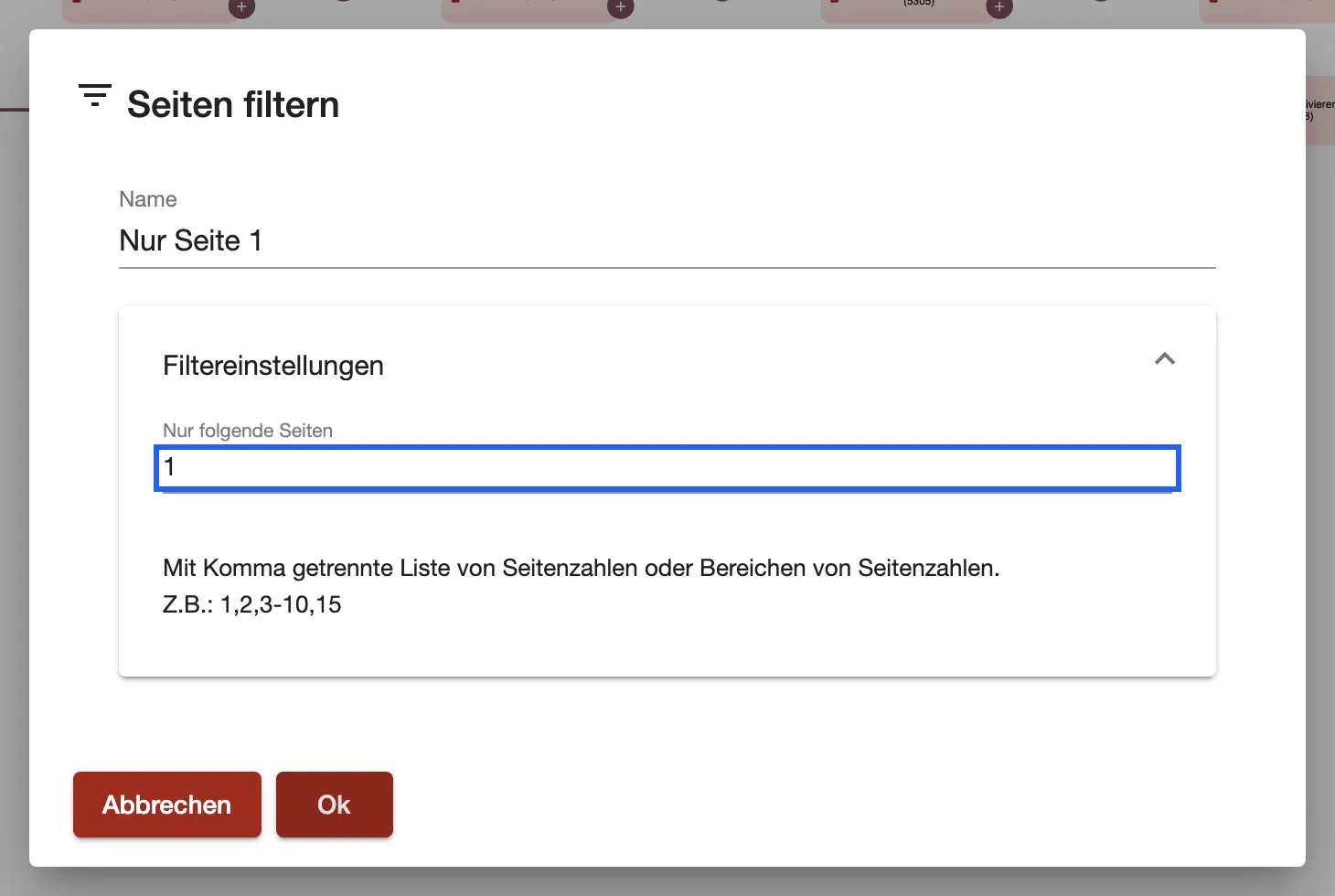
What this screenshot shows
- Highlighted
- sets which pages the step keeps
- Also visible
- Nur folgende Seiten: 1; Format hint 1,2,3-10,15
- Purpose
- keep only some pages
In Nur folgende Seiten (only these pages), enter page numbers or ranges, separated by commas. Example: 1,2,3-10,15. A range includes both ends. Page numbers beyond the end of the document are ignored.