

Set up your company in comrce Hub
Set up your company in comrce Hub once, and your whole team can start working there. You sign up with your own details and your company’s address. You become the company’s Owner, with every permission.
Then you confirm your email, sign in and set up two-factor authentication. Have your phone ready for that step, because comrce Hub does not let you skip it. The confirmation link in the email is valid for 7 days.
Before you start
Section titled “Before you start”| You need | Where it lives |
|---|---|
| The email address you will sign in with | Your mailbox. The confirmation link goes there. |
| Your company’s name and address. The VAT ID and a phone number are optional. | Your company documents |
| A phone with an authenticator app, such as Google Authenticator, Microsoft Authenticator or 1Password | Your phone |
| A safe place for 10 recovery codes | A password manager, or a printed sheet in a locked drawer |
Anyone can register a company. Registering always creates a new, separate company. Were you invited by a colleague? Then you join their company instead: open the link in the invitation email, as Accept an invitation shows.
-
Sign up with your details. On the sign-in screen, select Sign Up. Enter your name, your email address and a password of at least 12 characters. Then select Continue. Create an account lists every password rule.
-
Register your company. Enter the company name and address and tick the box for the terms and the privacy policy. Select Submit. comrce Hub creates your account and the company, and makes you its owner.
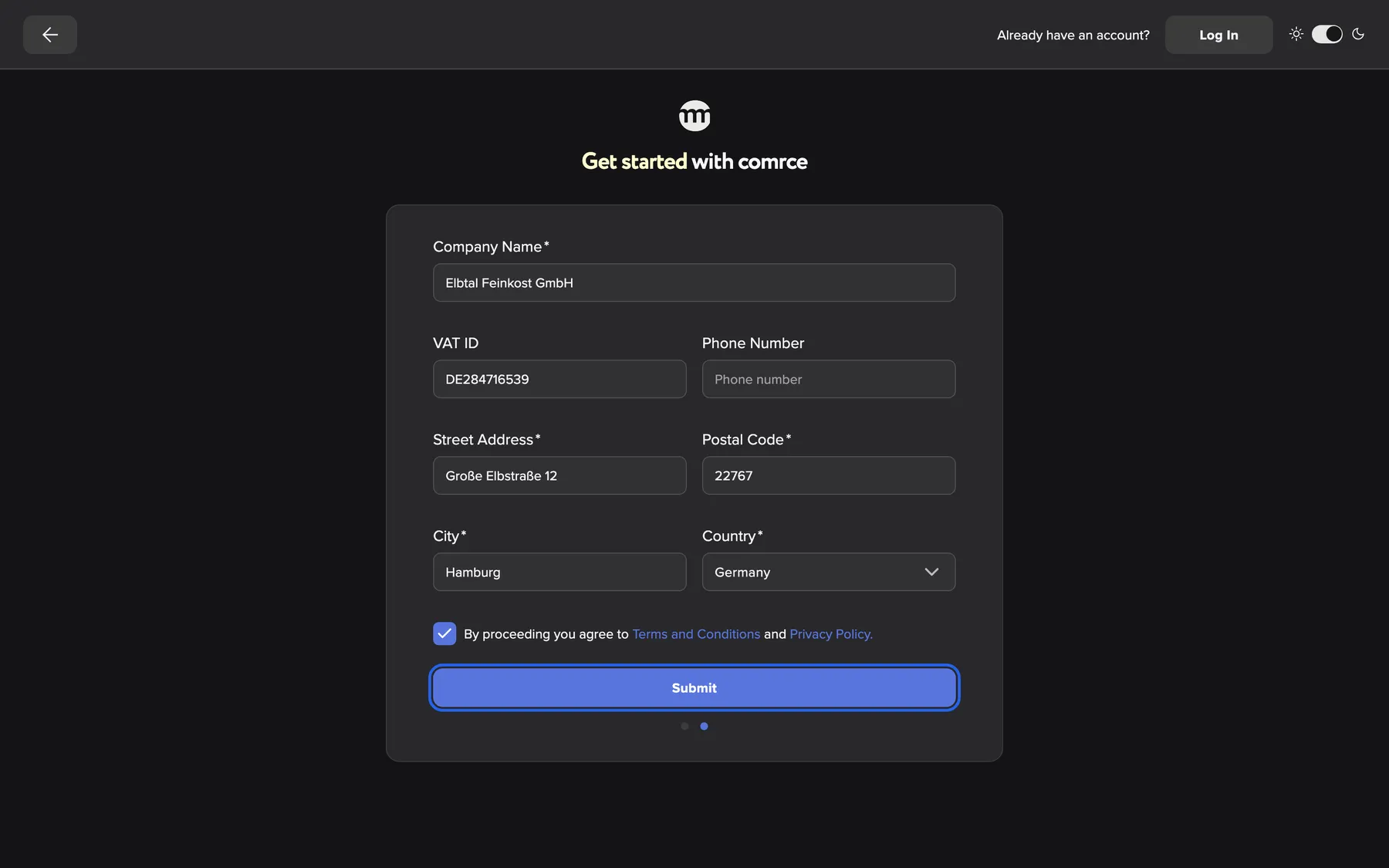
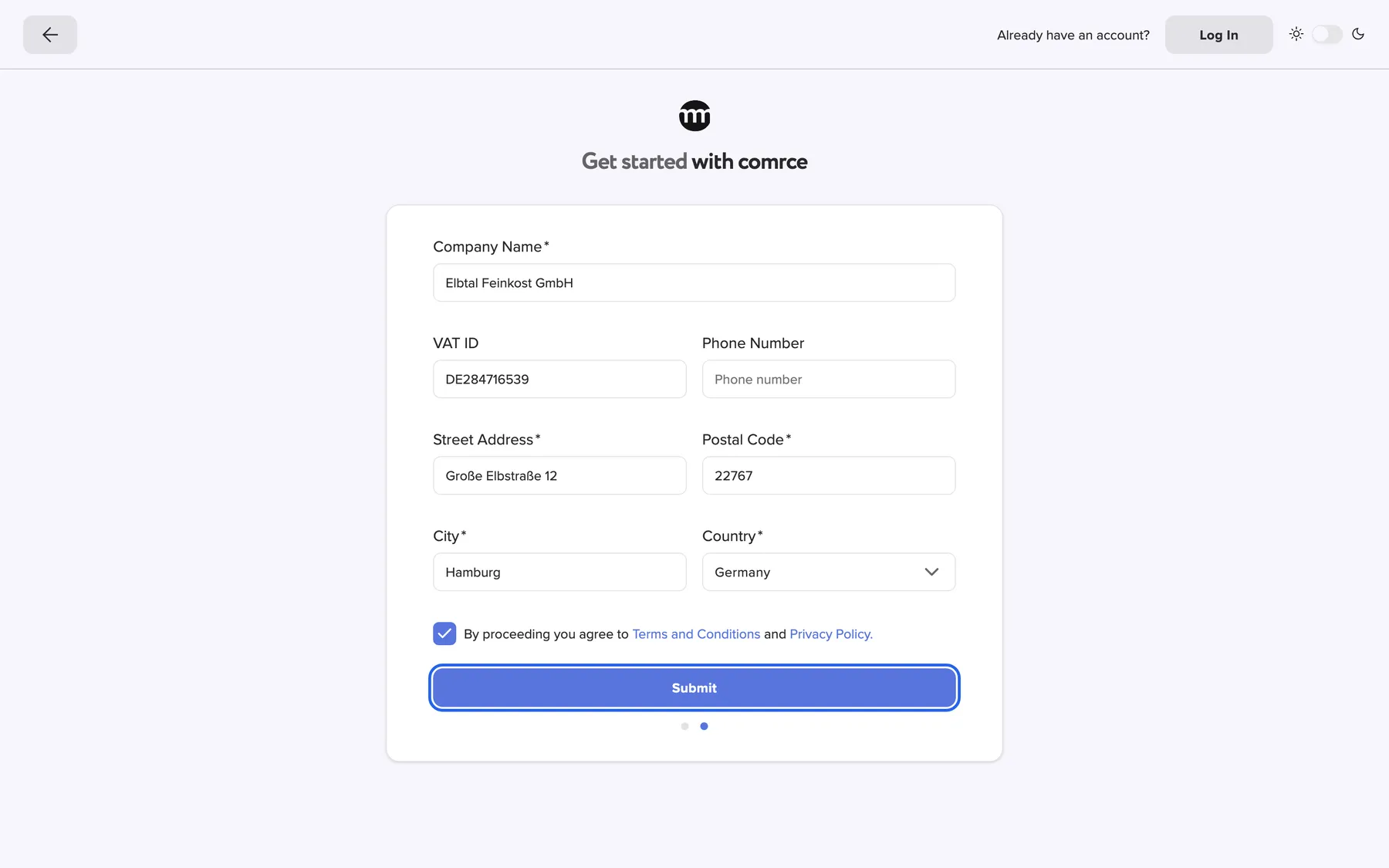
Enter your company and its address, accept the terms, then select Submit. What this screenshot shows
- Highlighted
- “Submit”: creates your account and your company
- Also visible
- Elbtal Feinkost GmbH with its Hamburg address; Terms checkbox ticked
- Purpose
- register your company
-
Confirm the address from the email. Open the email from comrce Hub and select the link. On the page that opens, select Confirm email. No email yet? The waiting page sends a new one, as Get a new confirmation email explains.
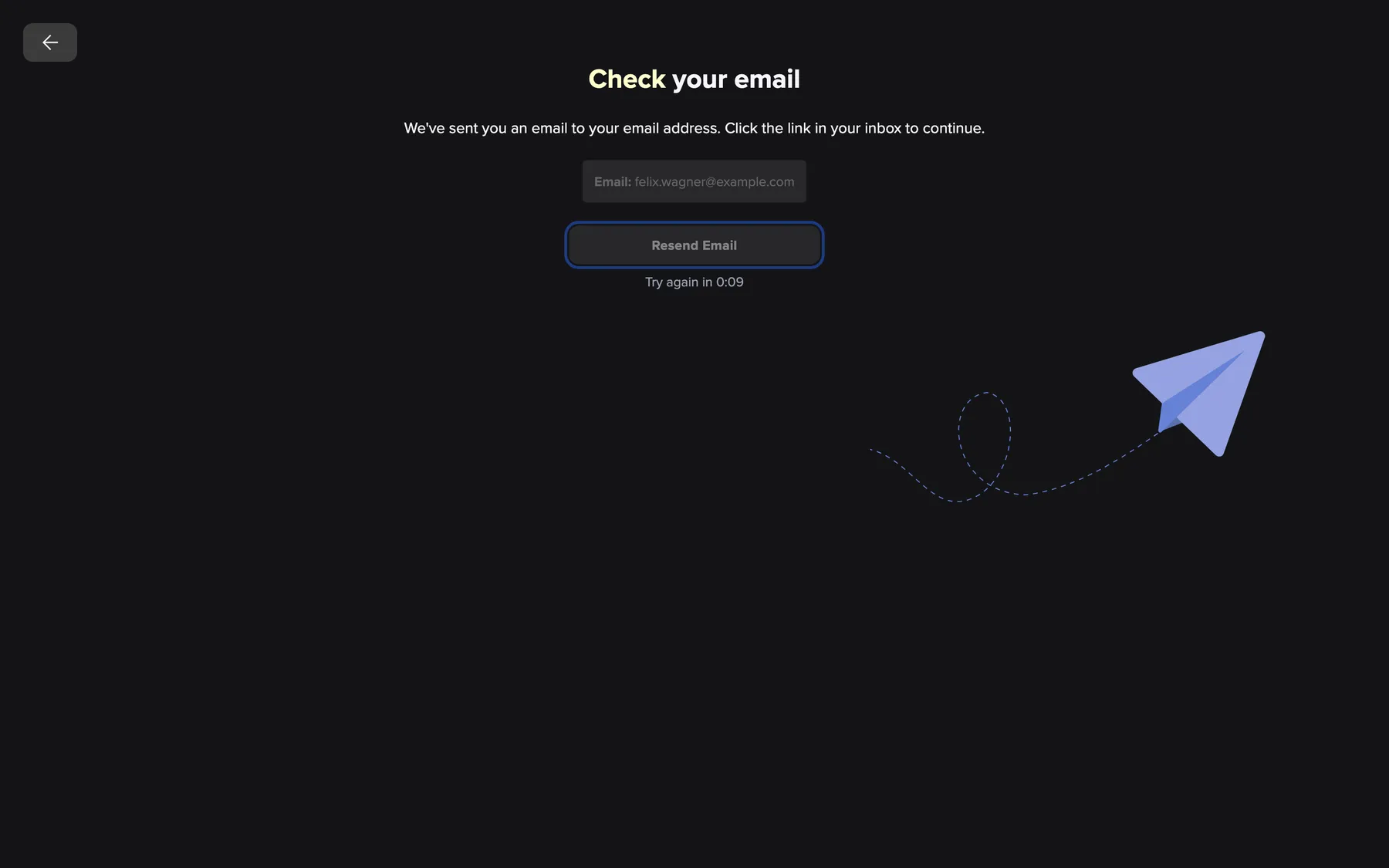
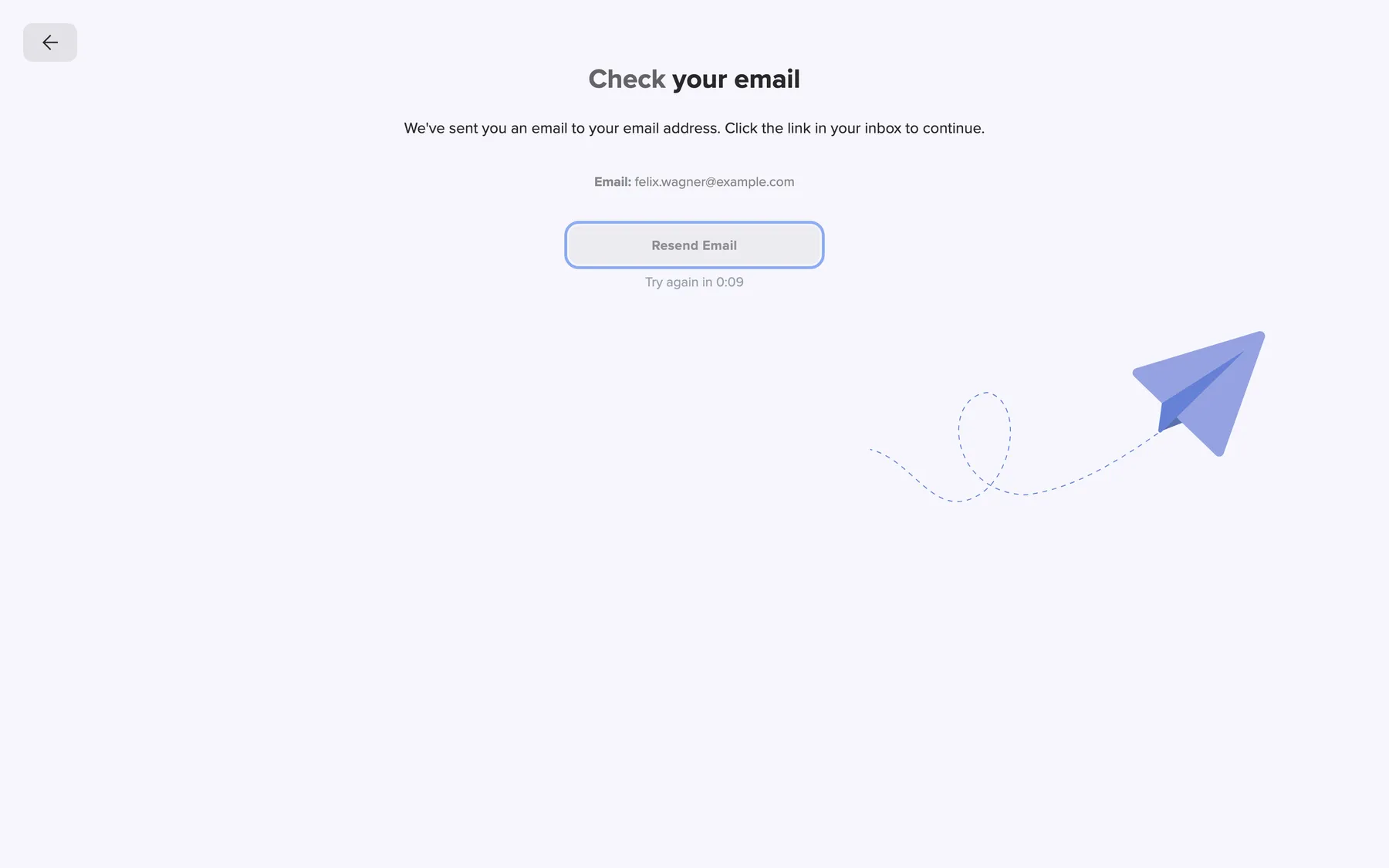
Confirm with the link in the email. Resend Email sends a new one after a short wait. What this screenshot shows
- Highlighted
- “Resend Email”: sends a new confirmation email after a short wait
- Also visible
- The address felix.wagner@example.com; Countdown until the next email
- Purpose
- wait for the confirmation email
-
Sign in. Type your email address and password, then select Log In. Sign in explains the sign-in screen, Google sign-in included.
-
Answer the cookie dialog. At your first sign-in, comrce Hub asks for your cookie settings. Essential cookies are always on, and you choose the optional ones. Dialogs that appear after you sign in lists every choice.
-
Set up two-factor authentication with the authenticator app. The setup dialog opens by itself and has no close button. Choose the app: it works without your inbox, and a stolen email password does not reveal your codes.
Scan the QR code, select Verify the code and type the 6-digit code. Copy your recovery codes to a safe place. Two-factor authentication covers both methods.
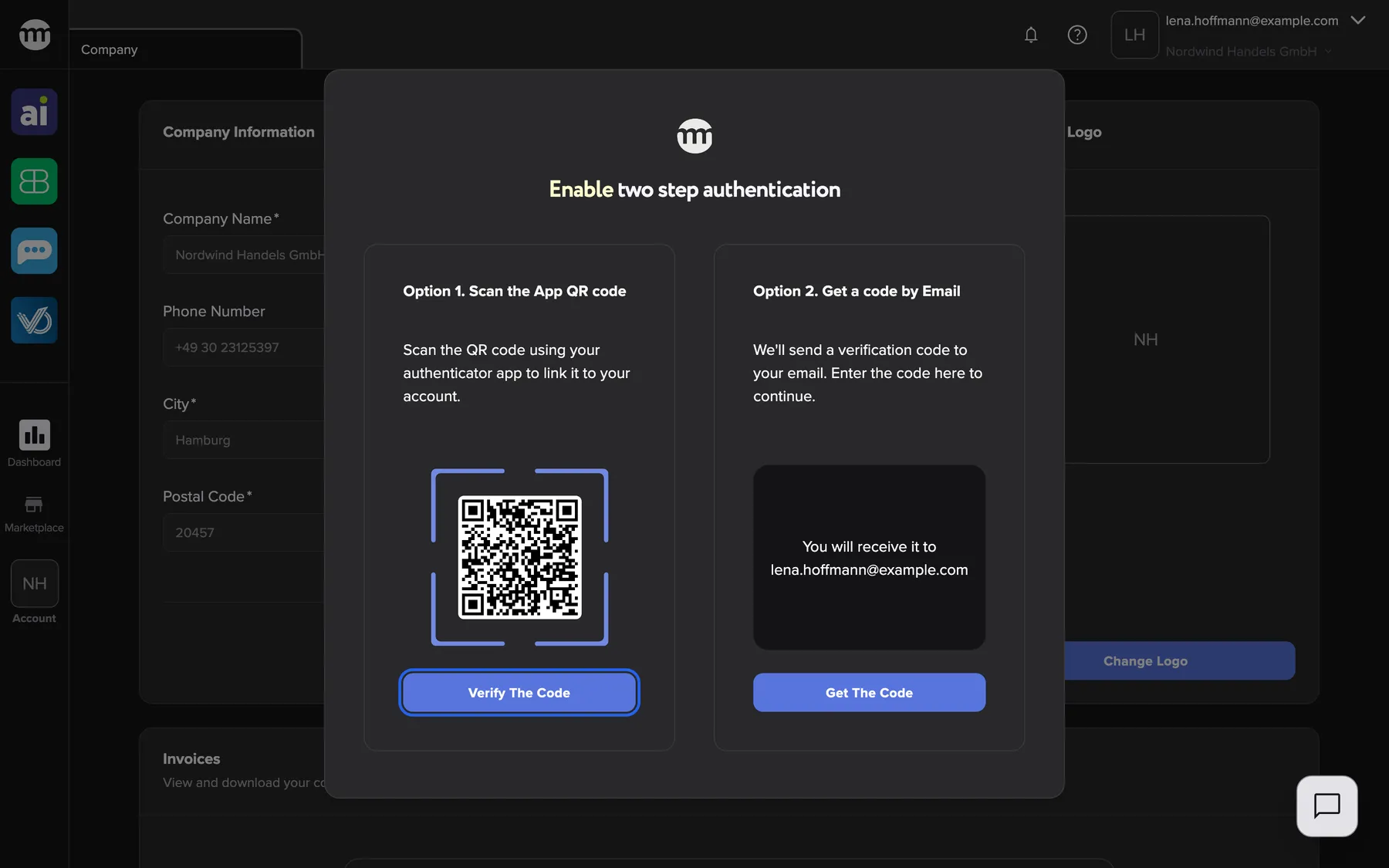
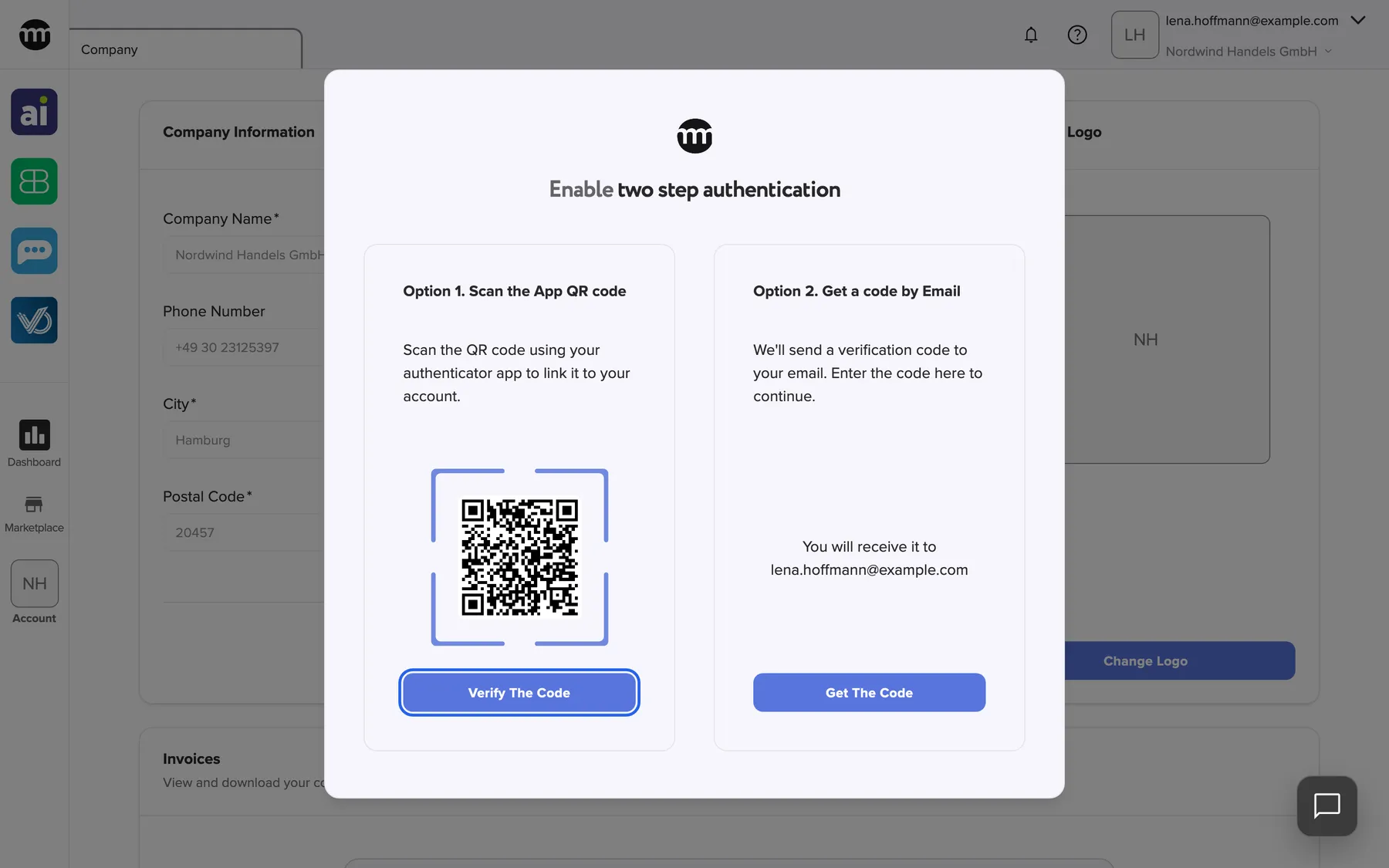
Scan the QR code and select Verify the code, or get a code by email. What this screenshot shows
- Highlighted
- “Verify the code”: opens the code entry for the authenticator app
- Also visible
- QR code for the authenticator app; Email code option with its own button
- Purpose
- choose your second factor at the first sign-in
-
Check your company details and add a logo (optional). Open AccountCompany. Select Edit to correct a detail, or Change logo to add a logo. The logo is a PNG or JPEG file of at most 8 MB. Company explains every field.
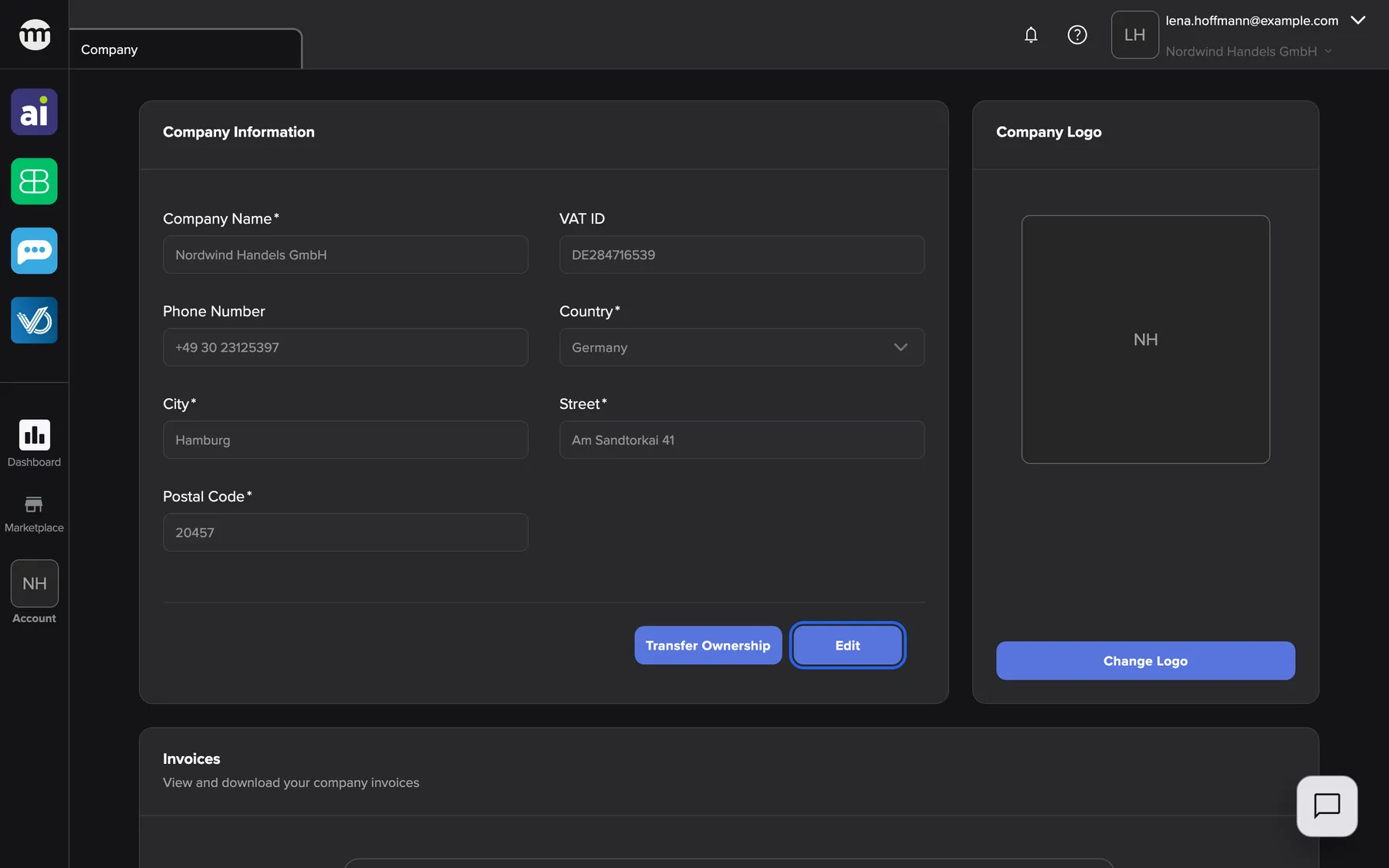
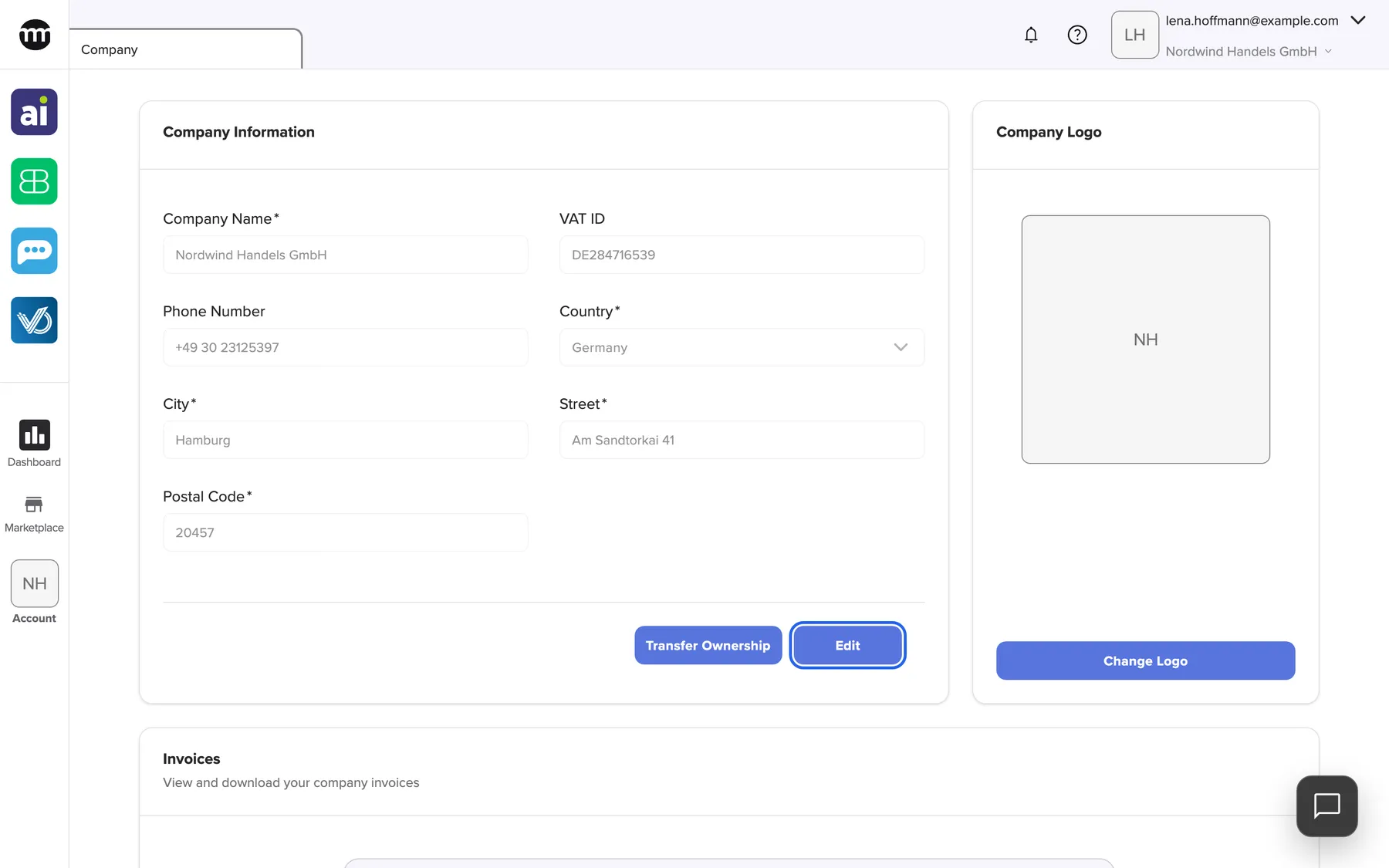
The company's details are read-only until you select Edit. Only the owner sees Transfer Ownership. What this screenshot shows
- Screen
- Company
- Highlighted
- “Edit”: unlocks the company fields
- Also visible
- Company details, read-only; Transfer Ownership button; Logo card with the initials
- Purpose
- check your company details after registration
What happens next
Section titled “What happens next”You are the owner of your company in comrce Hub, with every permission. Its name appears under your email address at the top right. Every later sign-in asks for your password and then a 6-digit code from your app.
To check that it worked, open AccountLogs. Your two-factor setup is listed as Two-factor auth code verified. Next, bring in your colleagues and connect your tools.
Options
Section titled “Options”| Choice | When to pick it | Effect |
|---|---|---|
| Authenticator app (recommended) | You have a smartphone | Codes come from your phone, even without internet. Someone who reads your email still cannot sign in. |
| Email code | You have no smartphone at hand | Each sign-in sends a code to your inbox. Whoever reads your email gets the code too. |
| Sign up with Google | Your Google account uses the email address you want for comrce Hub | The registration form opens with your name and email filled in. You still finish both steps and confirm your email. |
| An invitation from comrce to open a company | comrce sent you an email that starts your company registration | The invitation page asks for your details, then the company. The company name is already filled in. |
If something goes wrong
Section titled “If something goes wrong”| Symptom | What to check | Fix |
|---|---|---|
| Step one shows An account with this email already exists. | Your address already has a comrce Hub account | Sign in with it, or reset its password with Forgot password? |
| No confirmation email arrives | Your spam folder | Select Resend Email on the waiting page and use the newest email |
| The link shows Unfortunately, this link has expired | The link is older than 7 days, or a newer one was sent | Select Resend Confirmation on that page |
| Sign-in shows Email not confirmed. | You have not confirmed your address yet | Confirm from the email first, then sign in |
| The setup dialog shows Invalid code. Please try again. | Is your phone’s time set automatically? Did you type the current code? | Type the newest code from the app |