

Service PIN and support access
Stuck on something and comrce support wants to see it for themselves? The service PIN lets them open your account and see comrce Hub as you do, without your password.
You find it on the Settings tab and give it to support only when they ask. You see their session while it runs and can end it with one click. Everything they do is marked in your company’s logs.
What it does
Section titled “What it does”The service PIN is an eight-character code, valid for 14 days, shown on your Settings tab. With it, comrce support can open your account in one company, as you. The session lasts until you or support end it.
- You decide when support gets in. Support needs the PIN you give them, and your password stays secret. Your current PIN
- You see every support session, with the email address of the person from comrce support. The support sessions card
- You can end a session at any time, and the PIN used for it stops working. End a support session
- Support cannot change your sign-in email or see your PIN while working as you. What you need to know
Every support session leaves a trace. Its start and every action in it appear in your company’s logs, marked Impersonated. Support sessions in your company’s logs
Before you start
Section titled “Before you start”| Requirement | Details |
|---|---|
| A company | The PIN belongs to you and the company you are signed in to. People who do not belong to a company yet have no PIN. To switch company, select the company name below your email in the top bar. |
| Your own sign-in | The Service PIN card appears only when you are signed in with your own email and password or Google. |
| An active membership | Support can only open your account in a company where your membership and the company are active. |
| Cost | The PIN and support sessions are free. |
Understanding the service PIN
Section titled “Understanding the service PIN”There is always exactly one current PIN per company you belong to. It is valid for 14 days from when it was created.
| Moment | What comrce Hub does | What you see |
|---|---|---|
| You open the Settings tab and no valid PIN exists for this company | Creates a new PIN | The new PIN and its Valid until date |
| You open the Settings tab before the PIN expires | Shows the same PIN | The same PIN and date |
| The PIN expires | The old PIN stops working, and a new one is created the next time you open the tab | A new PIN and a new date |
| You end a support session that used the PIN | The PIN stops working at once | A new PIN on the card shortly after |
| You switch to another company | Shows the PIN for that company | A different PIN |
How comrce Hub decides
Section titled “How comrce Hub decides”- Eight characters, starting with S. For example
S7K4P2QX. - Per person and per company. Your PIN for Nordwind Handels GmbH does not open your account in another company. A colleague’s PIN does not open yours.
- One session, one company. A support session opens your account only in the company the PIN belongs to.
- Used, not used up. Starting a session does not use up the PIN. It stays valid until it expires or you end a session that used it.
- Only comrce support. Only comrce support can start a session with a PIN. Your colleagues, including your company’s owner, cannot.
What does not get support access
Section titled “What does not get support access”- An account whose membership in the PIN’s company is deactivated or removed
- A company that is not active
- A PIN that has expired
- A PIN that stopped working because you ended the session it was used for
- Your other companies: each needs its own PIN
How the PIN and a session combine
Section titled “How the PIN and a session combine”| PIN state | Support session | Result |
|---|---|---|
| Valid, not shared | none | Nothing happens. The PIN expires and is replaced. |
| Valid, shared with support | not started yet | Support can start a session until the PIN expires |
| Valid, shared | active | Support works in your account. You see the session and can end it. |
| Shared, then you end the session | ended | Support is signed out, and that PIN no longer works |
| Expired | none yet | Support can no longer start a session with it |
A PIN that expires doesn’t end a session that is already running. It only stops new sessions from starting. Ending the session yourself stops it at once.
Let comrce support look into your account
Section titled “Let comrce support look into your account”-
Open the Settings tab in the right company. Make sure the top bar shows the company support should look at. Then open the user menu at the right end of the top bar and select Settings.
-
Find the PIN. Scroll to the Security section. The Service PIN card shows Current PIN and Valid until.
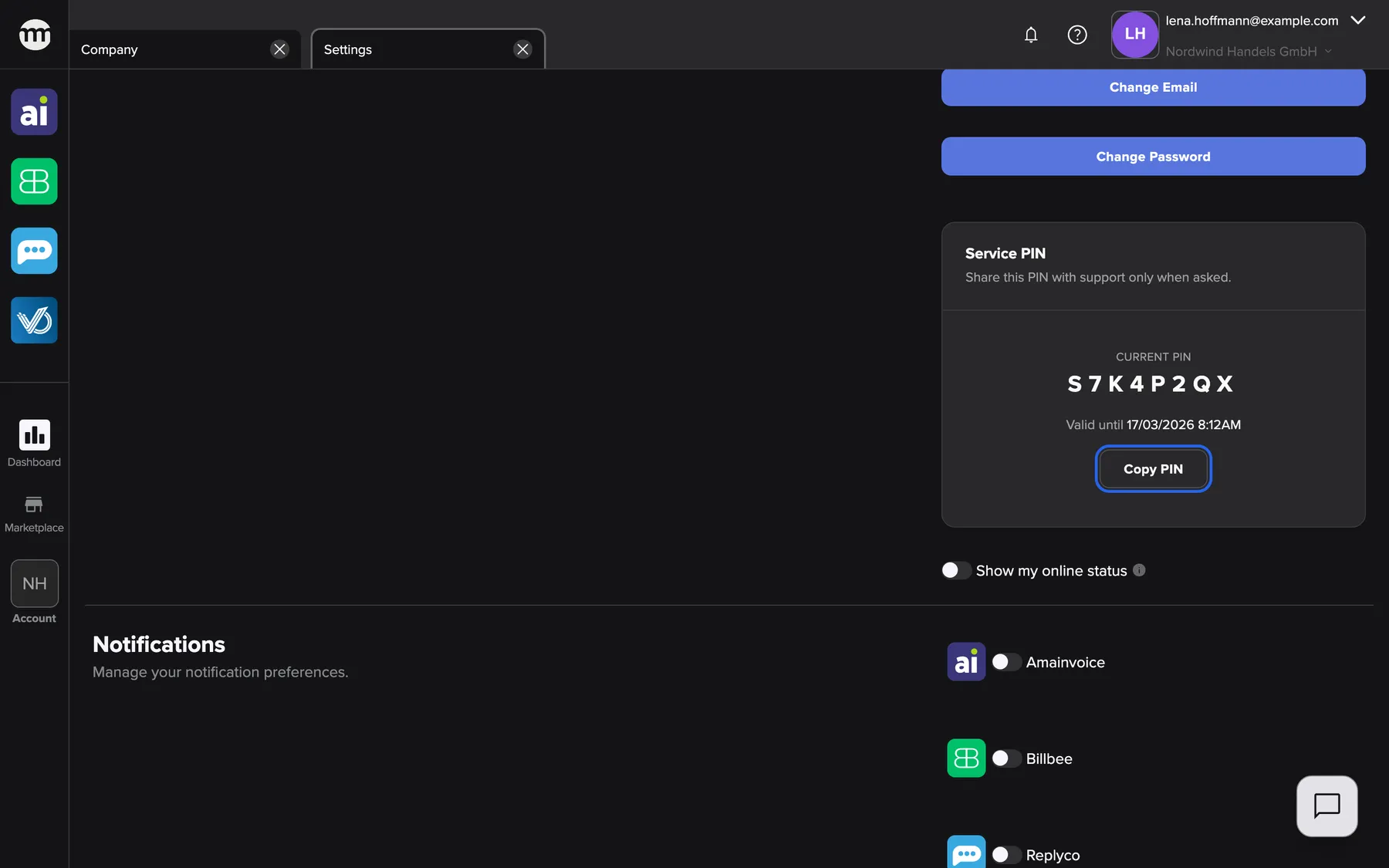
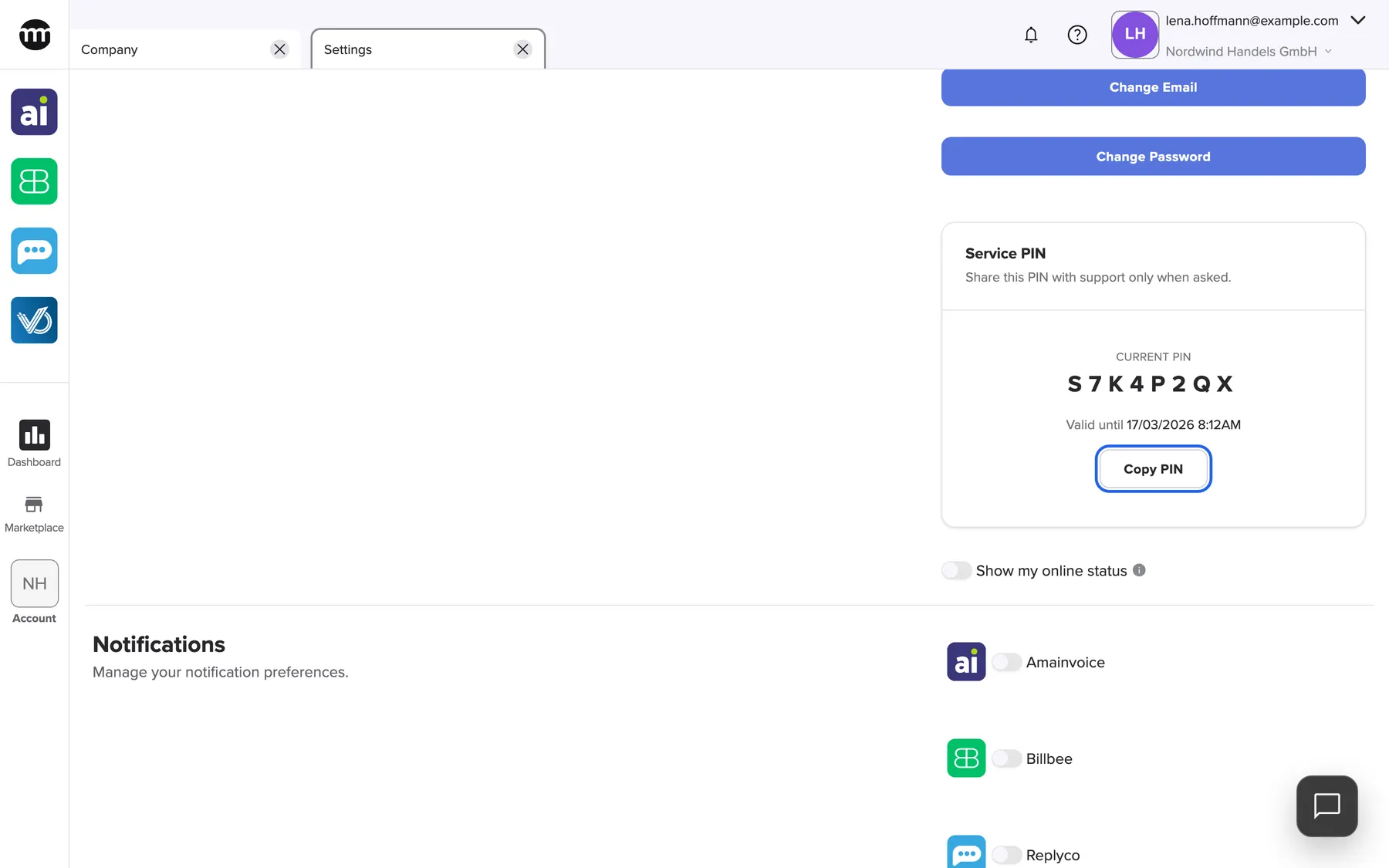
The Service PIN card shows your current PIN, S7K4P2QX here, when it expires, and a button to copy it. What this screenshot shows
- Screen
- Settings
- Highlighted
- “Copy PIN”: copies the PIN to the clipboard
- Also visible
- Service PIN card; Current PIN S7K4P2QX; Valid until 17/03/2026 8:12AM
- Purpose
- find and copy the PIN for support
-
Give it to support when they ask. Select Copy PIN and paste the PIN into your reply to support, or read it out on the phone. Support then opens your account and works on your question.
Every control, explained
Section titled “Every control, explained”
Every control, explained
Section titled “Every control, explained”The service PIN has nothing to set up. These are the controls that show it and the sessions it opens.
The Service PIN card
Section titled “The Service PIN card”Settings tab › Security section, the card Service PIN below Change Password. It updates itself.
Shows Share this PIN with support only when asked., the PIN under Current PIN and the expiry under Valid until. The expiry shows day, month, year and time, for example 17/03/2026 8:12AM. If the PIN cannot be loaded, the card shows Failed to load your Service PIN.. Reload the tab.
The PIN sits in your own account, behind your sign-in, so only you can hand it out.
The support sessions card
Section titled “The support sessions card”Settings tab › Security section, below the Service PIN card: Active sessions. It appears only while a support session is active, and it updates itself.
Shows the number of sessions, then one row per session. Each row has Impersonated, the address of the person from comrce support, the browser or device and the start time. Each row also has the red button End impersonation.
You can always see who is in your account and end the visit without asking anyone.
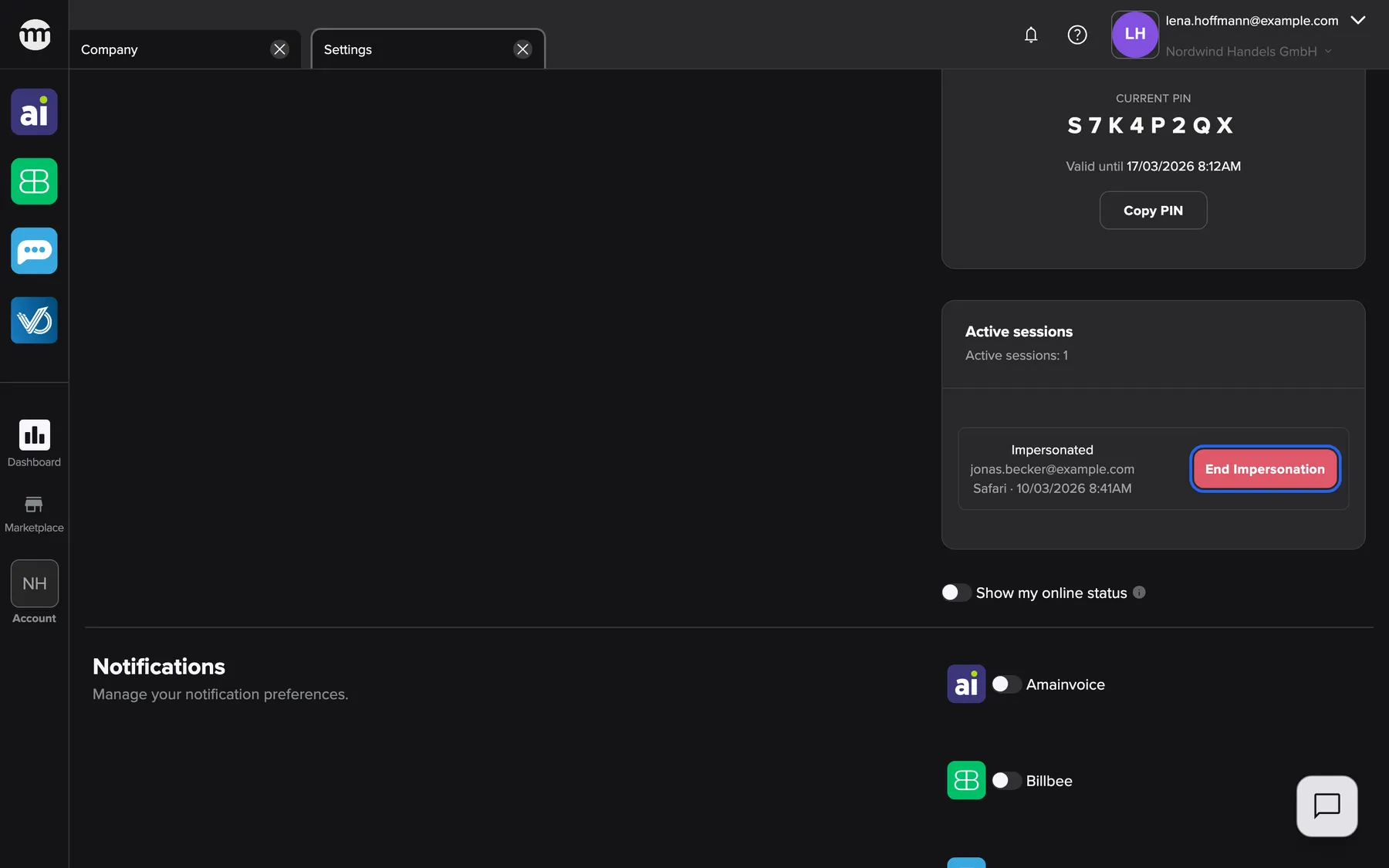
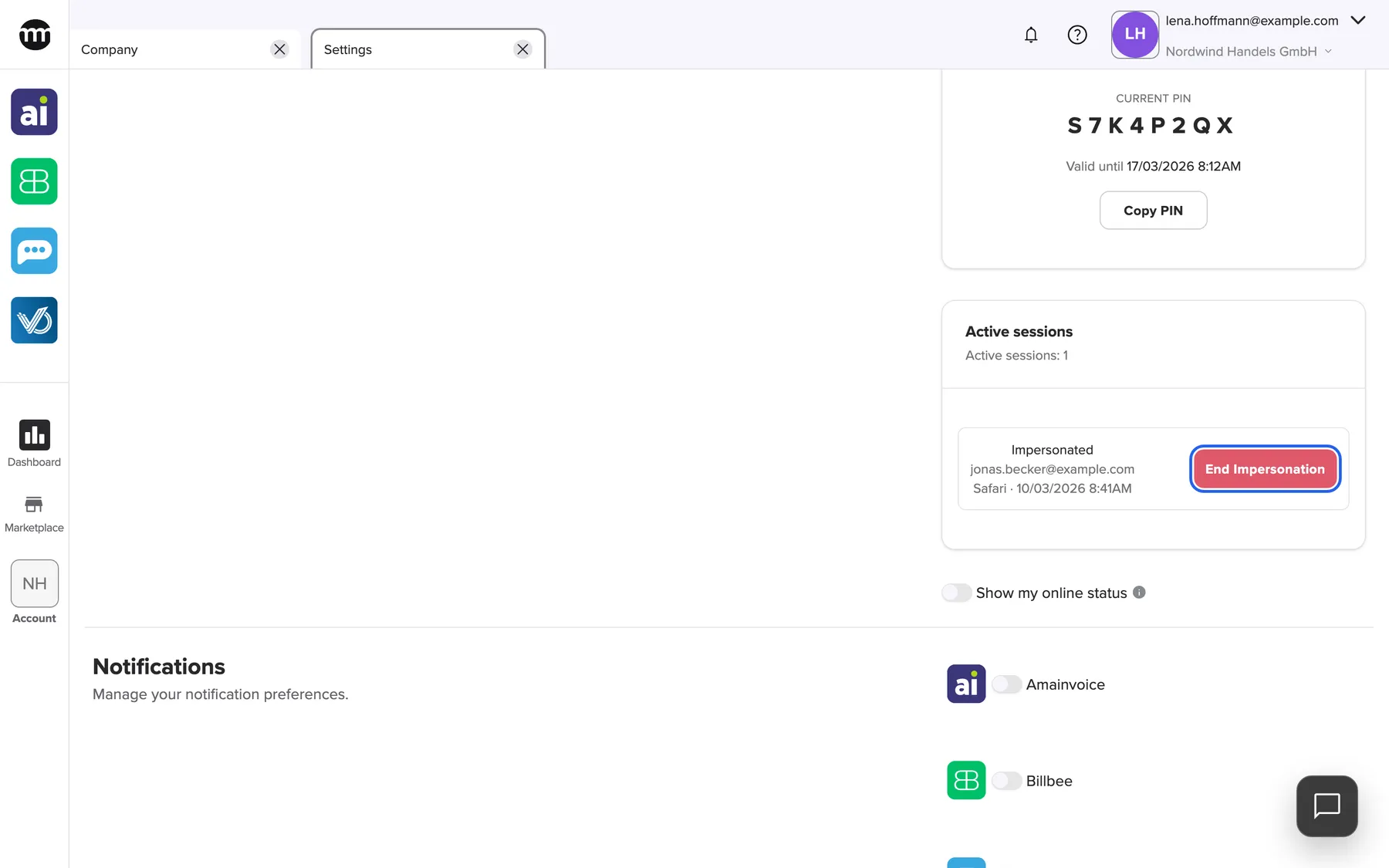
What this screenshot shows
- Screen
- Settings
- Highlighted
- “End impersonation”: ends the support session and invalidates its PIN
- Also visible
- Service PIN S7K4P2QX above; Active sessions card with one Impersonated row; Address of the person from comrce support: jonas.becker@example.com; Browser and start time
- Purpose
- see and end support access
End a support session
Section titled “End a support session”The button End impersonation in a row of the support sessions card.
Signs comrce support out of your account at once and shows Impersonation ended successfully. The PIN used for that session stops working, and a new PIN appears on the card. The row disappears, and the whole card disappears after the last session. If ending fails, you see Failed to end impersonation. Try again.
Support cannot come back with the same code without asking you again.
Other controls on this page
| Control | What it does | Why |
|---|---|---|
| Copy PIN | Copies the PIN and shows Service PIN copied. If the browser blocks copying, you see Failed to copy Service PIN. | Typing the code by hand leads to mistakes |
Support sessions in your company’s logs
Section titled “Support sessions in your company’s logs”The Logs tab, column User Email. Everyone with access to your company’s logs sees it.
Every event from a support session shows your email address with the grey badge Impersonated underneath. The start of a session appears as Impersonation by PIN succeeded. Its end appears as Token revoked.
Owners and colleagues can tell at a glance what you did yourself and what comrce support did as you.
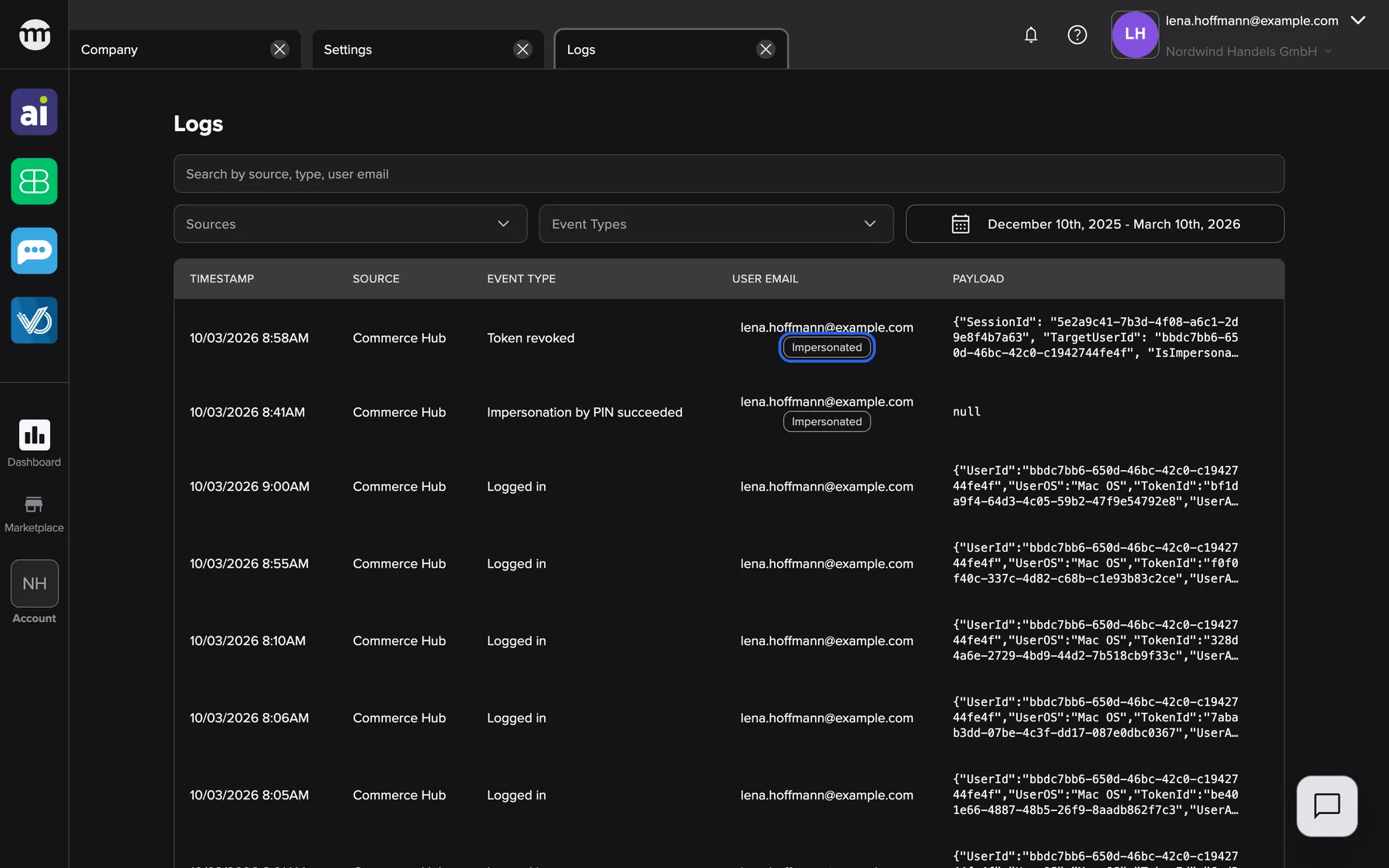
What this screenshot shows
- Screen
- Logs
- Highlighted
- “Impersonated”: marks rows from a support session
- Also visible
- Two support rows with the Impersonated badge; Lena's own sign-in rows below
- Purpose
- the audit trail of support sessions
Three ways to use the logs:
- Search for your email address and look for the badge to see everything support did in your last session.
- Look for Impersonation by PIN succeeded rows to see when support sessions started.
- Compare the time of an unexpected change with the session times before you ask support about it.
What you need to know
Section titled “What you need to know”
What you need to know
Section titled “What you need to know”| Topic | Fact |
|---|---|
| Scope | One PIN per person and company. A session opens only that company. |
| Who can use it | comrce support only |
| Where you see it | Current sessions on your Settings tab, and every action marked Impersonated in the logs |
| Not shown | People without a company do not see the Service PIN card |
| What a support session can change | Your name, photo and password. Support can also export your data and send a deletion request. A deletion request only emails a link to your own mailbox. Each change shows the Impersonated badge in the logs. |
| What a support session cannot do | Change your sign-in email, see your PIN, see or end your sessions, switch to another company or leave it. Nor can it confirm a company ownership transfer. |
Frequently asked questions
Section titled “Frequently asked questions”
Frequently asked questions
Section titled “Frequently asked questions”General
Section titled “General”What is the Service PIN for?
Section titled “What is the Service PIN for?”The service PIN lets comrce support open your comrce Hub account and see it as you do, without your password. You find it on the Settings tab in the Security section. Give it to support only when they ask while helping you.
Is it safe to give support my service PIN?
Section titled “Is it safe to give support my service PIN?”Yes, when you give it to comrce support in a conversation you started. The PIN opens your account in one company only. Support cannot change your email address or see the PIN while working as you. You can end the session at any time on the Settings tab.
Do I have to set up the service PIN?
Section titled “Do I have to set up the service PIN?”No. The PIN appears when you first open the Settings tab in a company. It is replaced every 14 days. There is nothing to switch on.
The PIN
Section titled “The PIN”Why did my service PIN change?
Section titled “Why did my service PIN change?”A PIN is valid for 14 days and is then replaced. It also changes at once when you end a support session that used it. Each company you belong to has its own PIN. Give support the PIN shown on the Settings tab now.
How long is the service PIN valid?
Section titled “How long is the service PIN valid?”14 days from when comrce Hub created it. The exact date and time are under Valid until on the Service PIN card on the Settings tab.
I belong to two companies. Which PIN do I give support?
Section titled “I belong to two companies. Which PIN do I give support?”The PIN of the company support should look at. Switch to that company with the company name below your email in the top bar. Then open the Settings tab and copy the PIN there.
Can I get a new PIN before the 14 days are over?
Section titled “Can I get a new PIN before the 14 days are over?”There is no button for it. A new PIN comes when the current one expires, or when you end a support session that used it. If you think someone else knows your PIN, contact comrce support.
Why don’t I see the Service PIN card?
Section titled “Why don’t I see the Service PIN card?”The card appears on the Settings tab only when you are signed in to a company. People who do not belong to a company yet have no PIN.
Support says my PIN does not work. Why?
Section titled “Support says my PIN does not work. Why?”Check that you gave the current PIN of the right company and that its Valid until date has not passed. Your membership in the company must also be active. After several wrong entries, PIN entry for your account is blocked for a few minutes.
Copy PIN shows an error. What can I do?
Section titled “Copy PIN shows an error. What can I do?”Failed to copy Service PIN means your browser did not let comrce Hub copy the PIN. Select the PIN on the card and copy it yourself, or type it into your message. It has eight characters and starts with S.
Support sessions
Section titled “Support sessions”How do I know when support is working in my account?
Section titled “How do I know when support is working in my account?”While a support session is active, the Active sessions card appears on your Settings tab. It shows the email address of the person from comrce support and when the session started. Afterwards, the logs show every action from the session with the Impersonated badge.
How do I end a support session?
Section titled “How do I end a support session?”Open the Settings tab and find the Active sessions card. Select End impersonation next to the session. The session ends at once, and the PIN used for it stops working. You do not need to tell support first.
Does support see my password?
Section titled “Does support see my password?”No. Support enters your account with the service PIN, never with your password. Nobody can see your password, not even comrce support.
Can support switch to my other companies?
Section titled “Can support switch to my other companies?”No. A support session opens your account only in the company the PIN belongs to. For another company, support needs that company’s PIN from you.
Can a colleague or my company’s owner use my PIN?
Section titled “Can a colleague or my company’s owner use my PIN?”No. Only comrce support can start a session with a service PIN. Colleagues, including the owner of your company, cannot use it to sign in as you.
The support session ends when I change my password. Why?
Section titled “The support session ends when I change my password. Why?”Changing your password on the Settings tab signs out every session of your account, including a support session. If support still needs access, give them the PIN shown on the Settings tab again.
Where can I see what support did in my account?
Section titled “Where can I see what support did in my account?”In the Logs tab of your company. Every event from a support session shows your email address with the badge Impersonated. The start of the session appears as Impersonation by PIN succeeded.
Why do actions in the logs show my email address when support did them?
Section titled “Why do actions in the logs show my email address when support did them?”Support works as you, so events carry your account. The grey Impersonated badge under your email address in the Logs tab marks the events from a support session.
Data and privacy
Section titled “Data and privacy”Who from comrce support worked in my account?
Section titled “Who from comrce support worked in my account?”The Active sessions card on your Settings tab shows who from comrce support is in each active session. For past sessions, ask comrce support with the date and time from the logs.
Is the PIN stored after it expires?
Section titled “Is the PIN stored after it expires?”No. An expired PIN is removed, and so is a PIN whose session you ended. Only the logs keep the record that a session took place.
Troubleshooting
Section titled “Troubleshooting”
Troubleshooting
Section titled “Troubleshooting”| Symptom | What to check |
|---|---|
| The Service PIN card is missing | Are you signed in to a company? People without a company have no PIN. |
| Failed to load your Service PIN. | Reload the Settings tab. If it persists, sign out and in again, then contact support. |
| Support says the PIN is invalid | Is the right company in the top bar? Is it the PIN now on the card, before its Valid until date? Is your membership active? After several wrong tries, wait a few minutes. |
| The PIN changed while support was waiting | It expired, or a session using it was ended. Give support the PIN now on the card. |
| Failed to copy Service PIN | Allow clipboard access for comrce Hub, or copy the PIN by hand. |
| The Active sessions card does not appear although support said they are in | Wait a moment or reload the tab. The card lists sessions in your own account only. |
| Failed to end impersonation | Reload the Settings tab and try again. The session may already have ended. |
| An unexpected change in your company | Check the Logs tab for the Impersonated badge around that time. |