

Print only the shipping label, not the return label
No more wasted label paper for return labels. For OTTO Market, Billbee puts the shipping label (page 1) and the return label (page 2) into one document. Three extra steps in your label printer’s pipeline drop page 2 from two-page documents. Everything else prints as before, and invoices on another printer aren’t touched.
Before you start
Section titled “Before you start”| You need | Where it lives |
|---|---|
| comrce cloudprint with your label printer, for example “Versand-Etiketten” on LAGER-PC-01 | Set up comrce cloudprint and your first printer |
| Billbee sending labels to that printer | Print Billbee invoices and labels automatically |
| The comrce Hub Owner’s sign-in | Only the Owner sees Pipelines (pipelines) in comrce cloudprint |
Change only the label printer’s pipeline. Every printer gets its own automatic pipeline in comrce cloudprint, with a manual queue and an API queue. Billbee sends to the API queue of the printer you chose in Billbee, so only that pipeline gets the labels.
-
Open the label printer’s pipeline. Select Pipelines in the red bar. Find the row “Autopipeline for” with your printer’s name, for example “Autopipeline for Versand-Etiketten”. Select its pencil. The editor shows the two queues, Start and the printer output.
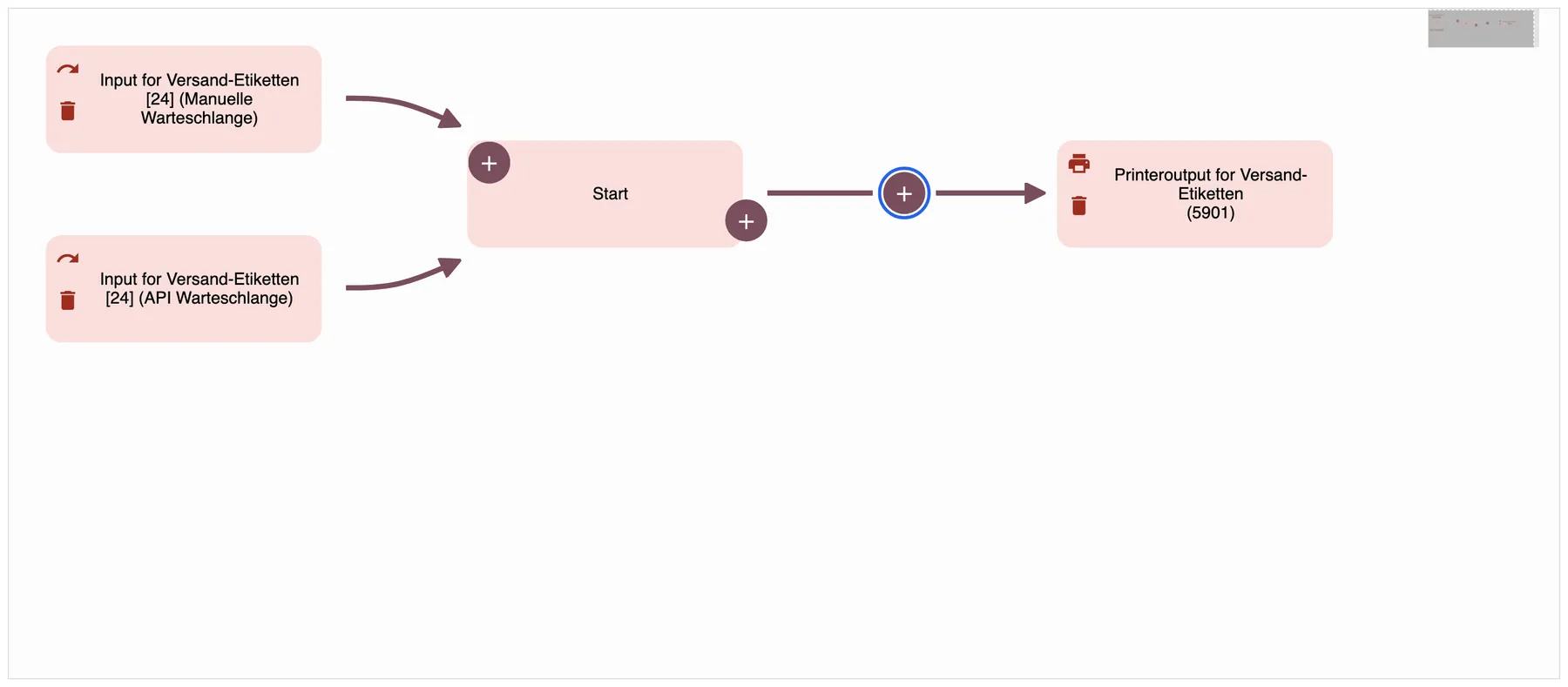
The label printer's pipeline before the change. The plus on the line is where the condition goes. What this screenshot shows
- Highlighted
- inserts a step between Start and the printer output
- Also visible
- The manual and the API queue of the label printer; Start, then one printer output
- Purpose
- the pipeline before the change
Did you build your own pipeline for Billbee? Then open the one whose Warteschlangen (queues) column lists the queue you chose in Billbee. Pipelines and their steps explains the editor.
-
Add the condition for two-page documents. Select the plus on the line between Start and the printer output, then Bedingung (condition). Enter a name such as “Zwei Seiten”. In “Bedingung 1” (rule 1), type
{PageCount} == 2. Switch on numerisch (numeric) and select Ok.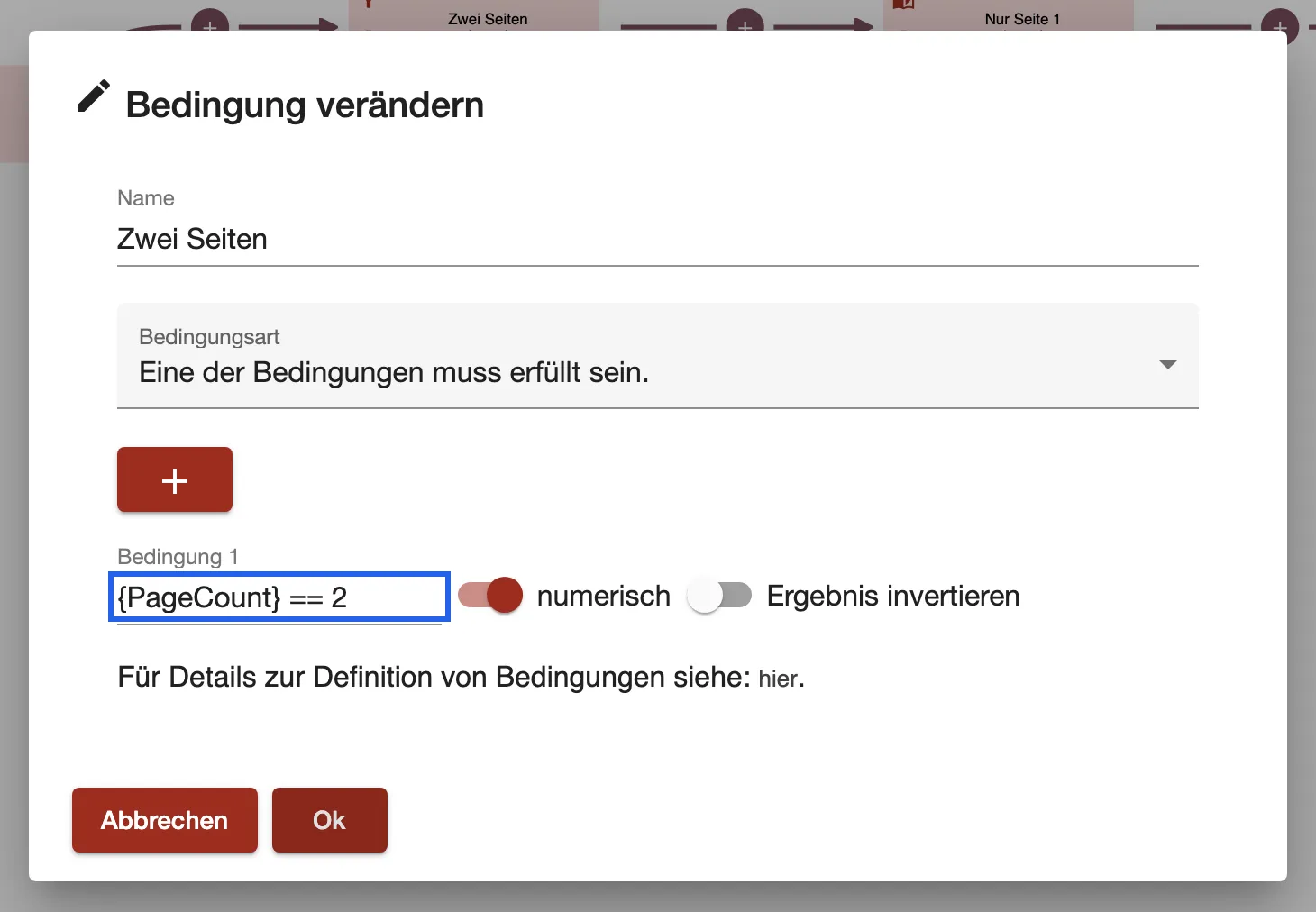
Only documents with exactly two pages pass this condition. What this screenshot shows
- Highlighted
- lets through only documents with exactly two pages
- Also visible
- Rule: {PageCount} == 2; numerisch on; Ergebnis invertieren off
- Purpose
- recognise the combined shipping and return label
Without numerisch, comrce cloudprint compares the rule as text, and it’s never met. Filters and conditions explains the rules.
-
Keep only page 1. Select the plus on the line between the new condition and the printer output, then Seiten filtern (filter pages). Name it “Nur Seite 1”. In Nur folgende Seiten (only these pages), type exactly
1. Select Ok.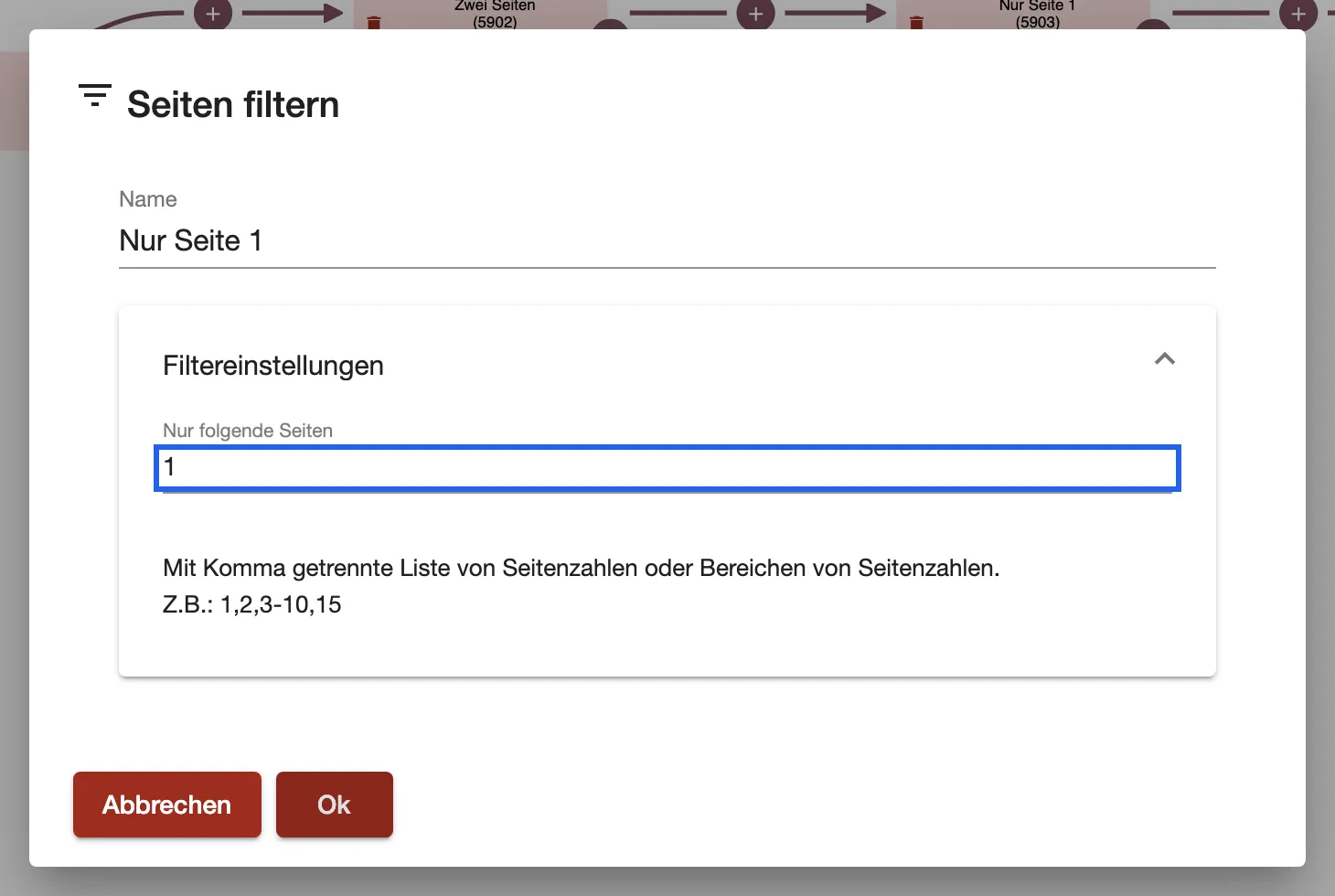
With 1, only the first page, the shipping label, goes on to the printer. What this screenshot shows
- Highlighted
- keeps only page 1 of the document
- Also visible
- Nur folgende Seiten: 1; Format hint 1,2,3-10,15
- Purpose
- drop the return label
-
Add a second branch for everything else. A condition that isn’t met stops the job in its branch. Without a second branch, one-page labels would no longer print. Select the plus at the bottom right of the Start tile, then Bedingung. Name it “Alle anderen Dokumente”, type
{PageCount} != 2and switch on numerisch. Select Ok.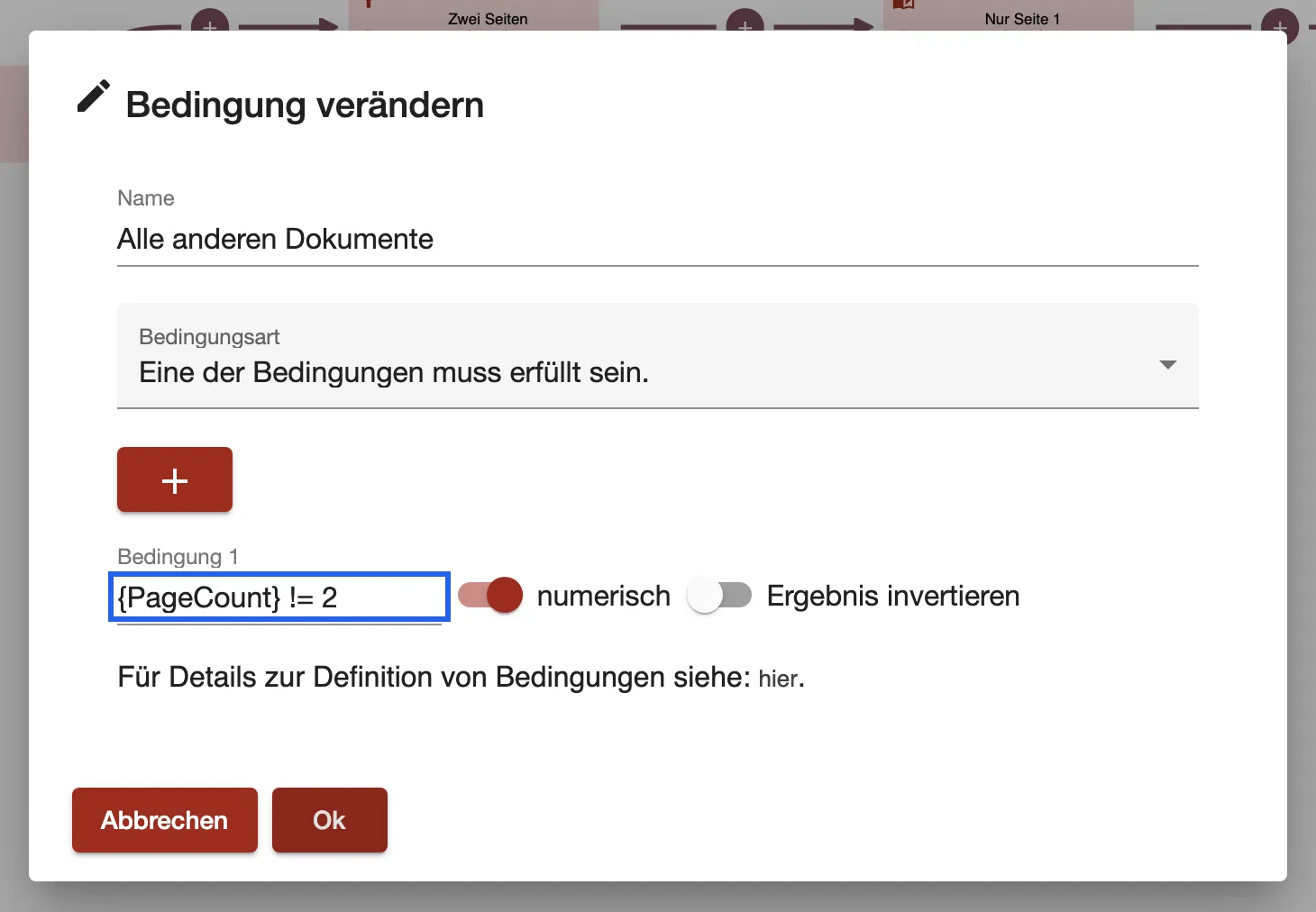
The second condition lets through every document that doesn't have two pages. What this screenshot shows
- Highlighted
- lets through every document without exactly two pages
- Also visible
- Rule: {PageCount} != 2; numerisch on
- Purpose
- print all other documents unchanged
-
Send the second branch to the same printer. Select the plus at the bottom right of “Alle anderen Dokumente”, then Druckerausgabe (printer output). Enter a name. Under Verknüpfter Drucker (linked printer), choose the label printer, “Versand-Etiketten (LAGER-PC-01)” in this example. Set Papierfach (paper tray) as in the first printer output, then select Ok.
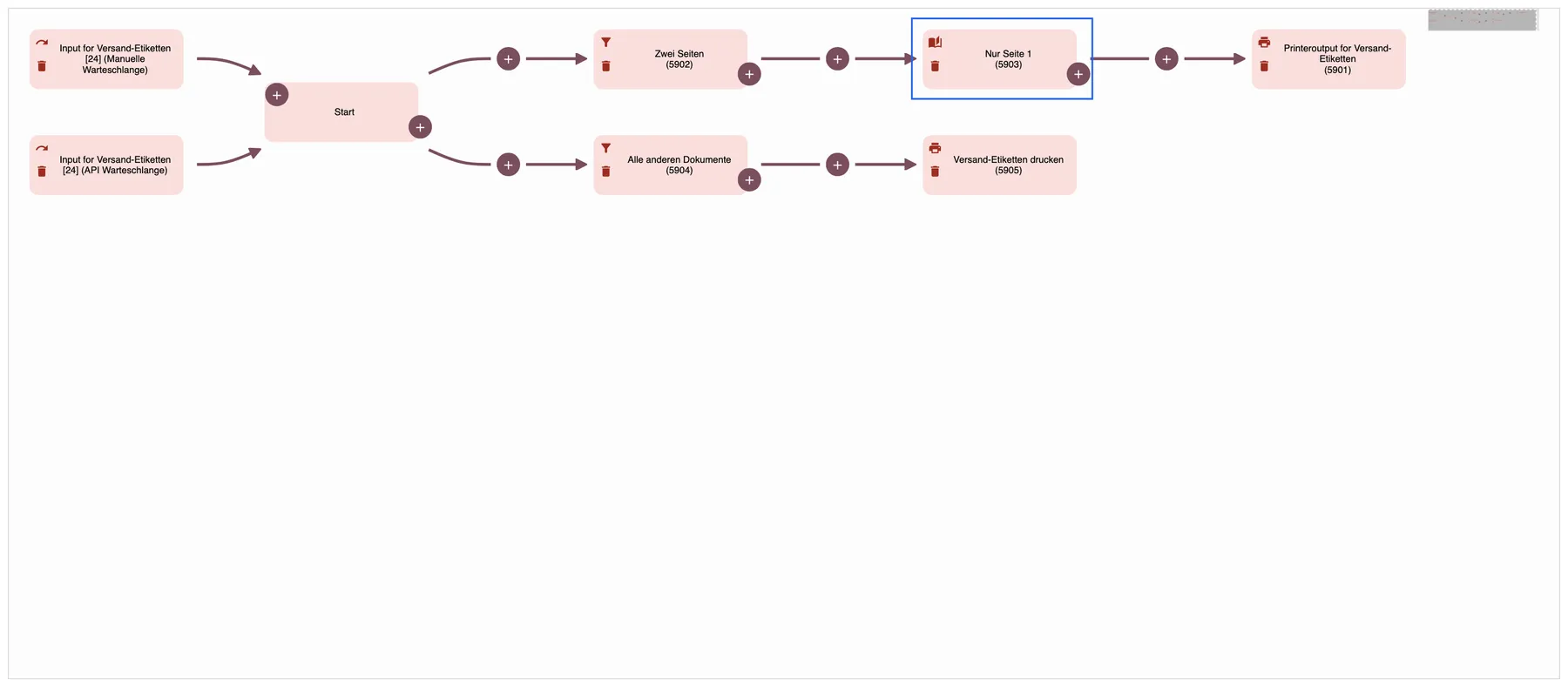
Two-page documents lose page 2. Everything else prints as it arrives. What this screenshot shows
- Highlighted
- keeps only page 1 of two-page documents
- Also visible
- Two queues, Start; Branch: Zwei Seiten → Nur Seite 1 → printer output; Branch: Alle anderen Dokumente → printer output
- Purpose
- the pipeline after the change
Every job now runs through both branches. Exactly one condition lets it through. Each step is saved at once, so the next label already uses the new pipeline.
What happens next
Section titled “What happens next”Test the setup with one real OTTO Market label from Billbee. Create it in Billbee as you always do.
- In Pipeline- Aufträge (pipeline jobs), the label arrives as a row whose Ursprung (origin) starts with API von.
- A few seconds later, a second row appears. It starts with Ergebnis von and ends with your step, such as “Nur Seite 1”. That’s the shortened document.
- Select the magnifier on that row. Under Vorgänger (predecessor) you see the document from Billbee with both pages.
- In Client- Aufträge (client jobs), the label printer’s new row shows 1 under Seitenzahl (page count).
A one-page document creates no Ergebnis von row. It goes to the printer as it arrived. Pipeline jobs and Client jobs explain both lists.
Undo the change
Section titled “Undo the change”Delete the steps with the bin on their tiles, in this order:
- The printer output of the second branch.
- The condition “Alle anderen Dokumente”.
- “Nur Seite 1” and then the condition “Zwei Seiten”.
The order matters. When you delete a step, the steps after it move up to the step before it. If you delete “Alle anderen Dokumente” first, its printer output hangs directly on Start, and two-page labels print twice. Deleting a printer output also deletes the client jobs it created.
Frequently asked questions
Section titled “Frequently asked questions”
Frequently asked questions
Section titled “Frequently asked questions”Pages and documents
Section titled “Pages and documents”What happens to one-page labels?
Section titled “What happens to one-page labels?”They take the branch “Alle anderen Dokumente”, because {PageCount} != 2 is met. They print unchanged on the label printer, as they did before the change.
What if a label has more than two pages?
Section titled “What if a label has more than two pages?”A document with three or more pages also takes the branch “Alle anderen Dokumente” and prints in full. Only documents with exactly two pages lose page 2. That applies to every two-page document that reaches the label printer’s pipeline, not just OTTO Market labels.
Is the return label gone for good?
Section titled “Is the return label gone for good?”No. The document from Billbee stays in Pipeline- Aufträge with both pages. Download it there with the button under Anhänge (attachments) when you need the return label after all.
Does this change how my invoices print?
Section titled “Does this change how my invoices print?”Only when they go to the label printer. Every printer has its own pipeline, and you changed only the label printer’s one. Invoices on another printer print as before.
Why do I need the second condition?
Section titled “Why do I need the second condition?”A condition that isn’t met stops the job in its branch. Without “Alle anderen Dokumente”, comrce cloudprint would print only the two-page documents and drop every other one.
If something goes wrong
Section titled “If something goes wrong”| Symptom | What to check |
|---|---|
| The label still prints both pages | Open “Zwei Seiten” and check {PageCount} == 2 and numerisch. Check that you changed the pipeline whose queue Billbee uses. |
| Two-page labels don’t print at all | Open “Nur Seite 1” and type exactly 1 in Nur folgende Seiten. |
| One-page labels no longer print | The second branch is missing, or its rule isn’t {PageCount} != 2 with numerisch on. |
| Two-page labels print twice | A printer output hangs directly on Start. Delete it, or add the condition “Alle anderen Dokumente” in front of it. |