

Service Client troubleshooting on Windows
This page helps with two things for the Service Client on Windows. It shows how to restart the service. It also explains what to do when the service doesn’t start correctly on Windows 7 or 8.
Restart the Service Client
Section titled “Restart the Service Client”Sometimes the Service Client on Windows needs a restart.
-
Open the Start menu and search for “Services”. On a German Windows, the app is called “Dienste”.
-
Find “cloudprint-Client” in the list and right-click its row.
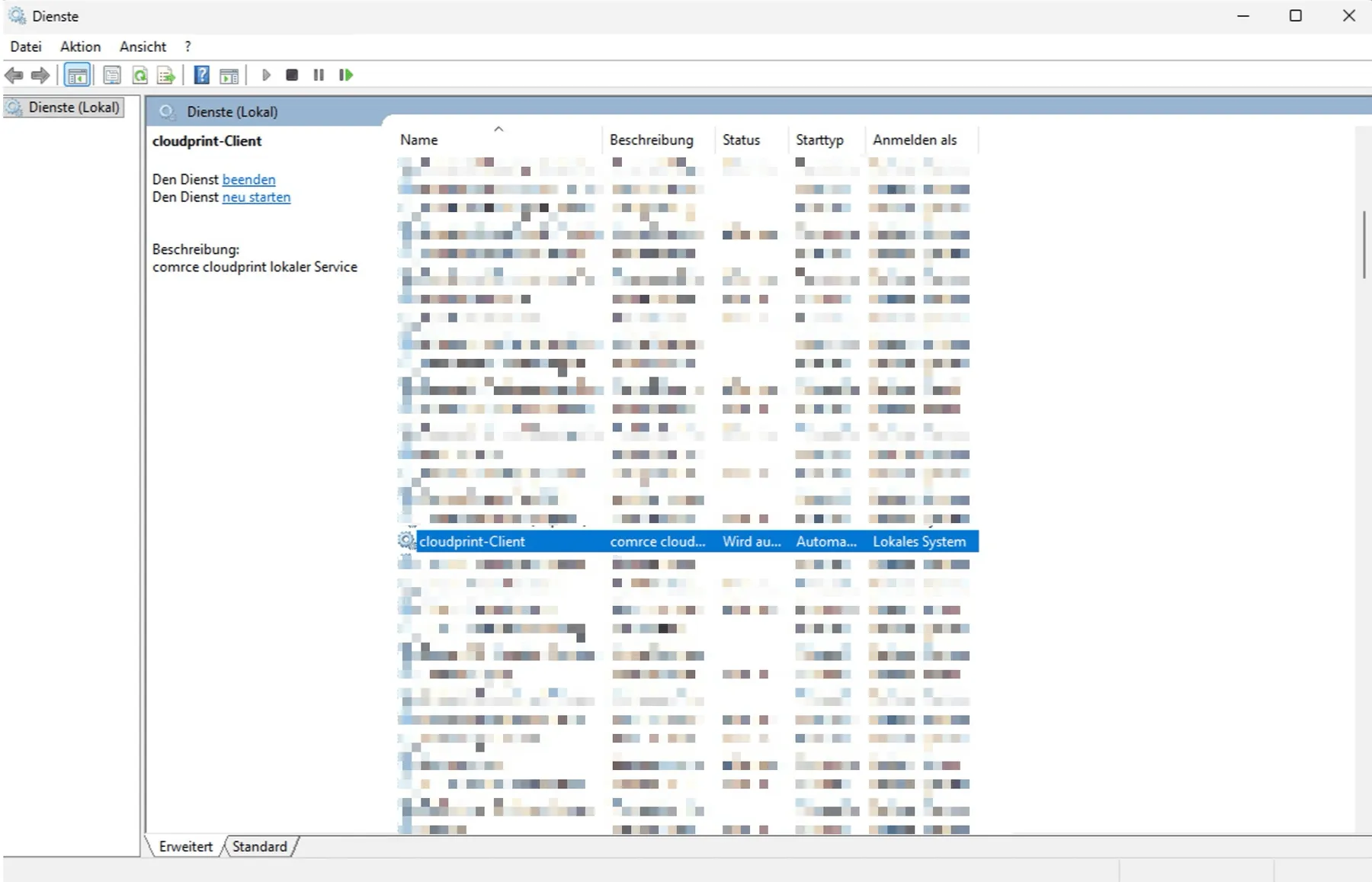
Find "cloudprint-Client" in the Windows services console.Screenshot from Windows, checked against the source on October 29, 2026 What this screenshot shows
- Also visible
- Row cloudprint-Client, selected; Description comrce cloudprint lokaler Service
- Purpose
- find the Service Client among the Windows services
-
Select “Neu starten” (Restart).
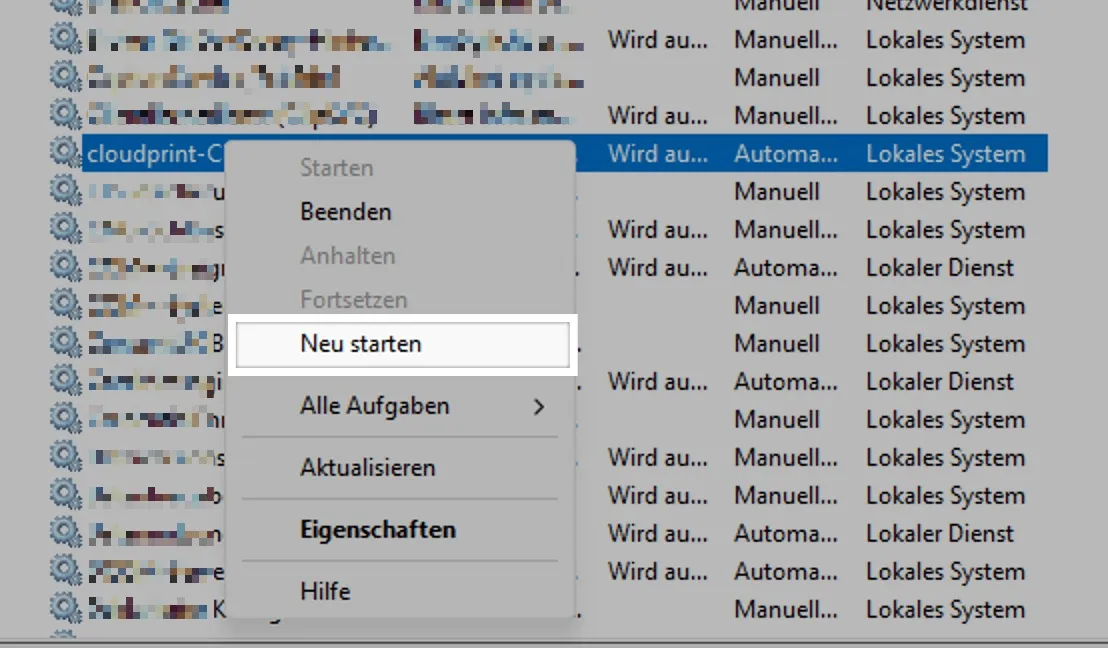
"Neu starten" in the context menu restarts the Service Client.Screenshot from Windows, checked against the source on October 29, 2026 What this screenshot shows
- Also visible
- Context menu with Neu starten highlighted
- Purpose
- restart the Service Client
The service has now restarted.
The service doesn’t start correctly on Windows 7 or 8
Section titled “The service doesn’t start correctly on Windows 7 or 8”By default, Windows 7 and 8 don’t support encryption with TLS 1.1 and 1.2. That’s why the service doesn’t start correctly there.
The fix is described in the guide Wie aktiviere ich TLS v1.1/1.2 auf älteren Betriebssystemen? (how to enable TLS 1.1/1.2 on older operating systems, in German) from serverprofis.de. Work through these two sections there:
- “Microsoft Windows 7/8 | Windows Server 2008/2008 R2/2012 | Outlook 2007/2010”
- “Windows Live Mail”