

Connect a tool to your account
A tool such as Replyco can sign you in with your comrce Hub account. First, comrce Hub shows the Single Sign-On Request page. It lists every kind of data the tool asks for. Select Approve to sign in, or Deny to refuse. Nothing is shared until you approve. You have 10 minutes to answer.
What you can do here
Section titled “What you can do here”- Approve a sign-in. You go back to the tool, signed in with the data the page lists. Approve a sign-in.
- Deny a sign-in. The tool receives a refusal and none of your data. Deny a sign-in.
- Check what the tool receives. Each data category has a name and a one-line explanation. The requested data · Tool access and single sign-on.
- Recover from an expired or refused request. comrce Hub tells you when a request can no longer be answered. When the request has expired.
The screen at a glance
Section titled “The screen at a glance”The page opens by itself when a tool sends you to comrce Hub. It has no menu entry.
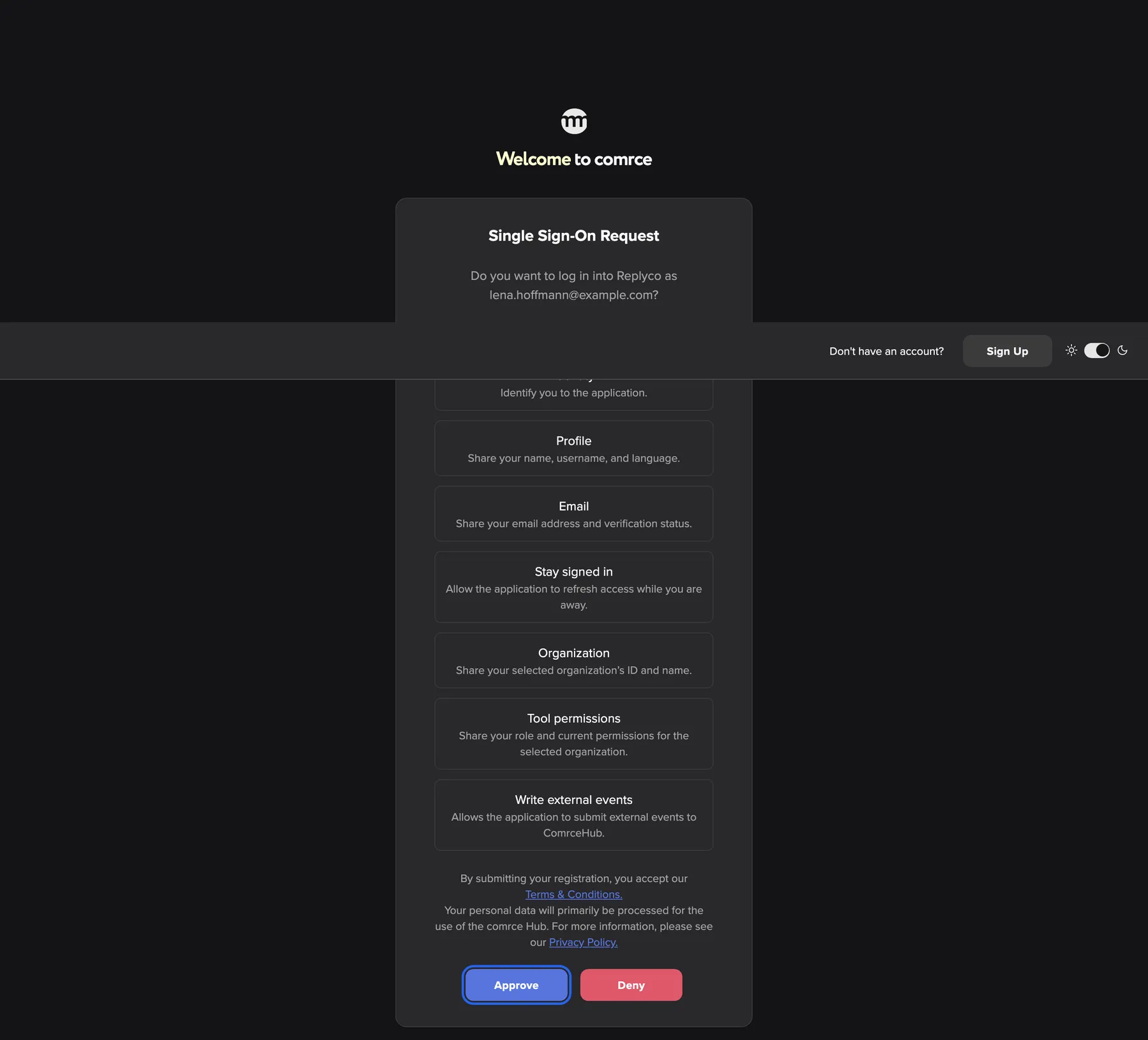
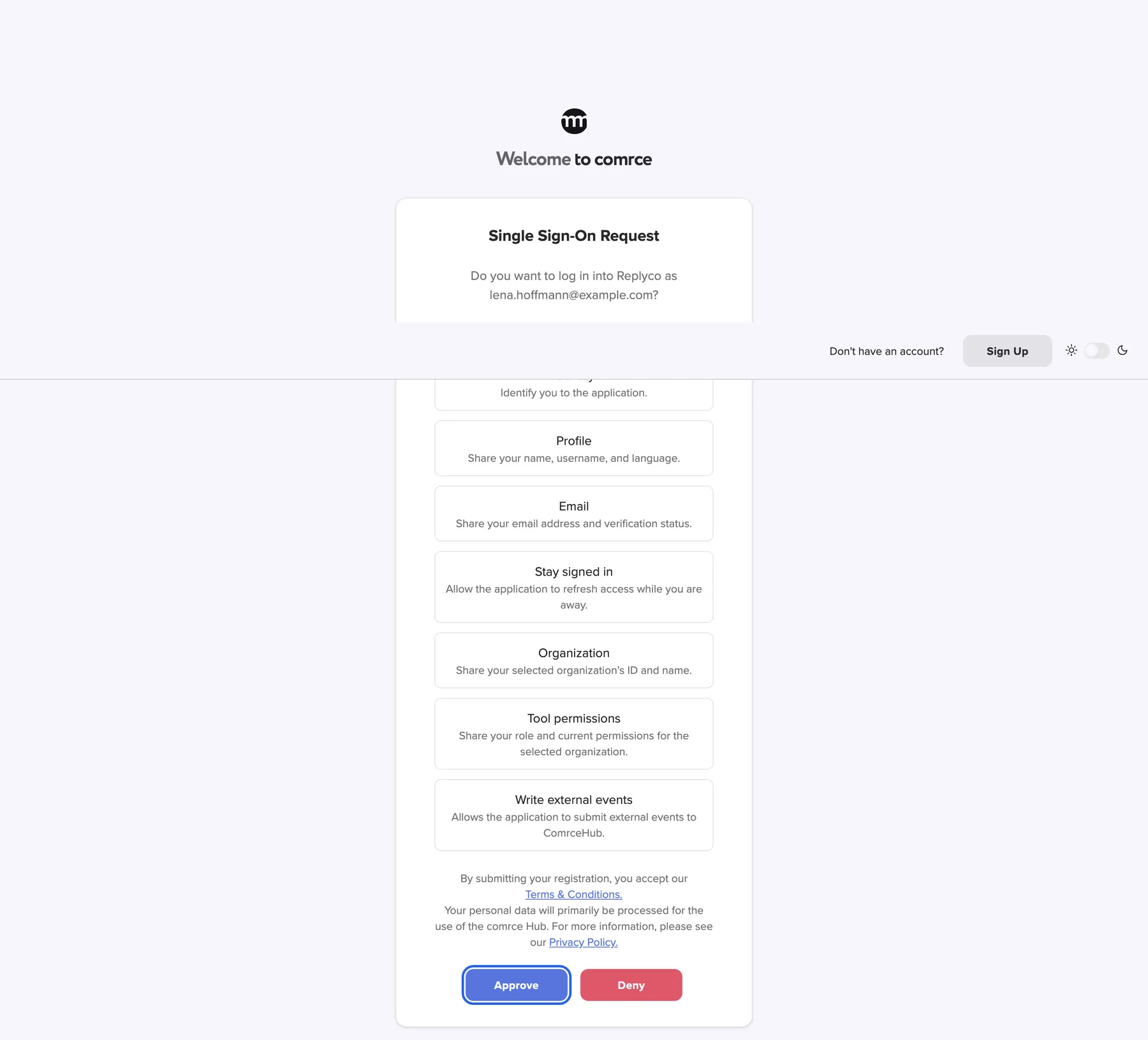
What this screenshot shows
- Screen
- Single Sign-On Request
- Highlighted
- “Approve”: approves the request and returns you to the tool, signed in
- Also visible
- Question naming the tool (Replyco) and lena.hoffmann@example.com; Seven requested data categories with descriptions; Legal notice with links; Deny button
- Purpose
- the consent step of single sign-on into a tool
| Region | What it shows | What you do there |
|---|---|---|
| Top bar | The same top bar as on the sign-in page, with Sign Up and the theme switch at the right | Switch between light and dark |
| Heading | Single Sign-On Request | – |
| Question | The tool’s name and the email address you are signed in with | Check that both are right |
| This application is requesting: | One box per data category the tool asks for, with an explanation | Read what you share |
| Legal notice | Links to the comrce terms and conditions and privacy policy | Read them if you want |
| Buttons | Approve and Deny | Decide |
Approve a sign-in
Section titled “Approve a sign-in”-
In the tool, start the sign-in with comrce Hub. Your browser opens the Single Sign-On Request page. If you are signed out of comrce Hub, sign in first. The approval page follows on its own.
-
Check the question at the top, for example Do you want to log in into Replyco as lena.hoffmann@example.com? Then read the list under This application is requesting:.
-
Select Approve. comrce Hub sends you back to the tool, signed in.
The approval applies to the company you are working in. Company data such as its name, its invoice address or your permissions come from that company. To sign in for another company, switch company in comrce Hub first. Then start the sign-in in the tool again. comrce Hub records OIDC Consent approved in the company’s log.
comrce Hub asks again every time the tool starts a new sign-in. An approval is not a permanent setting.
Deny a sign-in
Section titled “Deny a sign-in”Select Deny. The tool then receives a refusal and none of the listed data. What it shows next is up to the tool. comrce Hub records OIDC Consent denied in the company’s log. You can start the sign-in from the tool again at any time.
When the request has expired
Section titled “When the request has expired”A request can be answered once, within 10 minutes. In three cases the page shows only This sign-in request is invalid or has expired., without buttons:
- The time has passed.
- You already answered the request, for example in another browser tab.
- The request does not fit the company you are working in.
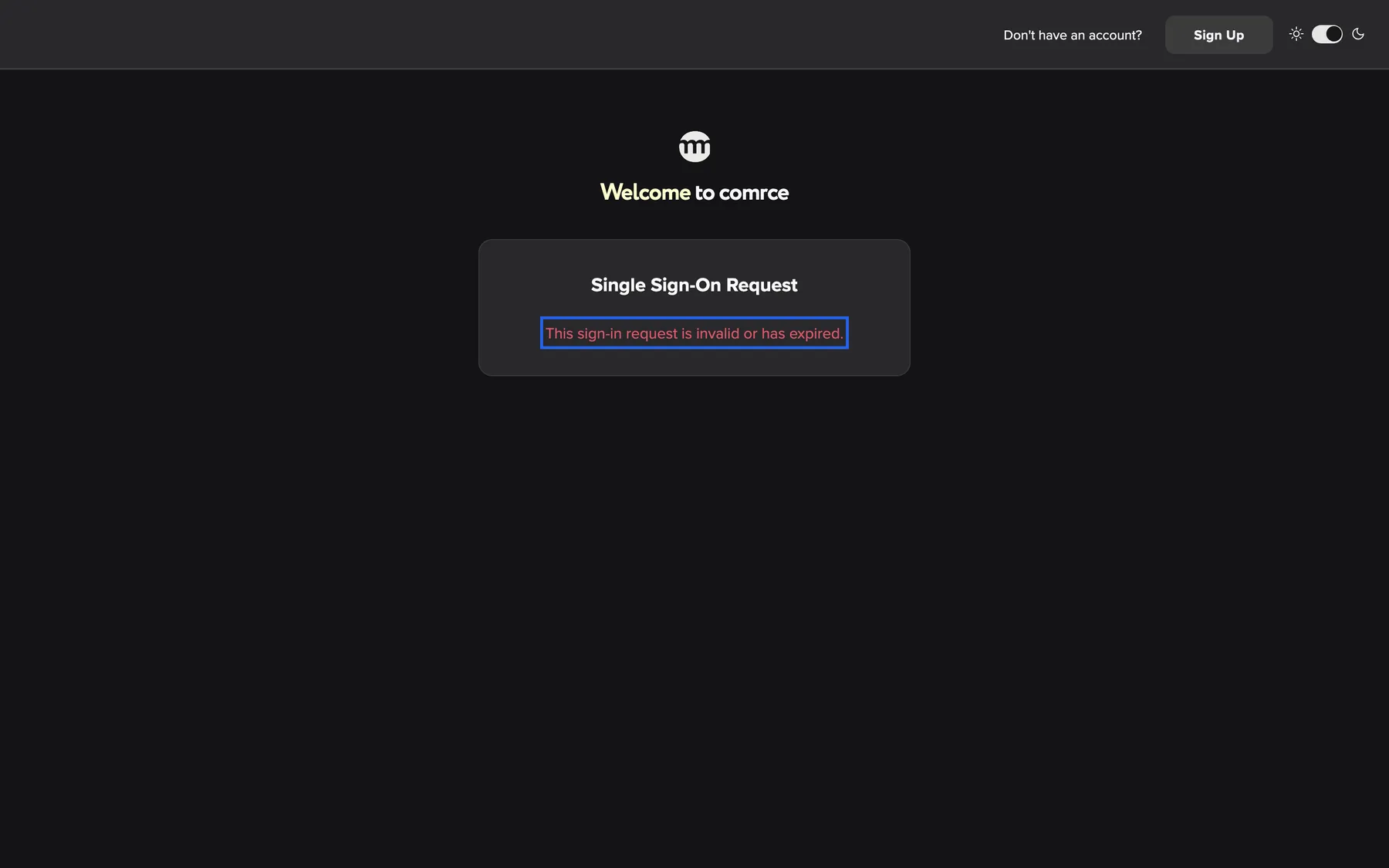
What this screenshot shows
- Screen
- Single Sign-On Request
- Highlighted
- “This sign-in request is invalid or has expired.”: none; start again from the tool
- Also visible
- Heading only, no scopes, no buttons
- Purpose
- expired or invalid consent request
Go back to the tool and start the sign-in again. A fresh request opens a fresh approval page.
When your account cannot sign in to tools
Section titled “When your account cannot sign in to tools”Only people working in a company can sign in to tools with comrce Hub. An account without a company cannot. comrce Hub then returns the request to the tool as a refusal. If that is not possible, the page shows This account cannot use external SSO.


What this screenshot shows
- Screen
- This account cannot use external SSO.
- Highlighted
- “This account cannot use external SSO.”: none
- Also visible
- Single message, no controls
- Purpose
- single sign-on refused for an account without a company
Sign in with your own account, choose a company, and start the sign-in from the tool again.
Every control, explained
Section titled “Every control, explained”
Every control, explained
Section titled “Every control, explained”The requested data
Section titled “The requested data”The list under This application is requesting:.
One box for each data category the tool asks for. A tool can ask only for the categories below.
You see exactly what leaves comrce Hub before you agree.
| Category | What the tool receives |
|---|---|
| Identity | A fixed identifier for your comrce Hub user |
| Profile | Your full name, first and last name, user name and language |
| Your email address and whether it is confirmed | |
| Stay signed in | Permission to renew its access while you are away, for up to 14 days |
| Organization | The ID and name of the company you are working in |
| Billing address | That company’s invoice address: street, postal code, city and country |
| Tool permissions | Your role and permissions in that company |
| Write external events | Permission to send events to comrce Hub, such as notifications or the link between your tool account and comrce Hub |
The question naming the tool and your email
Section titled “The question naming the tool and your email”Under the heading Single Sign-On Request.
Reads Do you want to log in into {{clientName}} as {{userEmail}}?. It names the tool as comrce registered it and the email address of the account you are signed in with.
Deny the request if the name is not your tool or the email is not your account.
Approve
Section titled “Approve”The left button at the bottom of the card.
Approves the request and sends you back to the tool, signed in. The button stays inactive if the request contains a category comrce Hub does not know. The box then reads This request contains an unsupported data category and cannot be approved.
The tool cannot sign you in without your approval.
Other controls on this page
| Control | What it does | Why |
|---|---|---|
| Deny | The red button to the right of Approve. Refuses the request and sends you back to the tool without any of your data. | Use it when you did not start the sign-in, or the tool or account is not the one you expected. |
| The legal notice | Links to the comrce Terms & Conditions. and Privacy Policy., each in a new browser tab. | The approval shares personal data, so the documents that govern it are one click away. |
Who sees what
Section titled “Who sees what”
Who sees what
Section titled “Who sees what”| Part | Shown when |
|---|---|
| The approval page | You are signed in and working in a company |
| Your sign-in form first | You are signed out of comrce Hub |
| This sign-in request is invalid or has expired. | The request has expired, was already answered, or does not fit your company |
| This account cannot use external SSO. | An account without a company, when the tool cannot receive a refusal |
What you need to know
Section titled “What you need to know”
What you need to know
Section titled “What you need to know”| Topic | Fact |
|---|---|
| Asked every time | Every new sign-in from a tool opens the approval page again. |
| Selected company | The approval and the shared company data belong to the company you are working in. |
| Marketplace partner apps | A partner app can sign you in only after your company has installed it on the partner’s page in the Marketplace. |
| Log | Approvals, refusals and failed sign-ins appear in the company’s log. |
Frequently asked questions
Section titled “Frequently asked questions”
Frequently asked questions
Section titled “Frequently asked questions”General
Section titled “General”Why does comrce Hub ask me to approve every time I sign in to a tool?
Section titled “Why does comrce Hub ask me to approve every time I sign in to a tool?”comrce Hub shows the Single Sign-On Request page for every new sign-in a tool starts. That way you always see which data the tool asks for. An approval is not stored as a permanent setting.
Where do I find the approval page in comrce Hub?
Section titled “Where do I find the approval page in comrce Hub?”It has no menu entry. The page opens by itself when a tool sends you to comrce Hub to sign in. It closes once you select Approve or Deny.
I was signed out. Do I lose the request?
Section titled “I was signed out. Do I lose the request?”No. When you are signed out, comrce Hub first shows its sign-in form. Sign in and choose a company. The Single Sign-On Request page then follows, unless the request has expired.
What happens when I select Deny?
Section titled “What happens when I select Deny?”The tool receives a refusal and none of your data. The company’s log records OIDC Consent denied. You can start the sign-in from the tool again later.
Data and privacy
Section titled “Data and privacy”Which of my data does the tool receive?
Section titled “Which of my data does the tool receive?”Only the categories listed under This application is requesting: on the approval page. Examples are your name, your email address, the company name, its invoice address or your permissions.
All company data comes from the company you are working in when you select Approve. To use the tool for another company, switch company with the company selector in the top bar. Then start the sign-in from the tool again.
How long does a tool stay signed in?
Section titled “How long does a tool stay signed in?”That depends on the tool. With Stay signed in approved, the tool can renew its access for up to 14 days while you are away. After that, the tool must send you through the approval page again.
Can I see later which tools I approved?
Section titled “Can I see later which tools I approved?”Yes, if you can see the company’s log under AccountLogs. Each approval shows as OIDC Consent approved, each refusal as OIDC Consent denied. Each refused sign-in shows as OIDC Login failed.
Problems
Section titled “Problems”Why does the page say the request is invalid or has expired?
Section titled “Why does the page say the request is invalid or has expired?”A request can be answered once, within 10 minutes. After that, or once answered, the page shows This sign-in request is invalid or has expired. It also appears when the request does not fit the company you are working in. Start the sign-in from the tool again.
Why can’t a Marketplace partner app sign me in?
Section titled “Why can’t a Marketplace partner app sign me in?”A partner app from the Marketplace can sign you in only after your company has installed it. Someone with the Managing API connections permission selects Install on the partner’s page in the Marketplace.
Troubleshooting
Section titled “Troubleshooting”
Troubleshooting
Section titled “Troubleshooting”| Symptom | What to check |
|---|---|
| The page shows This sign-in request is invalid or has expired. | Has the request expired, or did you already answer it in another browser tab? Start the sign-in from the tool again. |
| The page shows This account cannot use external SSO. | Are you signed in without a company? Sign in with your own account and choose a company. |
| The tool says the sign-in was refused, but you did not deny it | Are you working in a company? Is it a Marketplace partner app your company has not installed? Is your company’s owner account still active? |
| Approve cannot be selected | One of the data boxes reads This request contains an unsupported data category and cannot be approved. Contact the tool’s vendor. comrce Hub does not allow that category. |
| The tool shows data from the wrong company | You approved while working in another company. Switch company in comrce Hub and start the sign-in from the tool again. |