

Read an article
Select Open on a News card, and the whole article opens in a window over the feed. You see the cover image, the publish date, the categories and the full text.
Each open article has its own address, so you can send the link to a colleague. The News tab opens from the comrce logo at the top of the left sidebar.
What you can do here
Section titled “What you can do here”- Read the whole article, formatted as comrce wrote it, with links that open in a new browser tab. Open an article
- Keep the article as a favorite with the star button in the window’s footer. Keep the article as a favorite · The News feed
- Share the article by copying the address from your browser. Share an article
The screen at a glance
Section titled “The screen at a glance”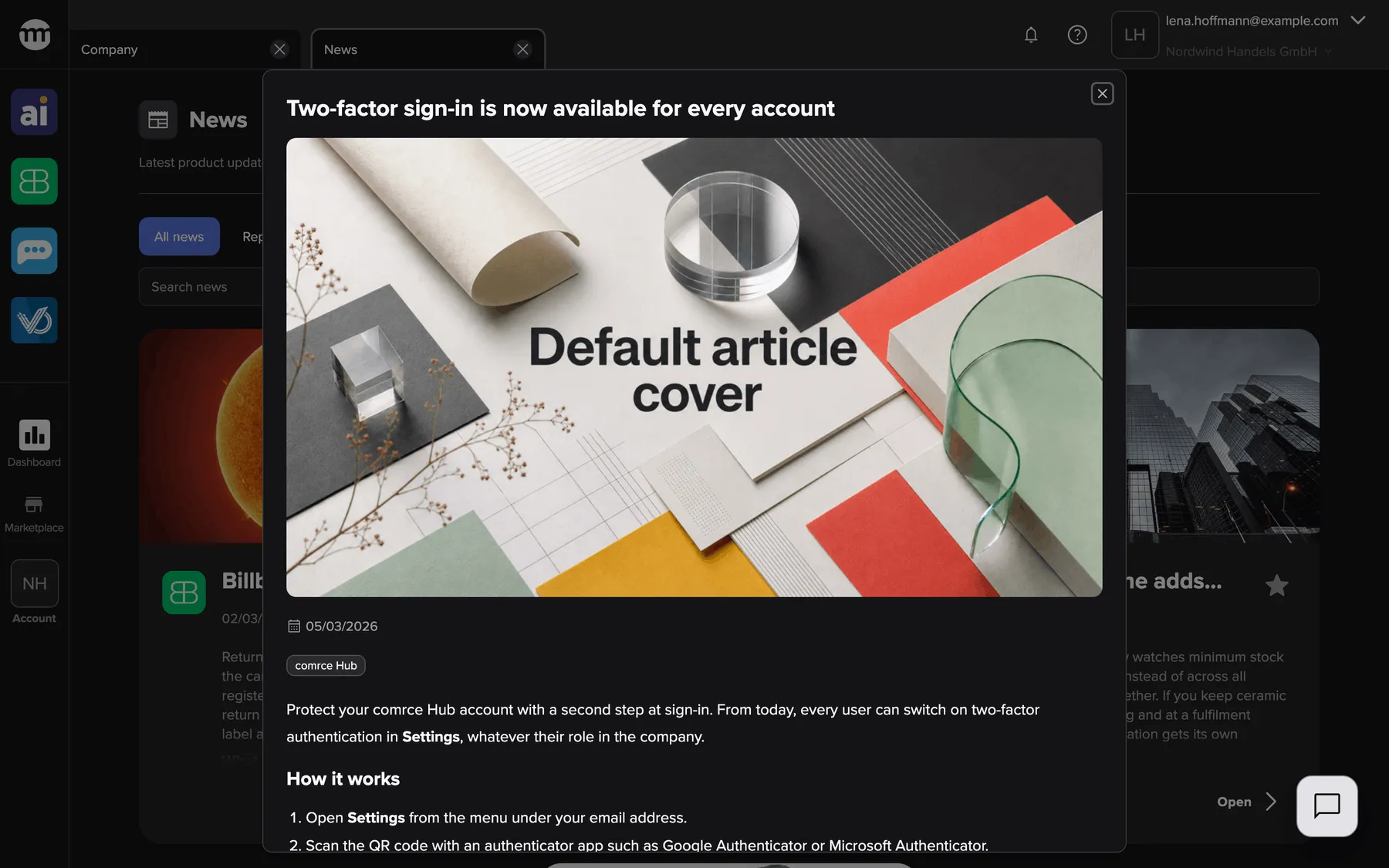
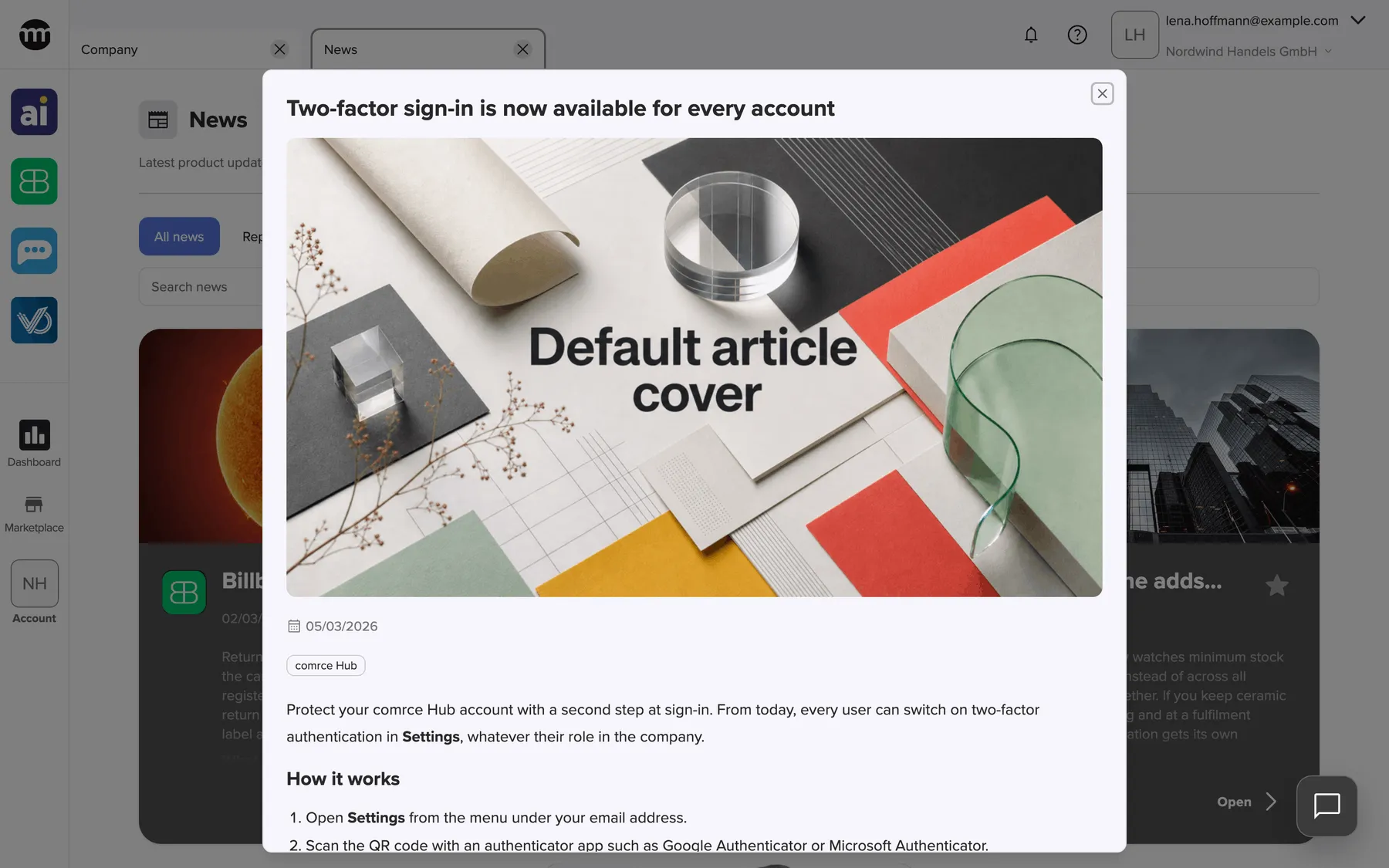
What this screenshot shows
- Screen
- News
- Highlighted
- shows the full article. Closing it returns to the news list.
- Also visible
- Title, cover image, publish date, category badge comrce Hub; Formatted article text with a heading and a numbered list
- Purpose
- read an article
| Region | What it shows | What you do there |
|---|---|---|
| Title | The article title, in your language or the original language | Read |
| Close button, top right | A cross | Close the window and return to the feed |
| Cover picture | The picture comrce chose, or the standard cover | – |
| Date and categories | The publish date, the badge Using fallback language when the article is not in your language, then one badge per category | See when it was published and what it is about |
| Article text | Headings, paragraphs, lists, checklists, tables and links | Read, or select a link to open it in a new browser tab |
| Footer | Add to favorites or Remove from favorites | Keep or drop the article as a favorite |
Open an article
Section titled “Open an article”-
Open News: select the comrce logo at the very top of the left sidebar.
-
On the article’s card, select Open at the bottom right.
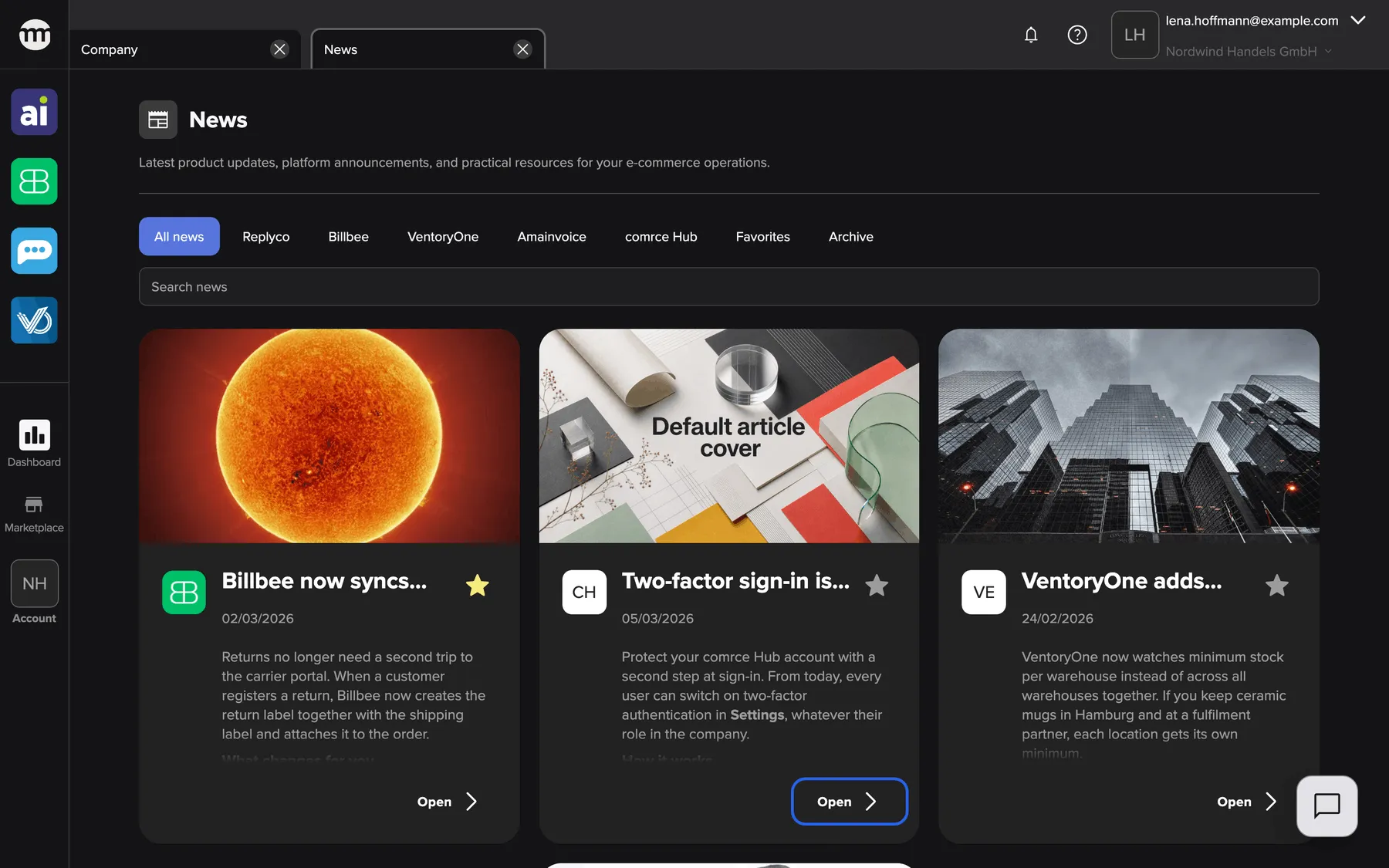
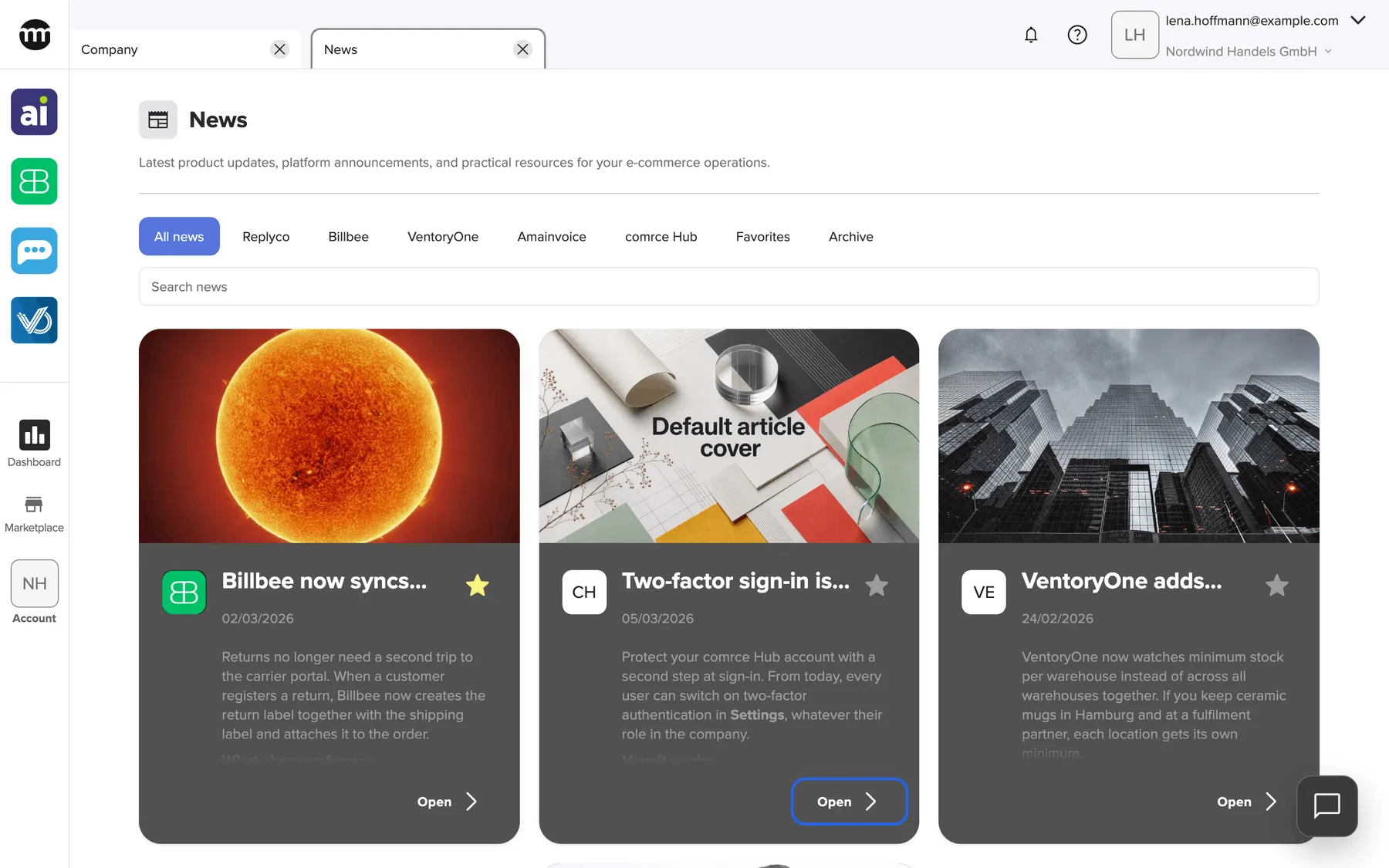
The button "Open" at the bottom right of a card opens the whole article. What this screenshot shows
- Screen
- News
- Highlighted
- “Open”: opens the article in a window. The article gets its own link you can share.
- Also visible
- Three article cards with cover, category logos, title, date, preview and star
- Purpose
- entry point for reading an article
-
The article opens in a window over the feed. While it loads, the title reads Loading.... The address in your browser changes to the article’s own link.
-
To close the article, select the cross at the top right, press Esc or select anywhere outside the window. You are back on the feed.
Links in the text open in a new browser tab, so the article stays open in comrce Hub. A checklist in an article shows ticked and unticked boxes. They are part of the text and cannot be changed.
Keep the article as a favorite
Section titled “Keep the article as a favorite”-
Scroll to the end of the article.
-
Select Add to favorites in the footer. comrce Hub confirms with News article added to favorites.. The button changes to Remove from favorites with a yellow star.
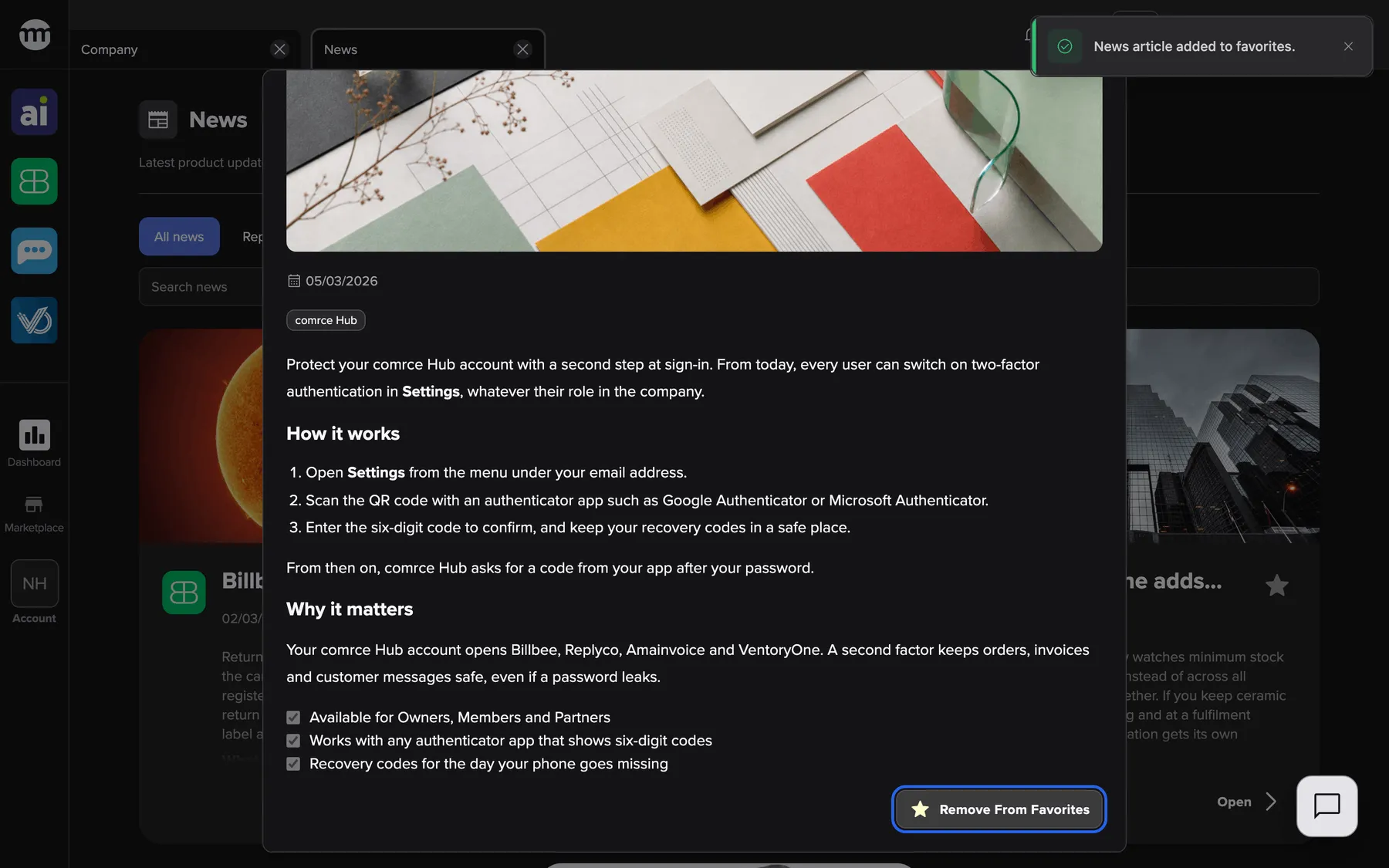
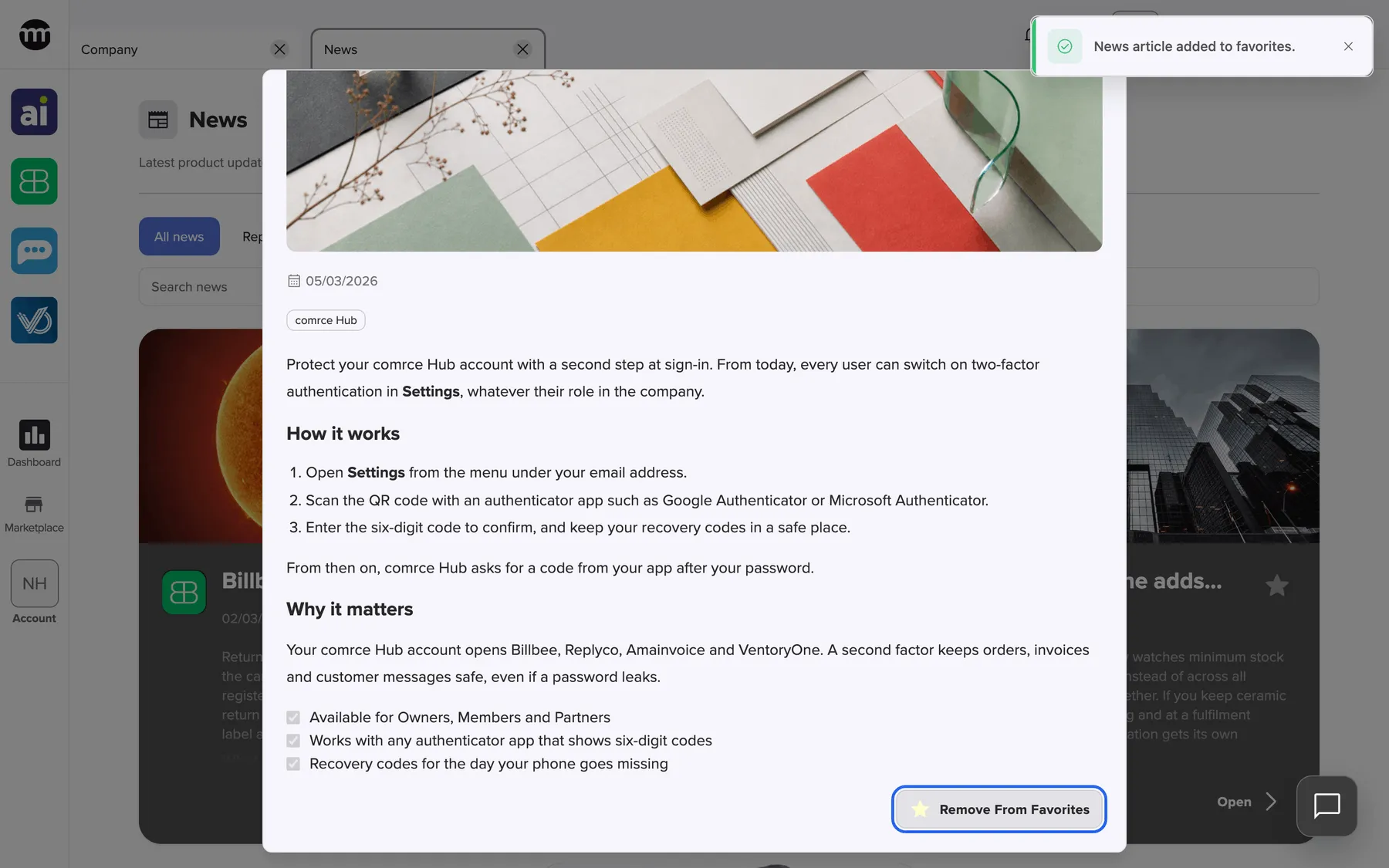
The star button in the article footer adds the article to your favorites or removes it again. What this screenshot shows
- Screen
- News
- Highlighted
- “Remove from favorites”: removes the article from your favorites
- Also visible
- Article end with a checklist; News article added to favorites.
- Purpose
- save an article as a favorite from the article window
-
To undo, select Remove from favorites. comrce Hub confirms with News article removed from favorites..
The star in the window and the star on the card are the same favorite. After the change, the feed behind the window reloads, and the article moves to the top with your other favorites. If the change fails, comrce Hub shows Unable to update favorite status. and nothing changes.
Share an article
Section titled “Share an article”There is no share button in the article window. Copy the address from your browser’s address bar while the article is open and send it. When your colleague opens the link, the News tab opens with the same article. If they are not signed in, comrce Hub asks them to sign in first.
The article appears in your colleague’s comrce Hub language, not yours. Someone who uses comrce Hub in German sees the German translation, when one exists.
Every control, explained
Section titled “Every control, explained”
Every control, explained
Section titled “Every control, explained”Add to favorites / Remove from favorites
Section titled “Add to favorites / Remove from favorites”Other controls on this page
| Control | What it does | Why |
|---|---|---|
| Open on a card | Opens the article in the window and changes the browser address to the article’s own link | The card shows only the beginning of an article |
| Close (the cross, Esc or a click outside the window) | Closes the article and returns you to the News feed | Get back to where you were |
What you need to know
Section titled “What you need to know”
What you need to know
Section titled “What you need to know”| Topic | Fact |
|---|---|
| Text language | Your comrce Hub language when comrce has published a translation. Otherwise the original language, marked with the badge Using fallback language. |
| Archived articles | Stay readable through the archive, your favorites and saved links |
| Pictures and formatting | Headings, lists, checklists, tables, bold and underlined text and pictures are shown. Other embedded content is not. |
Frequently asked questions
Section titled “Frequently asked questions”
Frequently asked questions
Section titled “Frequently asked questions”Reading
Section titled “Reading”How do I open a News article?
Section titled “How do I open a News article?”Open News from the comrce logo at the very top of the left sidebar. Then select Open at the bottom right of the article’s card. The whole article opens in a window over the feed.
How do I close an article and get back to the list?
Section titled “How do I close an article and get back to the list?”Select the cross at the top right of the article window, press Esc, or select anywhere outside the window. The article closes, and the News feed is shown again.
Why is the article in English when I use comrce Hub in German?
Section titled “Why is the article in English when I use comrce Hub in German?”comrce writes each article in one language and translates it. Without a published translation into your comrce Hub language, the article window shows the original language.
Can I still read an article after comrce archived it?
Section titled “Can I still read an article after comrce archived it?”Yes. Archived articles leave the main feed but stay readable. Open them under Archive in the News feed, under Favorites if you starred them, or through a saved link.
Favorites
Section titled “Favorites”Is the star in the article the same as the star on the card?
Section titled “Is the star in the article the same as the star on the card?”Yes. Both mark the same article as your favorite. Setting the star with Add to favorites in the article window fills the star on the card too. The article then moves to the top of the feed.
Who can see that I added an article to my favorites?
Section titled “Who can see that I added an article to my favorites?”Nobody else. Favorites are stored for your user only. They change only the order of your own feed and your own Favorites view.
Sharing
Section titled “Sharing”How do I send an article to a colleague?
Section titled “How do I send an article to a colleague?”With the article open, copy the address from your browser’s address bar. Send it by email or chat. Your colleague opens it and sees the same article in comrce Hub after signing in.
Can someone outside comrce Hub read an article I share?
Section titled “Can someone outside comrce Hub read an article I share?”No. The link opens the article inside comrce Hub. The reader needs a comrce Hub account and has to sign in. Without one, the link leads to the sign-in page.
Why does a shared link open an empty window?
Section titled “Why does a shared link open an empty window?”The window stays empty when the article is not available to the reader. For example, comrce has not published it yet or has removed it. Ask the sender to check that it still opens for them, and look for the article in the News feed.
Troubleshooting
Section titled “Troubleshooting”
Troubleshooting
Section titled “Troubleshooting”| Symptom | What to check |
|---|---|
| The article window stays empty | Whether the article still appears in the News feed or the archive. comrce may have removed it. |
| The title keeps reading Loading... | Your internet connection. Close the window and open the article again. |
| The message Unable to update favorite status. appears | Reload the page and select Add to favorites again. |
| A shared link shows the sign-in page | The reader must sign in to comrce Hub. Articles are not public. |
| A link in the article does not open | Your browser may block new tabs. Allow pop-ups for comrce Hub. |