

Keep your team's accounts safe
Make sure nobody outside your team gets into your company account. comrce Hub gives you four levers for that security:
- two-factor authentication (2FA) for everyone
- the password rules
- the logs
- the service PIN for comrce support
2FA is already mandatory, because nobody can skip its setup. What you choose is the method, and how you watch for warning signs. Only people with Viewing audit log can read the logs, so give it to whoever checks.
Before you start
Section titled “Before you start”| You need | Where it lives |
|---|---|
| Your own sign-in, with 2FA set up | Everyone sets it up at their first sign-in |
| The Owner role or Viewing audit log | AccountLogs |
| Your settings | Settings in the user menu at the top right: password, service PIN and support sessions |
None of this costs anything. Every person manages their own password and 2FA. Nobody, not even the owner, can see or set them for someone else.
-
Ask everyone to use the authenticator app. Each person sets up 2FA at their next sign-in, and nobody can do it for them. Ask your team to have their phone ready and to choose the app. Whoever reads an email inbox gets email codes too, but not the app’s codes. Two-factor authentication explains both methods.
-
Keep passwords long and unique. comrce Hub refuses passwords under 12 characters, parts of your name and your last 10 passwords. To change yours, open your settings and select Change Password. comrce Hub then signs you out on every device. Passwords and sign-in lists every rule.
-
Check who has finished the 2FA setup. Open AccountLogs. Filter by the event types Two-factor auth code verified (app) and Two-factor enabled (email). Logs explains the filters.
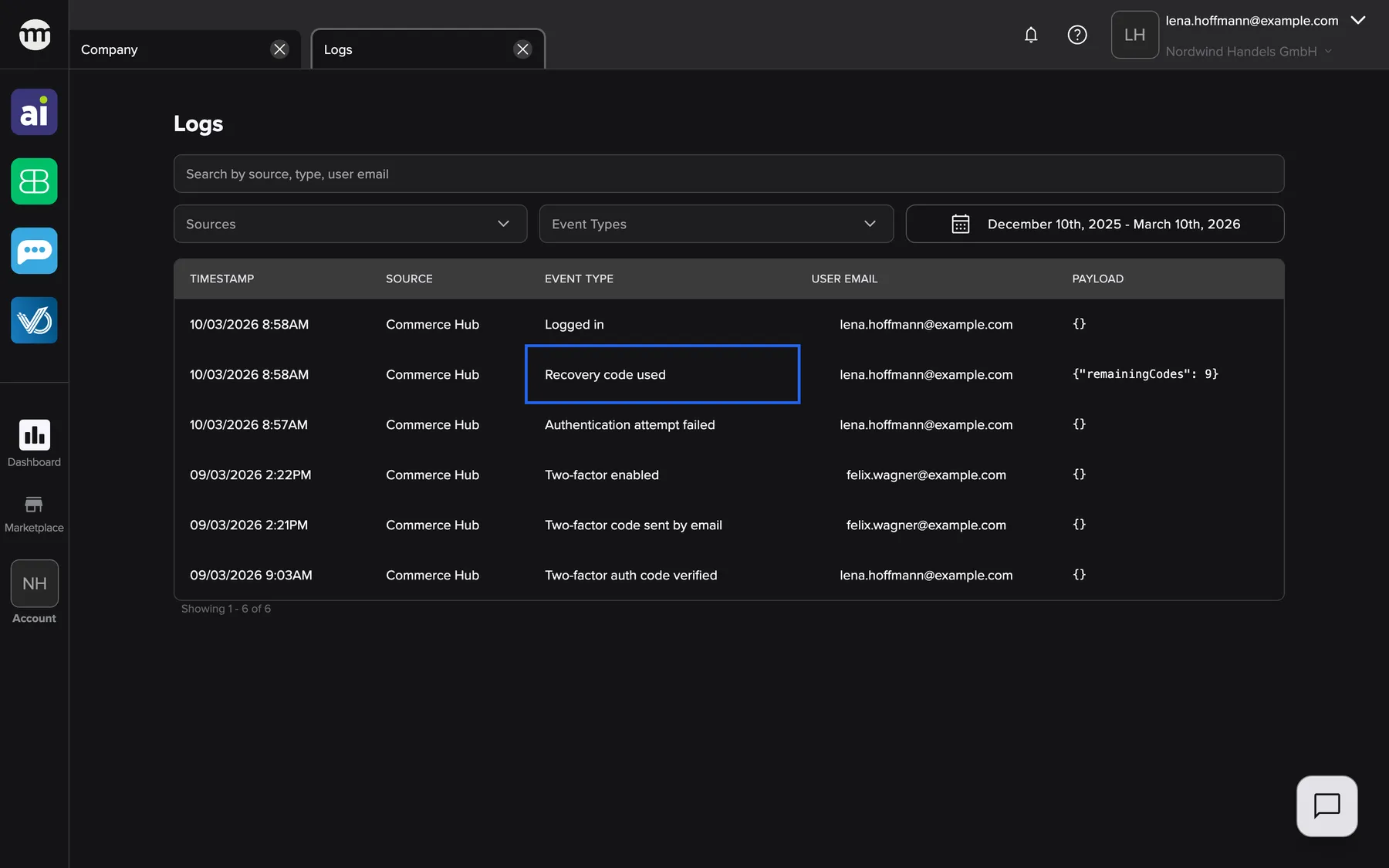
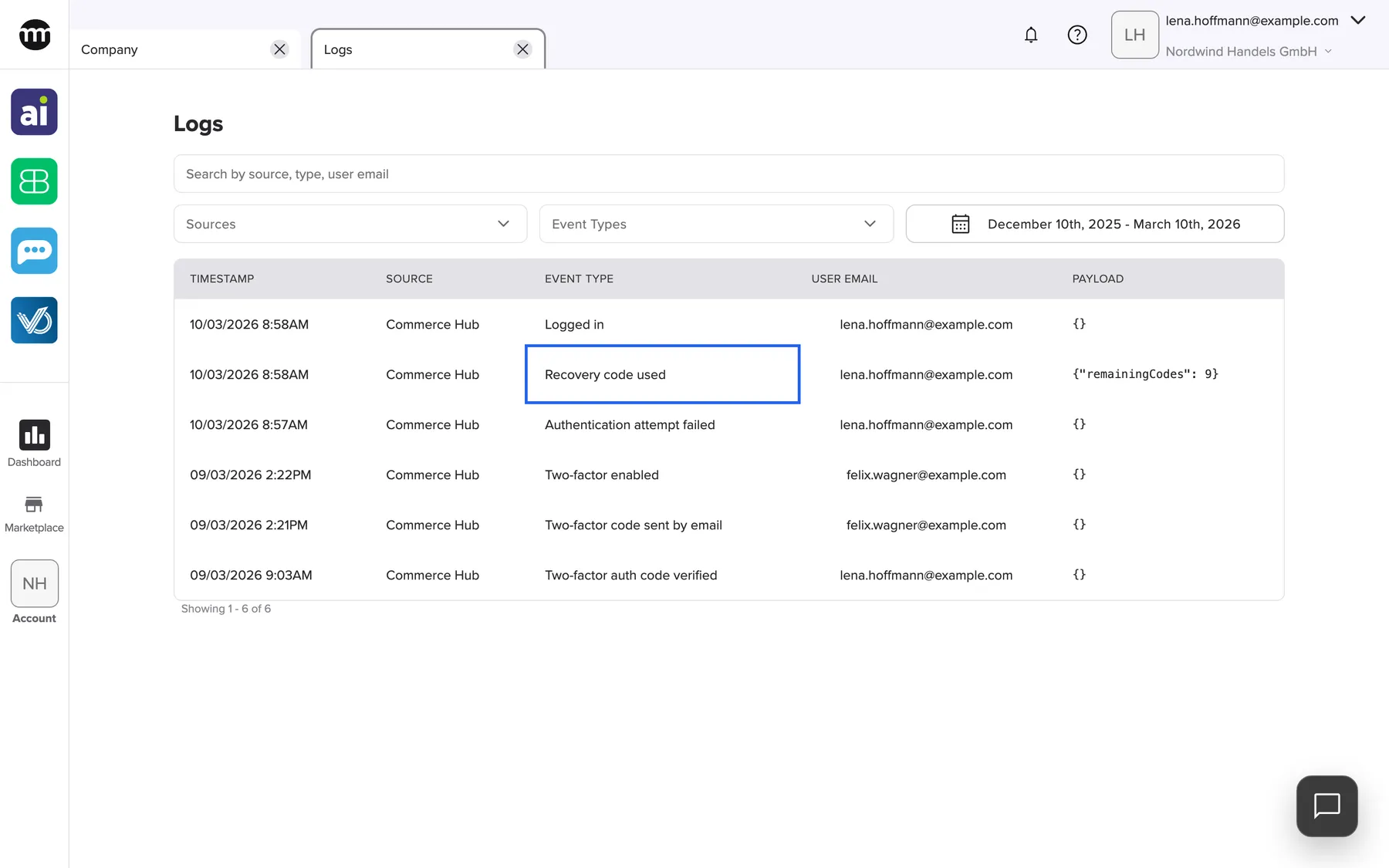
The audit log records setups, used recovery codes and wrong codes. What this screenshot shows
- Highlighted
- “Recovery code used”: marks a used recovery code
- Also visible
- Two-factor and sign-in rows with time and email address
- Purpose
- check who has set up two-factor authentication
-
Watch the logs for warning signs. Look for these rows:
- a series of Authentication attempt failed
- Account locked
- an unexpected Reset password requested
- a Recovery code used nobody can explain
Each can mean that somebody is trying to get in.
-
Give the service PIN only to comrce support. Your settings show it on the card Service PIN. Give it only in a conversation with comrce support that you started. While support works in your account, the session is listed below the card. Support access with a PIN explains how it works.
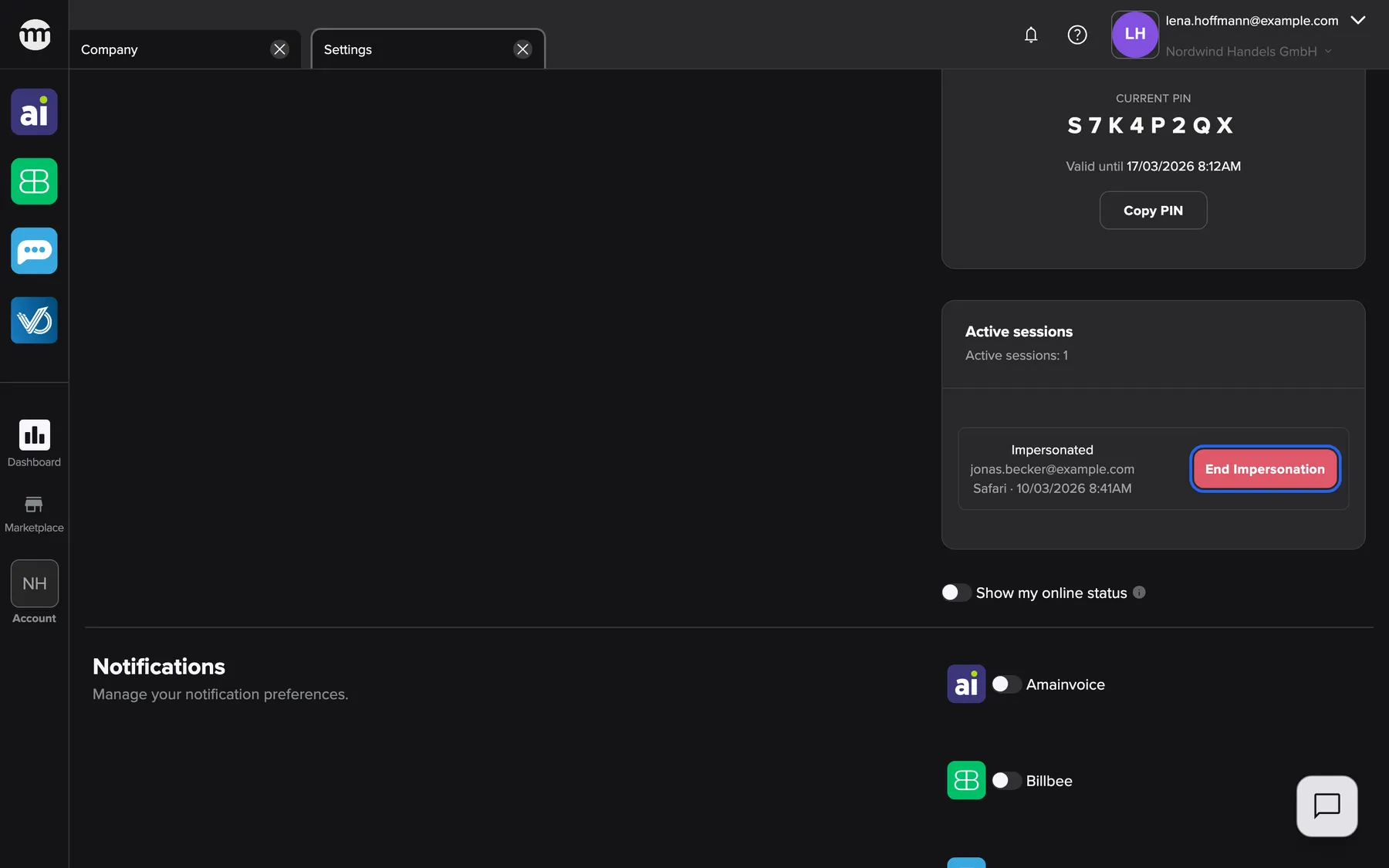
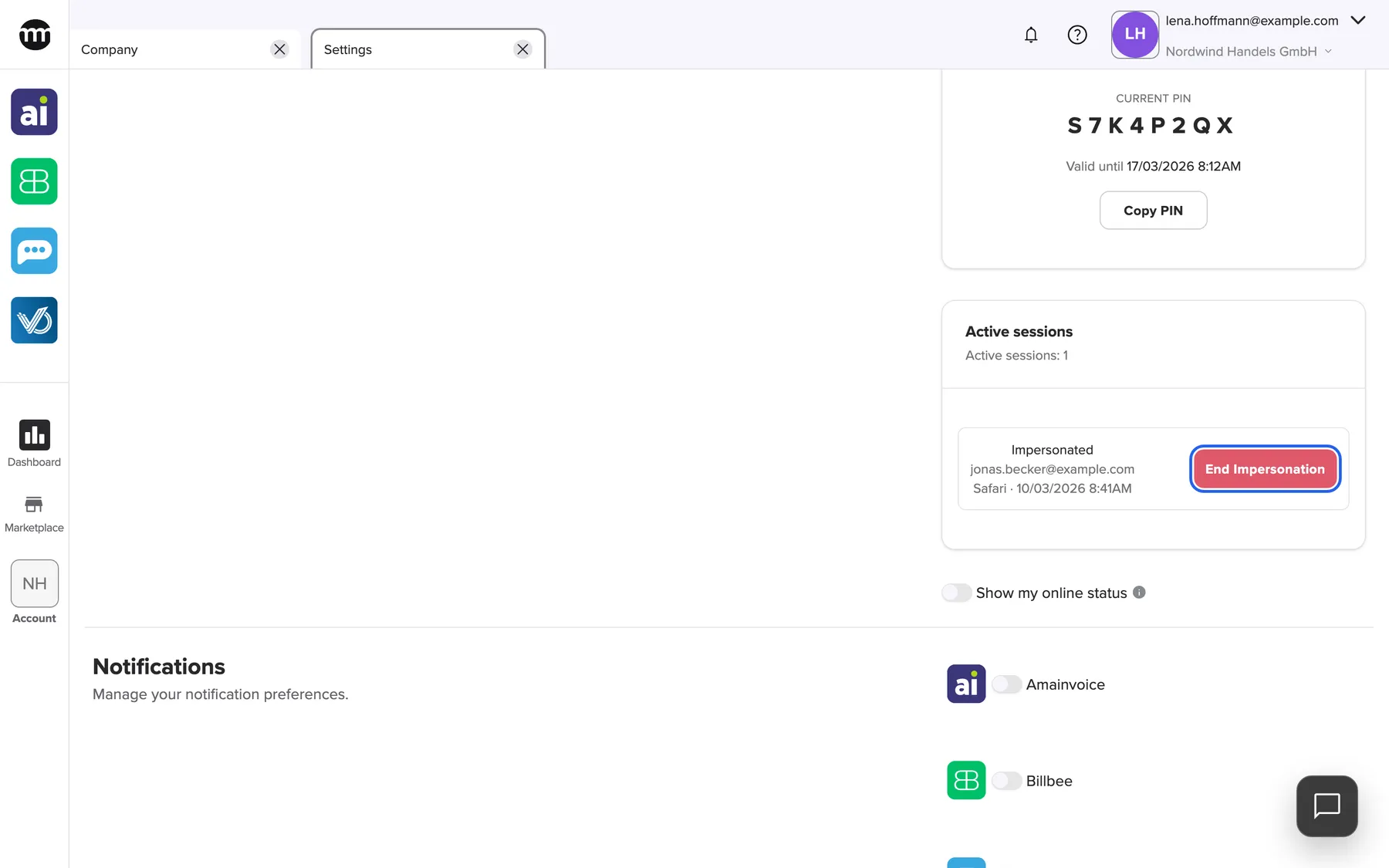
While support works in your account, the session is listed here and you can end it at any time. What this screenshot shows
- Screen
- Settings
- Highlighted
- “End impersonation”: ends the support session and stops its PIN
- Also visible
- Service PIN S7K4P2QX; One support session with jonas.becker@example.com; Browser and start time
- Purpose
- see and end comrce support's access
-
End the support session when your question is solved. Select End impersonation. Support is signed out at once, and that PIN stops working. A PIN that expires only stops new sessions, not the one that is running.
What happens next
Section titled “What happens next”Every account in your company now needs a password and a 6-digit code to sign in. 5 wrong passwords in a row lock an account for 24 hours. 5 wrong codes lock it for 5 minutes. Everything comrce support does in your account is marked Impersonated in Logs.
To check that it worked, open Logs a week later. Every colleague should have a 2FA setup row.
- Choose the app, not email codes. Email codes depend on your inbox, so a stolen email password reveals them too. The app also works without internet on the phone.
- Keep the recovery codes in a password manager. Each of the 10 codes works once. They get you in when your phone is lost.
- Change your password on the computer you use most. Then sign in again on your phone and other devices, one after another. You are signed out everywhere else, so you also see whether an unknown device still had access.
- Change your password now and then, even with Google sign-in. If you sign in with Google every day, you rarely see the password. It still exists, so keep it from being the weak spot.
- Reset instead of guessing. A password reset ends a lock at once. Guessing on adds to the count.
- End every support session yourself. The next request for help then starts with a fresh PIN.
If something goes wrong
Section titled “If something goes wrong”| Symptom | What to check | Fix |
|---|---|---|
| A Reset password requested row nobody asked for | Whose email address the row names | That person changes their password in their settings |
| A Recovery code used row nobody can explain | Whose email address the row names | That person changes their password and contacts comrce support |
| A colleague sees Too many invalid verification attempts. Your account has been temporarily locked. Please try again later. | Wrong passwords or wrong codes in a row | After wrong passwords, a reset with Forgot password? ends the lock. After wrong codes, wait 5 minutes. |
| A support session you do not recognise | The support sessions card in your settings | Select End impersonation |
| Logs is missing from the Account menu | You lack Viewing audit log | Ask the company owner to switch it on |