

A service in the Marketplace
A service page shows every partner that offers one Marketplace service, so you can compare them side by side. An example is the partners that connect Temu.
The page opens in its own tab when you select Find provider on a service tile. The tiles are in the Marketplace tab (Marketplace in the left sidebar). Visitors without an account can open it too, and comparing partners here costs nothing.
What you can do here
Section titled “What you can do here”- Read what the service covers in its title and description. The screen at a glance.
- Compare the partners that offer the service. Each partner shows its logo, name and a short description. The screen at a glance.
- Narrow the partners by search, category or compatible tool. The filters you set in the Marketplace are already applied. Narrow the partners.
- Open a partner’s page with contact details and facts. Open a partner · A partner’s page.
The screen at a glance
Section titled “The screen at a glance”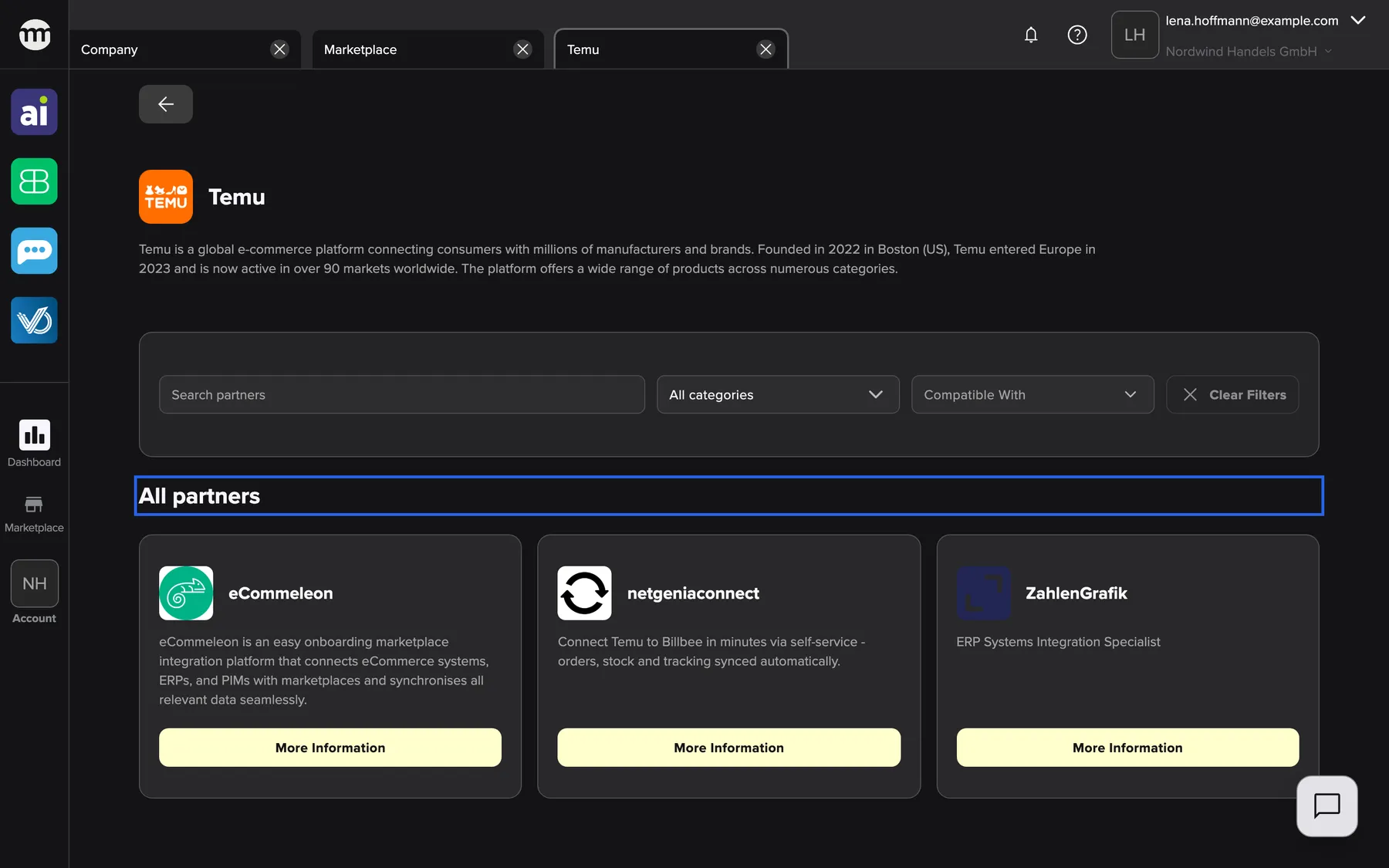
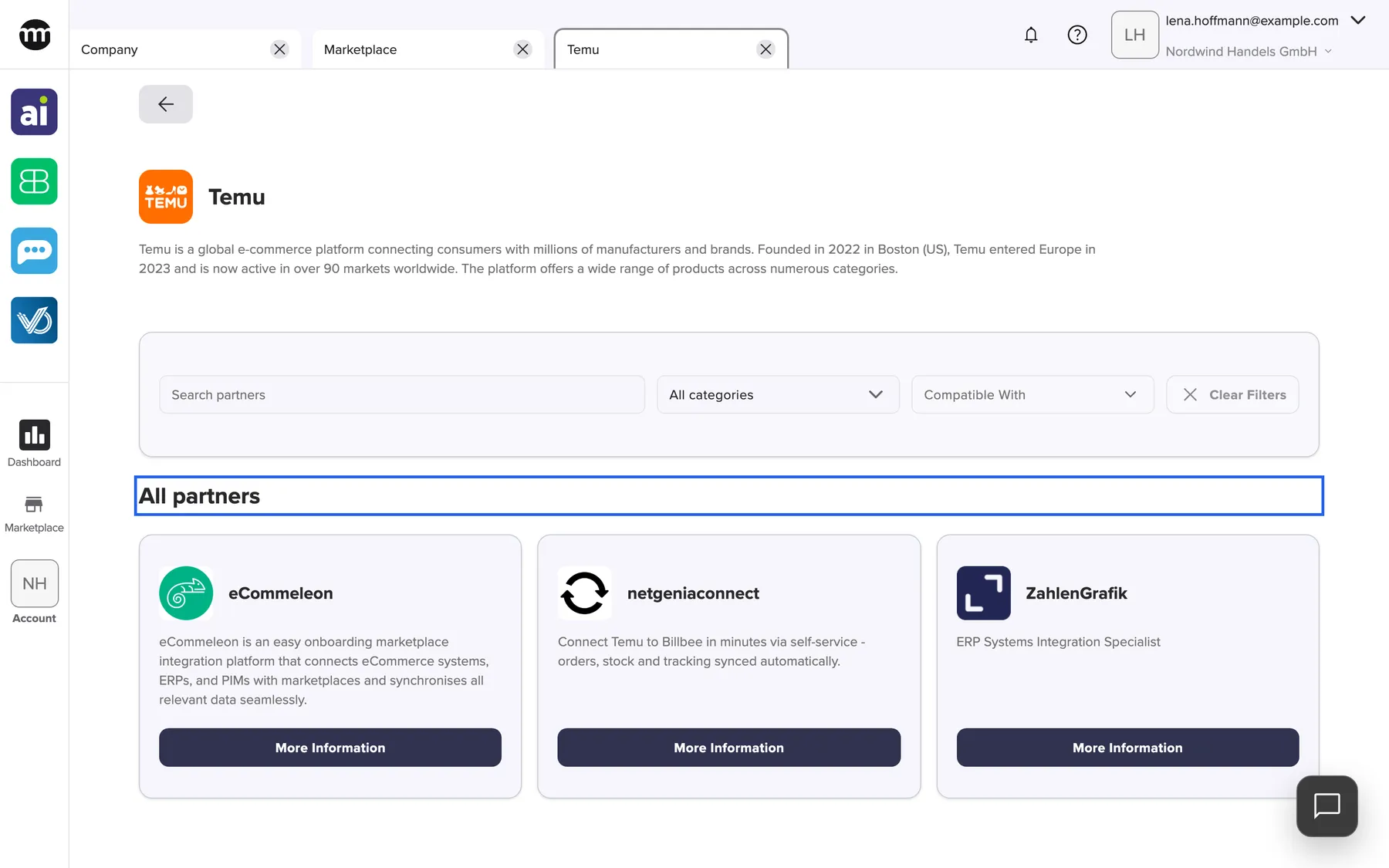
What this screenshot shows
- Screen
- Marketplace
- Highlighted
- “All partners”: none. The header introduces the partner tiles.
- Also visible
- Service title Temu with its description; Filter bar with Search partners, All categories, Compatible with, Clear filters; Partner tiles: eCommeleon, netgeniaconnect, ZahlenGrafik, each with More information
- Purpose
- see who offers a service
| Region | What it shows | What you do there |
|---|---|---|
| Tab | A tab named after the service, next to the Marketplace tab | Switch back to the Marketplace or close the service |
| Back button | An arrow at the top left, above the header | Return to the Marketplace page you came from |
| Header | The service icon, title and description | – |
| Filter bar | Search field (placeholder Search partners), All categories, Compatible with, Clear filters | Narrow the partners |
| All partners | One tile per partner: logo, name, short description, More information | Open a partner’s page |
Narrow the partners
Section titled “Narrow the partners”The filter bar works as in the Marketplace, but only on this service’s partners.
-
Type a word into the search field, for example ERP. The page keeps partners whose name or short description contains every word you typed. When a word matches the service itself, its section or its tags, all partners stay.
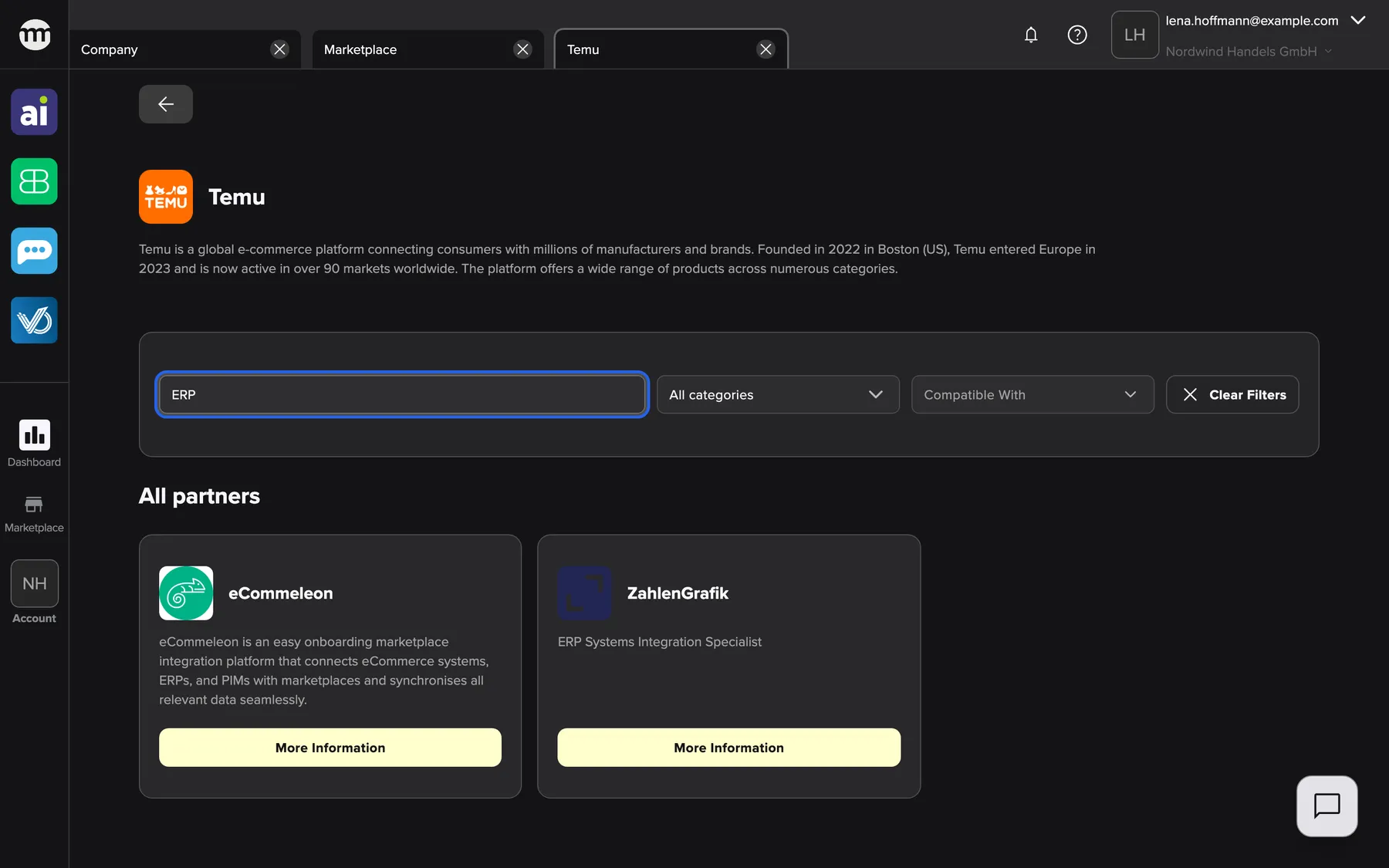
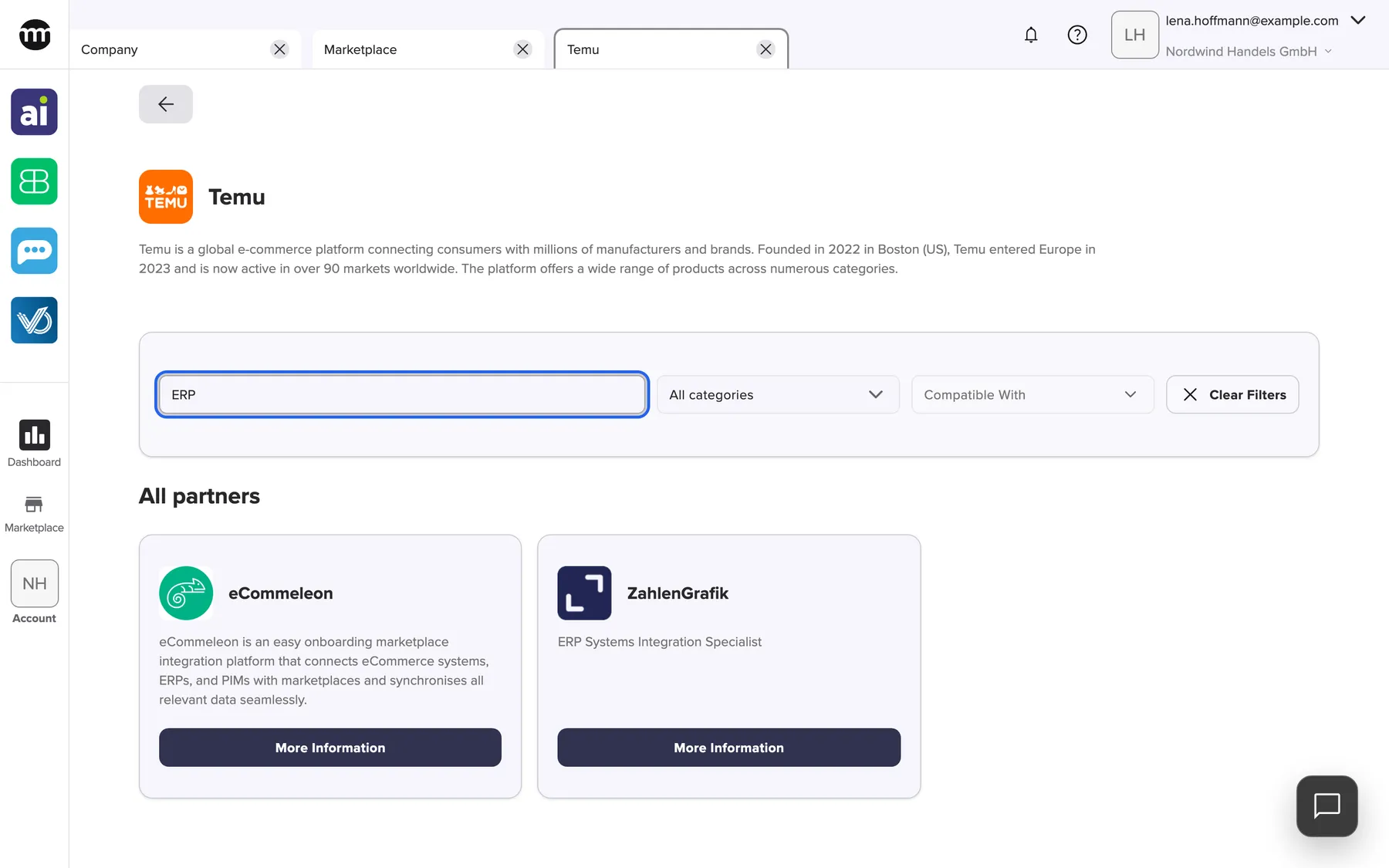
The search on a service page narrows the partners by name and short description. What this screenshot shows
- Screen
- Marketplace
- Highlighted
- “Search marketplace”: shows only partners whose name or short description contains every search word
- Also visible
- Partner tiles: eCommeleon, ZahlenGrafik; Clear filters enabled
- Purpose
- find a partner within a service
-
Choose a category under All categories or tick tools under Compatible with. A partner must match the category and work with every ticked tool.
-
Select Clear filters to show all partners again.
When no partner matches, the page reads No services or partners match your current filters..
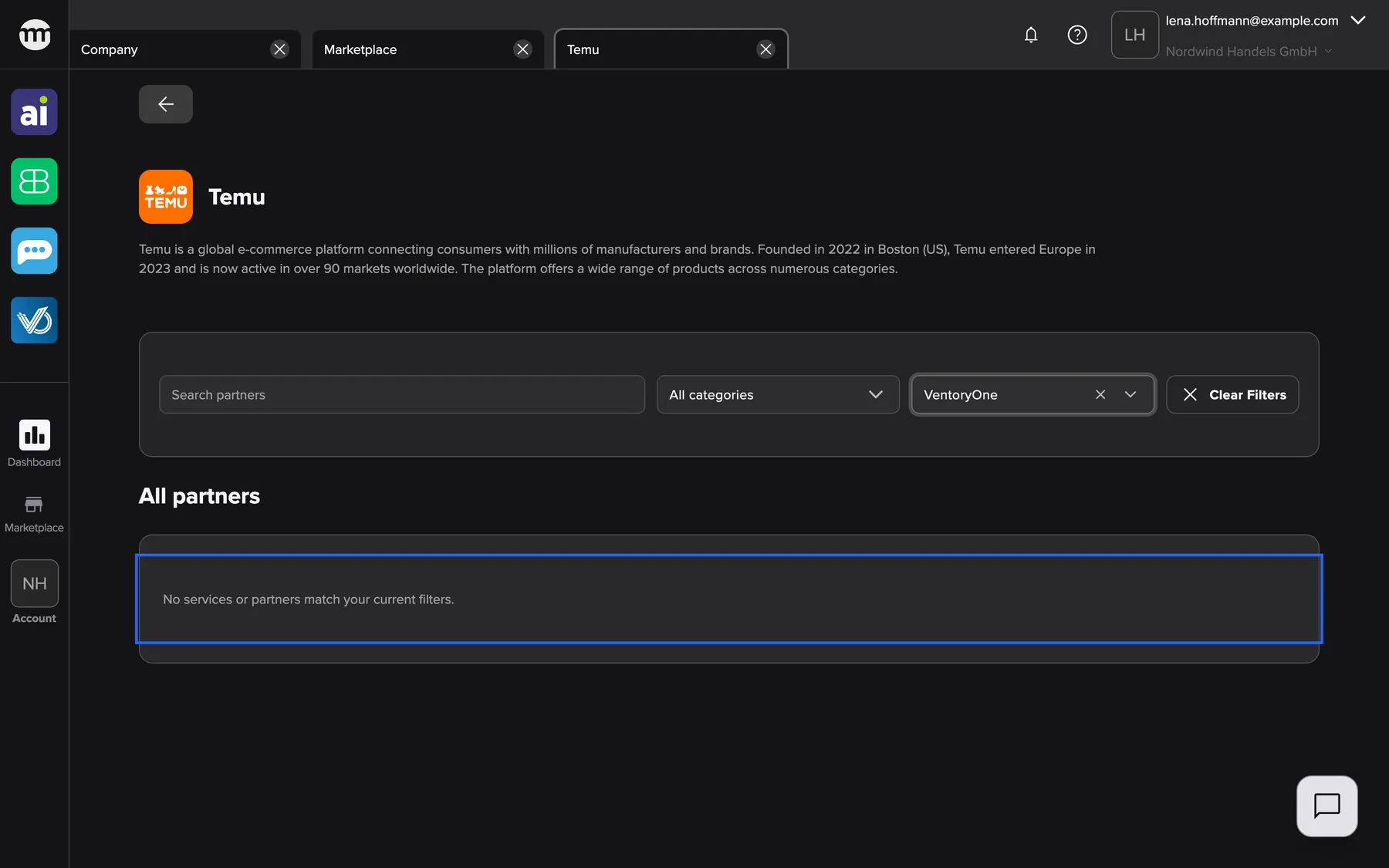
What this screenshot shows
- Screen
- Marketplace
- Highlighted
- “No services or partners match your current filters.”: none. The message says the filters exclude every partner.
- Also visible
- Compatible with: VentoryOne selected; Clear filters enabled
- Purpose
- the empty result and how to recover
Filters you set in the Marketplace come along. Say you ticked Billbee under Compatible with before you selected Find provider. The service page then opens with Billbee ticked and shows only Billbee-compatible partners. Changing the filters here does not change the Marketplace tab.
Open a partner
Section titled “Open a partner”Select More information on a partner’s tile. The partner’s page opens in its own tab, named after the partner. A partner’s page describes it.
Every control, explained
Section titled “Every control, explained”
Every control, explained
Section titled “Every control, explained”The service page has a Back button, the filter bar and one button per partner. The controls people misread most often come first.
The filter bar
Section titled “The filter bar”| Control | What it does | Why |
|---|---|---|
| Search field (Search marketplace) | Keeps partners whose name or short description contains all typed words. Keeps all partners when the words match the service. | Find a partner you heard of |
| Compatible with | Keeps partners that work with every ticked tool | Make sure the partner fits your tools |
| All categories | Keeps partners of the chosen category | Compare one kind of partner |
The Back button
Section titled “The Back button”More information
Section titled “More information”Other controls on this page
| Control | What it does | Why |
|---|---|---|
| Clear filters | Clears search, category and tools. It is greyed out when nothing is set. | Show all partners again |
What you need to know
Section titled “What you need to know”
What you need to know
Section titled “What you need to know”| Topic | Fact |
|---|---|
| Partner order | The order comrce set |
| Link | The service page has its own address, which includes your search and filters. A saved link opens the service again with them. |
| Unavailable service | If comrce hides or removes the service, a saved link shows This marketplace page is unavailable. A Marketplace link does not open |
| Without an account | Visitors who are not signed in see the same page. The Marketplace without an account |
Frequently asked questions
Section titled “Frequently asked questions”
Frequently asked questions
Section titled “Frequently asked questions”General
Section titled “General”How do I see all partners for a service?
Section titled “How do I see all partners for a service?”Open Marketplace in the left sidebar, find the service tile and select Find provider. A new tab named after the service lists every partner that offers it under All partners.
Can I contact all partners of a service at once?
Section titled “Can I contact all partners of a service at once?”No. comrce Hub has no request form for a service. Open each partner’s page with More information. Contact the partner through the website, email address or phone number shown there.
Why does the service page show fewer partners than I expected?
Section titled “Why does the service page show fewer partners than I expected?”The filters from the Marketplace tab came along when you opened the service. An example is a tool ticked under Compatible with. Select Clear filters on the service page to see every partner of the service.
Search and filters
Section titled “Search and filters”What does the partner search on a service page look in?
Section titled “What does the partner search on a service page look in?”The search field on a service page looks in each partner’s name and short description. When your words match the service title, description, tags or its section, all partners stay. Every word you type must match, ignoring upper and lower case.
Do filters on the service page change the Marketplace tab?
Section titled “Do filters on the service page change the Marketplace tab?”No. The service page starts with a copy of the Marketplace filters. Changes you make on the service page stay there. The Marketplace tab keeps its own search and filters.
Why does the page say No services or partners match your current filters?
Section titled “Why does the page say No services or partners match your current filters?”None of the service’s partners matches the search, the category or every ticked tool under Compatible with. Select Clear filters to remove all filters at once and show every partner again.
Links and tabs
Section titled “Links and tabs”Can I bookmark a service page?
Section titled “Can I bookmark a service page?”Yes. The service page has its own address in your browser. Opening it again shows the service with the search and filters you had set. Anyone you send the link to can open it, even without an account.
Why does a saved service link show an error?
Section titled “Why does a saved service link show an error?”A service link stops working when comrce hides or removes the service from the Marketplace. The page then shows This marketplace page is unavailable, with a Marketplace button. Select it and look for the service or a similar one.
Troubleshooting
Section titled “Troubleshooting”
Troubleshooting
Section titled “Troubleshooting”| Symptom | What to check |
|---|---|
| The page reads No services or partners match your current filters. | The search words and filters. Select Clear filters. |
| The page reads Could not load marketplace. | Your connection. Select Try again below the message. |
| The page shows This marketplace page is unavailable | comrce hid or removed the service, or the link is incomplete. A Marketplace link does not open |
| A partner you know is missing | A filter brought over from the Marketplace. Select Clear filters. |
Related
Section titled “Related”- Browse the Marketplace
- A partner’s page
- Marketplace overview
- The Marketplace without an account
- A Marketplace link does not open
- Add a partner’s service to your company – the guide from finding a partner to using their app