

Queues
A queue is the inbox of comrce cloudprint: every print job arrives through one. On Warteschlangen (queues) you see all queues of your account, create new ones and change or delete them. Open it with the gear icon at the right end of the top bar, then Erweiterte FunktionenWarteschlangen.
A queue only takes in jobs. A pipeline connected to it decides what happens next, as Processes and how they work explains.
What you can do here
Section titled “What you can do here”- See where your jobs come from. The list shows every queue with its type. There are API, manual, email and FTP queues. The screen at a glance
- Pick up print jobs from an FTP folder. An FTP queue checks a folder on your FTP server every two minutes. It takes in the files that match a pattern. Create an FTP queue · FTP server
- Print what arrives by email. An email queue reads a mailbox folder and turns each attachment into a job. Create an email queue · Email server
- Give another system its own entry point. An API queue takes in jobs that a shop system or tool sends through the comrce cloudprint API. Create an API or manual queue
- Rename or delete a queue. Deleting removes the queue and its links to pipelines. Delete a queue
The screen at a glance
Section titled “The screen at a glance”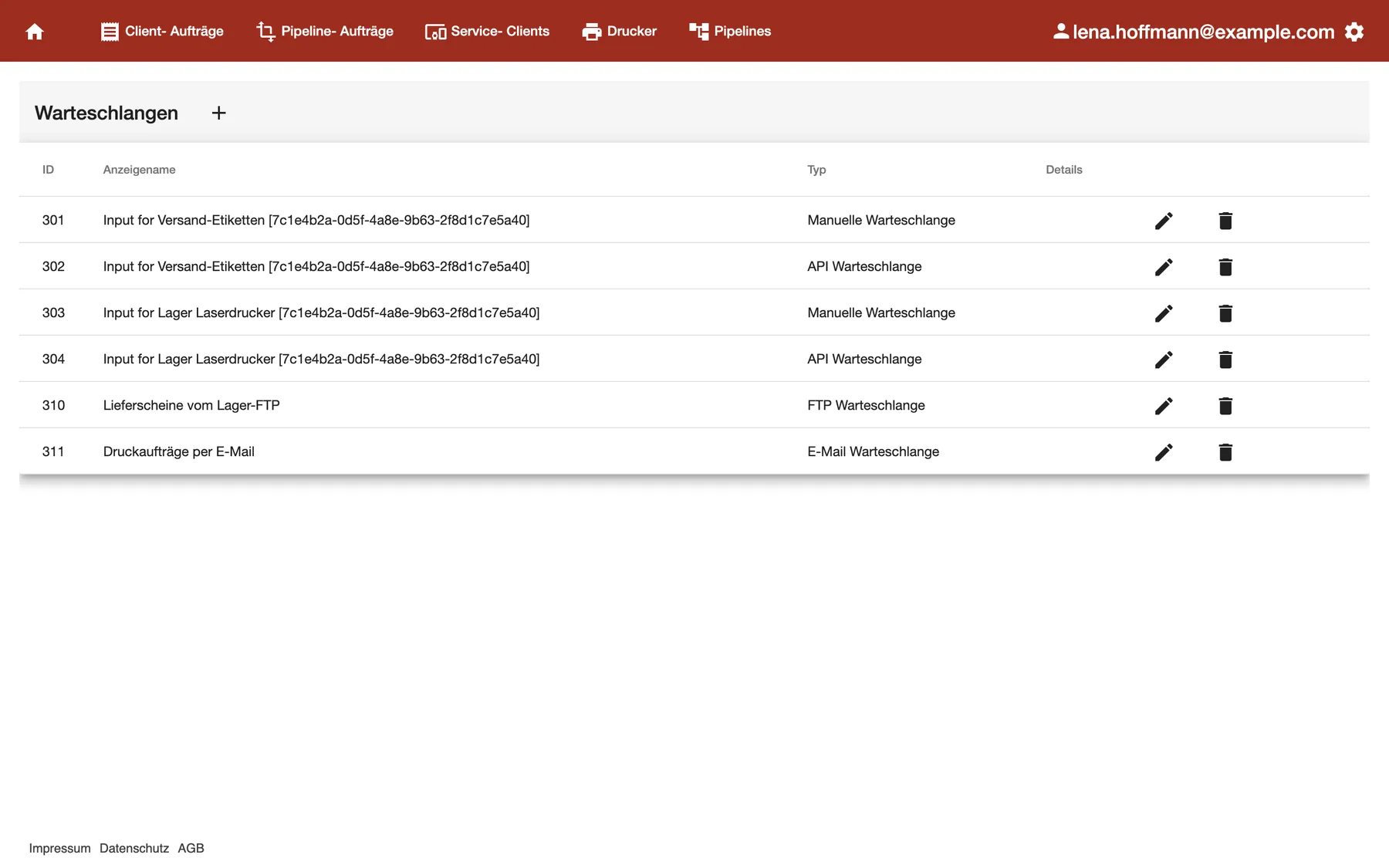
What this screenshot shows
- Screen
- Warteschlangen
- Highlighted
- “Warteschlangen”: the screen as it opens
- Also visible
- + button next to the heading; Columns ID, Anzeigename, Typ, Details; Six queues of four types, with edit and delete icons
- Purpose
- the queue list as it opens
| Region | What it shows | What you do there |
|---|---|---|
| Title bar | Warteschlangen and the + button | Create a queue |
| The list | One row per queue: ID, Anzeigename (display name), Typ (type) and Details | Find a queue and its type |
| End of each row | A pencil and a bin icon | Edit or delete the queue |
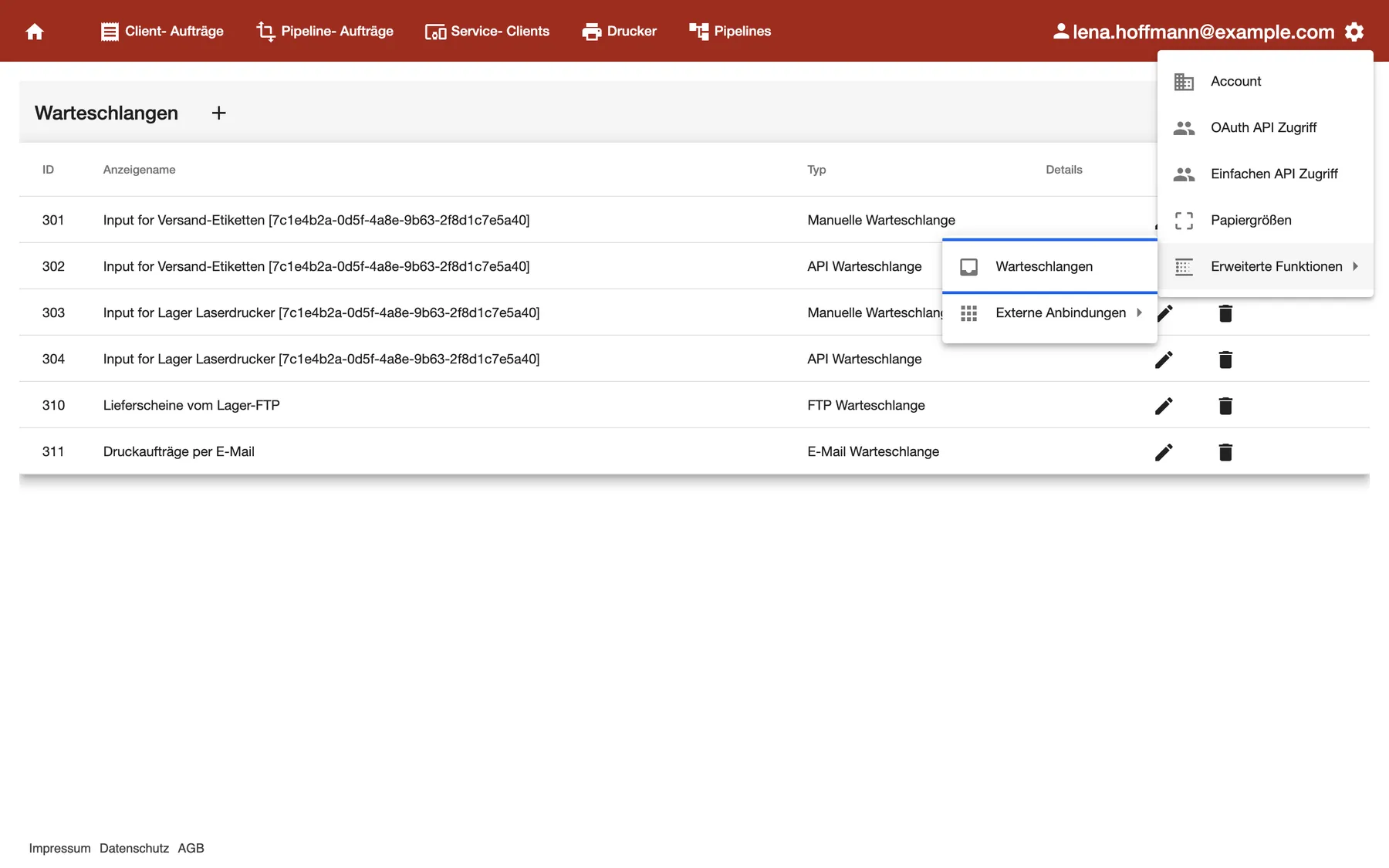
What this screenshot shows
- Screen
- Warteschlangen
- Highlighted
- “Warteschlangen”: opens the queue list
- Also visible
- Settings menu: Account, OAuth API Zugriff, Einfachen API Zugriff, Papiergrößen, Erweiterte Funktionen; Submenu Erweiterte Funktionen: Warteschlangen, Externe Anbindungen
- Purpose
- where to find the queues
You’ll find queues already in the list before you create one. When the Service Client registers a printer, comrce cloudprint adds a manual queue and an API queue for it. Both are named “Input for”, then the printer name and the Service Client’s ID. A pipeline for that printer is created at the same time.
Create an FTP queue
Section titled “Create an FTP queue”An FTP queue fetches files from a folder on your own FTP server. Save the server first on FTP server.
-
Select the + next to Warteschlangen. The dialog “Neue Warteschlange anlegen” (create queue) opens.
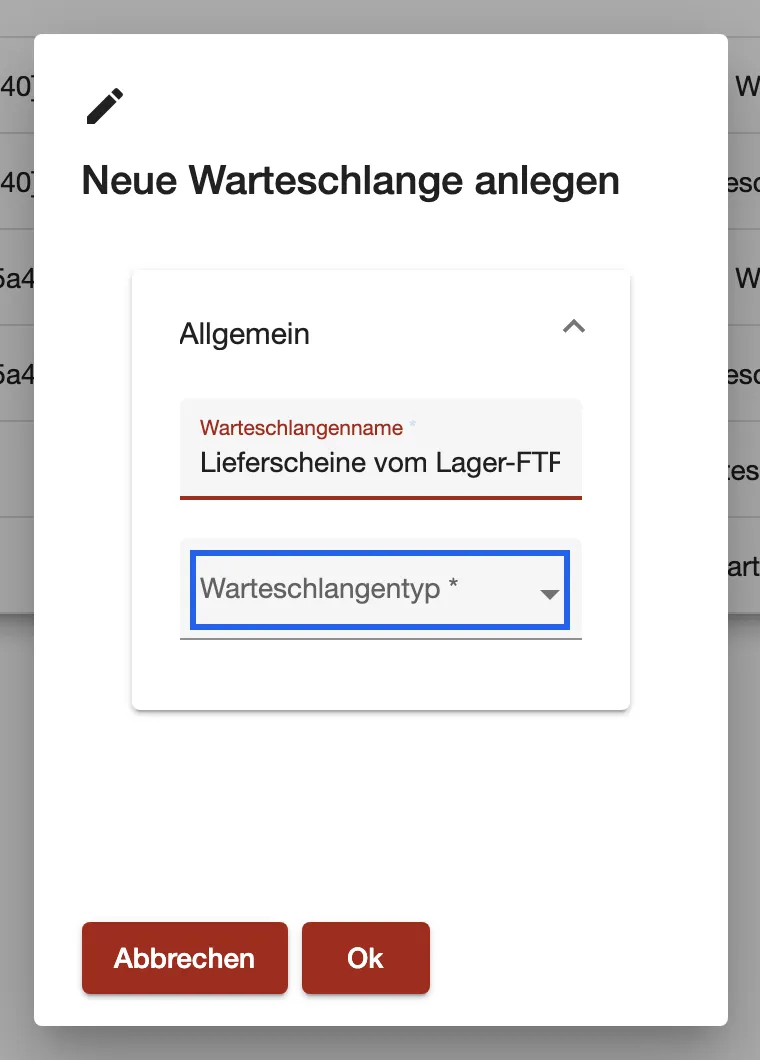
A new queue starts with its name and its type. What this screenshot shows
- Screen
- Warteschlangen
- Highlighted
- “Warteschlangentyp”: picks the queue type and shows its fields
- Also visible
- Warteschlangenname filled in; Buttons Abbrechen and Ok
- Purpose
- create a queue
-
Type a name into Warteschlangenname (queue name). Under Warteschlangentyp (queue type), choose FTP Warteschlange.
-
Under FTP- Server, choose the server. comrce cloudprint connects to it and reads its folders, which takes a moment.
-
Choose the folders:
- Eingang (inbox): the folder the queue watches.
- Ablage nach Verarbeitung (folder after processing): where a file moves once its job is created.
- Ablage nach Fehler (folder after an error, optional): where a file moves when no job can be created.
-
Check Dateimuster (file pattern). It starts as
*.pdf. Select Ok to save.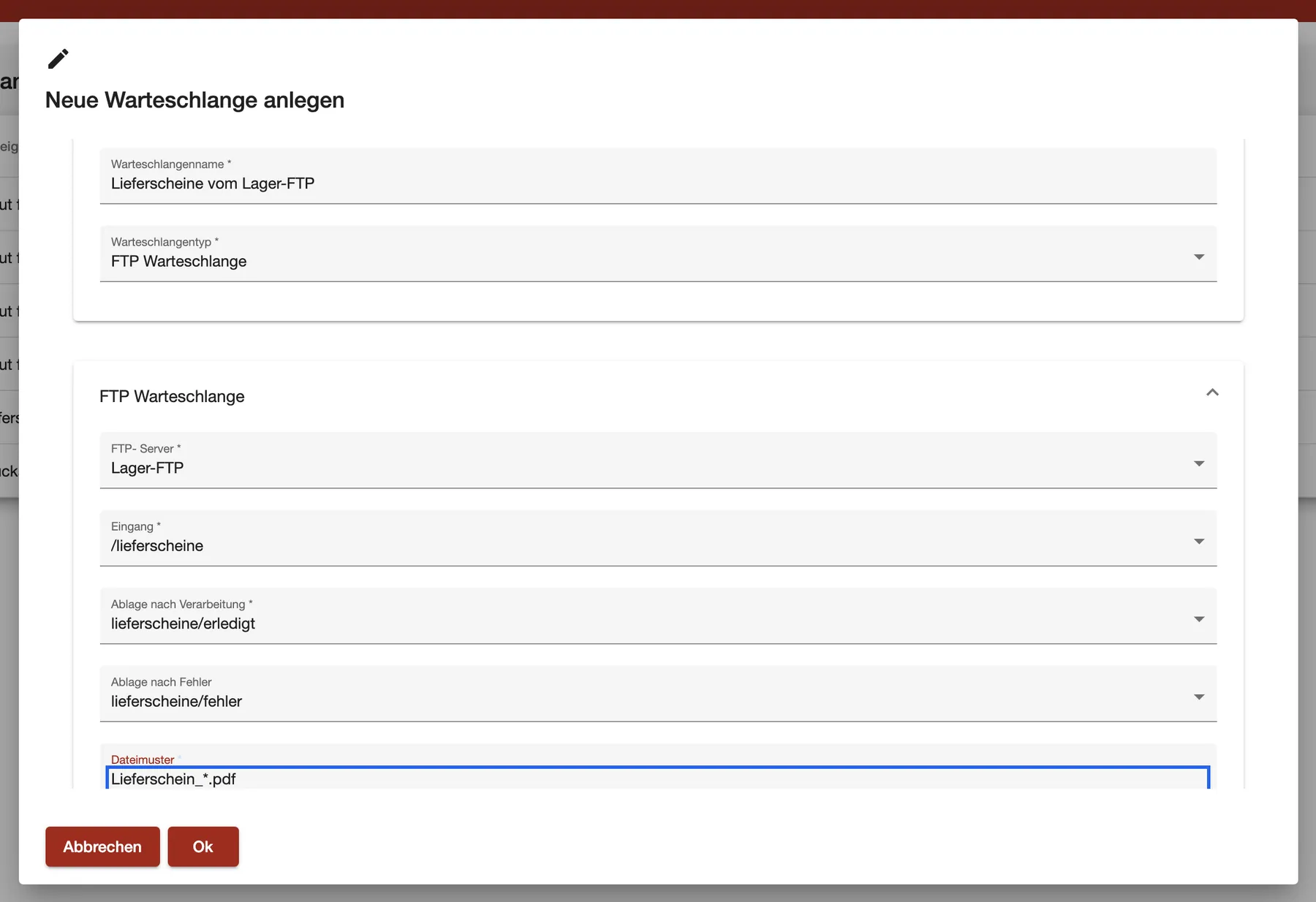
An FTP queue watches one folder of a saved FTP server and picks up the files that match the pattern. What this screenshot shows
- Screen
- Warteschlangen
- Highlighted
- “Dateimuster”: limits the queue to matching file names
- Also visible
- FTP- Server Lager-FTP; Eingang /lieferscheine, Ablage nach Verarbeitung and nach Fehler set
- Purpose
- create an FTP queue
From now on the queue checks the folder every two minutes. You can’t change that interval. A new queue takes in nothing until a pipeline is connected to it.
Example: Your warehouse software writes delivery notes as Lieferschein_10482.pdf into /lieferscheine. With the pattern Lieferschein_*.pdf, the queue picks them up and moves each one to lieferscheine/erledigt. Other files in the folder stay where they are.
Create an email queue
Section titled “Create an email queue”An email queue reads a folder of a mailbox and makes a job from each attachment. Save the mailbox first on Email server, with E-Mail empfangen (receive email) ticked.
-
Select the + next to Warteschlangen, type a name and choose E-Mail Warteschlange under Warteschlangentyp.
-
Under Mail- Server, choose the mailbox. Only mail servers that receive email appear here.
-
Choose Eingang, Ablage nach Verarbeitung and, if you like, Ablage nach Fehler. Then select Ok.
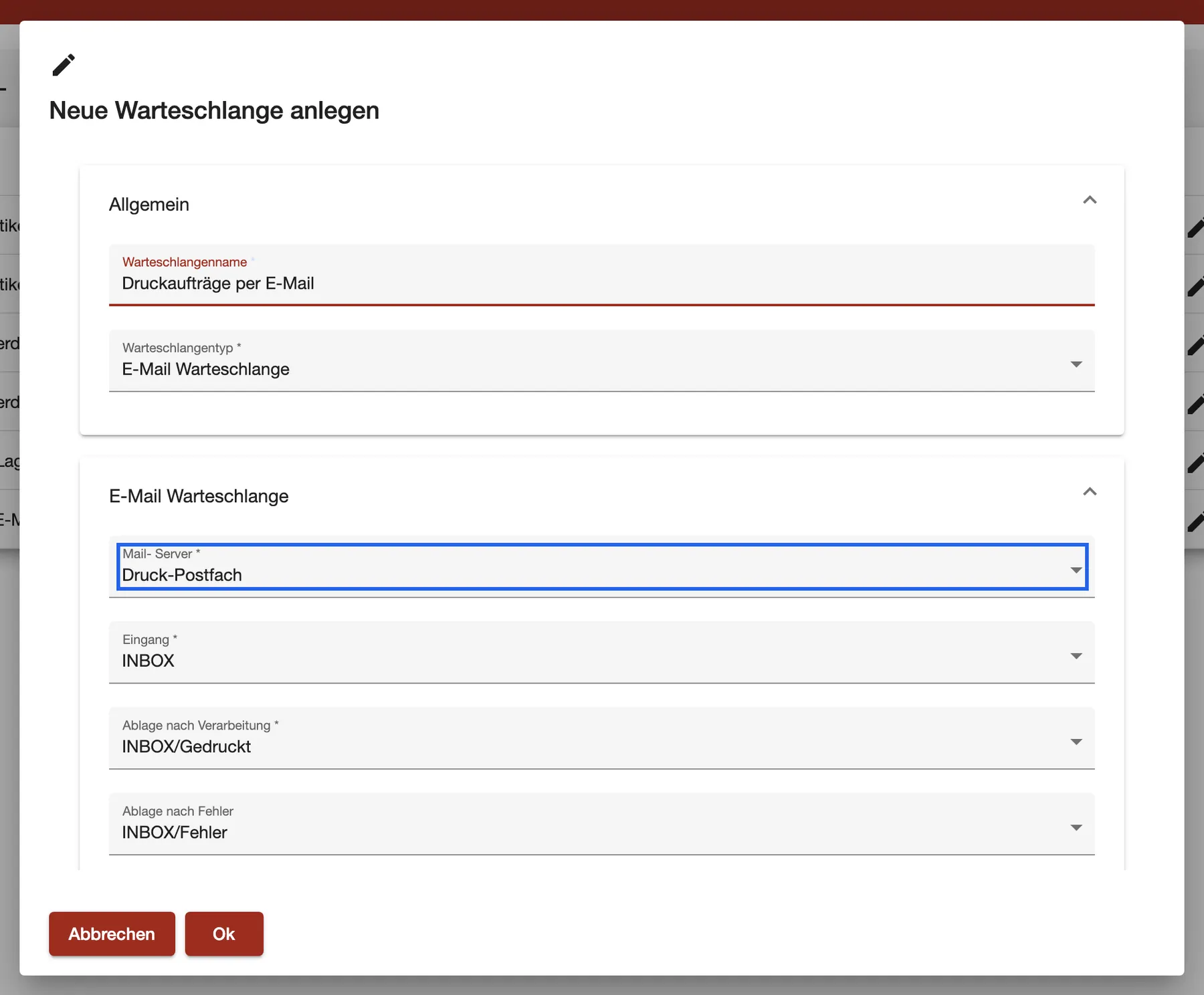
An email queue reads one folder of a mail server and moves each processed email to another folder. What this screenshot shows
- Screen
- Warteschlangen
- Highlighted
- “Mail- Server”: picks the mail server whose folders the queue reads
- Also visible
- Eingang INBOX, Ablage nach Verarbeitung INBOX/Gedruckt, Ablage nach Fehler INBOX/Fehler
- Purpose
- create an email queue
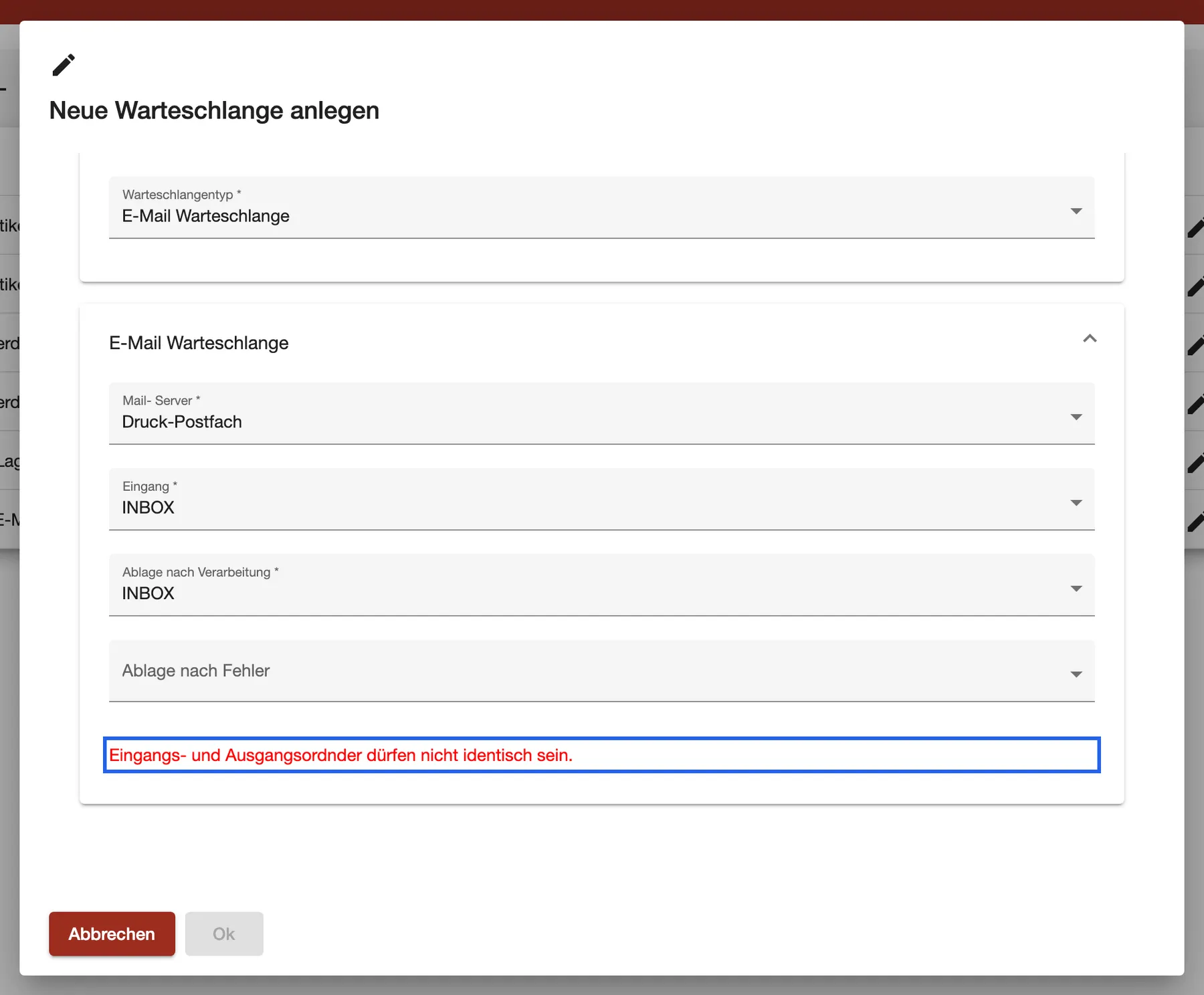
The inbox folder must differ from both other folders. Otherwise the dialog shows Eingangs- und Ausgangsordnder dürfen nicht identisch sein. and Ok stays dimmed.
What this screenshot shows
- Screen
- Warteschlangen
- Highlighted
- “Eingangs- und Ausgangsordnder dürfen nicht identisch sein.”: blocks saving until the folders differ
- Also visible
- Eingang and Ablage nach Verarbeitung both INBOX; Ok dimmed
- Purpose
- the folder rule of email queues
Like an FTP queue, an email queue checks its folder every two minutes. Once a job is created, the whole email moves to the processed folder.
Create an API or manual queue
Section titled “Create an API or manual queue”Both types have only a name. Choose “API Warteschlange” or “Manuelle Warteschlange” under Warteschlangentyp and select Ok.
- API queue: another system sends jobs to it through the comrce cloudprint API, using the queue’s ID. The API lists your API queues by name, so give them clear names.
- Manual queue: comrce cloudprint creates one per printer. The web app has no screen that uploads into it. The + on Client-Aufträge (client jobs) sends a PDF straight to a printer, without a queue.
Delete a queue
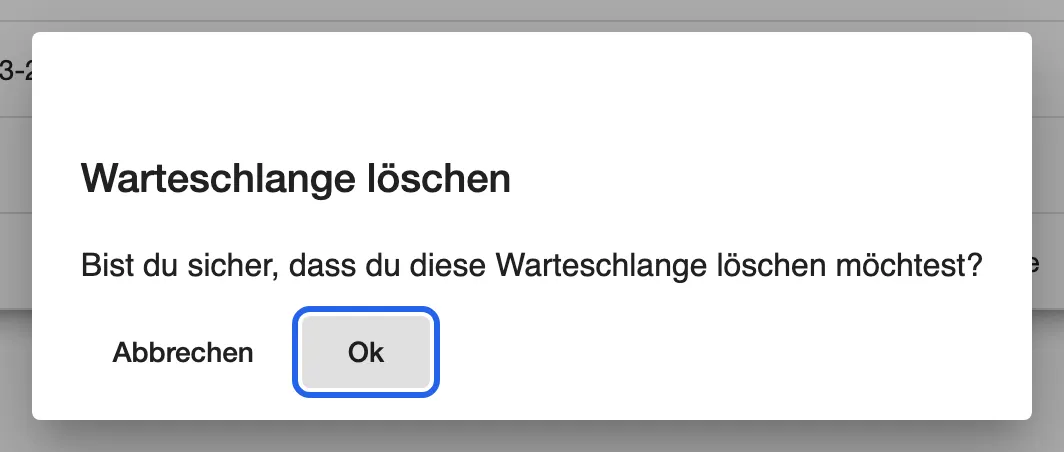
Section titled “Delete a queue”Select the bin icon at the end of the row, then Ok in “Warteschlange löschen” (delete queue).
What this screenshot shows
- Screen
- Warteschlangen
- Highlighted
- “Ok”: deletes the queue
- Also visible
- Title Warteschlange löschen and the question; Buttons Abbrechen and Ok
- Purpose
- delete a queue
The queue and its links to pipelines are gone at once, and you can’t undo it. Jobs it took in stay in the job lists. Files and emails stay on your server.
Every control, explained
Section titled “Every control, explained”
Every control, explained
Section titled “Every control, explained”Warteschlangentyp (queue type)
Section titled “Warteschlangentyp (queue type)”In the queue dialog, under Allgemein (general). Saved with Ok.
Sets where jobs come from. The choices are “API Warteschlange” and “Manuelle Warteschlange”, plus E-Mail Warteschlange and FTP Warteschlange. The type decides which fields appear. You can’t change it after saving: the field is dimmed when you edit a queue.
To pick the way your documents arrive. To switch types, create a new queue and connect it to the pipeline.
Dateimuster (file pattern), FTP queues only
Section titled “Dateimuster (file pattern), FTP queues only”In the FTP Warteschlange section of the queue dialog.
Only files whose names match are taken in. * stands for any characters. The default is *.pdf. The match is case-sensitive and may sit anywhere in the name. If you clear the field, the queue takes in every file of the folder.
To leave other files in a shared folder alone, for example invoices next to delivery notes.
Ablage nach Verarbeitung and Ablage nach Fehler (folders after processing and after an error)
Section titled “Ablage nach Verarbeitung and Ablage nach Fehler (folders after processing and after an error)”In the FTP Warteschlange or E-Mail Warteschlange section. The lists show the folders of the chosen server.
After a job is created, the file or email moves to Ablage nach Verarbeitung. If creating the job fails, it moves to Ablage nach Fehler. Without an error folder, failed files also go to the processed folder.
So the inbox only holds what’s still waiting, and you can see at a glance which files failed.
Columns of the list
Section titled “Columns of the list”| Column | What it shows | Why |
|---|---|---|
| ID | The queue’s number | Other systems address an API queue by this ID |
| Anzeigename | The queue’s name | Find the queue in pipelines |
| Typ | One of the four queue types | See where its jobs come from |
| Details | Currently always empty | – |
Other controls on this page (7)
| Control | What it does | Why |
|---|---|---|
| + | Opens “Neue Warteschlange anlegen” | Create a queue |
| Pencil icon | Opens the queue in the same dialog | Rename it or change its server and folders |
| Bin icon | Asks for confirmation, then deletes the queue | Remove a queue you no longer use |
| Warteschlangenname | The queue’s name | Recognize it in lists and pipelines |
| FTP- Server / Mail- Server | The saved server the queue reads | Choose the source |
| Eingang | The folder the queue watches | Choose where new documents arrive |
| Abbrechen | Closes the dialog without saving | Leave without changes |
Who sees what
Section titled “Who sees what”
Who sees what
Section titled “Who sees what”| Part | Who sees it |
|---|---|
| The gear icon and Warteschlangen | The comrce Hub Owner, who becomes the comrce cloudprint administrator at the first sign-in |
| Other comrce Hub members | They don’t see the gear icon or this screen |
What you need to know
Section titled “What you need to know”
What you need to know
Section titled “What you need to know”| Topic | Fact |
|---|---|
| Check interval | FTP and email queues check every two minutes. You can’t change it. |
| Without a pipeline | Files and emails stay in the inbox folder until a pipeline is connected. |
| File types | comrce cloudprint handles PDF, PNG and JPEG. An email attachment of another type sends the email to the error folder. |
| Email attachments | Every attachment of an email becomes its own job. |
| Deleting a server | Deleting an FTP server also deletes its FTP queues. Deleting a mail server keeps its email queues. |
Frequently asked questions
Section titled “Frequently asked questions”
Frequently asked questions
Section titled “Frequently asked questions”General
Section titled “General”Where do I find the queues in comrce cloudprint?
Section titled “Where do I find the queues in comrce cloudprint?”Select the gear icon at the right end of the top bar, then Erweiterte FunktionenWarteschlangen. Only the comrce Hub Owner sees the gear icon, because only the Owner is the comrce cloudprint administrator.
Why are there queues I never created?
Section titled “Why are there queues I never created?”When the Service Client registers a printer, comrce cloudprint creates a manual queue and an API queue for it. Their names start with “Input for”, then the printer name and the Service Client’s ID. Each pair is connected to a pipeline for that printer.
Can I rename a queue?
Section titled “Can I rename a queue?”Yes. On Warteschlangen, select the pencil icon, change Warteschlangenname and select Ok. The ID stays the same. A system that picks the queue by its name won’t find it under the old name.
Can I change a queue’s type?
Section titled “Can I change a queue’s type?”No. Warteschlangentyp is dimmed when you edit a queue. Create a new queue of the right type on Warteschlangen. Connect it to the pipeline and delete the old one.
FTP and email queues
Section titled “FTP and email queues”How often does a queue check for new files?
Section titled “How often does a queue check for new files?”FTP and email queues check every two minutes. You can’t set a shorter or longer interval. When no pipeline is connected, nothing is taken in, and the files stay in the inbox folder.
Which files does an FTP queue pick up?
Section titled “Which files does an FTP queue pick up?”Every file in the Eingang folder whose name matches Dateimuster. The default pattern is *.pdf, and the match is case-sensitive. Subfolders aren’t read. If you clear the pattern, every file of the folder is taken in.
Which attachments does an email queue print?
Section titled “Which attachments does an email queue print?”Each attachment of an email in the inbox folder becomes its own job. PDF, PNG and JPEG work. With any other file type, comrce cloudprint can’t create the job and moves the email to the error folder.
Can I process only unread emails?
Section titled “Can I process only unread emails?”Yes, on the mail server, not on the queue. Edit the server on Email server. Tick Nur ungelesene Nachrichten verarbeiten. in IMAP Mailabruf. Then save. comrce cloudprint then marks each email as read once it has fetched it.
Why can’t I choose my mail server in the queue dialog?
Section titled “Why can’t I choose my mail server in the queue dialog?”The Mail- Server list only shows mail servers with E-Mail empfangen ticked. Open Email server, edit the server, tick the box and save. Then open the queue dialog again.
Deleting
Section titled “Deleting”What happens to the jobs when I delete a queue?
Section titled “What happens to the jobs when I delete a queue?”They stay. Jobs the queue took in remain in Pipeline-Aufträge and Client-Aufträge. Deleting the queue only removes it and its links to pipelines. Files and emails on your server aren’t touched.
Can I undo deleting a queue?
Section titled “Can I undo deleting a queue?”No. After Ok in “Warteschlange löschen” the queue is gone. Create it again on Warteschlangen and connect it to the pipeline once more.
Troubleshooting
Section titled “Troubleshooting”
Troubleshooting
Section titled “Troubleshooting”| Symptom | What to check |
|---|---|
| Eingangs- und Ausgangsordnder dürfen nicht identisch sein. and a dimmed Ok | Choose an inbox folder that differs from both other folders. |
| Ok on an FTP queue does nothing | Choose Eingang and Ablage nach Verarbeitung. Without both, comrce cloudprint refuses to save, and the dialog shows no message. |
| The folder lists stay empty | comrce cloudprint couldn’t sign in to the server. Test the server on FTP server or Email server. |
| Files stay in the FTP folder | Check that a pipeline is connected to the queue. Compare the file names with Dateimuster, including upper and lower case. |
| Emails land in the error folder | Check the attachment types. Only PDF, PNG and JPEG become jobs. |