

Create an account
Select Sign Up on the sign-in screen and enter your name, email address and a password. Then enter your company’s details. You get an account and a company that you own, plus a confirmation email. The link in it is valid for 7 days. Nothing is created before the last button, so you can leave the form at any point.
What you can do here
Section titled “What you can do here”- Enter your personal details and a password. Step one asks for your name, your email address and a password that meets the 12-character password rules. Fill in your details · Passwords and sign-in
- Register your company. Step two asks for the company’s name and address, and your agreement to the terms. You get the role Owner in it. Register your company
- Confirm your address. You can’t sign in with your password before you confirm. Email confirmation
- Get a new confirmation email. Resend the email from the waiting page, or from the page an expired link opens. Get a new confirmation email
The screen at a glance
Section titled “The screen at a glance”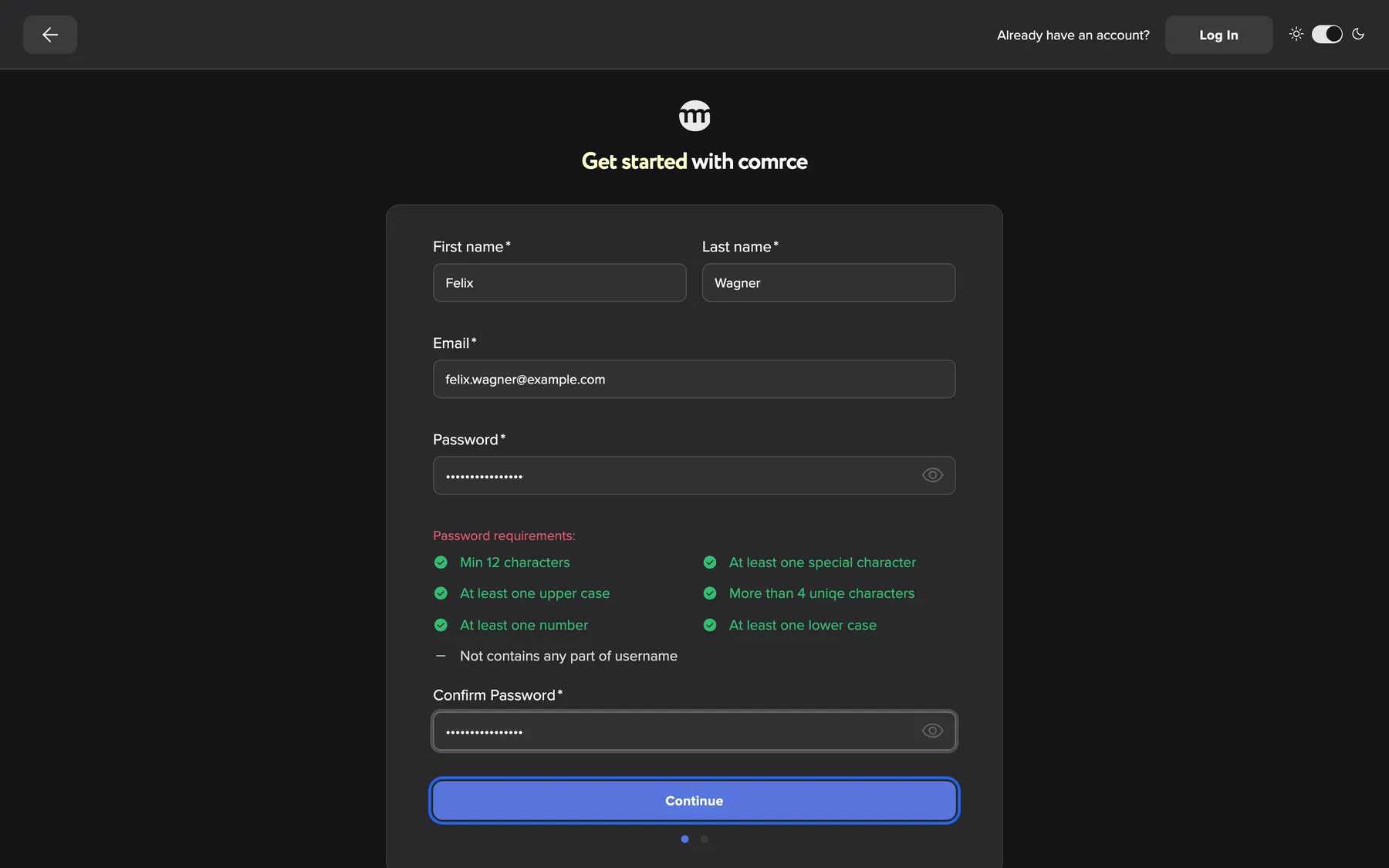
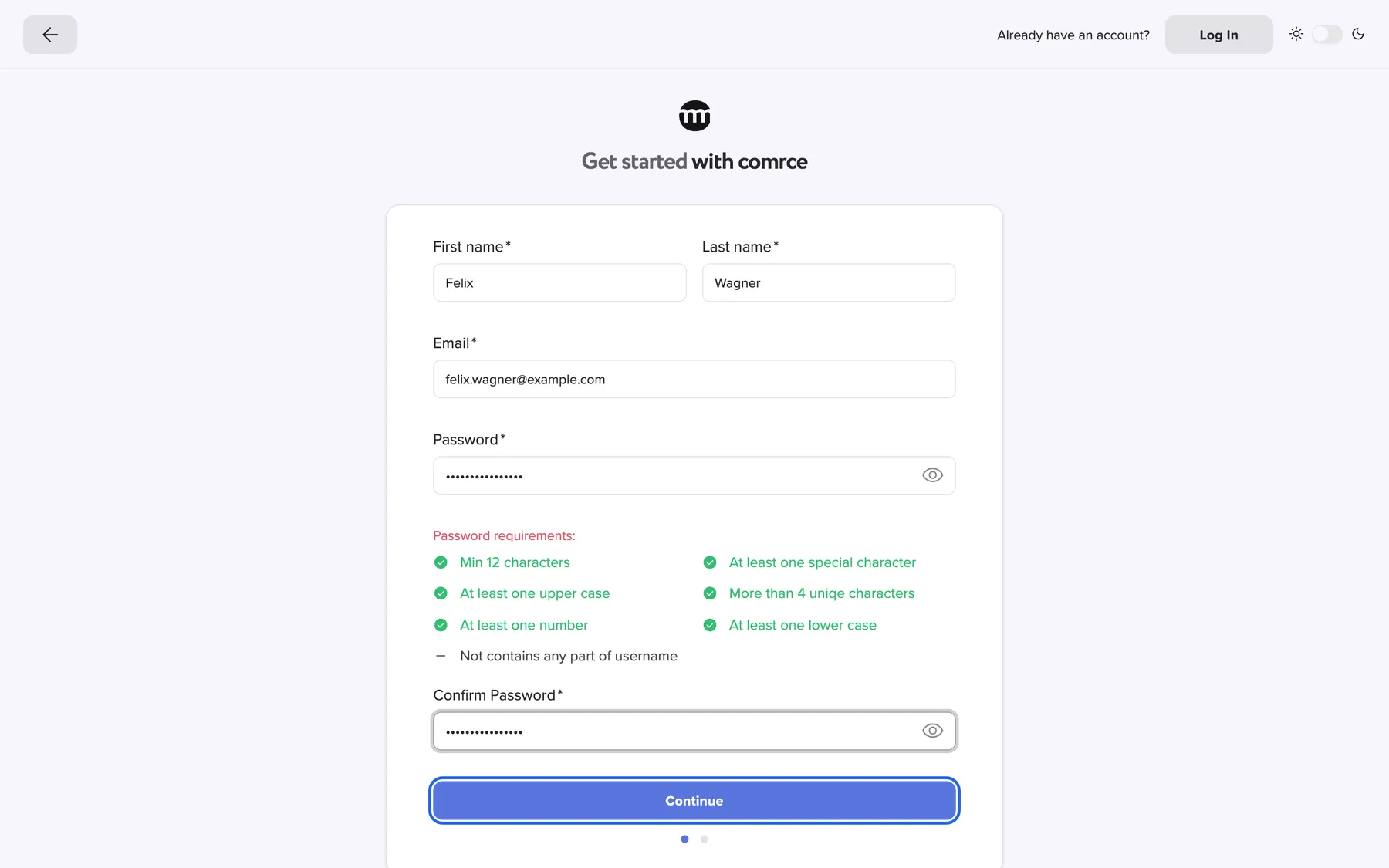
What this screenshot shows
- Highlighted
- “Continue”: checks step one and opens the company step
- Also visible
- Felix Wagner, felix.wagner@example.com; Password checklist all green
- Purpose
- step one of registration
| Region | What it shows | What you do there |
|---|---|---|
| Top bar, left | A back arrow | On step one, return to the Marketplace. On step two, go back to step one. |
| Top bar, right | Already have an account?, Log In and the theme switch | Go to the sign-in screen instead, or switch the theme |
| Heading | Get started with comrce | |
| Form card | Step one: your details and password. Step two: your company. | Fill in the fields and continue |
| Below the button | Two dots | Show which of the two steps you are on |
Fill in your details
Section titled “Fill in your details”-
On the sign-in screen, select Sign Up.
-
Enter First name, Last name and Email. The email address becomes your sign-in name.
-
Enter a Password and repeat it in Confirm Password. The list under the field turns each rule green once your password meets it.
-
Select Continue. comrce Hub checks your details and opens step two. No account is created yet.
For example, Felix Wagner with felix.wagner@example.com and the password Hafenkontor!2026 passes every rule. It has 16 characters, upper and lower case, a digit and a special character. It contains no 4-letter part of his name or email address.
If your email address already has an account, step one shows An account with this email already exists.. Sign in with that account instead, or reset its password.
Register your company
Section titled “Register your company”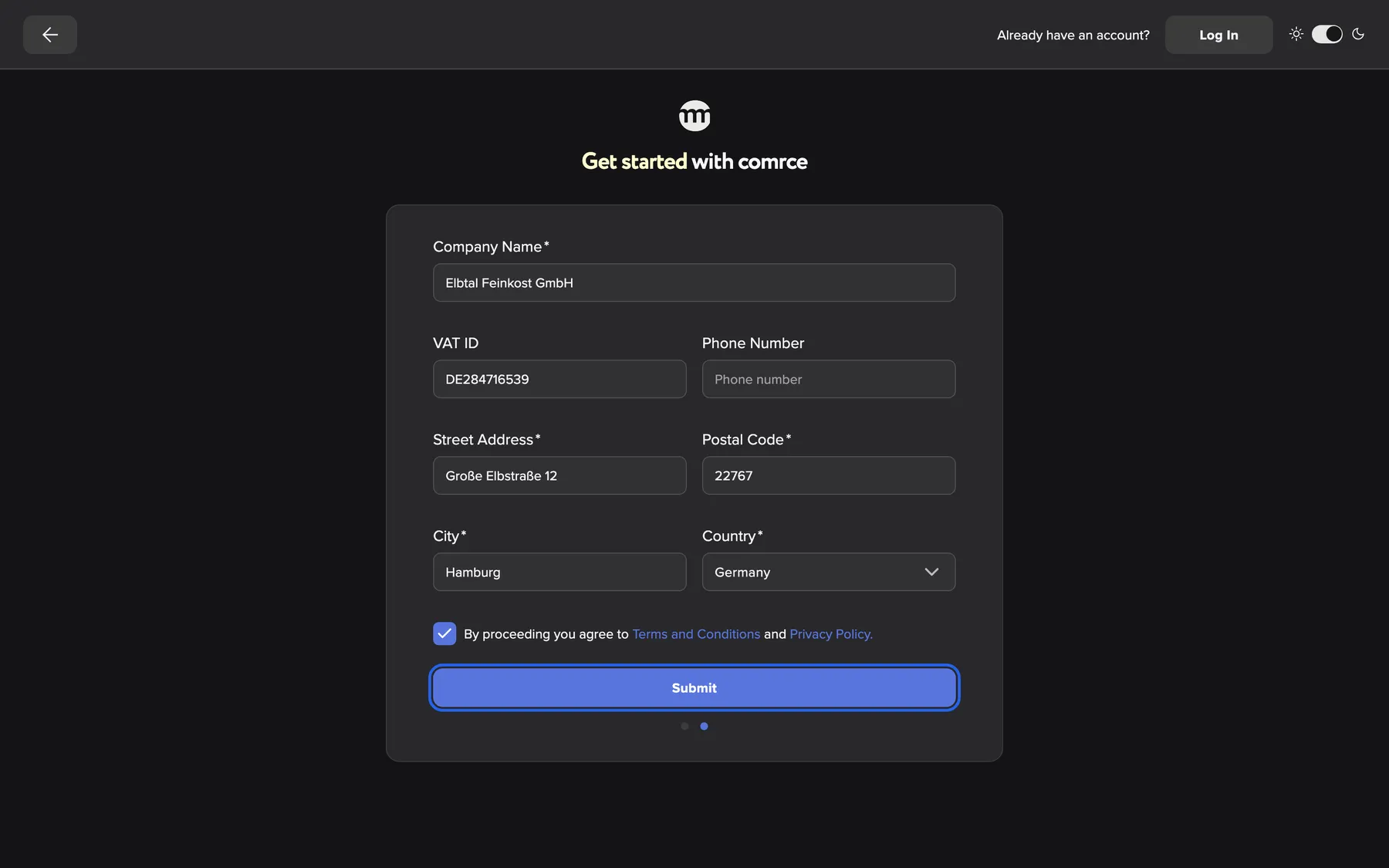
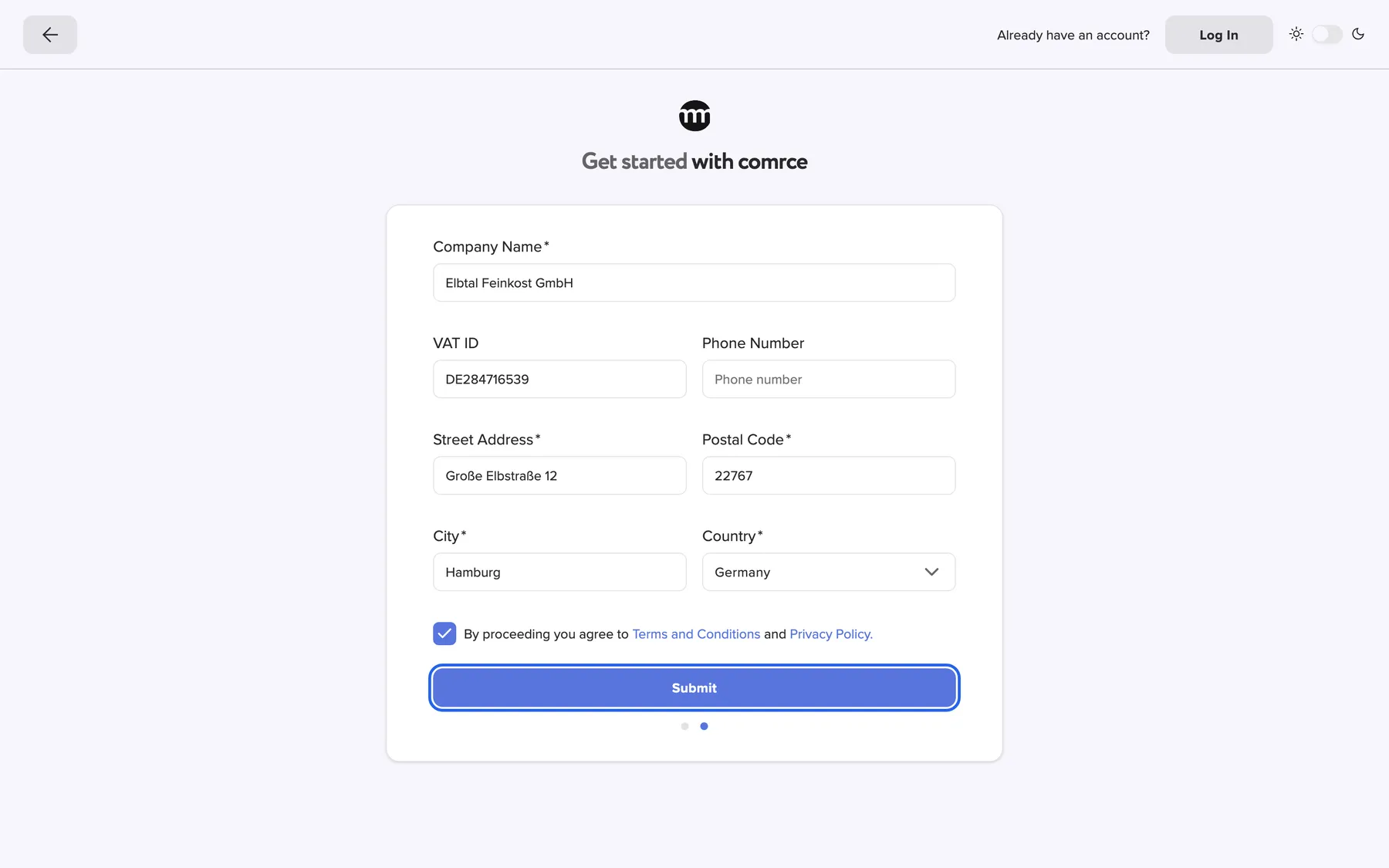
What this screenshot shows
- Highlighted
- “Submit”: creates the account and the company
- Also visible
- Elbtal Feinkost GmbH, Hamburg, Germany; Terms checkbox ticked
- Purpose
- step two of registration
-
Enter the Company Name, for example Elbtal Feinkost GmbH.
-
Optionally enter the VAT ID and a Phone Number.
-
Enter the Street Address, Postal Code and City. Choose the Country from the list. Type in the list to search it.
-
Tick the box By proceeding you agree to Terms and Conditions and Privacy Policy. Both documents open in a new browser tab.
-
Select Submit.
comrce Hub creates your account and the company, and makes you its owner. It sends a confirmation email to your address. The browser shows the waiting page from Email confirmation.
The back arrow at the left of the top bar returns to step one. Everything you typed in both steps is kept.
Unsure about a detail? The company owner can change all of them later on the Company page.
Confirm your email address
Section titled “Confirm your email address”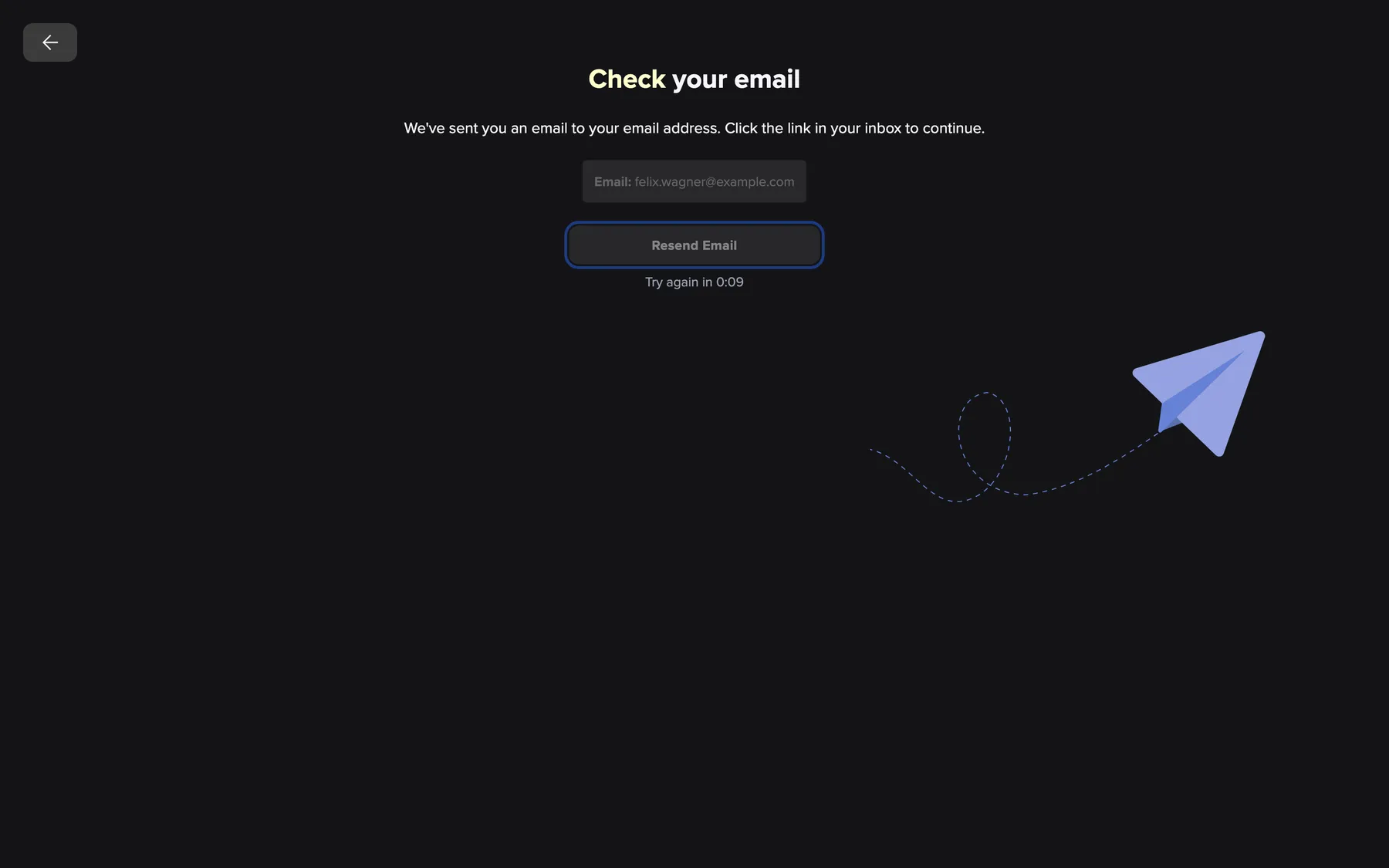
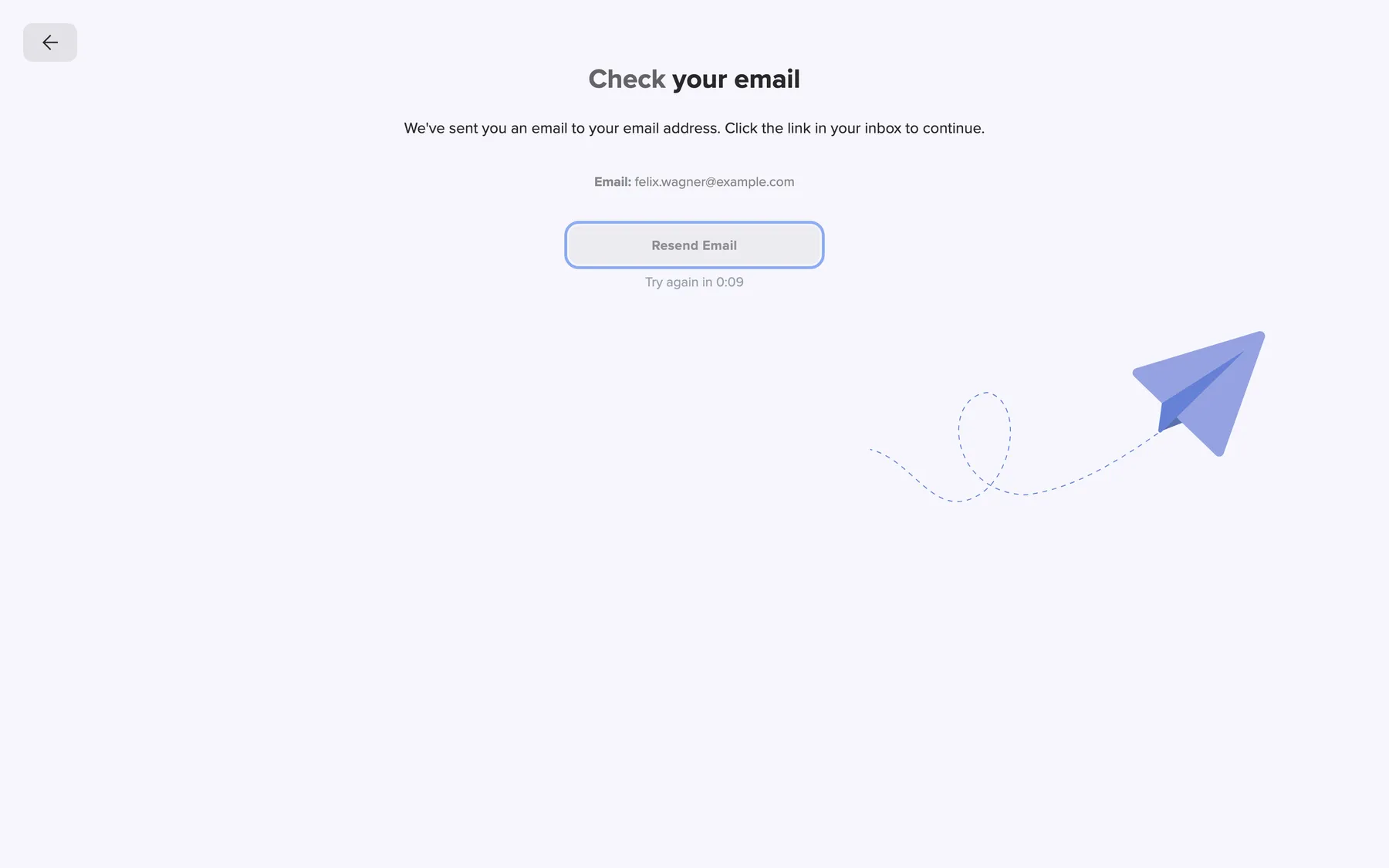
What this screenshot shows
- Highlighted
- “Resend Email”: sends a new confirmation email
- Also visible
- Email: felix.wagner@example.com; Try again in countdown
- Purpose
- waiting for email confirmation
The waiting page shows your email address and the button Resend Email.
-
Open the email from comrce Hub and select the confirmation link.
-
A page with Confirm your email opens. Select Confirm email.
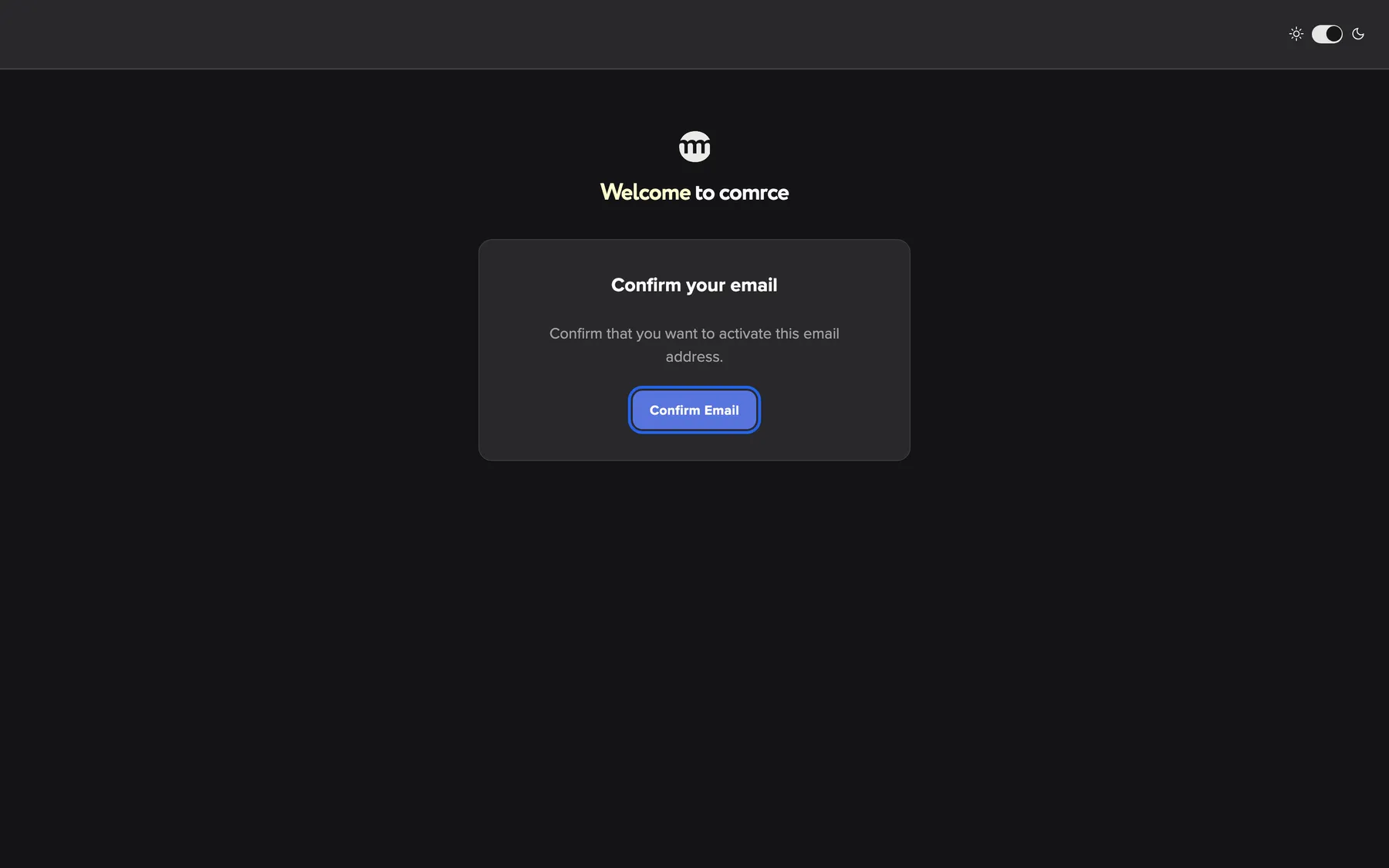
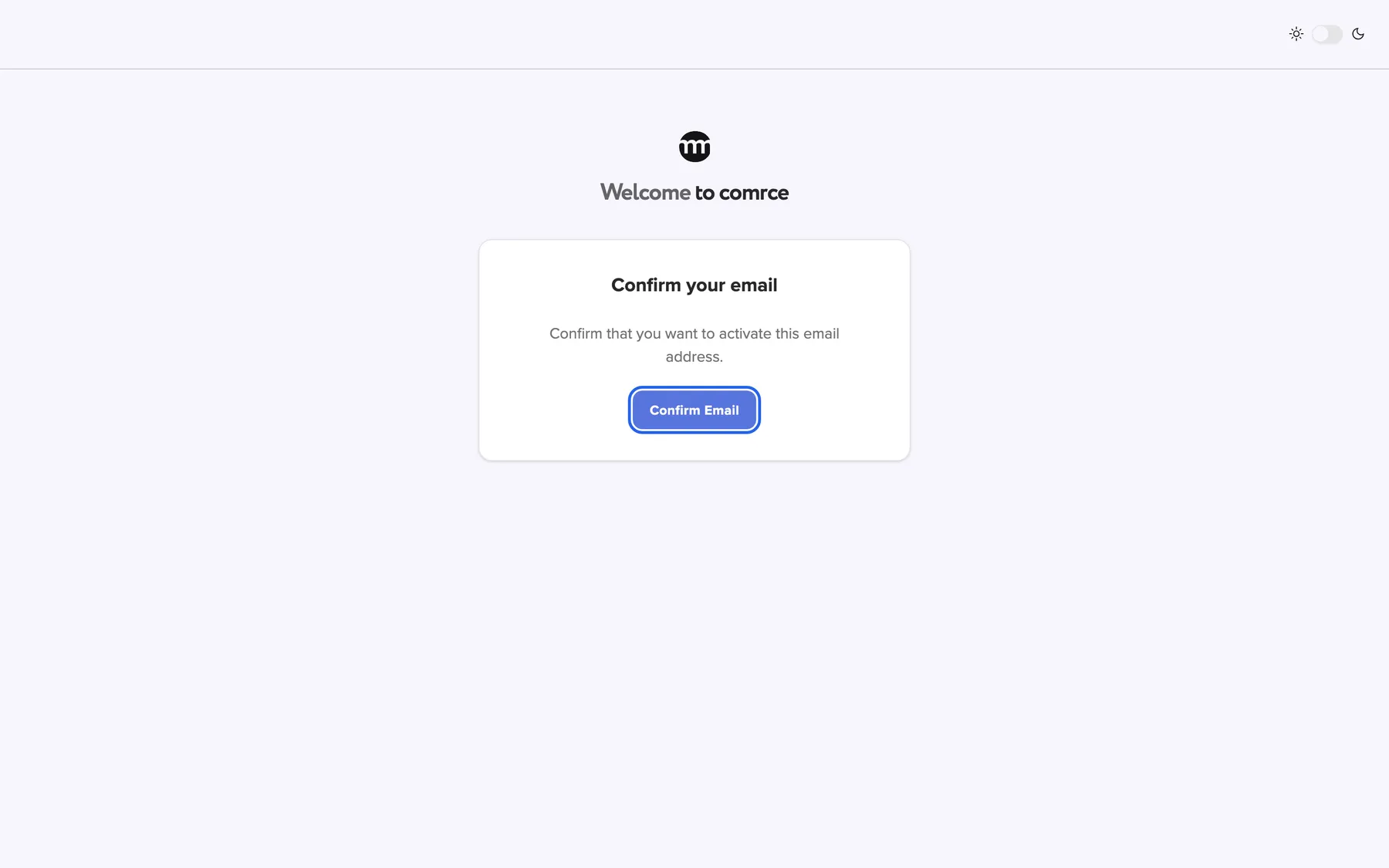
The link from the email opens this page. Confirm email activates your account. What this screenshot shows
- Highlighted
- “Confirm email”: confirms the email address
- Also visible
- Confirm your email card
- Purpose
- confirming the email address
-
The sign-in screen opens with Email confirmed, you may now login.. Sign in with your email address and password.
The extra click is on purpose. Some email programs open links automatically to scan them. The click makes sure that only you can confirm.
Get a new confirmation email
Section titled “Get a new confirmation email”There are two places to ask for a new email:
| Where you are | What you do |
|---|---|
| The waiting page after registration | Select Resend Email. After the page opens and after each email, the button waits a few seconds. Try again in shows the remaining time. |
| A link that is too old or no longer valid | The page shows Unfortunately, this link has expired or Something went wrong. Select Resend Confirmation. |
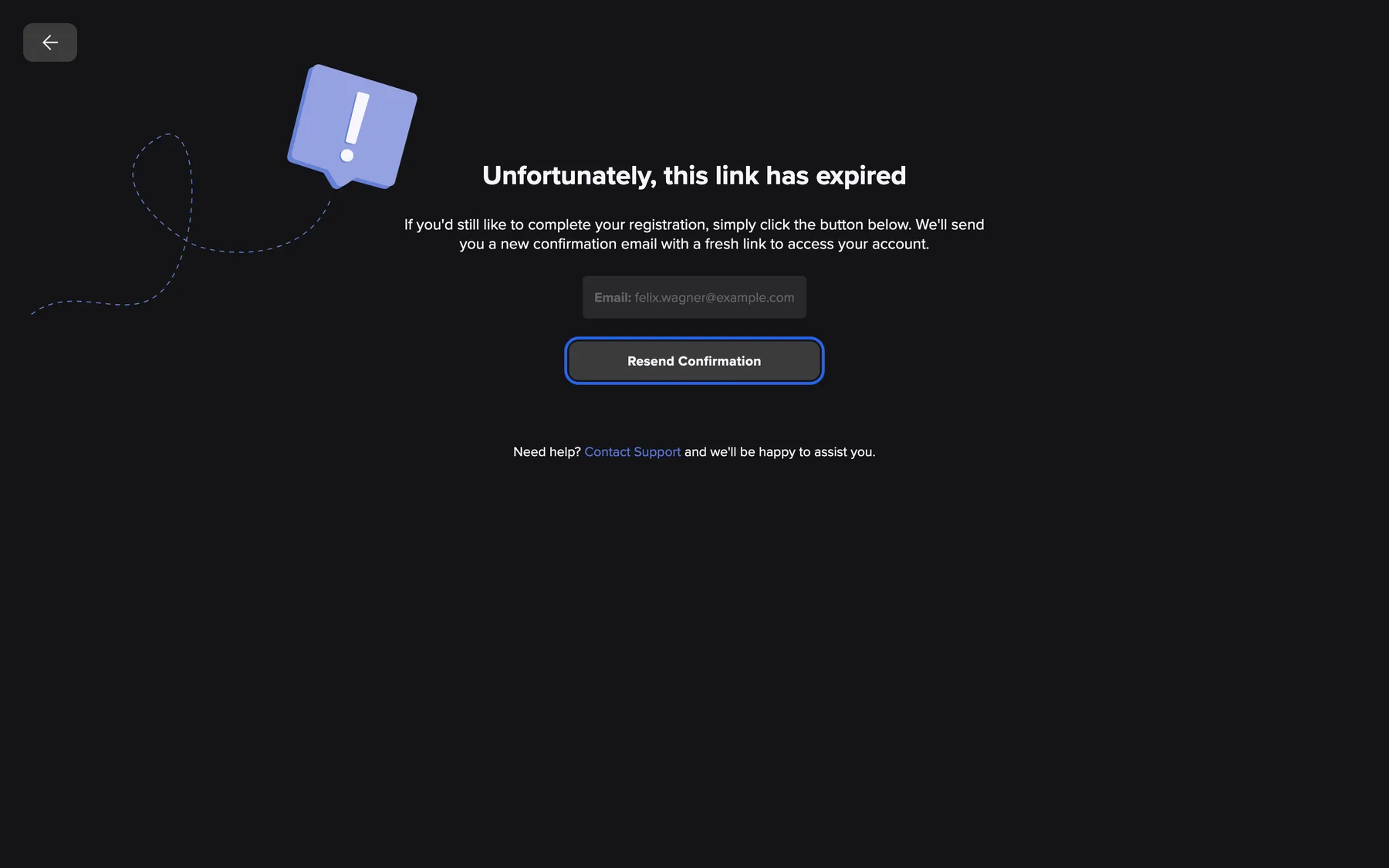
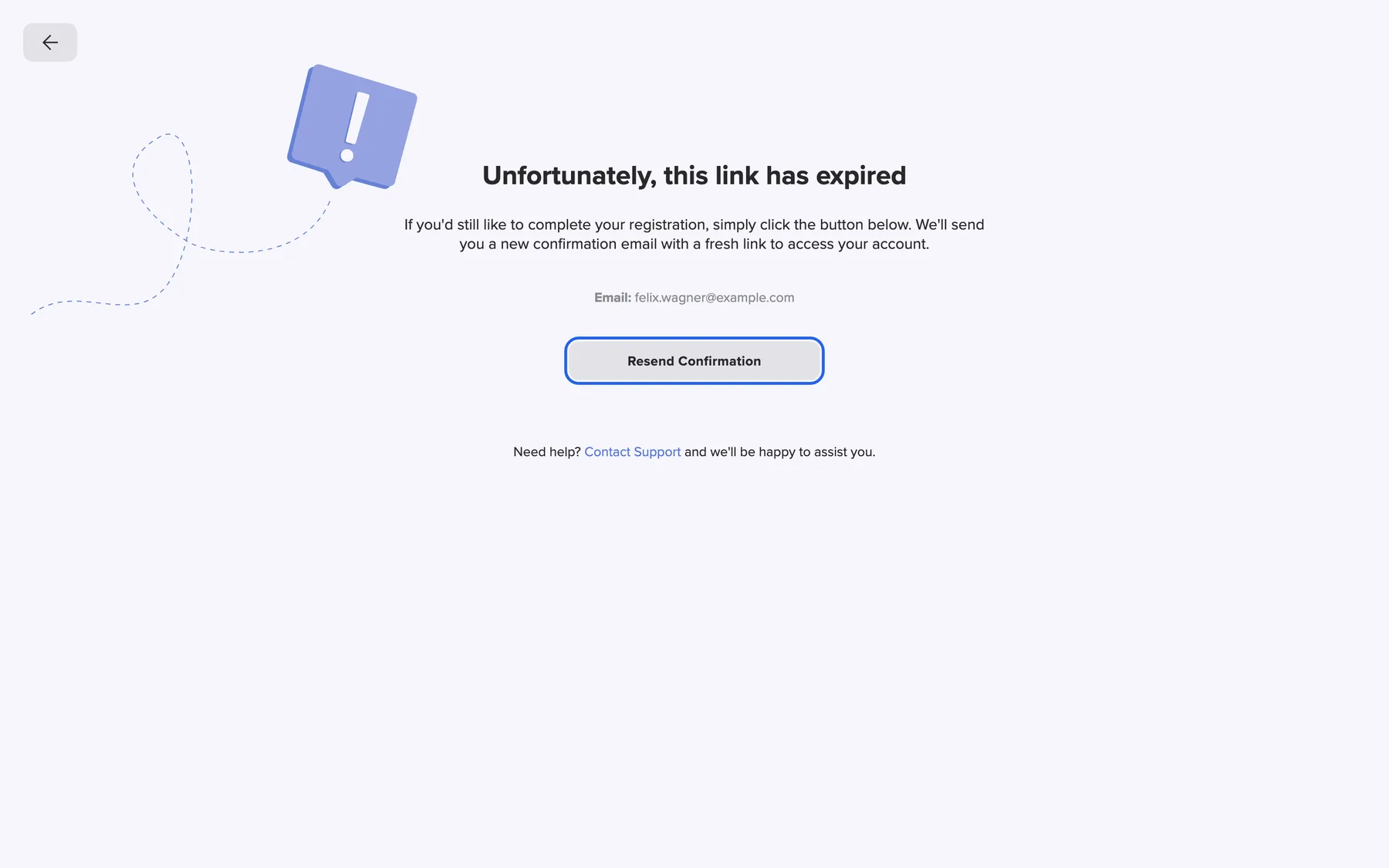
What this screenshot shows
- Highlighted
- “Resend Confirmation”: sends a new confirmation email
- Also visible
- Email: felix.wagner@example.com; Contact Support link
- Purpose
- recovering from an expired confirmation link
When the email was sent, the page shows Email sent successfully!. Each new email contains a new link, so use the newest one. If your address is already confirmed, the page says Email is already confirmed.. Then sign in.
Sometimes the page cannot show your email address, for example in another browser. It then shows a card with the field Email:. Type the address you registered with and select the button below the field. An empty field shows Email is required. A mistyped address shows Invalid email address.
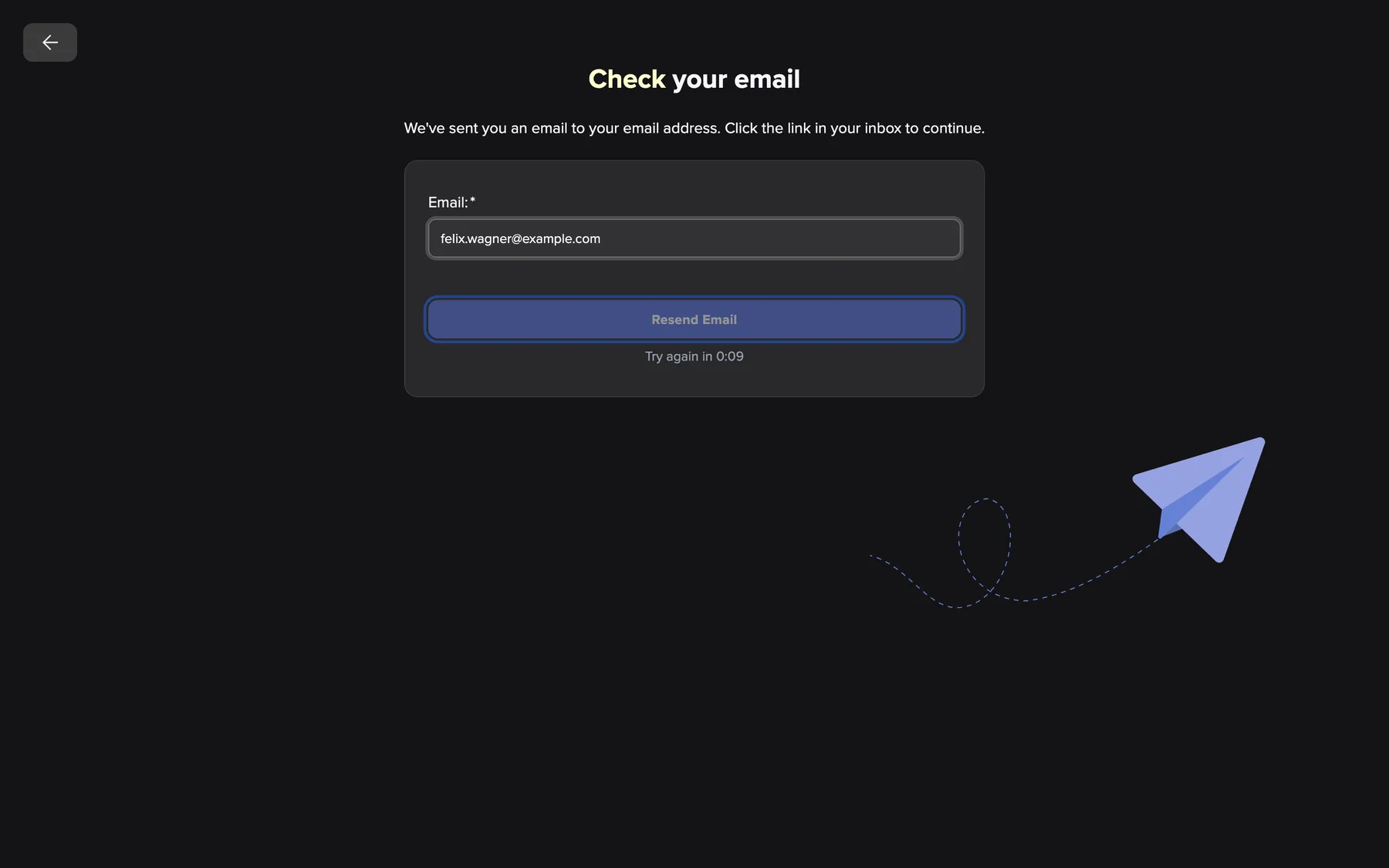
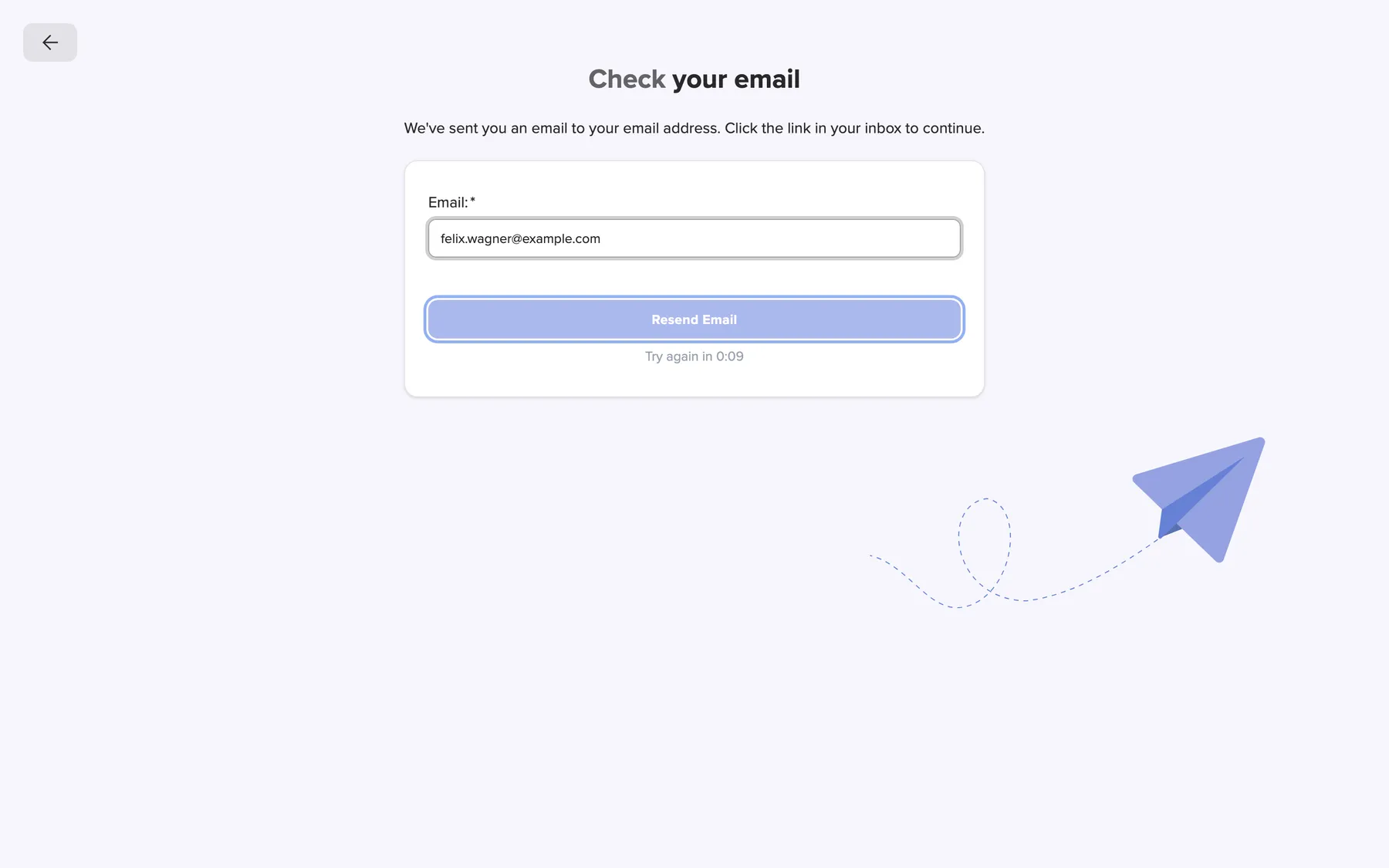
What this screenshot shows
- Highlighted
- “Resend Email”: validates the address and sends a new confirmation email
- Also visible
- Email: field with felix.wagner@example.com; Try again in countdown
- Purpose
- resending the confirmation email when the page does not know the address
Every control, explained
Section titled “Every control, explained”
Every control, explained
Section titled “Every control, explained”Password requirements list
Section titled “Password requirements list”Under the password field on step one, titled Password requirements:.
One line per rule. A line turns green with a tick when your password meets it. It stays red with a cross while it does not. The line Not contains any part of username has a dash, because comrce Hub checks it only when you continue. Messages under the password field appear after your first attempt to continue.
You see what is missing while you type, instead of after a rejected form.
Continue
Section titled “Continue”The button Continue at the bottom of step one.
Checks the fields of step one. It also checks that the email address is free and the password is accepted. If both are fine, step two opens. Nothing is saved yet.
You learn that your address already has an account before you type in the company details.
Your details
Section titled “Your details”| Field | What it does | Rules |
|---|---|---|
| First name | Your first name, shown to your team and in the logs | Required |
| Last name | Your last name | Required |
| Your sign-in name and the address for every comrce Hub email | Required, and not used by another account. Spaces and letters such as ä or é are refused with Invalid email address. | |
| Password | Your password | At least 12 characters, with an upper-case and a lower-case letter, a digit and a special character. At least 4 different characters, and no 4-letter part of your name or email. |
| Confirm Password | The same password again | Must match. Otherwise you see Passwords must match. |
No field on either step accepts HTML. Text that looks like HTML shows HTML markup is not allowed.
Company details
Section titled “Company details”| Field | What it does | Rules |
|---|---|---|
| Company Name | The name of your company in comrce Hub | Required |
| VAT ID | Your VAT identification number | Optional |
| Phone Number | A phone number for your company | Optional |
| Street Address | Street and house number | Required |
| Postal Code | The postcode of the address | Required |
| City | City | Required |
| Country | Country, chosen from a searchable list | Required |
The company owner can change these details later on the Company page.
Terms and privacy checkbox
Section titled “Terms and privacy checkbox”Above the button on step two: By proceeding you agree to Terms and Conditions and Privacy Policy.
Required. Without the tick, you see You must accept the terms. The two links open the documents in a new tab.
The terms and the privacy policy apply to your company’s use of comrce Hub.
Back and Log In
Section titled “Back and Log In”The back arrow at the left of the top bar, and Log In at its right, on both steps.
On step two, the arrow returns to step one and keeps your entries. On step one, it leaves the registration and opens the Marketplace, or the Marketplace page you came from. Log In leaves the registration and opens the sign-in screen. If you came from a Marketplace page, the sign-in screen keeps it. Leaving the registration discards your entries.
Use Log In when you realise you already have an account. The arrow on step one is your way back if you only wanted to look around the Marketplace.
Other controls on this page
| Control | What it does | Why |
|---|---|---|
| Submit | Creates your account and your company and sends the confirmation email. If something cannot be saved, a red message appears above the button. | Nothing is stored until you select it. |
| Theme switch | At the right end of the top bar. Switches between a light and a dark look, as on the sign-in screen. | Some people read better on a light background. |
What you need to know
Section titled “What you need to know”
What you need to know
Section titled “What you need to know”| Topic | Fact |
|---|---|
| What gets created | One personal account and one company. You are the company’s owner and have every permission in it. |
| Confirmation link | Each resend sends a new link. Use the newest one. |
| Signing in before confirming | Not possible with your password. comrce Hub shows Email not confirmed.. |
| Language of your account | Your new account starts in the language of the registration form. The form follows your browser’s language when comrce Hub offers it, and English otherwise. |
| Registering with Google | Continue with Google with an unknown address opens this form with your name and email filled in. You still set a password and confirm your email. |
| First sign-in | comrce Hub asks for your cookie choices, then for setting up two-factor authentication. See The comrce Hub workspace and Two-factor authentication. |
Frequently asked questions
Section titled “Frequently asked questions”
Frequently asked questions
Section titled “Frequently asked questions”Registering
Section titled “Registering”Do I need to register if a colleague invited me?
Section titled “Do I need to register if a colleague invited me?”No. Open the invitation email and follow its link. You create your account there and join the company that invited you. Registering through Sign Up instead creates a separate company that you own. That is rarely what you want.
It says “An account with this email already exists”. What now?
Section titled “It says “An account with this email already exists”. What now?”comrce Hub found an account with that email address when you selected Continue. Sign in with it on the sign-in screen. If you forgot its password, use Forgot password? there. One email address can have only one comrce Hub account.
Why is my password not accepted although every line is green?
Section titled “Why is my password not accepted although every line is green?”One rule is checked only when you select Continue. The password must not contain any 4-letter part of your name or email address. The message under the field then reads Password cannot contain parts of username.. For example, use Hafenkontor!2026 instead of Felix-Wagner-2026.
Is the VAT ID required?
Section titled “Is the VAT ID required?”No. VAT ID and Phone Number are optional. Company name, street, postcode, city and country are required. The owner can change the VAT ID later on the Company page.
Which language will comrce Hub use after I register?
Section titled “Which language will comrce Hub use after I register?”The language the registration form was shown in. The form follows your browser’s language when comrce Hub offers it, and shows English otherwise. To change it, open Settings after signing in and choose another language.
Can I go back to step one without losing my entries?
Section titled “Can I go back to step one without losing my entries?”Yes. On step two, select the back arrow at the left of the top bar. comrce Hub keeps everything you typed in both steps. Leaving the registration discards them. That happens with Log In at the top right, or with the arrow on step one.
Confirming your email
Section titled “Confirming your email”I did not receive the confirmation email.
Section titled “I did not receive the confirmation email.”Check your spam folder and that the address on the waiting page is right. Then select Resend Email. If the address is wrong, register again with the correct address. The unconfirmed account cannot be used.
The confirmation link says it has expired.
Section titled “The confirmation link says it has expired.”Confirmation links are valid for 7 days. On the page that opens, select Resend Confirmation. comrce Hub sends a new email with a fresh link. Open the newest email and confirm in time.
Why do I have to click a button after opening the link?
Section titled “Why do I have to click a button after opening the link?”Some email programs open every link automatically to check it for viruses. Such a scan could otherwise confirm the address without you. The Confirm email button makes sure a person confirms.
Can I sign in with Google before confirming my email?
Section titled “Can I sign in with Google before confirming my email?”Yes, if the Google account has the same, verified email address. The confirmation is needed only for signing in with your password. Continue with Google relies on Google’s own check of the address.
Troubleshooting
Section titled “Troubleshooting”
Troubleshooting
Section titled “Troubleshooting”| Symptom | What to check |
|---|---|
| An account with this email already exists. on step one | The address already has an account. Sign in, or reset its password. |
| HTML markup is not allowed under a field | The field contains angle brackets with text, which looks like HTML. Remove the angle brackets. |
| You must accept the terms | Tick the terms and privacy checkbox above Submit. |
| Invalid email address under the email field | Spaces, letters with accents such as ä or é, or a missing @ or domain. Type the address as your email provider shows it. |
| “Too many requests. Please try again later.” | Too many requests came from your network in a short time. The message is always in English. Wait a minute and try again. |
| The confirmation email does not arrive | Spam folder, then the address on the waiting page, then Resend Email. |
| Unfortunately, this link has expired | The link is too old. Select Resend Confirmation. |
| Email not confirmed. when signing in | You have not confirmed the address yet. Use the newest confirmation email. |