

Open a tool
comrce Hub opens four tools: Amainvoice, Billbee, Replyco and VentoryOne. Select a tool’s icon at the top of the sidebar. The tool opens in its own comrce Hub tab. All four open, look and ask for access the same way. This page covers how a tool opens and who may open it.
What you can do here
Section titled “What you can do here”- Open a tool with one click. The sidebar icon opens the tool and passes on your comrce Hub email address. Open a tool.
- Keep a tool beside your other work. Its tab stays open while you work in other tabs. The tool’s tab.
- Ask for access. If you may see a tool but not open it, you ask the company owner from its tab. When a tool doesn’t open for you or a colleague · Tool access and single sign-on.
The screen at a glance
Section titled “The screen at a glance”A tool opens inside comrce Hub, with the sidebar, the tab strip and the top bar around it. In the screenshot, the tab shows Amainvoice’s own sign-in page in German. That page belongs to Amainvoice, not to comrce Hub.
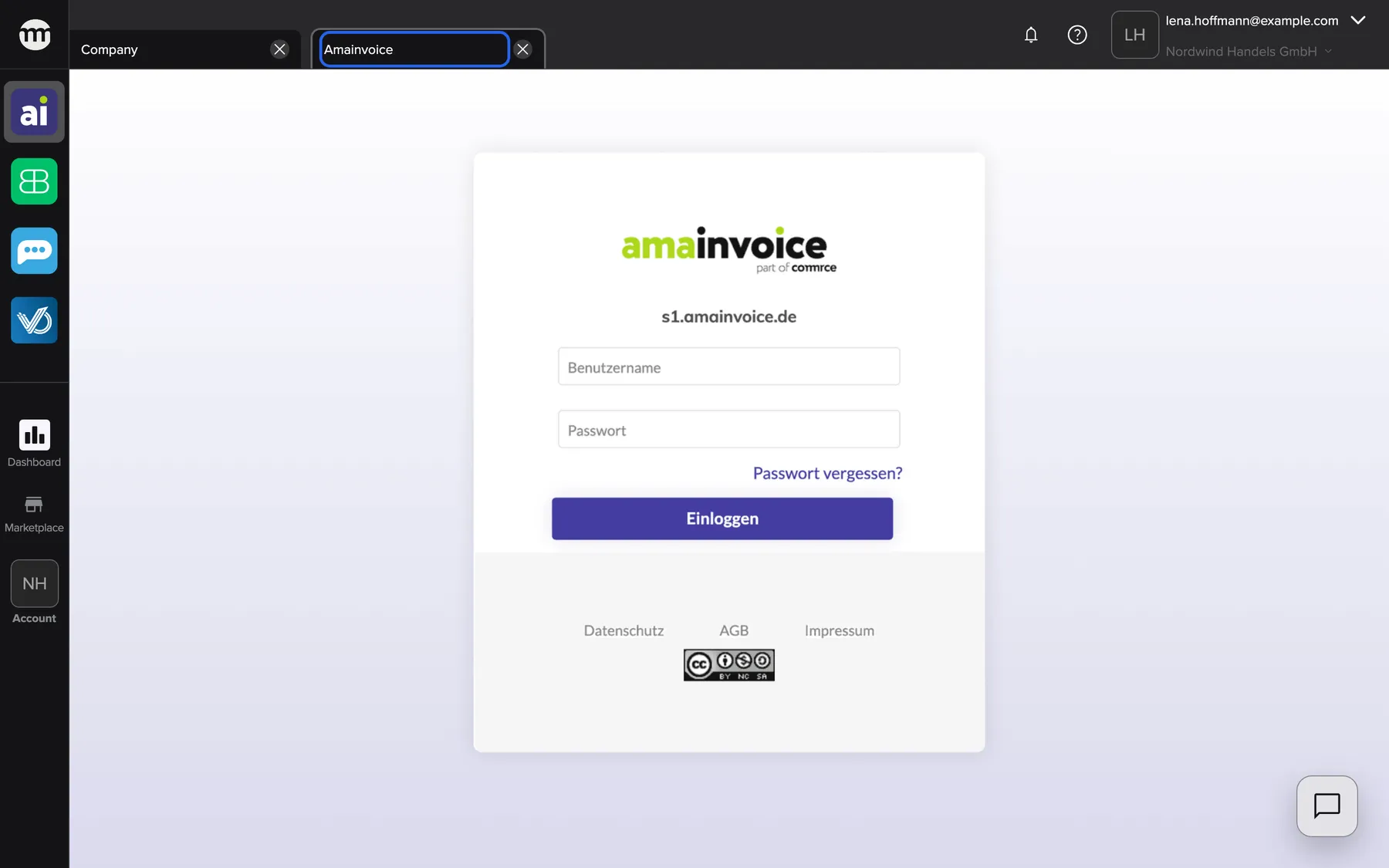
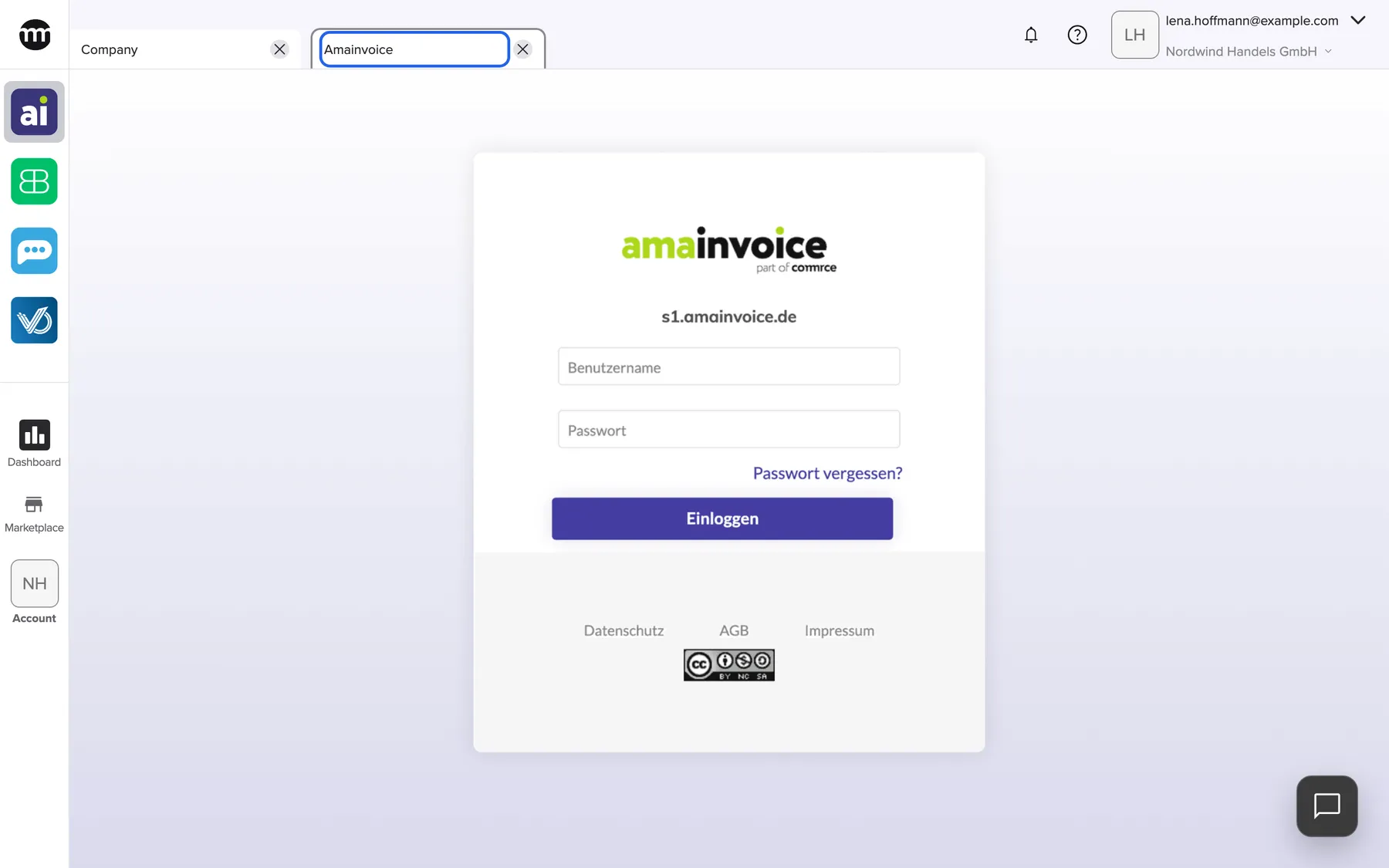
What this screenshot shows
- Screen
- Amainvoice
- Highlighted
- “Amainvoice”: shows the tool; the close button closes the tab
- Also visible
- Sidebar: tool icon marked active; Tool area: Amainvoice's own sign-in page
- Purpose
- the in-app tab a tool opens in
| Region | What it shows | What you do there |
|---|---|---|
| Sidebar, top | The four tool icons, with the open tool’s icon marked active | Switch to another tool |
| Tab strip | The tool’s tab, named after it, next to your other open tabs | Switch tabs or close the tool tab |
| Content area | The tool’s own interface, such as its sign-in page | Sign in to the tool and work in it |
| Top bar | Notifications, help, your account and the current company | The same as on every comrce Hub page |
The four tools
Section titled “The four tools”The icons sit at the top of the sidebar in this order. Each tool has one permission to see its icon and one to open it.
| Tool | What it is for | To see the icon | To open it |
|---|---|---|---|
| Amainvoice | Keep your Amazon taxes under control with Amainvoice, including OSS, VAT checks, and reporting. | Viewing Amainvoice | Opening Amainvoice |
| Billbee | Use Billbee to manage orders, shipping, and invoices from every sales channel in one tool. | Viewing Billbee | Opening Billbee |
| Replyco | Replyco brings customer communication from every channel together and automates support processes for e-commerce. | Viewing Replyco | Opening Replyco |
| VentoryOne | Use VentoryOne to manage inventory and stock movements simply and reliably for clean warehouse processes. | Viewing VentoryOne | Opening VentoryOne |
Each tool shows its own sign-in page in its tab. Billbee and VentoryOne show it in German, like Amainvoice. Replyco shows it in English.
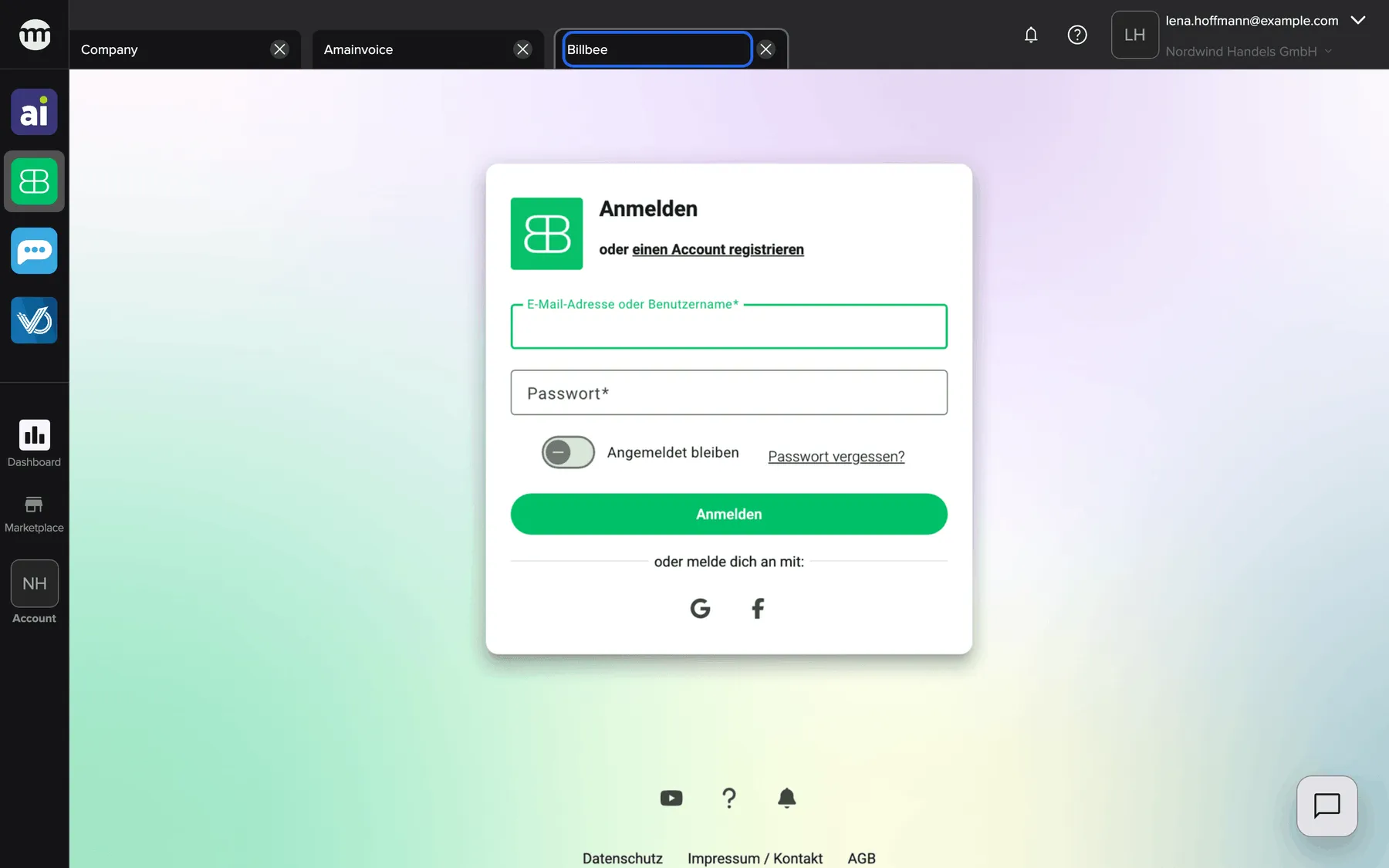
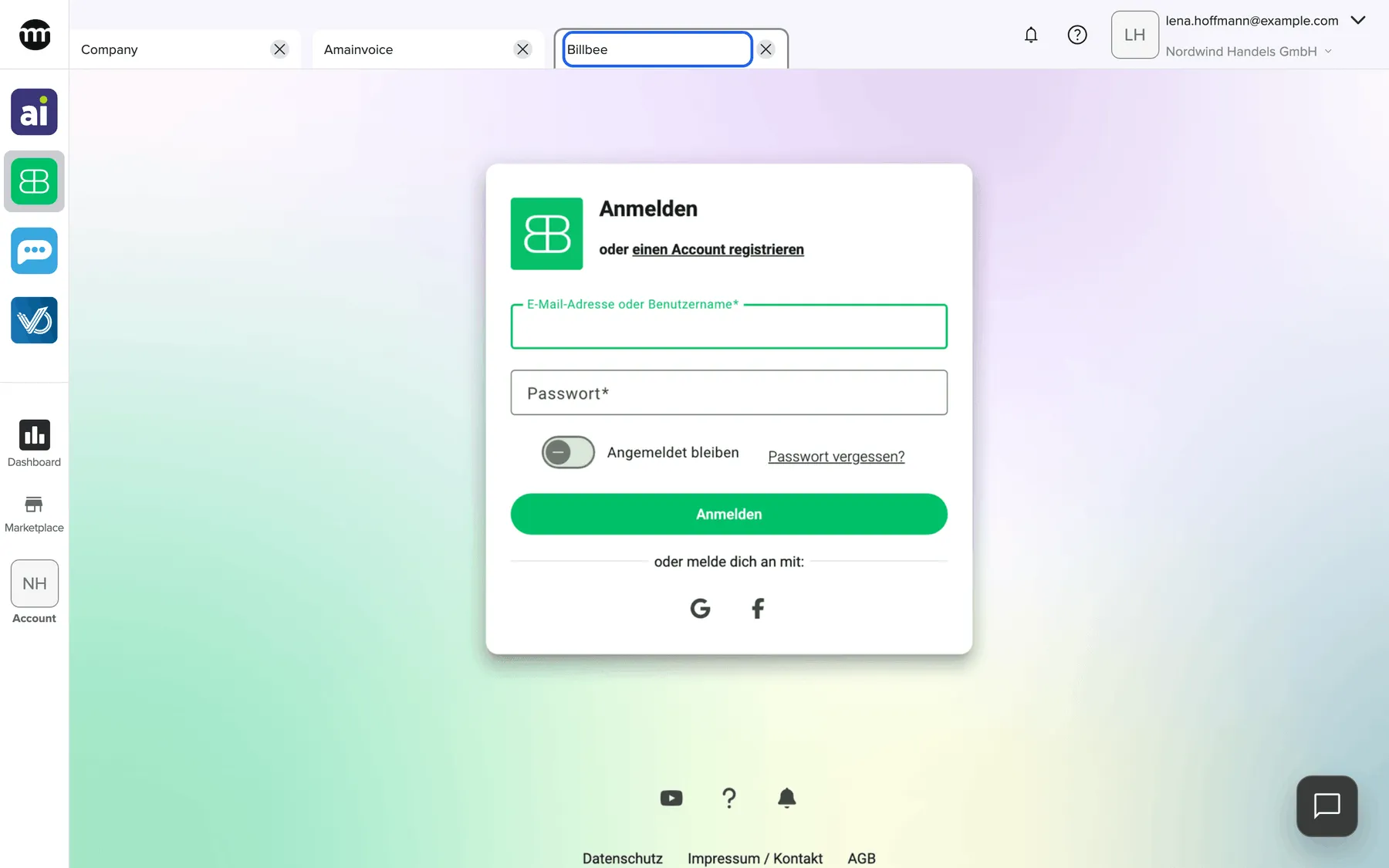
What this screenshot shows
- Screen
- Billbee
- Highlighted
- “Billbee”: shows the tool; the close button closes the tab
- Also visible
- Sidebar: tool icon marked active; Tool area: Billbee's own sign-in page
- Purpose
- the in-app tab a tool opens in
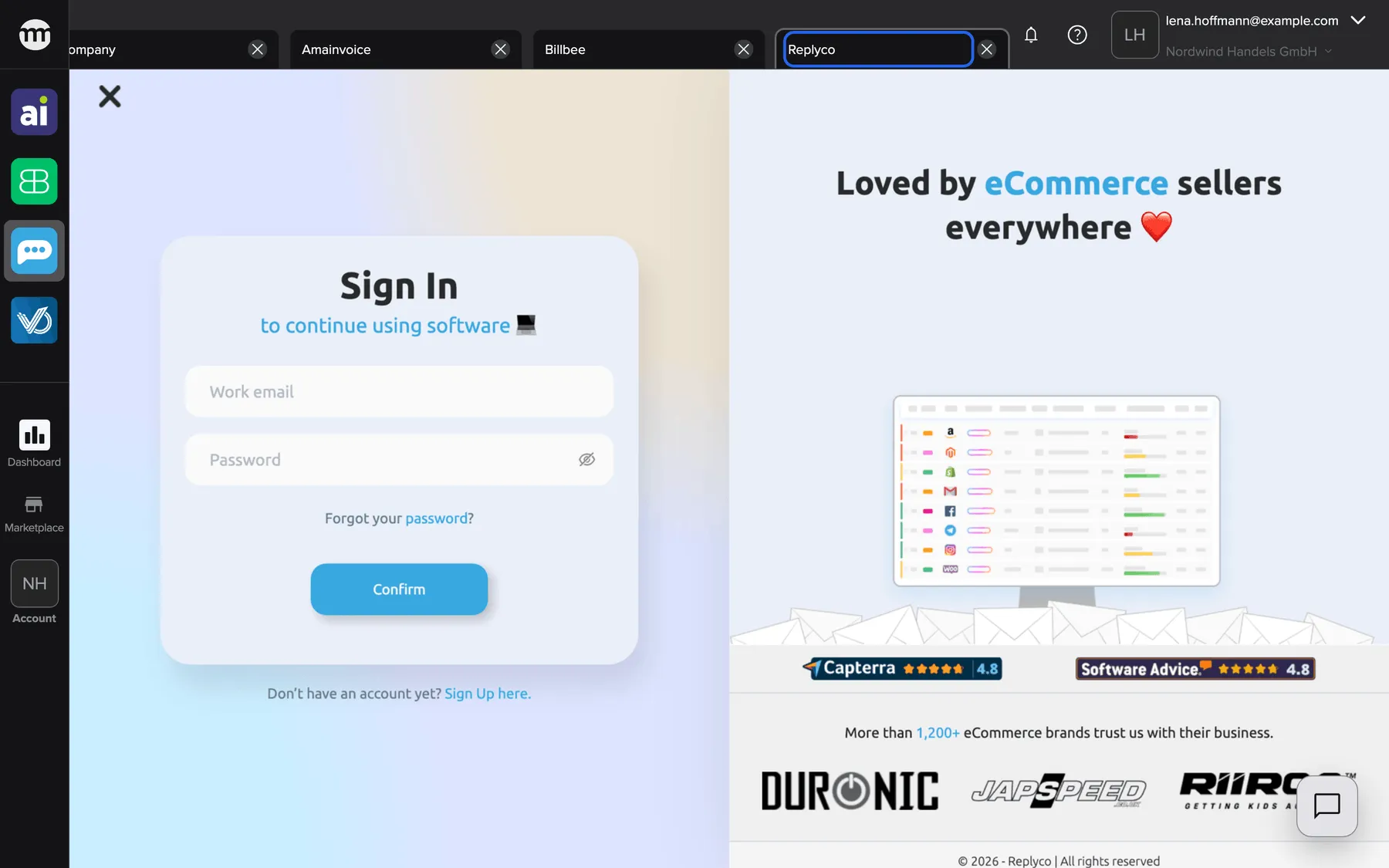
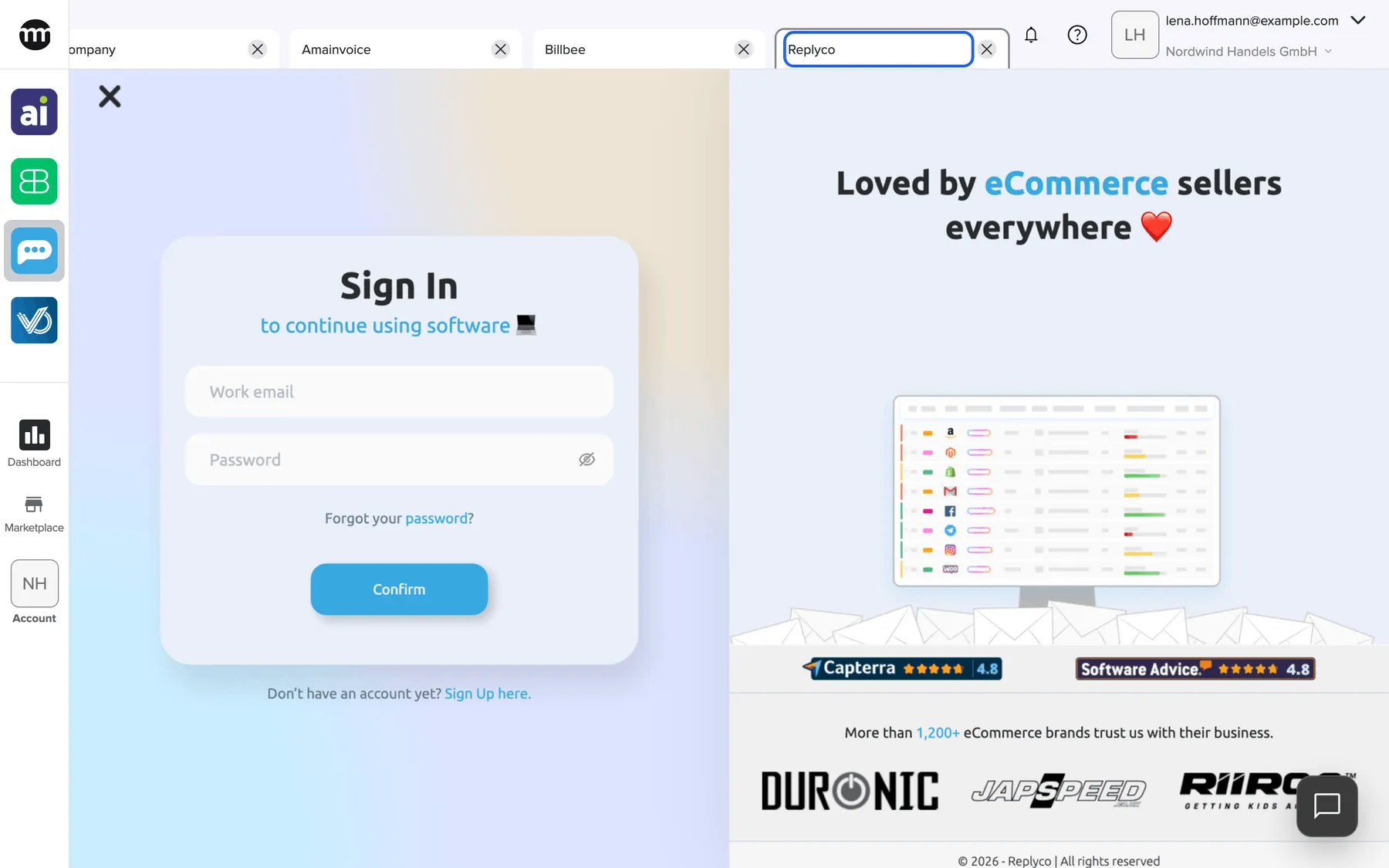
What this screenshot shows
- Screen
- Replyco
- Highlighted
- “Replyco”: shows the tool; the close button closes the tab
- Also visible
- Sidebar: tool icon marked active; Tool area: Replyco's own sign-in page
- Purpose
- the in-app tab a tool opens in
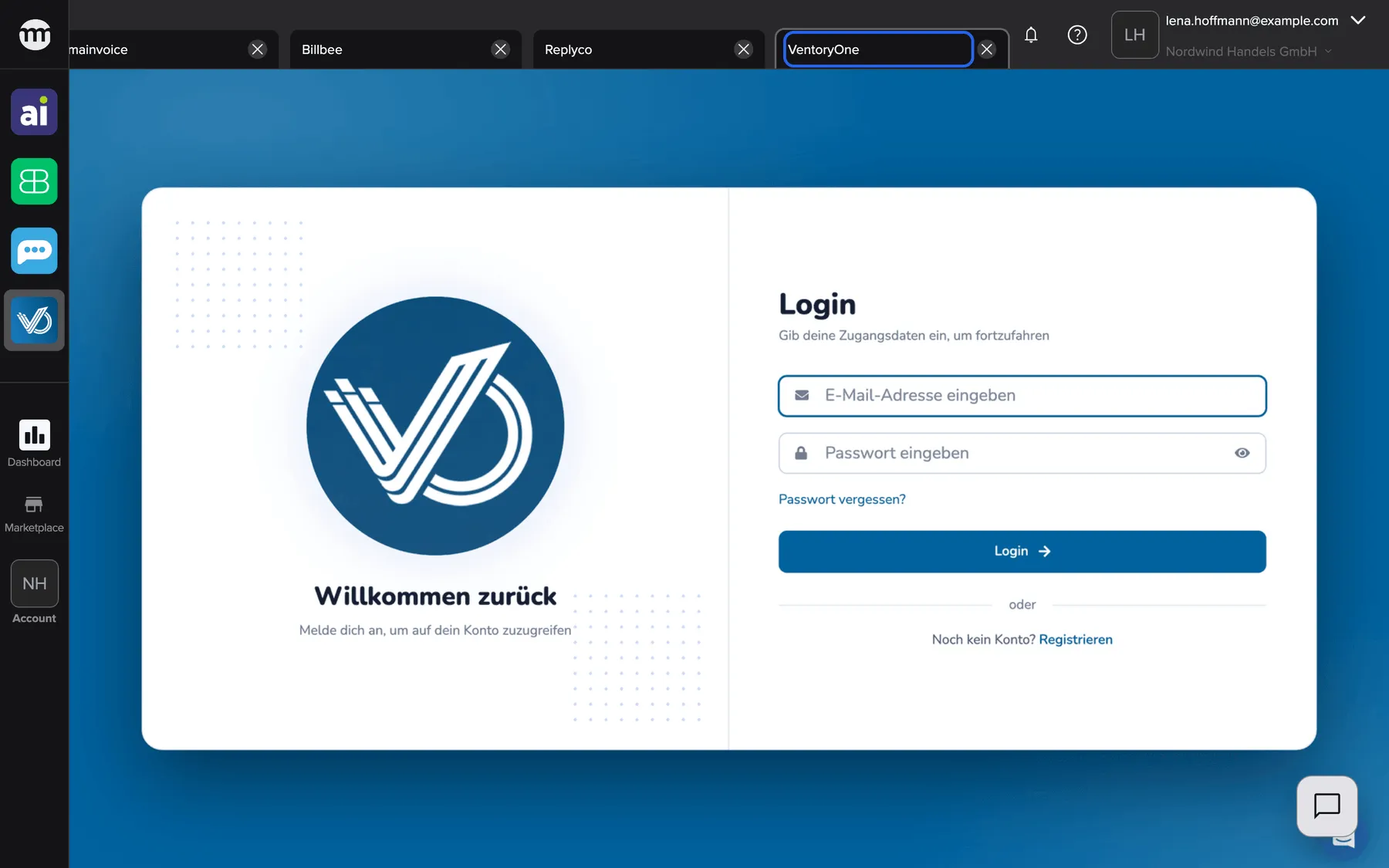
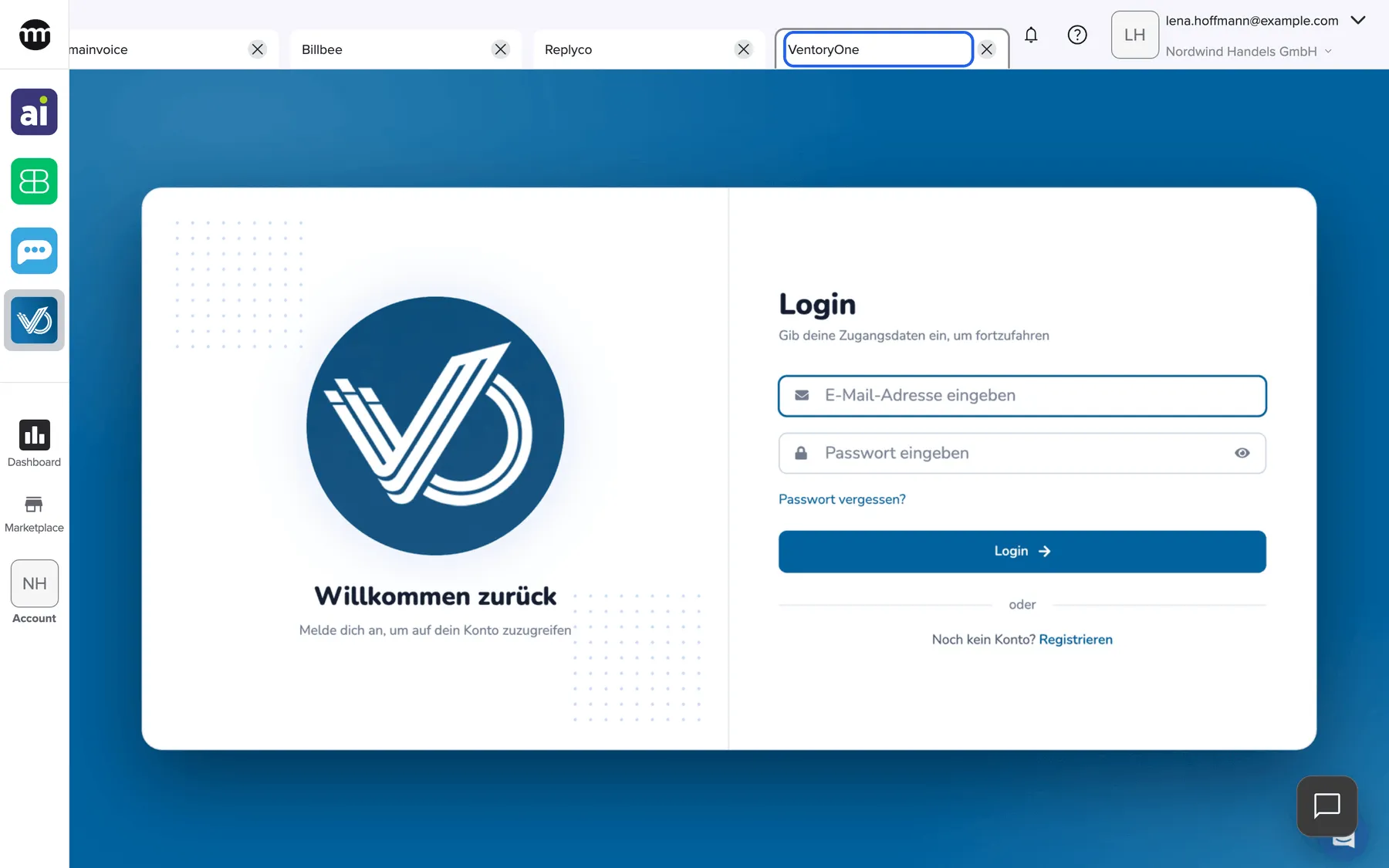
What this screenshot shows
- Screen
- VentoryOne
- Highlighted
- “VentoryOne”: shows the tool; the close button closes the tab
- Also visible
- Sidebar: tool icon marked active; Tool area: VentoryOne's own sign-in page
- Purpose
- the in-app tab a tool opens in
Open a tool
Section titled “Open a tool”-
In the left sidebar, select the tool’s icon in the tool group at the top, for example Amainvoice. Point at an icon to see the tool’s name.
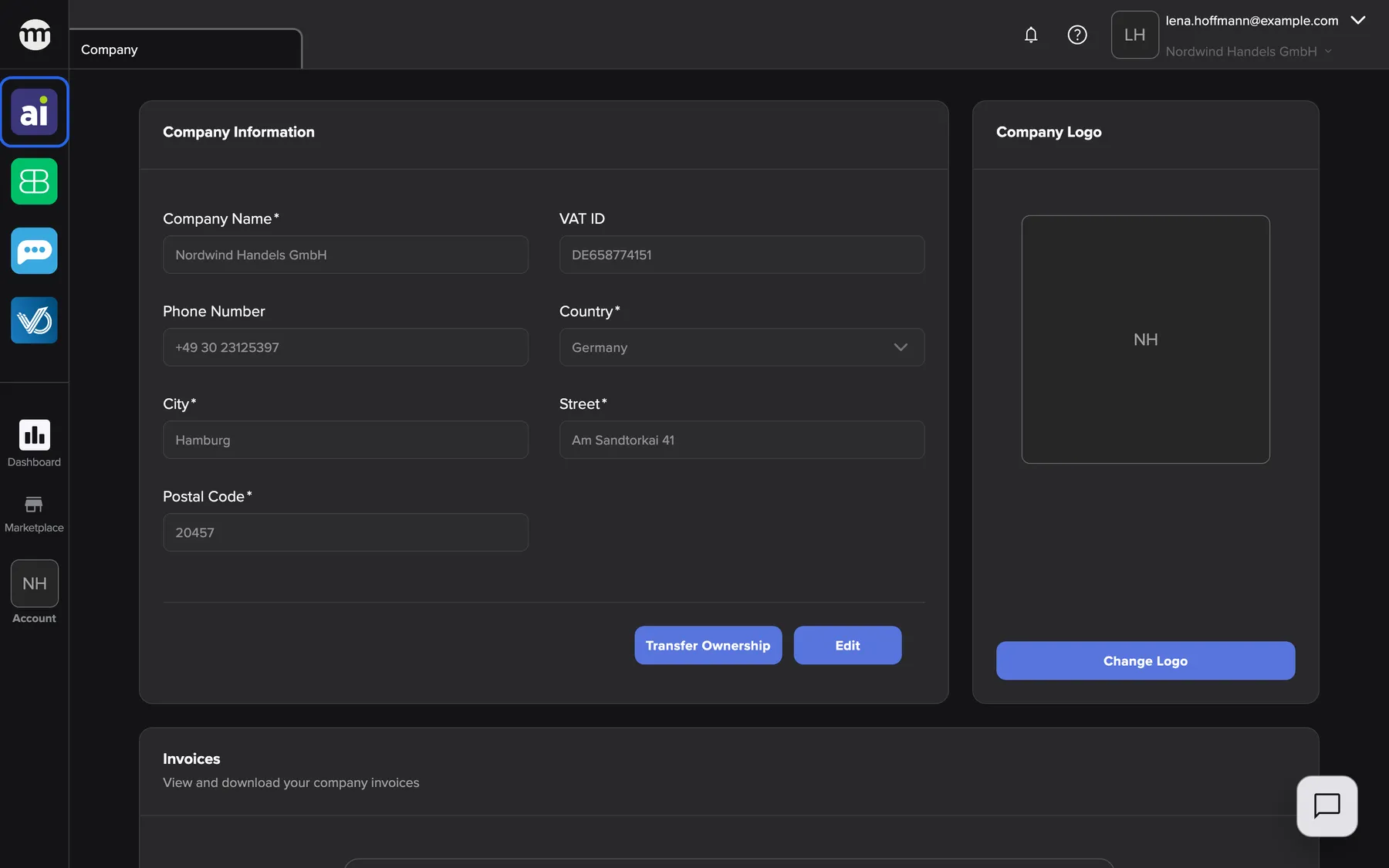
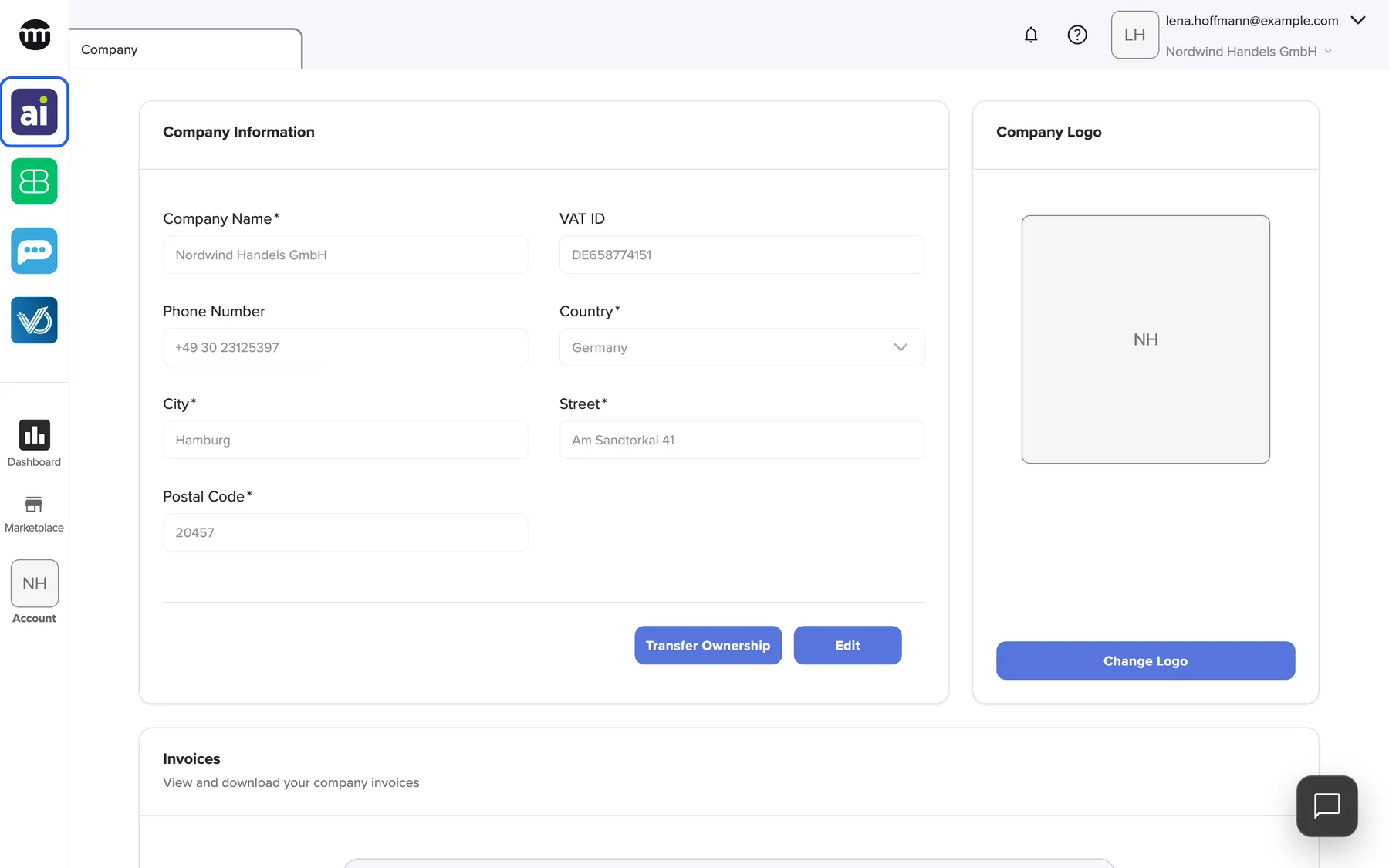
The Amainvoice icon sits in the tool group at the top of the left sidebar. What this screenshot shows
- Screen
- Amainvoice
- Highlighted
- “Amainvoice”: opens Amainvoice in its comrce Hub tab
- Also visible
- Sidebar: four tool icons, then Dashboard, Marketplace, Account; Top bar: notifications, help, user and company
- Purpose
- where to open Amainvoice
-
The tool’s tab opens and becomes active. If the tab is already open, comrce Hub switches to it.
comrce Hub passes your comrce Hub email address to the tool. Once the tool has linked your account there, comrce Hub also passes your user and organization in the tool. If the tool asks you to confirm a sign-in with comrce Hub, the approval page opens. Connect a tool to your account explains it.
When a tool doesn’t open for you or a colleague
Section titled “When a tool doesn’t open for you or a colleague”A grey icon is no error: it means the person may see the tool but not open it. Getting access takes two short steps. The person who needs the tool asks, and the company owner switches on the opening permission.
Ask for access
Section titled “Ask for access”The access card appears in the tool’s tab when you may see the tool but not open it. An example is Viewing Amainvoice without Opening Amainvoice.
-
Select the grey icon of the tool. Its tab opens and shows the text You don’t have access to this page. You can request access from your organization admin.
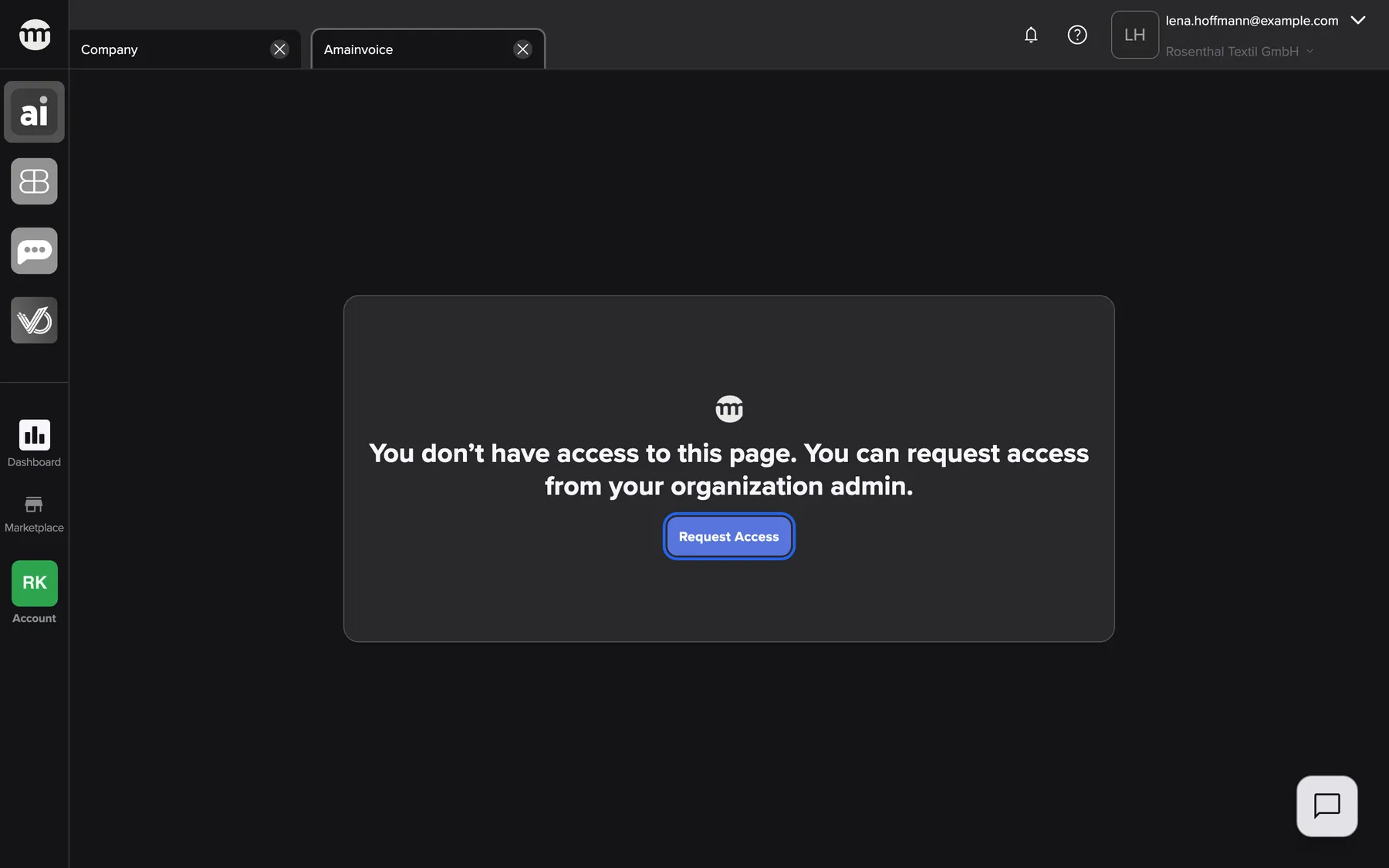
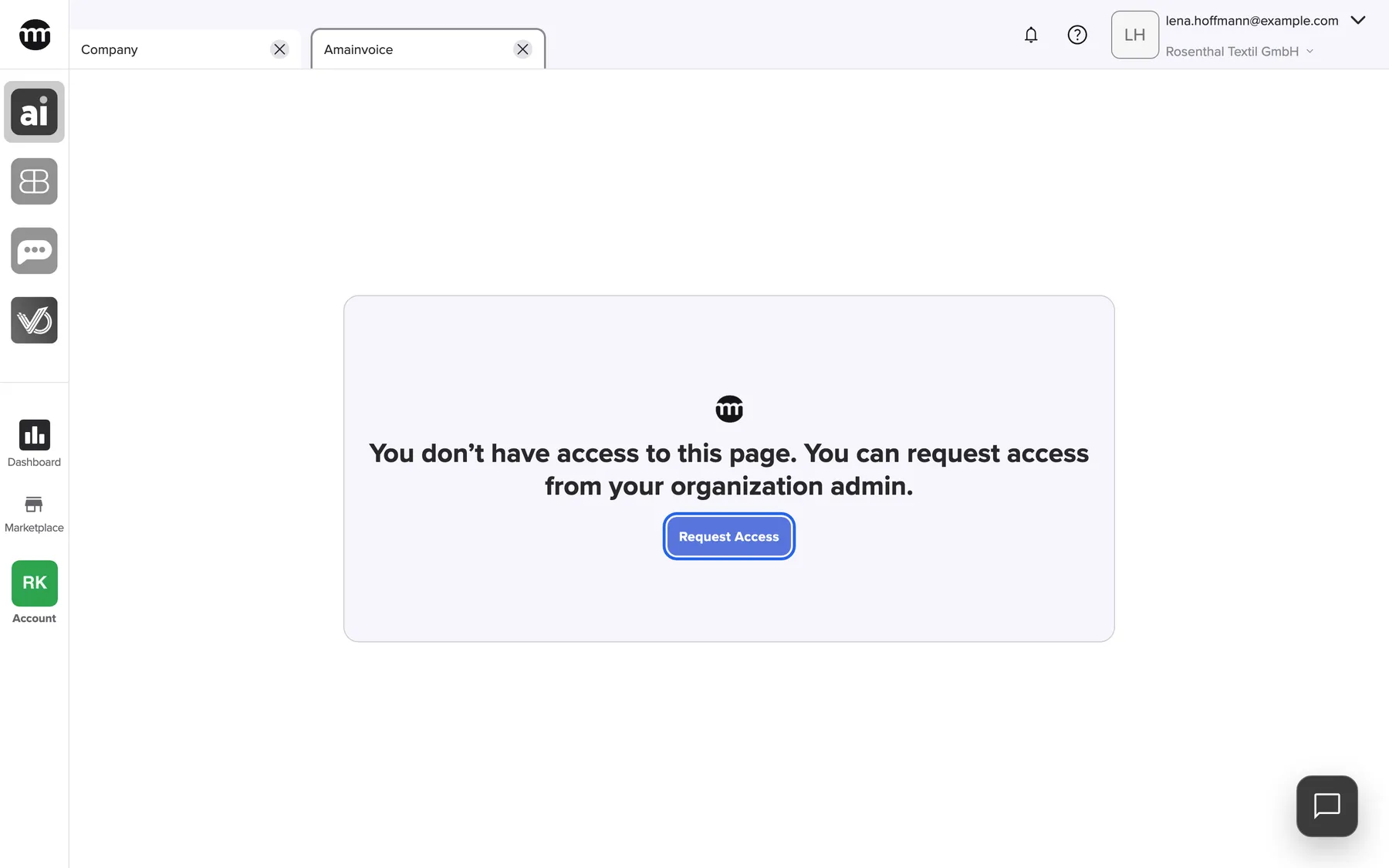
Without permission to open Amainvoice, the tab shows this card. Request access asks the company owner. What this screenshot shows
- Screen
- Amainvoice
- Highlighted
- “Request access”: opens the Request permission dialog
- Also visible
- Sidebar: tool icons greyed out (no Open permission); Access card with the request button
- Purpose
- what a person without the Open permission sees
-
Select Request access. The Request permission dialog opens and names the company owner. If the owner’s name is not known, it reads Your request will be sent to the organization admin
-
Optionally, enter a Reason of up to 128 characters. For example: Please give me access to Amainvoice so I can handle returns this week. Then select Confirm.
comrce Hub emails the request to the company owner, with a link to your user details. The request also appears in the company’s log. The card then shows You have requested permission. Once the owner has granted the opening permission, reload comrce Hub and the icon turns to color.
A request always goes to the owner of the company, not to the person who manages users.
Give a colleague access, as the owner
Section titled “Give a colleague access, as the owner”-
Open the link in the request email. It leads to your colleague’s user details.
-
Under Change permissions, switch on the tool’s opening permission, for example Opening Amainvoice. Viewing alone is not enough.
-
Ask your colleague to reload comrce Hub. The icon turns to color, and the tool opens in its tab.
Does the tool then show its own sign-in page? That’s the tool, not comrce Hub. Your colleague signs in there once, and the tool links their account. Connect your tools and open them with one sign-in covers that part.
Every control, explained
Section titled “Every control, explained”
Every control, explained
Section titled “Every control, explained”The tool icons in the sidebar
Section titled “The tool icons in the sidebar”The tool group at the top of the left sidebar, above Dashboard and Marketplace. It appears only while you work in a company.
Each icon opens its tool in the tool’s tab. Its color shows your access, as Who sees what lists. While a tool’s tab is active, its icon has a highlighted background. If comrce has not set up a tool, its icon does not react.
One fixed place per tool replaces bookmarks and separate logins.
The tool’s tab
Section titled “The tool’s tab”The tab strip at the top of comrce Hub, labelled with the tool’s name. It appears when you open the tool from the sidebar.
Shows the tool inside comrce Hub. There is at most one tab per tool. Selecting the icon again switches to it. comrce Hub restores the open tab when you reload. The tool can open its own windows and start downloads from the tab.
You work in the tool next to your company settings and other tools, without switching browser tabs.
The access card and Request access
Section titled “The access card and Request access”The middle of the tool’s tab, instead of the tool, when you lack its opening permission.
The button opens the Request permission dialog. Sending emails the company owner and replaces the button with You have requested permission. If sending fails, the dialog shows Failed to request permission.
Opening a tool can mean acting on orders, invoices or stock. The owner decides who may open each tool, and the card is your direct way to ask.
Other controls on this page
| Control | What it does | Why |
|---|---|---|
| The tab’s close button | Closes the tool’s tab. | Clears the tab strip when you no longer need the tool. |
| Close Others | Right-click the tool’s tab to close every other tab. | Keeps only the tool open. |
| Reason | Optional text for the owner. A counter shows how many characters you have used. | Tells the owner why you need the tool. |
| Confirm | Sends the access request. | Starts the request to the owner. |
| Cancel | Closes the dialog without sending. | Lets you change your mind. |
Who sees what
Section titled “Who sees what”
Who sees what
Section titled “Who sees what”| Part | Shown when |
|---|---|
| Any tool icon | You are working in a company. Without a company, the sidebar has no tools. |
| A tool’s icon | You have the tool’s viewing permission, as The four tools lists. Company owners always have it. |
| The icon in color, and the tool in its tab | You also have the tool’s opening permission. |
| A grey icon, and the access card in the tab | You have the viewing permission without the opening permission. |
What you need to know
Section titled “What you need to know”
What you need to know
Section titled “What you need to know”| Topic | Fact |
|---|---|
| Default permissions | The Member role includes the viewing and the opening permission of all four tools. The Partner role includes only the viewing permissions. |
| Per company | Your tool permissions apply in the company you are working in. Another company can give you different access. |
| Always in a tab | A tool always opens inside comrce Hub, never in a separate browser window. |
Frequently asked questions
Section titled “Frequently asked questions”
Frequently asked questions
Section titled “Frequently asked questions”General
Section titled “General”Why don’t I see a tool’s icon in the sidebar?
Section titled “Why don’t I see a tool’s icon in the sidebar?”A tool’s icon needs its viewing permission, such as Viewing Billbee, in the company you are working in. Company owners always have it. Ask the owner to switch it on in your user details under AccountUsers. Without a selected company, the sidebar shows no tools.
Why is a tool’s icon grey?
Section titled “Why is a tool’s icon grey?”You have the tool’s viewing permission but not its opening permission. Select the icon, and the tool’s tab shows a card with Request access. The button sends your request to the company owner by email.
Can I open a tool outside the comrce Hub tab?
Section titled “Can I open a tool outside the comrce Hub tab?”No. From the sidebar, comrce Hub always opens Amainvoice, Billbee, Replyco and VentoryOne in their own tabs, in every company. The comrce Hub sidebar and top bar stay around the tool.
Why didn’t a second tab of the same tool open?
Section titled “Why didn’t a second tab of the same tool open?”comrce Hub keeps one tab per tool. When the tool’s tab is already open, its icon switches to that tab.
What happens to a tool’s tab when I reload comrce Hub?
Section titled “What happens to a tool’s tab when I reload comrce Hub?”comrce Hub restores your open tabs after a reload, including the tool tabs. Close a tool’s tab with its close button when you no longer need it.
Do I need a separate login for each tool?
Section titled “Do I need a separate login for each tool?”That is up to the tool. comrce Hub passes on your email address. Once the tool has created the link, it also passes your linked account in the tool. When a tool signs you in through comrce Hub, you approve each sign-in on the approval page.
Access
Section titled “Access”How do I get permission to open a tool?
Section titled “How do I get permission to open a tool?”Select the tool’s grey icon, then Request access on the card in its tab. Add a reason if you like, and send it. The company owner gets an email and can grant the tool’s opening permission in your user details.
Who receives my access request?
Section titled “Who receives my access request?”The owner of the company you are working in, by email. The email links to your user details in comrce Hub. The dialog names the owner before you send, and the company’s log records the request.
Can I send the access request again?
Section titled “Can I send the access request again?”Yes. After sending, the card shows You have requested permission. When you reload comrce Hub or open the tool’s tab again, the button is back. Your reason can hold up to 128 characters each time.
Data and privacy
Section titled “Data and privacy”What does comrce Hub tell a tool about me?
Section titled “What does comrce Hub tell a tool about me?”When it opens a tool, comrce Hub passes on your comrce Hub email address. Once the tool has linked your account, it also passes your user and organization in the tool. If the tool signs you in through comrce Hub, the approval page lists any other data it asks for.
Troubleshooting
Section titled “Troubleshooting”
Troubleshooting
Section titled “Troubleshooting”| Symptom | What to check |
|---|---|
| A tool’s icon is missing from the sidebar | Are you working in a company? Do you have the tool’s viewing permission? Ask the company owner to check your user details. |
| The icon is grey, and the tab shows You don’t have access to this page. You can request access from your organization admin. | You lack the tool’s opening permission. Use Request access on the card. Reload comrce Hub after the owner has granted it. |
| The icon does not react when selected | comrce has not set up this tool for comrce Hub. Contact comrce support. |
| Selecting the icon shows the existing tab, not a fresh one | comrce Hub keeps one tab per tool. Close the tool’s tab with its close button, then select the icon again. |
| The tool’s tab shows “Invalid or missing URL (must start with http:// or https://)” | The tab came from a saved link, not from the sidebar. Close the tab and select the tool’s icon again. |
| The tool’s tab stays empty | Close the tab and open it again from the icon. If it stays empty, the tool did not load inside comrce Hub. Contact comrce support and say which tool and when. |