

Your company account
The Account area is where you look after your company in comrce Hub. You decide who’s in the team and what each person may do. You also keep the company’s details and logo up to date and check who changed what. And when the time comes, you hand the company to a new owner.
Every company has one owner and any number of members with the role Member or Partner. One comrce Hub account can belong to several companies, with a different role in each.
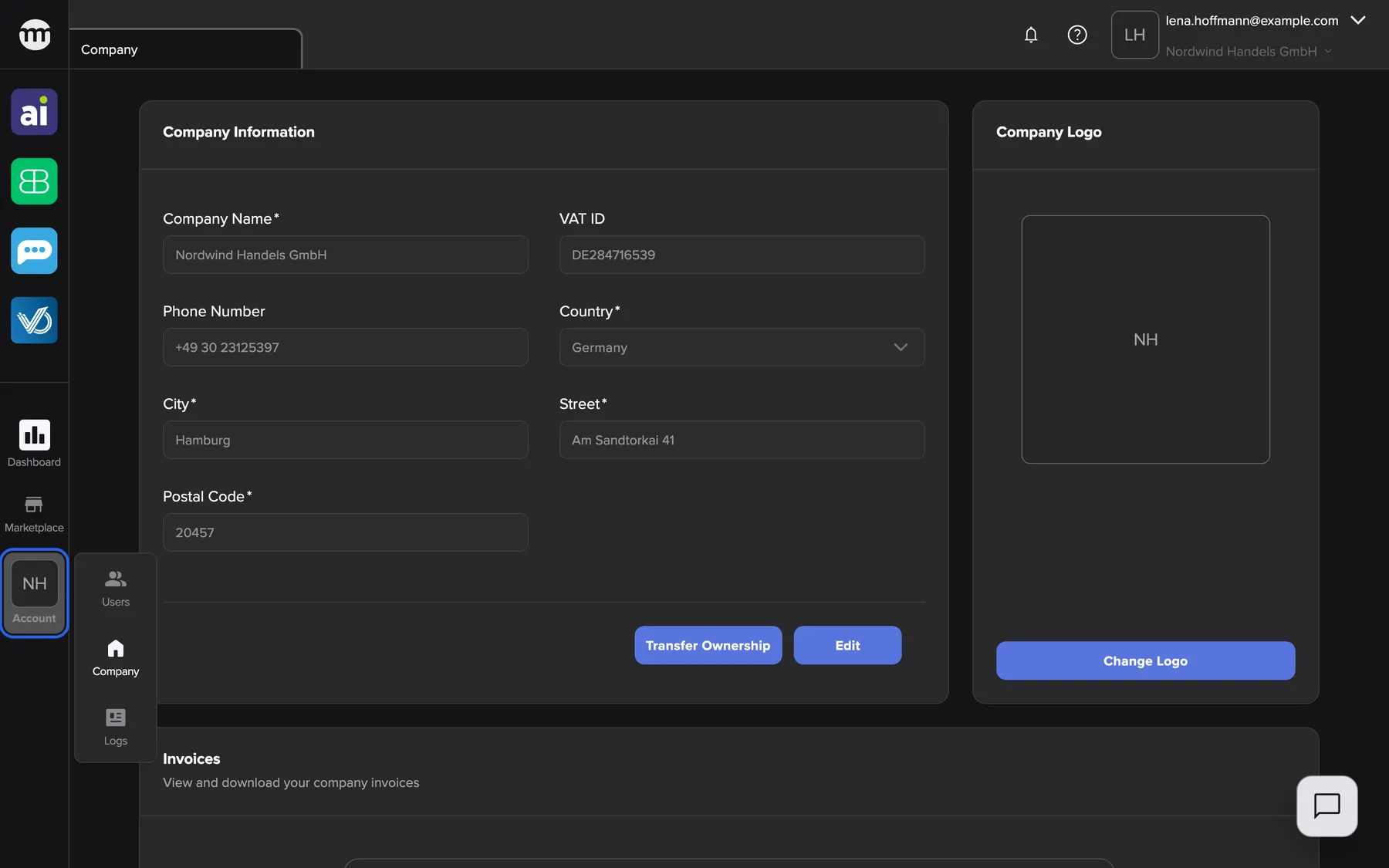
What this screenshot shows
- Screen
- Company
- Highlighted
- “Company menu”: opens the company menu with Users, Company and Logs
- Also visible
- Company menu with Users, Company and Logs; Company tab with the company information form; Owner view of Nordwind Handels GmbH
- Purpose
- entry point of the account area
The page at a glance
Section titled “The page at a glance”| Page | What it shows | Where to find it |
|---|---|---|
| Users | Everyone in the company, with role and status | AccountUsers |
| A user’s details and permissions | One member’s role, permissions, status and dates | A row in the user list |
| Pending invites | Invitations that have not been accepted yet | A button on the user list |
| Company | Name, VAT ID, address and logo, and the start of an ownership transfer | AccountCompany |
| Logs | The company’s log of changes | AccountLogs |
| My companies | All companies you belong to | The company name at the top right |
| Confirm or accept an ownership transfer | The pages behind the transfer emails | A link in the email |
What you can do here
Section titled “What you can do here”- Permissions and roles: give each colleague exactly the access their job needs.
- Inviting people: bring new colleagues into the company.
- Transferring company ownership: make someone else the owner of your company.
- Working with several companies: switch between companies with one login.
- Logs: check who changed what in your company.
- Deactivate, activate or delete a member: change or end a colleague’s access when their job changes.
Concepts to know
Section titled “Concepts to know”| Concept | In short |
|---|---|
| Owner | One per company. Holds every permission and cannot be edited or removed. Changes only by a transfer. |
| Member and Partner | The two roles you can give. Each comes with a preset of permissions you can adjust per person. |
| Permission | A switch on a member’s tab. It applies only in this company. |
| Membership status | Active, Deactivated, Deleted, rarely Pending |
Permissions and roles explains them in full.
Who can use this
Section titled “Who can use this”The owner sees the whole Account area. Everyone else sees the parts their permissions open:
- Viewing user list opens the user list.
- Viewing company profile opens the company’s details.
- Viewing audit log opens the log of changes.
Without any of the three, the Account menu doesn’t appear at all. The owner switches these permissions on for you. Everyone can open My companies, no permission needed.