

Example: choose the printer from meta information
Want each packing station’s labels to come out of its own printer? A pipeline can do that with conditions on the job’s meta information. In this example, two packers send Billbee jobs: Jonas Becker’s go to “Versand-Etiketten”, Aylin Yildiz’s to “Lager Laserdrucker”. The user is in the meta field UserName.
The starting point
Section titled “The starting point”Open the printer’s automatic pipeline under Pipelines. It was created together with the printer. It looks like this, with your own printer name.
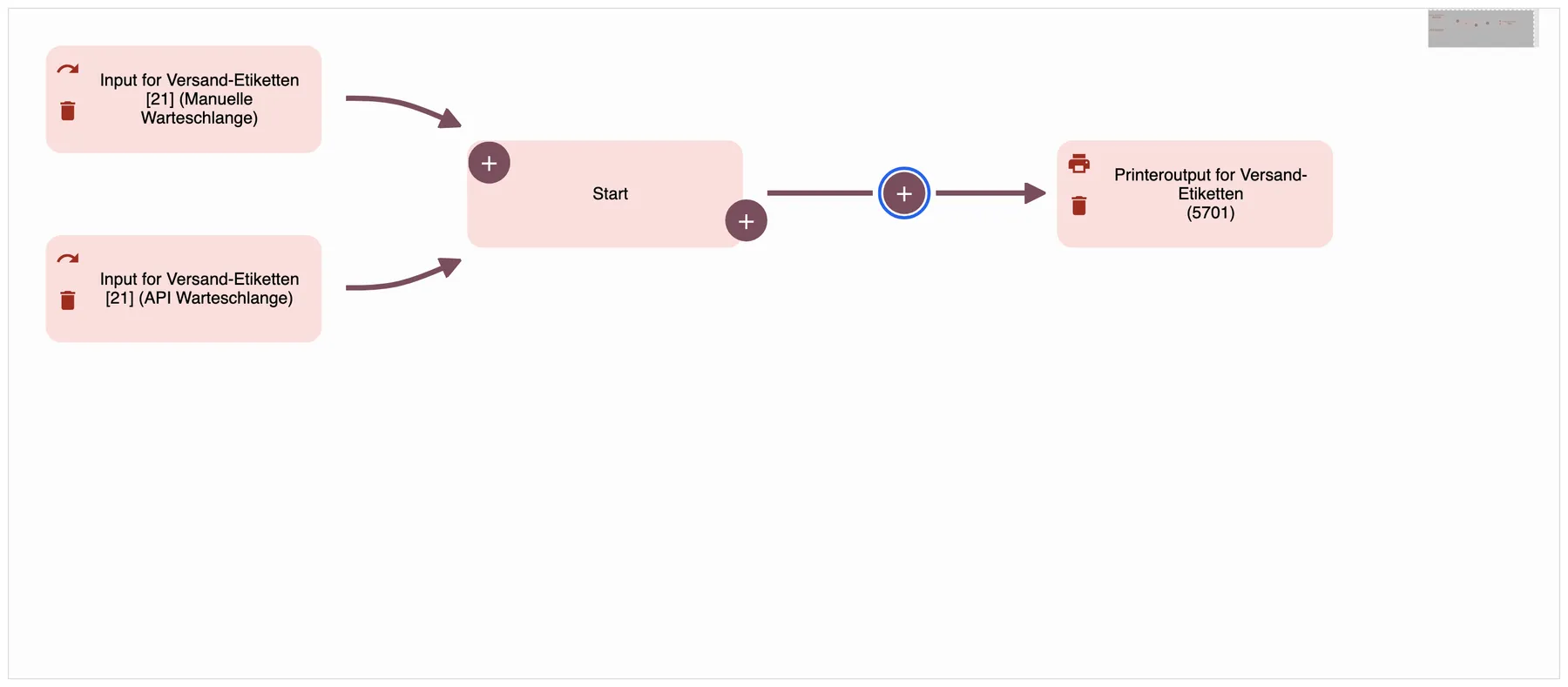
What this screenshot shows
- Highlighted
- inserts the first condition before the printer output
- Also visible
- Two automatic queues; Start, then one printer output
- Purpose
- the pipeline before the change
Every job from the two queues “Input for Versand-Etiketten [21]” goes straight to the printer output.
Filter for the first user
Section titled “Filter for the first user”- Select the plus on the line between Start and the printer output.
- Choose Bedingung (condition).
- Name it “Filter auf Jonas Becker” and write the rule in “Bedingung 1”. All the options are on Filters and conditions.
- Select Ok.
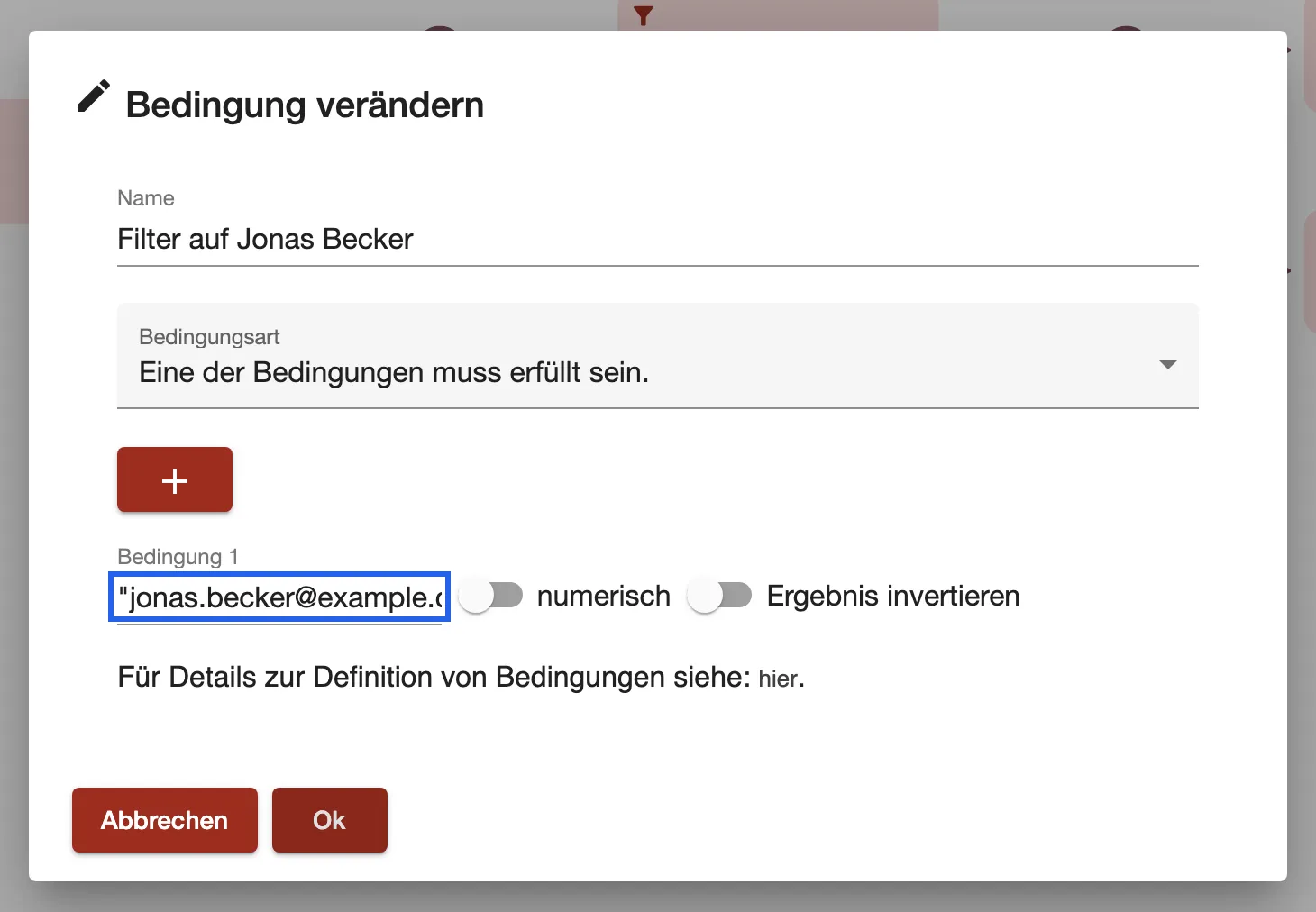
What this screenshot shows
- Highlighted
- compares the user in the meta information with one address
- Also visible
- Text rule on {MetaInformation.UserName}; numerisch off
- Purpose
- filter on the first user
The rule in “Bedingung 1”:
"jonas.becker@example.com" == {MetaInformation.UserName}It checks whether the meta field UserName holds “jonas.becker@example.com”. If it does, the job goes on to the printer. If not, the job stops in this branch.
Filter for the second user
Section titled “Filter for the second user”-
On the Start tile, select the plus at the bottom right. Start already has a successor, so the new step begins a second, parallel branch.
-
Choose Bedingung and set it up the same way for “aylin.yildiz@example.com”.
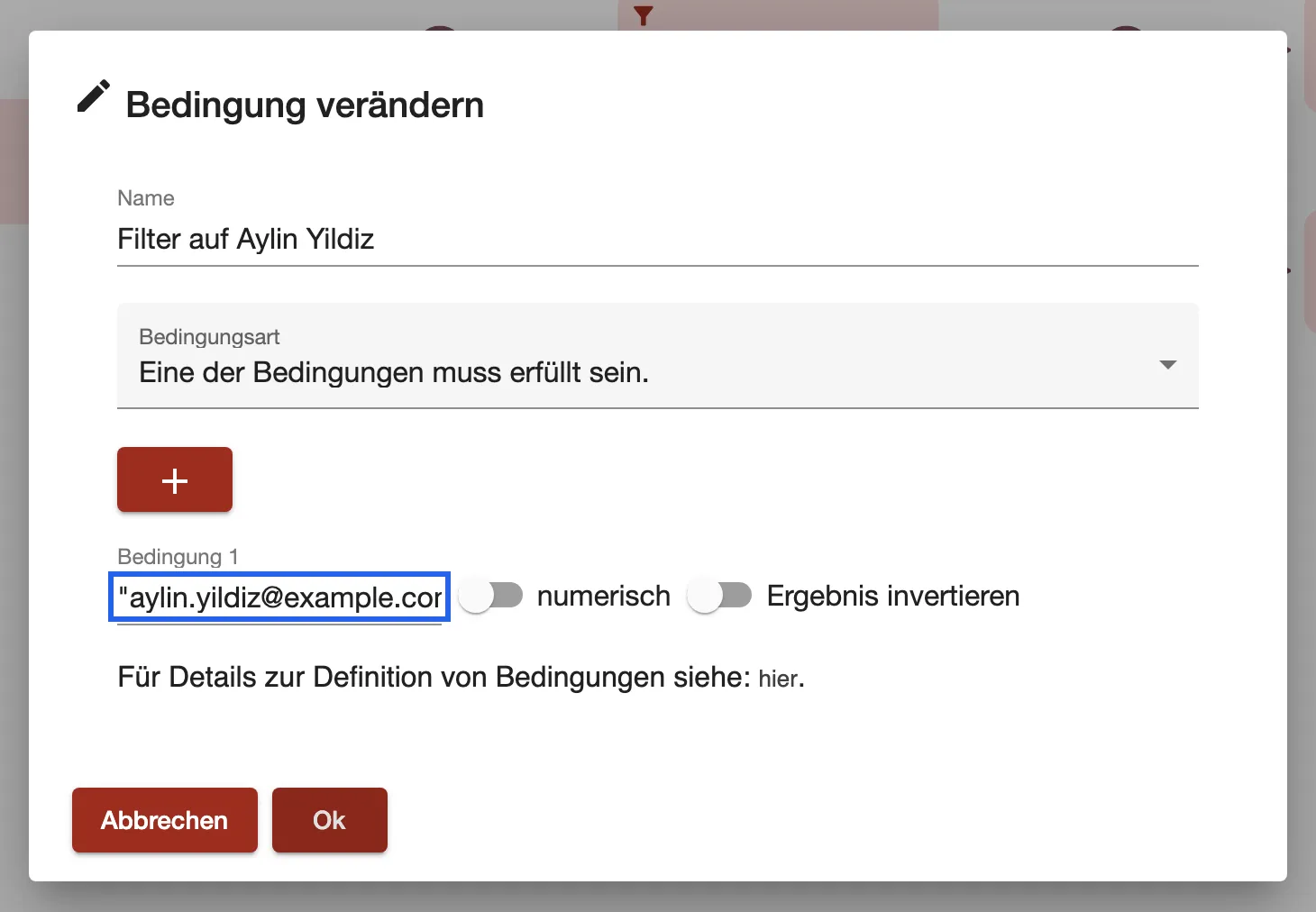
The second condition does the same for Aylin Yildiz. What this screenshot shows
- Highlighted
- compares the user in the meta information with a second address
- Also visible
- Text rule on {MetaInformation.UserName}; numerisch off
- Purpose
- filter on the second user
-
On the tile “Filter auf Aylin Yildiz”, select the plus at the bottom right and choose Druckerausgabe (printer output).
-
Name the output and choose “Lager Laserdrucker” under Verknüpfter Drucker.
The finished pipeline
Section titled “The finished pipeline”The pipeline now looks like this:
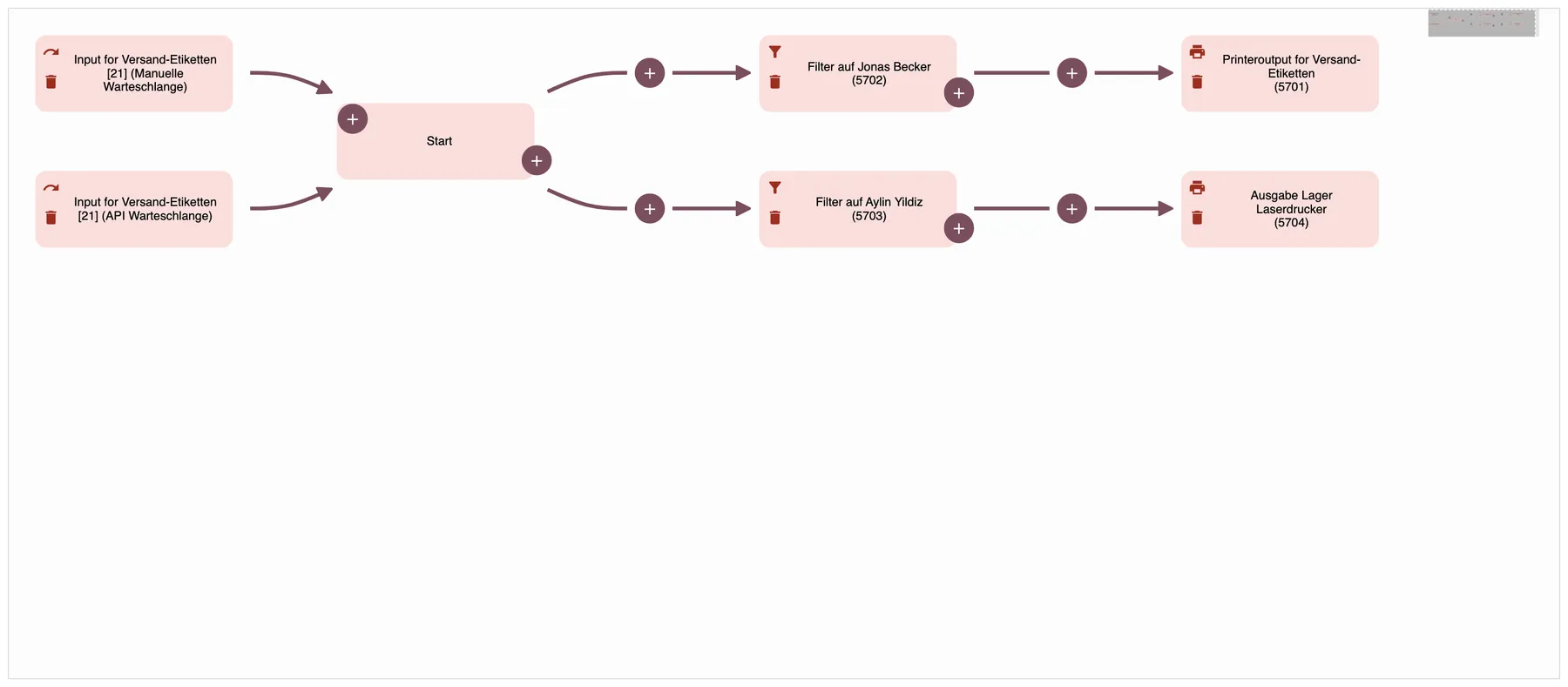
What this screenshot shows
- Highlighted
- shows the two condition branches with their printers
- Also visible
- Two queues, Start; Branch: Filter auf Jonas Becker → Versand-Etiketten; Branch: Filter auf Aylin Yildiz → Lager Laserdrucker
- Purpose
- the pipeline after the change
Every job that arrives in one of the two queues runs through both branches. The condition that matches lets the job through to its printer. A job from any other user isn’t printed at all, because neither condition lets it through.
Add more users
Section titled “Add more users”To send jobs from more users to one of the two printers:
- Select the icon at the top left of the condition’s tile.
- Select the plus in the dialog and write a further rule in the same pattern.
- Keep Bedingungsart on Eine der Bedingungen muss erfüllt sein., so any one user is enough.
From your next job on, comrce cloudprint uses the updated pipeline.