

The comrce Hub workspace
The workspace is what you see after you sign in. The sidebar on the left holds your tools and the company menu. Every screen you open becomes a tab along the top, like browser tabs. The top bar holds notifications, help and your user menu.
What you can do here
Section titled “What you can do here”- Open screens from the sidebar. The sidebar holds the four tools, Dashboard, Marketplace and the Account menu. The tools are Amainvoice, Billbee, Replyco and VentoryOne. Use the sidebar · Tool access and single sign-on
- Work in several tabs. Each screen opens as a tab. Drag tabs to reorder them. Close what you no longer need. comrce Hub warns you before closing a tab with unsaved changes. Work with tabs
- See what needs your attention. The bell shows how many notifications from your tools are unread, and opens the newest ones. See what needs your attention
- Get help. The help menu at the bottom right leads to comrce support, the experts chat and the Academy of comrce. Get help
- Reach your settings and switch companies. Your email address at the top right opens your settings and sign-out. The company name under it opens My companies. Use the user menu · Working with several companies
- Answer the first-sign-in questions. You may be asked to change an expired password, choose your cookie settings and set up two-factor authentication. Dialogs that appear after you sign in
The screen at a glance
Section titled “The screen at a glance”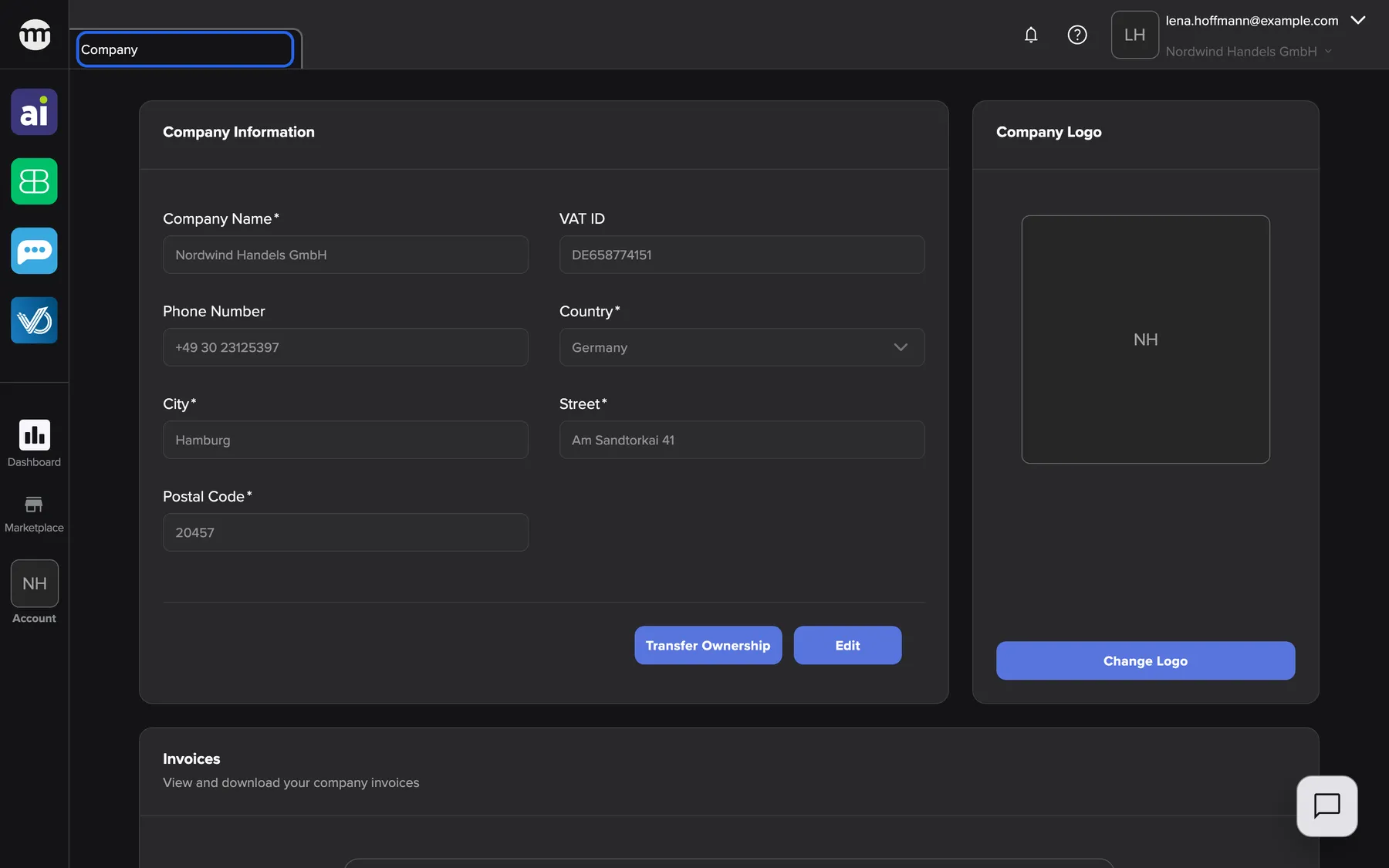
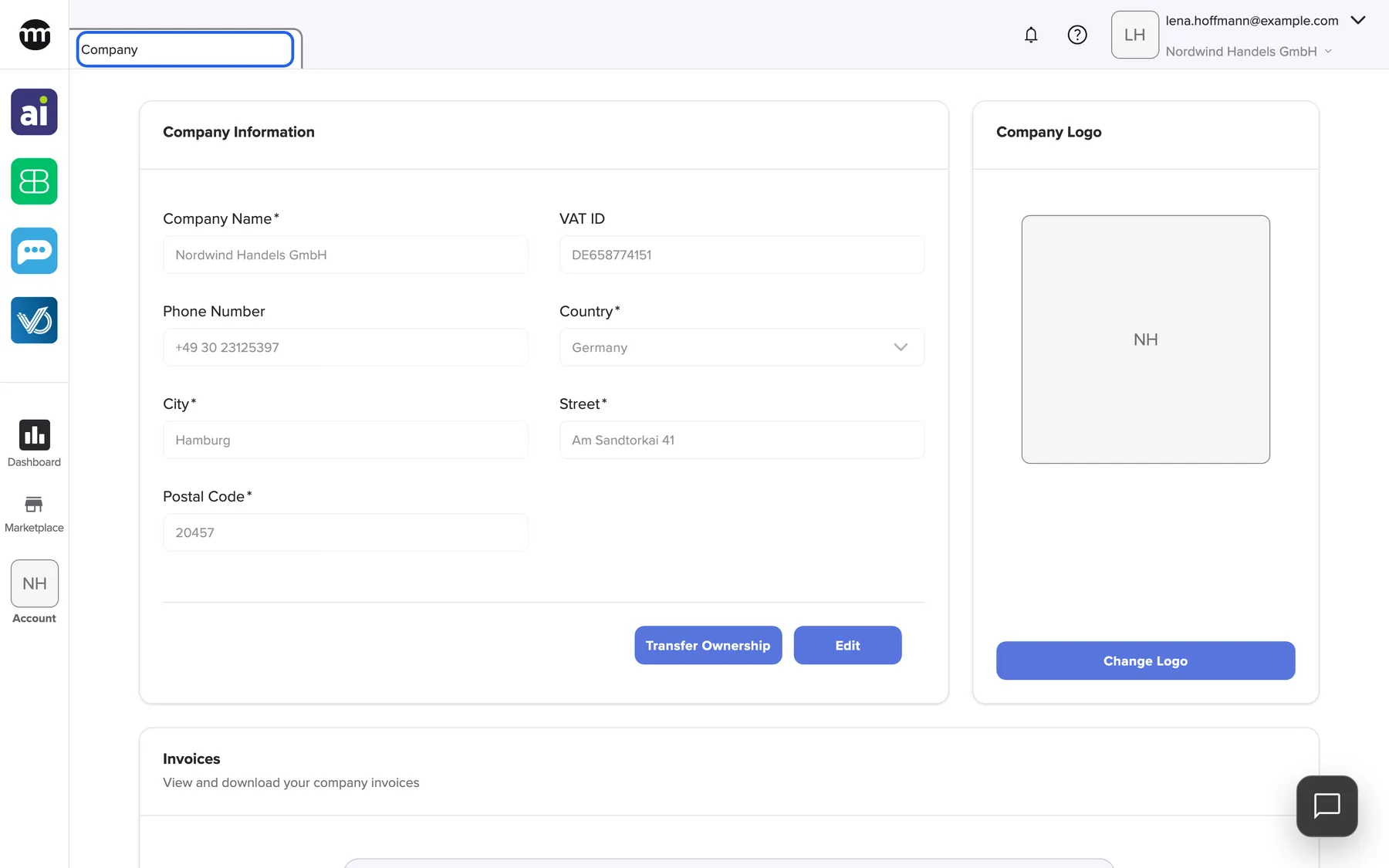
What this screenshot shows
- Highlighted
- “Company”: shows the company profile
- Also visible
- Sidebar with tools, Dashboard, Marketplace, Account; Top bar with bell, help, user menu; Help button bottom right
- Purpose
- the workspace at a glance
| Region | What it shows | What you do there |
|---|---|---|
| Sidebar, top | The comrce logo | Open News |
| Sidebar, tools | Icons for Amainvoice, Billbee, Replyco and VentoryOne | Open a tool |
| Sidebar, below the line | Dashboard, Marketplace, your company logo with Account | Open these screens, or the company menu |
| Tab strip | One tab per open screen. The active tab is outlined. | Switch, reorder and close screens |
| Top bar, right | The bell, the question-mark button, your avatar, your email address and your company name | Notifications, help, user menu, company switch |
| Bottom right | A round speech-bubble button | Open the help menu |
| Main area | The screen of the active tab | Work |
On a phone or a narrow window, the sidebar is hidden. Tap the comrce logo at the left of the top bar to slide it in. The tabs move to a row under the top bar.
Use the sidebar
Section titled “Use the sidebar”The tool icons appear for the tools you are allowed to see. A grey icon means you may see the tool but not open it. Ask your company owner for access. Tool access and single sign-on explains whether a tool opens in a comrce Hub tab or a new browser tab.
The Account button opens a small menu with the pages of your company:
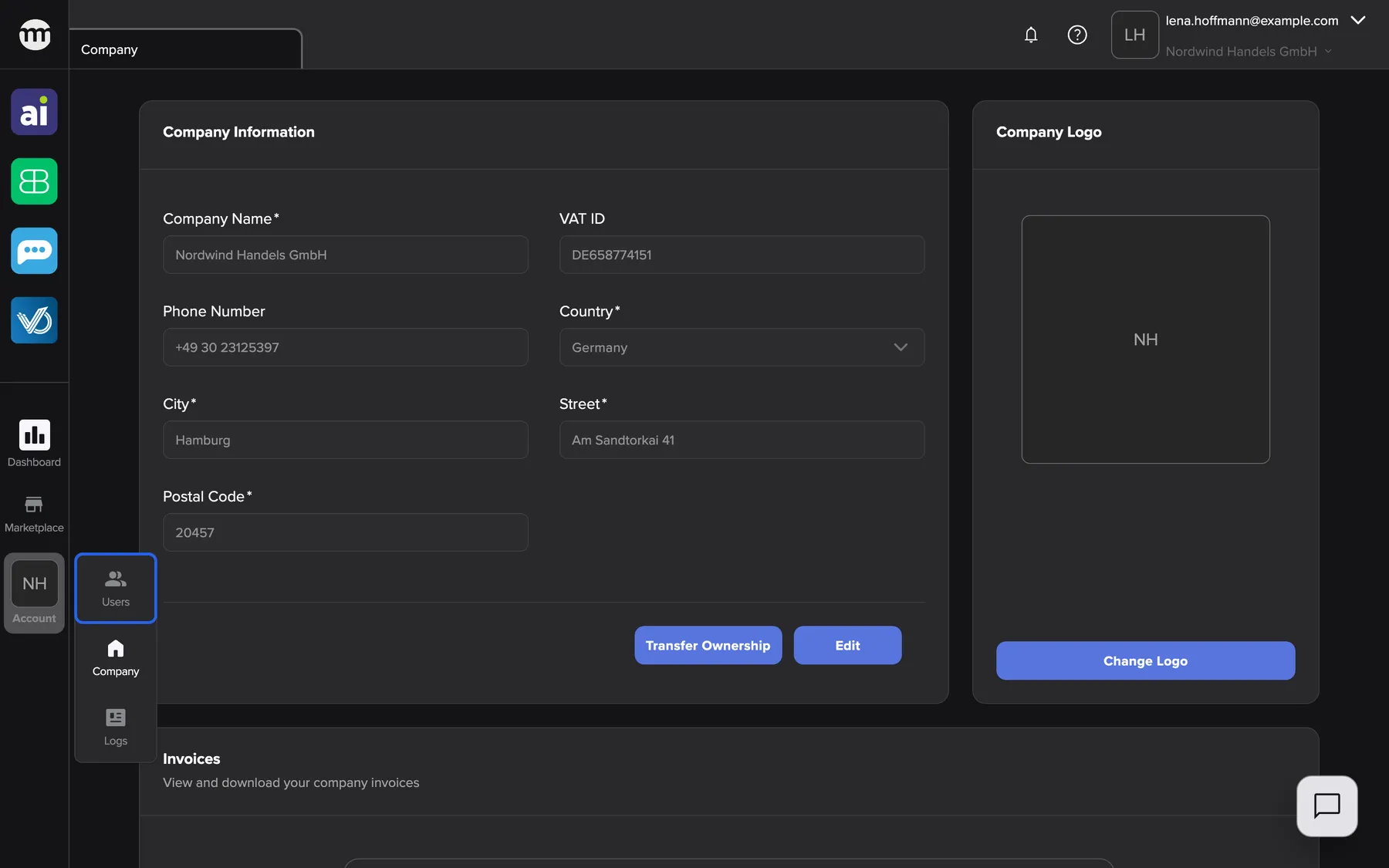
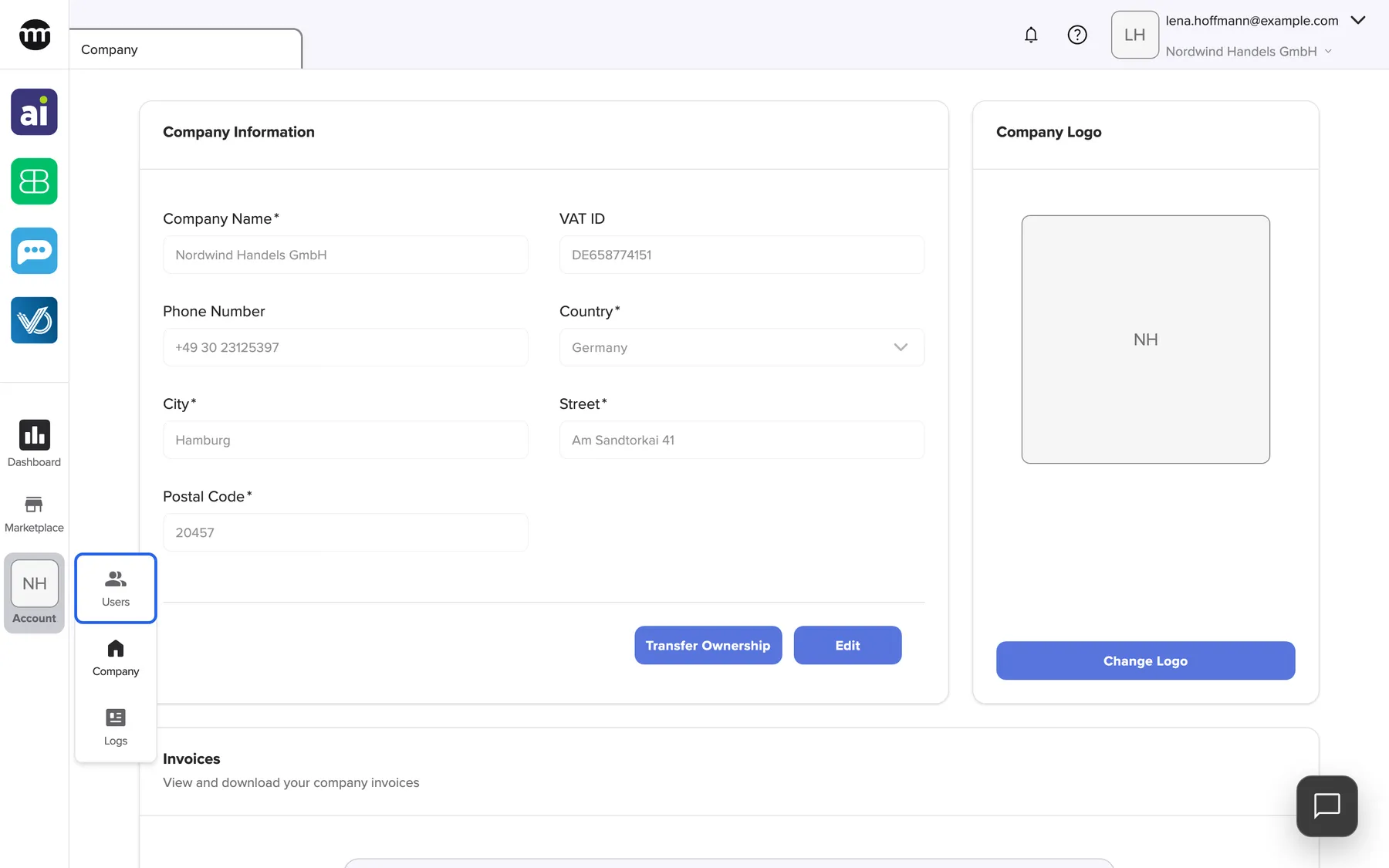
What this screenshot shows
- Highlighted
- “Users”: opens the users list
- Also visible
- Users, Company, Logs entries
- Purpose
- the company menu
| Entry | Opens | Shown when you have |
|---|---|---|
| Users | The list of people in your company | The permission Viewing user list |
| Company | Your company profile | The permission Viewing company profile |
| Logs | The company’s logs | The permission Viewing audit log |
Without any of the three permissions, the company logo and Account are shown without a menu. The company owner always sees all three. See Permissions and roles.
Work with tabs
Section titled “Work with tabs”

What this screenshot shows
- Highlighted
- “Close tab”: closes the tab
- Also visible
- Tabs Company, Users, Dashboard; Top-bar buttons
- Purpose
- working with tabs
- Open a screen from the sidebar, a menu or a link. It appears as a new tab at the end. If the screen already has a tab, comrce Hub switches to it instead.
- Switch by selecting a tab. Your browser’s back and forward buttons also move between the tabs you visited.
- Reorder by dragging a tab to another position.
- Close with the ✕ on the tab or with a middle click. You can also right-click the tab and choose Close. The last open tab cannot be closed.
- Close several at once with a right click on a tab and Close Others. It closes every tab except that one.
A tab with unsaved changes asks first: Unsaved changes. The dialog lists the affected tabs. Close and discard changes closes and discards the changes. Cancel keeps the tab open.
comrce Hub remembers your open tabs in this browser, so they are still there when you come back. At your first sign-in, comrce Hub opens Company if you may see the company profile. Otherwise it opens your Settings. Switching to another company closes all open tabs, because they belong to the company you left.
A link to a screen opens that screen as a tab when you follow it while signed in.
See what needs your attention
Section titled “See what needs your attention”Think of the bell as one inbox for all four tools: you don’t have to check each tool for news. Your tools send notifications to comrce Hub. Examples are an invoice batch ready to send, low stock, or a marketplace connection that needs attention. While comrce Hub is open, they arrive straight away and appear briefly at the top right.
-
Select the bell in the top bar. A red number on it shows how many notifications are unread, up to 99+.
-
The tray opens with Notifications and the unread count. Each entry shows the title, the tool, how long ago it arrived and its text.
-
Select ✓ on an entry to mark it as read, or ✕ to remove it. Mark all as read in the tray header marks every notification as read.
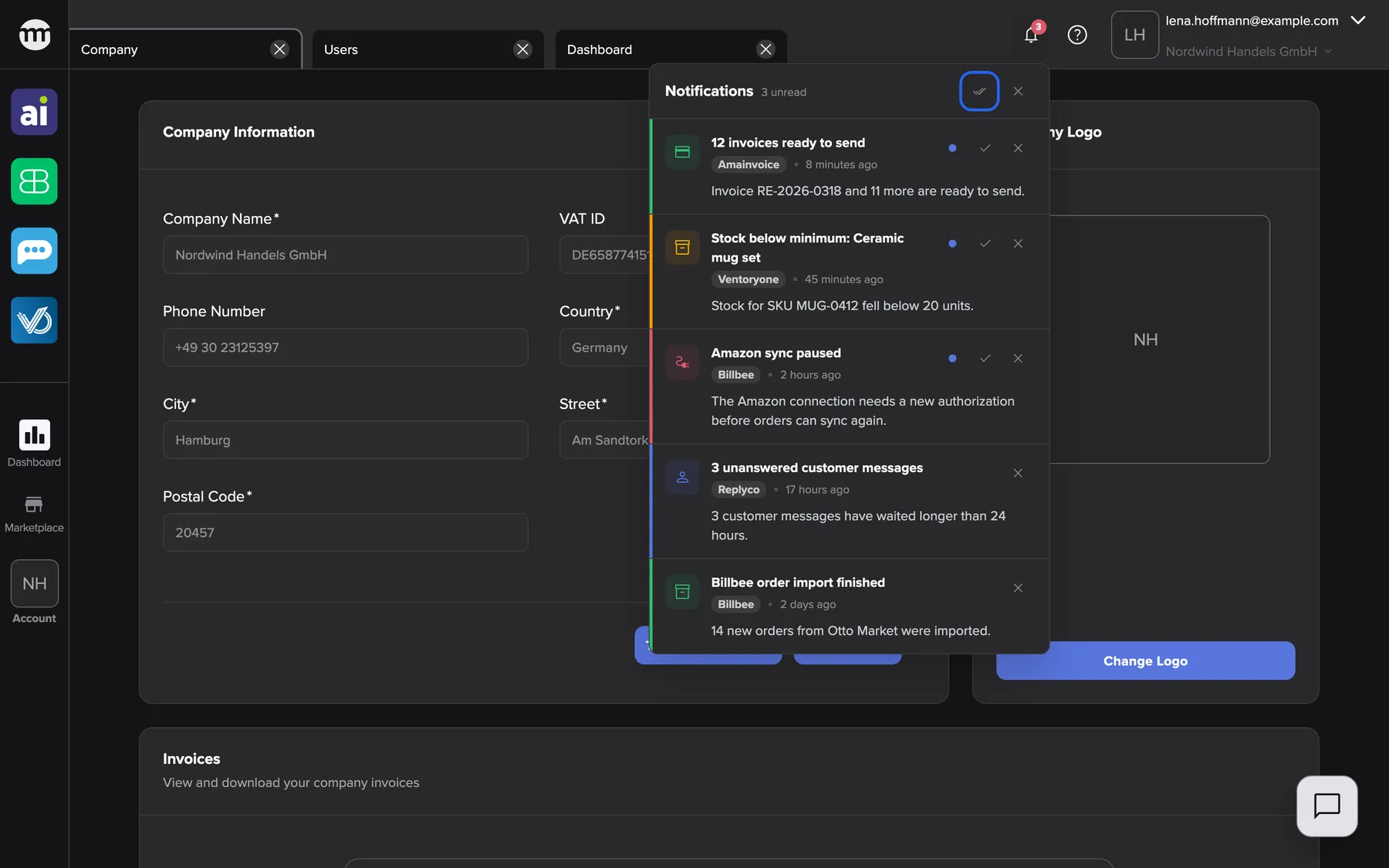
What this screenshot shows
- Highlighted
- “Mark all as read”: marks every notification as read
- Also visible
- 3 unread; Severity stripes green, amber, red, blue
- Purpose
- reading notifications
The coloured stripe at the left edge of an entry shows its importance:
| Stripe | Meaning |
|---|---|
| Blue | Information |
| Green | Something finished successfully |
| Amber | A warning that may need you |
| Red | An error that needs you |
Unread entries have a bold title and a blue dot. Times under a week old read like “8 minutes ago” or “2 days ago”. Older ones show a date. Some notifications have Open, which opens the tool at the right place.
The tray shows the 50 newest notifications. When there are none, it says No notifications.
Get help
Section titled “Get help”Select the round speech-bubble button at the bottom right, or the question-mark button in the top bar. The menu How can we help you? opens.
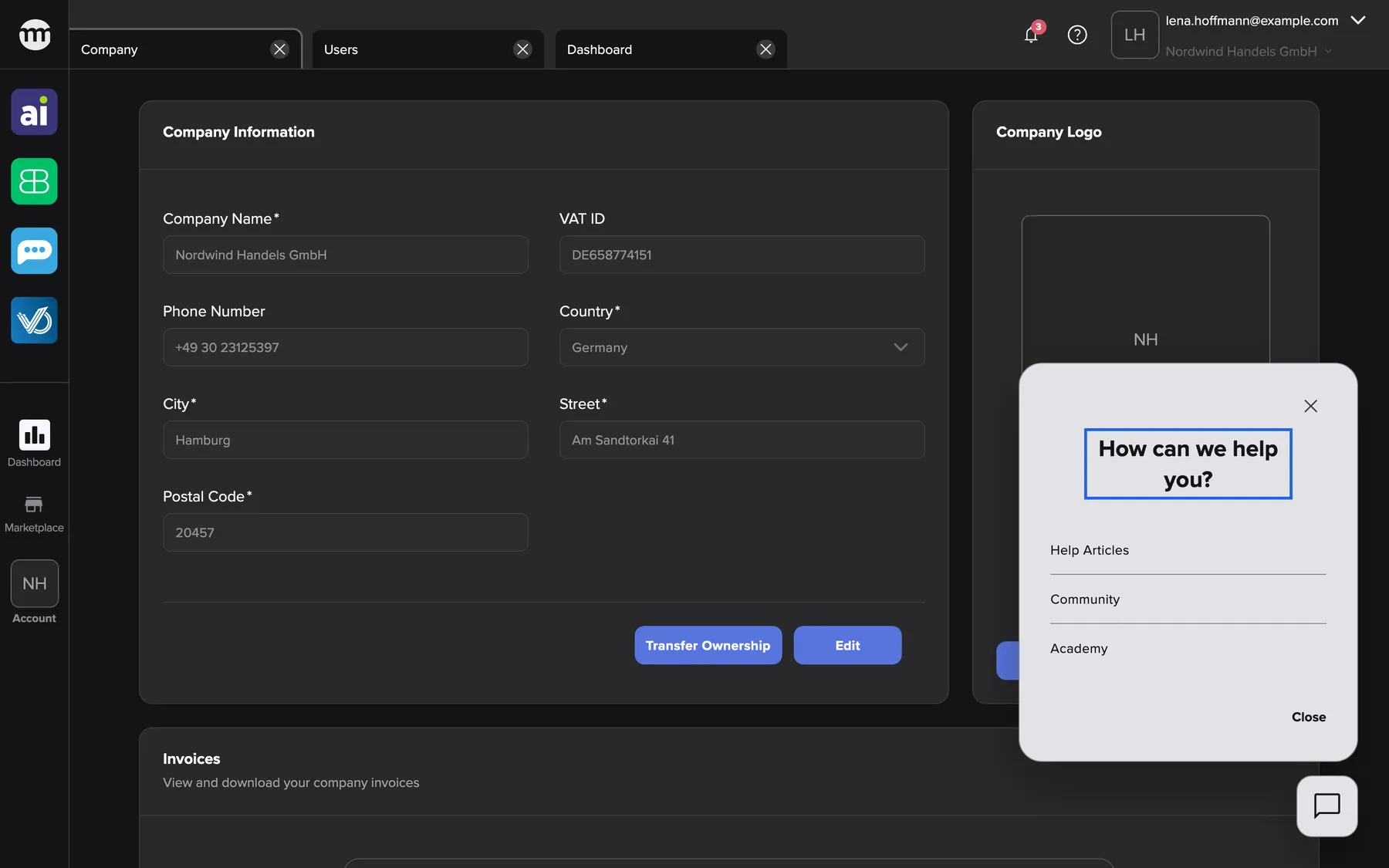
What this screenshot shows
- Highlighted
- “How can we help you?”: heads the help options
- Also visible
- Help articles, Community, Academy
- Purpose
- getting help
| Entry | What it does | When you see it |
|---|---|---|
| Help & Support | Opens the comrce support window, where you search answers and write to support | When comrce has enabled it for your account |
| Talk to experts | Opens a chat with e-commerce experts | When the expert chat is available for your account |
| Academy | Opens the Academy of comrce in a new browser tab | Always |
Use the user menu
Section titled “Use the user menu”Select your email address at the top right. The menu offers:
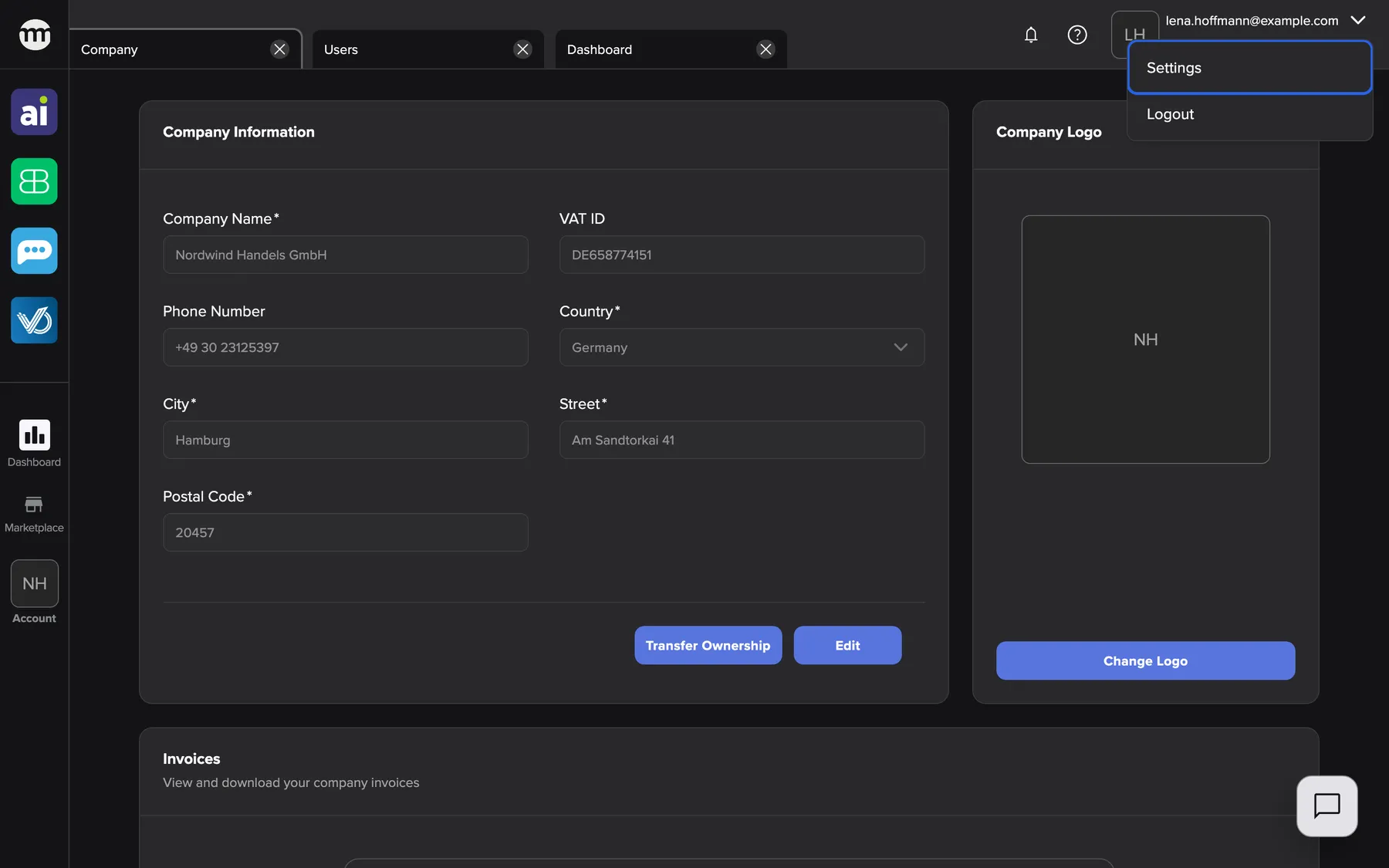
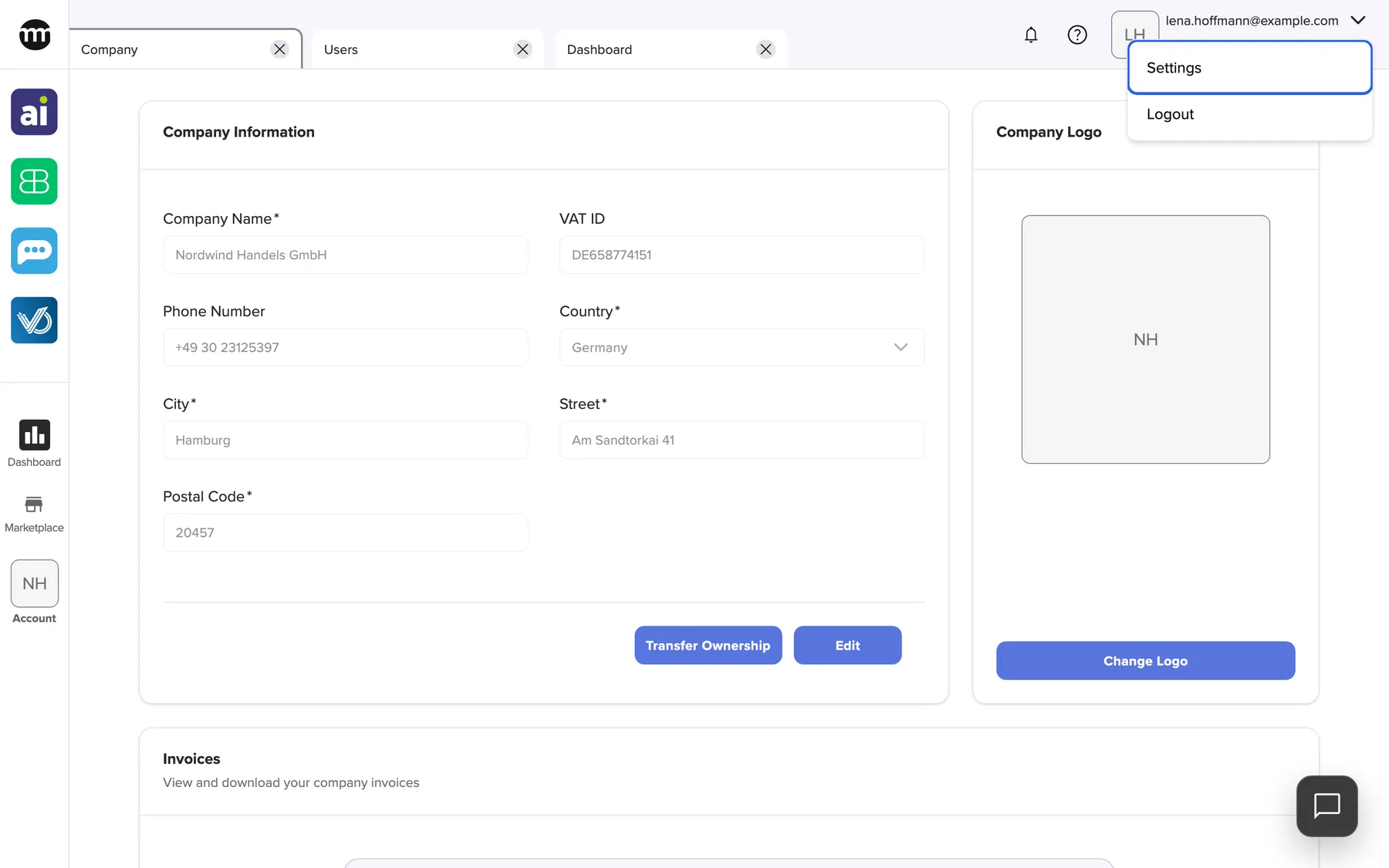
What this screenshot shows
- Highlighted
- “Settings”: opens your personal settings
- Also visible
- Logout entry
- Purpose
- the user menu
| Entry | What it does |
|---|---|
| Settings | Opens your personal settings in a tab: name, photo, language, theme, password, email and more. See Settings. |
| Logout | Signs you out of comrce Hub in this browser and returns to the sign-in screen |
The company name under your email address opens My companies, where you switch to another company. See Working with several companies.
You can see and end support sessions on your Settings tab. See Support access with your PIN.
Dialogs that appear after you sign in
Section titled “Dialogs that appear after you sign in”Right after you sign in, comrce Hub may show up to three dialogs, one after the other. None of them closes without an answer.
| Order | Dialog | When it appears |
|---|---|---|
| 1 | Please change your password | The password has expired or was set before the current password rules. See Passwords and sign-in. |
| 2 | comrce Hub uses cookies | You have not chosen your cookie settings yet, for example at your first sign-in |
| 3 | Setting up two-factor authentication | Two-factor authentication is not set up for your account. See Two-factor authentication. |
In the cookie dialog, essential cookies are always active. You choose the optional ones:
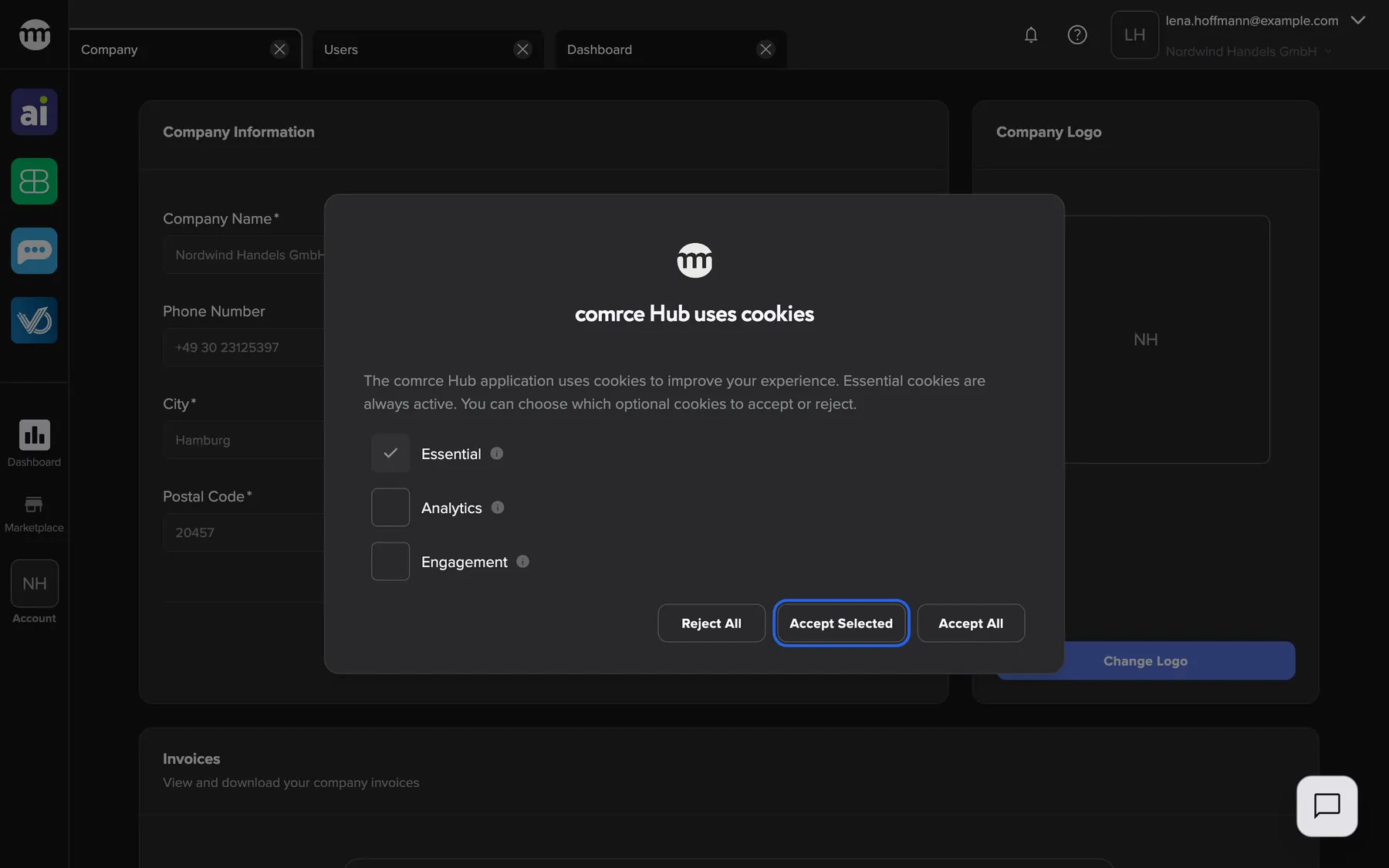
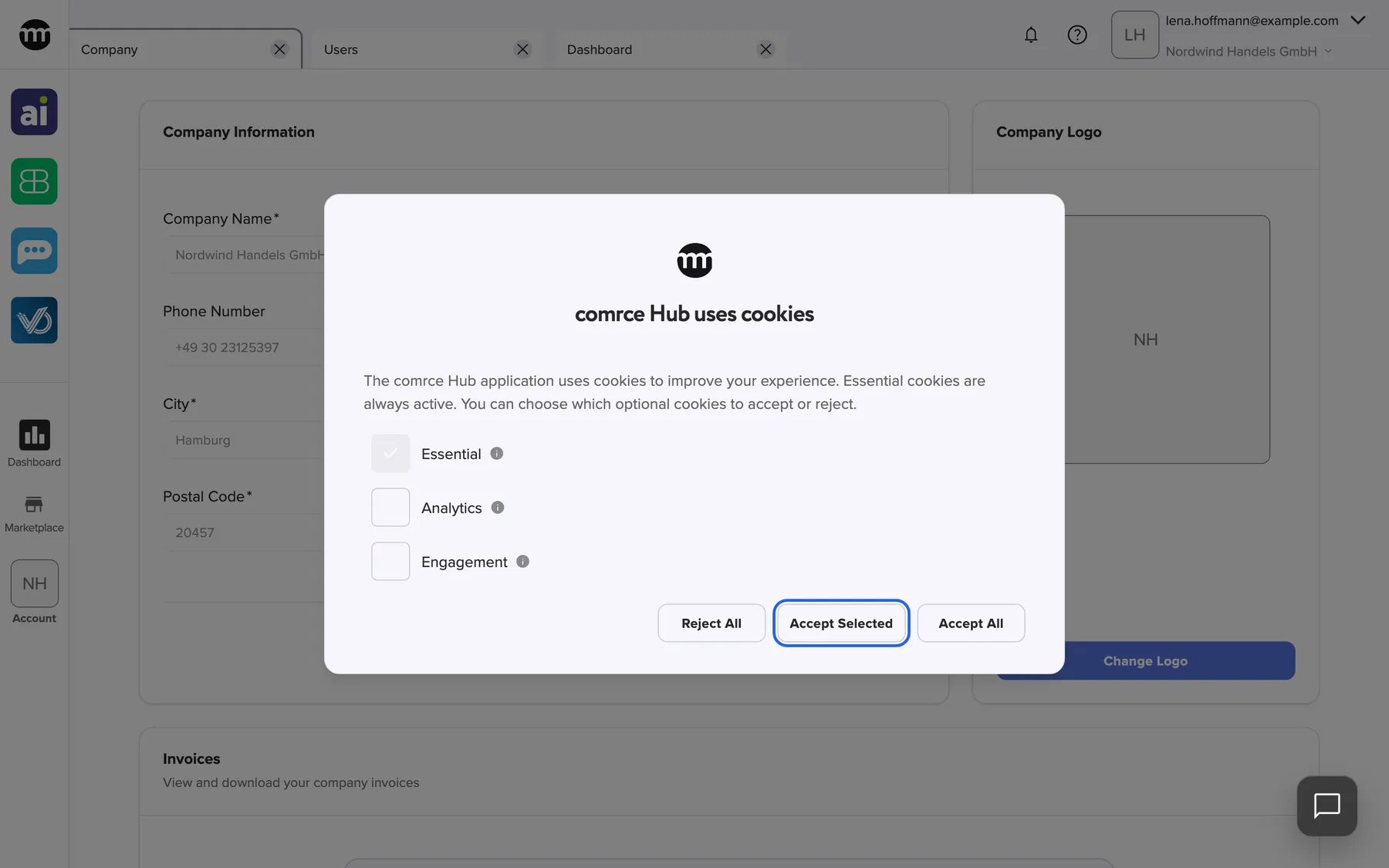
What this screenshot shows
- Highlighted
- “Accept Selected”: saves the ticked cookie types
- Also visible
- Essential, Analytics, Engagement; Reject All, Accept All
- Purpose
- the cookie consent dialog
| Cookie type | What it is for |
|---|---|
| Essential | Necessary for the application to work properly. These cannot be turned off, as they support core functions like login, navigation, and security. |
| Analytics | Help us understand how the application is used by collecting anonymous data about user behavior. This allows us to improve features and performance. |
| Engagement | Track interactions to provide personalized content and notifications, and help measure the effectiveness of features and messages. |
Choose one of these:
- Reject All
- Accept Selected, after ticking the types you want
- Accept All
comrce Hub saves your choice with your account, so it applies on every device. To change it later, open Cookie Settings in your Settings.
When you belong to no company
Section titled “When you belong to no company”People who are not, or no longer, in any company see a reduced workspace. The sidebar holds only the comrce logo. The top bar has no bell and no help button. The help menu at the bottom right is missing. Your Settings open, where you still manage your profile, password and account. The user menu offers Settings and Logout.
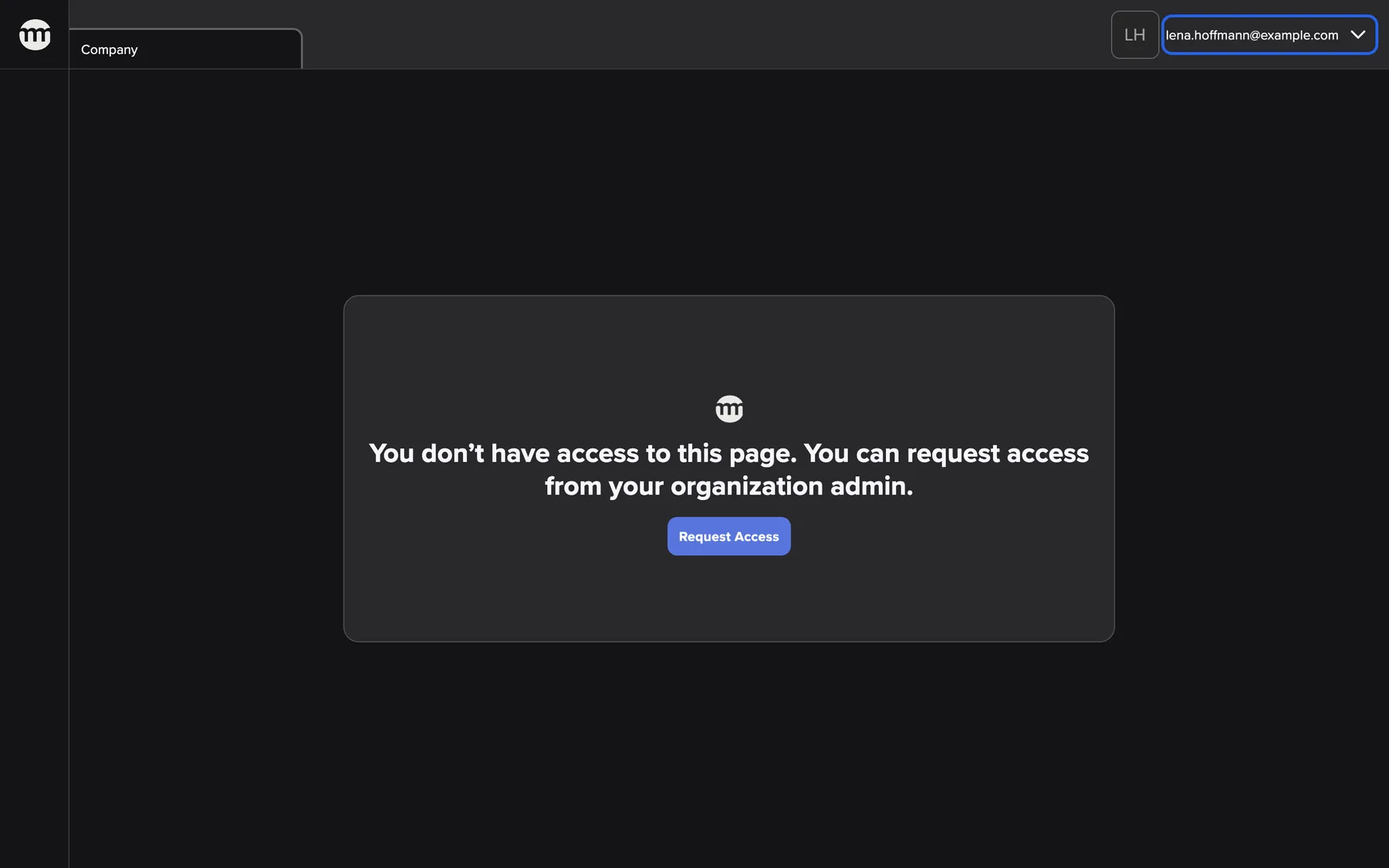
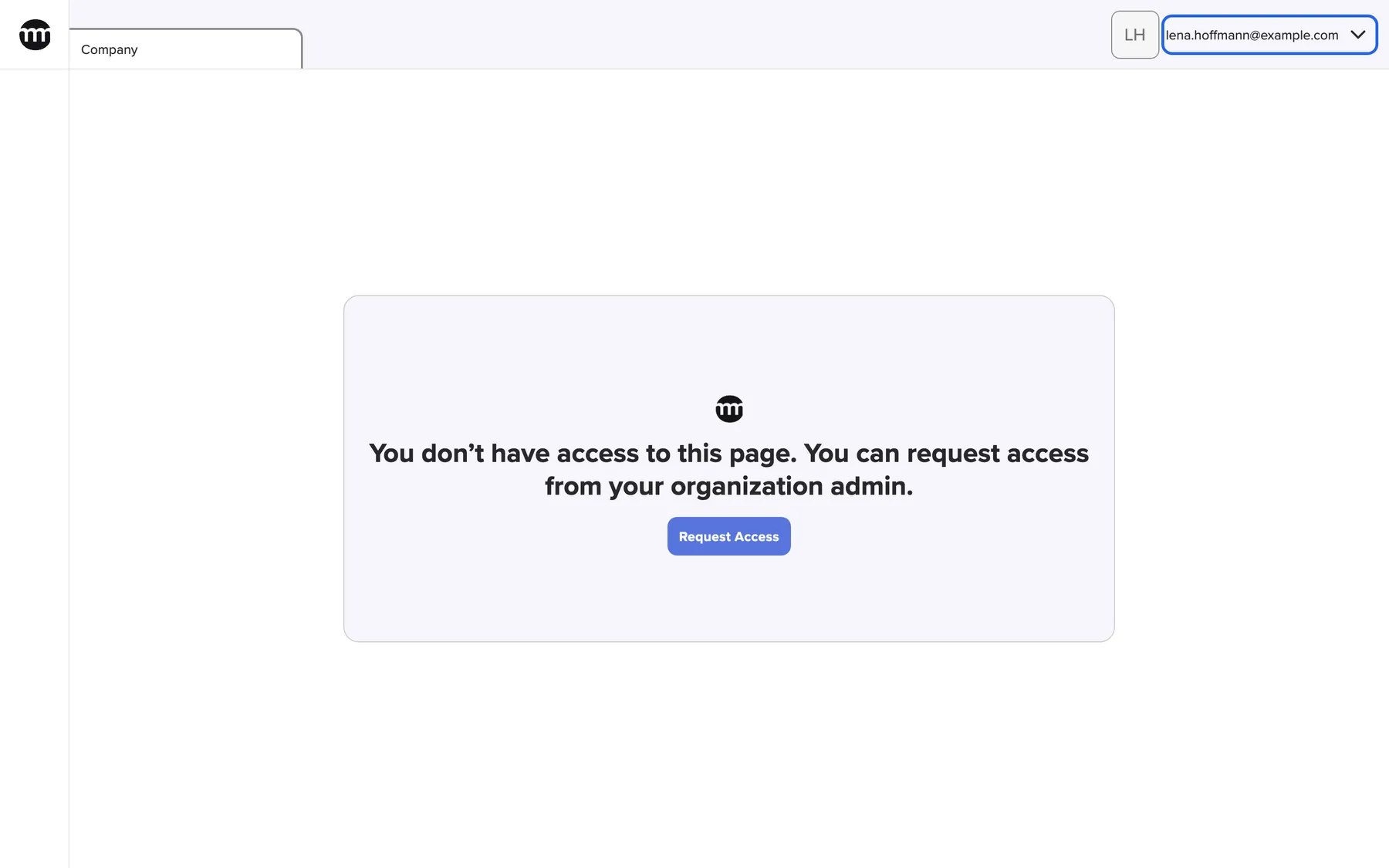
What this screenshot shows
- Highlighted
- “lena.hoffmann@example.com”: opens Settings and Logout
- Also visible
- Settings tab only; Empty sidebar
- Purpose
- the layout without a company
This happens, for example, after you left your last company or the owner removed you. To work in a company again, ask its owner to invite you, then accept the invitation. See Accept an invitation.
The comrce Hub tab
Section titled “The comrce Hub tab”A tab titled comrce Hub opens only from a direct link. No menu in comrce Hub leads there. It has no content of its own, only a short notice that no address is set. Close it with the ✕ on the tab.
Every control, explained
Section titled “Every control, explained”
Every control, explained
Section titled “Every control, explained”Tab strip
Section titled “Tab strip”Along the top, between the sidebar and the top-bar buttons. On narrow screens, a row under the top bar.
One tab per open screen. Select to switch, drag to reorder, and use ✕ or a middle click to close. A right click offers Close and Close Others. This browser remembers open tabs until you switch company.
You can compare screens and come back to a half-done task without losing your place.
Notifications bell
Section titled “Notifications bell”Top bar, right, the bell icon labelled Notifications.
Opens the tray with the newest notifications from your tools. The red badge counts unread notifications. Inside, ✓ marks one as read and ✕ removes one. Mark all as read marks all. If the list cannot be loaded, the tray says Failed to load notifications..
Things that need you in a tool reach you without opening every tool.
Sidebar buttons
Section titled “Sidebar buttons”| Control | What it does | Why |
|---|---|---|
| comrce logo (top) | Opens News | Product news and articles from comrce are one click away |
| Tool icons | Open Amainvoice, Billbee, Replyco or VentoryOne. Grey when you may see but not open the tool. | Your tools are always in the same place |
| Dashboard | Opens Dashboard | See Dashboard |
| Marketplace | Opens the Marketplace of services and partners | See Browse the Marketplace |
| Account | Opens Users, Company and Logs | The pages of your company sit together |
Other controls on this page
| Control | What it does | Why |
|---|---|---|
| Help buttons | The question-mark button in the top bar and the speech-bubble button at the bottom right both open the help menu. The bottom-right button is hidden while the comrce support window is open. | Help is reachable from every screen. |
| User menu and company name | Top bar, far right. The email address opens Settings and Logout. The company name opens My companies. Narrow screens show only the avatar and the arrow. | Personal settings and the company switch are one click away. |
Who sees what
Section titled “Who sees what”
Who sees what
Section titled “Who sees what”| Part of the workspace | Shown when |
|---|---|
| A tool icon | You may see that tool in your company |
| Users, Company, Logs | You have the matching permission. The owner sees all. |
| Help & Support, Talk to experts | comrce has enabled them for your account |
| Sidebar, bell and help menu | You belong to at least one company |
Frequently asked questions
Section titled “Frequently asked questions”
Frequently asked questions
Section titled “Frequently asked questions”Finding your way
Section titled “Finding your way”Where is the menu for users, the company and logs?
Section titled “Where is the menu for users, the company and logs?”Select your company logo labelled Account in the left sidebar. A menu opens with Users, Company and Logs. Each entry needs the matching permission in your company. The owner sees all three.
Why is a tool icon grey?
Section titled “Why is a tool icon grey?”A grey tool icon means you may see the tool but not open it in your company. Ask your company owner for the permission to open that tool. Tools you may not see at all are missing from the sidebar.
Where did the sidebar go on my phone?
Section titled “Where did the sidebar go on my phone?”On narrow screens, comrce Hub hides the sidebar to make room. Tap the comrce logo at the left end of the top bar, and the sidebar slides in. Your tabs move to a row under the top bar.
Why does a tab titled comrce Hub show no content?
Section titled “Why does a tab titled comrce Hub show no content?”The comrce Hub tab opens only from a direct link and has no content of its own. It shows a short notice that no address is set. Close the tab with its ✕ and continue in your other tabs.
Why are my old tabs still open after I signed in again?
Section titled “Why are my old tabs still open after I signed in again?”comrce Hub restores the tabs you had open in this browser, so you can continue where you stopped. Close the ones you do not need with ✕. Or right-click a tab and choose Close Others. Switching company closes all tabs.
I cannot close a tab. Why?
Section titled “I cannot close a tab. Why?”The last open tab has no ✕, because comrce Hub always shows at least one screen. Open another screen from the sidebar first, then close the tab. A tab with unsaved changes asks for confirmation before it closes.
Notifications
Section titled “Notifications”Why does the bell show a number when the tray looks read?
Section titled “Why does the bell show a number when the tray looks read?”The red badge counts every unread notification, also further down the tray. Open the tray and select Mark all as read in its header. The badge then disappears.
Can I see notifications older than the newest 50?
Section titled “Can I see notifications older than the newest 50?”No. The tray loads the 50 newest notifications each time you open it. Removing old ones with ✕ keeps the list short. Notifications beyond the newest 50 do not appear in the tray.
Dialogs and settings
Section titled “Dialogs and settings”Why can’t I close the cookie dialog?
Section titled “Why can’t I close the cookie dialog?”comrce Hub needs your cookie choice before you continue, so the dialog has no close button. Choose Reject All, Accept Selected or Accept All. Essential cookies are always active. Change your choice later with Cookie Settings in your Settings.
Why do I only see my settings and no sidebar?
Section titled “Why do I only see my settings and no sidebar?”You are signed in but belong to no company, for example after leaving your last one. Then only your Settings are shown. Ask a company owner to invite you. After you accept, the full workspace appears.
Troubleshooting
Section titled “Troubleshooting”
Troubleshooting
Section titled “Troubleshooting”| Symptom | What to check |
|---|---|
| A sidebar entry is missing | Your permissions in this company. Ask the owner, or see Permissions and roles. |
| The bell tray says Failed to load notifications. | Your internet connection. Close and reopen the tray to try again. |
| Help & Support is missing from the help menu | comrce has not enabled it for your account. Write to comrce support instead. |
| Only Settings is shown, without a sidebar | You belong to no company. Accept an invitation to a company. |
| A dialog appears after every sign-in | Answer it: cookie choice, password change or two-factor setup. Each one stops appearing once done. |