

Company
The Company tab is your company’s business card in comrce Hub: name, VAT ID, phone number, address and logo. Colleagues and invitations show what you enter here. The owner also starts an ownership transfer on this tab. Open it from AccountCompany. With the permission Viewing company profile, it is also the tab comrce Hub opens after you sign in.
What you can do here
Section titled “What you can do here”- Read the company’s details. Name, VAT ID, phone number, country, city, street and postal code, read-only until you edit. The screen at a glance
- Correct the company’s details. Edit unlocks all seven fields. Five of them are required. Keep your company details and logo up to date
- Change or remove the logo. Upload an image or load it from a web address, and crop it to a square. Change the logo
- Hand the company to someone else. Only the owner starts a transfer. The new owner must accept it. Transfer ownership · Transferring company ownership
The screen at a glance
Section titled “The screen at a glance”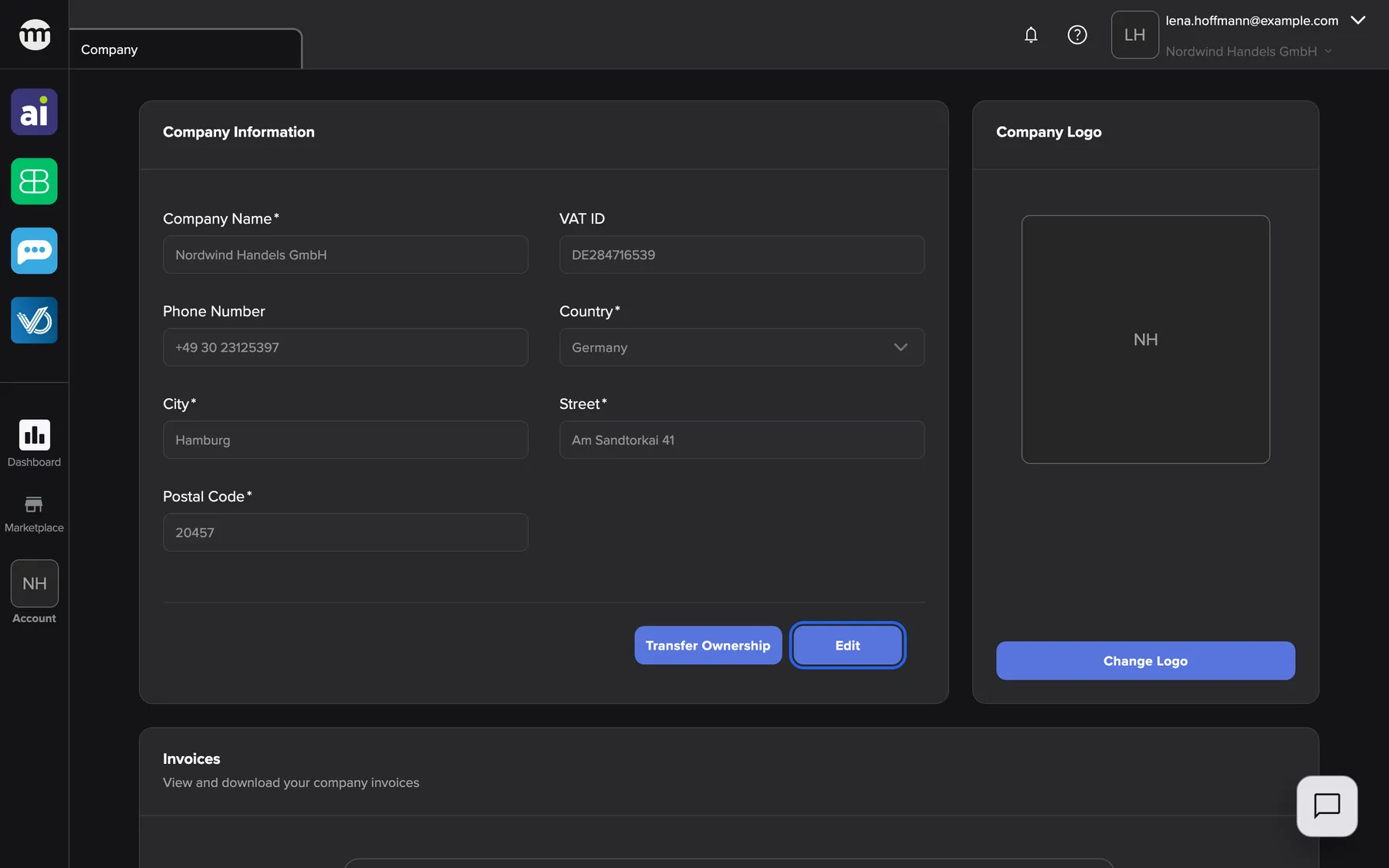
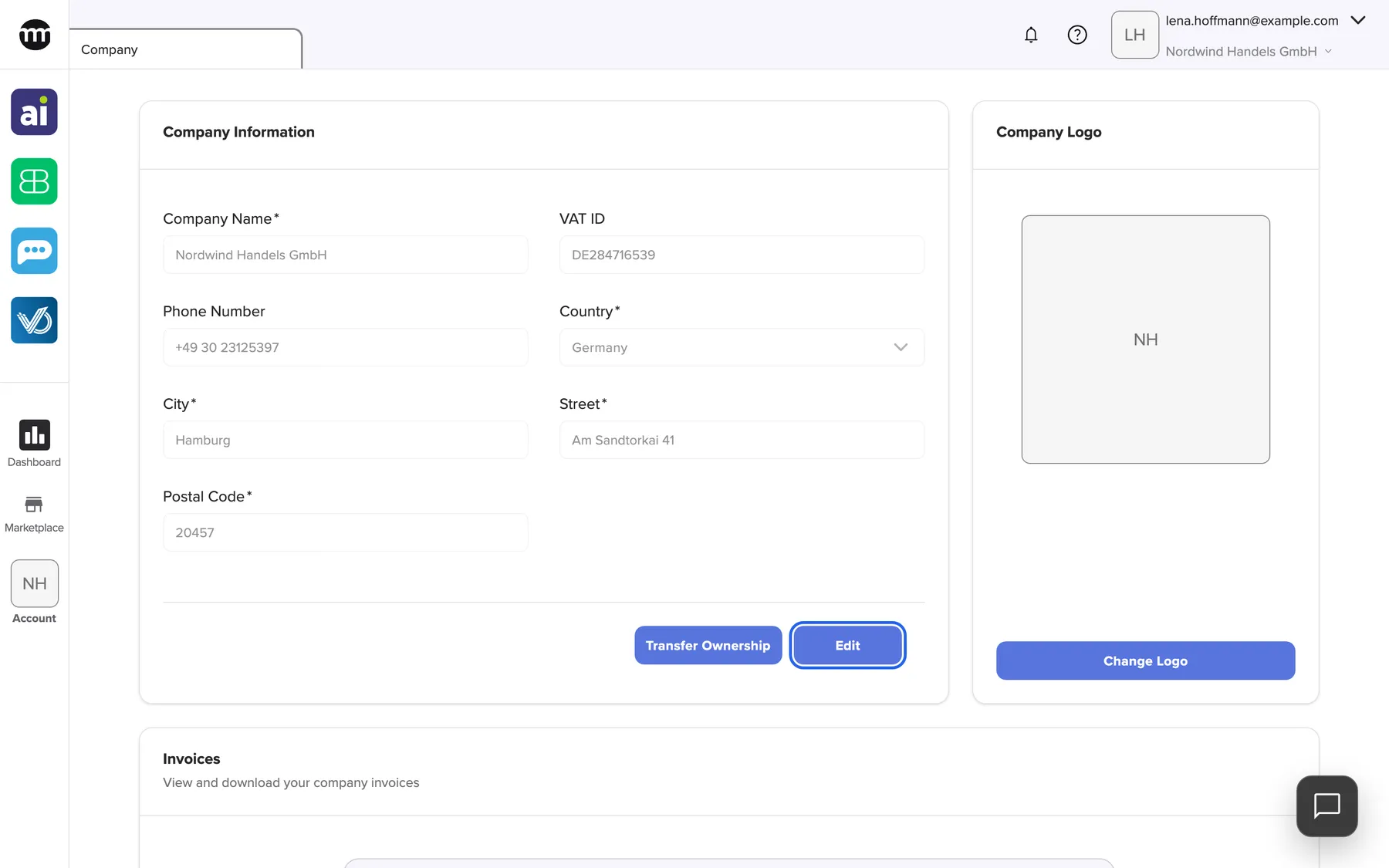
What this screenshot shows
- Screen
- Company
- Highlighted
- “Edit”: unlocks the company fields
- Also visible
- Company Information fields, read-only; Transfer Ownership button; Company Logo card with initials; Invoices card start
- Purpose
- the Company tab as it opens for the owner
| Region | What it shows | What you do there |
|---|---|---|
| Company Information | The seven company fields, read-only. A blue banner while an ownership transfer runs. | Read the details, select Edit |
| Card footer | Transfer Ownership (owner only) and Edit | Start a transfer, unlock the form |
| Company Logo | The logo, or the company’s initials when there is none | Change or delete the logo |
| Invoices | A placeholder card. comrce Hub lists no invoices here. | Nothing to do |
Keep your company details and logo up to date
Section titled “Keep your company details and logo up to date”Moved office, new phone number or a fresh logo? You update all of it on the Company tab, and every change is recorded in Logs.
Edit the company details
Section titled “Edit the company details”- Select Edit at the bottom of Company Information. The fields unlock and the footer shows Cancel and Save.
- Change what you need. Fields marked with an asterisk are required.
- Select Save. comrce Hub shows Company information updated successfully. and locks the form again.
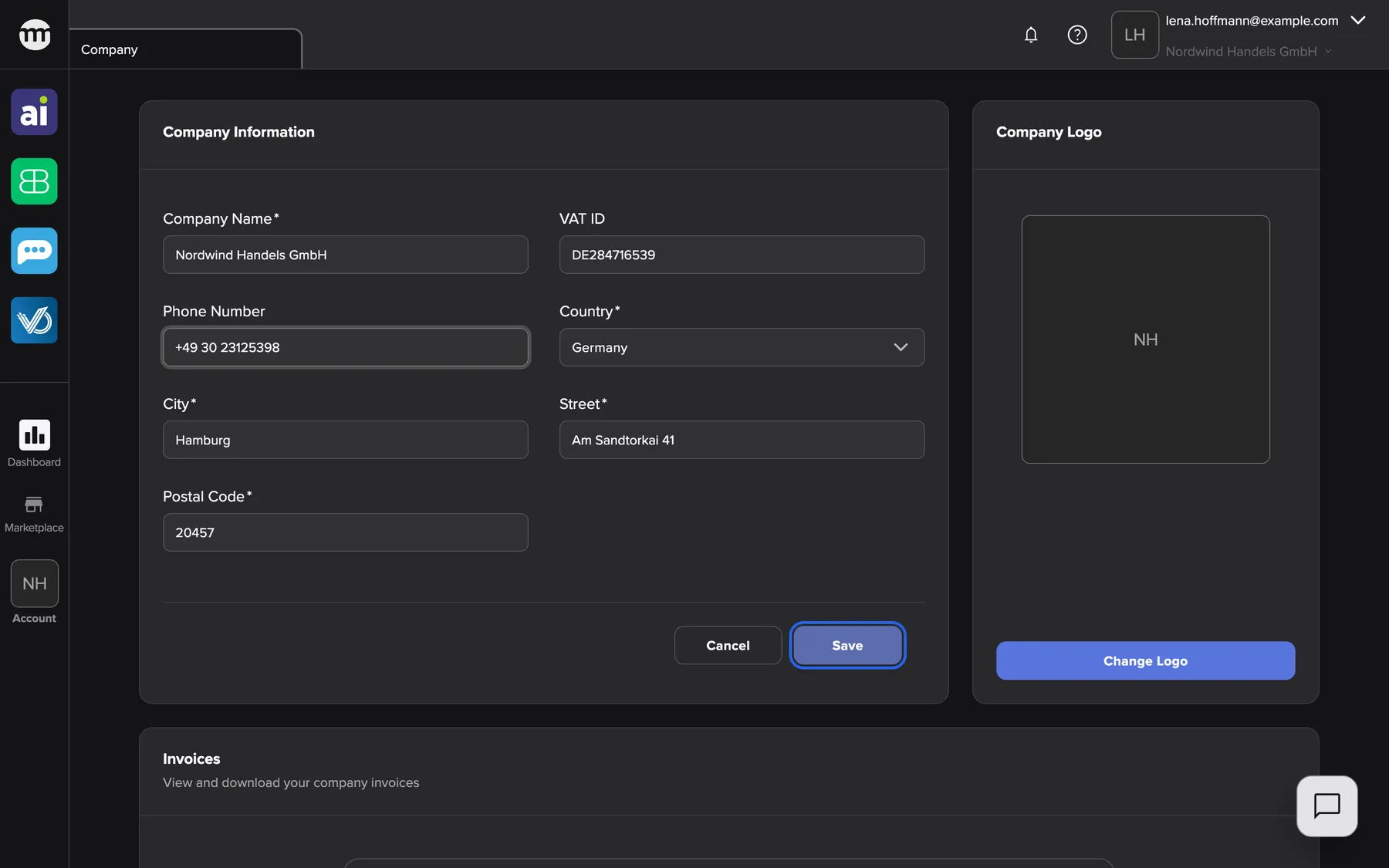
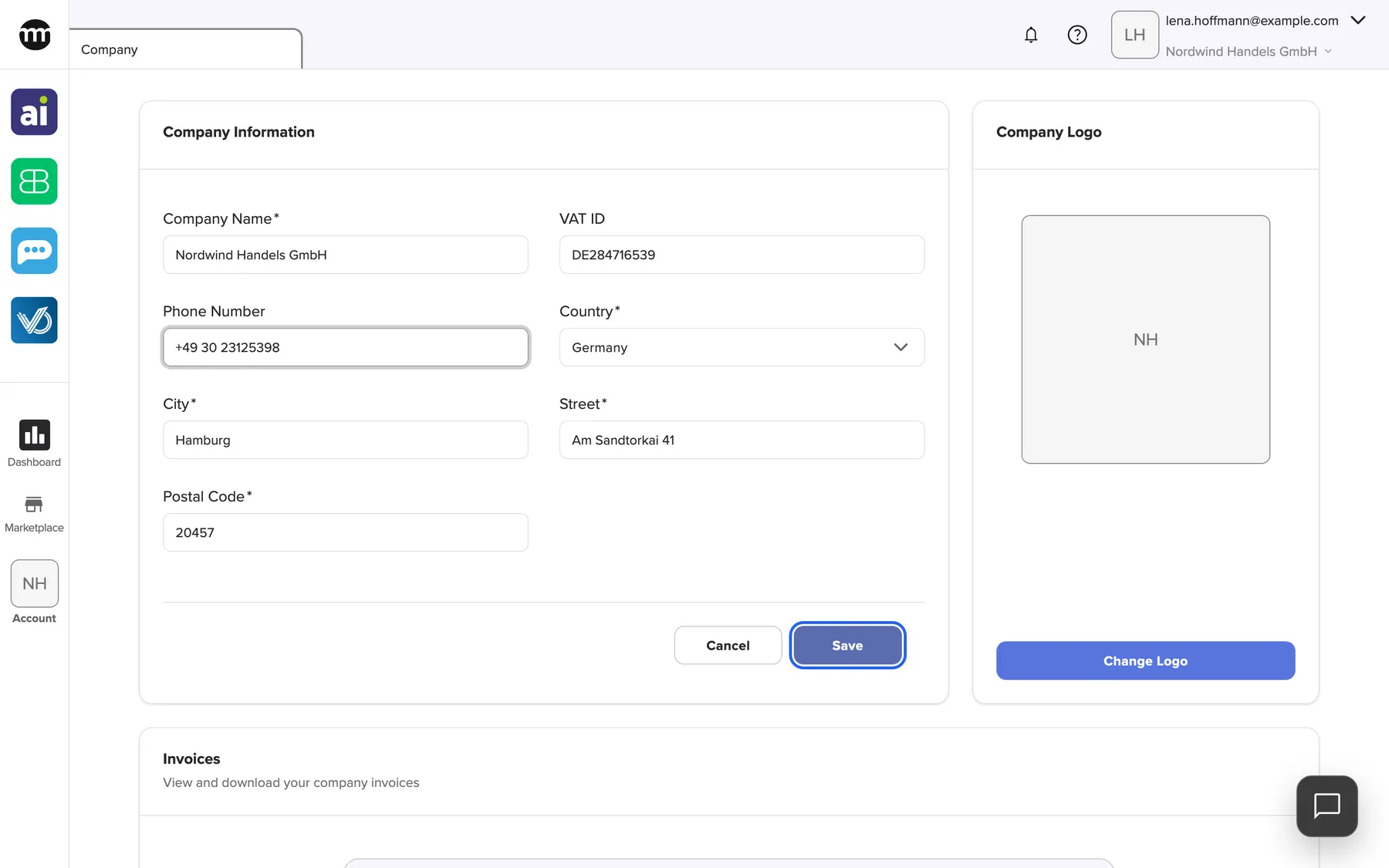
What this screenshot shows
- Screen
- Company
- Highlighted
- “Save”: saves the company information
- Also visible
- Editable fields; Changed phone number; Cancel button
- Purpose
- edit the company information
Cancel discards all changes. If saving fails, comrce Hub shows Could not update company information. and keeps your input. With unsaved changes, closing the tab or switching company asks before discarding them.
A required field left empty shows its message as soon as you leave it, for example City is required. No field may contain HTML. comrce Hub rejects it with HTML markup is not allowed.
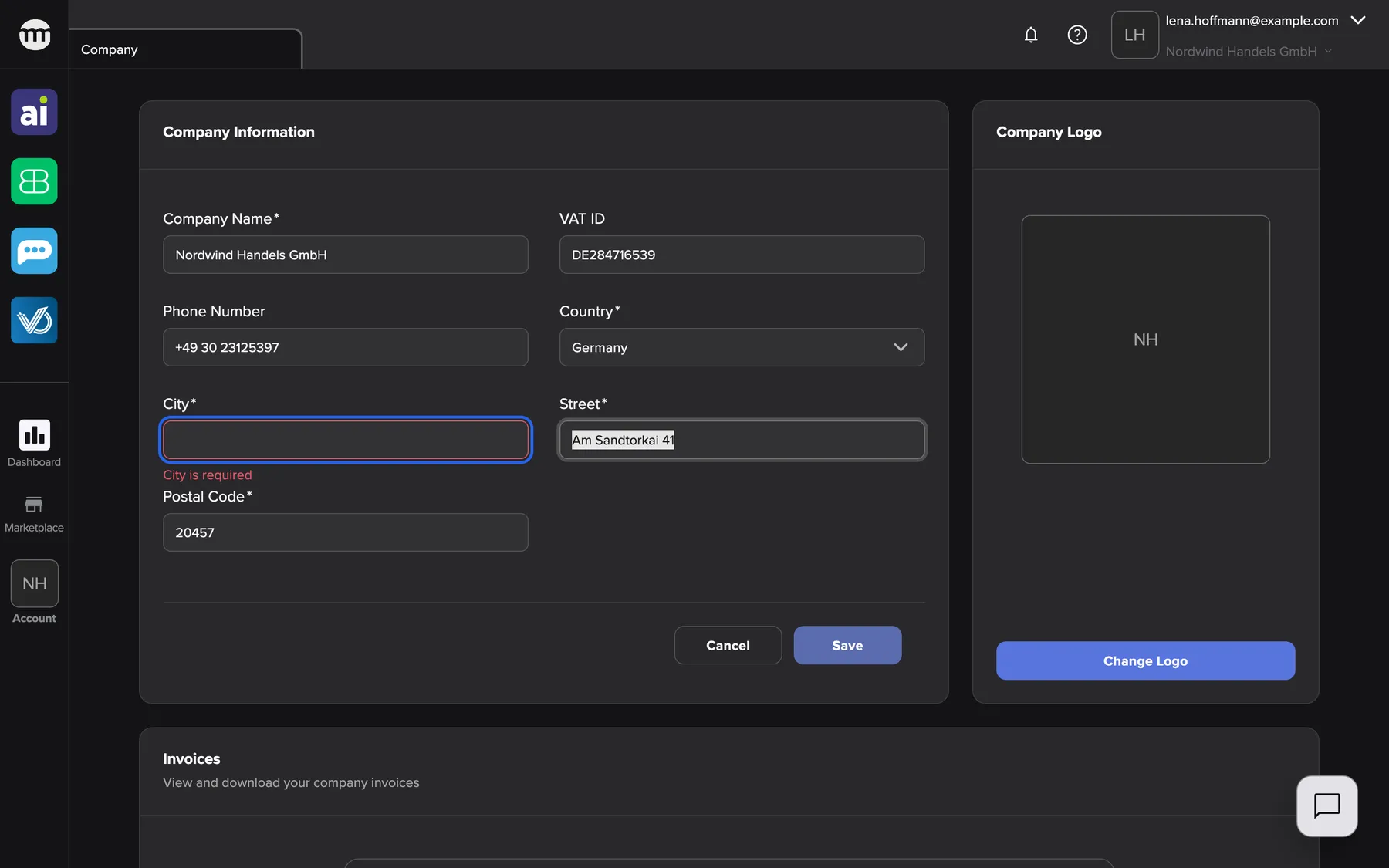
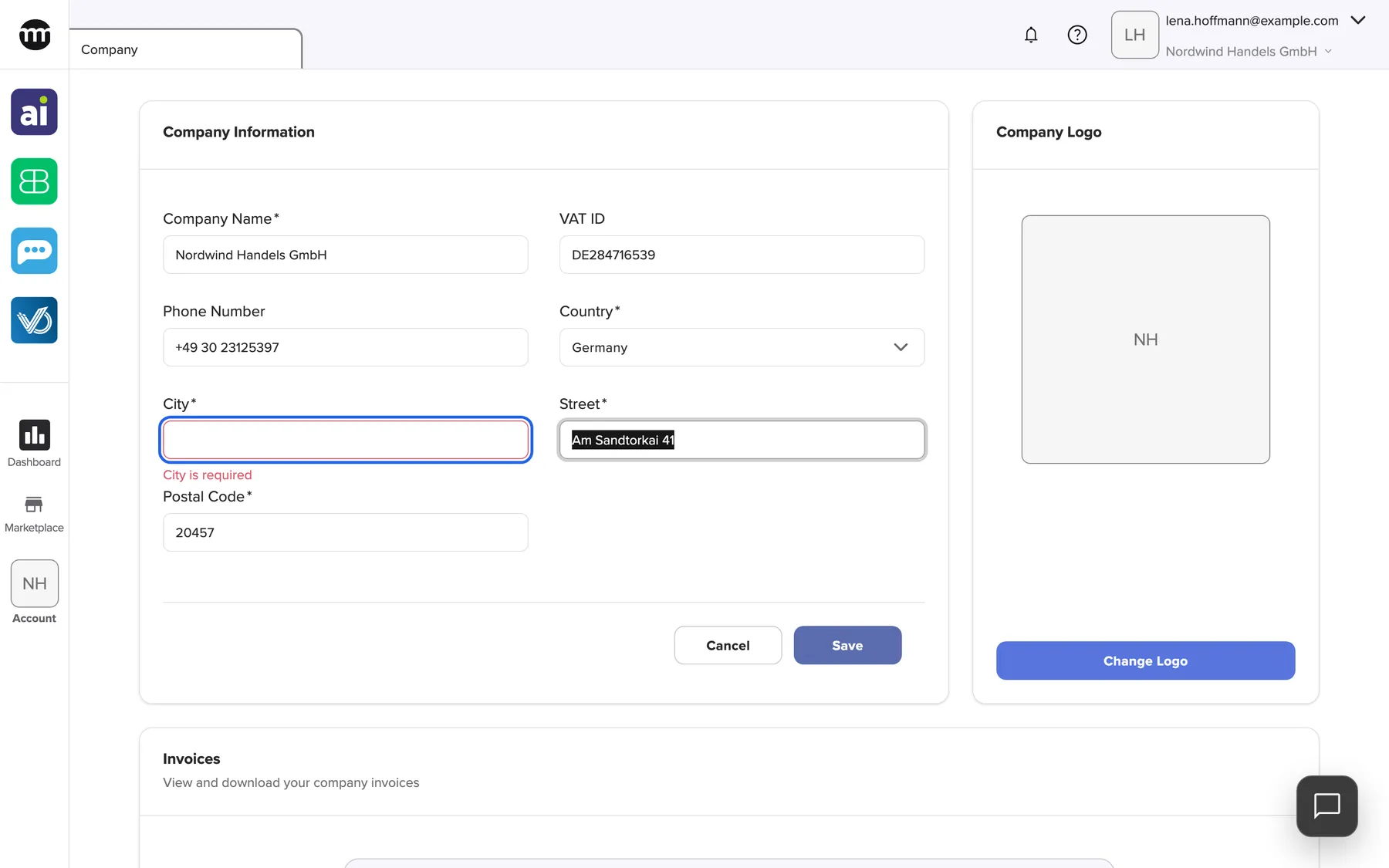
What this screenshot shows
- Screen
- Company
- Highlighted
- “City”: required field left empty
- Also visible
- City is required message; Other fields filled; Cancel and Save
- Purpose
- validation of required company fields
Example: Nordwind Handels GmbH moves to a new office in Hamburg. Lena Hoffmann selects Edit, changes Street and Postal Code, and saves. Logs records the change as Updated company info.
Change the logo
Section titled “Change the logo”- Select Change logo in Company Logo. The dialog Upload Logo opens.
- Select Upload Logo and pick an image. Or paste a public image address into Paste image URL and load it.
- Drag the image inside the square frame. The Zoom slider enlarges it up to three times. Change logo in the dialog picks another image.
- Select Save. comrce Hub shows Logo updated successfully..
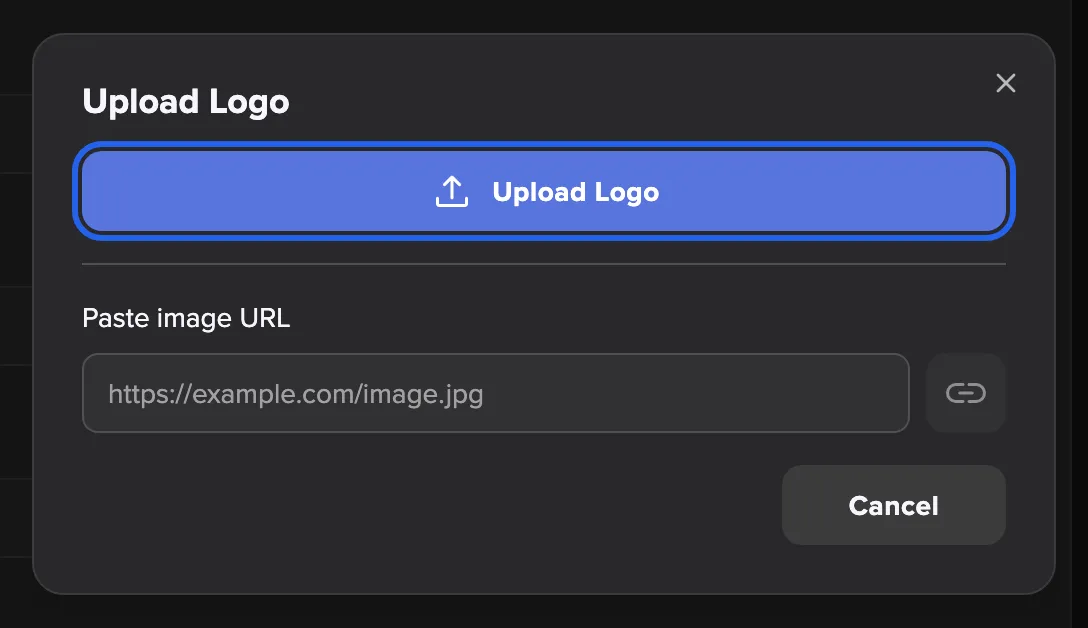
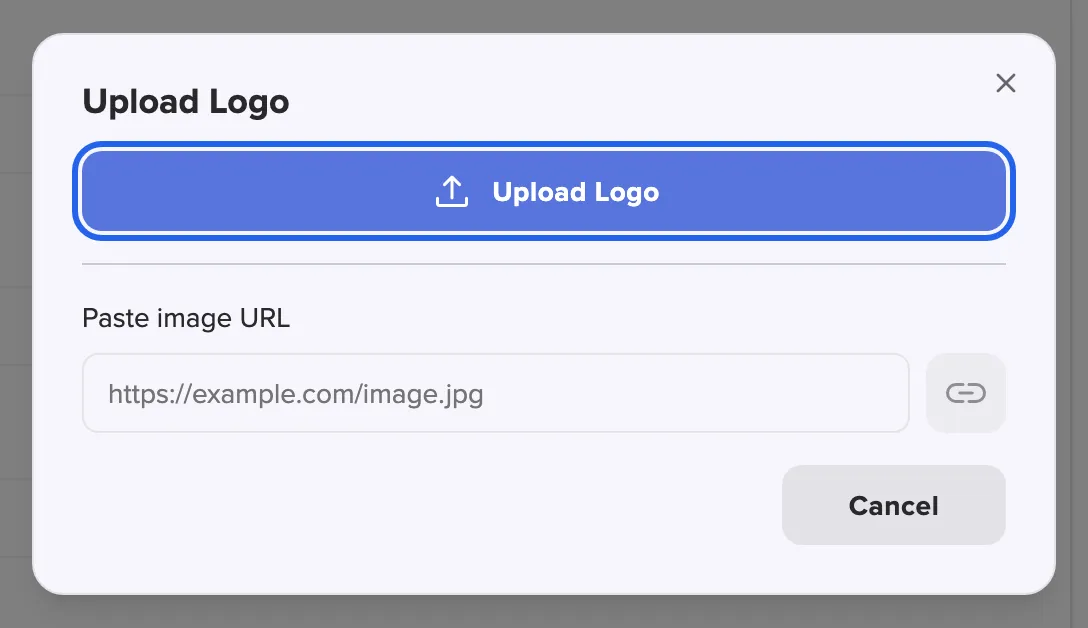
What this screenshot shows
- Screen
- Company
- Highlighted
- “Upload Logo”: opens the file picker
- Also visible
- Paste image URL field; Load image from URL button; Cancel button
- Purpose
- change the company logo
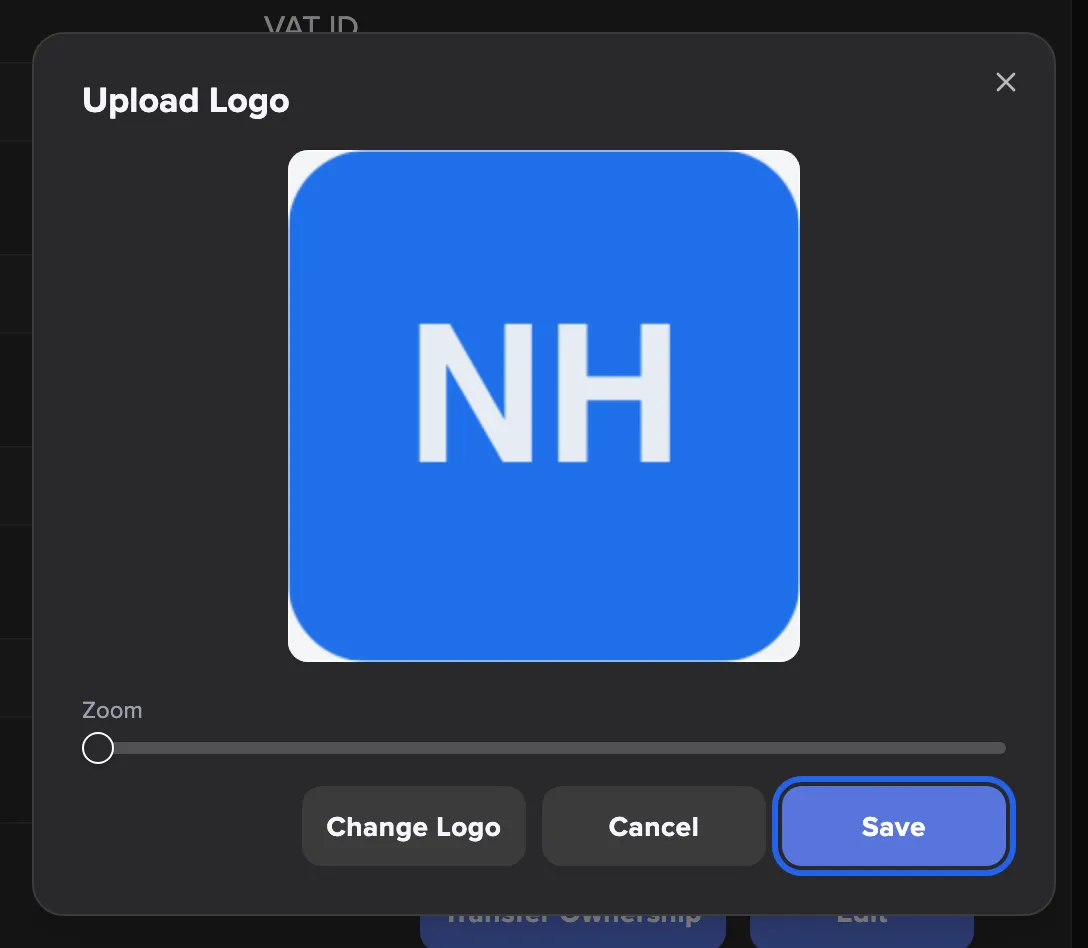
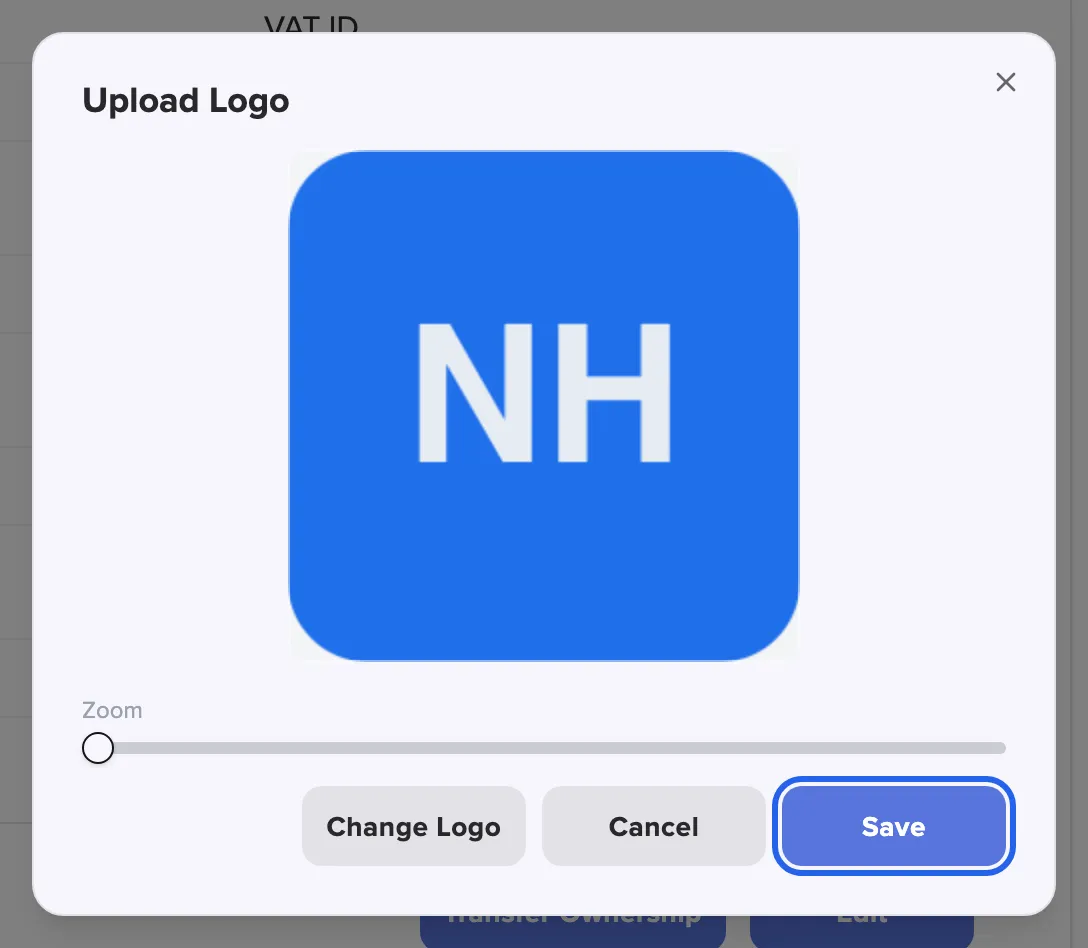
What this screenshot shows
- Screen
- Company
- Highlighted
- “Save”: uploads the cropped square as the company logo
- Also visible
- Square crop area with the NH logo; Zoom slider at 1x; Change logo and Cancel buttons
- Purpose
- crop the company logo before saving
The logo must be a PNG or JPEG file of at most 8 MB. The file name ending must match the image inside. A .png must be a PNG, and a .jpg or .jpeg must be a JPEG.
A pasted address must start with http:// or https:// and also deliver a PNG or JPEG. WebP, GIF, SVG and animated images are refused.
comrce Hub saves the cropped square in the format of the original. A PNG stays a PNG, a JPEG stays a JPEG.
If comrce Hub refuses an image, a red message appears and the dialog stays open. You can choose another image right away. Troubleshooting explains each message.
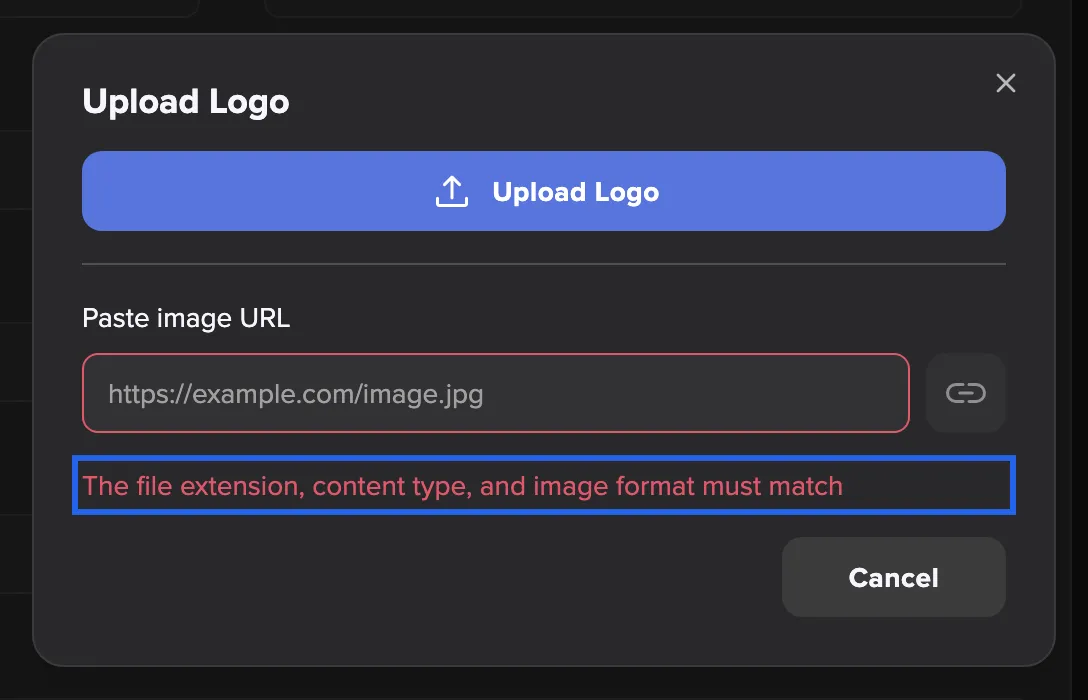
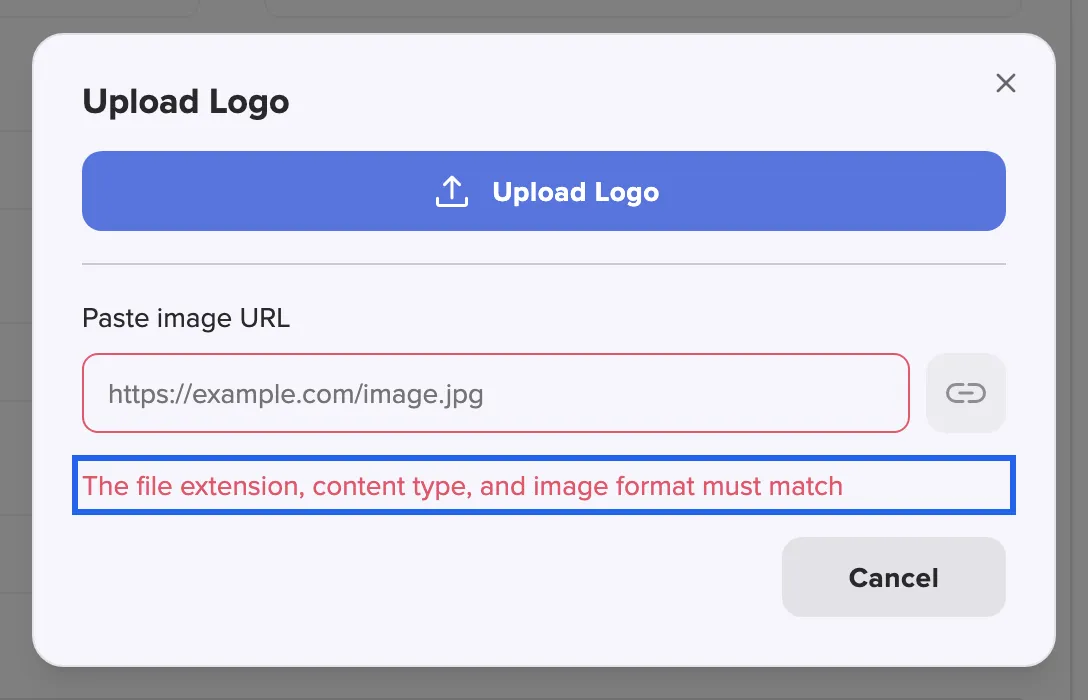
What this screenshot shows
- Screen
- Company
- Highlighted
- “The file extension, content type, and image format must match”: explains why the image was refused
- Also visible
- Upload Logo button; Paste image URL field; Cancel button; No crop area
- Purpose
- a logo file whose name and format do not match
The new logo replaces the initials in the sidebar’s Account button and in other people’s company lists. Delete Logo appears once a logo exists. After confirmation, it brings the initials back.
Transfer ownership
Section titled “Transfer ownership”Only the company owner sees Transfer Ownership. It opens a dialog to pick the new owner from the active members who own no company themselves.
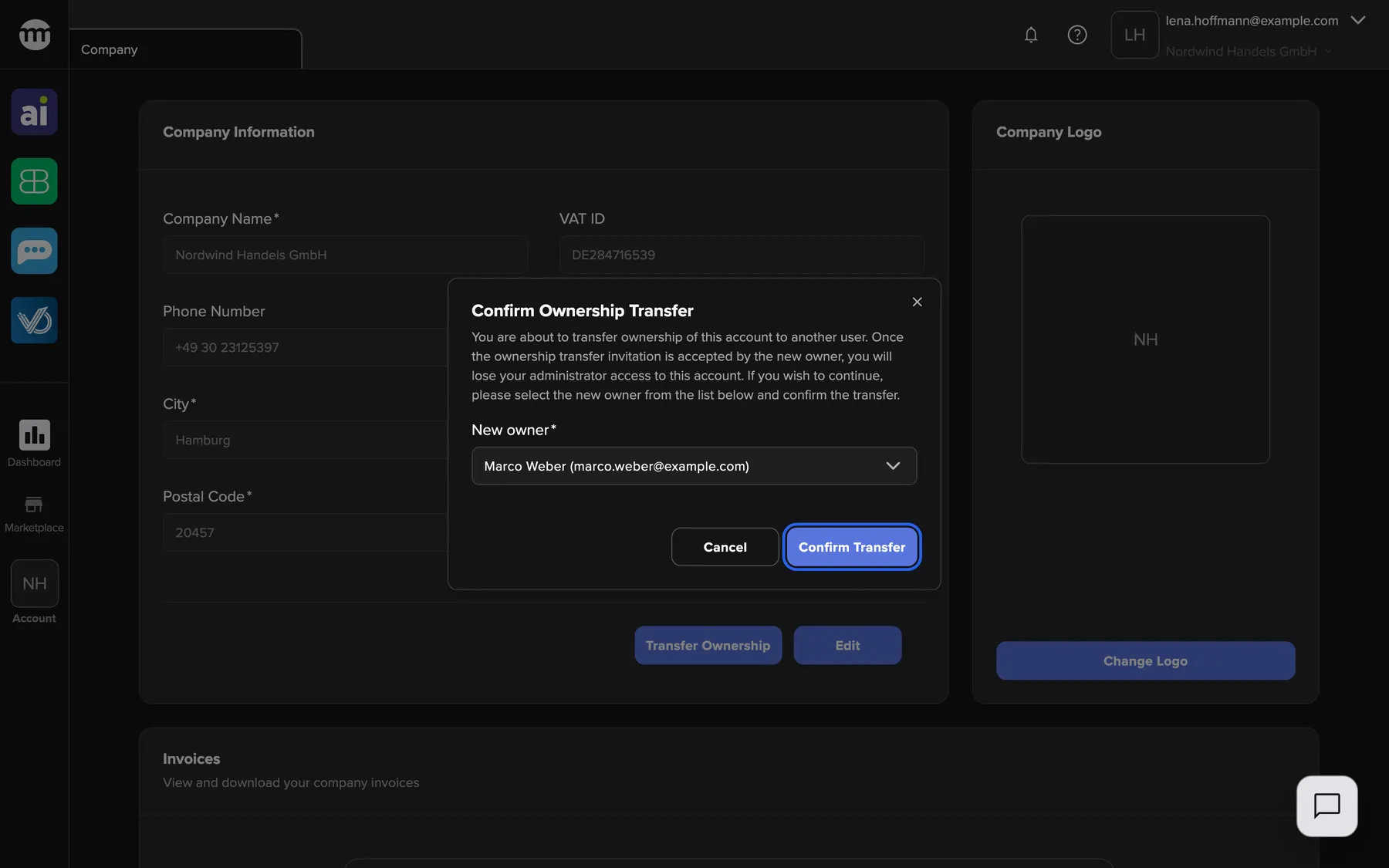
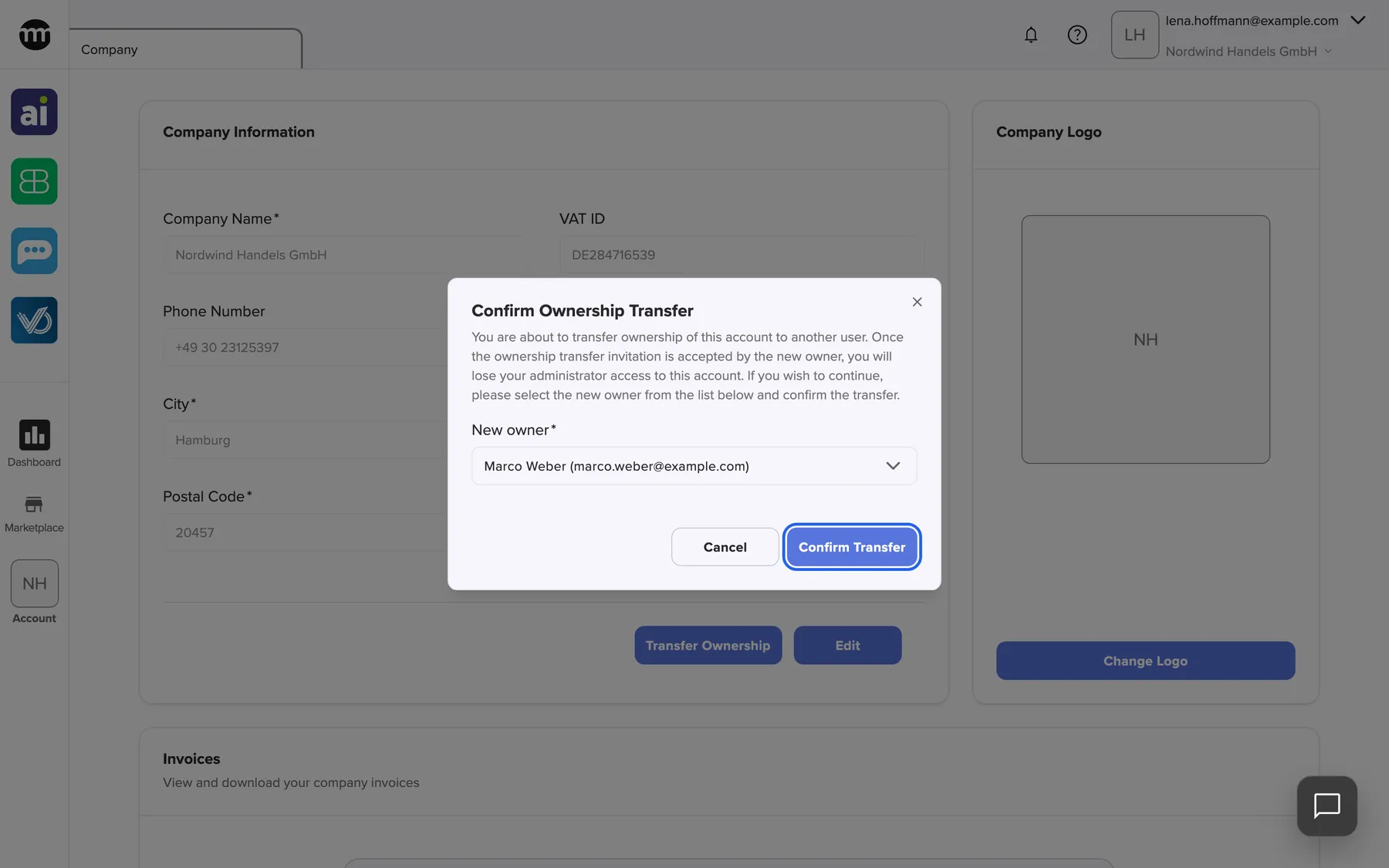
What this screenshot shows
- Screen
- Company
- Highlighted
- “Confirm transfer”: requests the ownership transfer
- Also visible
- Selected new owner Marco Weber; Field New owner; Cancel button
- Purpose
- start an ownership transfer
Confirming does not move ownership yet. comrce Hub first emails the owner a confirmation link. After the owner confirms, the chosen member gets an invitation and becomes owner on accepting it. The whole transfer must finish within 48 hours. Meanwhile the tab shows a banner with the new owner’s email address.
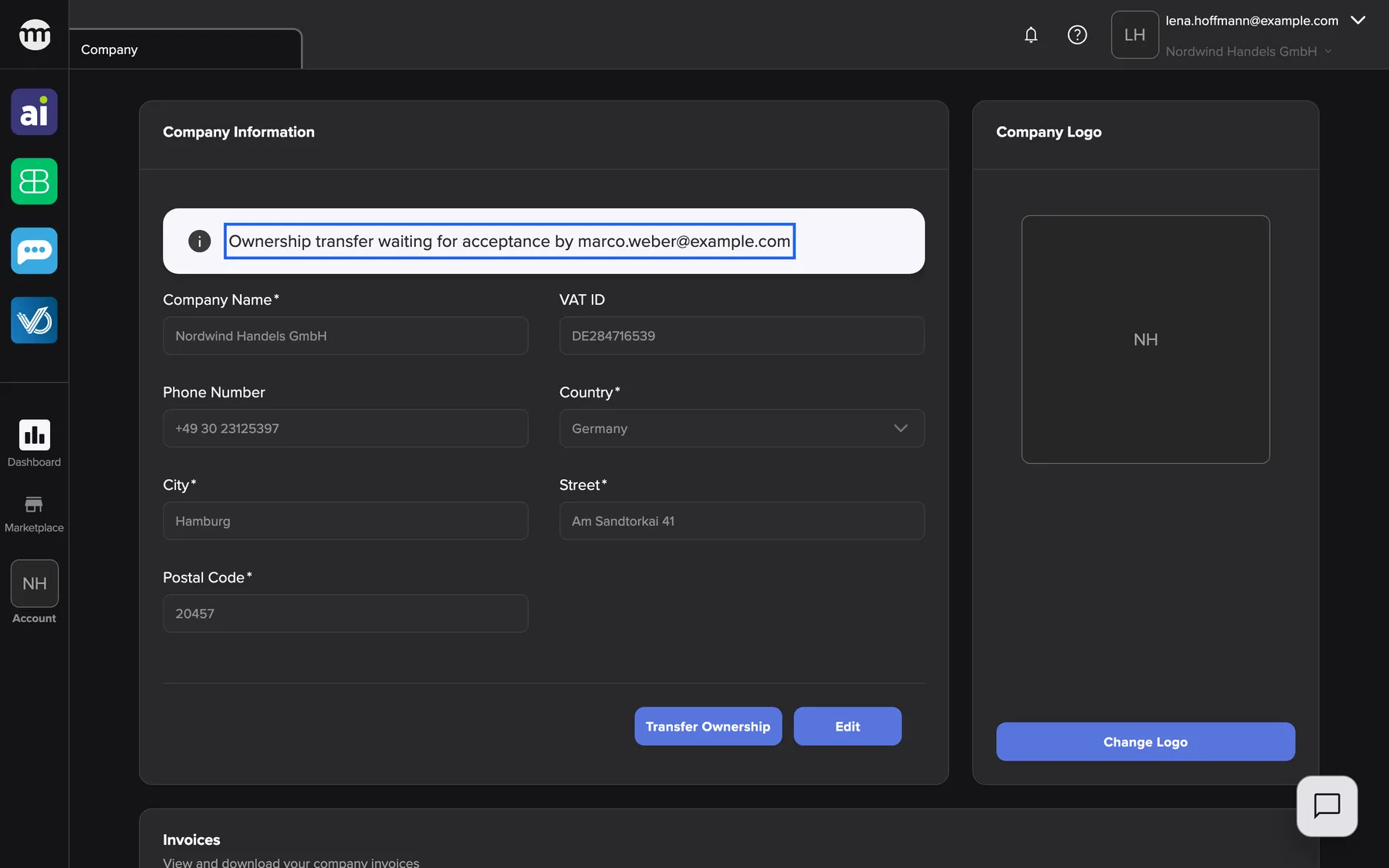
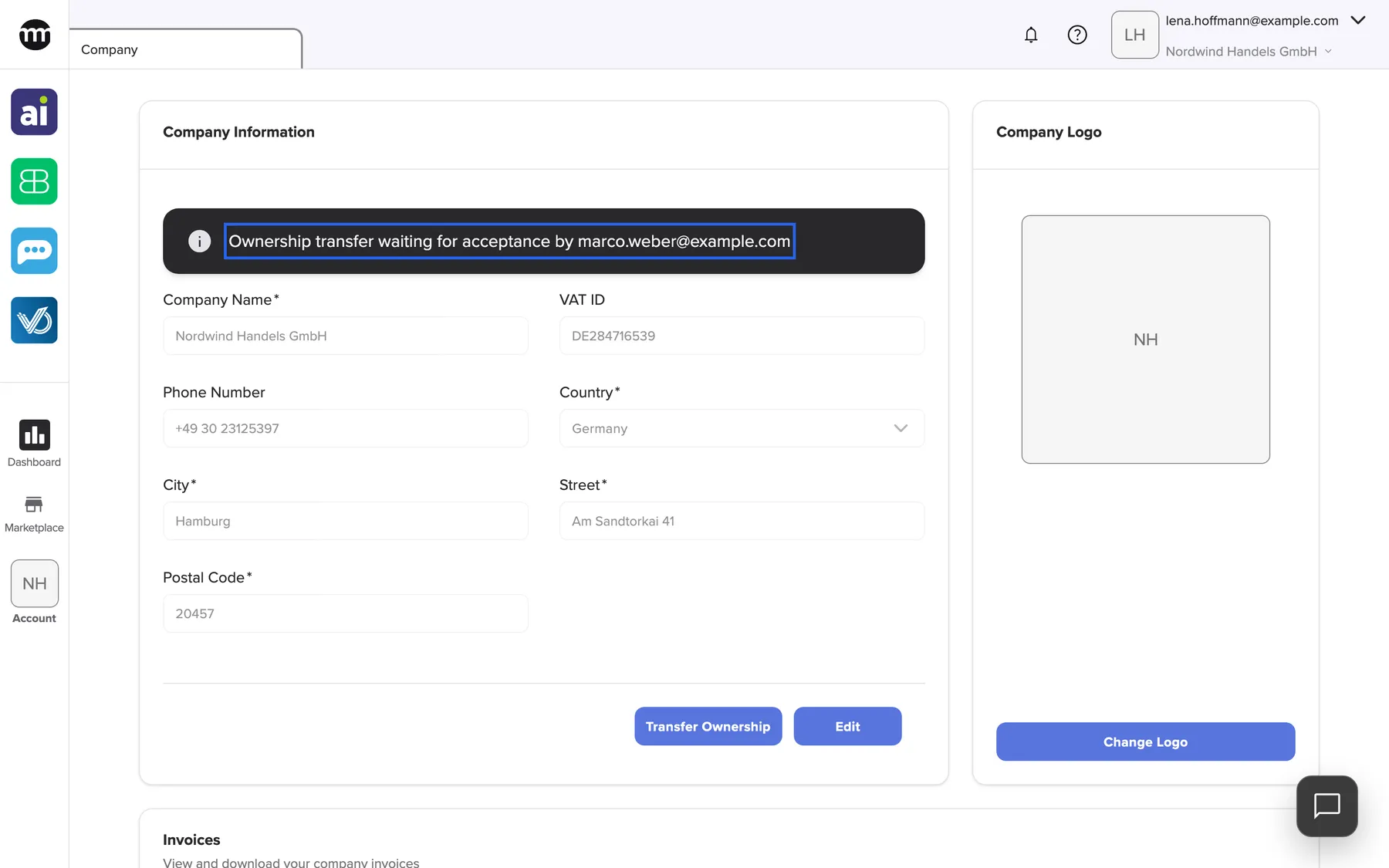
What this screenshot shows
- Screen
- Company
- Highlighted
- “Ownership transfer waiting for acceptance by marco.weber@example.com”: shows the running transfer
- Also visible
- Banner with marco.weber@example.com; Company Information fields; Transfer Ownership and Edit buttons
- Purpose
- an ownership transfer in progress
Transferring company ownership covers the full flow and its rules.
Every control, explained
Section titled “Every control, explained”
Every control, explained
Section titled “Every control, explained”The controls that need a word of explanation come first. The obvious ones are collapsed at the end.
Transfer Ownership
Section titled “Transfer Ownership”The footer of Company Information, next to Edit. Only the owner sees it.
Opens the transfer dialog. If a transfer you started is still running, a new one offers to replace it. A transfer that comrce support started at your request cannot be replaced.
A company must always have an owner, so ownership is handed over, not dropped.
Change logo and Delete Logo
Section titled “Change logo and Delete Logo”Company Logo, below the logo. Shown only with Editing company profile. Delete Logo asks Delete logo?, and Delete removes the logo.
Uploads a new logo through the crop dialog, or removes the current one. A refused image shows its reason in red inside the dialog. Any other failure shows Logo upload failed. or Could not delete logo..
Members with several companies recognise yours at a glance by its logo.
Company fields
Section titled “Company fields”| Field | Required | What it holds |
|---|---|---|
| Company Name | yes | The company name shown across comrce Hub and in invitations |
| VAT ID | no | Your VAT identification number, for example DE284716539 |
| Phone Number | no | The company’s phone number |
| Country | yes | Chosen from the list |
| City, Street, Postal Code | yes | The company’s address |
No field has a length limit, and none may contain HTML.
Other controls on this page
| Control | What it does | Why |
|---|---|---|
| Edit | Unlocks the form. Shown only with Editing company profile. | The read-only default prevents accidental edits |
| Save | Stores all fields together and locks the form | Keep your changes |
| Cancel | Discards the changes | Start again from the saved details |
Who sees what
Section titled “Who sees what”
Who sees what
Section titled “Who sees what”| Part | Who sees it |
|---|---|
| The tab | The owner and members with Viewing company profile (in the Member and Partner presets) |
| Edit, Change logo, Delete Logo | The owner and members with Editing company profile (in the Partner preset) |
| Transfer Ownership and the transfer banner | Only the owner |
| Invoices card | The owner and members with Viewing invoices |
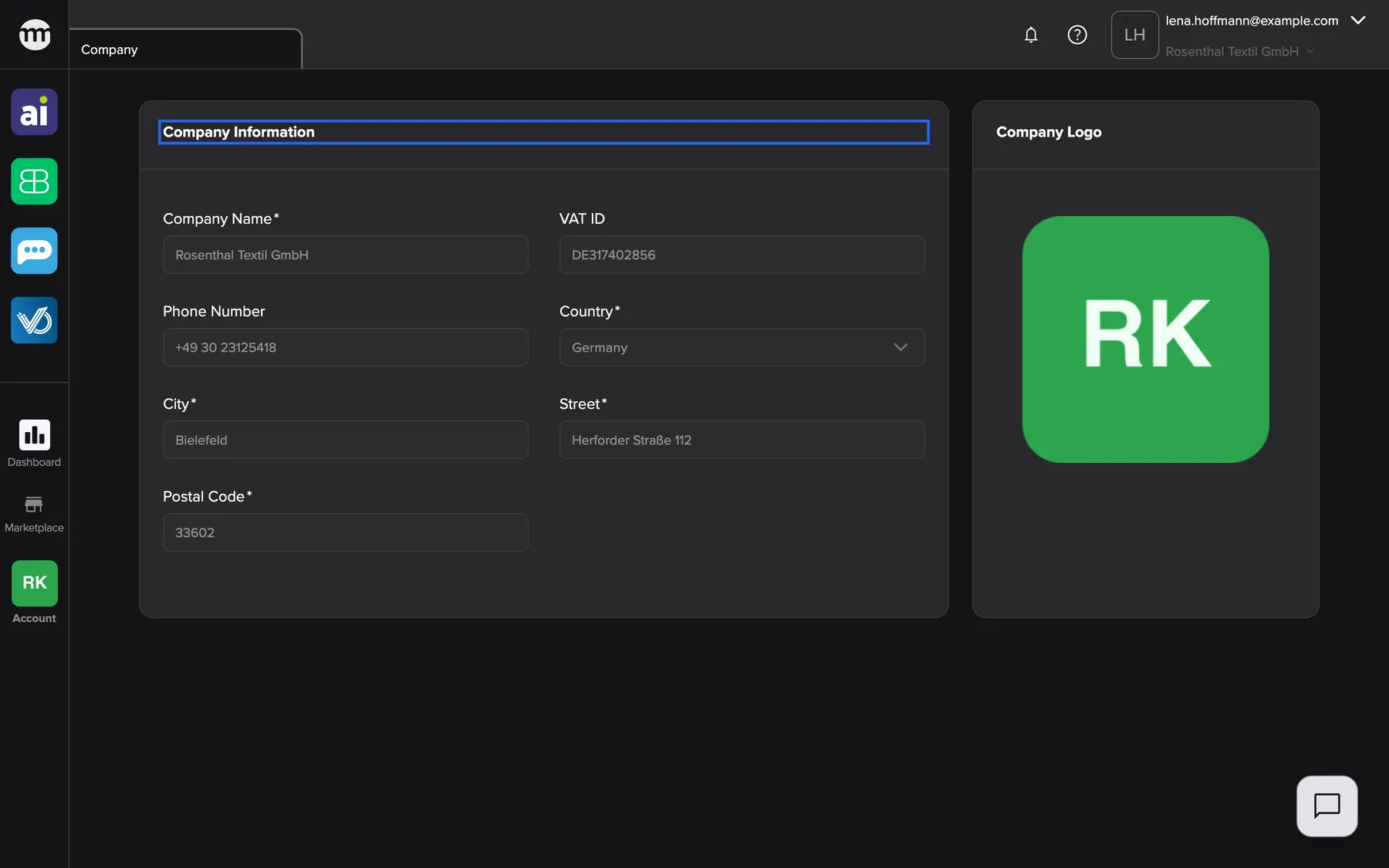
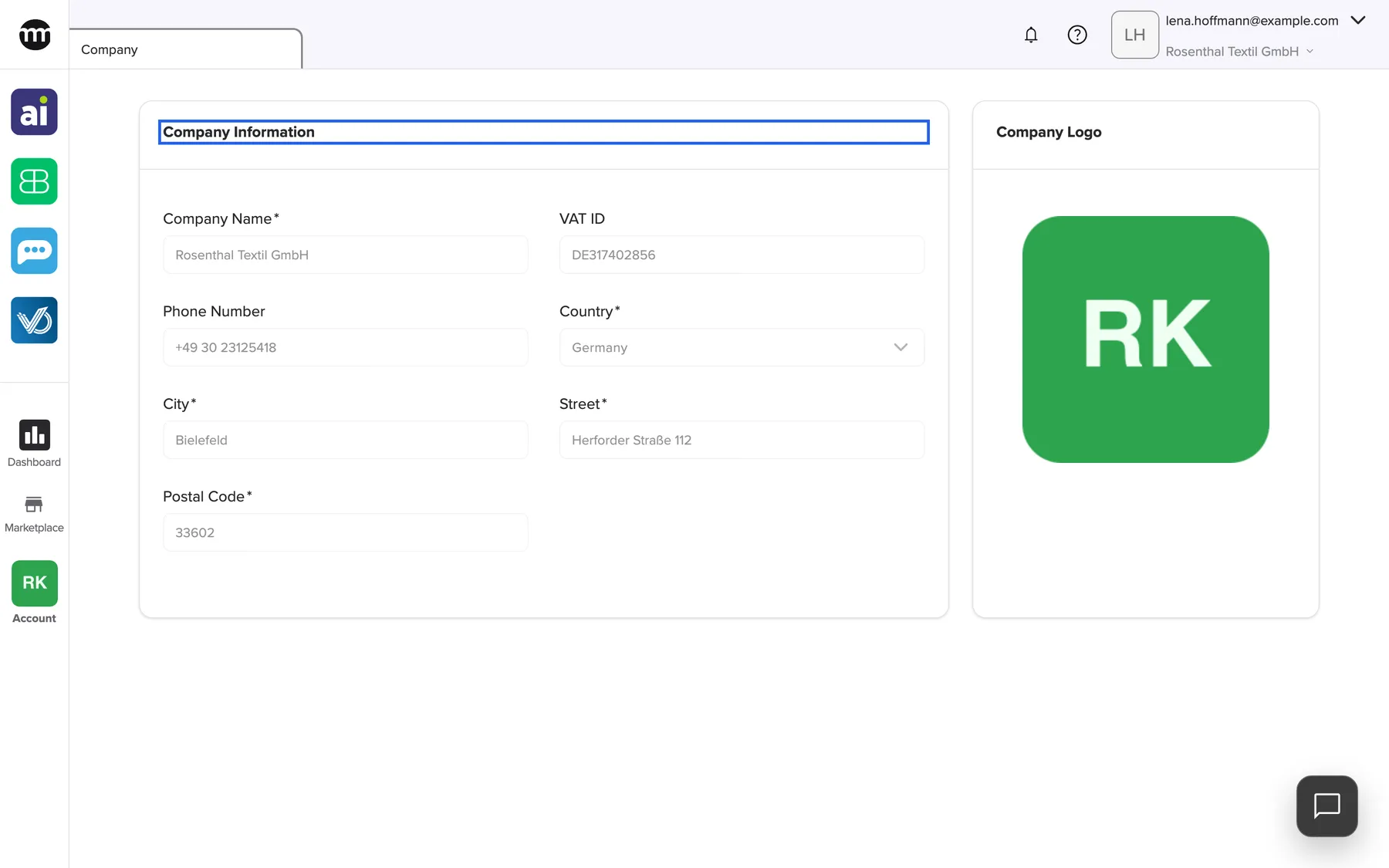
What this screenshot shows
- Screen
- Company
- Highlighted
- “Company Information”: read-only company details
- Also visible
- No Edit or Transfer Ownership; No Change logo; No Invoices card
- Purpose
- the Company tab for a member
What you need to know
Section titled “What you need to know”
What you need to know
Section titled “What you need to know”| Topic | Fact |
|---|---|
| Company-wide | The details and the logo apply to everyone in the company |
| Default tab | With Viewing company profile this tab opens after sign-in. Without it, Settings does. |
| Refresh | The tab reloads its data by itself about once a minute |
| Logo format | Stored in the format you uploaded, cropped to a square |
| Audit | Saving the details, uploading or deleting the logo are recorded in Logs |
Frequently asked questions
Section titled “Frequently asked questions”
Frequently asked questions
Section titled “Frequently asked questions”Company details
Section titled “Company details”Why can’t I edit the company details?
Section titled “Why can’t I edit the company details?”Editing needs the permission Editing company profile. The Partner preset includes it, the Member preset does not. Without it the Company tab is read-only. Ask your company owner to switch it on for you.
Which fields are required?
Section titled “Which fields are required?”The company name, country, city, street and postal code are required on the Company tab. The VAT ID and the phone number may stay empty. A required field left empty shows its message and blocks saving.
Who can see the company details?
Section titled “Who can see the company details?”Everyone with Viewing company profile sees the Company tab, which includes the Member and Partner presets. Only the owner and members with Editing company profile can change the details or the logo.
Which image formats can I use for the logo?
Section titled “Which image formats can I use for the logo?”Upload a PNG or JPEG of at most 8 MB, from a file or from an http or https address. WebP, GIF, SVG and animated images are refused. comrce Hub crops the image to a square and keeps its format.
Why does the logo dialog say the file extension, content type, and image format must match?
Section titled “Why does the logo dialog say the file extension, content type, and image format must match?”The file name ending and the image inside must belong together. A .png file must contain a PNG image, a .jpg or .jpeg file a JPEG image. The message appears when a file was renamed, for example a JPEG saved as logo.png. Export the image again as PNG or JPEG and upload the new file on the Company tab.
Does comrce Hub keep the location or camera data of my photo?
Section titled “Does comrce Hub keep the location or camera data of my photo?”No. comrce Hub removes hidden photo data, such as camera details or the location, before storing a logo. It also turns a sideways photo upright. Only the cropped square is stored.
Why does my logo look cut off?
Section titled “Why does my logo look cut off?”The logo is always square. In the crop dialog, zoom out and move the image until the whole logo sits inside the square. Then select Save. A square version of your logo gives the best result.
Invoices and ownership
Section titled “Invoices and ownership”Where are my invoices?
Section titled “Where are my invoices?”The Invoices card on the Company tab is a placeholder and lists no invoices. Use the invoicing of the tool or provider that bills you.
Why don’t I see the button to transfer ownership?
Section titled “Why don’t I see the button to transfer ownership?”Only the company owner sees Transfer Ownership on the Company tab, whatever other permissions you have. If you should become the owner, ask the current owner to start a transfer to you.
Why does the banner say the transfer waits for acceptance although I have not confirmed it yet?
Section titled “Why does the banner say the transfer waits for acceptance although I have not confirmed it yet?”The banner on the Company tab shows the same text from the moment the transfer is requested. First confirm with the link in the email comrce Hub sent you. Only then does the new owner receive the invitation.
Troubleshooting
Section titled “Troubleshooting”
Troubleshooting
Section titled “Troubleshooting”| Symptom | What to check |
|---|---|
| The tab shows You don’t have access to this page. You can request access from your organization admin. | You lack Viewing company profile. Request it with the button below the message, or ask your company owner. |
| The tab shows Could not load company information. | The details could not be loaded. Check your connection, then close the tab and open it again. |
| Could not update company information. | Check the required fields and that no field contains HTML. Reselect the country if Invalid country code appears. |
| Only PNG and JPEG images are supported | The image is not a PNG or JPEG, for example a WebP, GIF or SVG. Save the logo as PNG or JPEG. |
| The file extension, content type, and image format must match | The file name ending does not match the image, for example a JPEG renamed to logo.png. Export it again with the matching ending. |
| The image must be 8 MB or smaller | The file is larger than 8 MB. Use a smaller file. |
| The image dimensions are too large | Its width or height is too big. Scale it down before uploading. |
| Animated images are not supported | The image is animated. Use a still image with a single frame. |
| The selected image could not be loaded | The file is damaged or not an image. Export it again. |
| Select a PNG or JPEG image | The upload arrived without an image. Choose the file again. |
| Enter a valid image URL | The address is not a plain public http or https image address. Download the image and upload the file instead. |
| The image could not be loaded from this URL | The address did not deliver the image, or too many addresses were loaded in a short time. Wait a minute, or upload the file instead. |
| Logo upload failed. | The image passed the checks but the upload failed. Check your connection and try again. |
| The Transfer Ownership dialog lists nobody | Only active members who own no company can be chosen. Invite or activate the person first. |