

See what your tools need from you without opening each one
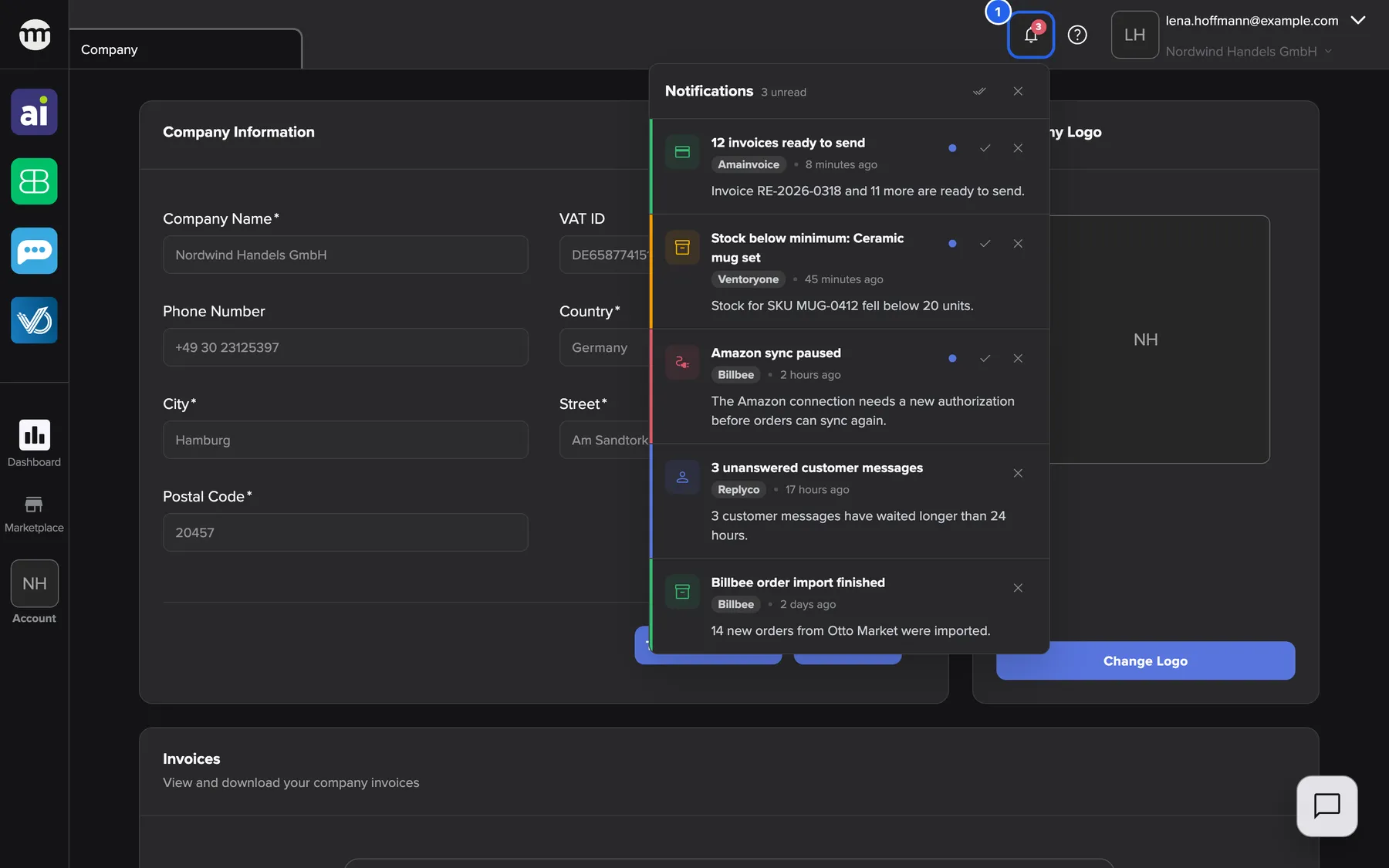
Invoices waiting to be sent, stock running low, a marketplace connection that stopped syncing. Each tool knew, but you only found out when you opened it. Now Amainvoice, Billbee, Replyco and VentoryOne send their notifications to comrce Hub. They all wait for you under the bell in the top bar.
What’s new
Section titled “What’s new”- Live, in every tab. While comrce Hub is open, a new notification appears at the top right, whatever tab you are in. You react while the problem is still small.
- One list for all four tools. The bell collects the 50 newest notifications, each with its tool, its age and its text. You see in one place what needs you today.
- Importance at a glance. A colored stripe marks each entry. Red is an error that needs you, amber a warning. Green means finished, blue is information. Start with red.
- An unread count that stays honest. The red number on the bell counts what you have not read yet. Mark one entry as read, or all at once with Mark all as read. Remove what you no longer need.
- Straight to the right place. Some notifications carry Open. It opens the tool in its comrce Hub tab or a new browser tab. The tool then shows the item concerned, such as the waiting customer messages.
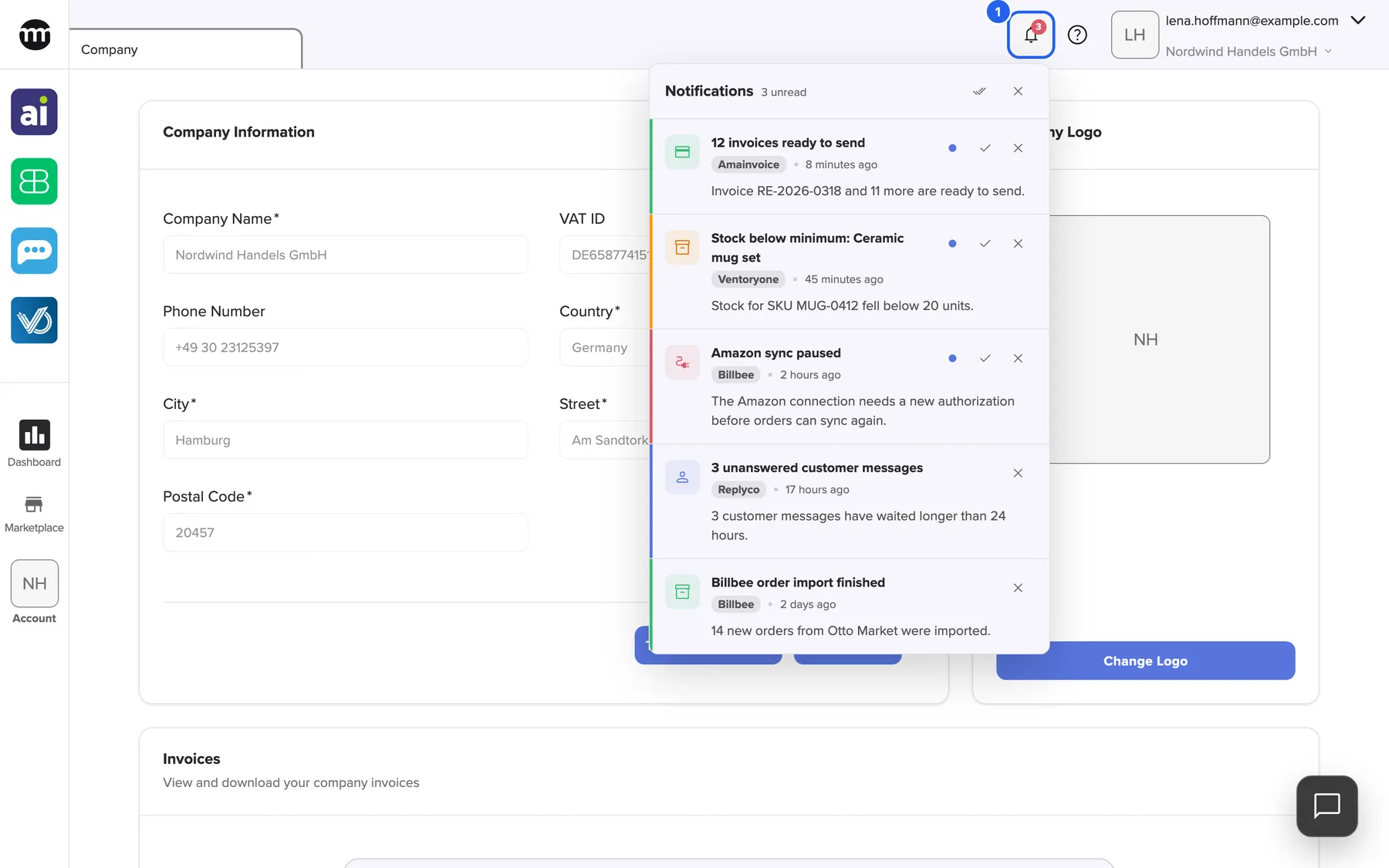
What this screenshot shows
- Highlighted
- “Notifications”: opens the notifications tray with the 50 newest notifications
- Also visible
- Red badge 3 on the bell; Tray header: Notifications, 3 unread, Mark all as read; 5 entries from Amainvoice, VentoryOne, Billbee and Replyco with severity stripes green, amber, red, blue
- Purpose
- hero of the tool notifications release note
Why it matters
Section titled “Why it matters”A paused Amazon sync in Billbee means orders stop arriving until someone renews the authorization. With the notification in comrce Hub, the person who can fix it sees the red entry within the working day. Not after the first missed shipment. The same bell also tells them that 12 invoices are ready to send in Amainvoice.
Get started in three steps
Section titled “Get started in three steps”-
Work in comrce Hub as usual. When a tool sends you a notification, it appears briefly at the top right.
-
Select the bell Notifications in the top bar to open the tray with your notifications.
-
Handle the red and amber entries first, then select Mark all as read to clear the count. The workspace guide explains every part of the tray.
Availability
Section titled “Availability”- Who: everyone signed in to a company in comrce Hub, in every role. The bell shows the notifications for the company you are working in.
- Which tools: Amainvoice, Billbee, Replyco and VentoryOne, once the tool is connected to your comrce Hub account and sends notifications. The texts are written by the tool that sends them.
- Read status: saved with your account, so an entry you marked as read stays read.
- Languages: the bell and its buttons in English and German. Each notification appears in the language its tool writes it in.
Learn more
Section titled “Learn more”- See what needs your attention: the tray, the stripes and the unread count
- Tool access and notifications: how a notification opens its tool
- Tool access and single sign-on: which tools you may see and open
Best, your comrce team